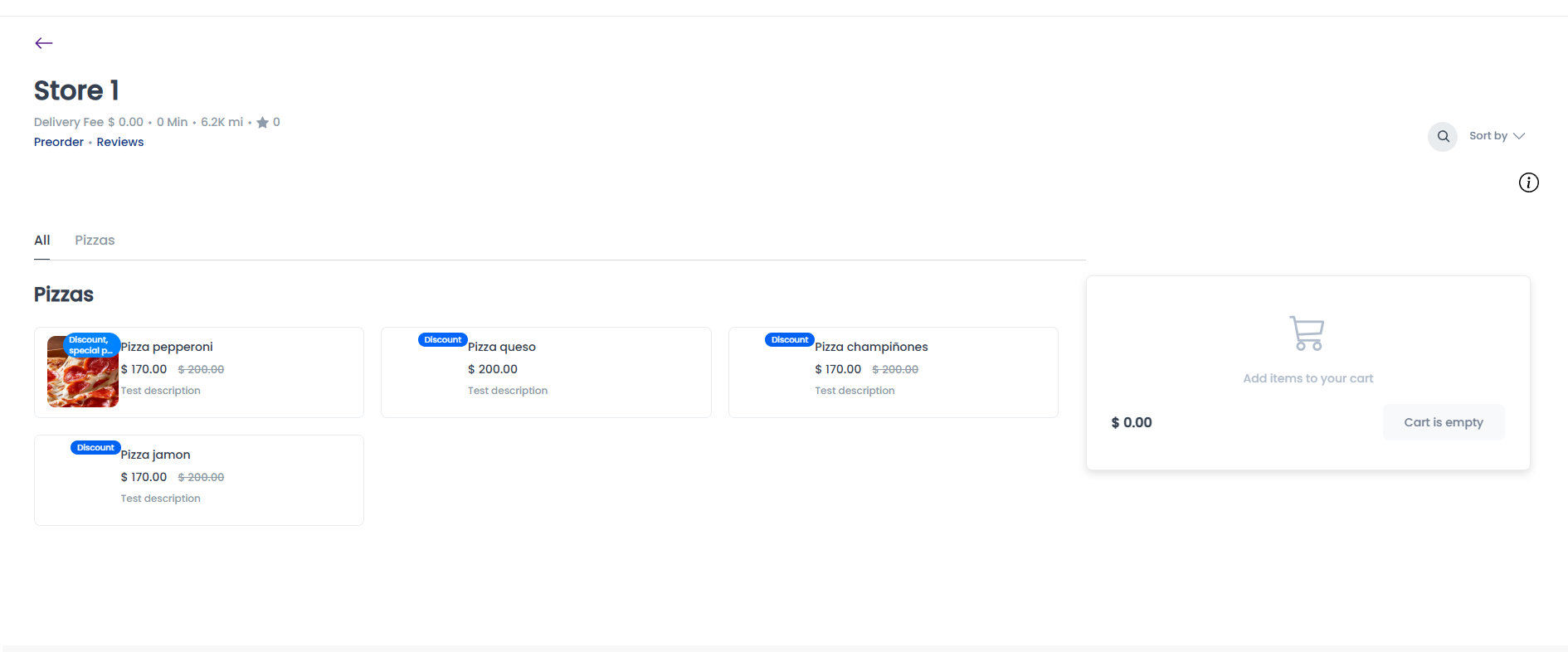
Set a product sale price
Manual product discounts
Manual product discounts use the product's Price, Regular price, and optional Ribbon fields. Review the selected store and product before changing a live catalog value.
Saving changes affects a product
Price, regular-price, inventory, and ribbon changes are catalog writes. Use an approved product-maintenance workflow, and do not treat this guide as evidence that a discount is visible or eligible at checkout.
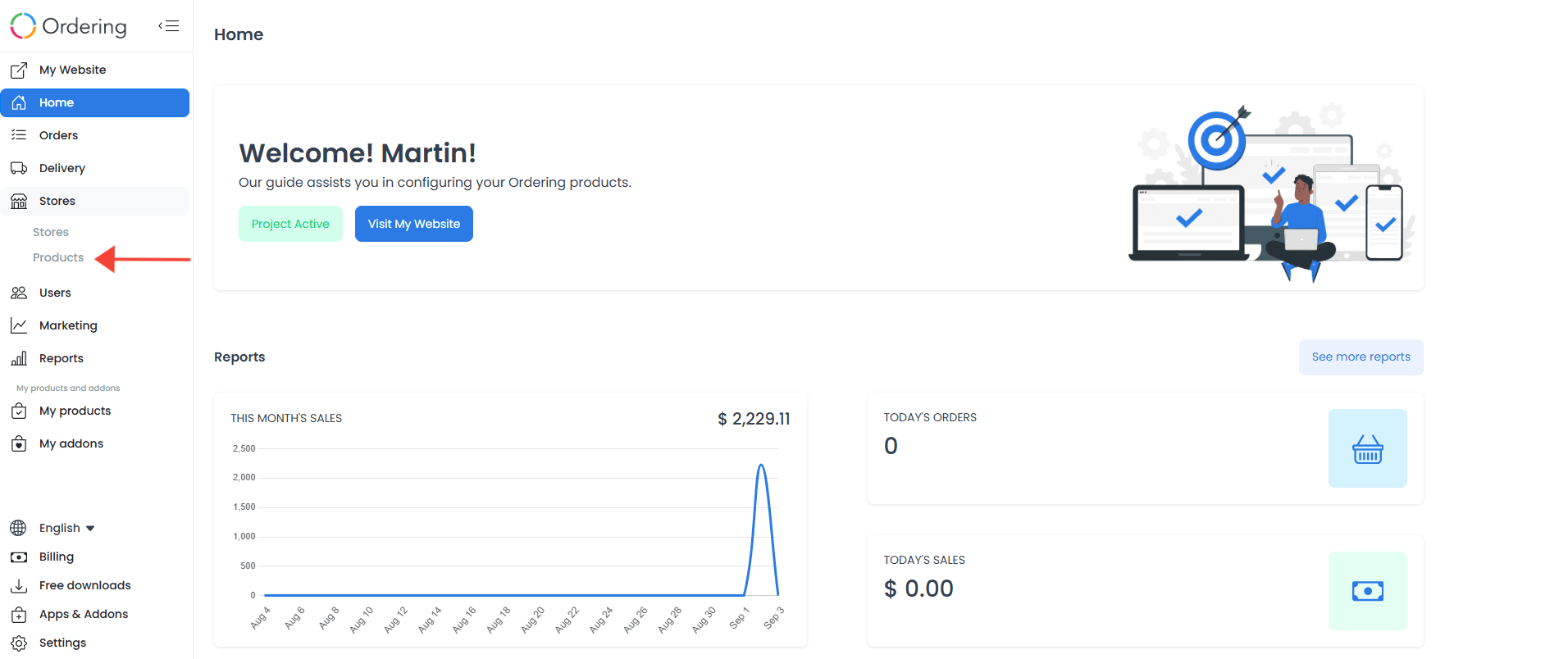
- In the Dashboard, open Stores, then select Products.
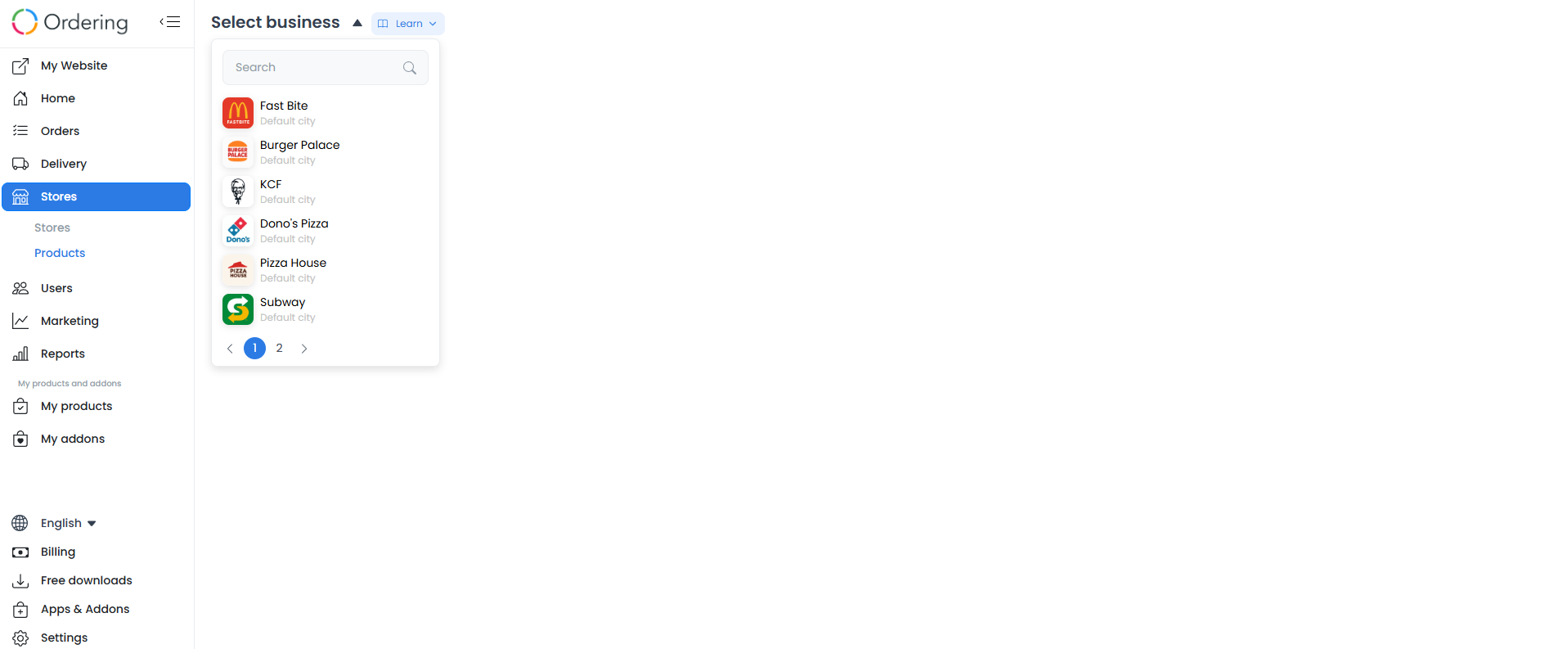
- Select the store, then find the product to update.
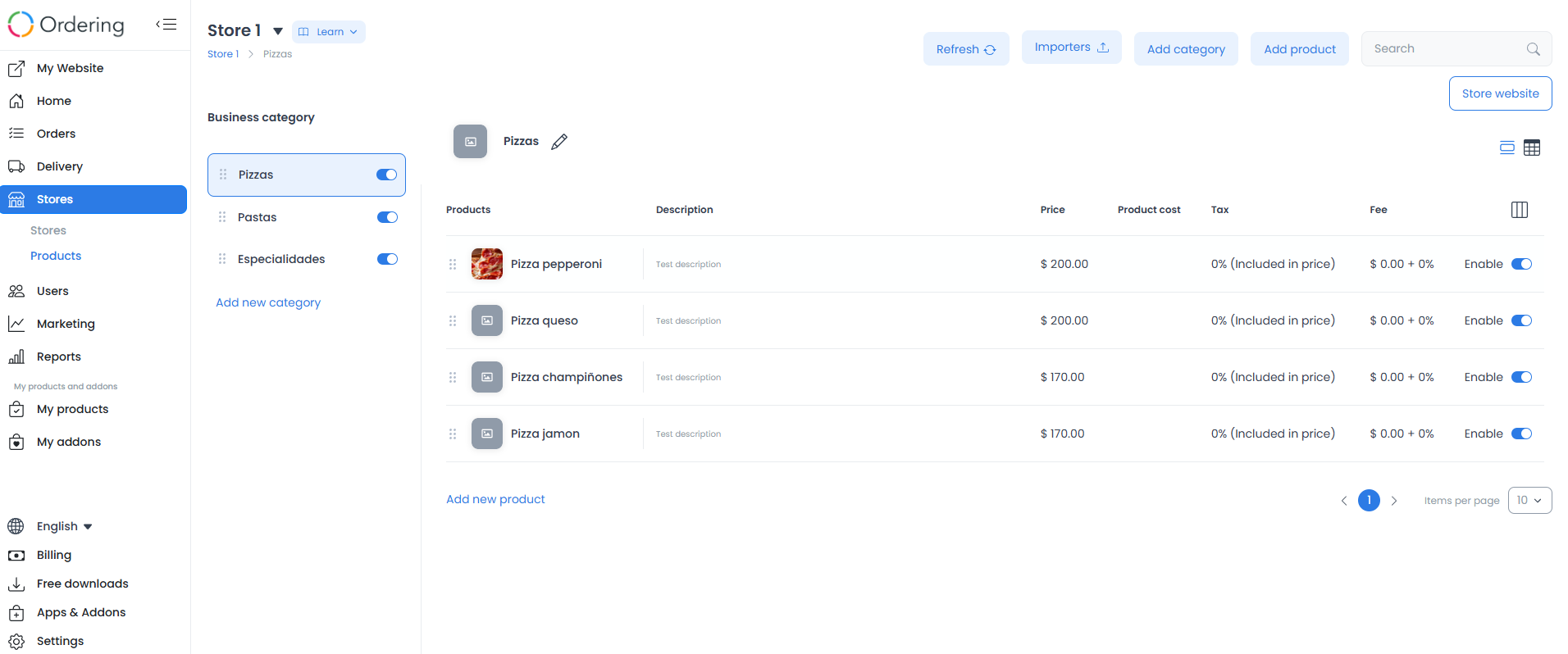
- Open the product, then select Product details.
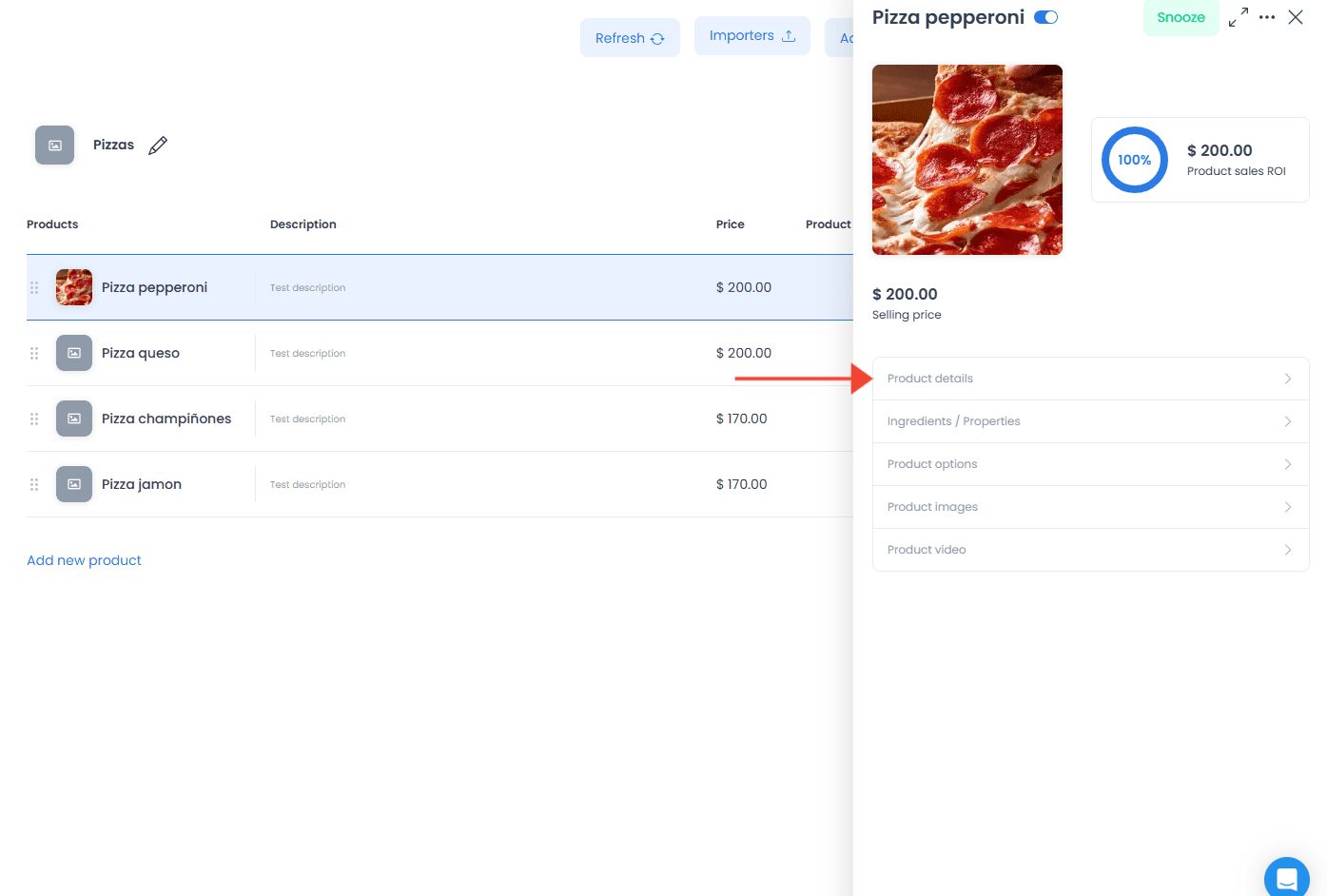
- Open the product information fields shown in the image.
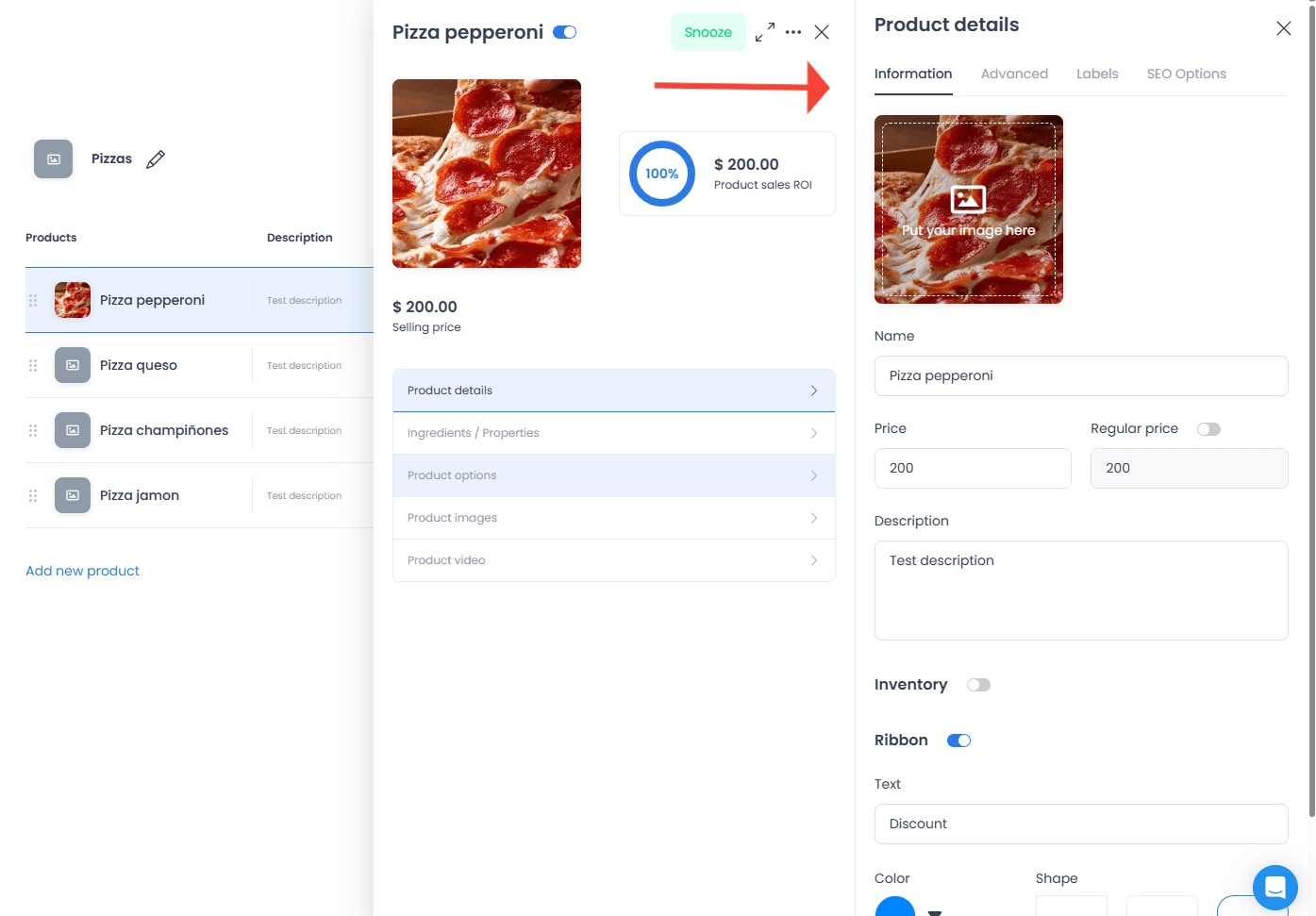
- Locate Price and Regular price. Set Price to the intended selling amount and Regular price to a higher reference amount when your approved workflow calls for one. The source displays Inventory alongside these fields; it does not establish that inventory scopes a price or promotion.

- If appropriate, enable Ribbon and set the text and color shown with the product image.

- Save the approved change, then verify the intended storefront or app through the appropriate non-production or approved validation workflow.