Add a product video
Use Product video to enter a YouTube link in a product's video panel. Confirm that the video is appropriate for the product and that you have permission to use it.
Add a video link
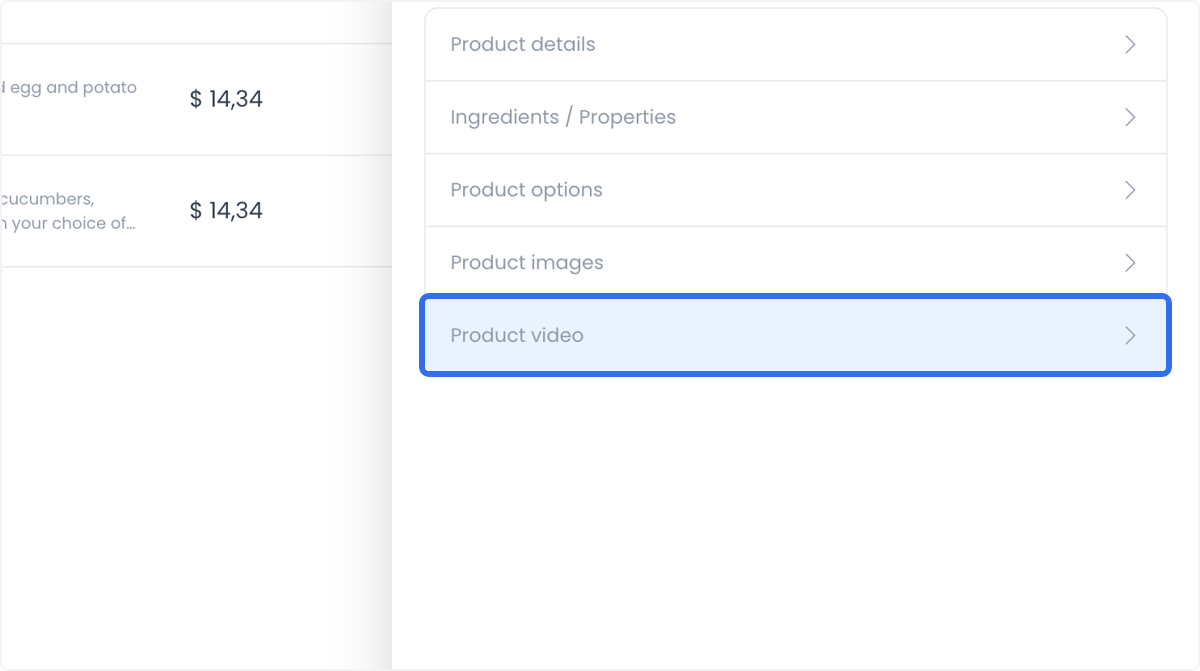
- Open the product panel and select Product video.
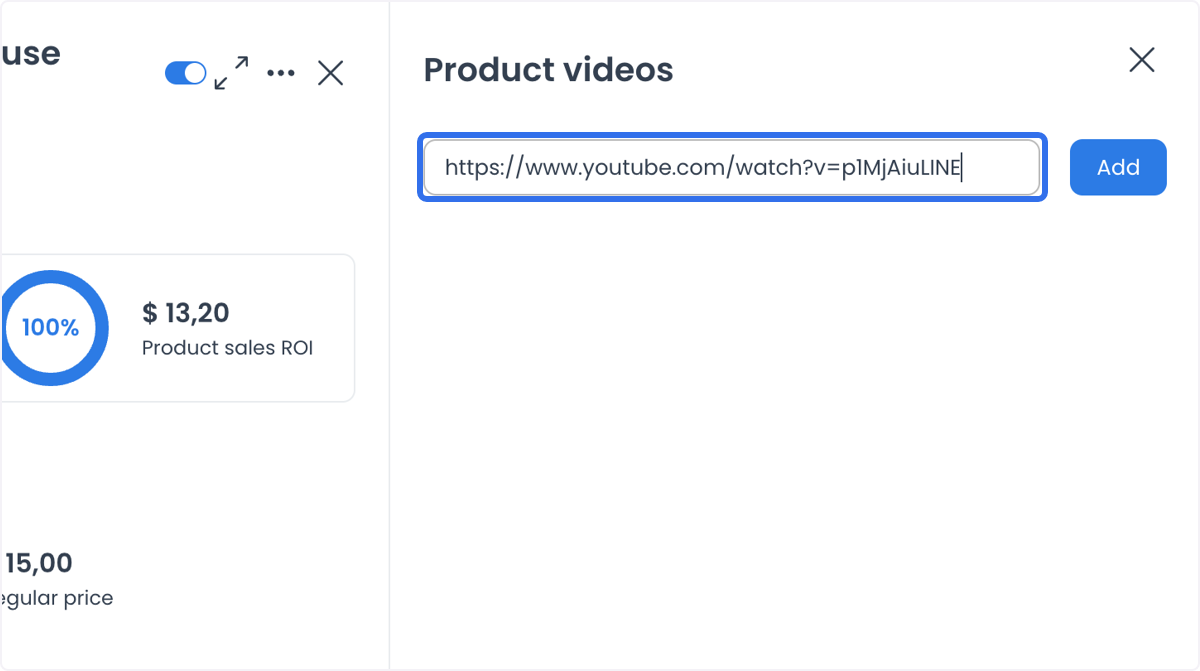
- Paste the YouTube video URL in the field.
- Select Add only in an approved product-maintenance workflow.
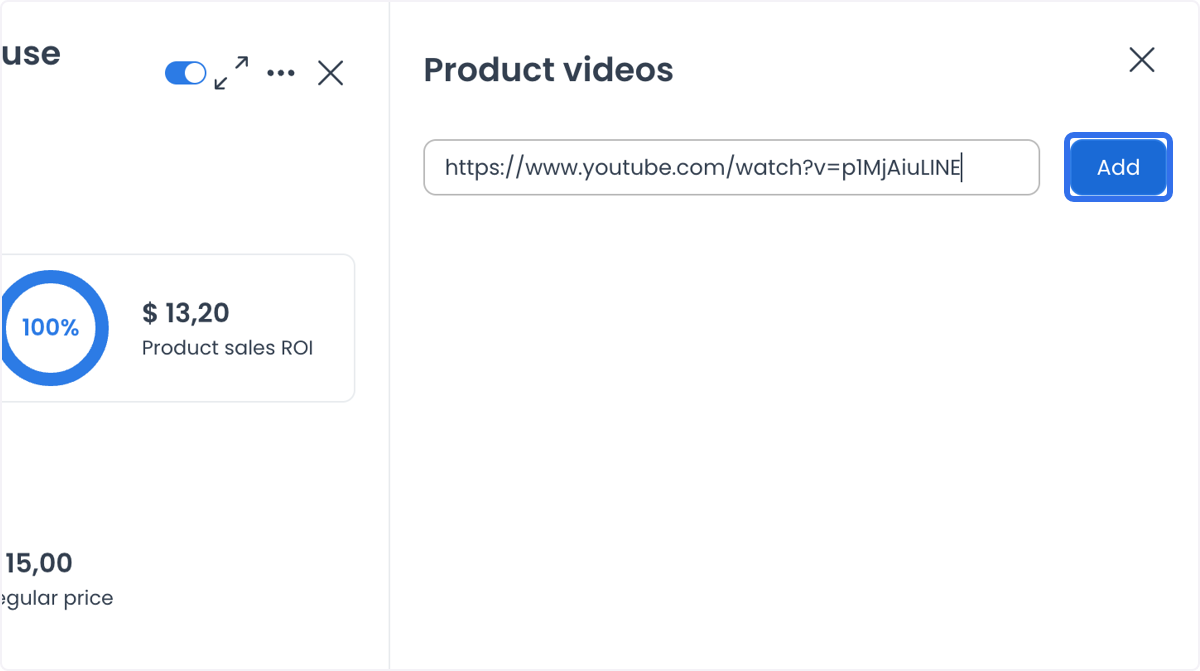
The observable editor state is the URL and any panel state shown after you add it. Adding or saving can cross a catalog-write boundary; it does not by itself prove persistence, an embedded video, search visibility, or availability in every storefront or app.
Choose a useful video
You can use a product demonstration, tutorial, behind-the-scenes clip, or a customer testimonial that you are authorized to publish. These are content examples, not guarantees of engagement, trust, search performance, conversion, or revenue. Verify the approved published result in the intended channel.