Translate a product
Use the language selector and product editor to maintain a product name or description in a configured language.
To change a selected product, you need edit access. The inspected route permits administrator and business-owner levels, and Stores navigation is hidden in read-only modes. Project configuration, product type, and product state can limit visible controls. A translated value shown in the Dashboard is an observable editor state, not proof of server persistence, automatic language selection, or customer-facing behavior.
Add a product translation
- Open the product you want to edit. The first screenshot shows an English editor example; it does not establish every project's default language.
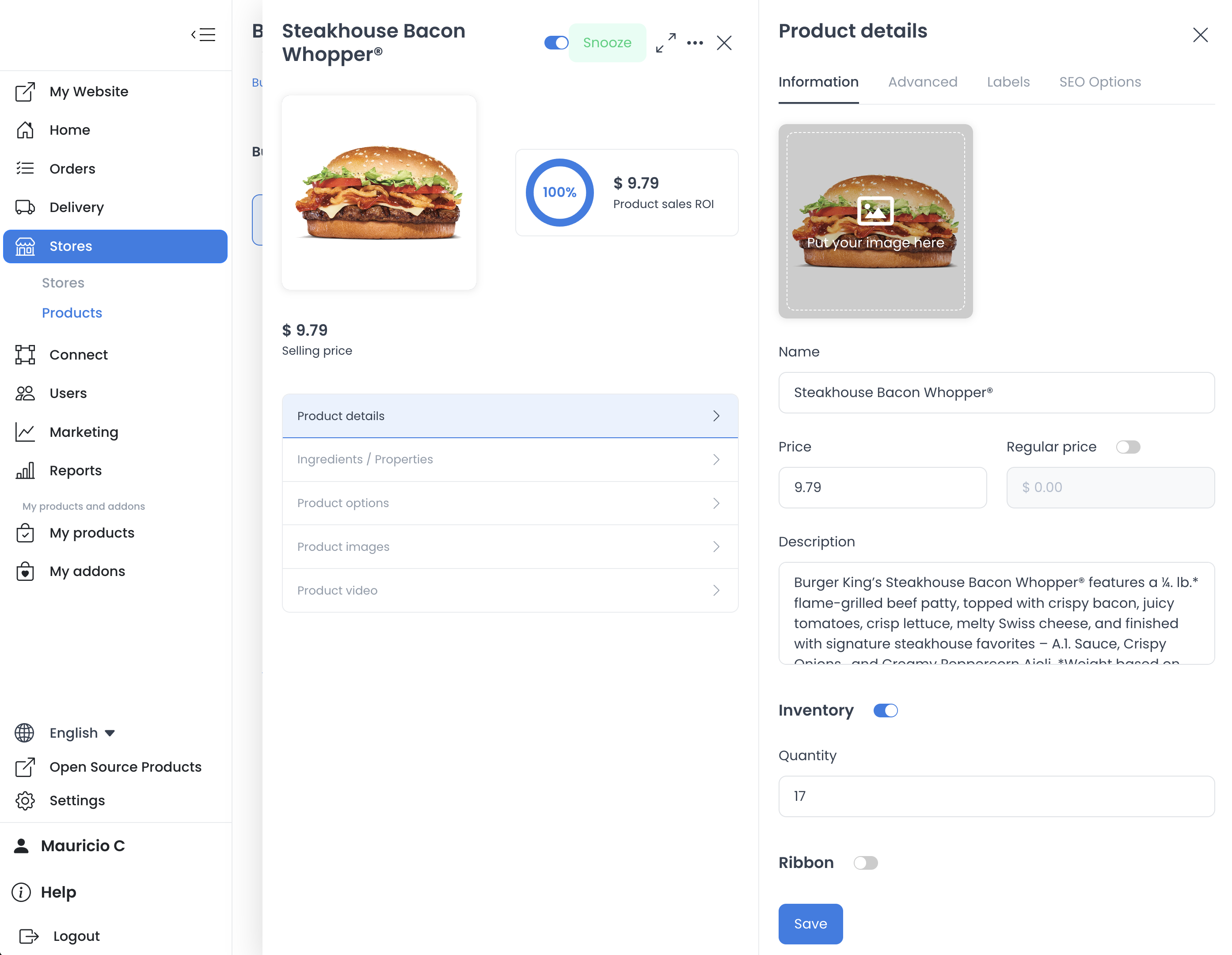
If you do not see language options, multilingual support may not be enabled for the project. Ask a project administrator to confirm the configuration before changing product content.
- Use the language selector to choose the language you want to edit.
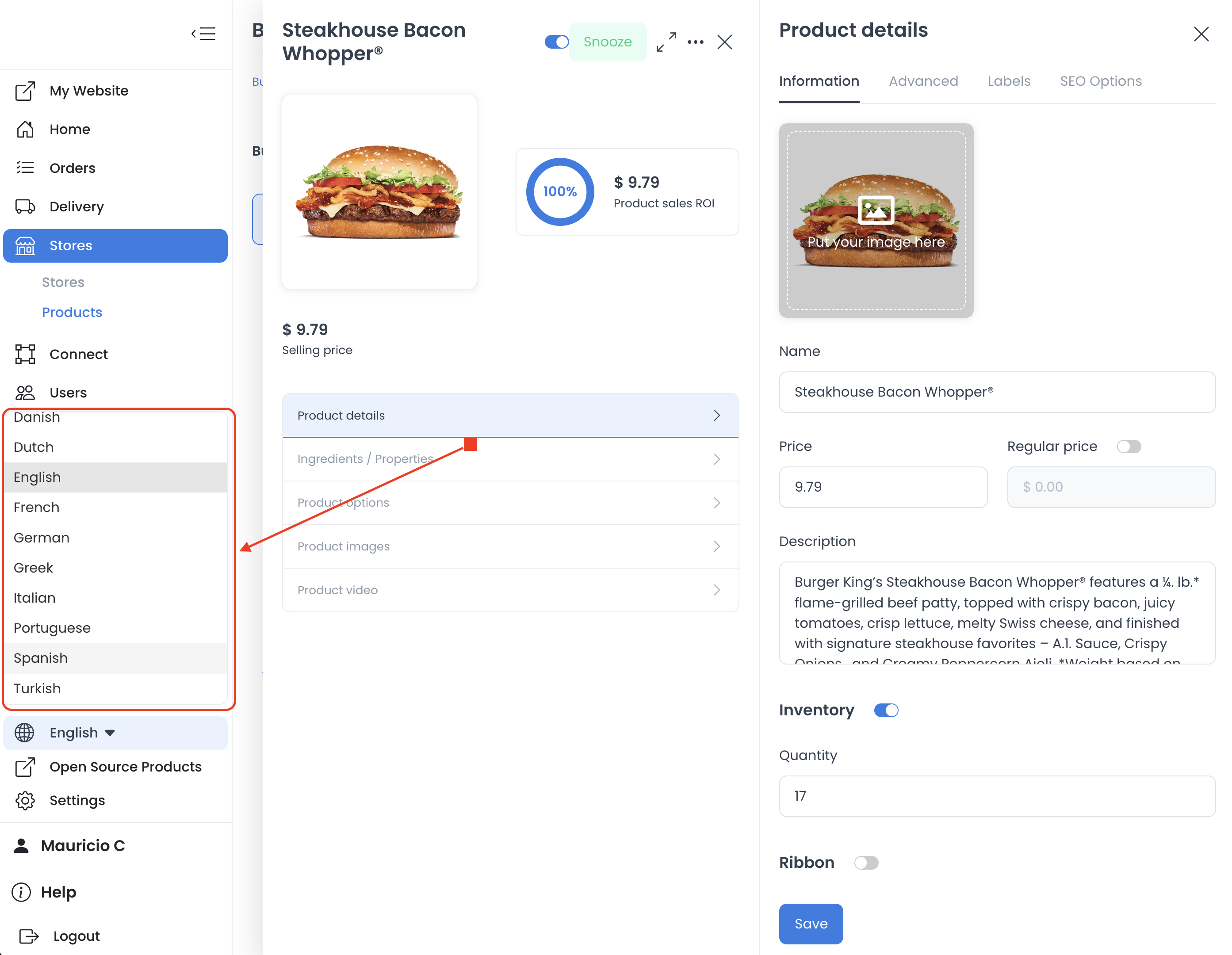
- Enter the translated product name and, if needed, description.
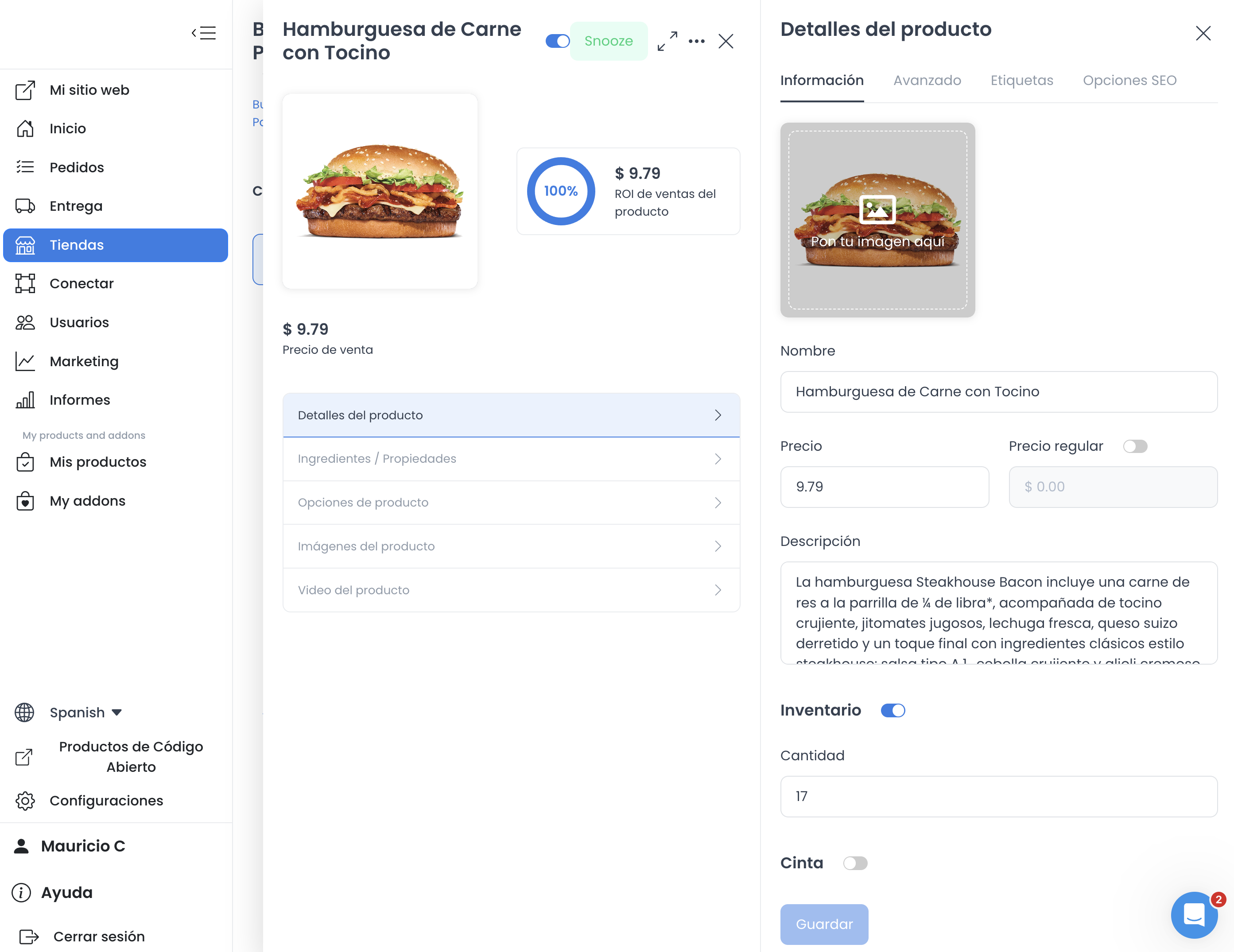
- Select Save only in an approved product-maintenance workflow.
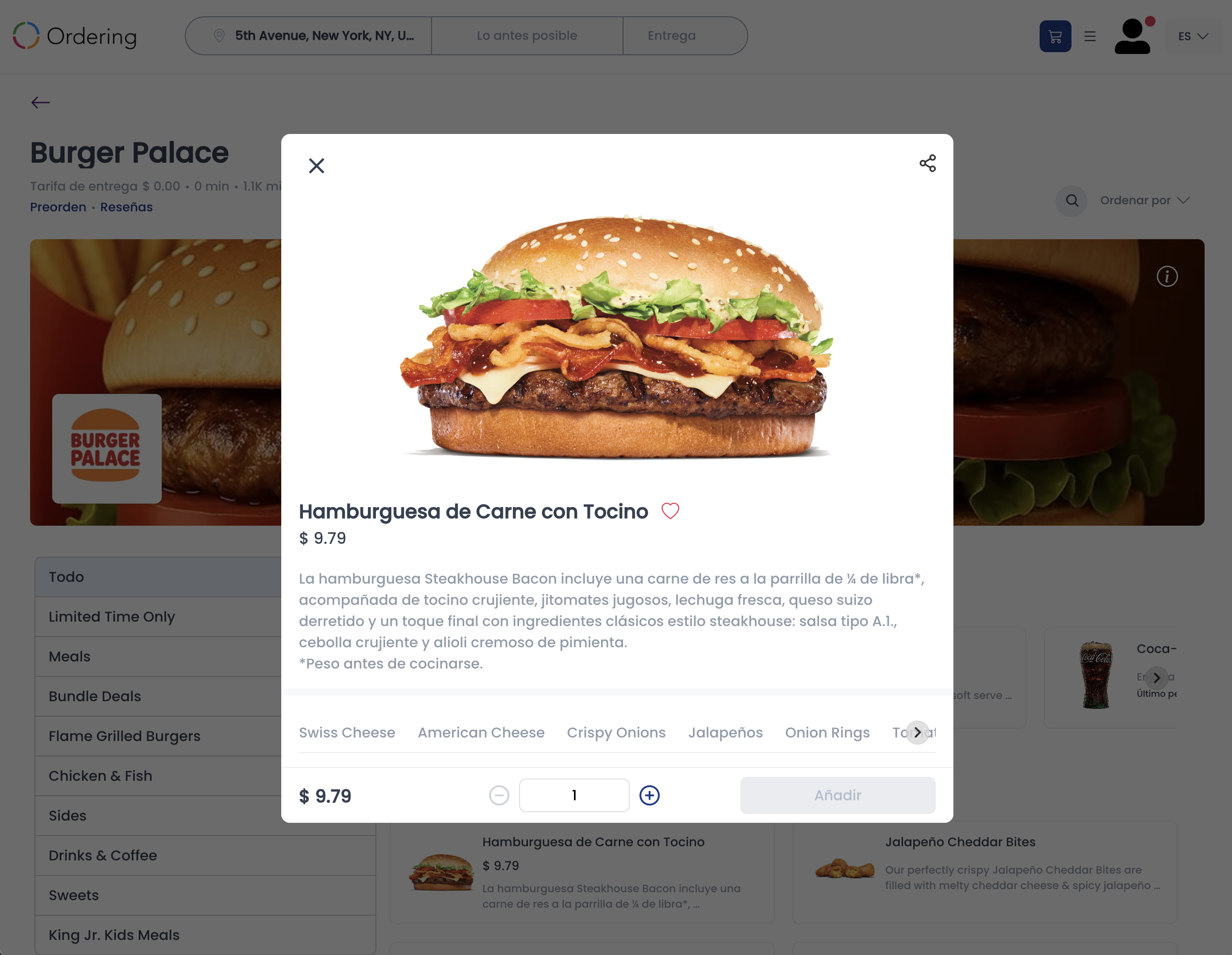
The observable result is the edited value in the selected language in the Dashboard. Save crosses a catalog-write boundary. The screenshots show English and Spanish examples, but they do not establish persistence, an automatic language choice, or that a particular version is displayed in every customer-facing or administrative channel.