Configure product options
Use Product options to configure choices and modifiers for a product. This is the appropriate editor surface for customer-selectable choices; Ingredients / Properties is limited to descriptive product information.
To change a selected product, you need edit access. The inspected route permits administrator and business-owner levels, and Stores navigation is hidden in read-only modes. Project configuration, product type, and product state can limit visible controls. An option shown in the Dashboard is an observable editor state, not proof of server persistence or behavior in a customer-facing channel.
Review the options editor
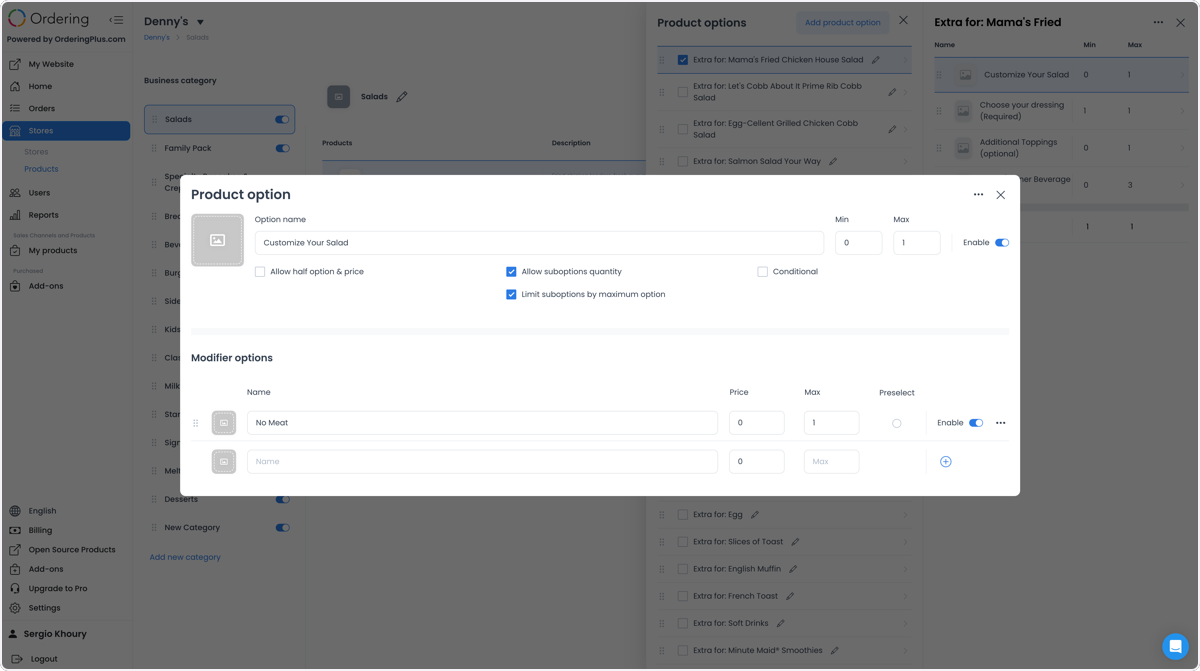
The editor shows product options, modifier options, minimum and maximum values, enable controls, suboption settings, and conditionals. These controls describe an editable configuration; they do not by themselves establish which choices appear in a website or app, how they are enforced, or any conversion, revenue, or ordering outcome.
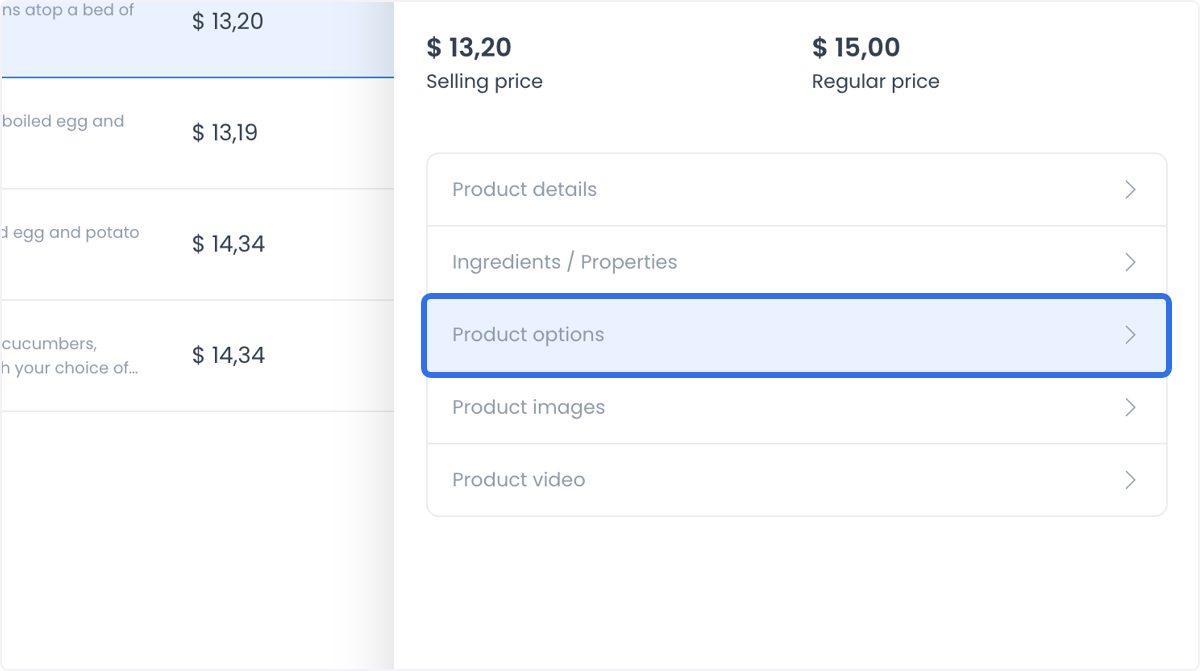
- In Stores, open Products, select the product, then select Product options.
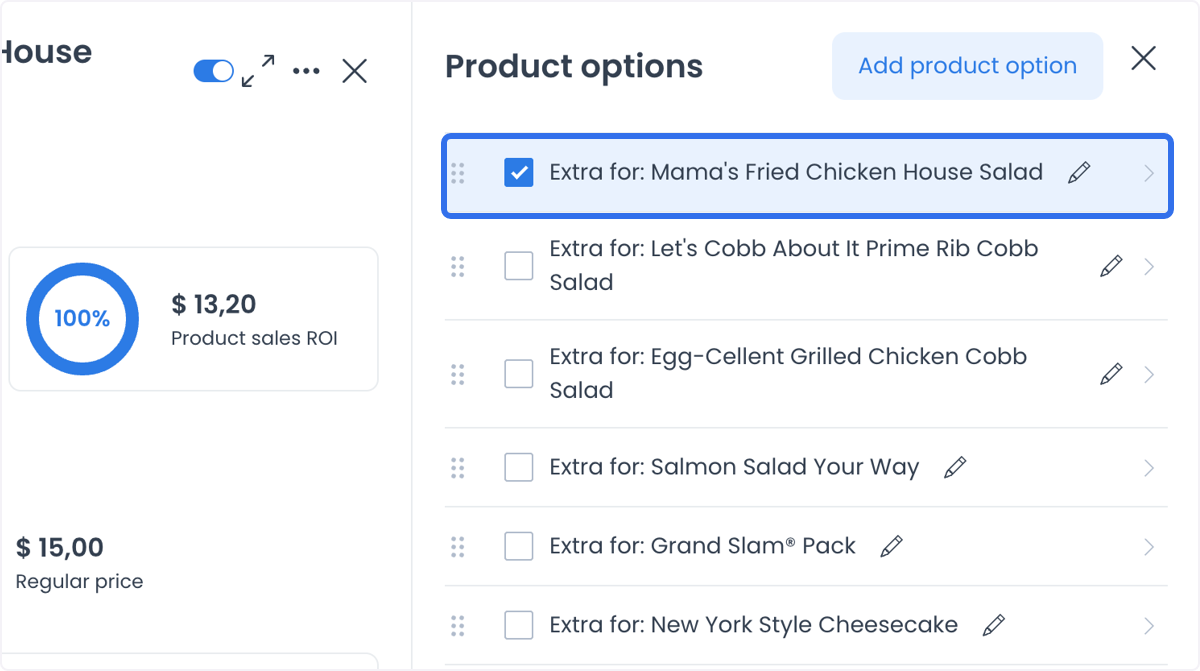
- Select Add product option or open an existing option.
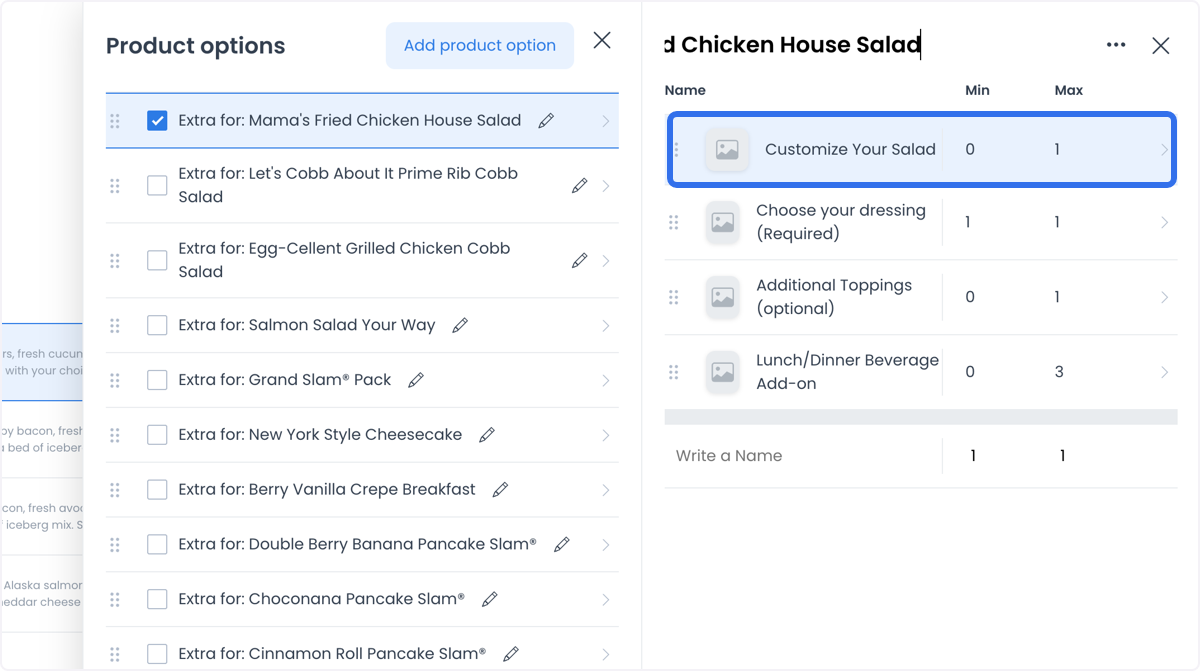
- Enter the option details and its modifier options, including the values shown for minimum and maximum selections.
Configure conditionals
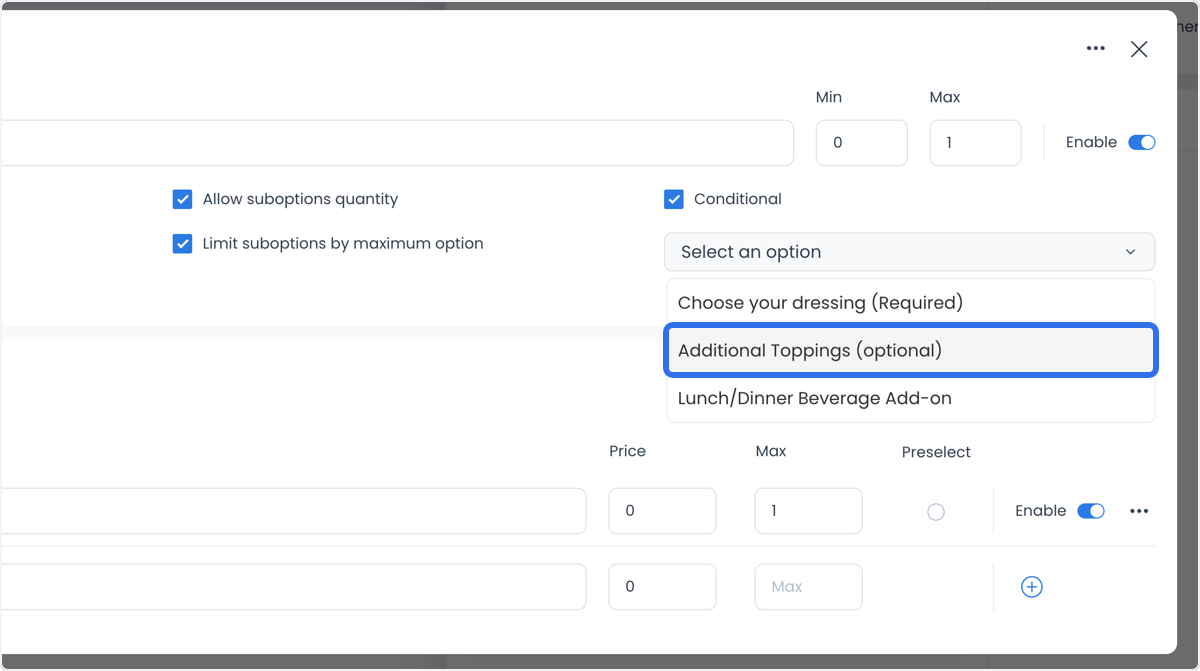
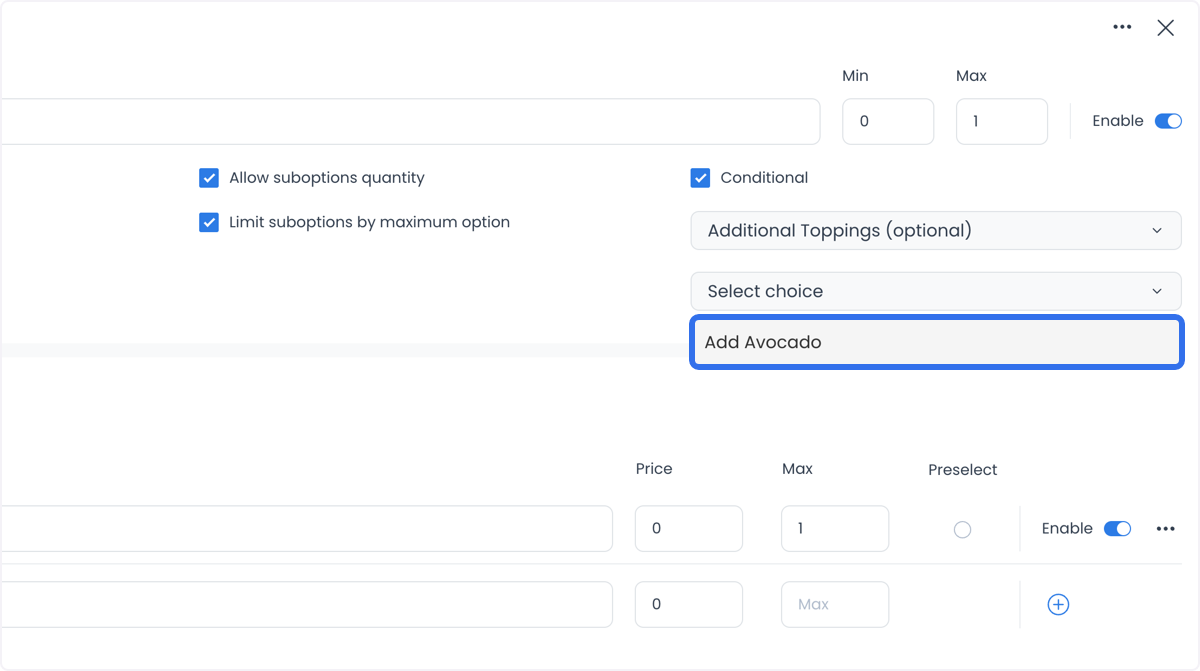
The original procedure calls for at least two product options before configuring a conditional. In the editor, enable Conditional, then select the related option and choice. The screenshots document these selection controls; they do not verify a customer-facing dependency at runtime.
Configure half and suboption settings
The option editor includes Allow half option & price, Allow suboptions quantity, and Limit suboptions by maximum option.
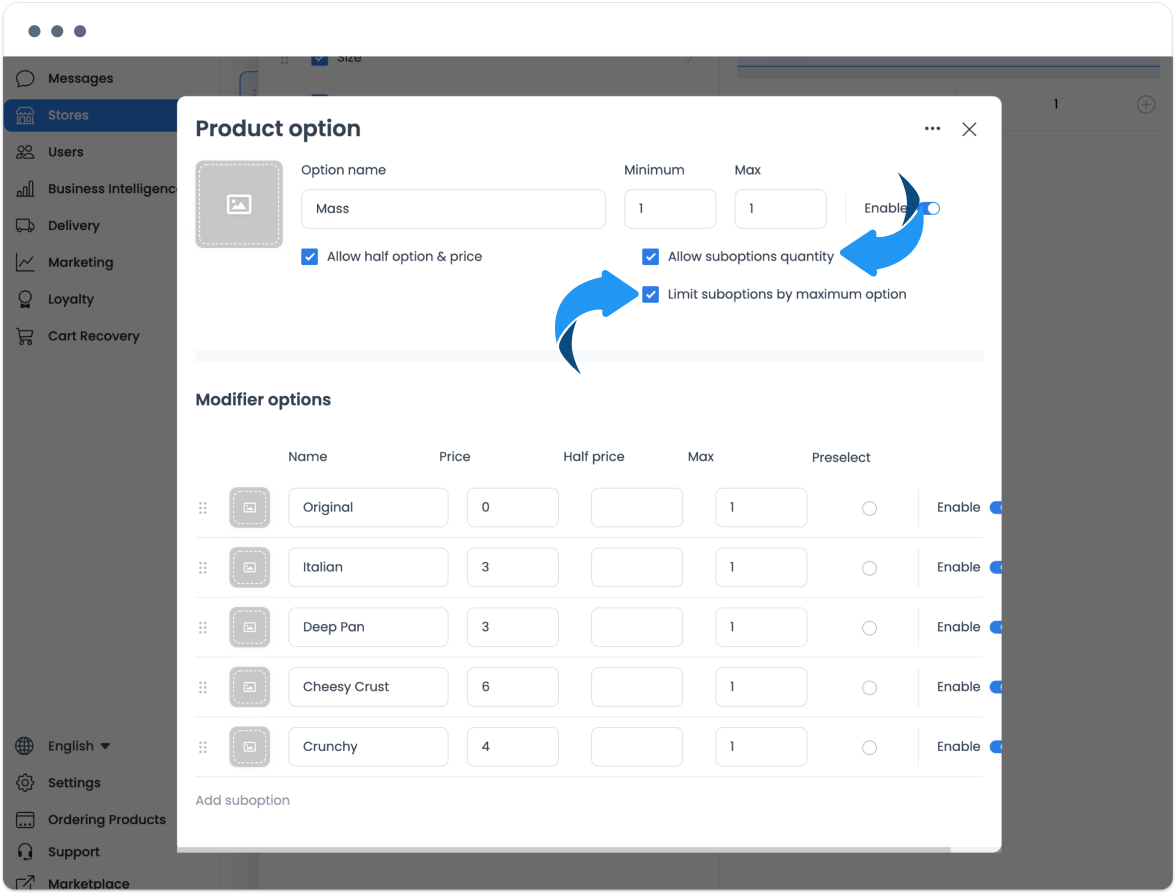
Use a maximum value to describe the intended limit for a modifier, such as a maximum of one shrimp selection. The editor value does not establish how every order channel enforces that limit.
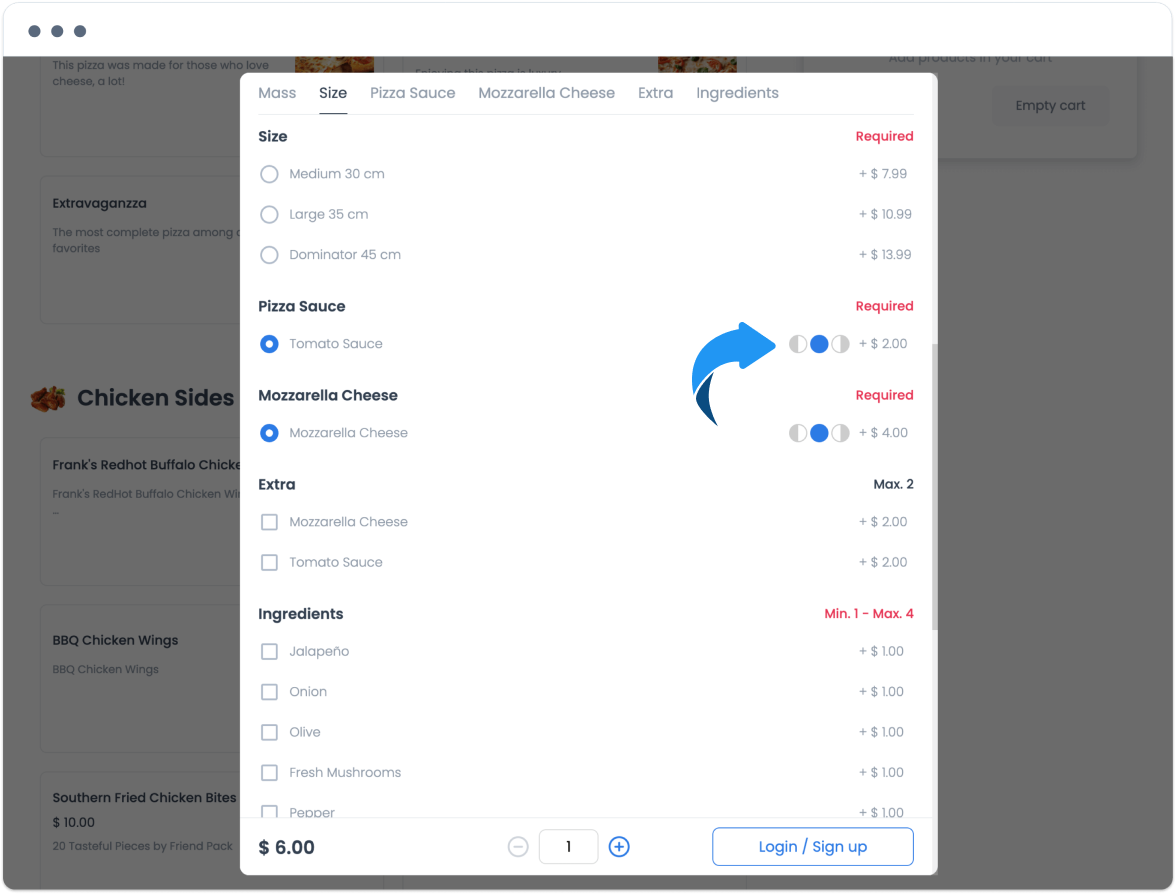
The next screenshots show example shopping screens with option groups and maximum labels. They are examples of an archived configuration, not a guarantee that every customer-facing channel renders or applies the same choices.
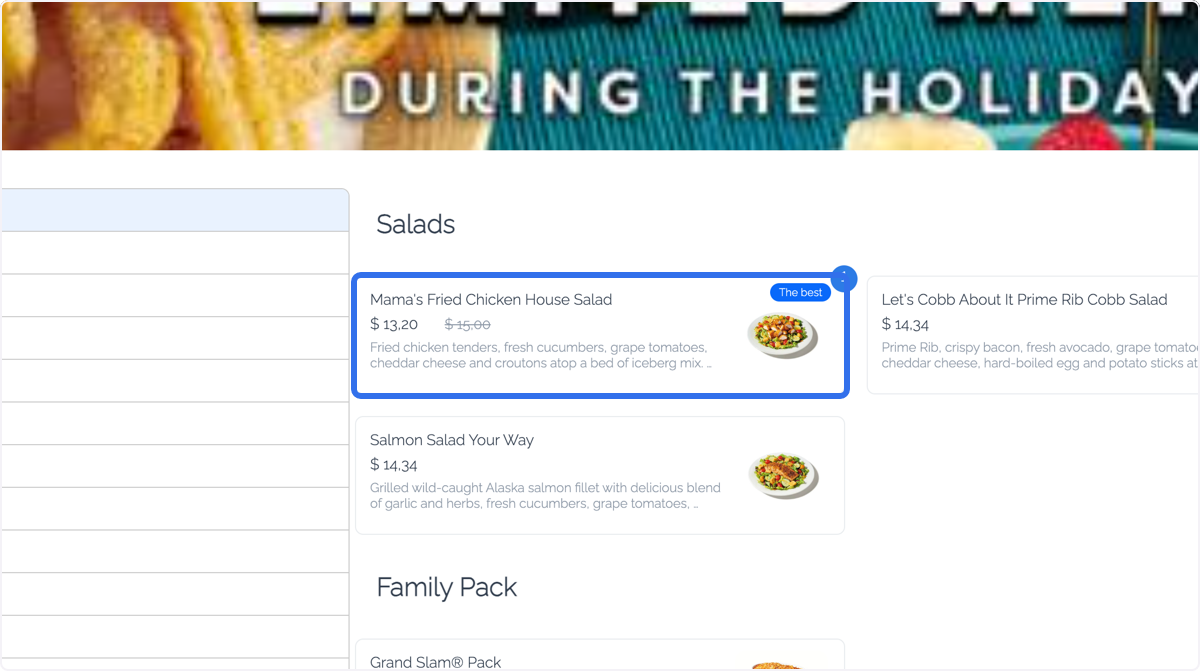
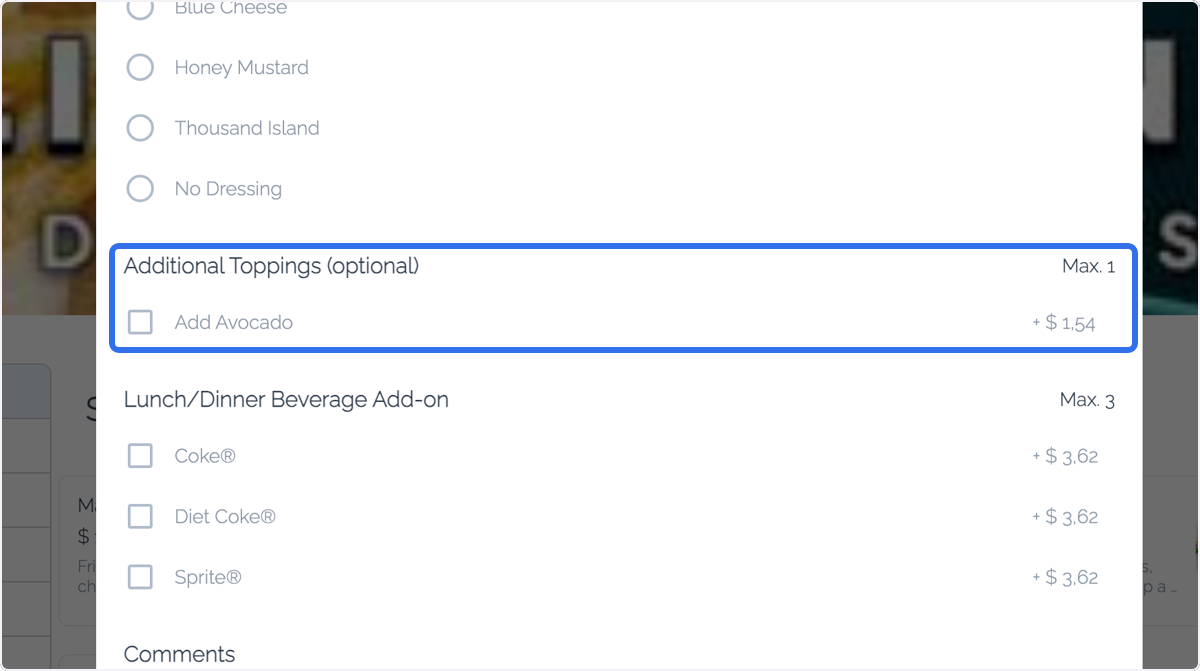
Adding, editing, enabling, or saving an option can cross a catalog-write boundary. Verify the intended behavior in an approved validation workflow; a Dashboard row or screenshot alone is not persistence or publication evidence.
Use cases
For food and similar catalogs, you can use Product options to organize selectable variants, modifiers, and their editor-side limits. Treat this as an operational configuration aid, not evidence of a particular customer experience, ordering flow, conversion rate, or revenue outcome.