Configure product custom fields
Use Custom fields to maintain internal or technical key/value metadata for one product.
This page covers product metadata only. For site-level customer, address, and card validation controls, see User information.
To change a selected product, you need edit access. The inspected route permits administrator and business-owner levels, and Stores navigation is hidden in read-only modes. Project configuration, product type, and product state can limit visible controls. A value shown in the Dashboard is an observable editor state, not proof of server persistence or customer-facing behavior.
Find Custom fields
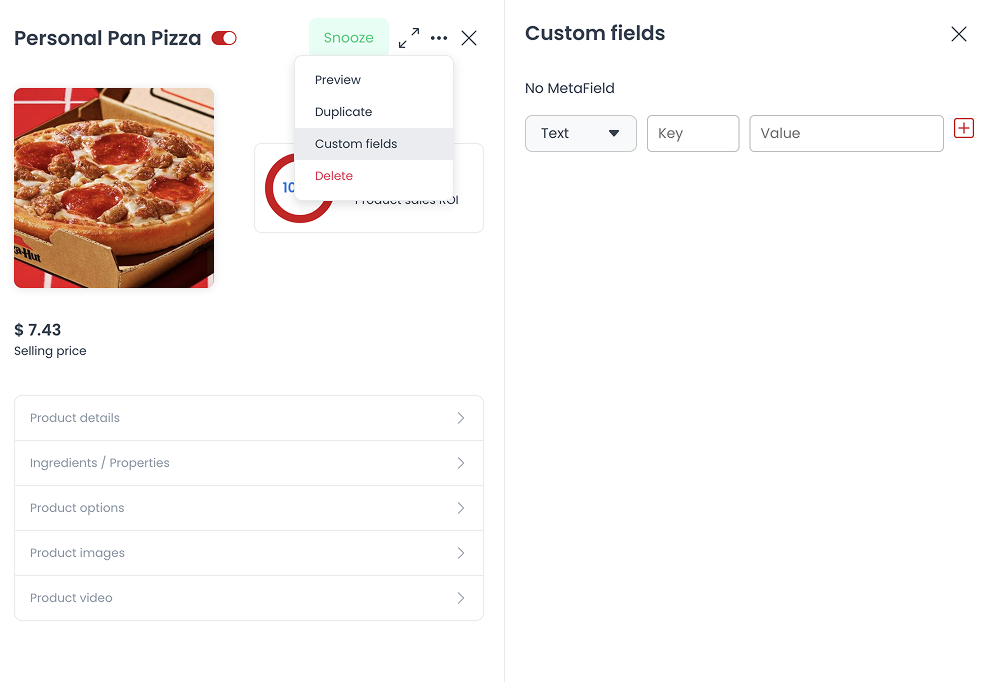
Inside a product, select the three-dot menu, then select Custom fields.
Add a field
- Choose the field type, such as Text, Number, or Boolean.
- Enter a Key.
- Enter a Value.
- Select the red + control in an approved product-maintenance workflow.
The panel can show the field type, key, and value you entered. Selecting + crosses a product-write boundary; it does not by itself prove the value was persisted or exposed elsewhere.
Choose appropriate metadata
Use Custom fields for internal or technical metadata such as internal notes, integration codes, special tags, external IDs, or preparation times. Do not assume these values are customer-facing content; confirm their visibility in your project before entering sensitive information.