Create or edit a product
Use the Products & Categories workspace to create a product in a selected category or update one product's information, product controls, and advanced settings. The screens below document Dashboard controls; they do not establish that a catalog write is accepted, published, or displayed in every channel.
The /stores/products/:store? workspace can be available to administrator and business-owner levels. The surrounding Stores navigation is hidden for read-only access modes. A selected category, API authorization, project configuration, appointments configuration, store vertical, product type, and product state can independently affect the controls that are visible.
Before you start
- Select the correct store and category.
- Use non-production or redacted values when practicing this workflow.
- The create form accepts one PNG or JPEG/JPG image and performs a client-side 2 MB check before its crop/upload path.
- Treat every Save, upload, enable, or add action as a possible catalog-write boundary.
Create a product
- In the Dashboard sidebar, select Stores.
- Open the store, then select the category where the product belongs.
- Select Add product.
- Optionally add an image.
- Enter Product name, Price, and Description as needed.
- Review the staged fields. Select Save only in an authorized catalog-change workflow.
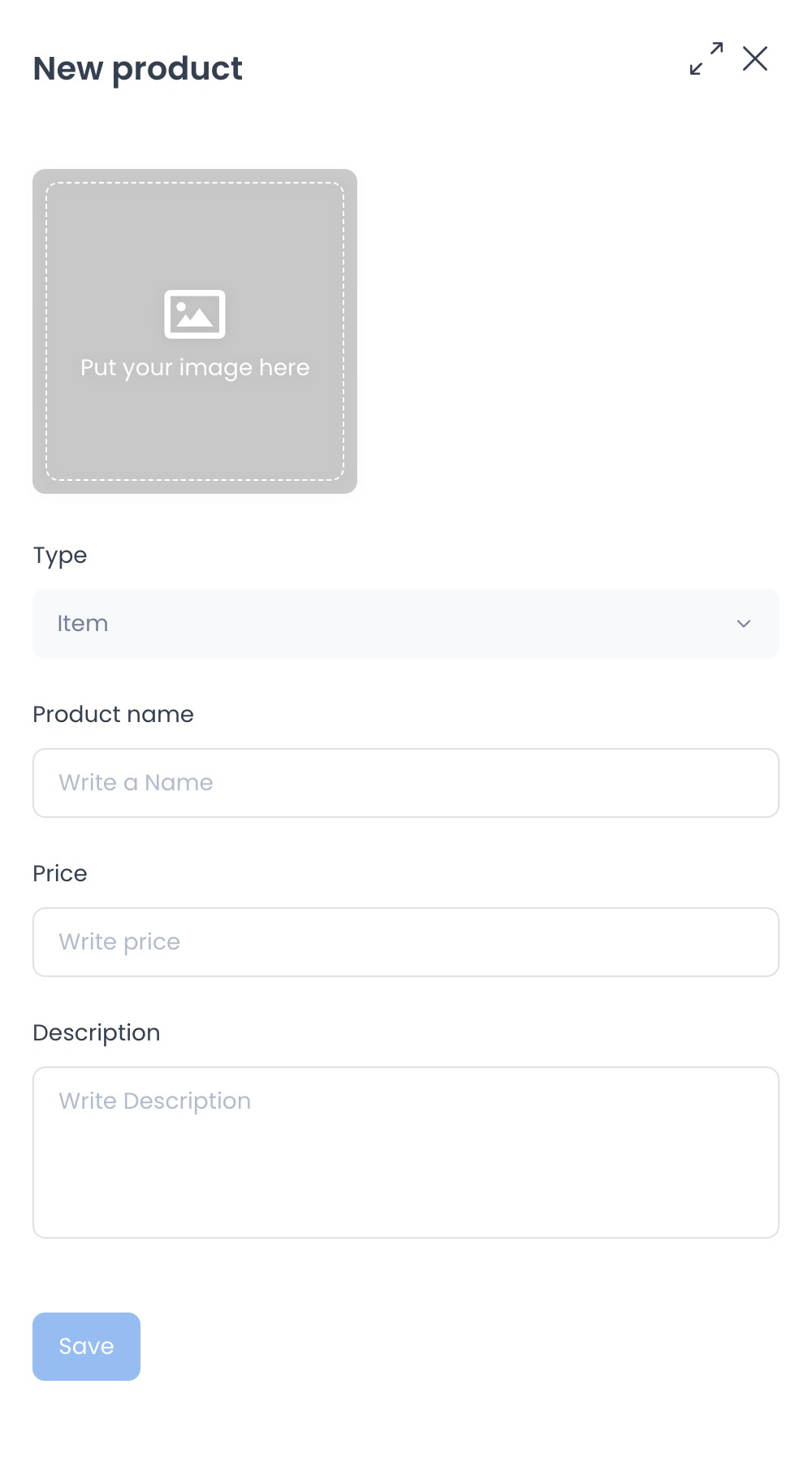
The create form derives a slug from the name and sends product information for the selected business and category. Review the enabled state before saving. Selecting Save crosses a write boundary; it does not by itself confirm product creation, persistence, menu propagation, or validation.
Save can affect the selected category and downstream catalog consumers. Make changes only through an authorized catalog-maintenance workflow, and confirm menu or storefront results after saving.
Create-form conditions
- Type can appear when appointments are enabled. Select Item or Service; a service also requires a duration.
- School stores can show Allergens and Dietary tags.
- Review the enabled state before saving; the default and saved result can vary with the selected product and project configuration.
Edit core product information
Select a product from its category list, then open Product details and keep the Information tab selected. Review the visible fields, and change or save them only through an approved product-maintenance workflow.
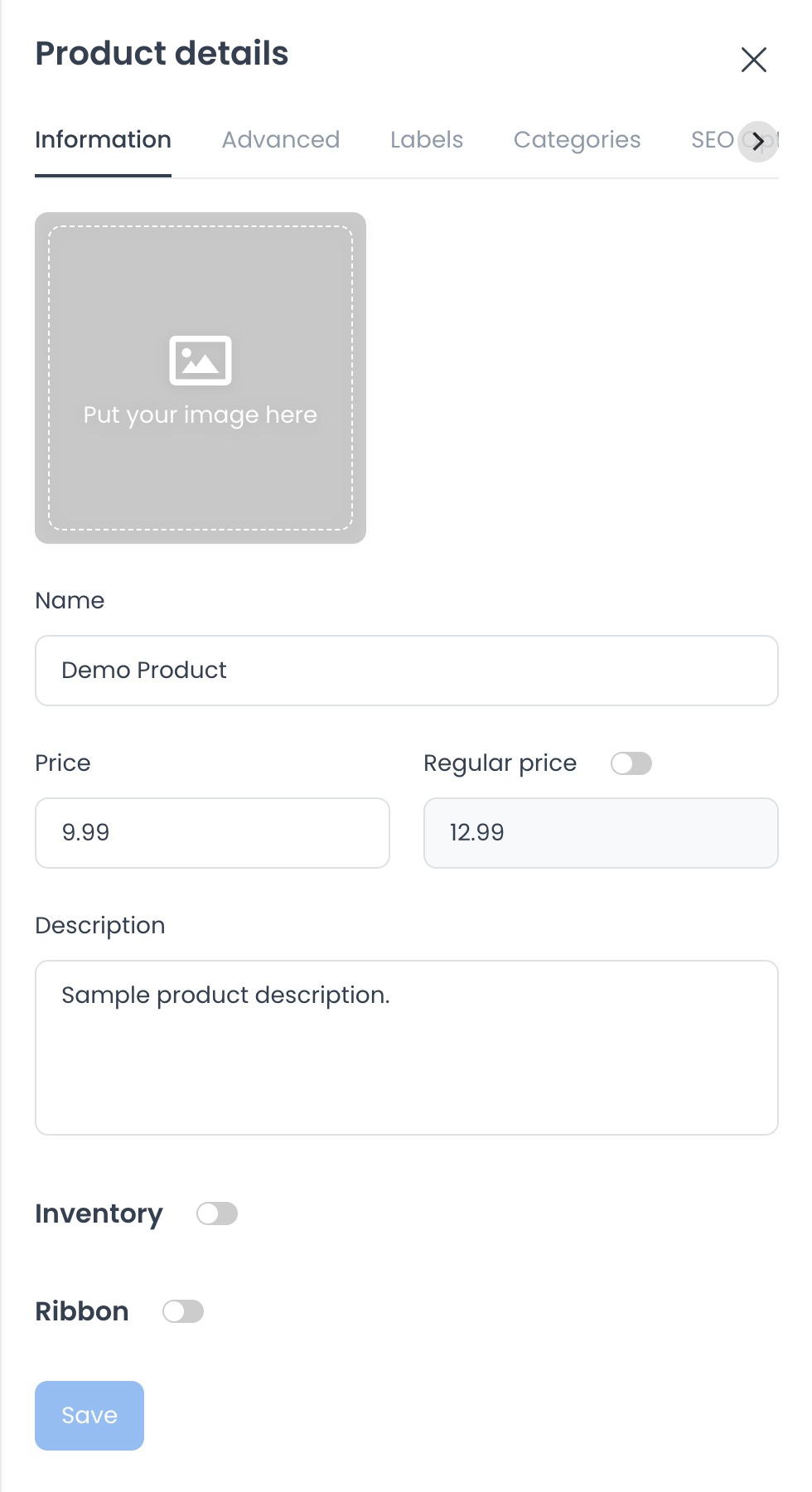
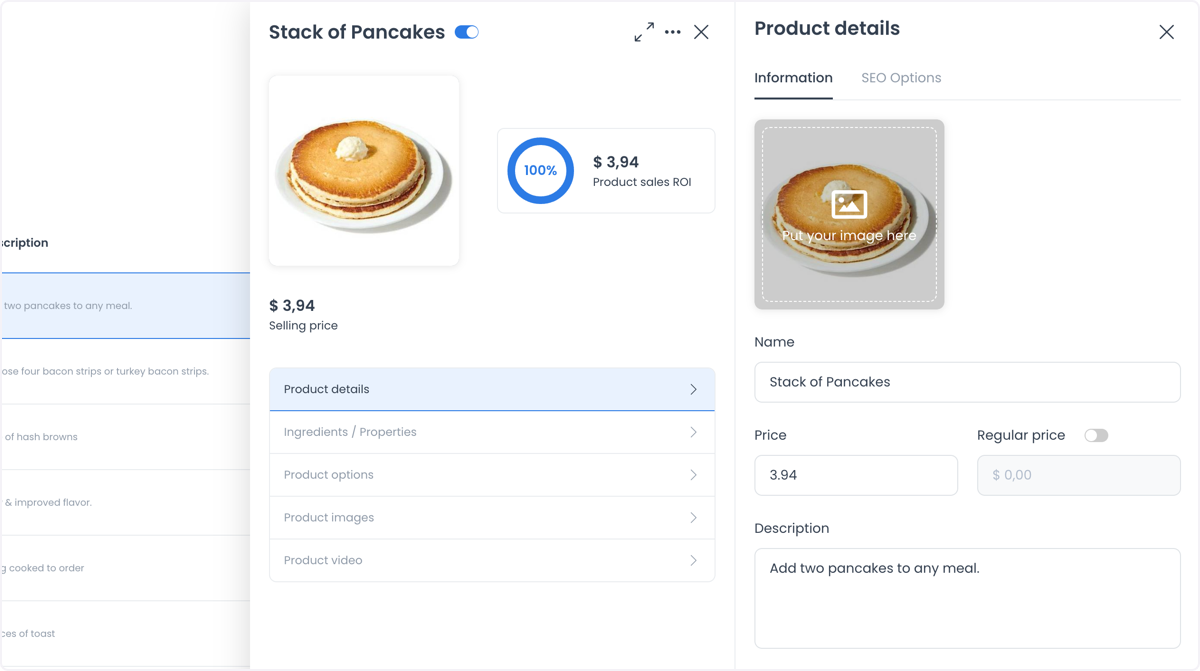
The Information tab includes the main image, Name, Price, Regular price, Description, Inventory, and Ribbon. Enabling inventory can reveal Quantity. The editor can validate a regular price against the selling price; confirm accepted values and customer-facing presentation after an approved change.
The product panel also provides Ingredients / Properties, Product options, Product images, and Product video. These are separate maintenance components with their own save or upload behavior. Follow the related procedure for each component and confirm its result after a change.
Review advanced settings
Use the Advanced tab to review settings related to pricing, taxes, fees, ordering limits, and product behavior.
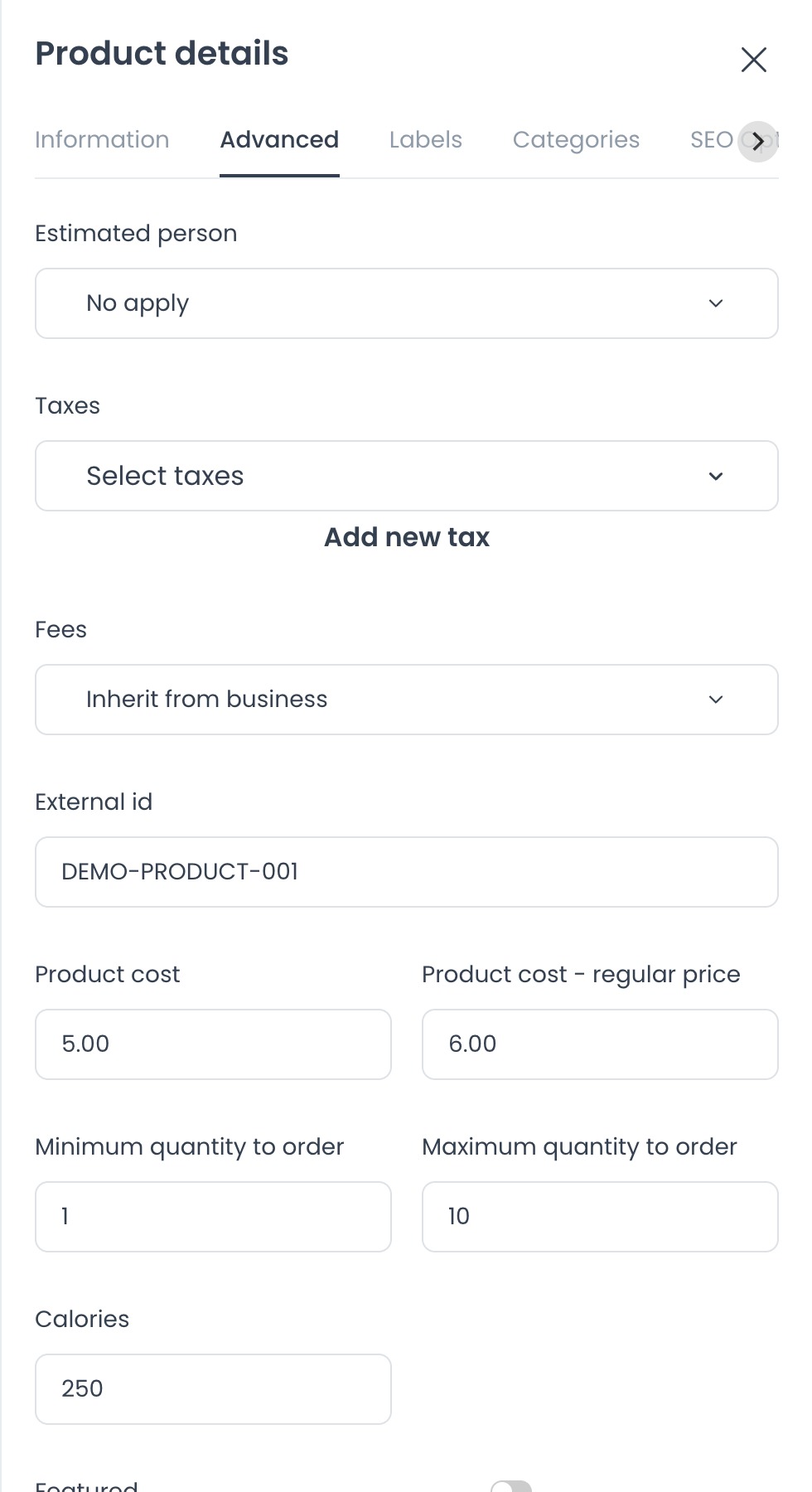
Advanced settings can include Estimated person, Taxes, Fees, External Id, cost fields, minimum or maximum quantity, calories, and switches such as Featured and Upselling. Advanced and Labels appear only when the selected project configuration supports them. Tax and fee selectors can load supporting project data.
The editor compares maximum and minimum order limits. Confirm acceptable values through an approved product-maintenance workflow before relying on a limit.
Product details reference
The following screenshots show the control path and individual fields that appear in the product workspace. They are examples of the editor state, not evidence that the same state is published in a storefront or app.
Open the product workspace
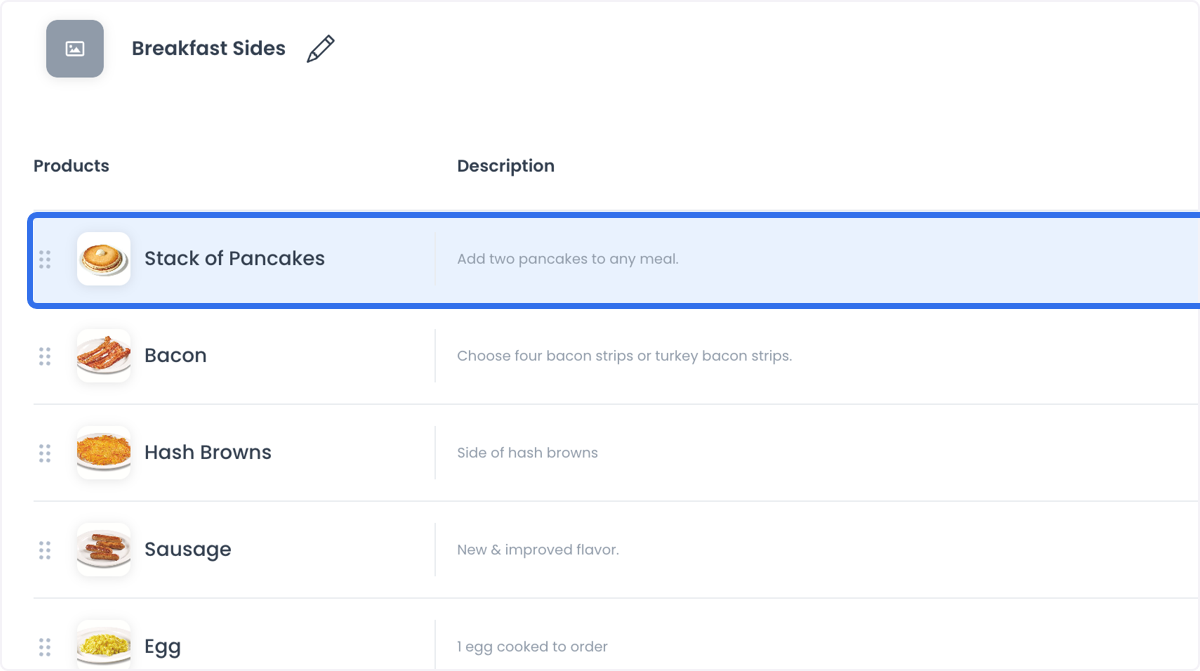
- In the store, open Categories & products.
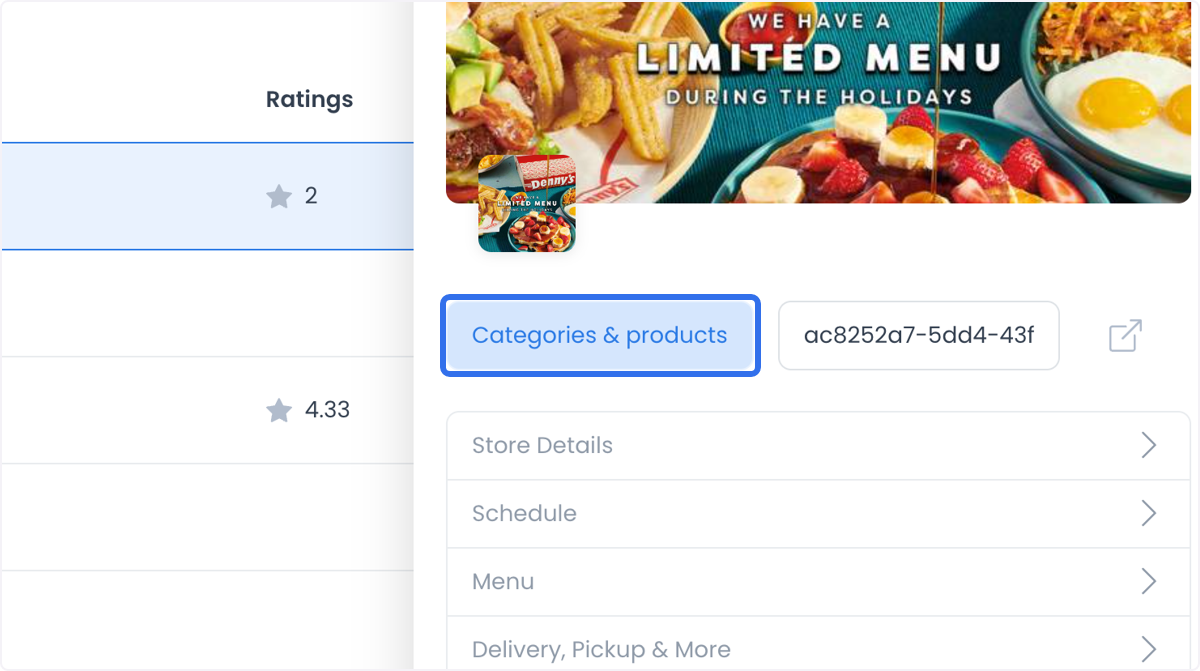
- Select the category, then the product to review.
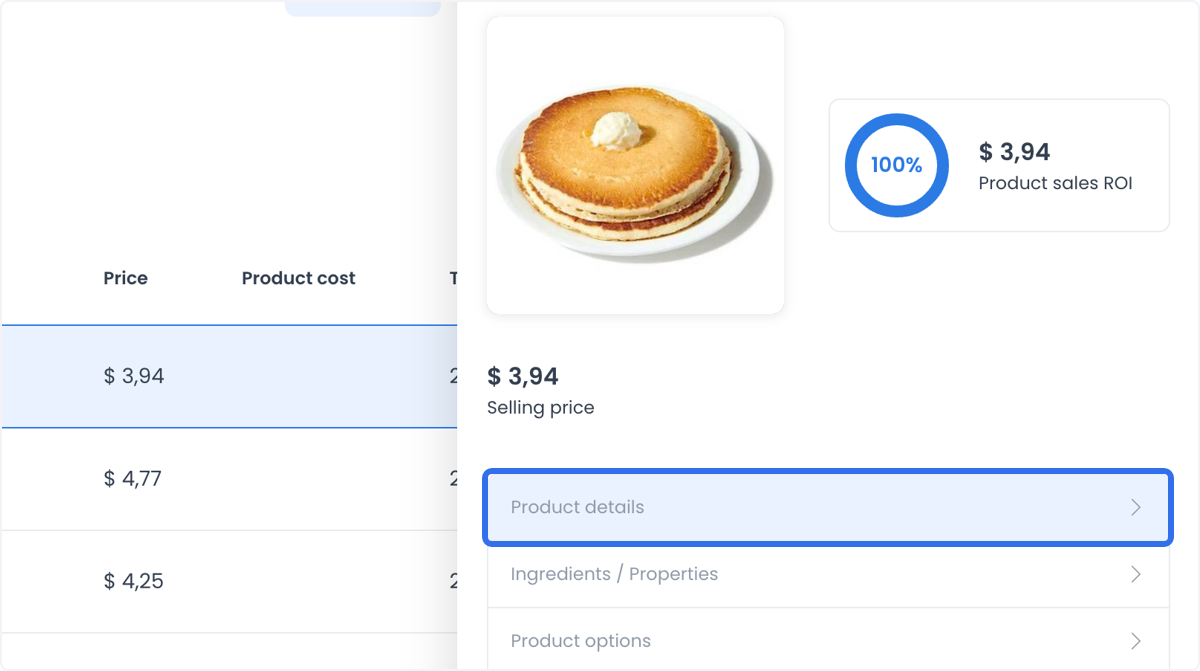
- Open Product details from the product panel.
Information fields
- Name identifies the product in the editor.
- Price and Regular price are separate fields. The screen shows the regular-price switch and value; it does not establish discount eligibility or presentation.
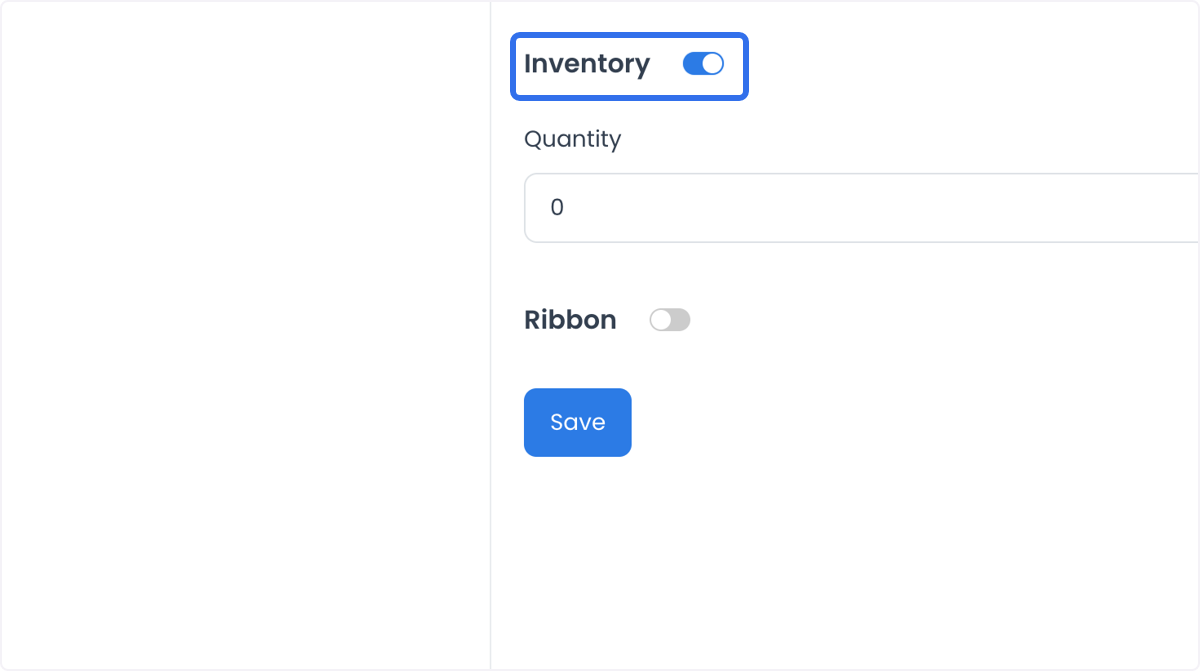
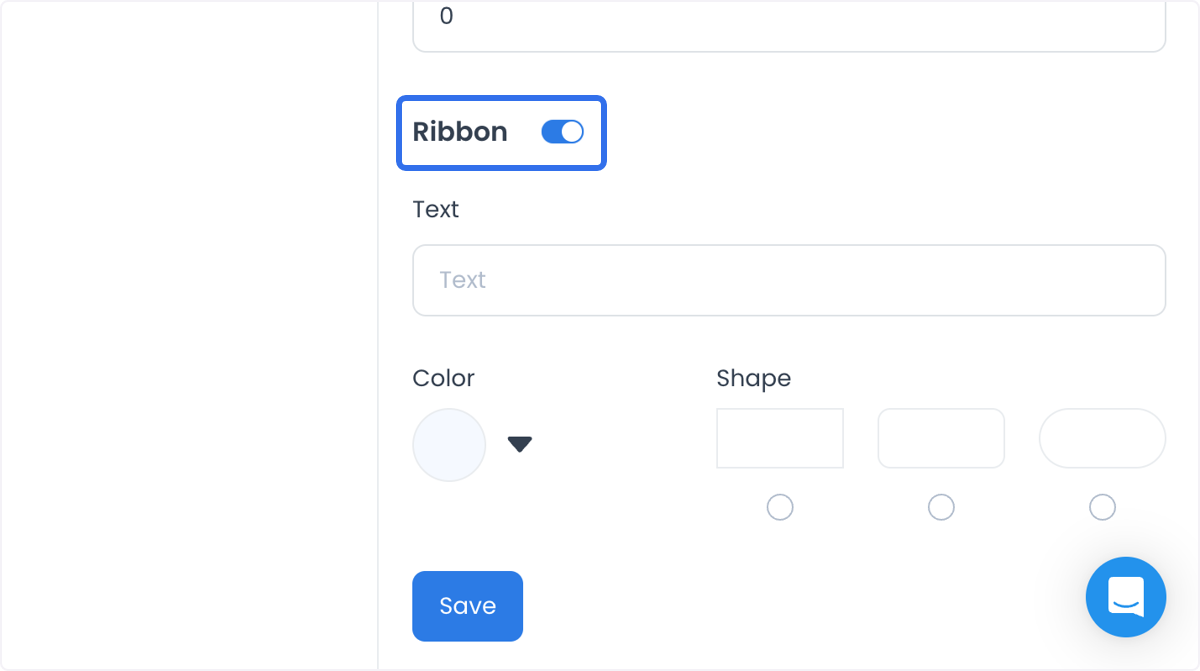
- Inventory can expose a Quantity value. A quantity of zero in the editor does not establish a sold-out state in a customer-facing channel.
- Ribbon exposes a text value, color, and shape controls.
Advanced fields and labels
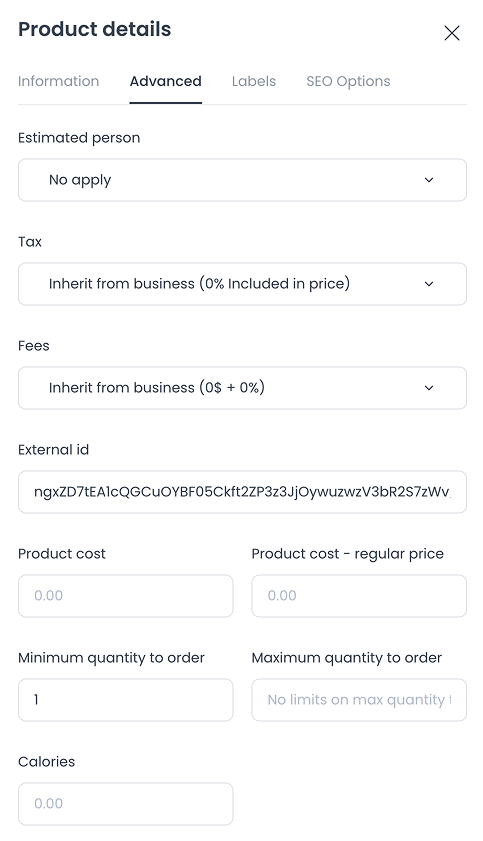
The advanced screen shows Estimated person, Tax, Fees, External id, Product cost, Product cost – regular price, Minimum quantity to order, Maximum quantity to order, and Calories. Use Estimated person to record the number of people an item serves, External id to record an external identifier, cost fields for internal cost data, and Calories for nutritional information when those fields are relevant to the selected product.
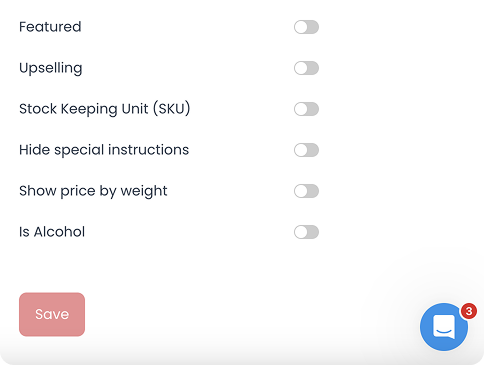
It also shows switches for Featured, Upselling, Stock Keeping Unit (SKU), Hide special instructions, Show price by weight, and Is Alcohol. SKU is the product's stock-keeping identifier. Confirm any customer-facing behavior after saving these editor controls.
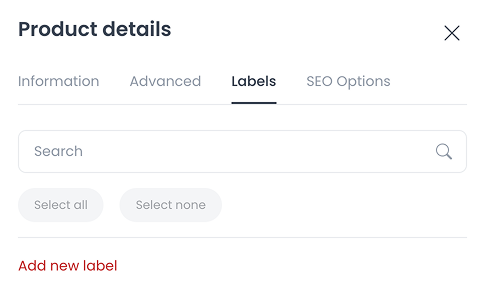
The Labels tab shows Search, Select all, Select none, and Add new label. Use it to organize labels in the editor, and confirm any filtering, promotion, icon, grouping, or automation result in the intended channel.
SEO Options fields
The SEO Options screen contains controls for an SEO image, title, description, keywords, and slug. Their presence in the editor does not establish metadata publication, indexing, ranking, traffic, or sales.
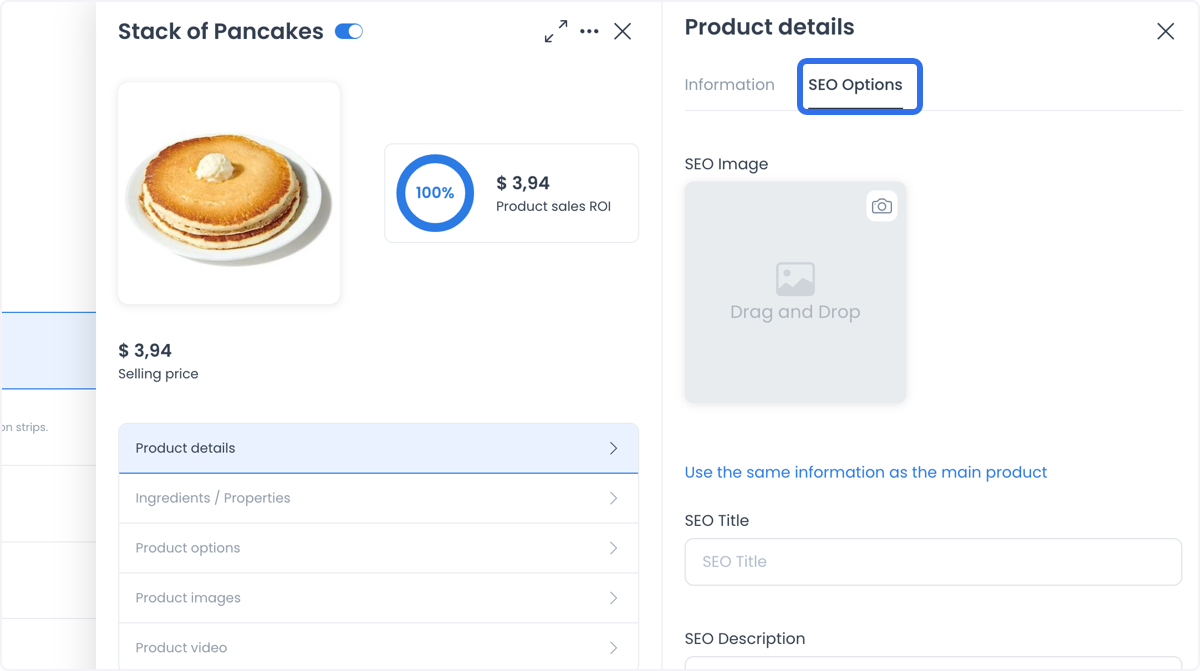
Use the controls deliberately
You can use these fields to maintain a special-edition product, a seasonal price reference, inventory metadata, a ribbon, labels, or SEO-related text. These are editor intents. Verify any customer-facing result in the intended channel after an approved change rather than inferring it from the Dashboard.
Read, write, and data boundaries
Opening a product by category and product ID can load product data with version=v2. Saving sends the current section's changes. Separate controls manage enabled state, duplicate, delete, categories, labels, ingredients or properties, options, gallery, video, professionals, tax, fee, image, and SEO data.
Product names, descriptions, prices, costs, inventory, images, categories, taxes, fees, and related business data can be sensitive. Create, update, enable, duplicate, delete, upload, and provider actions can change data or trigger external effects. Use non-production or redacted data when practicing this workflow, and never include tokens, secrets, customer data, or production values in screenshots or shared material.
Quick checklist
- Confirm the selected store and category before creating or editing a product.
- Review the visible name and numeric-price inputs.
- Review the enabled state and any inventory fields.
- If using a regular price, review its relationship with the selling price.
- Review taxes, fees, and order limits before saving advanced changes.
- Verify any approved change in the intended channel; editor state alone is not publication evidence.
Troubleshooting
Why is Add product unavailable?
Add product can require a selected category and can be unavailable when the category list is empty.
Why can't I save a new product?
The product form can require a name, numeric price, and, for services, a duration. Do not submit a live product to diagnose validation; use an approved non-production workflow.
Why is the Advanced tab missing?
Advanced can appear only for qualifying project configuration. Other fields can also vary with appointments configuration, store vertical, and product type.
Why can't I save an order limit?
The editor applies paired minimum and maximum rules. Confirm the accepted values in an approved product-maintenance workflow.
Related procedures
- Add a product video
- Configure ingredients and properties
- Configure product custom fields
- Configure product options
- Manage product images
- Set a product sale price
- Translate a product
Related guides: Products overview · Add a store · Search and filter stores