Create or edit a product
Use the store product workspace to understand the source-defined create and edit surfaces for one product. These controls can submit catalog writes; this source-only guide describes their gates and payload classes without exercising them.
The /stores/products/:store? route source allows administrator and business-owner levels. The surrounding Stores navigation is hidden for read-only access modes. A selected category, API authorization, plan, appointments configuration, store vertical, product type, and product state independently affect the visible controls.
Before you start
- Select the correct store and category.
- Use an approved synthetic fixture and values; do not use a production catalog merely to follow this guide.
- The create form accepts one PNG or JPEG/JPG image and performs a client-side 2 MB check before its crop/upload path.
Create a product
- In the Dashboard sidebar, select Stores.
- Open the store, then select the category where the product belongs.
- Select Add product.
- Optionally add an image.
- Enter Product name, Price, and Description as needed.
- Review the staged fields. Select Save only in an authorised catalog-change workflow.
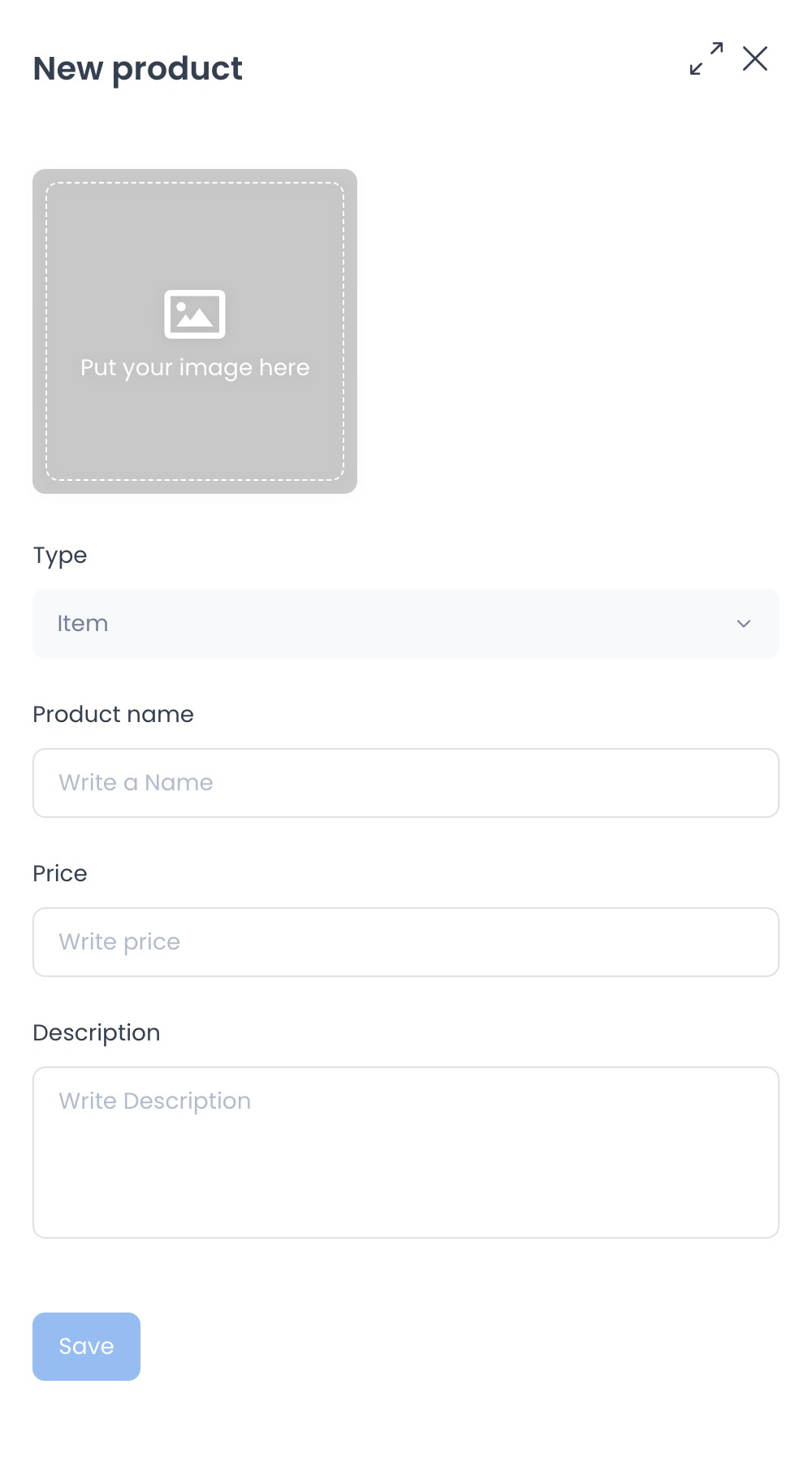
The create controller builds a payload from local form changes, derives a slug from the name, and calls the selected business/category product-save endpoint. Current source initializes enabled: true. No request was sent, and this article does not assert creation, menu propagation, or deployed validation.
Save is wired to a catalog-write path. The request can affect the selected category and downstream catalog consumers. Do not use it for exploration, screenshots, or verification, and do not infer menu or storefront propagation from the client source.
Create-form conditions
- Type can appear when appointments are enabled. Select Item or Service; a service also requires a duration.
- School stores can show Allergens and Dietary tags.
- The source controller initializes the new-product change set with
enabled: true; the deployed default and accepted result were not tested.
Edit product information
- Select a product from the category list.
- Select Product details.
- Keep the Information tab selected.
- Review the source-visible fields. Change and save them only through an approved product-maintenance workflow.
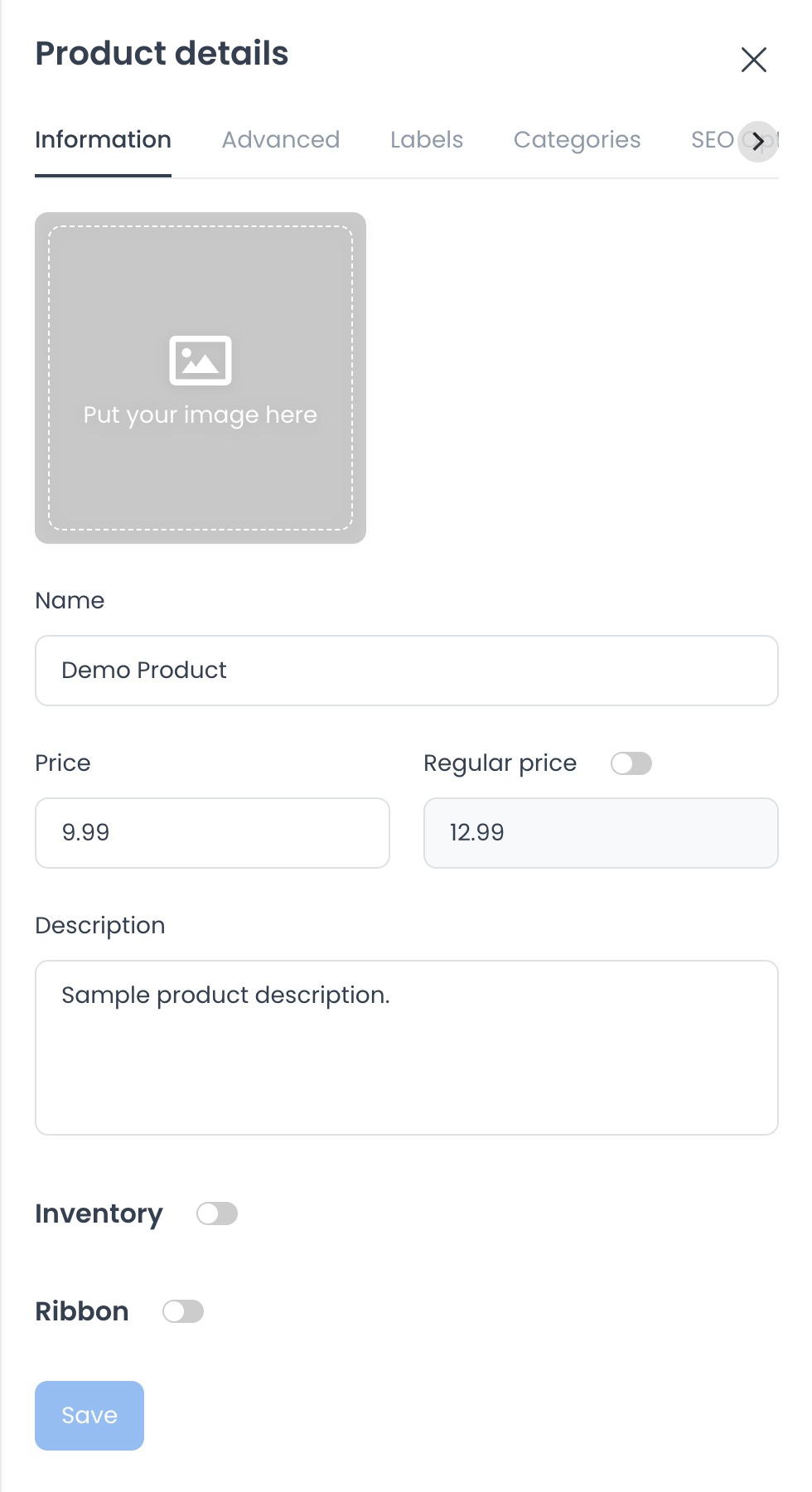
The Information source includes the main image, Name, Price, Regular price, Description, Inventory, and Ribbon. Inventory state can reveal Quantity. Regular-price controls include local validation relative to the selling price; backend validation and deployed behavior were not exercised.
The product panel also provides Ingredients / Properties, Product options, Product images, and Product video. These are separate maintenance components with their own read/write or upload surfaces. The Information save handler is distinct from those components, but no deployed request trace was collected.
Advanced settings reference
Use the Advanced tab for settings that affect pricing, taxes, fees, ordering limits, and product behavior.
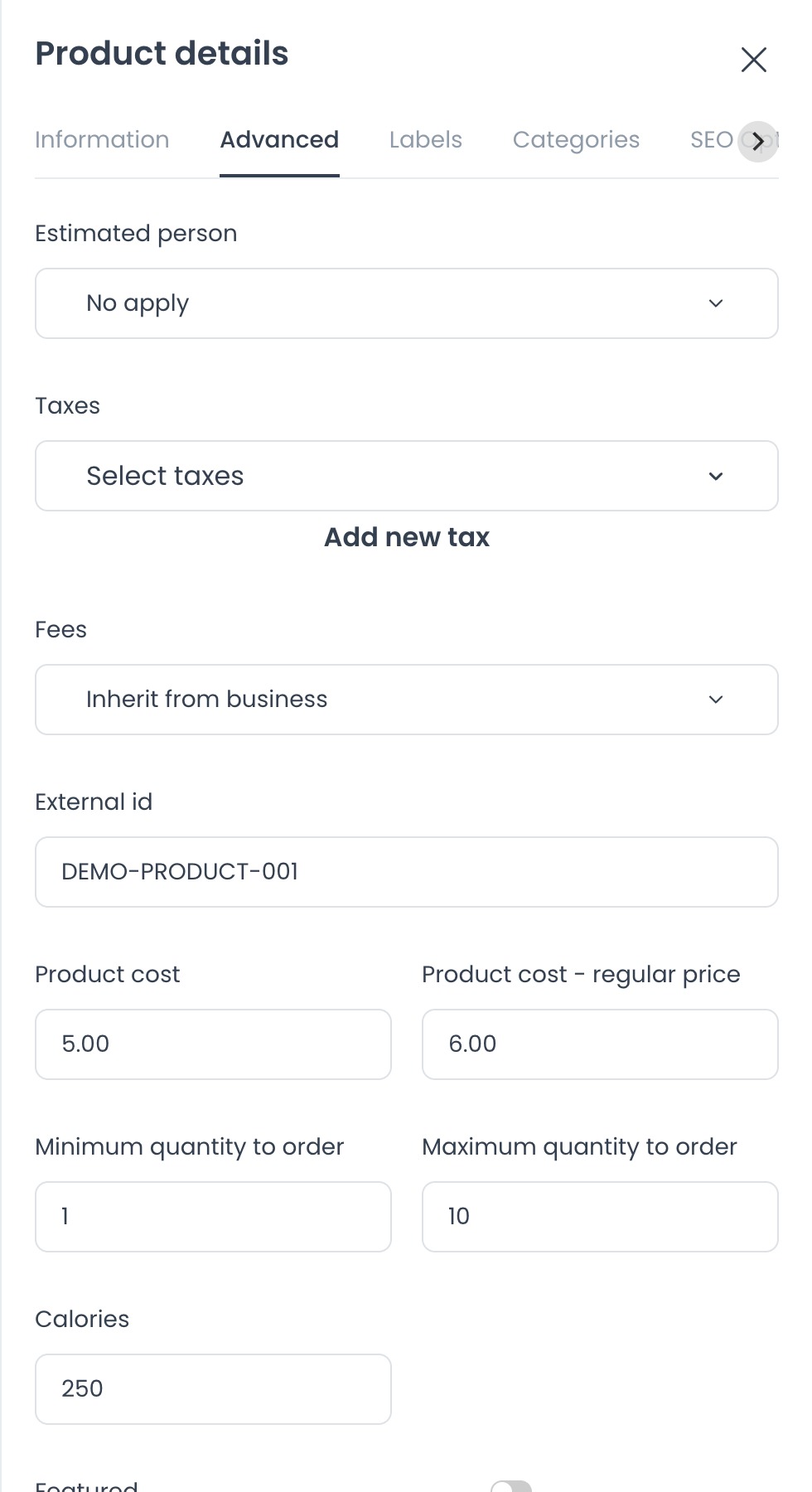
Current source defines Estimated person, Taxes, Fees, External Id, cost fields, minimum/maximum quantity, calories, and switches such as Featured and Upselling. Advanced and Labels are rendered for Pro or Enterprise plan state. Tax and fee selectors can require supporting authenticated reads.
The UI source includes paired order-limit validation and compares maximum with minimum. Treat this as a client contract only; no deployed rejection or accepted payload was tested.
Read, write, and data boundaries
Opening a product by category and product ID calls a version=v2 authenticated product read. The controller's update path submits the current section's change object to the product-save endpoint. Separate source paths cover enabled state, duplicate, delete, categories, labels, ingredients/properties, options, gallery, video, professionals, tax, fee, image, and SEO data.
GET and HEAD are not presumed safe, and no create, update, enabled toggle, duplicate, delete, upload, provider handoff, or downstream effect was executed. Product names, descriptions, prices, costs, inventory, images, categories, taxes, fees, and related business data can be sensitive. Use approved synthetic/redacted fixtures and never include tokens, secrets, customer data, or production values in documentation evidence.
Quick checklist
- Confirm the selected store and category before creating a product.
- Review the source-required name and numeric-price inputs.
- Review the source-initialized enabled state and any inventory fields.
- If using a regular price, make sure it is higher than the selling price.
- Review taxes, fees, and order limits before saving advanced changes.
Troubleshooting
Why is Add product unavailable?
Current source renders Add product only with a selected category and disables it when the loaded category list is empty. No deployed catalog state was tested.
Why can't I save a new product?
Current source exposes name, numeric price, and conditional service-duration inputs. Do not submit a live product to diagnose validation; use an approved non-production workflow.
Why is the Advanced tab missing?
Current source renders Advanced only for Pro or Enterprise plan state. Other fields can also vary with appointments configuration, store vertical, and product type.
Why can't I save an order limit?
The inspected client source applies paired minimum/maximum rules. This article does not establish the deployed API's accepted values.
Related guides: Products overview · Add a store · Search and filter stores