Brand Manager
Use Brand Manager to organize existing stores that belong to the same brand. A brand can have a name, logo, URL slug, enabled state, optional ribbon, and store assignments. It is useful when an operator manages several locations under one brand, such as a franchise or multi-store marketplace.
The Brands entry can be restricted by Dashboard role, project configuration, and the state of the Stores menu. Use an authorized administrator account in the intended project. The optional White Label tab is available only when its project configuration is enabled.
Open Brands
- In the Dashboard sidebar, select Stores.
- Select Brands.
- Search by brand name, select a row to review it, or select Add brand.

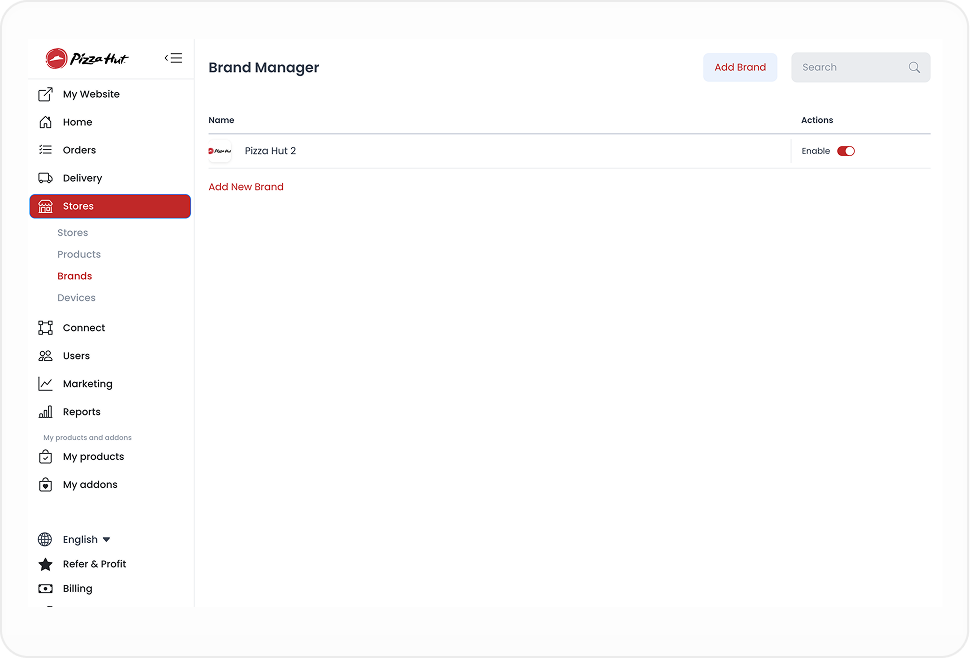
The screenshots are illustrative. Labels, layout, and visible data can differ by project, role, and Dashboard version. Opening the list or seeing a control does not establish access to a particular brand or store.
Create or edit a brand
- Select Add brand, or open an existing brand.
- In General, enter or review the brand details.
- Review the slug and optional visual settings.
- Select Save only when the change is approved for the intended project.
The ID is assigned by the record workflow; it is not a value you choose. The Name identifies the brand, and the Slug is used for its URL-oriented identifier. For a new brand, the Dashboard can derive a slug from the name. Review it before saving: the slug must be unique and cannot contain only numbers.
You can also add a logo and configure an optional Ribbon. Where the logo control is available, it accepts PNG, JPEG, or JPG files up to 2 MB and opens a crop dialog. A ribbon needs text, a color, and a shape when it is enabled.
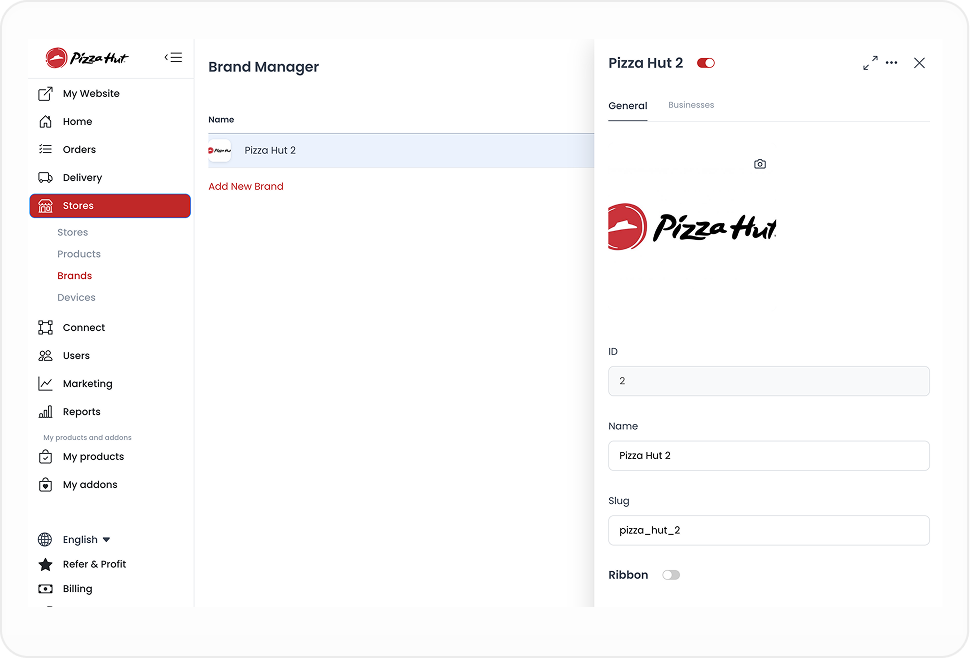
Save submits the configured brand change. A visible confirmation, generated slug, or returned panel does not by itself prove that the brand, logo, or URL is available to customers or other systems. Keep the approved logo available and verify the resulting record through your authorized operating workflow.
Link stores to the brand
Stores must already exist in the Stores list before they can be associated with a brand.
- Open the brand.
- Select Businesses.
- Select the stores that belong to the brand, or use Select all / Select none for the current result set.
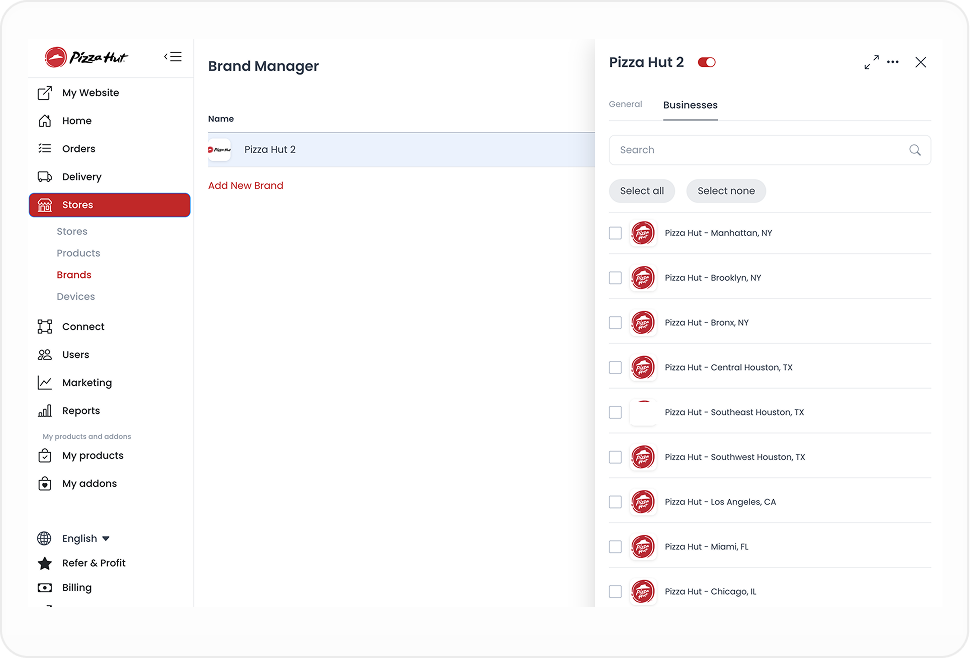
Each selection can submit a store-brand assignment change. Do not use bulk selection merely to explore the screen: changing a selection can change or clear a store's brand relationship. Review the current result set and each store before making an approved change.
Manage the brand state
Use Enable to request a change to the brand's enabled state. In the documented behavior, disabled brands are not returned to non-administrator brand queries. The visible switch is not evidence that every consumer or downstream query has changed.
The overflow menu includes Delete. Deletion is a persistent operation in the documented flow and can clear assigned store relationships. Review the brand and all assignments first. A completed UI step does not prove that every related record or public result has been removed.
Work with a multi-store brand
Before you create or change a brand, confirm the intended name, slug, logo, ribbon, and list of stores with the operator who owns the locations. This helps keep related stores organized without assuming that a configuration alone changes menus, availability, prices, or customer-facing results.
Troubleshooting
Why is Brands missing?
Use the intended Dashboard administrator account and confirm that the Stores menu and brand configuration are available for the project. A direct route does not replace the applicable access checks.
Why can't I save the brand?
Provide a name and a unique slug. If the ribbon is enabled, provide its text, color, and shape. Use a supported logo file within the documented size limit where the logo control is available.
Why did stores disappear from the brand?
They may have been deselected, assigned to another brand, or affected by a delete operation. Review the brand's Businesses list and the store assignments through the approved operating workflow.
Related guides: Stores overview · Devices