Add a store
Use Add new store to prepare a store record for an approved setup workflow. The form can collect business details, images, operating hours, delivery-zone values, payment methods, and an order-receipt email. A completed screen, save action, or next-step panel does not by itself establish that a store, menu, availability, price, payment method, or provider result is live.
Adding a store is available to permitted administrator and business-manager accounts. The action can be hidden by project configuration. Address lookup, delivery zones, payment methods, order types, app-download options, and other form sections can vary by the features and configuration available to the intended project.
Before you start
- Confirm that you are signed in as a permitted administrator or business-manager for the intended project.
- Prepare an approved store name, URL slug, phone number, and order-receipt email address.
- Decide which payment methods, operating hours, delivery-zone values, and media are approved for the store.
- Use approved business information. Do not submit live or sensitive values merely to inspect the workflow.
Open the store form
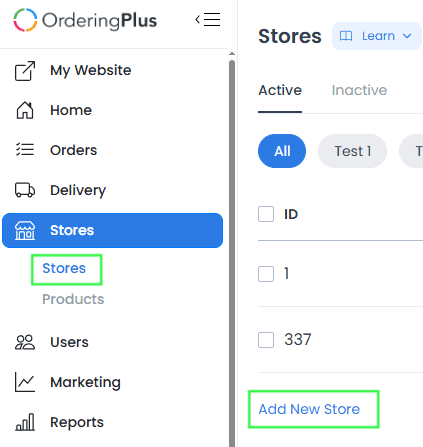
- In the Dashboard sidebar, select Stores.
- Select Add new store.
Enter store details
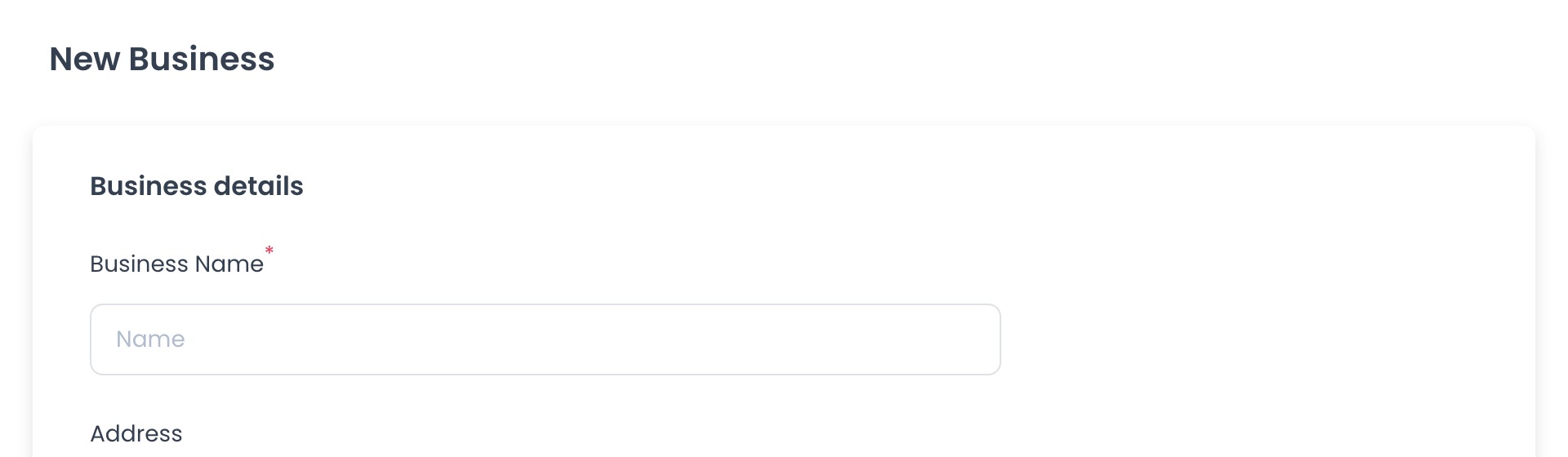
- Enter the Business Name. Use a descriptive name that helps operators distinguish this store from others in the list.
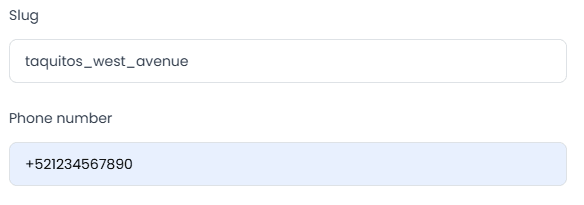
- Review the generated Slug and edit it if needed. The illustrated form populates it from the store name; confirm the format and uniqueness before saving.
- Enter the phone number and the email address for order receipts. The visual example includes a country code and a local number; confirm the format required for the store's country.
- Enter the address manually, or use address search if that control is available. Review the proposed address and map before continuing.
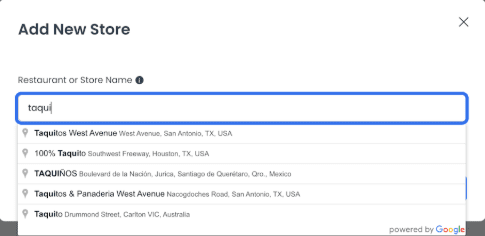
Address search can involve a configured mapping provider. Selecting a suggestion, seeing a map, or filling a field does not confirm that the address is accepted for service, delivery, taxes, or customer visibility.
Add images and a price level
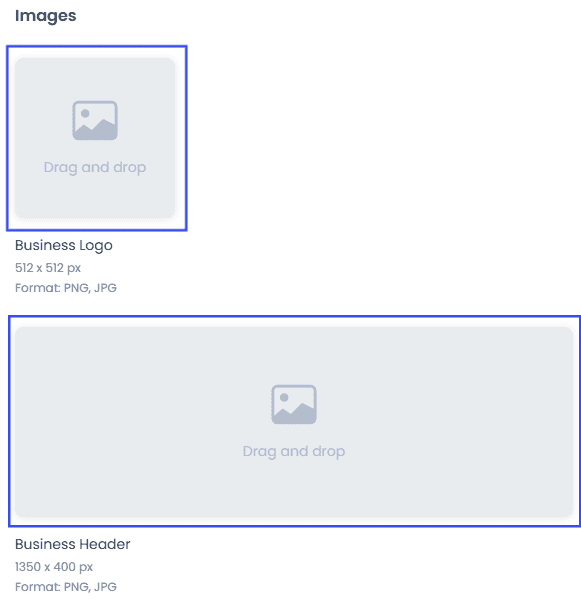
In Images, add the business logo and store header where those controls are available. The documented image controls use PNG or JPG files, show a recommended 512 × 512 px logo size and 1350 × 400 px header size, and can open a crop step.
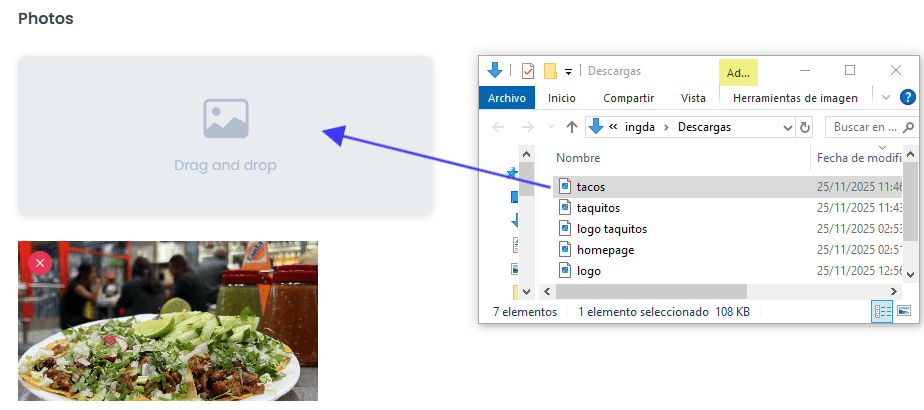
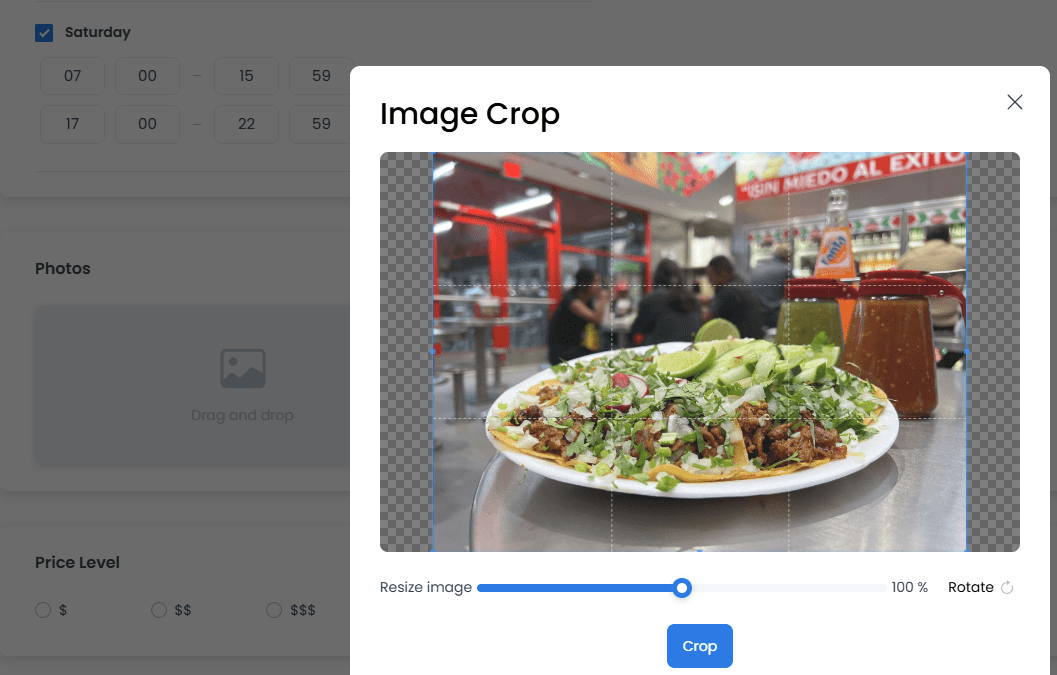
In Photos, add approved gallery images by dragging a file into the available area, then adjust the crop or zoom when that control appears.
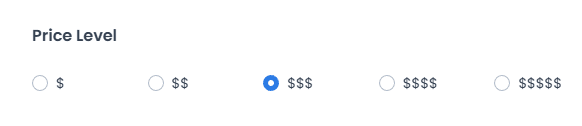
Choose a Price Level if that field is available. The money-symbol selection describes a general price-level presentation; it does not set or verify individual product prices.
Configure the schedule
Set the opening and closing time for each operating day that applies to the store.
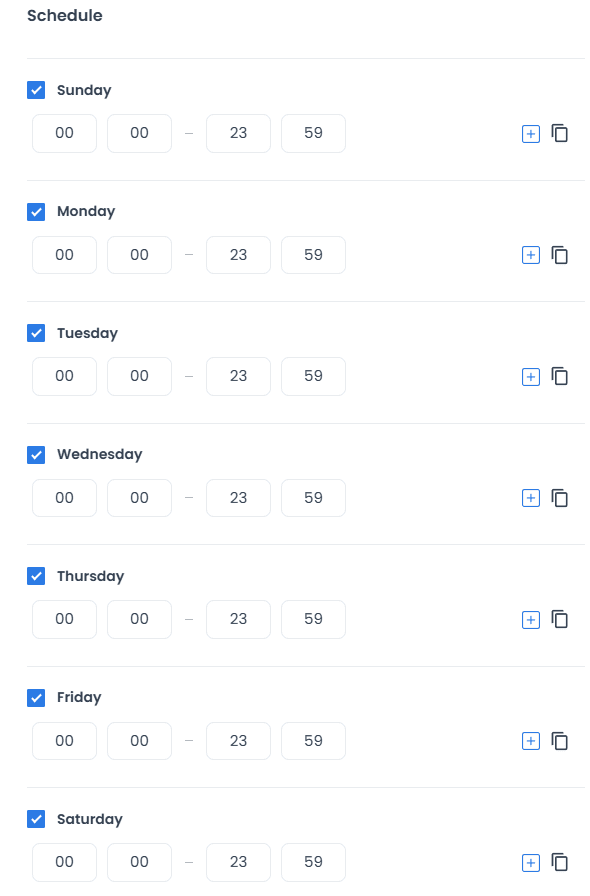
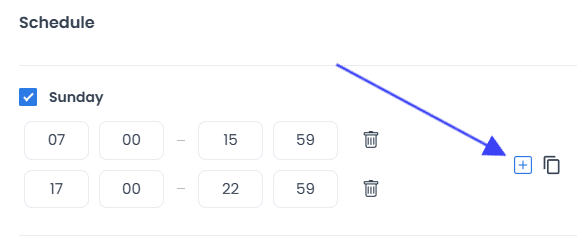
Use the plus control to add another opening period or a temporary closure when the schedule controls make it available.
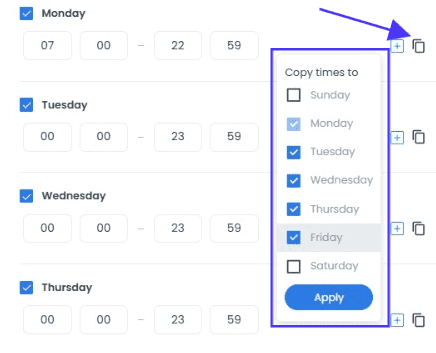
If several days use the same hours, use the copy control and select the destination days in the menu.
A configured schedule is an input to the store configuration. It does not by itself prove that the store is open, discoverable, accepting orders, or visible in a customer experience.
Define delivery zones when needed
If the form shows Delivery Zones, define the intended service area and its values. Review the selected business address, zone shape, fees, and minimum-purchase values before saving.
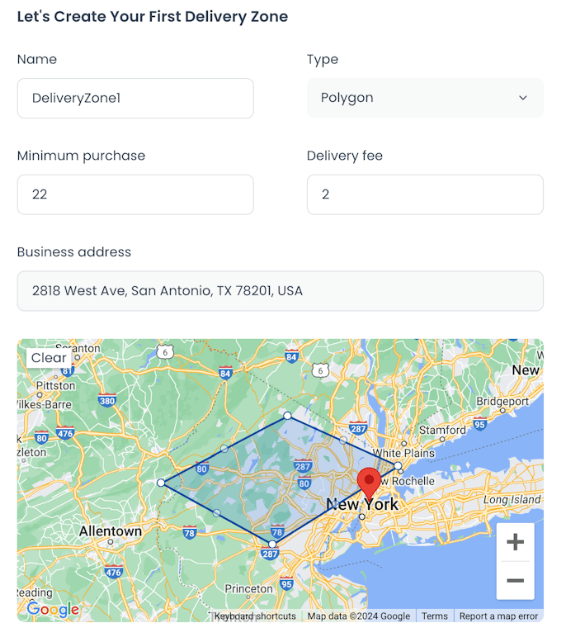
A zone can describe the intended delivery area. It does not guarantee that a store will be shown to a particular customer, that an address is eligible, or that delivery is available at a given time.
Select payment methods
At least one payment method is required by the documented form. In Payment methods, keep an eligible preselected method or select another method that is available for the intended project.
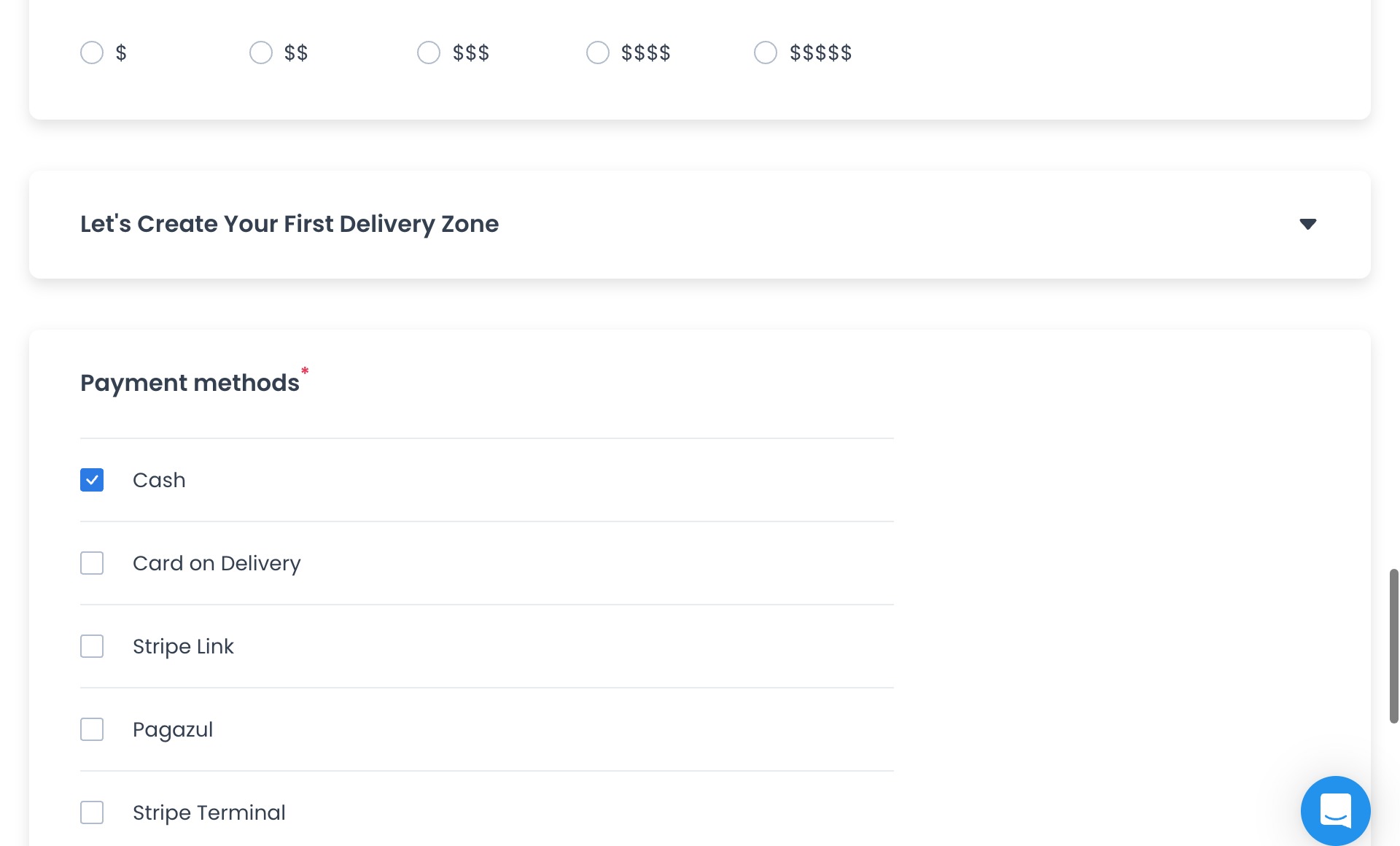
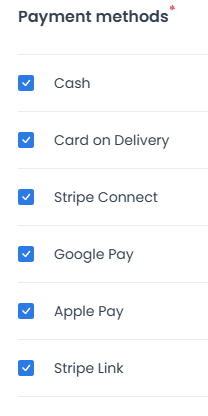
Available methods depend on project configuration and, for some methods, an external-provider setup. Selecting a method does not verify its credentials, authorization, settlement, or customer-facing availability.
Add the order-receipt email
In Receive orders, enter the email address intended to receive store order receipts or notifications.
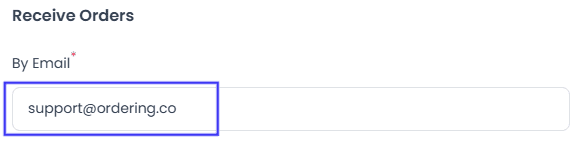
An email field does not confirm delivery, receipt, routing, or notification behavior. Confirm those outcomes only through the separately approved operational procedure.
Save and begin menu setup
Before selecting Save or Confirm, review the business name, slug, contact information, images, schedule, delivery-zone values, and payment methods.
The save action can submit the store configuration and follow-on data. Those operations can complete only in part, and a response, toast, or navigation event is not proof that the store, gallery, delivery zone, payment configuration, or menu was created successfully.
After the documented store-setup step, the Dashboard can offer Start with an empty menu. Choose that option when you intend to build the catalog manually.
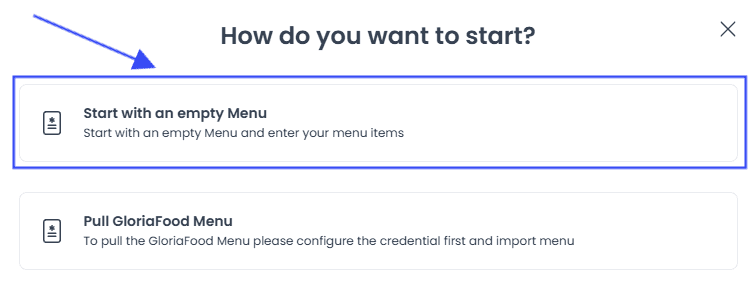
Then create the categories and products required for the store. Use Products overview, create a product category, and create or edit a product for the related procedures.
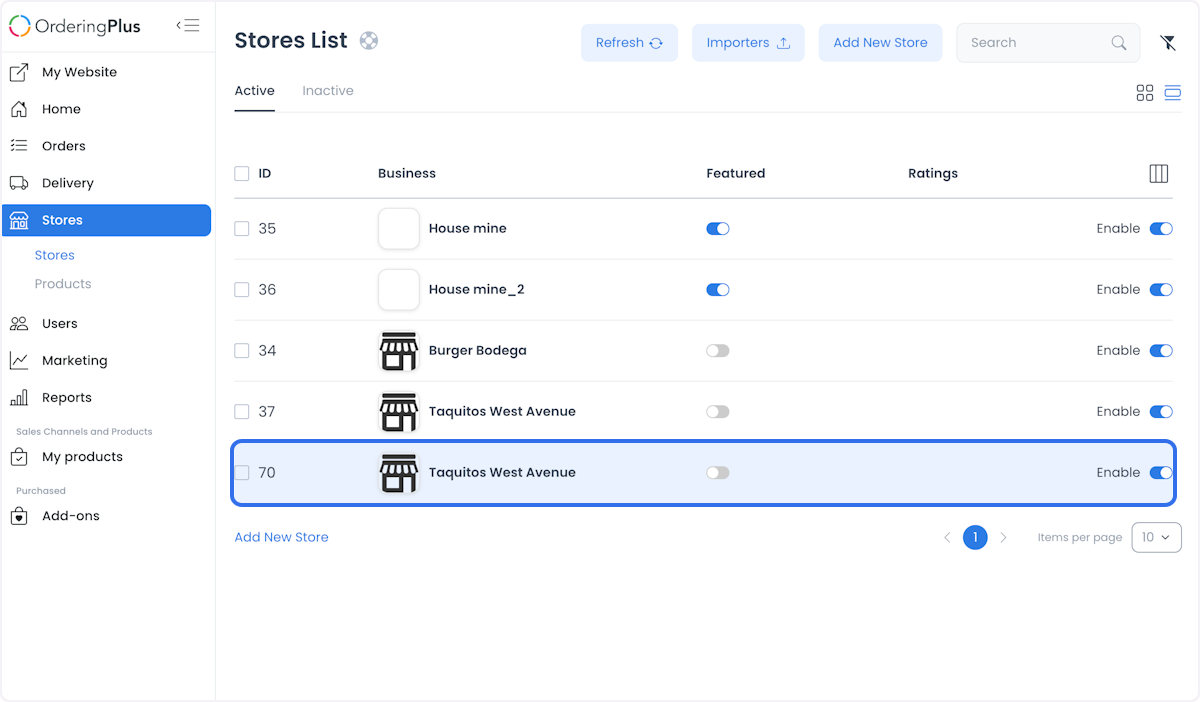
Seeing a store in a list or moving to a menu screen is not evidence that it is published or visible in an Ordering.co website or app. Customer-facing availability also depends on the applicable schedule, menu, configuration, and runtime conditions.
Use cases and operating checks
Restaurants, retail stores, and service providers can use this workflow to prepare store details, branded media, schedules, delivery coverage, payment selections, and catalog content. Before relying on the configuration, have the responsible operator review:
- the store identity and contact details;
- approved images and price-level presentation;
- operating hours and temporary closures;
- delivery-zone and payment-method choices;
- categories, products, and availability conditions; and
- the separately approved procedure for checking any customer-facing result.
Troubleshooting
Why is Add new store unavailable?
Confirm that you are signed in as a permitted administrator or business-manager for the intended project and that the relevant project configuration is enabled. A visible Stores area does not by itself grant the create action.
Why can't I save the store?
Review the required slug and payment-method selection, then correct any validation shown by the form. Use a unique slug and do not submit live data merely to test a field.
Why don't I see address search, a map, or delivery zones?
Those sections depend on the project's enabled configuration and applicable order types. Their absence does not by itself identify a provider or configuration failure.
Why is a payment method unavailable?
Available methods depend on the intended project's payment configuration and, where applicable, the external-provider setup. Confirm the intended method through the approved payment configuration workflow.
Related guides: Stores overview · Search, filter, and organize stores · Products overview