Add a store
Use Add new store for an authorized store-registration workflow. The form can collect store information, images, hours, payment methods, delivery-zone values, and an order-receipt email; do not submit live or sensitive values for documentation review.
Adding a store is available to permitted administrator and business-manager accounts. The action can be hidden by project configuration, and store limits can require a plan upgrade. Fields such as Google address search, school vertical, delivery zones, payment methods, and app downloads depend on enabled features and configuration.
Before you start
- Confirm that you can add stores in the correct Ordering project.
- Prepare a store name, a unique URL slug, and an order-receipt email address.
- Decide which available payment method the new store should use.
- Use test or approved business information when creating a store for setup or training.
Open the form
- In the Dashboard sidebar, select Stores.
- Select Stores.
- Select Add new store.
If the action is unavailable, review the availability note above. A project without an eligible Pro or Enterprise plan can also prompt for an upgrade after reaching its store allowance.
Add the store details
- Enter a Business Name. The Dashboard generates a slug from the name.
- Review and edit the Slug if necessary. It must be unique.
- Enter the phone number and the email address that should receive orders.
- If address search is available in your project, select the correct address and review the map.
- Optionally add a logo, header image, schedule, gallery photos, and order-type price level.
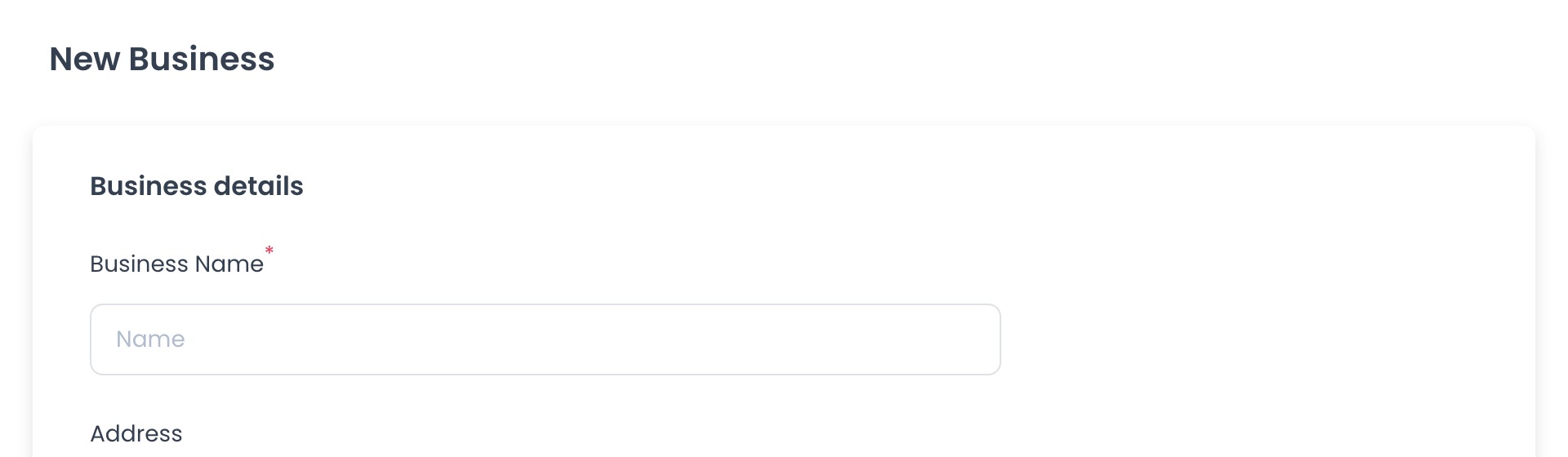
The business-name field updates the slug automatically, but you can edit the slug before confirming. Logo uploads accept PNG or JPG images up to 2 MB; the recommended logo size is 512 × 512 px and the recommended header size is 1350 × 400 px.
Choose payment methods
At least one payment method is required.
- In Payment methods, keep the preselected eligible method or select another available method.
- Review credit-card payment methods if your project has an eligible Pro or Enterprise plan.
- Continue to Receive orders and confirm the email address.
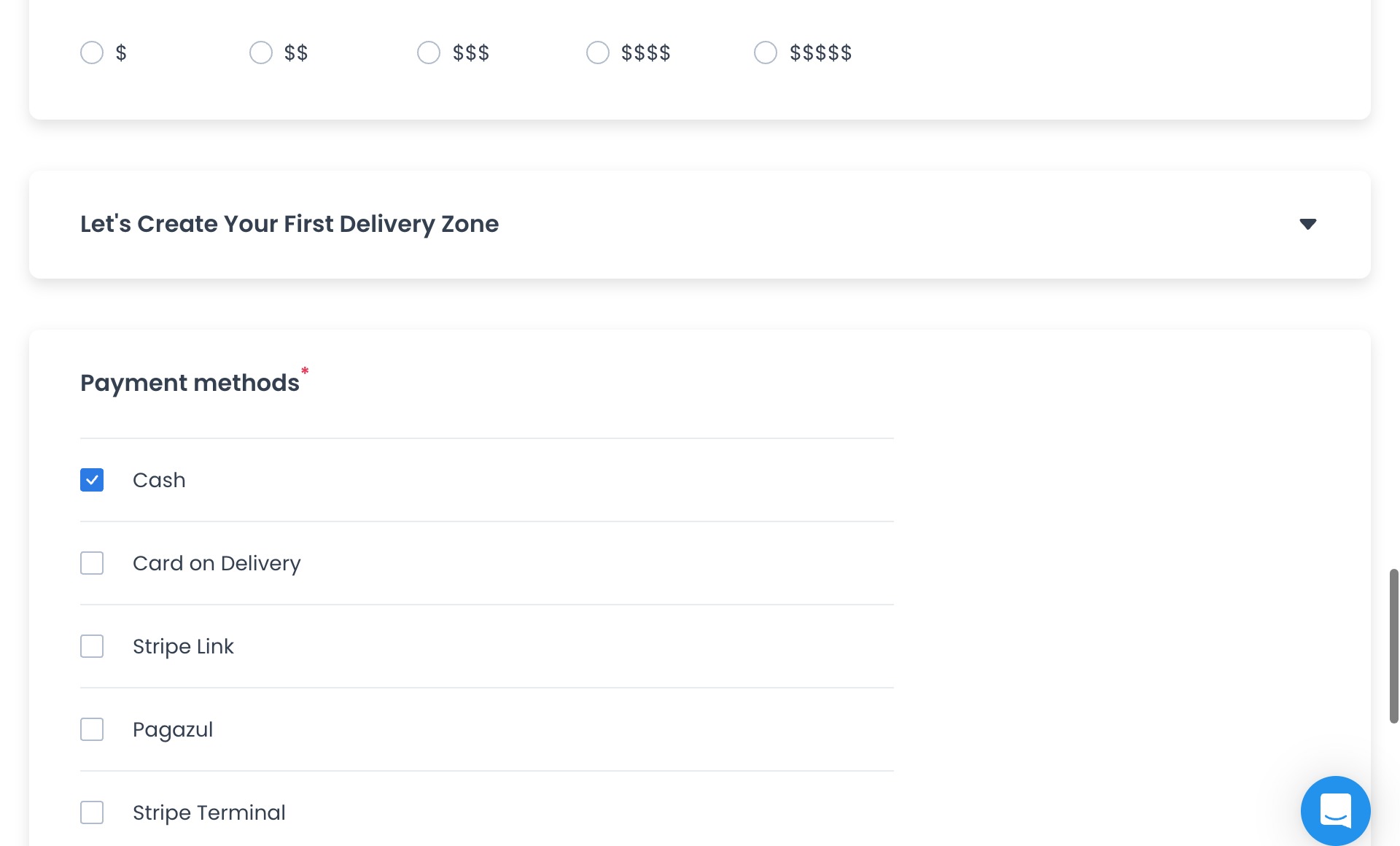
Credit-card methods are unavailable without an eligible plan. Stripe Connect and some wallet methods can require additional project add-ons. Opening the form also starts authenticated paymethod and country/city reads, and address features can hand location data to Google Maps services. No GET request or provider interaction is treated as a safe documentation check.
Understand the Confirm boundary
Before any authorized submission, review the business name, slug, owner, payment methods, receipt email, images, schedule, location, and optional delivery-zone values. Confirm requires a slug and at least one payment method in the current client source.
The current client first submits a business-registration request. Only after a source-reported non-error response does it attempt selected payment-method credentials and gallery records in parallel, plus an optional delivery zone when its required values are present. These steps are not atomic, so partial completion is possible. This guide makes no claim about deployed behavior or successful effects.
Source-defined follow-up
The client source defines a success toast and navigation to /stores/products/{slug} after its request chain returns through the non-error branch. Treat both as client intentions, not proof that a deployed store, menu, delivery zone, credential, gallery item, or other record exists. Verify operational outcomes only under a separately approved runtime procedure with immutable receipts.
Troubleshooting
Why is Confirm unavailable or showing an error?
Enter a slug and select at least one payment method. If the slug is already used, choose a different unique value and confirm again.
Why don't I see address search or the map?
Google address controls appear only when the project has a Google Maps API key configured.
Why are some payment methods unavailable?
Available methods depend on the project plan, payment configuration, and enabled add-ons. Credit-card methods require an eligible Pro or Enterprise plan.
Why don't I see a delivery-zone section?
The section is conditional on the current order-type configuration. It is not required to create every store.
Related guides: Stores — Overview · Search, filter, and organize stores · Products overview