Sign in to the Dashboard
Use the Dashboard link from your welcome email or the one your project administrator gave you. If your team uses the shared Ordering.co Dashboard, open Dashboard sign-in.
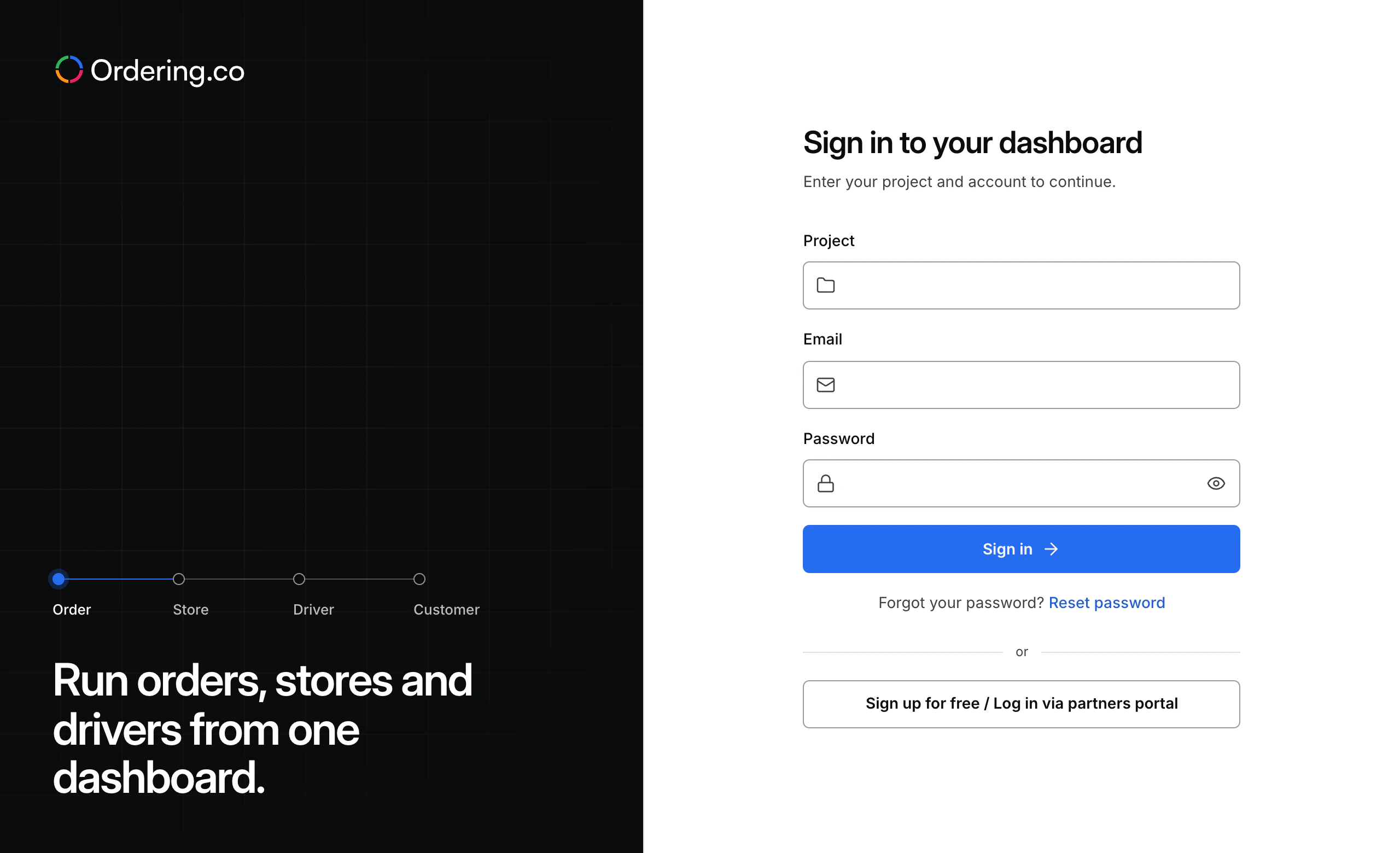
Sign in to your project
- Open your project's Dashboard link.
- If you see Project, enter the project code provided by your administrator or in your welcome email. A project-specific link may already select the project.
- Enter the Email and Password for your own Dashboard account, then select Sign in.
Your project can offer other sign-in methods. If you see Email code or Phone code, choose the method your team uses, select Send code, and enter the code you receive.
Find your starting page
When you sign in from the main Dashboard link, your starting page depends on your role.
| Account | Starting page |
|---|---|
| Administrator or business owner with standard access | Home |
| Driver manager or an eligible read-only account | Orders |
| Professional account | Profile |
If you opened a direct link to a page, the Dashboard can return you to that page after sign-in if your account has access. Use the navigation map to find other areas available to you.
Resolve access problems
| What you see | What to do |
|---|---|
| The form shows the wrong project, or you see another project after signing in. | Confirm the link and project code with your administrator. If you already have a session in another project, use the account menu to sign out, then reopen the intended project's link. |
| The Dashboard says you do not have access, or an expected section is missing. | Check that you used the right project and account. Ask the project administrator to confirm your role and the pages it allows. |
| You forgot your password. | Select Reset password on the sign-in screen for your project and follow the instructions. If your team uses the shared Dashboard, you can also open password recovery there. See the full recovery steps. |
If you're already signed in, open Profile to confirm which account you are using. If you still cannot get in, use the help options and share your project code and what the screen says. Keep passwords and sign-in codes private.