WhatsApp support button
Let customers reach your support team on WhatsApp with one tap.
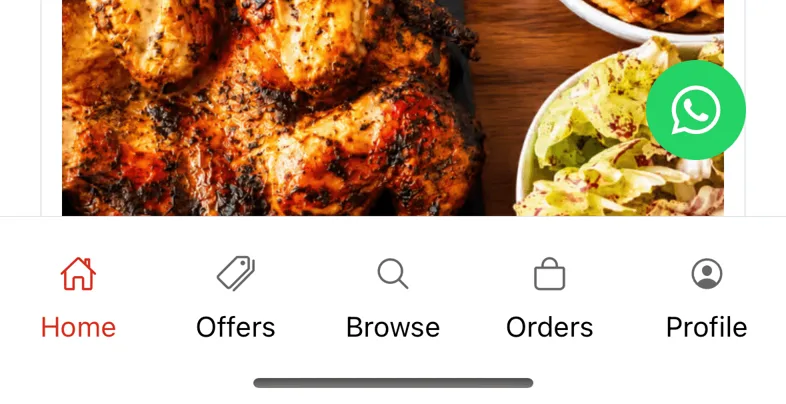
When the WhatsApp support button is on, your marketplace app shows a green WhatsApp icon in the bottom-right corner. Customers tap it to open a WhatsApp chat with the number you set, so they can ask for help without leaving the app to look for your contact details.
This button opens a regular chat with your support number. To take orders on WhatsApp, see WhatsApp ordering bot.
Before you start
- A project administrator account with access to Settings.
- A WhatsApp number your support team answers.
1. Open WhatsApp support
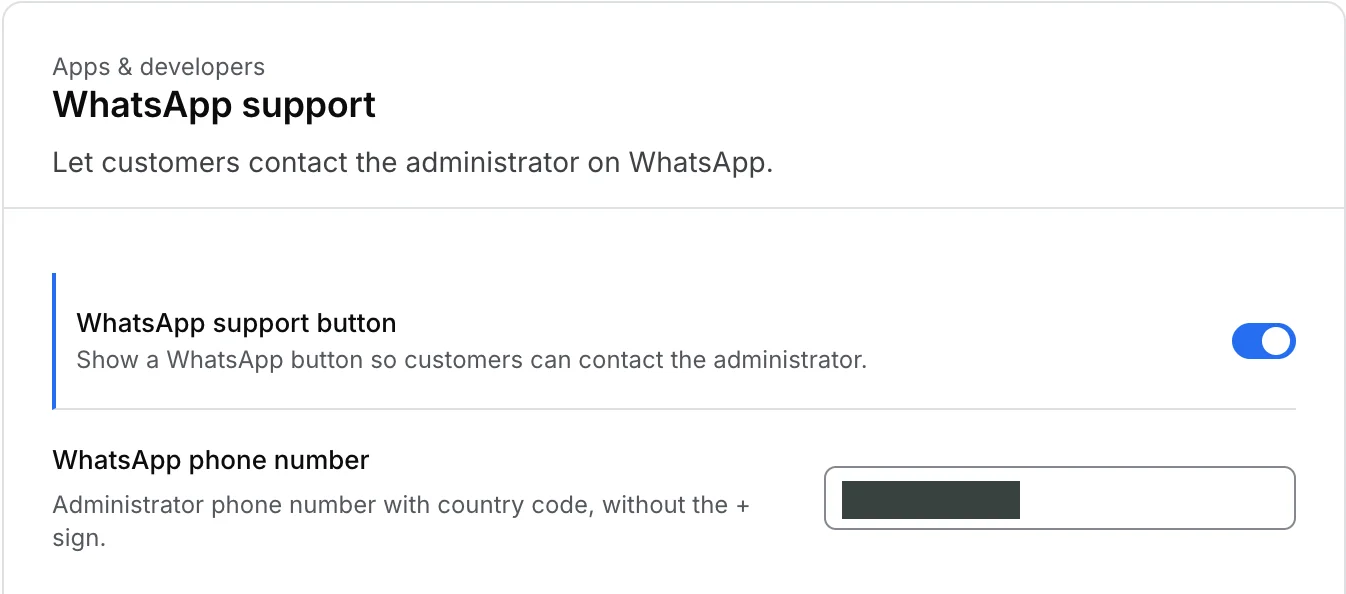
In the Dashboard, open Settings → Apps & developers → WhatsApp support. You can also type WhatsApp in the Settings search.
2. Turn on the button
Turn on WhatsApp support button. The WhatsApp phone number field appears.
3. Enter the number and save
In WhatsApp phone number, enter your support number with the country code, using digits only: no + sign, spaces, or dashes. Then save your changes.
| Country code | Local number | Enter |
|---|---|---|
| 34 (Spain) | 612 345 678 | 34612345678 |
| 52 (Mexico) | 33 1234 5678 | 523312345678 |
4. Test the button
Open your marketplace app and tap the green WhatsApp icon in the bottom-right corner. Check that a WhatsApp chat opens with the number you set.
Troubleshooting
The button doesn't appear
Close the keyboard: the button hides while customers are typing. If it still doesn't appear, check that WhatsApp support button is on and that the number was saved.
The chat opens the wrong number
Check the number in WhatsApp phone number. It must include the country code and contain digits only.
Related guides: Settings overview · WhatsApp ordering bot