User information
Use User Information to control the Required and State settings for customer, address, and credit-card validation fields. These are site-specific settings: the fields and switch positions you see can differ between sites.
User Information is available to Dashboard administrators from Settings. The sites shown depend on the project configuration and enabled apps. The interface can show all returned sites or only the website and relevant enabled app sites.
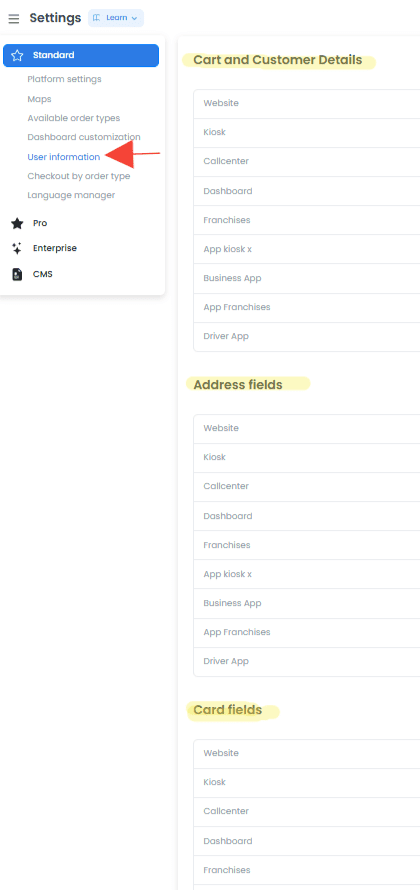
Open User Information
- In the Dashboard sidebar, select Settings.
- Select User Information.
The direct Dashboard path is /all-settings?category=user_information.
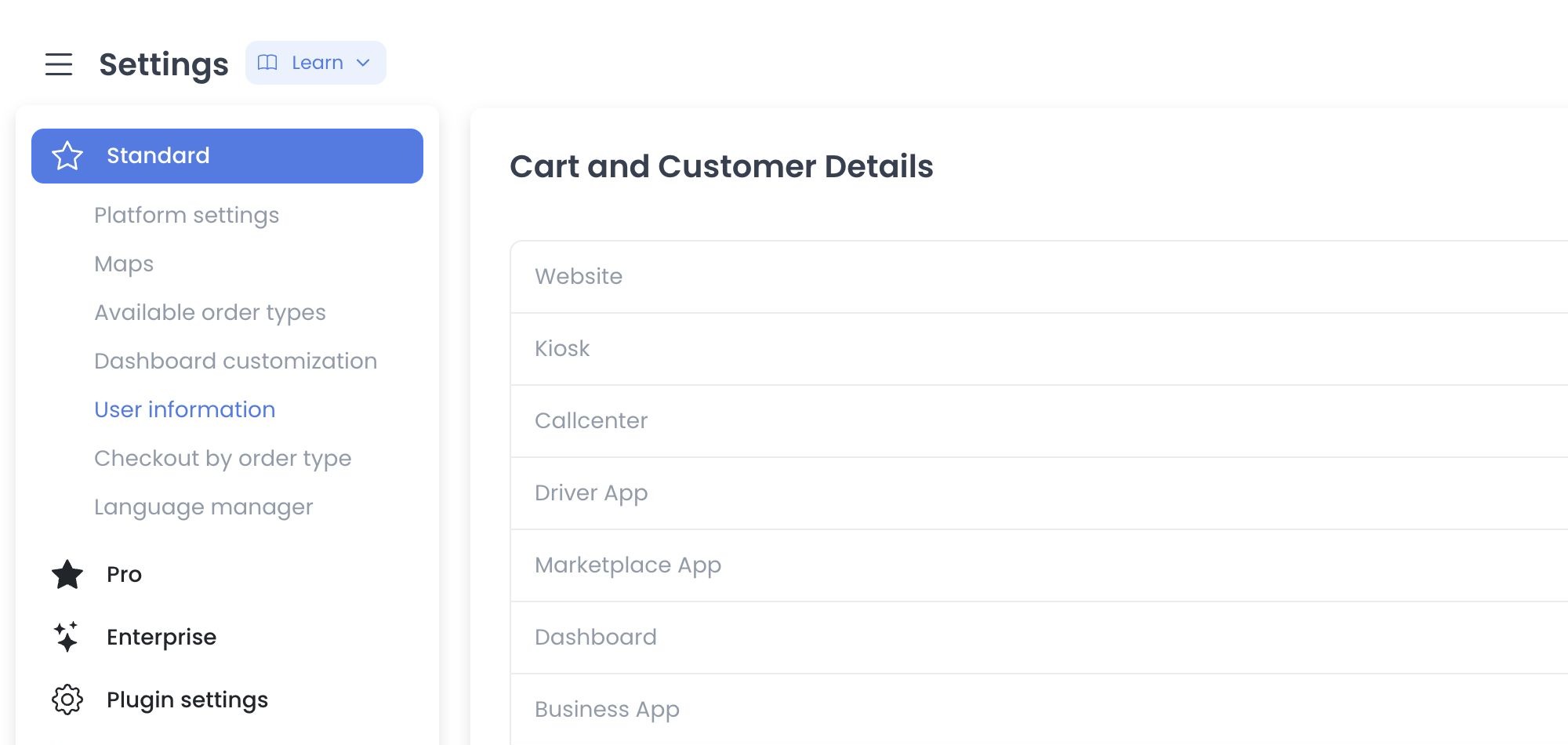
Data and component boundaries
The current source composes three field controllers:
- Cart and Customer Details filters validation fields whose
validatevalue ischeckout. - Address fields filters the
addressgroup and removes several customer-identity rows from that section. - Card fields filters the
cardgroup.
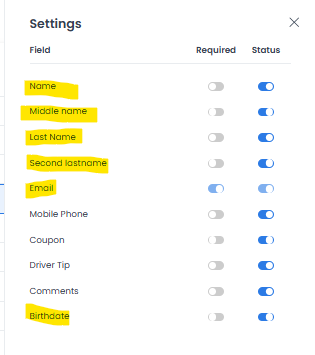
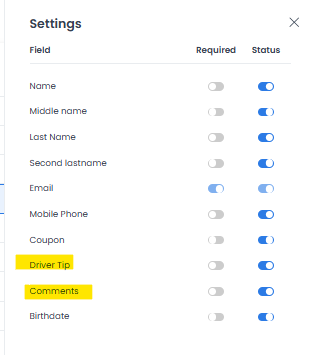
Select a site in a section to open its Settings table. Each available field has two switches:
| Control | What it does |
|---|---|
| Required | Maps to the site-specific validation-field required value. |
| State | Maps to the site-specific validation-field enabled value. |
The table only controls these switches. Field labels, input types, and the fields that appear are defined by your project's validation-field configuration. Do not assume that another site's fields or switch positions are the defaults for yours.
When Email appears in Cart and Customer Details, its Required and State switches are unavailable in this screen.
Immediate-write boundary
There is no page-level staging step. The source issues an authenticated update when a Required or State switch changes. It can also issue create requests for missing site-field records after a site is selected.
Important: selecting a site can create settings
Each of the checkout, address, and card controllers compares its base validation-field list with existing site records. After site selection, a controller can submit all of that section's missing records concurrently with Promise.all, using enabled: true; Email also receives required: true only in a section where Email participates. Merely opening an unconfigured site can therefore cross multiple write boundaries. This guide did not select a site or run any request.
Field groups and screen examples
The historical screen examples describe the same three configuration areas: Cart and Customer Details, Address Fields, and Card Fields, and present them as controls for the data fields collected across Website, Kiosk, Apps, and Dashboard. The current source determines the available sites and fields from project configuration and returned application state. Do not expect every example field or site to appear in your project, and do not infer a downstream user-journey outcome from a configured switch.
Cart and Customer Details
The historical example groups fields as:
- Personal Info: Name, Middle Name, Last Name, Second Lastname, Email, and Birthdate.
- Contact Info: Mobile Phone.
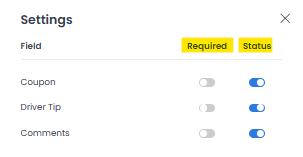
- Checkout Options: Coupon, Driver Tip, and Comments.
The source describes Coupon as a discount-code field, Driver Tip as a gratuity field for delivery orders, and Comments as a text area for order instructions. These labels identify the example fields; they do not verify a particular checkout result.
Address Fields
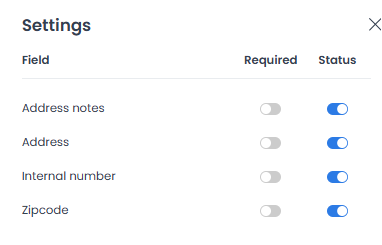
The historical example includes Internal Number, Zipcode, and Address Notes, and presents them as location details for delivery. Use the fields returned for the selected site as the source of truth for the available address configuration; the source does not prove a delivery outcome.
Card Fields
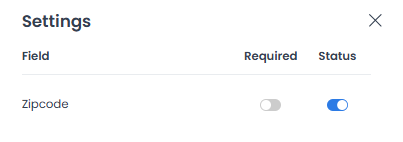
The historical example includes Cardholder Name and Zipcode validation, and ties their use to payment-processor requirements. The set of fields can depend on the selected site and its validation-field configuration; verify the applicable configuration rather than inferring a payment-flow result.
Change a setting carefully
- Select the applicable site in the relevant field group.
- Use State (called Status in the historical example) to change the
enabledvalue for an available field. - Use Required to change the
requiredvalue for an available field. - Confirm the observable editor state, then validate the intended flow with an authorized test if a downstream result matters.
The historical visual guide used the following table. Its result descriptions are source descriptions, not evidence that a setting was persisted, published, or changed a customer-facing flow.
| Action | Visual indicator | Result described by the historical source |
|---|---|---|
| Enable Field | Blue Switch | The field is visible to the customer. |
| Make Mandatory | Blue Switch (Required) | The customer cannot skip this field. |
| Disable Field | Grey Switch | The field is completely hidden from the UI. |
The historical source notes that a Website list in Cart and Customer Details can be shorter than other lists, and suggests comparing Business App or App Franchises settings. Treat the fields returned for each site as authoritative; this guide does not establish shared defaults or cross-surface behavior.
Keep registration configuration focused. Mark fields as Required only when they are necessary for an operational or legal requirement, such as a birthdate where an alcohol policy requires it. Validate the result in the intended checkout flow rather than assuming a particular conversion outcome.
The fields can describe customer, address, and card requirements. Treat these values as personal information.
For internal or technical metadata on an individual product, use Configure product custom fields. That guide is separate from site validation-field controls.
Related guides: Platform settings · Available order types · Checkout by order type