White label
White label is a dynamic Settings category for customer-facing email identity and SMTP transport configuration. It can help a project present a consistent sender identity for notifications and support correspondence, but returned fields, values, enablement, and downstream delivery remain project and provider state.
No address, domain, credential, asset, mail job, or provider was accessed for this guide. Sender/reply addresses, customer domains, SMTP hostnames, usernames, passwords, keys, certificates, tokens, and unpublished assets are sensitive. Do not copy them between projects or place them in screenshots, documentation, issue text, or browser-visible configuration.
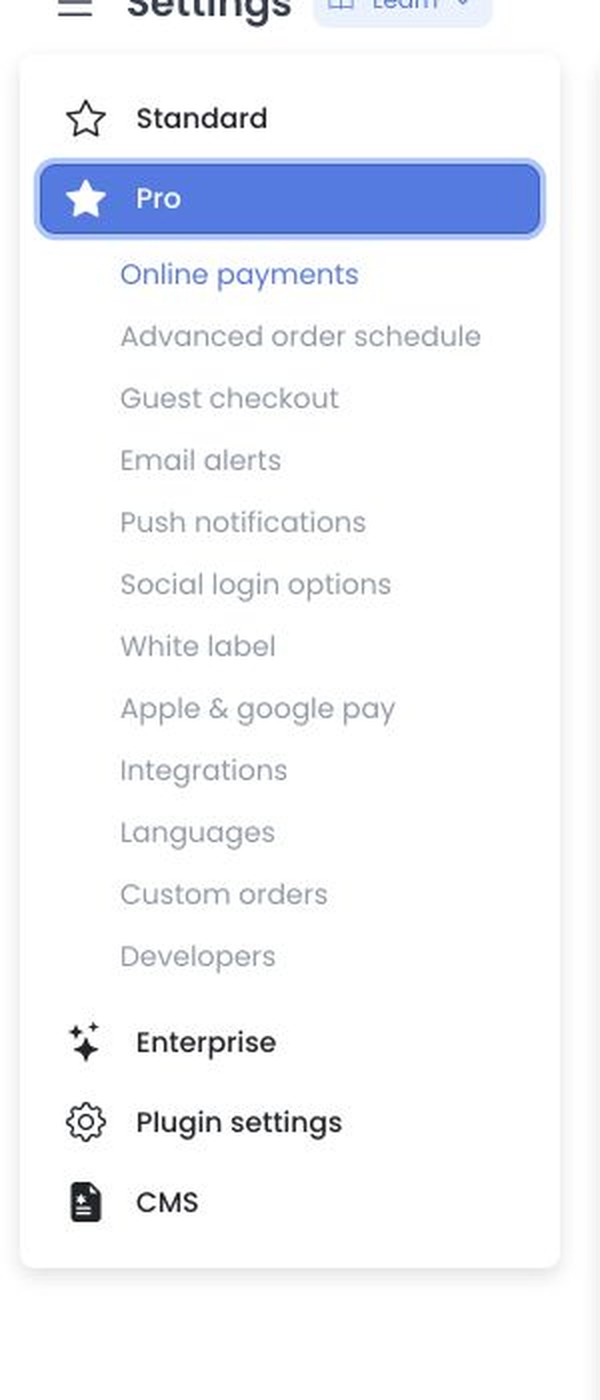
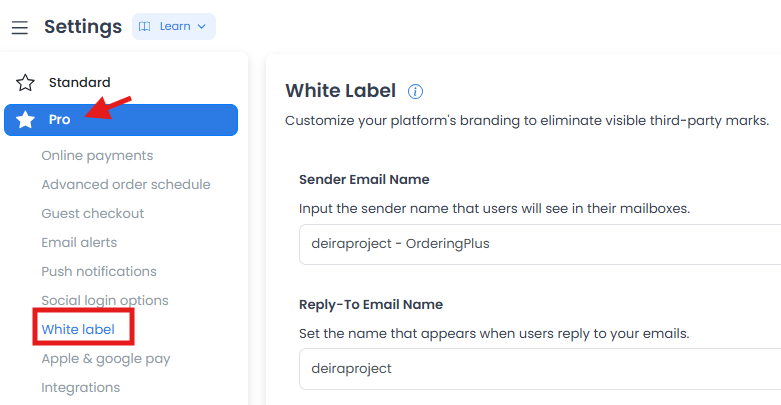
Review sender identity
The pinned API catalogue defines these reference controls. Their returned presence, values, enablement, and dependencies remain runtime state:
| Control | Use it to |
|---|---|
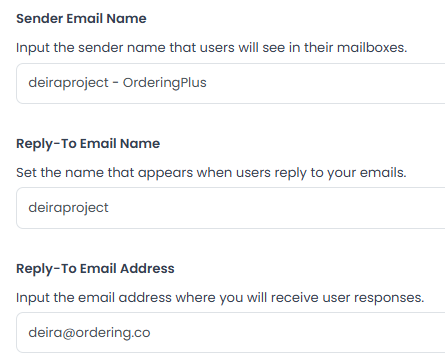
| Sender Email Name | Set the display name recipients see as the sender. |
| Reply-To Email Name | Set the display name used for replies. |
| Reply-To Email Address | Set the destination address for recipient replies. |
| Sender Email Address | Set the address shown in the message’s From field when the configuration allows it. |
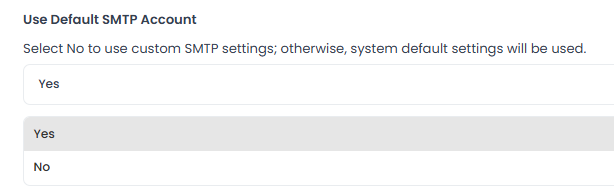
| Use Default SMTP Account | Choose the project/platform delivery account instead of a custom SMTP connection. |
Use names and addresses that the project is authorized to send from. A sender name should be clear to recipients and should not imply ownership, support, or a relationship that the project does not have.
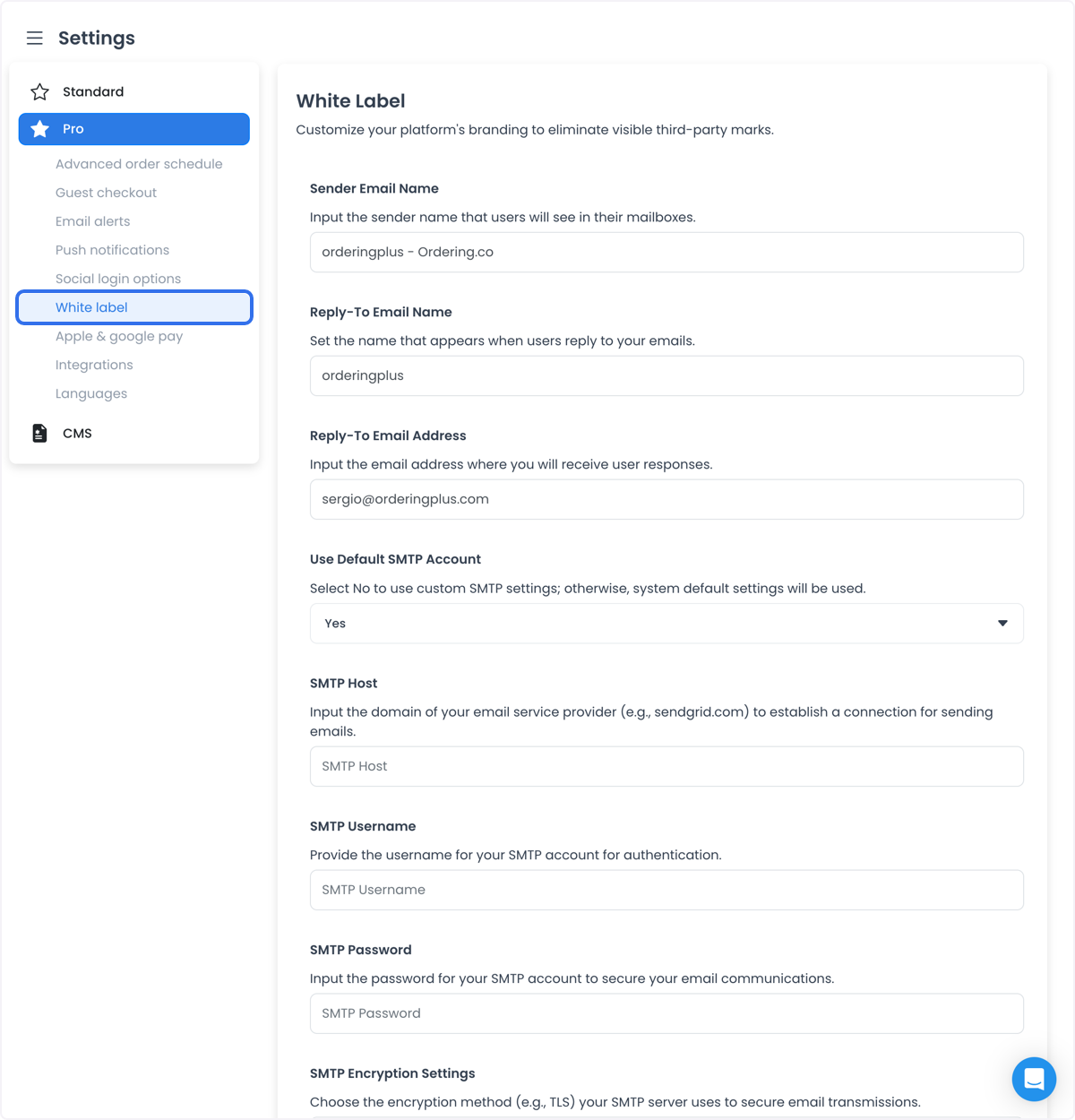
Configure custom SMTP only with provider authority
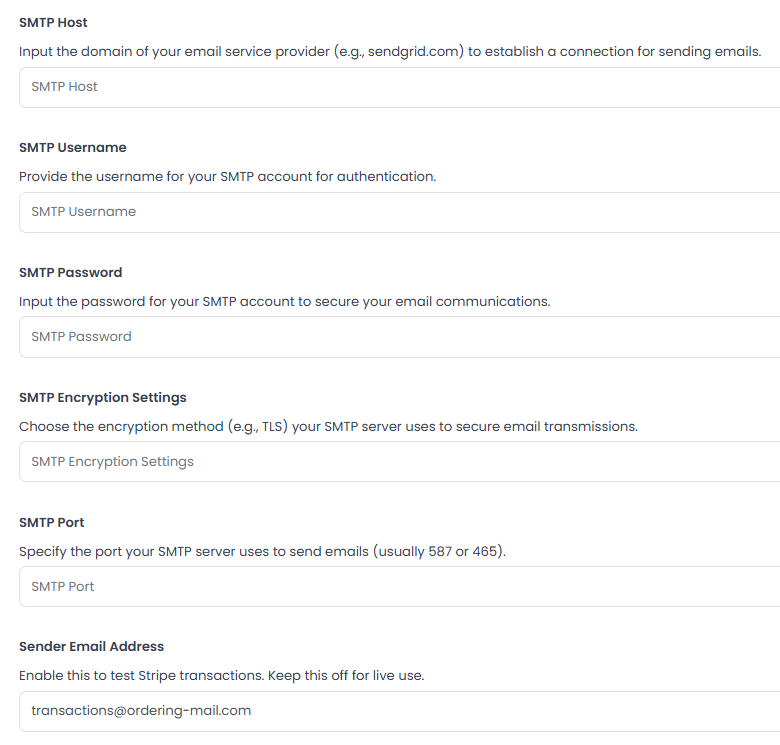
When Use Default SMTP Account is off, the category can expose custom SMTP controls:
- SMTP Host
- SMTP Username
- SMTP Password
- SMTP Encryption Settings
- SMTP Port
The captured workflow shows the default-account choice used to reveal these fields.
Encryption type, port, sender authorization, domain authentication, provider limits, and deliverability are provider decisions. Common port or encryption examples in an older capture are not a substitute for the current provider’s documentation. Use a credential-free, approved test scope and an explicit rollback/reconciliation plan before changing SMTP settings.
Save and delivery boundaries
The shared settings editor renders returned text, option, image, color, and password types. Generic text and option values are staged until Save and saved sequentially; earlier updates can be accepted before a later failure. Password fields remain credentials even when masked. If a returned image-type config exists, crop confirmation can call saveConfig immediately and upload without the generic Save sequence.
Mail helpers and jobs consume SMTP settings downstream, but no delivery result is claimed. A saved setting does not prove that a provider accepted credentials, that a message was sent, that a recipient received it, or that a support widget is visible to the intended role.
Use the setting responsibly
- Align the sender name, reply-to address, and message content with the project’s actual customer-support and legal responsibilities.
- Keep promotional campaigns, order confirmations, support replies, and newsletters distinct from any guarantee of delivery or customer action.
- The captured support-widget description says it can be limited to top administrators. Confirm current role and permission behavior instead of treating the label as an authorization contract.
- Before any authorized test, use non-routable or approved test recipients, prevent real financial or customer effects, and review the rendered message and provider result separately.
For the product overview of sending email through your own server, see Custom SMTP on Ordering.co.
Related guides: Settings — Overview · Dashboard customization