Set up Google login
Google Login (Sign in with Google) lets customers open the website or mobile app with an existing Google account instead of a new password.
The customer is redirected to Google to confirm the account and authorize access. After Google approves, Ordering.co can sign them in. This can:
- Simplify sign-in
- Reduce password-reset requests
- Use Google's identity checks
- Increase registration and login completion
Saving Dashboard credentials or enabling the Google provider in Firebase does not by itself complete a customer sign-in.
Requirements
- A Firebase project.
- Permission to edit Settings → Social login options in the Ordering.co Dashboard.
- The website domain, Android Package Name, and iOS Bundle ID of the products that will show Google Login.
One Firebase project can manage authentication for the website and the apps.
Create a Firebase project
If you already have a Firebase project for this brand, skip creation and use that project.
- Open the Firebase Console and sign in with a Google account.
- Select Create a project (older consoles: Build → Add Project).
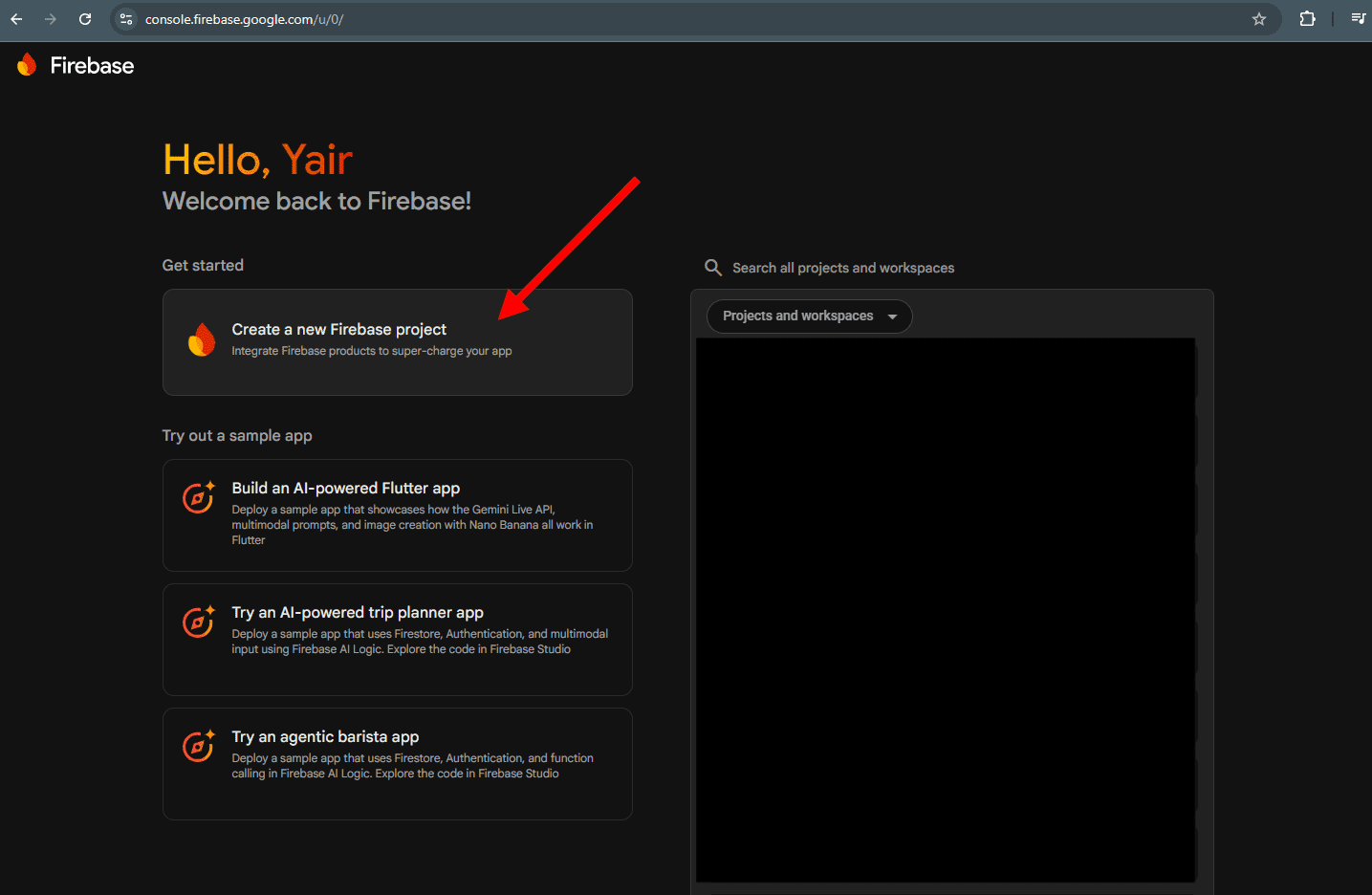
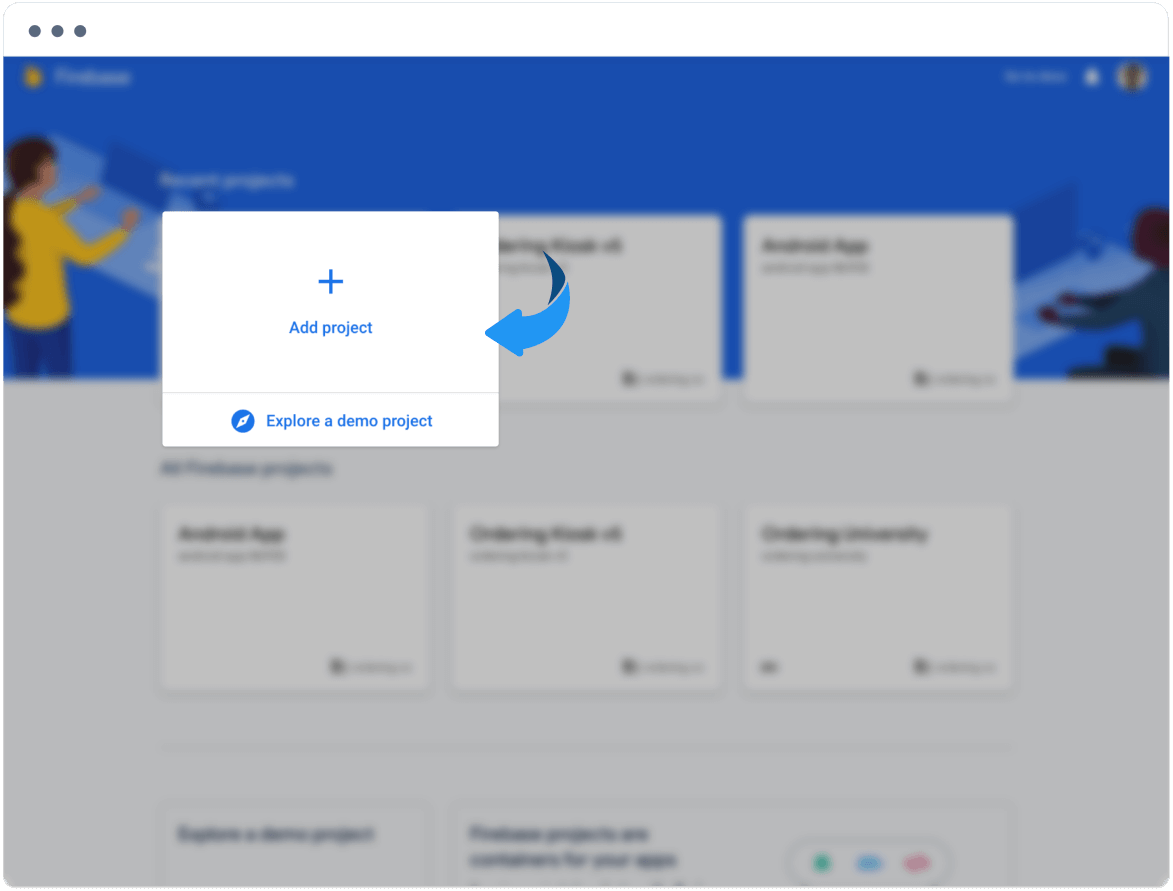
- Enter a Project name and follow Firebase's remaining screens. Use a project ID that matches the brand.
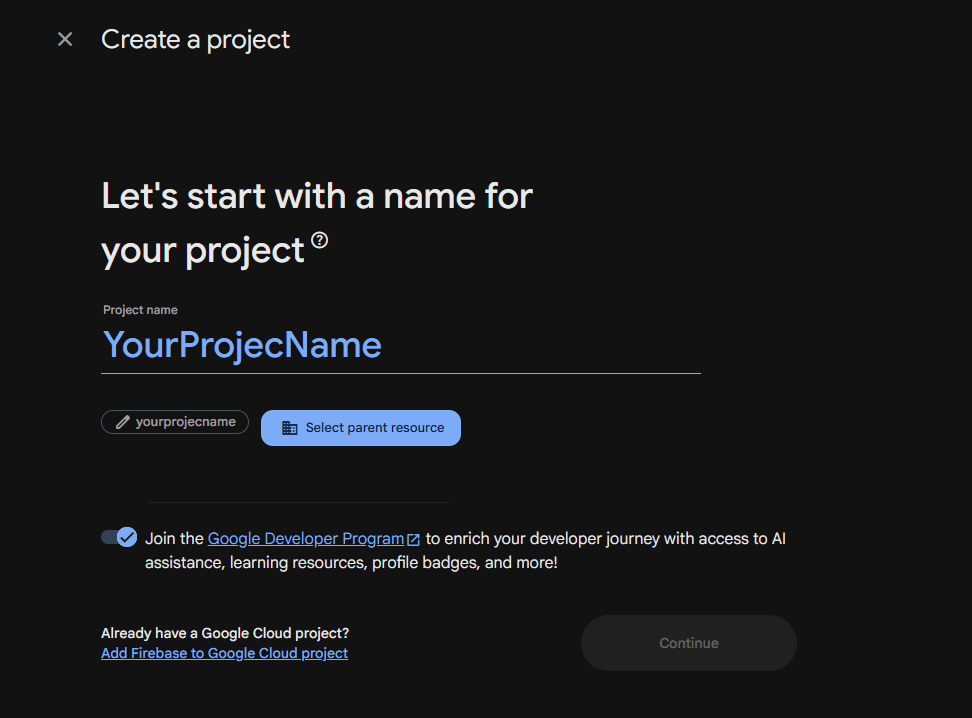
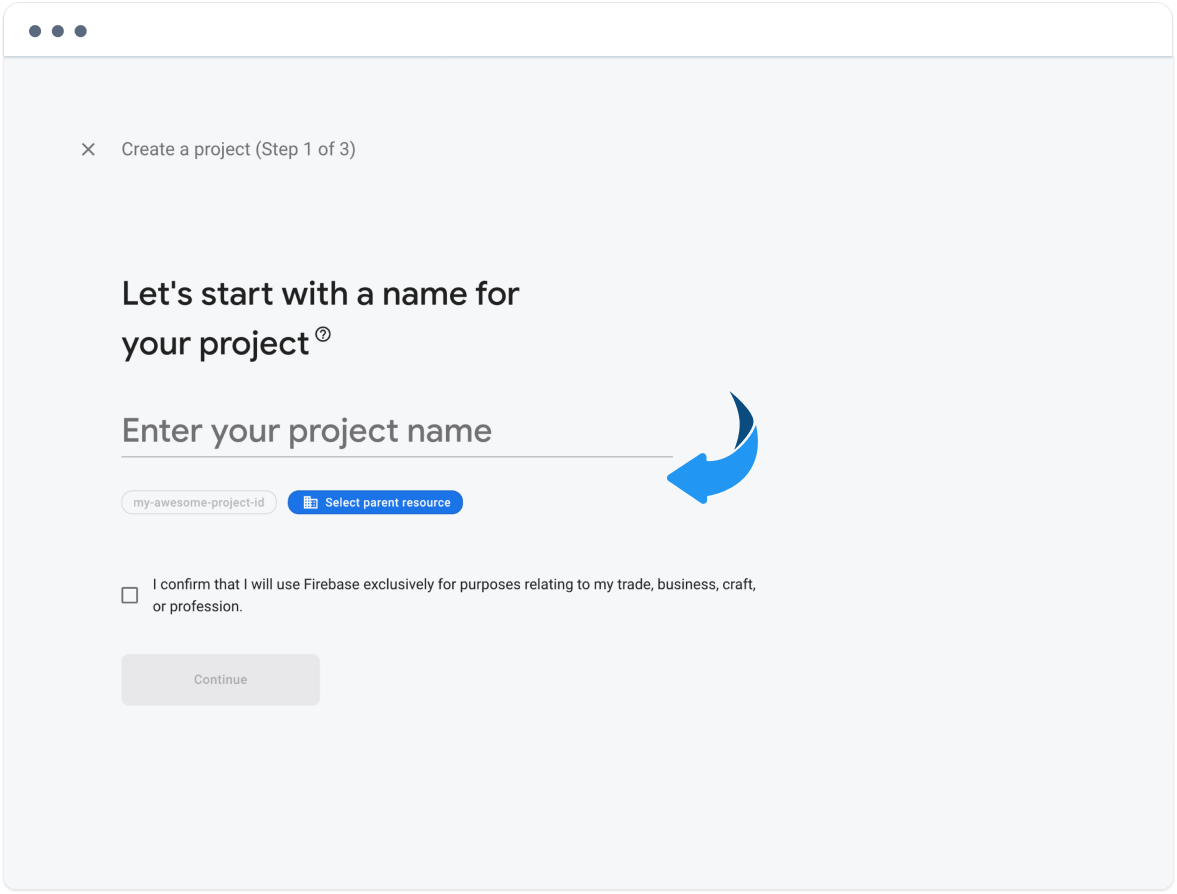
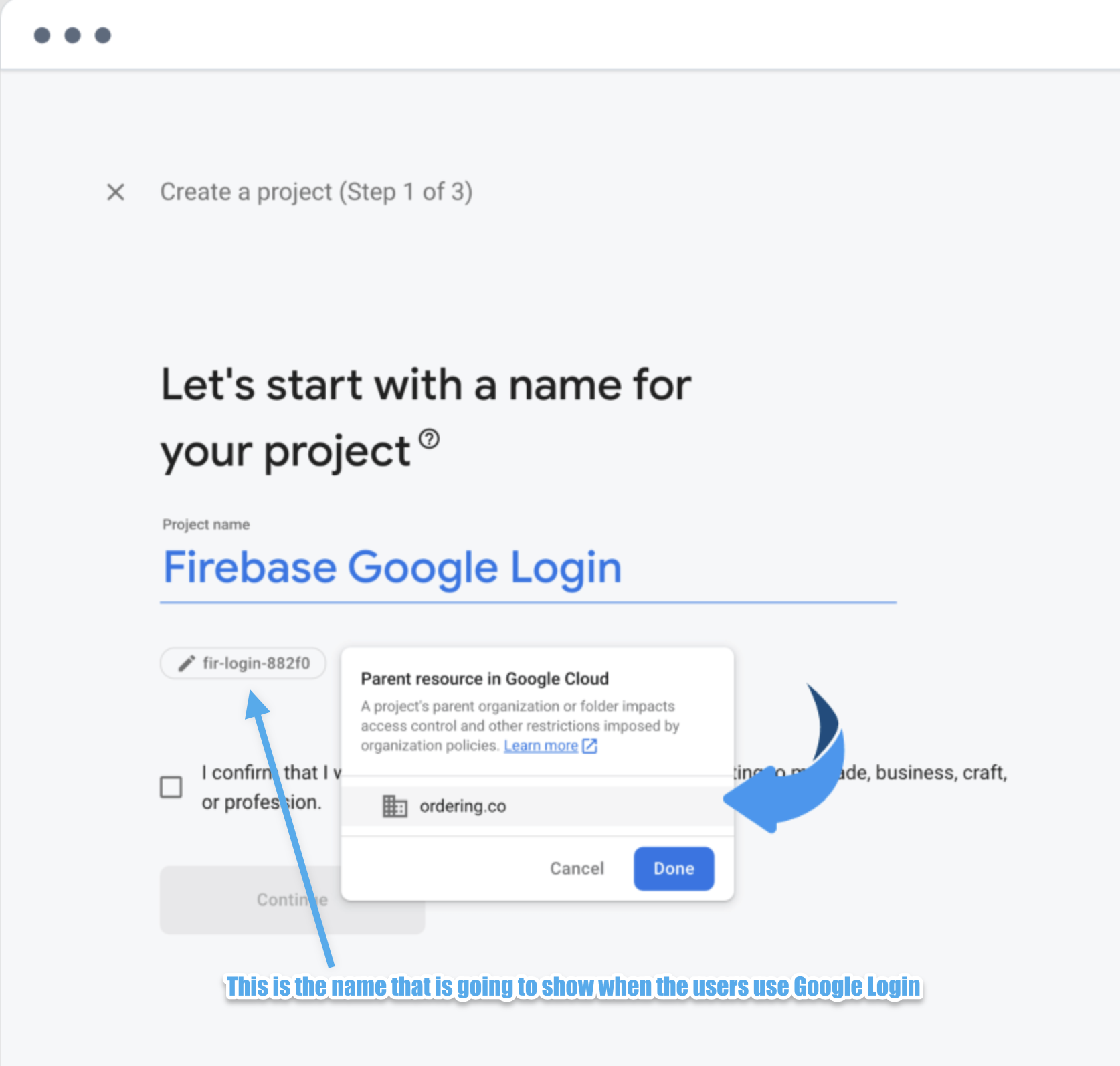
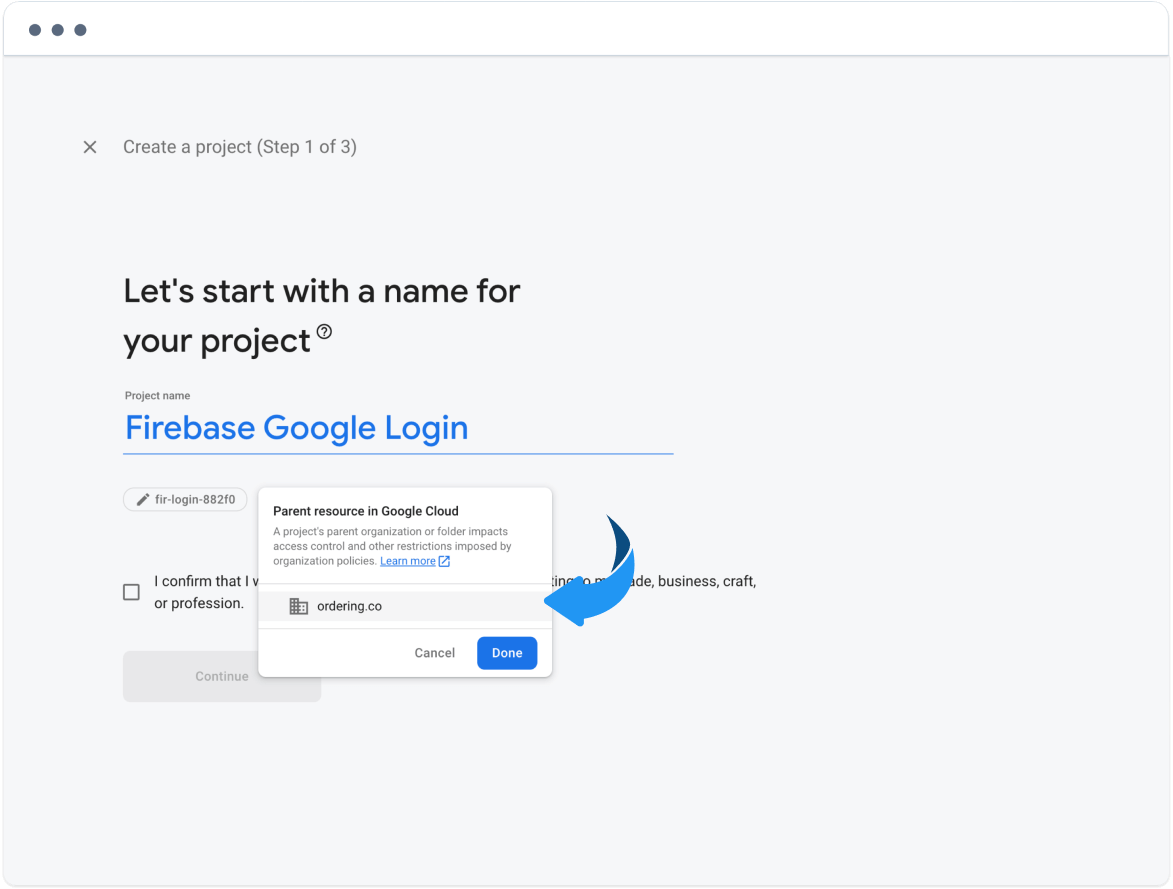
If the console asks for a parent resource, select Select parent resource, choose where the project should live, then continue.
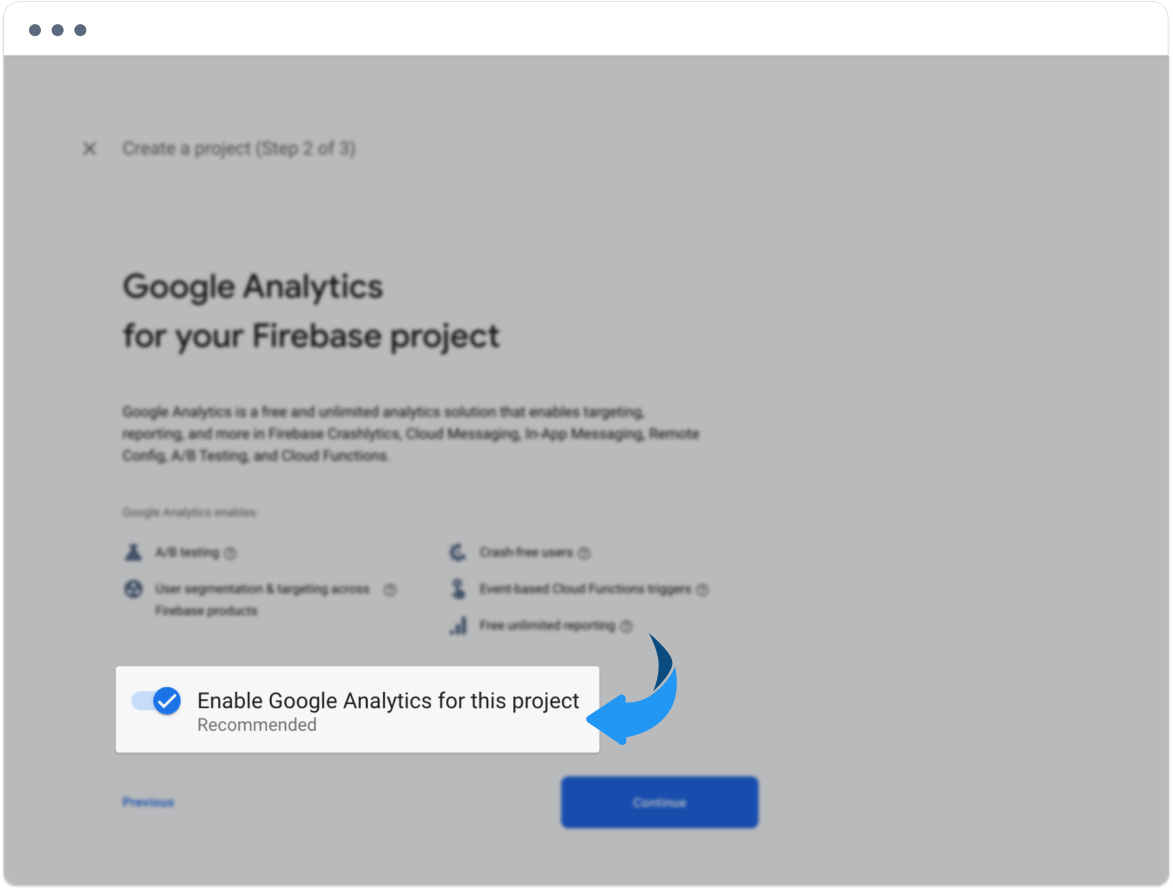
If the console presents a Google Analytics choice, make that choice according to your project's analytics requirements. This guide does not establish Analytics as a requirement for Google Login.
- When setup finishes, the project is ready to register applications.
Register the website and apps
Register every platform that will use Google Login:
- Website: the website domain
- Android app: the Package Name
- iOS app: the Bundle ID
Those identifiers tell Firebase which clients may use Google authentication.
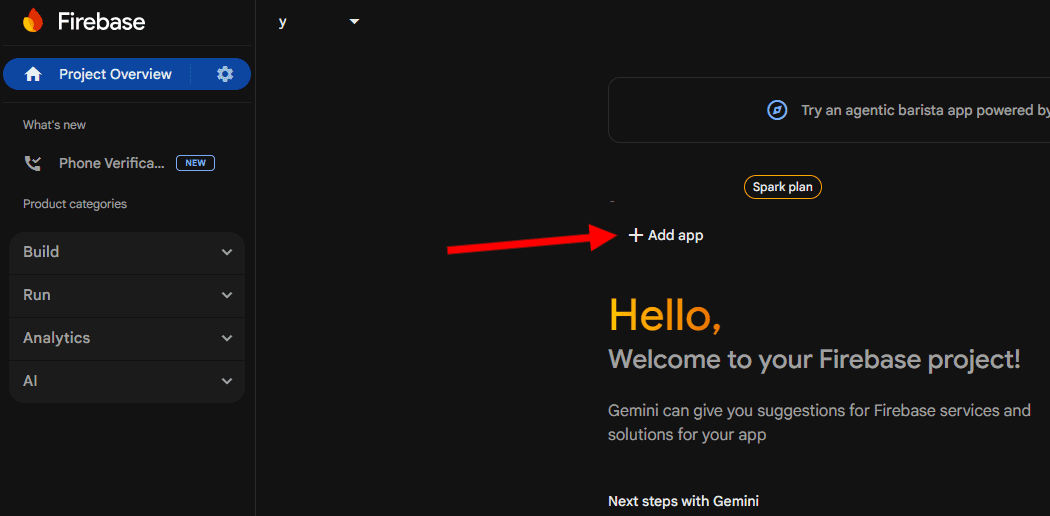
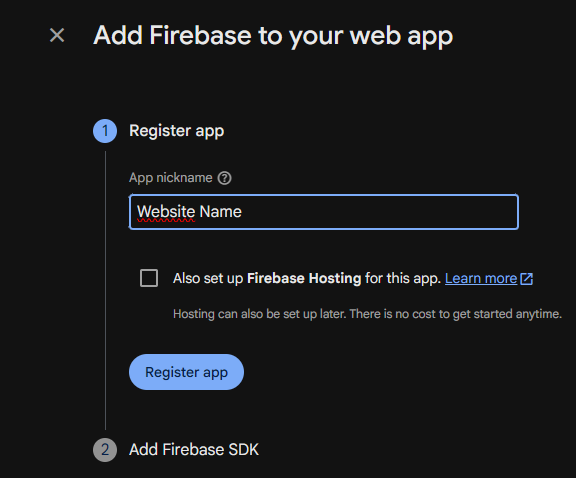
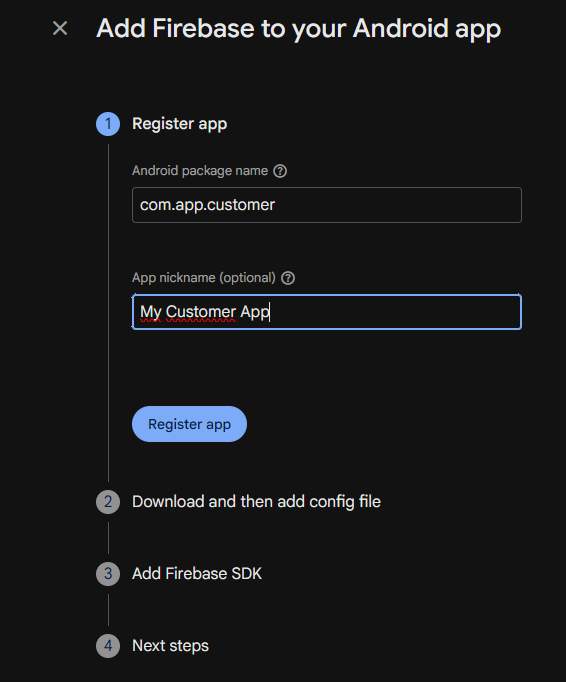
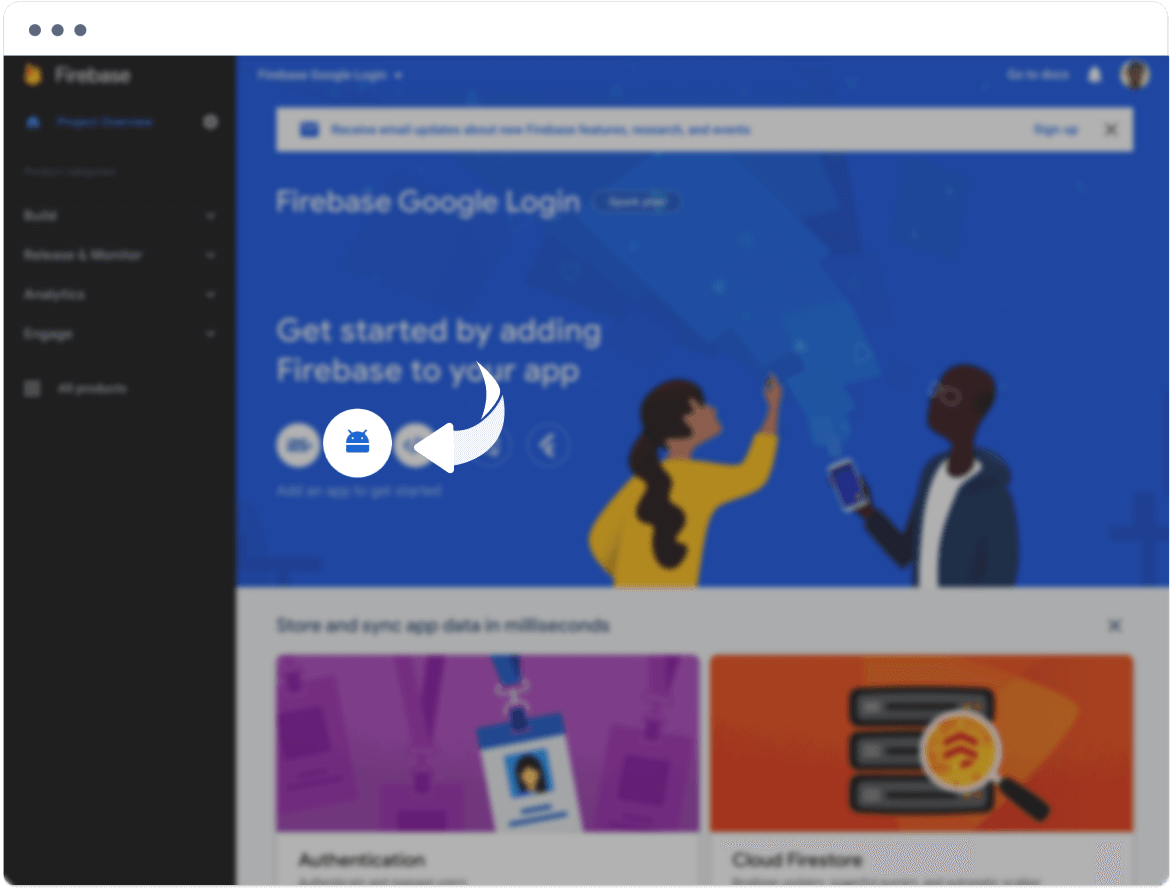
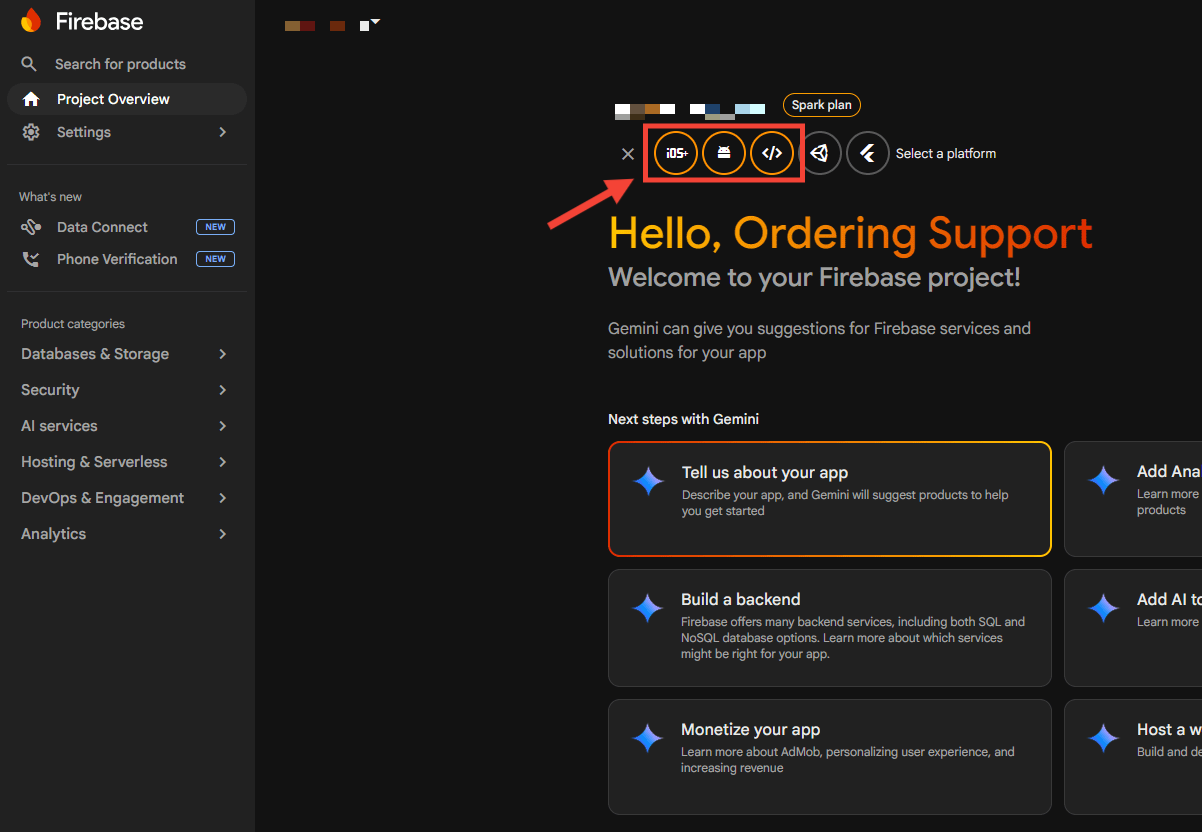
On Project Overview, Add app also lists Android.
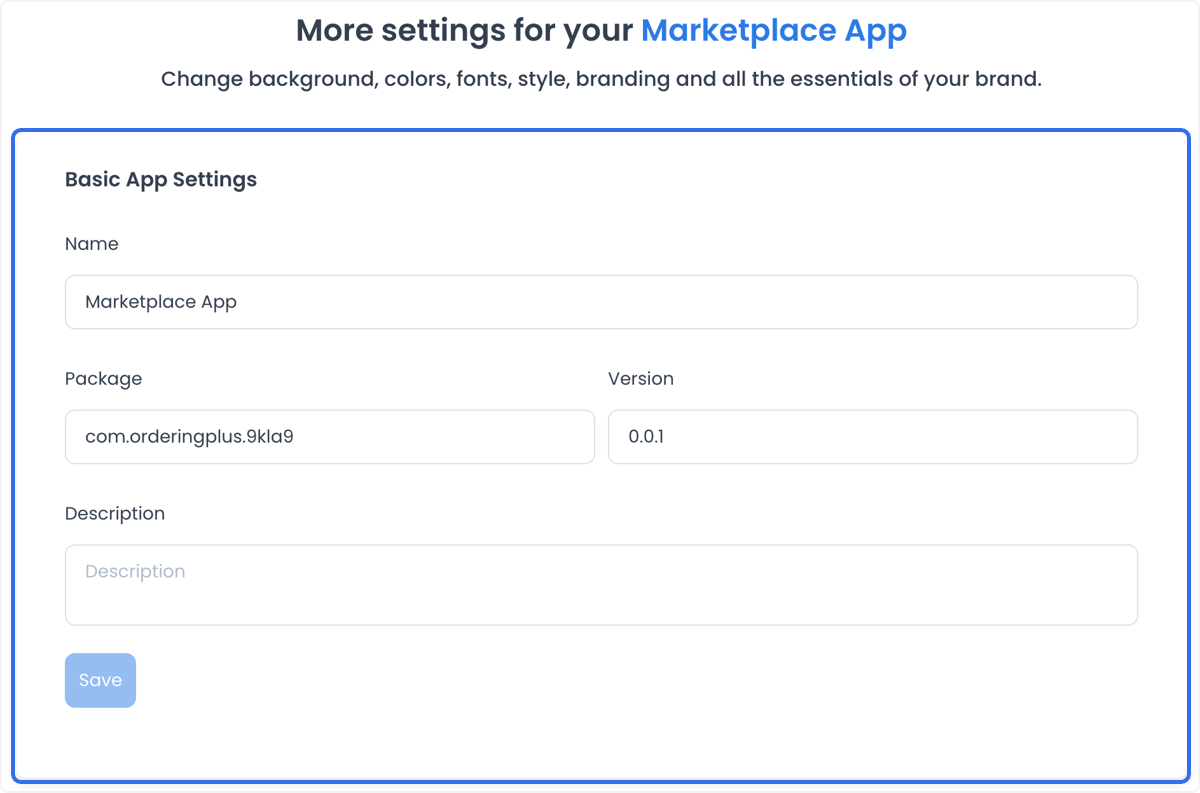
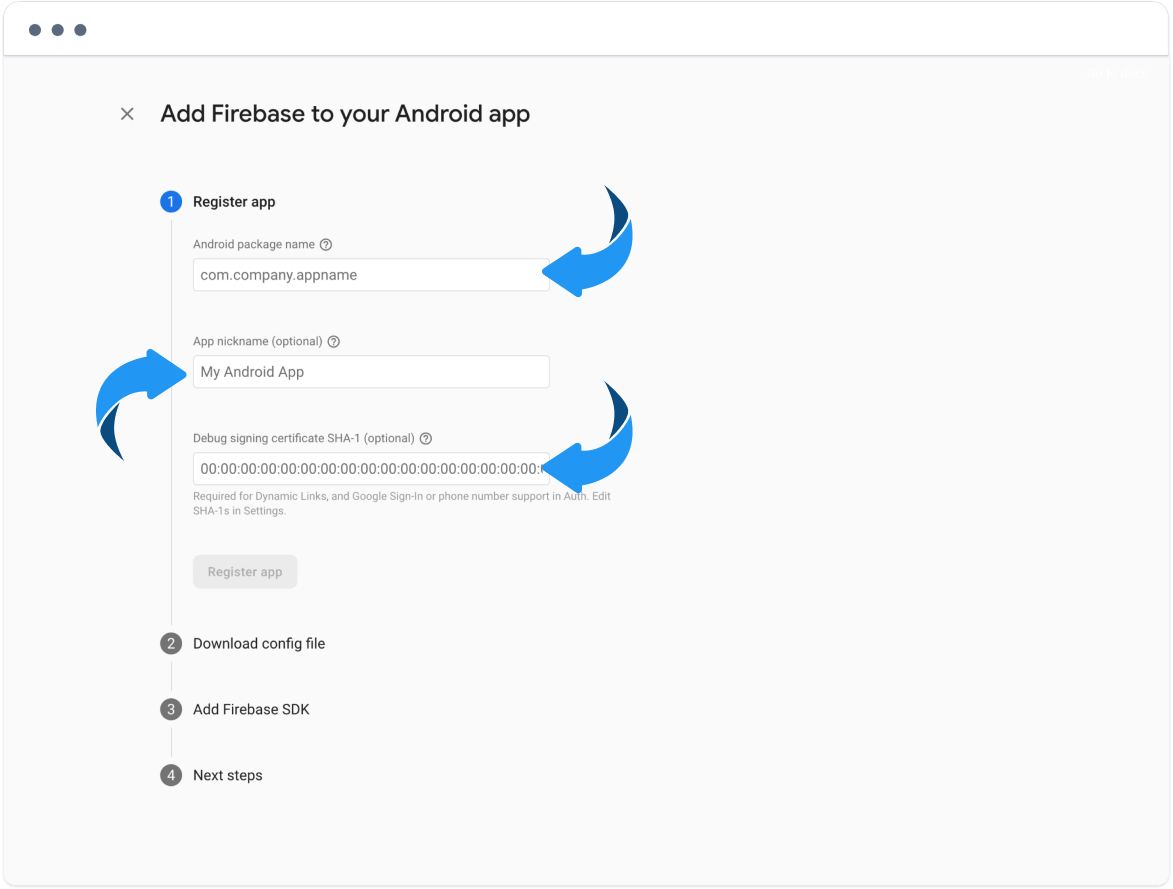
Copy Name and Package from the Ordering.co builder for the Customer App that should offer Google Login.
Firebase also asks for a SHA-1 certificate fingerprint for Android. See Android SHA-1 before you register the Android app, or add the fingerprint later in the app settings.
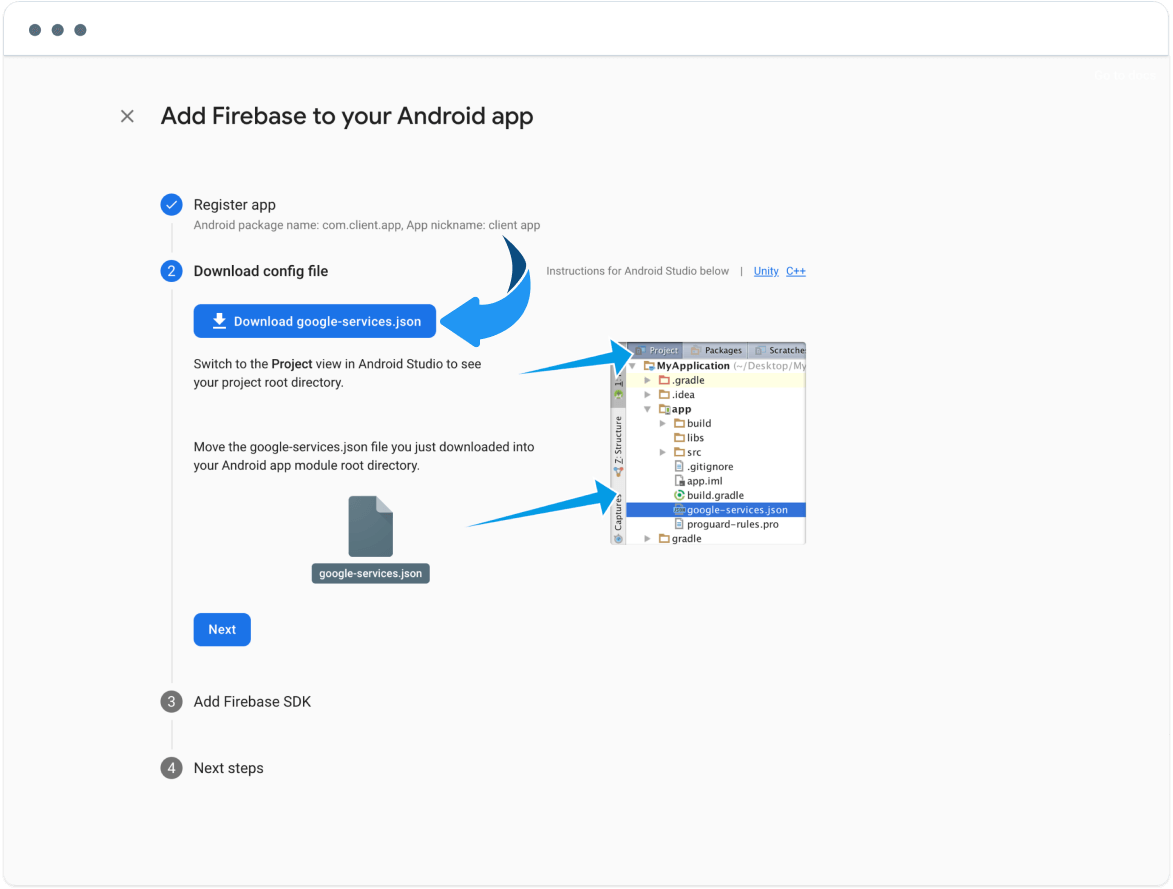
When you select Register app, Firebase offers a config file to download (google-services.json for Android). Save that file. If you lose it, you have to repeat the download from this project.
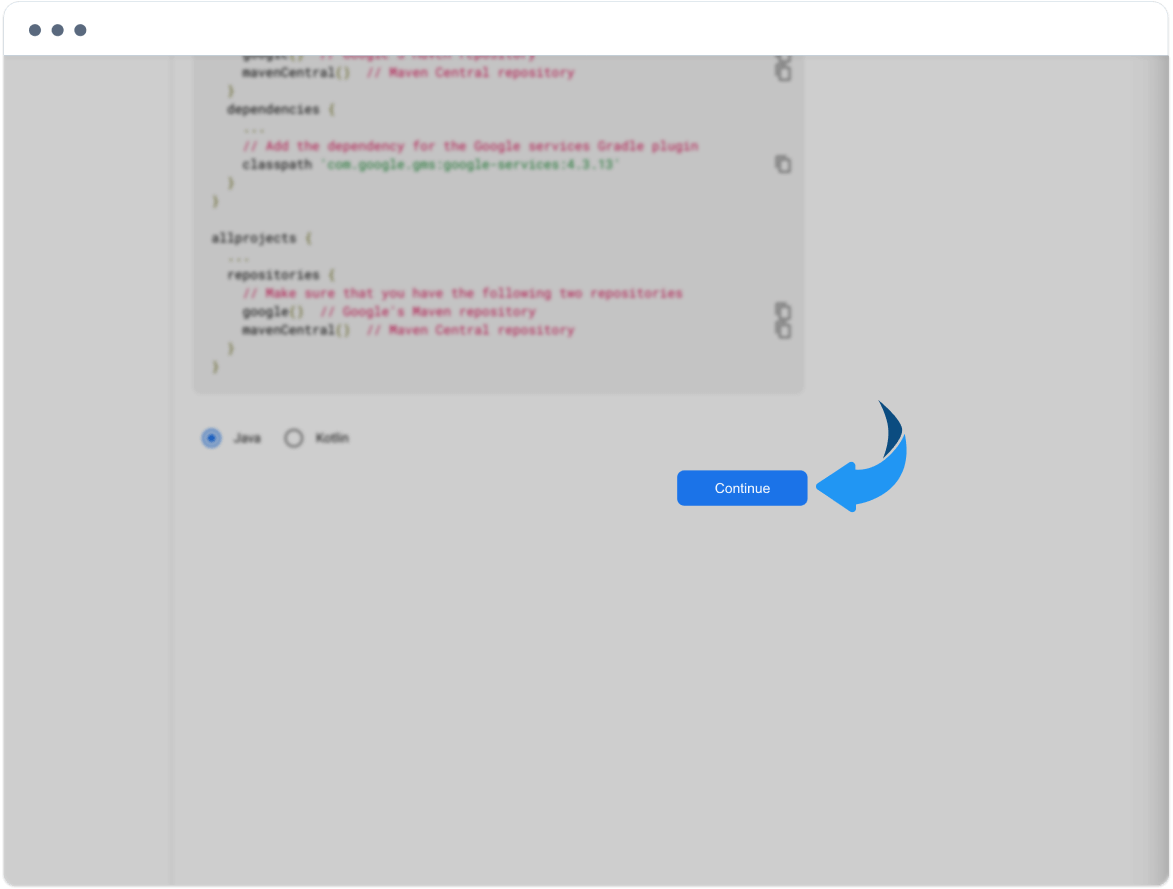
Select Continue through the remaining Firebase screens.
Select the product to configure
After the platforms are registered, select the Ordering.co product that should use Google Login. Configure Website first, then the mobile apps.
Save the website configuration values
During website registration, Firebase shows configuration values. Copy and store:
- apiKey
- authDomain
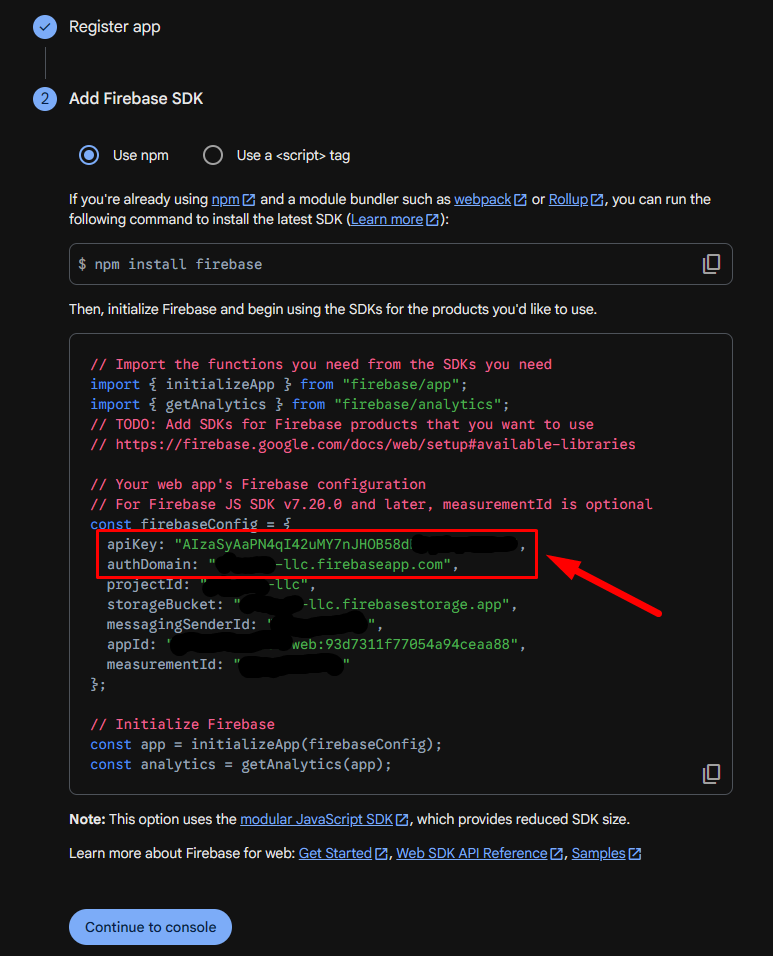
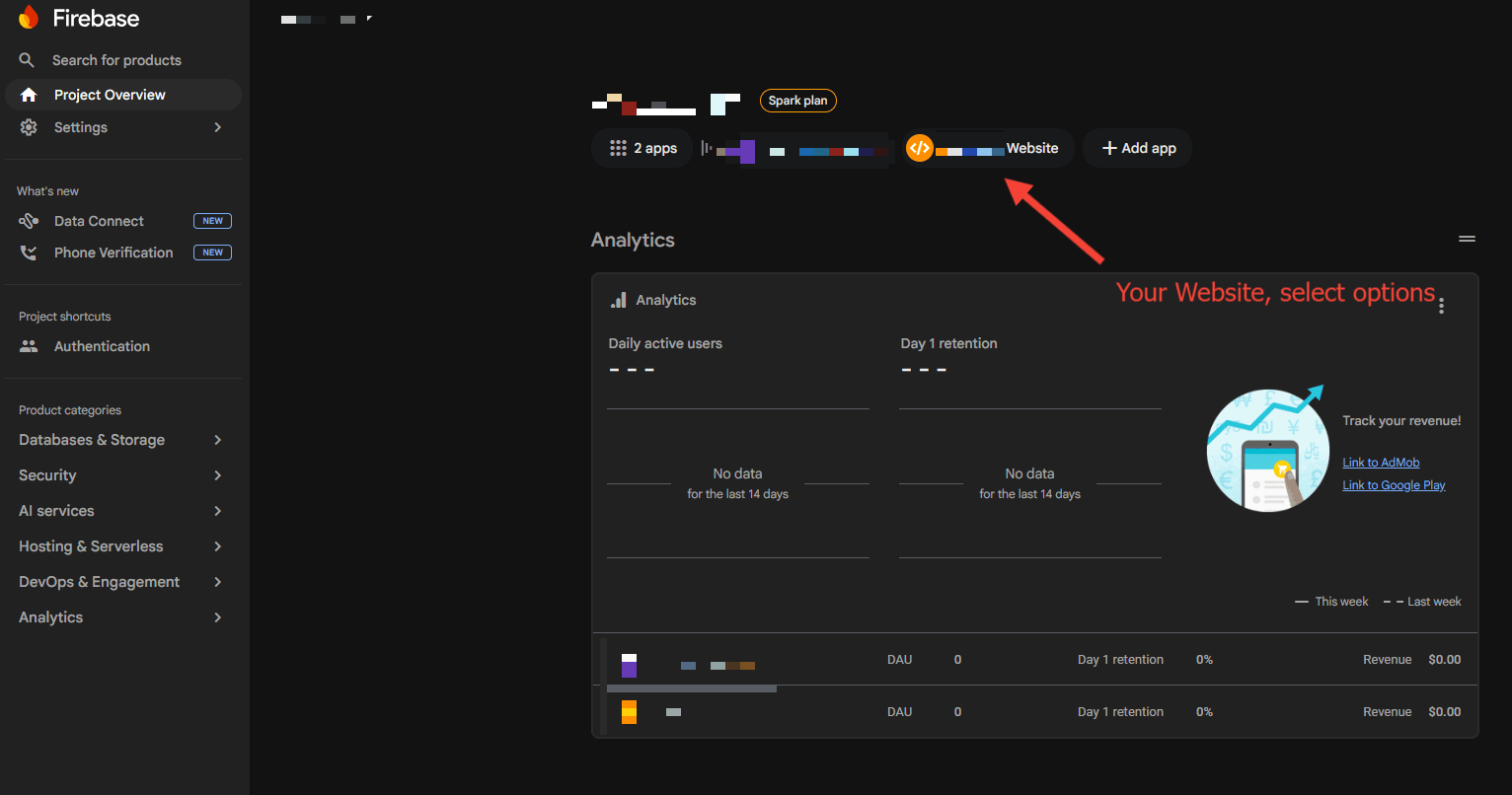
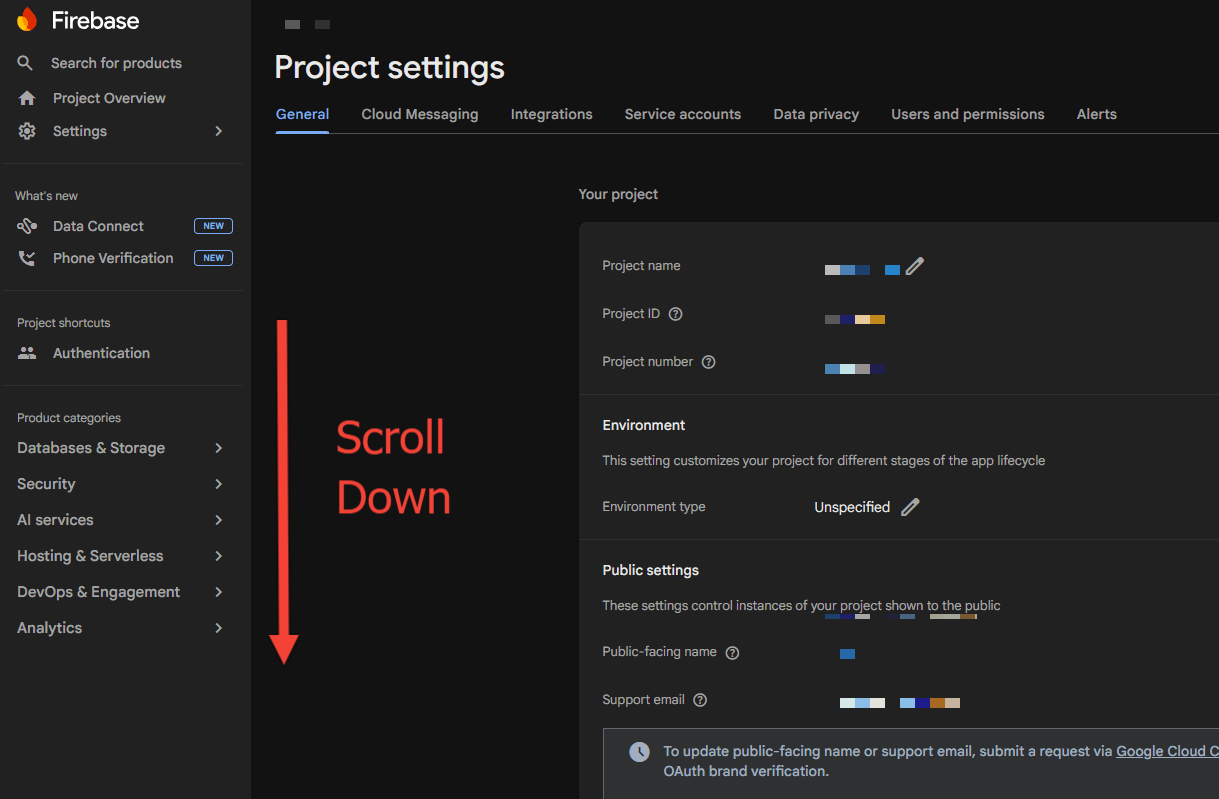
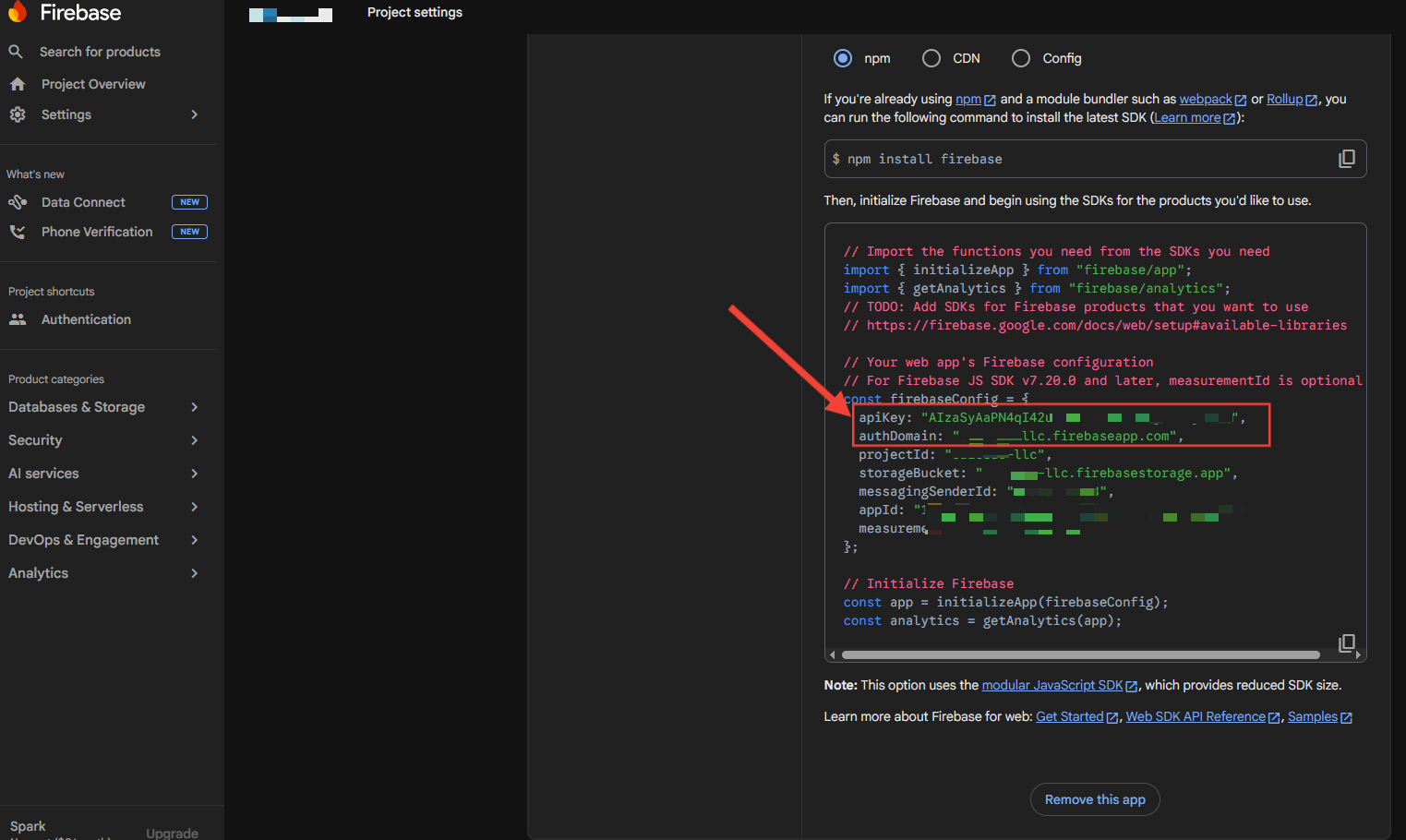
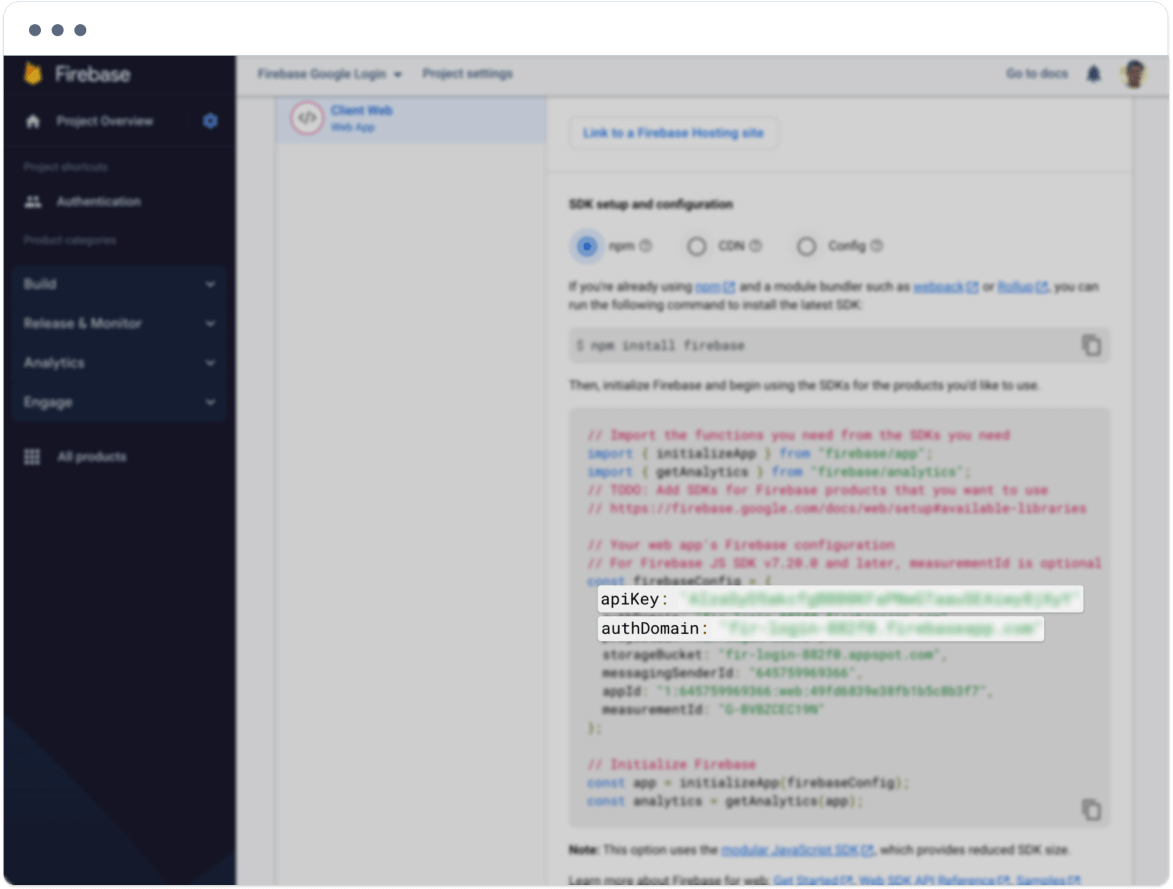
You will paste apiKey into Google Login API Key and authDomain into Google Login Auth Domain.
Enable Google as a sign-in method
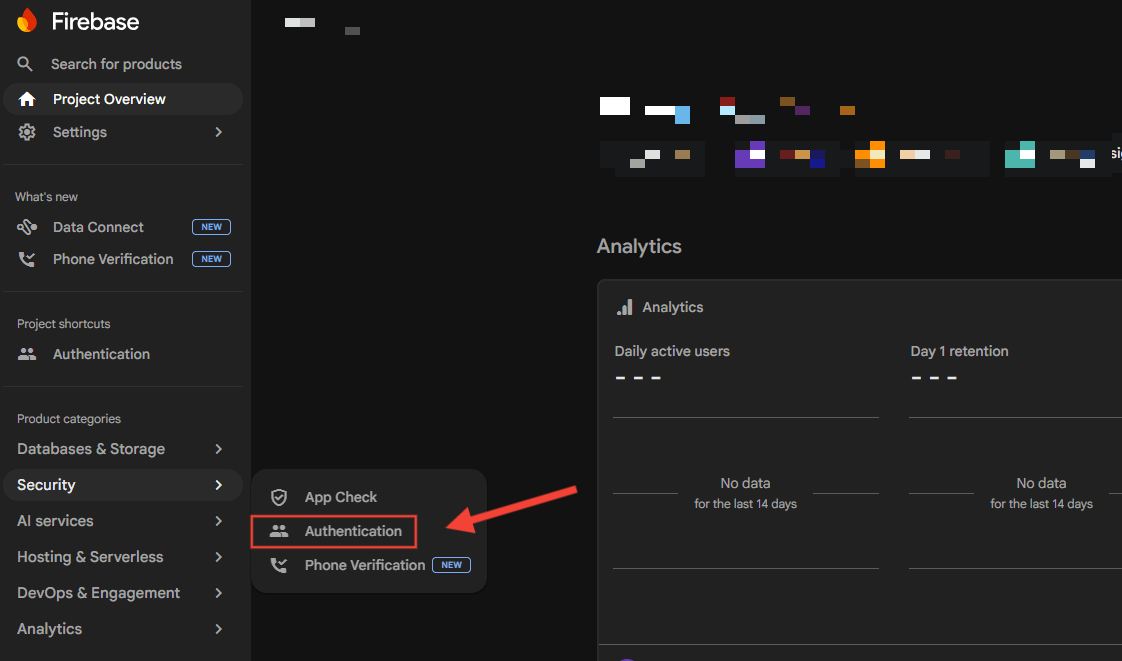
- In the Firebase left menu, open Security → Authentication (older menus: Authentication).
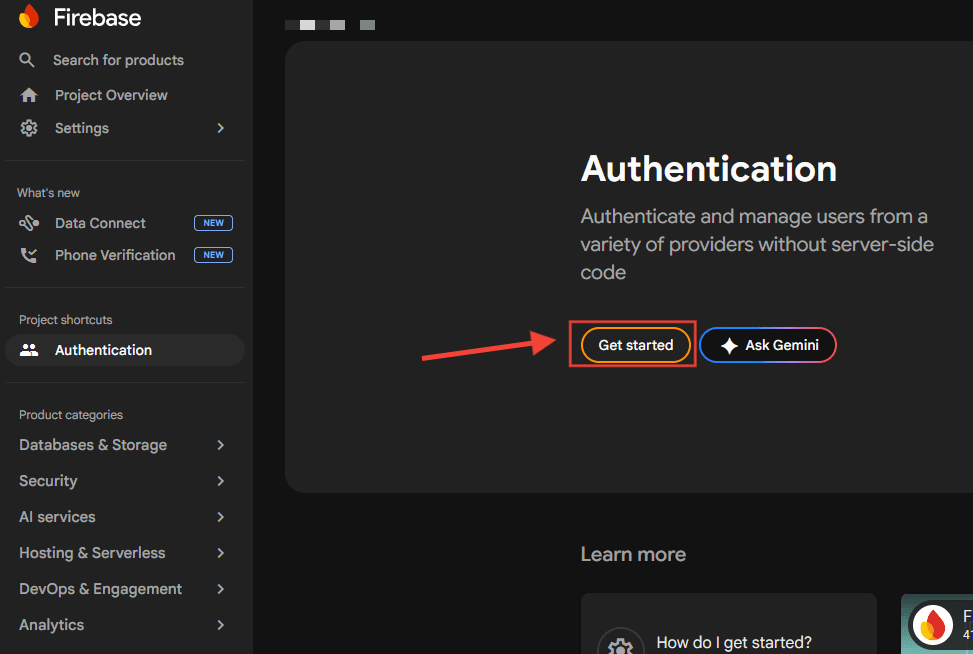
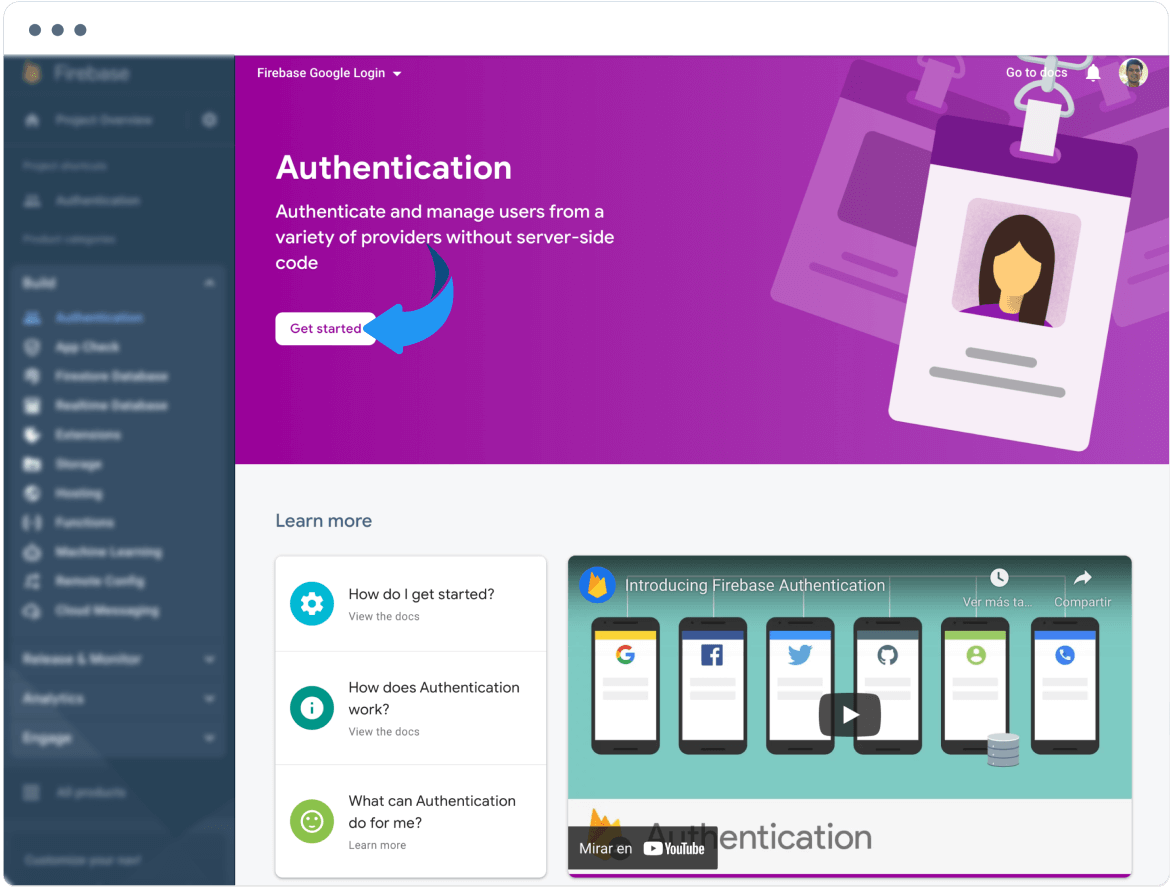
- Select Get started if Authentication is not enabled yet.
- Open the Sign-in method tab and locate Google.
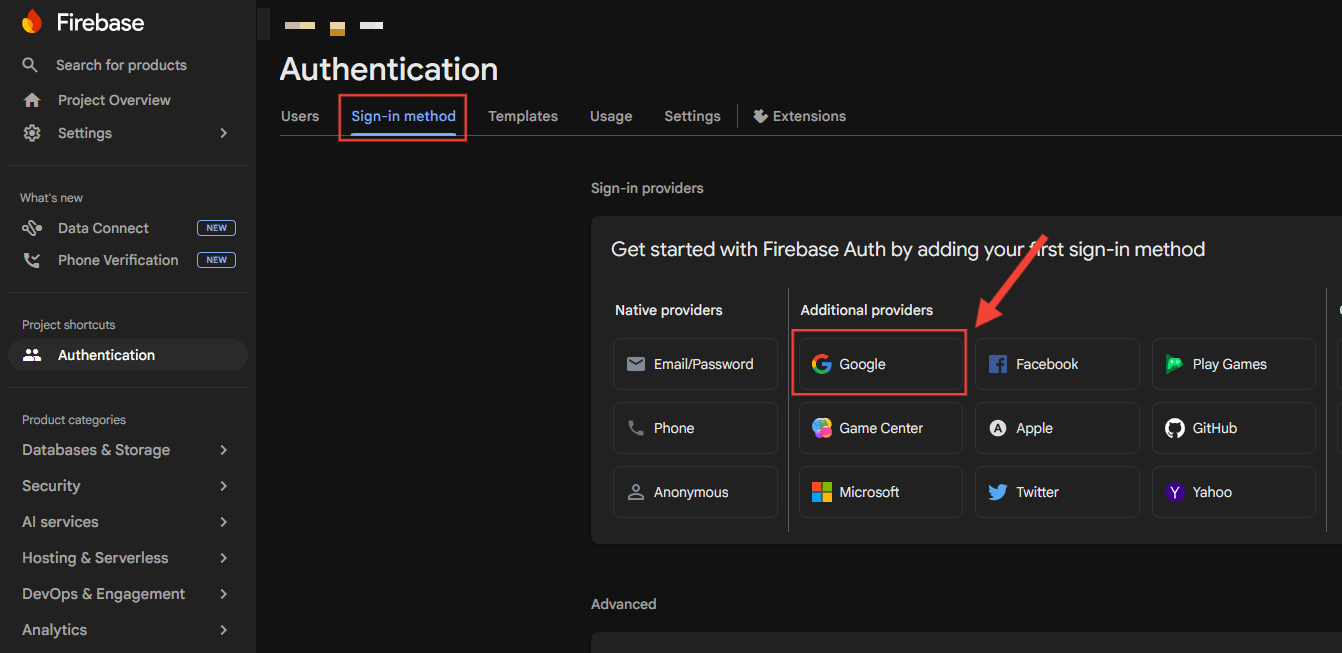
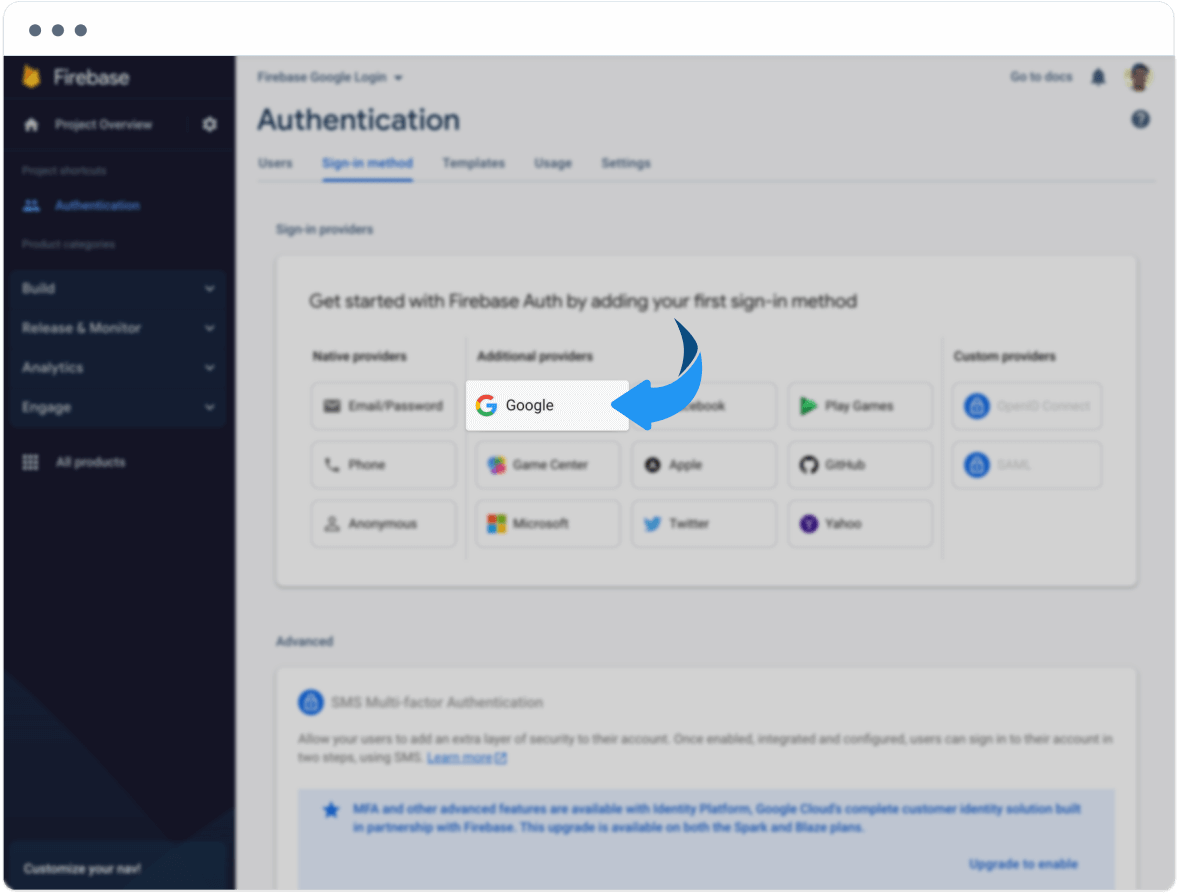
- Open Google and enable it.
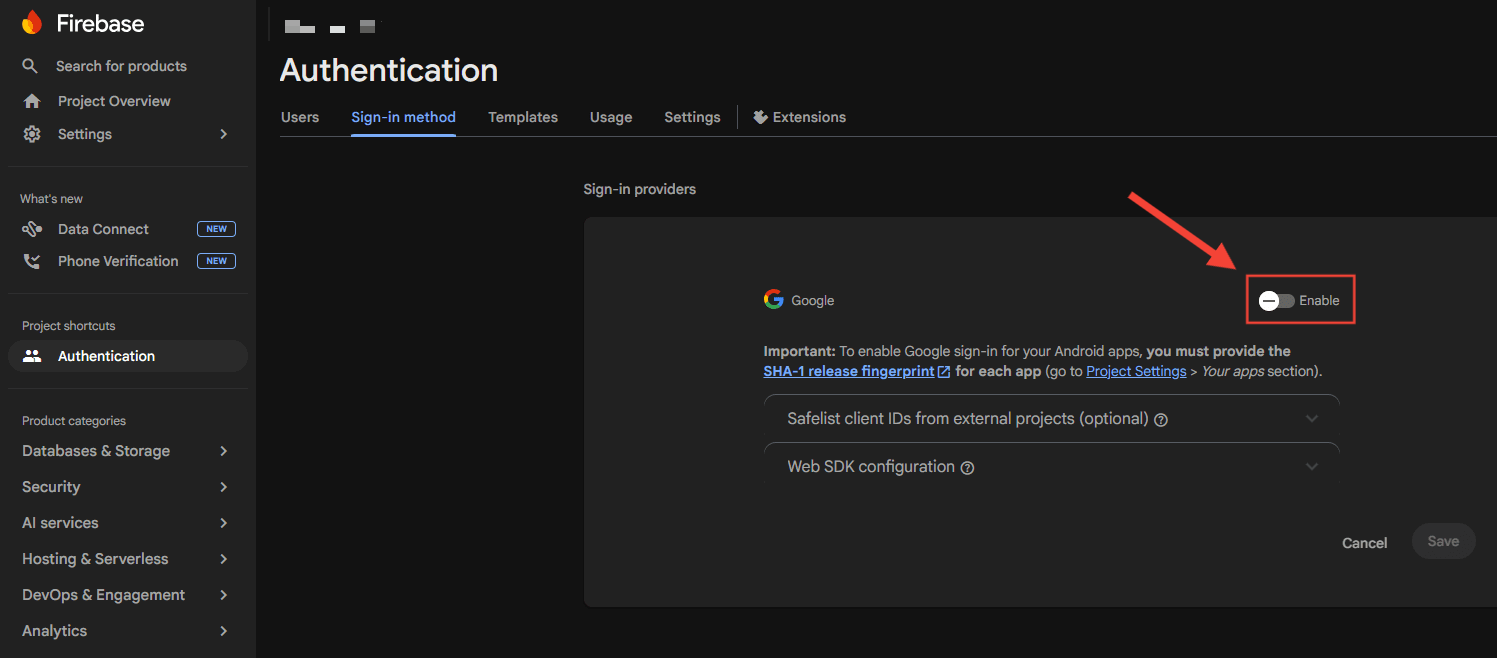
- Select the Project support email, then Save.
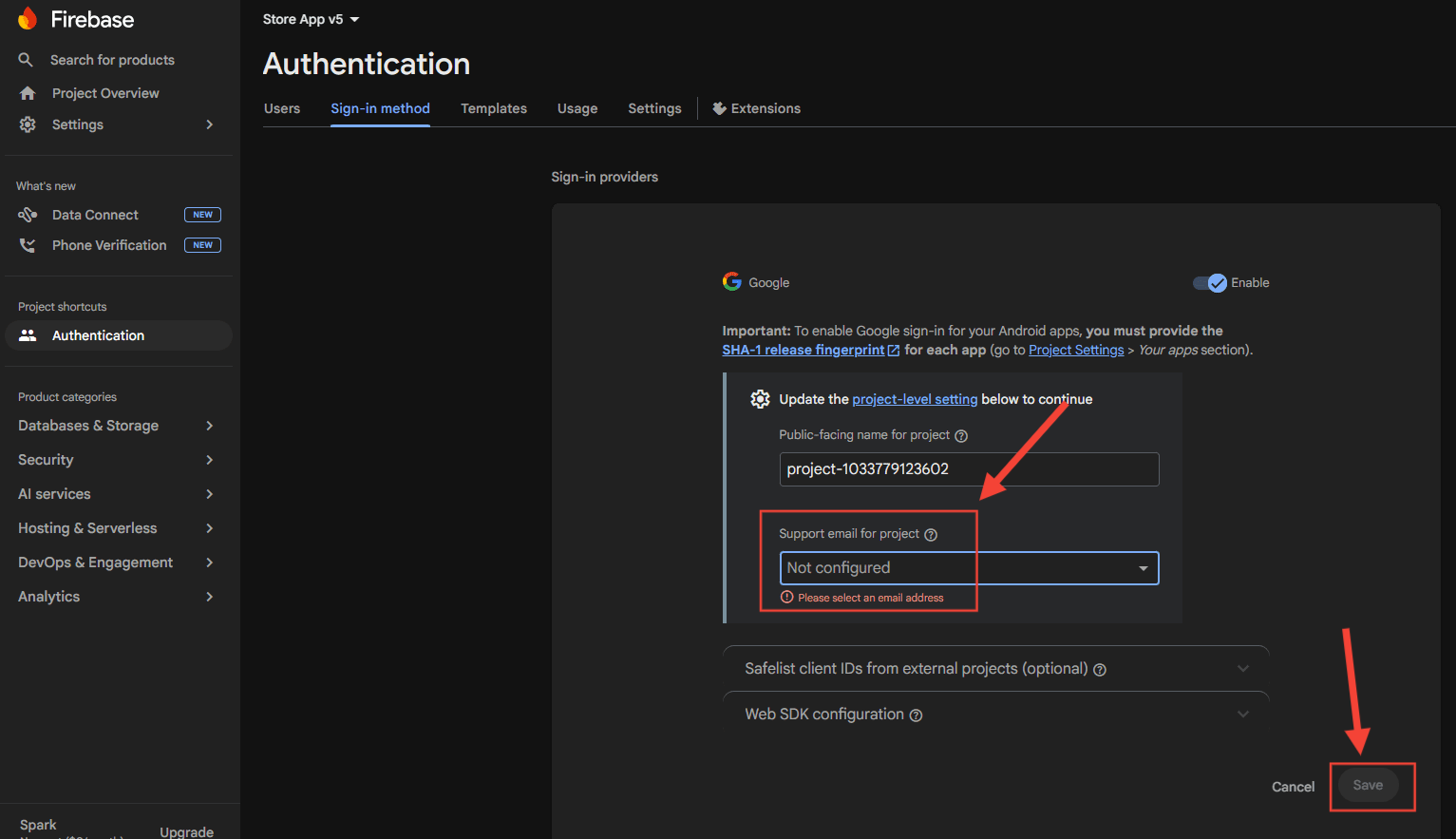
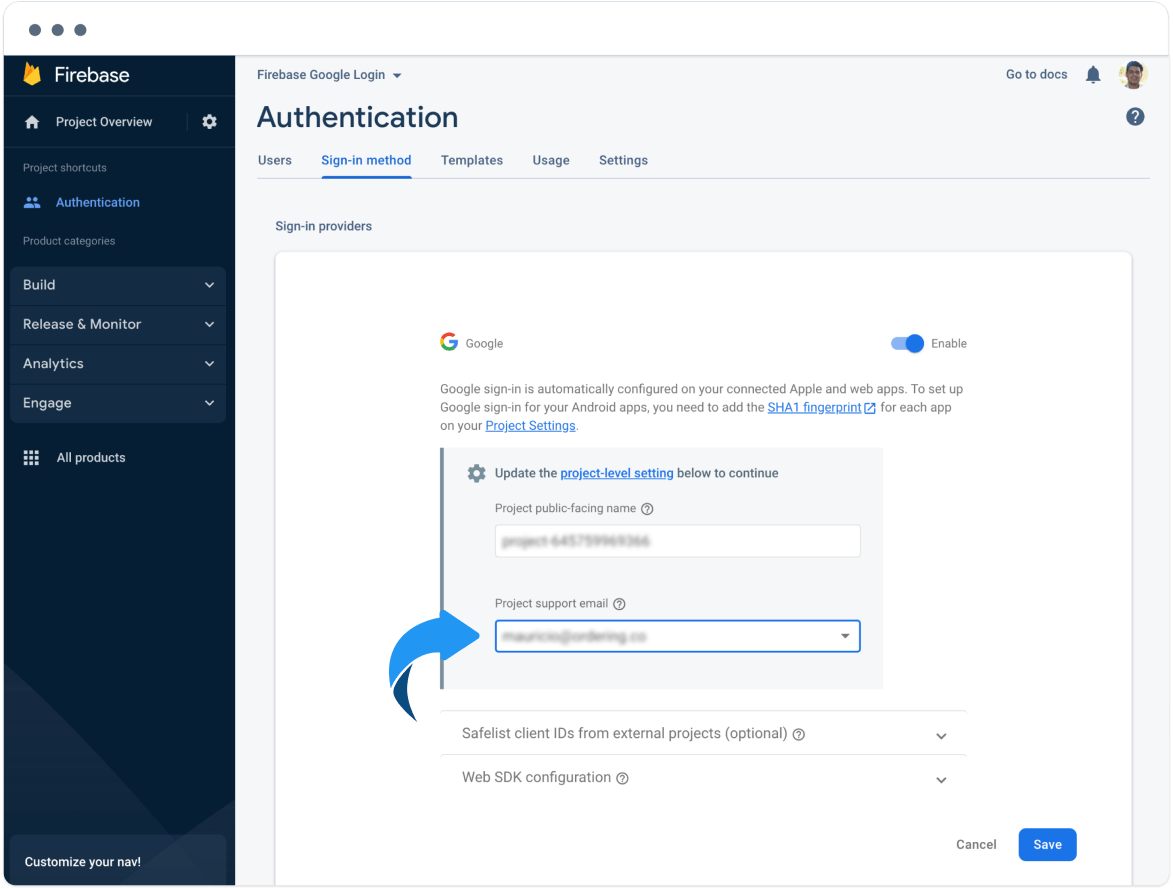
If the email field is missing, enable the Google sign-in method first. After Save, the provider shows as enabled.
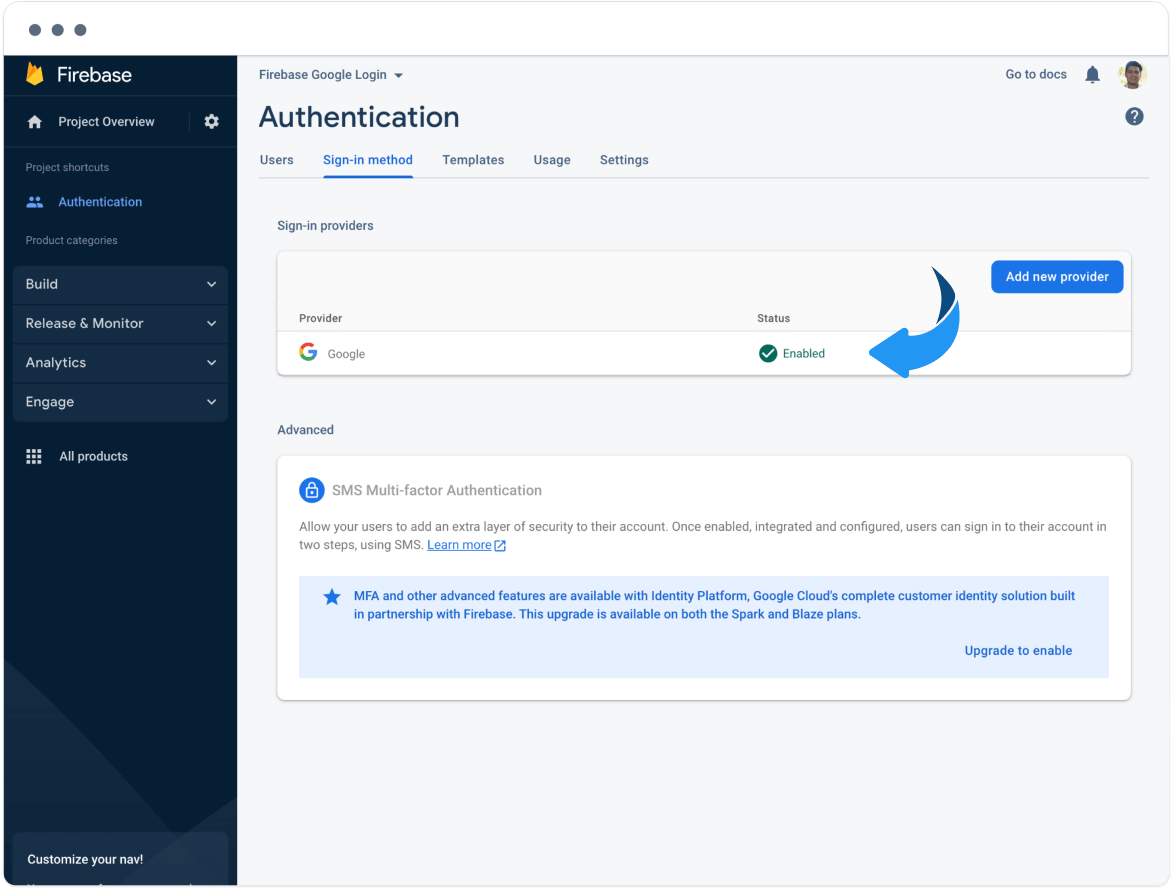
Enabling the provider in Firebase does not show the button on Ordering.co until Enable Google Login is Yes.
Copy the Web Client ID
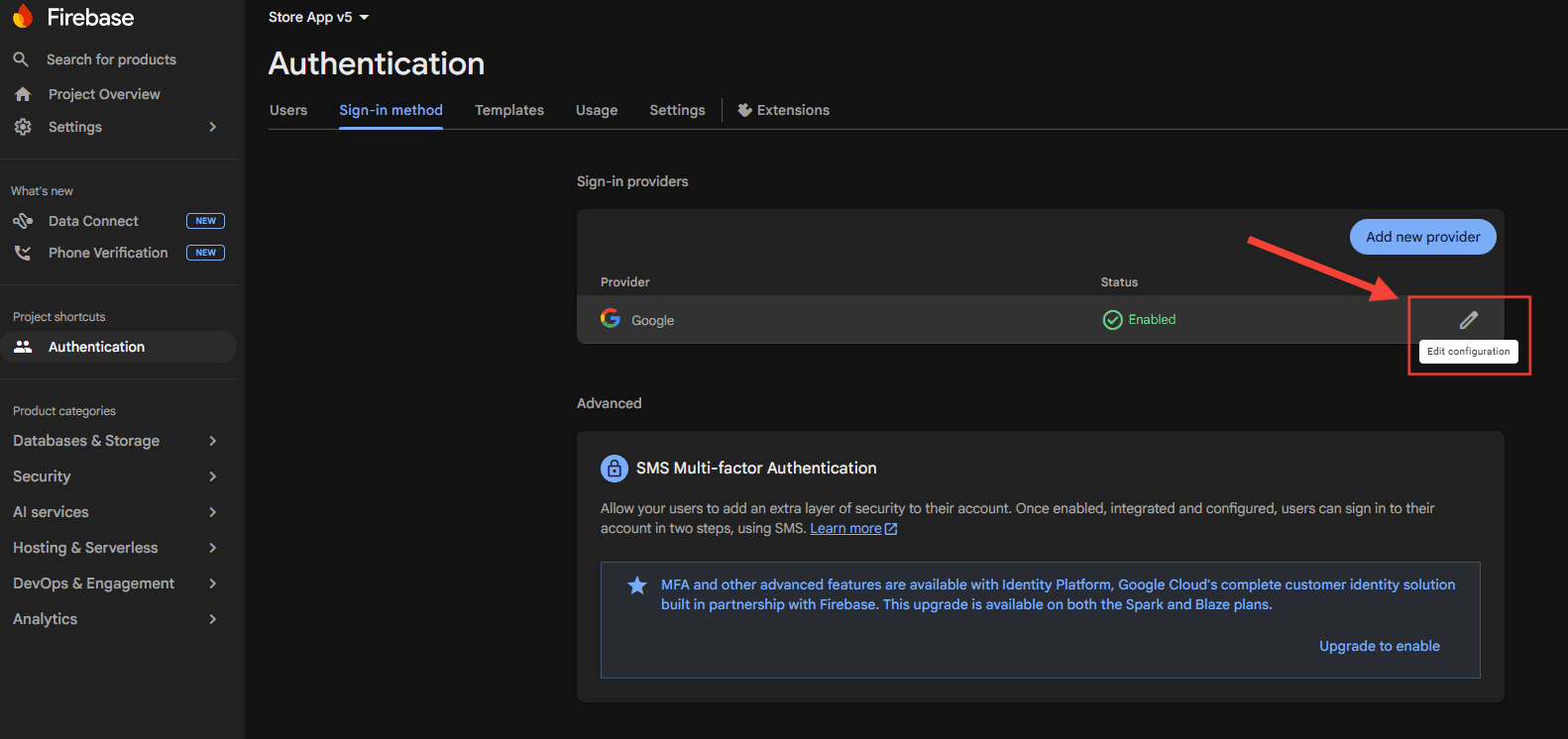
- Open the Google provider configuration again and select Edit.
- Copy Web Client ID and store it.
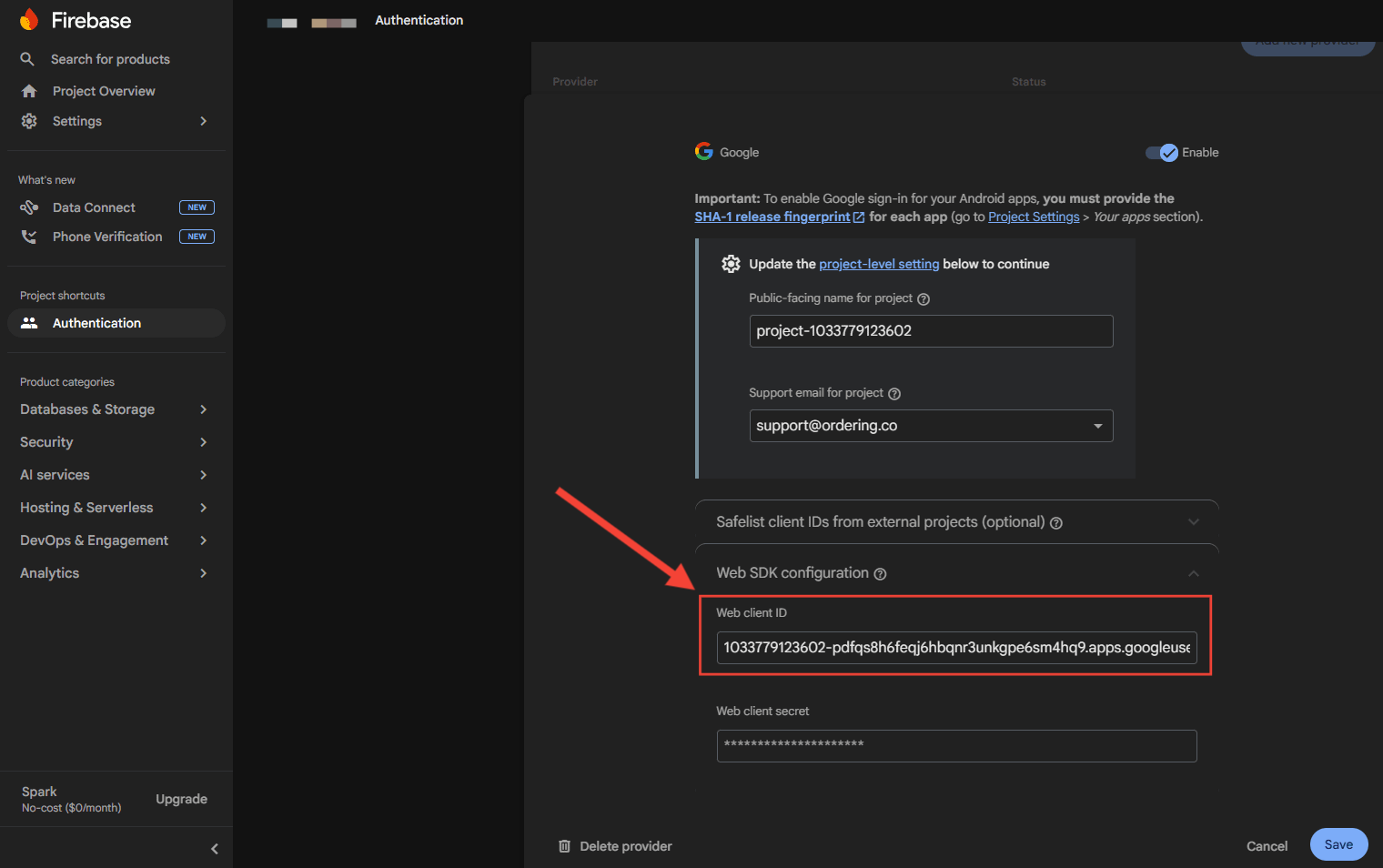
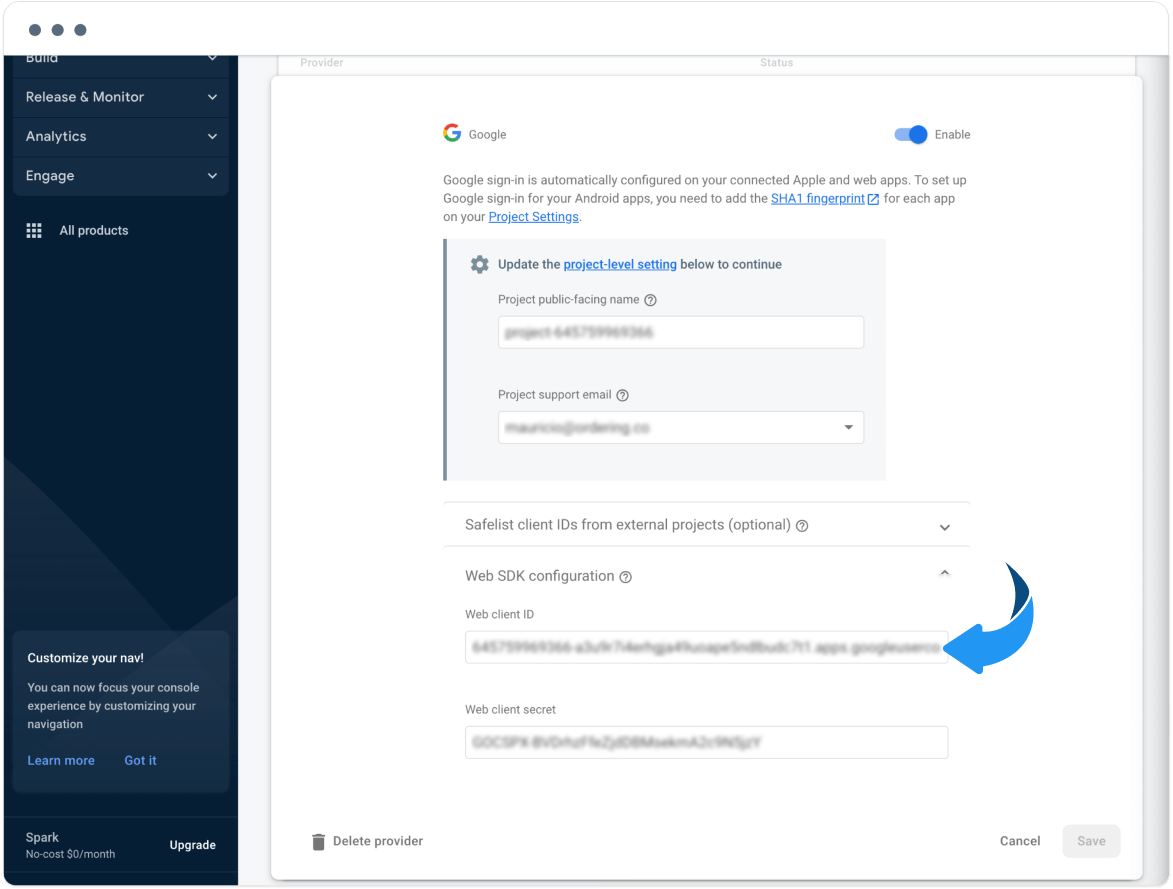
Paste this value into Google Login ID in the Dashboard.
Also copy the Web client secret from the same Google / Firebase OAuth client. Paste it into Google Client Secret. Some Dashboard layouts label related fields General Google Client ID Services and Secret Services; put the matching client ID and secret in each pair.
Add the website domain to authorized domains
- In Authentication, open the Settings tab.
- Find Authorized domains.
- Select Add domain.
- Enter the website domain (for example,
yourdomain.com). - Save.
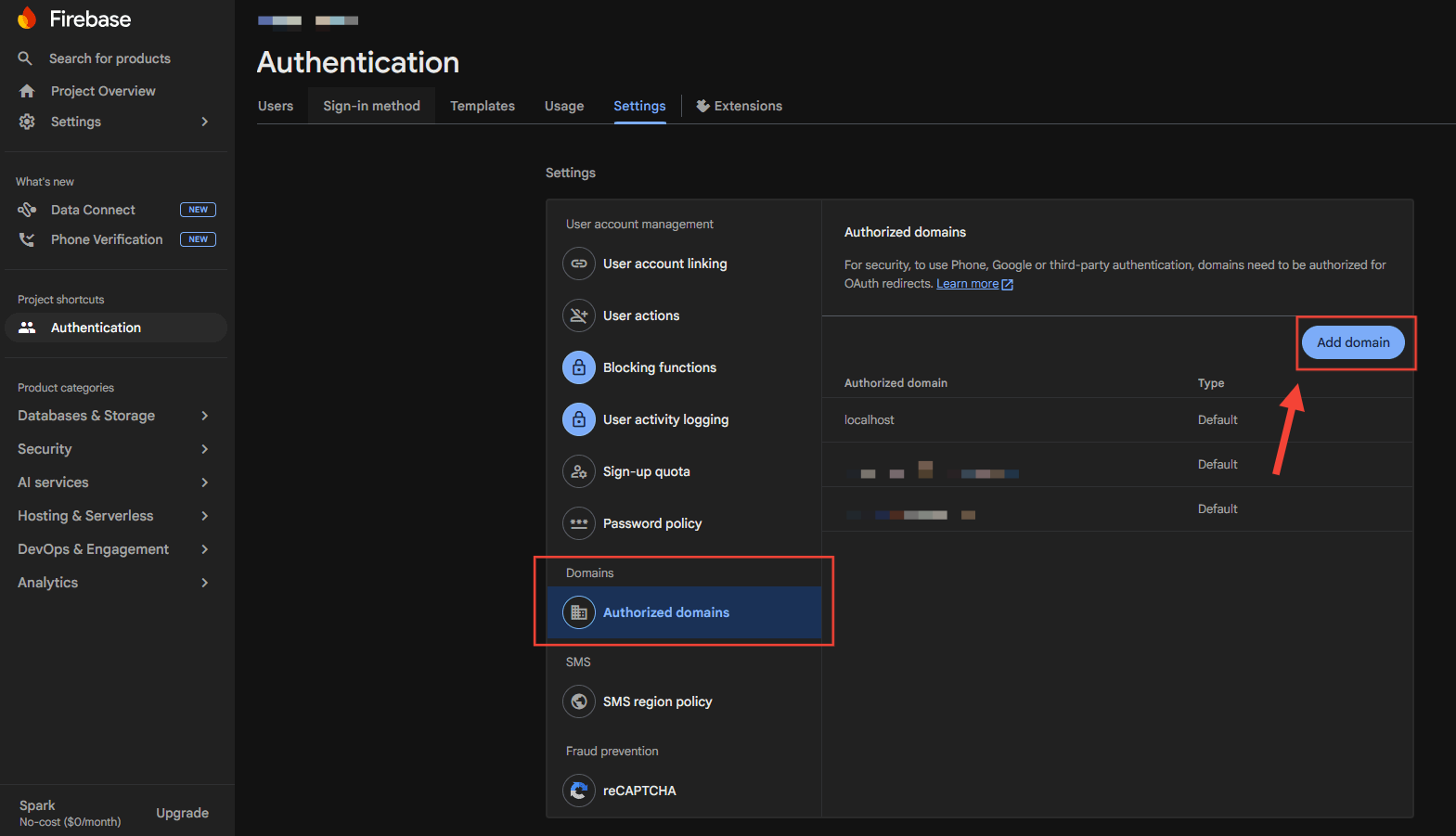
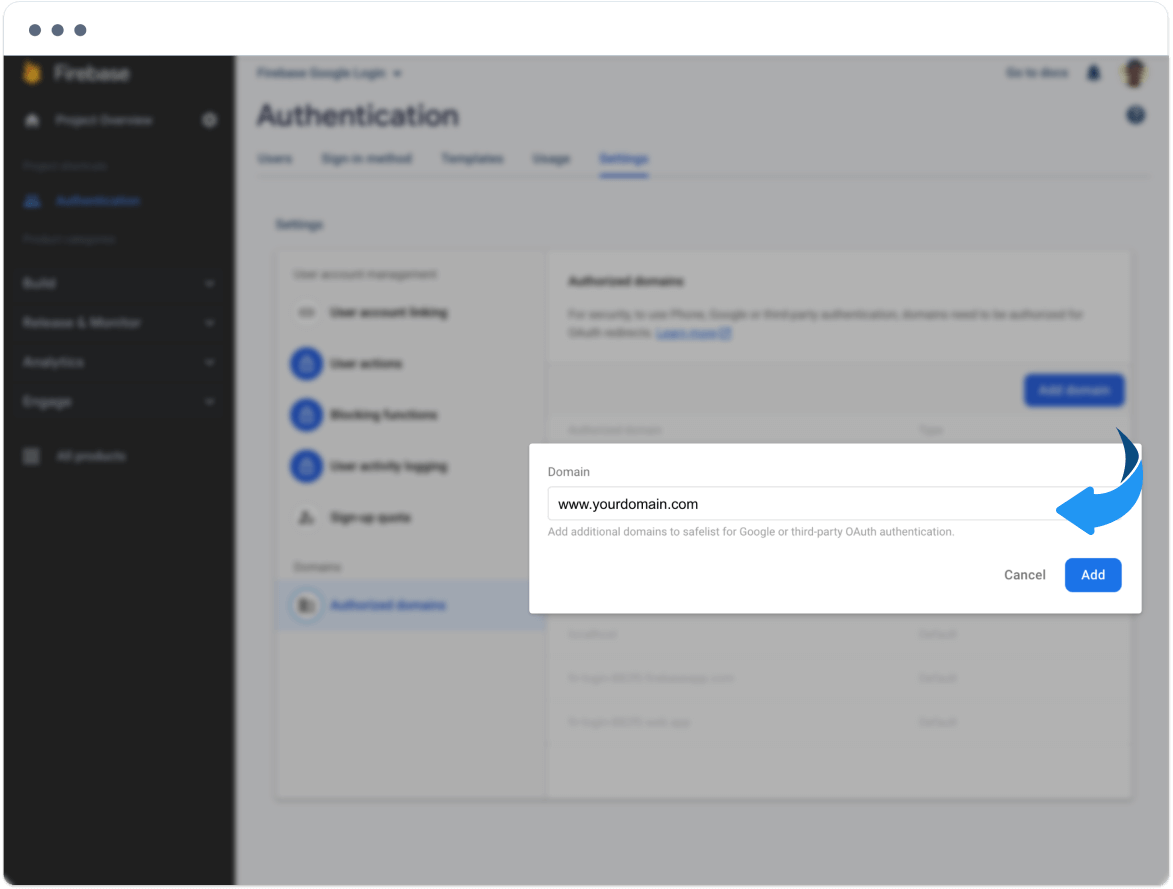
Google Login on the website needs this domain on the allow list.
Add Google Login credentials in the Dashboard
-
Open the Ordering.co Dashboard.
-
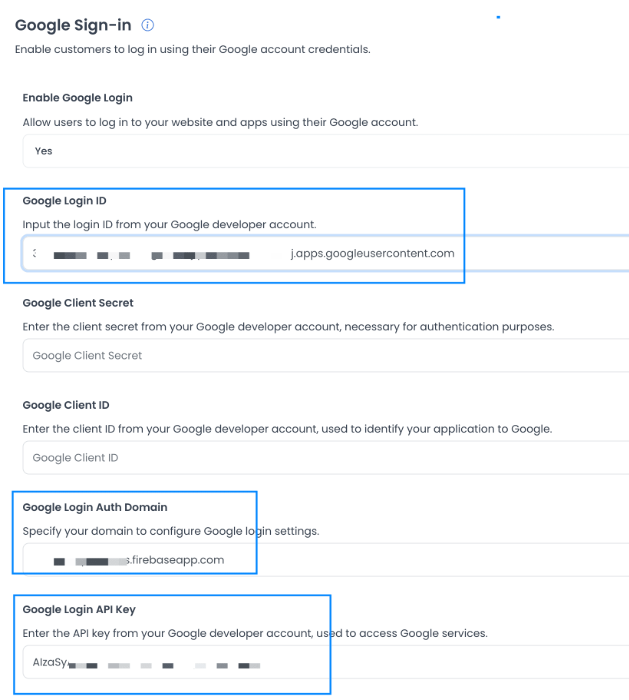
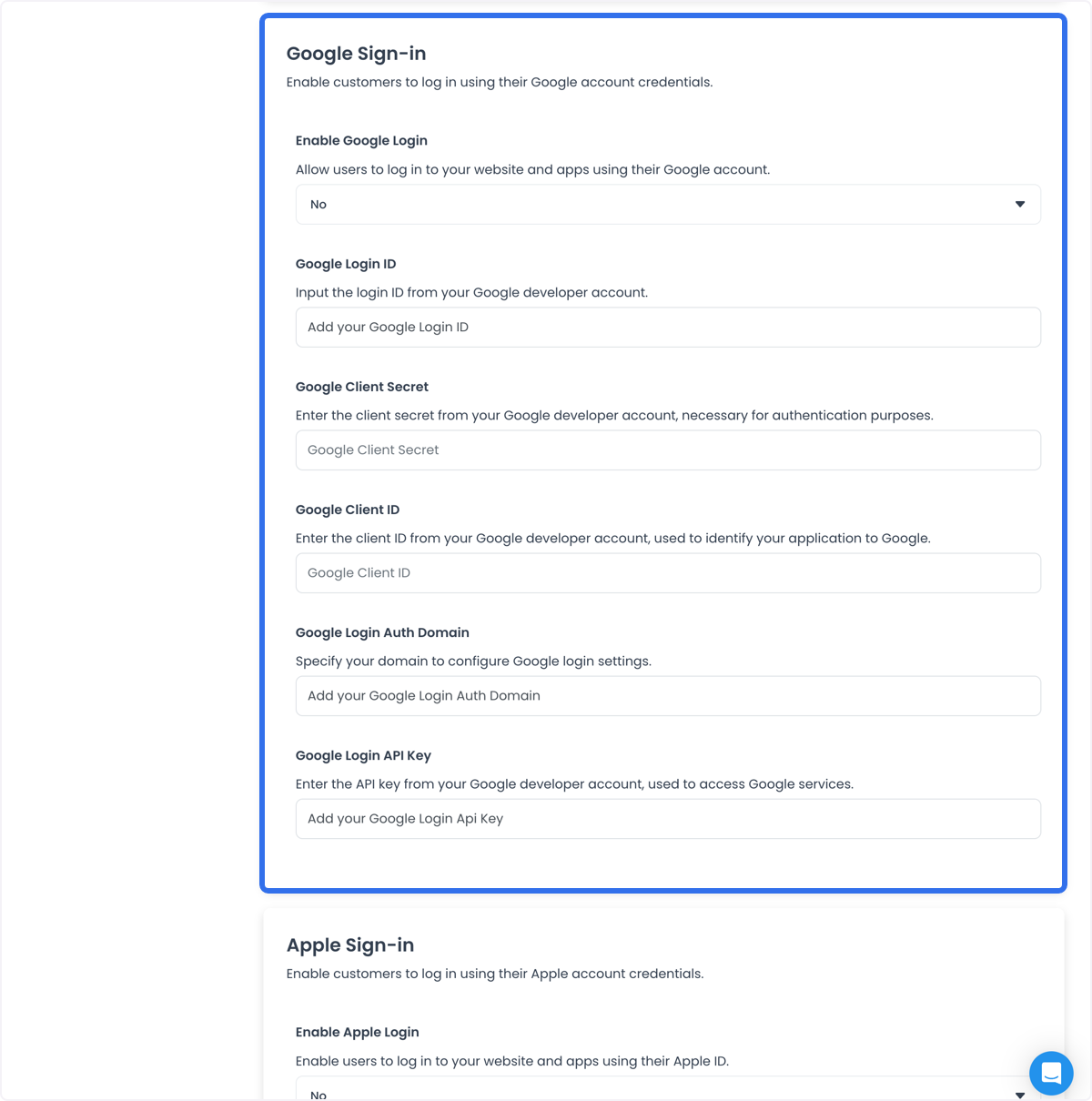
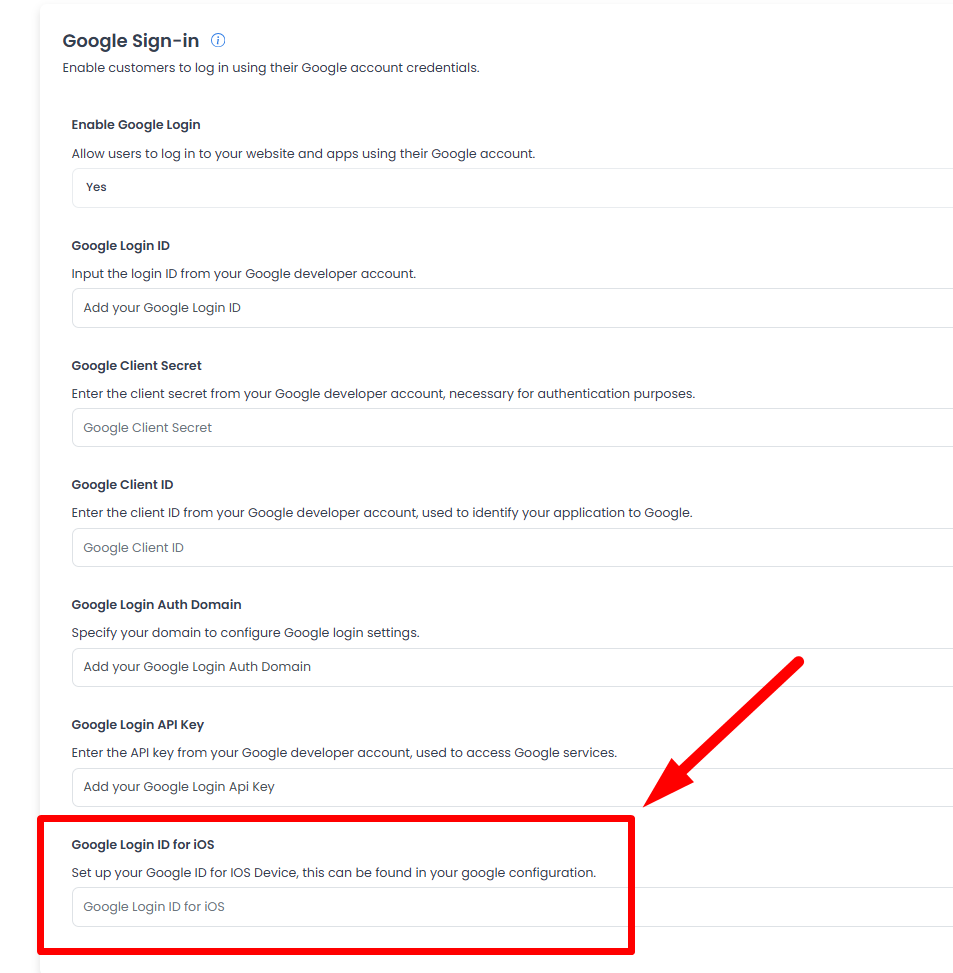
Go to Settings → Social login options → Google Sign-in.
-
Fill:
- Google Login ID → the Web Client ID
- Google Login API Key / apiKey → the Firebase apiKey
- Google Login Auth Domain / authDomain → the Firebase authDomain
- Google Client ID and Google Client Secret → the OAuth client ID and secret
- Google Login ID for iOS → the iOS client ID from
GoogleService-Info.plist(see below)
Enable Google Login
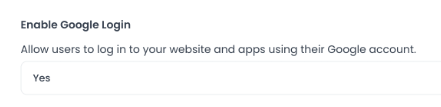
Set Enable Google Login to Yes. If this stays No, the Sign in with Google button does not appear on the website or apps.
Save the configuration
Scroll to the bottom and select Save. Saving stores the values for the website and mobile apps. It does not prove Google accepted a live login.
Verify Google Login on the website
- Open the website.
- Find Sign in with Google.
- Complete a login using a Google account you control.
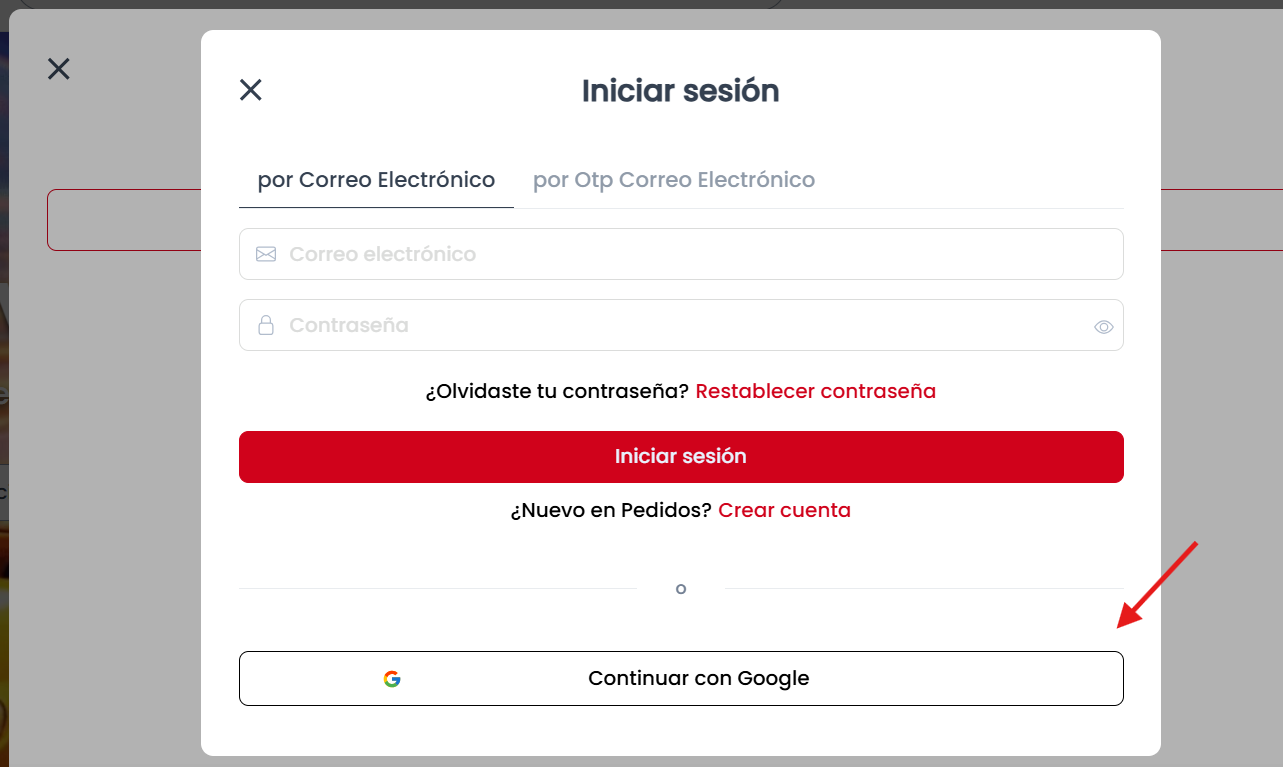
If the button is missing, confirm Enable Google Login is Yes and that the domain is authorized in Firebase. A successful test on one browser does not prove every app build is signed with the registered SHA-1.
Google Login for the app build
Android SHA-1
Google Play signs the installable Android App Bundle. Register the app signing SHA-1 with Firebase, not only a local upload key.
- In Google Play Console, open the Customer App.
- Go to Test and release → App integrity → Play App Signing → Settings.
- Copy the SHA-1 certificate fingerprint.
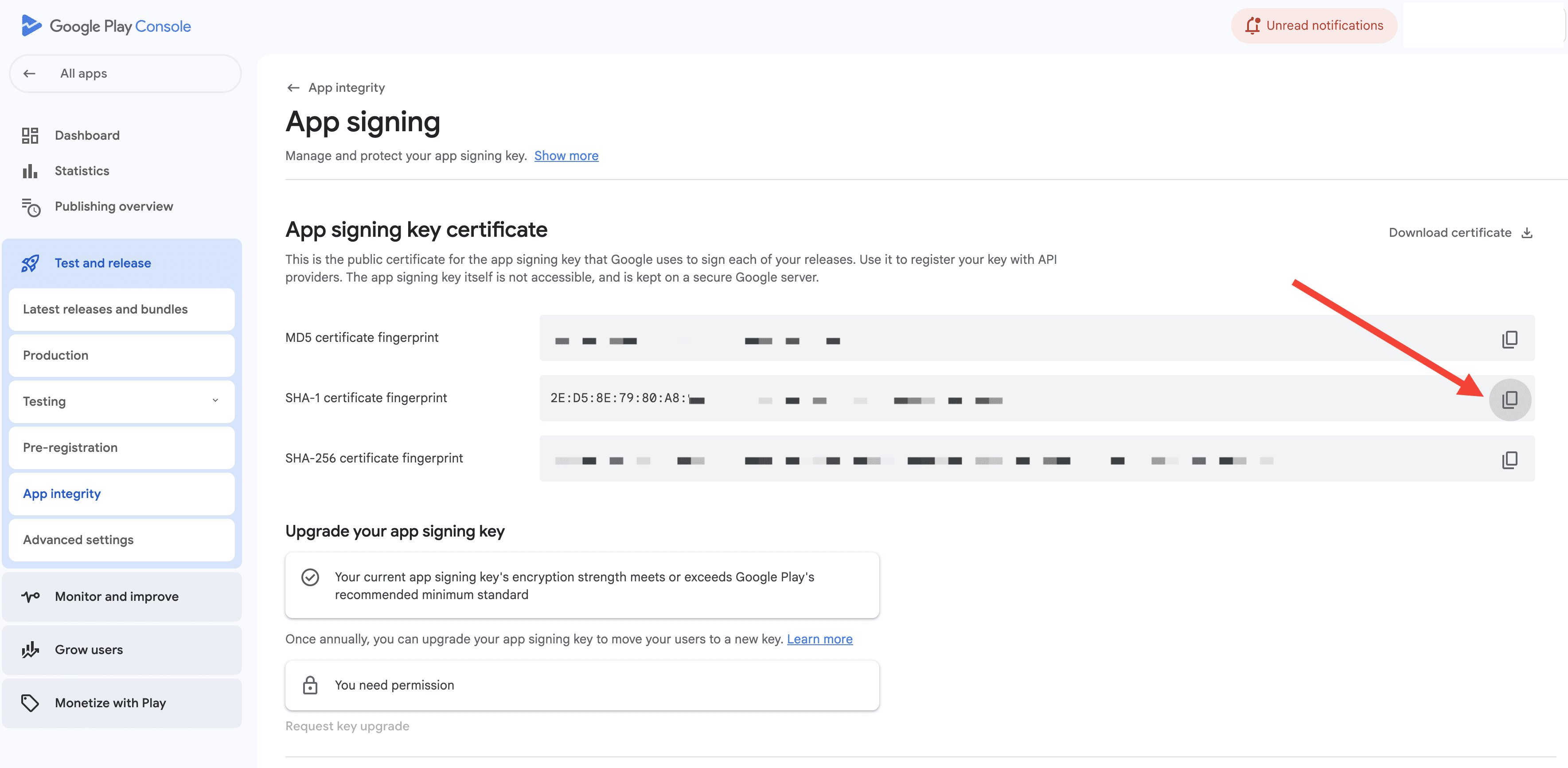
Google also documents this fingerprint on Test and release → Setup → App signing, which you can open from the App integrity page. See Use Play App Signing and Client authentication.
- In the Firebase Android app settings, paste the SHA-1 certificate fingerprint.
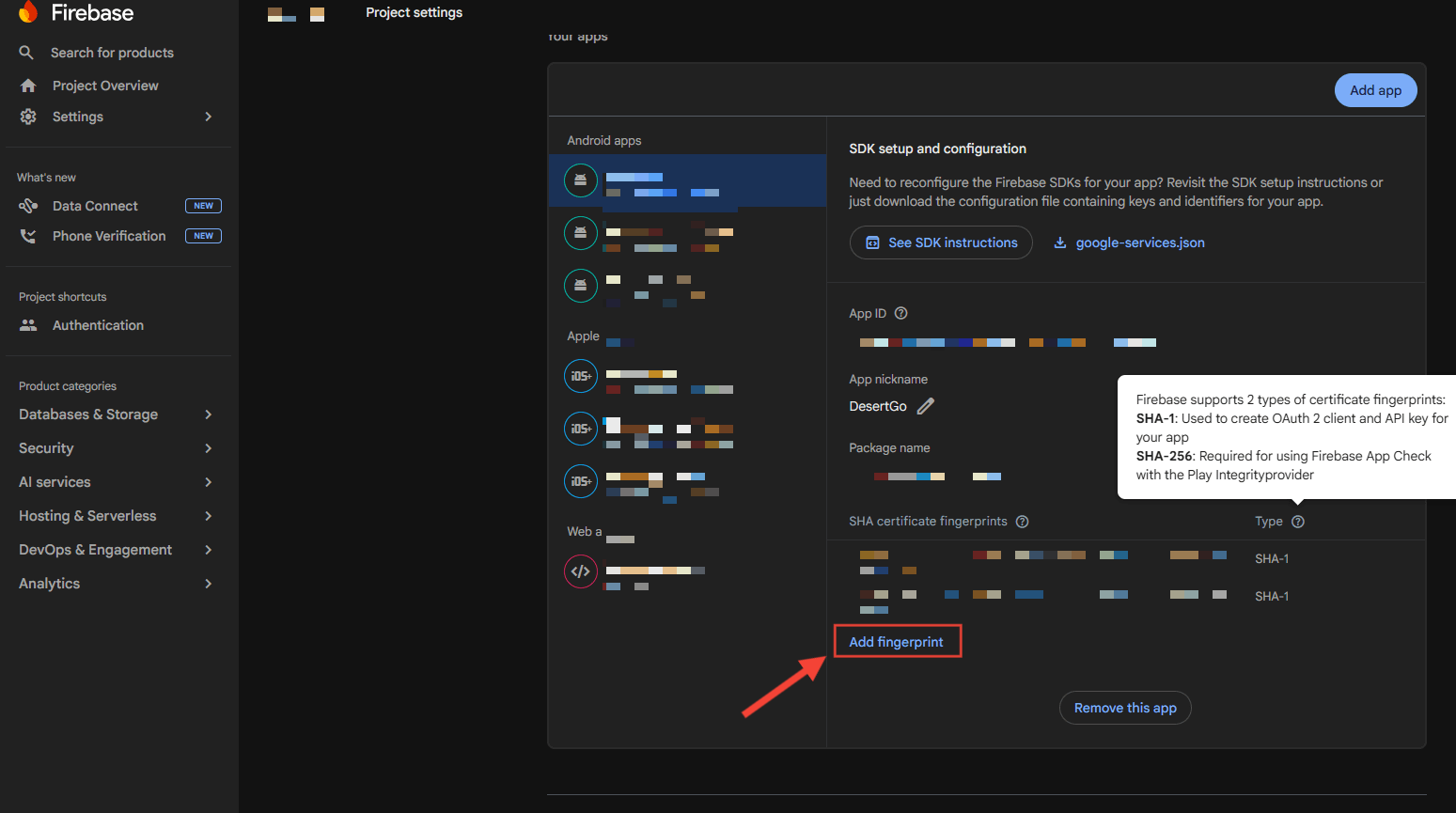
If the fingerprint is not visible in Play Console, contact support@ordering.co for the SHA-1 used to sign the Ordering.co Android build.
iOS
Create an iOS app in the same Firebase project. Use its iOS Bundle ID, which is distinct from the Android Package Name, plus a name. The App Store ID is optional. Register the app and download GoogleService-Info.plist.
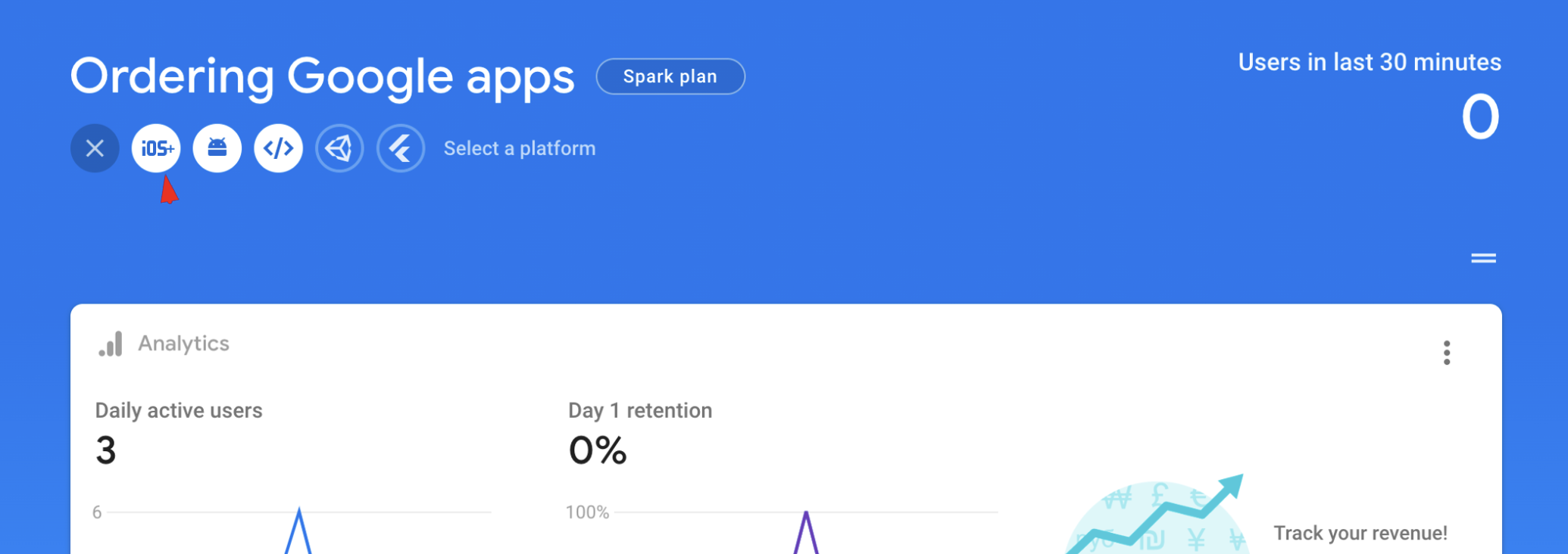
Complete Firebase's Next screens until you return to the console.
Copy the iOS client values from GoogleService-Info.plist into Google Login ID for iOS (and any matching iOS fields your Dashboard shows).
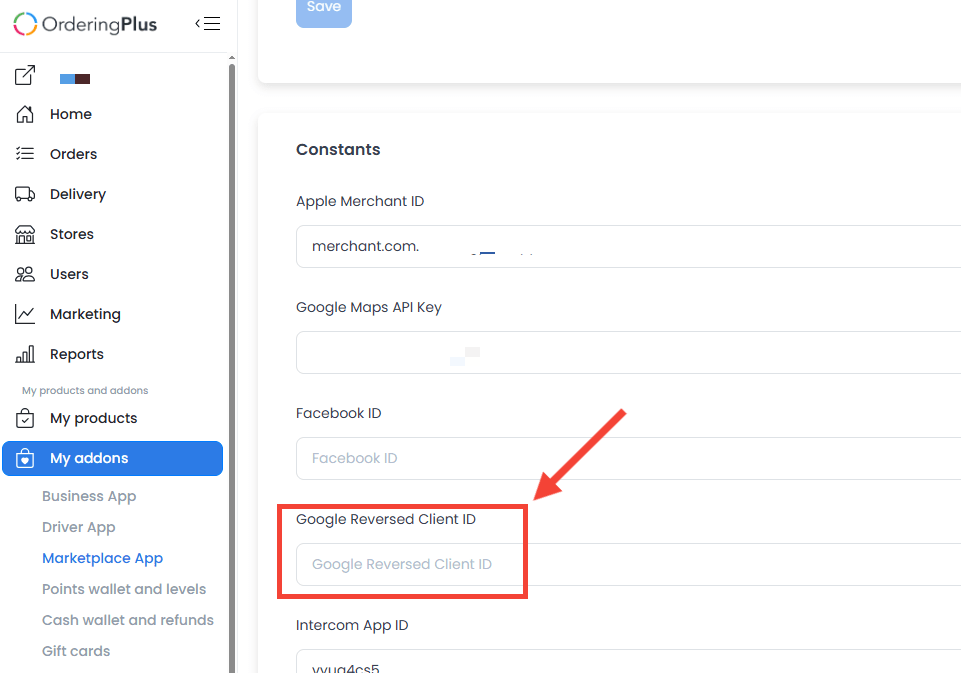
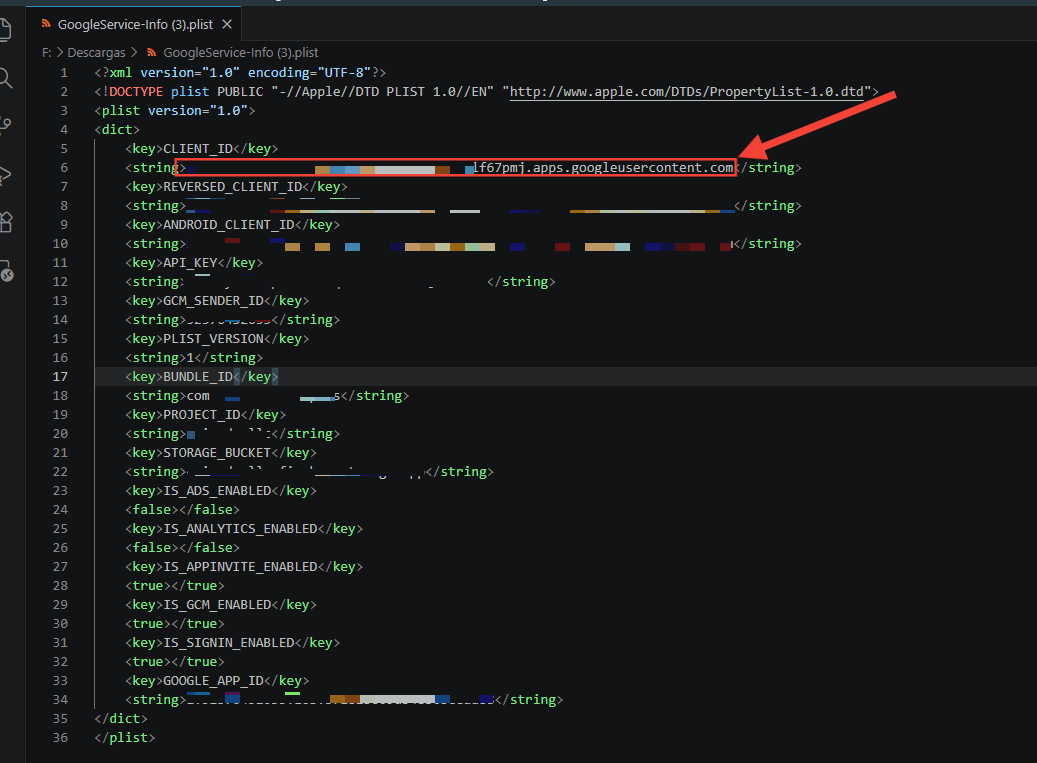
Save GoogleService-Info.plist. Losing it means downloading it again from this Firebase iOS app.
For the product overview, see Google Sign-In on Ordering.co.