---
title: "Set up Facebook login"
description: "Create a Facebook Login app, add website and mobile platforms, and paste the App ID and App Secret in Ordering.co."
canonical: https://docs.ordering.co/docs/products/dashboard/settings/pro/social-login-options/facebook/
---
# Set up Facebook login
[Back to the main guide](https://docs.ordering.co/docs/products/dashboard/settings/pro/social-login-options/)
Facebook Login lets customers authenticate with an existing Facebook account. Meta hosts the login challenge. Ordering.co stores the App ID and App Secret and shows the button when **Enable Facebook Login** is **Yes**.
## Benefits
- **Convenience:** Customers use Facebook credentials instead of another username and password.
- **Provider security:** Facebook Login uses Meta's authentication protocols.
- **Easier return visits:** Faster access can increase how often customers open the storefront.
- **Basic profile data:** Facebook can share the fields your app is allowed to request, which you can use to complete an Ordering.co account.
- **Lower signup friction:** Fewer new-account fields can increase registrations.
Saving Dashboard fields or switching a Meta toggle does not by itself prove a customer can sign in.
## Create a Facebook app
Create a developer account at . Meta's current creation flow uses **use cases**. Older consoles used an app type such as **Consumer**. Follow the screens your account actually shows, and keep the App ID and App Secret for the Dashboard.
Meta documents this flow in [Create an App with Meta](https://developers.facebook.com/docs/development/create-an-app). Start at , or open **My Apps** and select **Create App**.
[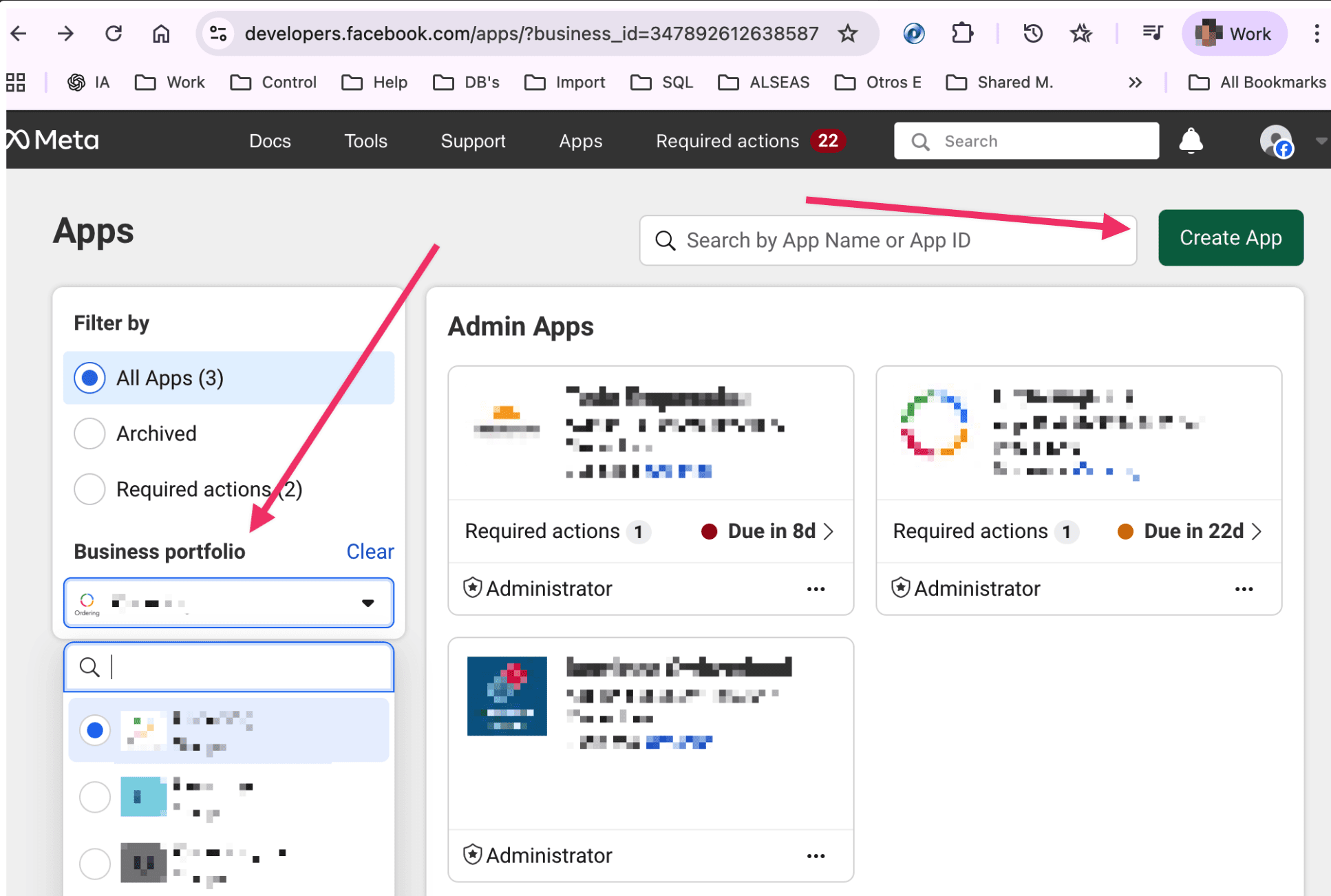](https://docs.ordering.co/assets/files/a204beb0d0dc93b53296fddb-49d0240bc0f25e79a9ef64423ce4fbf1.png)
Older **My Apps** layouts also expose **Create App** in the header.
[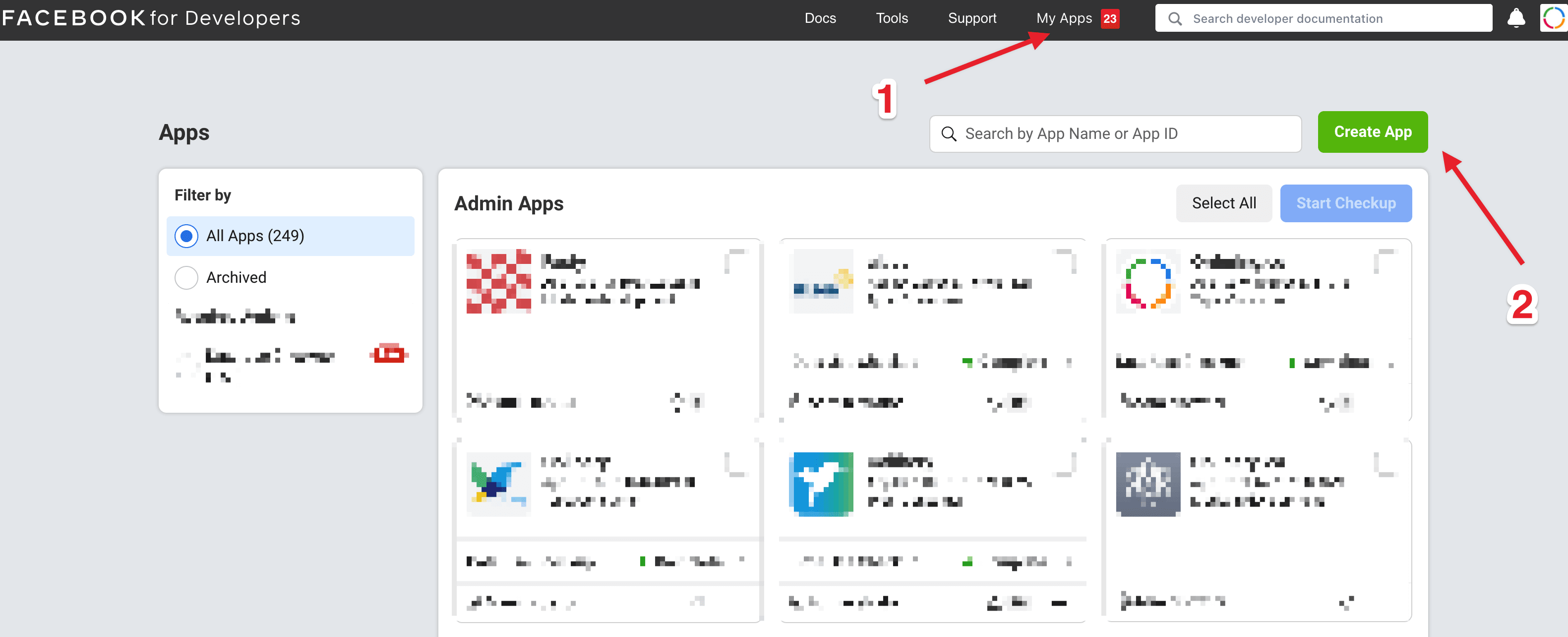](https://docs.ordering.co/assets/files/82e5f5b690f575190e61a3bd-4a5232685d01fae1c4c86702a7cd79aa.png)
If the console still lists app types, select **Consumer** and continue.
[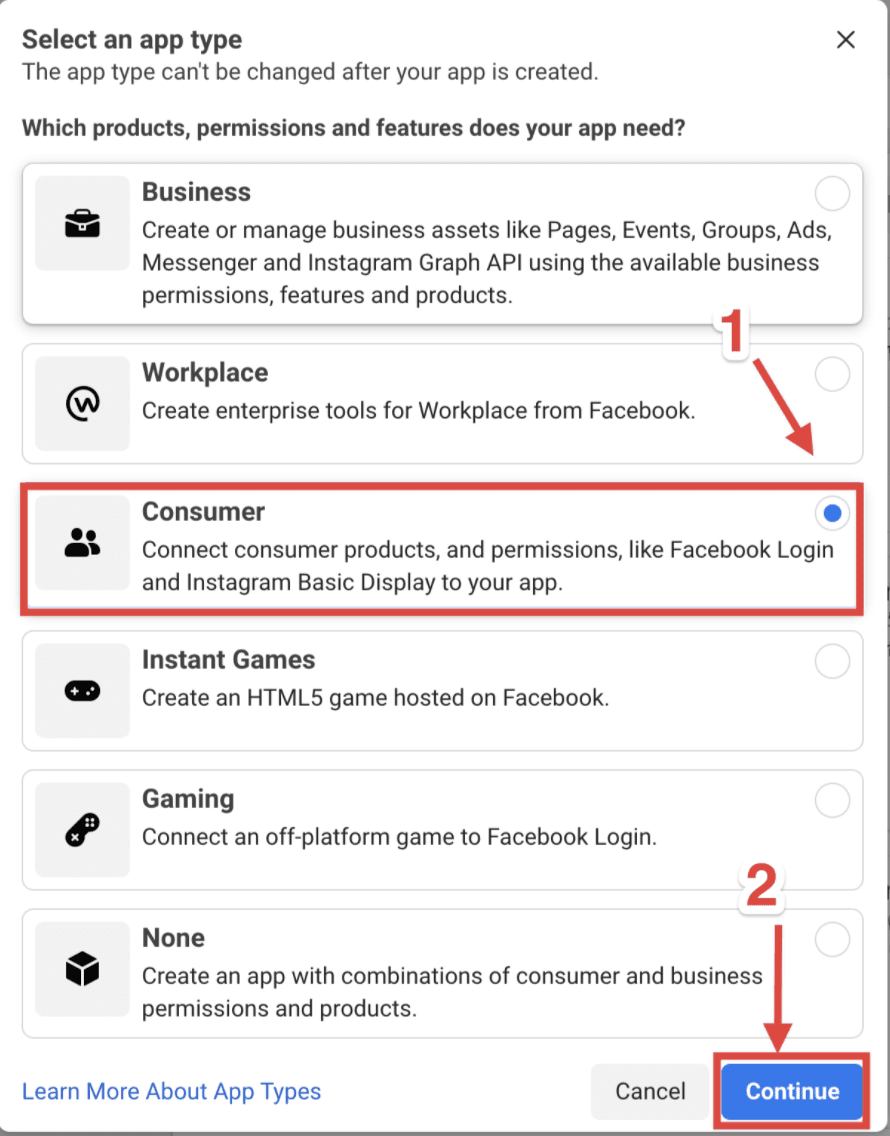](https://docs.ordering.co/assets/files/b4e9532f07ba6c9d1fc96ca6-c1aeacff9ac7194908c3df15200156f0.png)
### App details
Enter the app name and the app contact email, then select **Next**.
[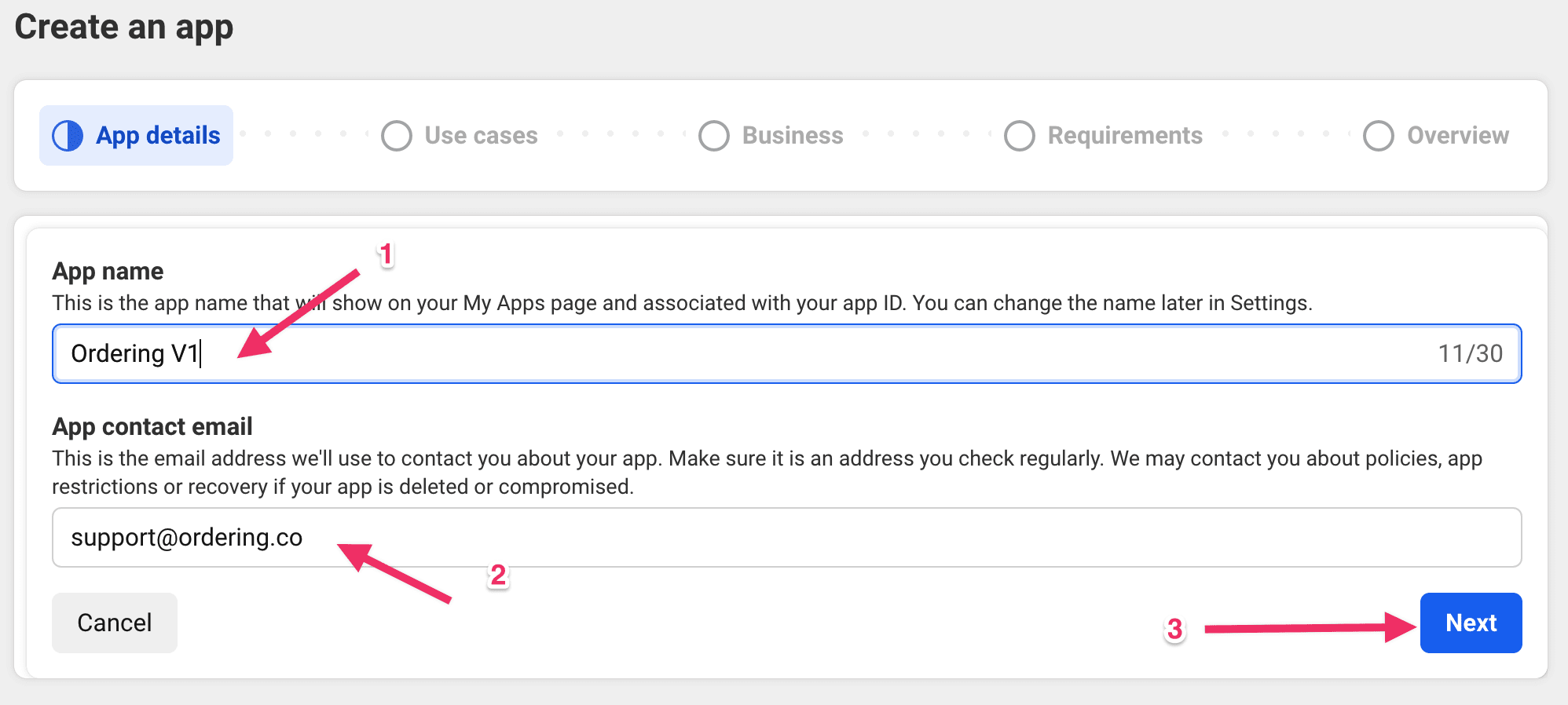](https://docs.ordering.co/assets/files/f94386395b5697aa7408f438-7c15f5e50cddd1f8c261c30e09842138.png)
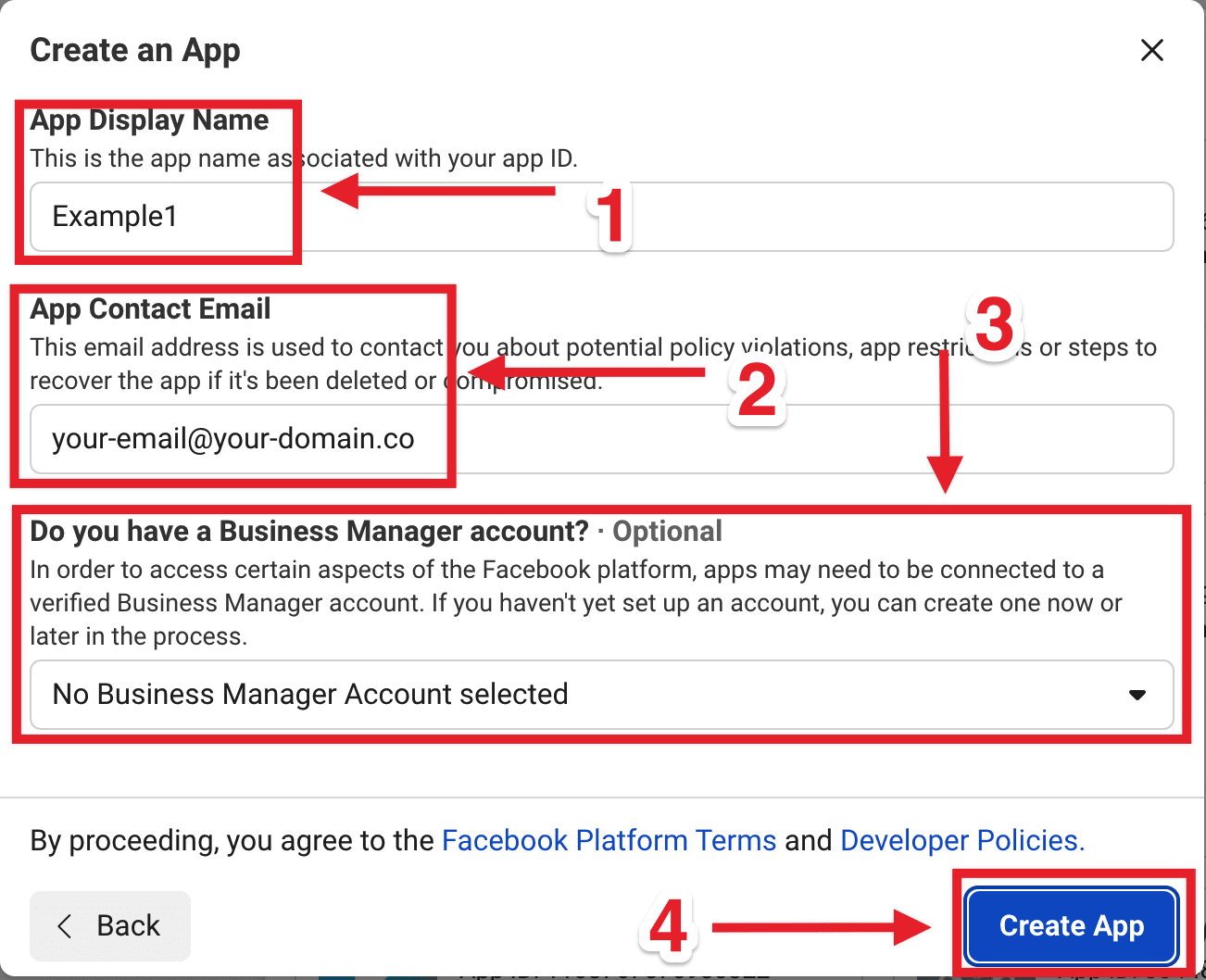
On older **Create App** screens, fill:
- **App Display Name:** The name of your Ordering.co app.
- **App Contact Email:** Confirm the email on the Facebook account.
- **Do you have a business Manager Account?:** Select a portfolio, or **No Business Manager Account selected**.
- **Create App**
[](https://docs.ordering.co/assets/files/ddb108357e868de0c825697f-e2ee0cd5f09aeb4925fca29aea8d78a7.png)
### Use cases
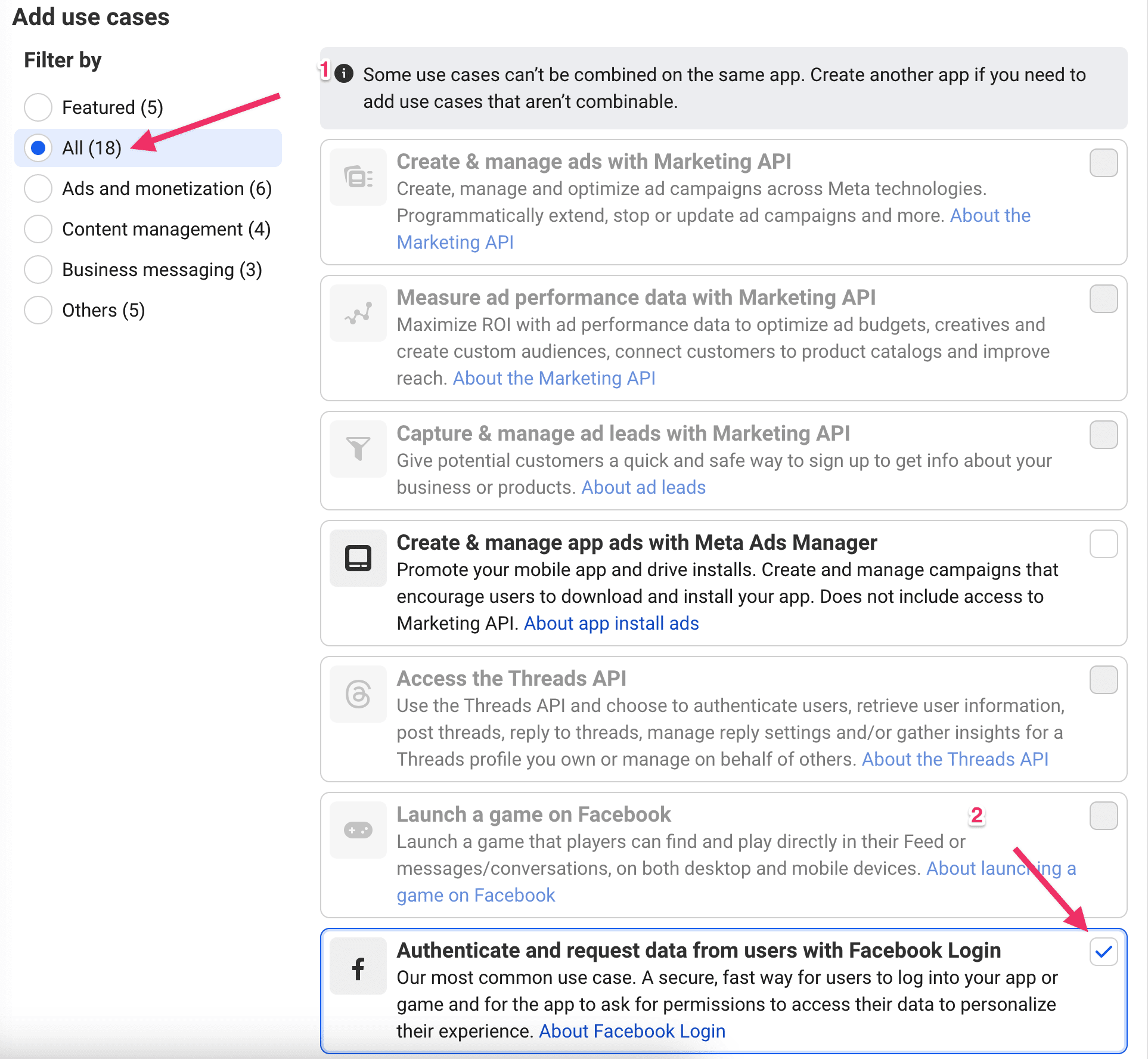
Open the full use-case list (the console may label this **All (18)**) and select **Authenticate and request data from users with Facebook Login**. Then select **Next**.
[](https://docs.ordering.co/assets/files/6bfa02b8f1d73704adef9de5-7ad3fc001782d711171a37a139db1026.png)
Meta treats this as the Facebook Login use case. You cannot mix it with some other use cases on the same app.
### Business
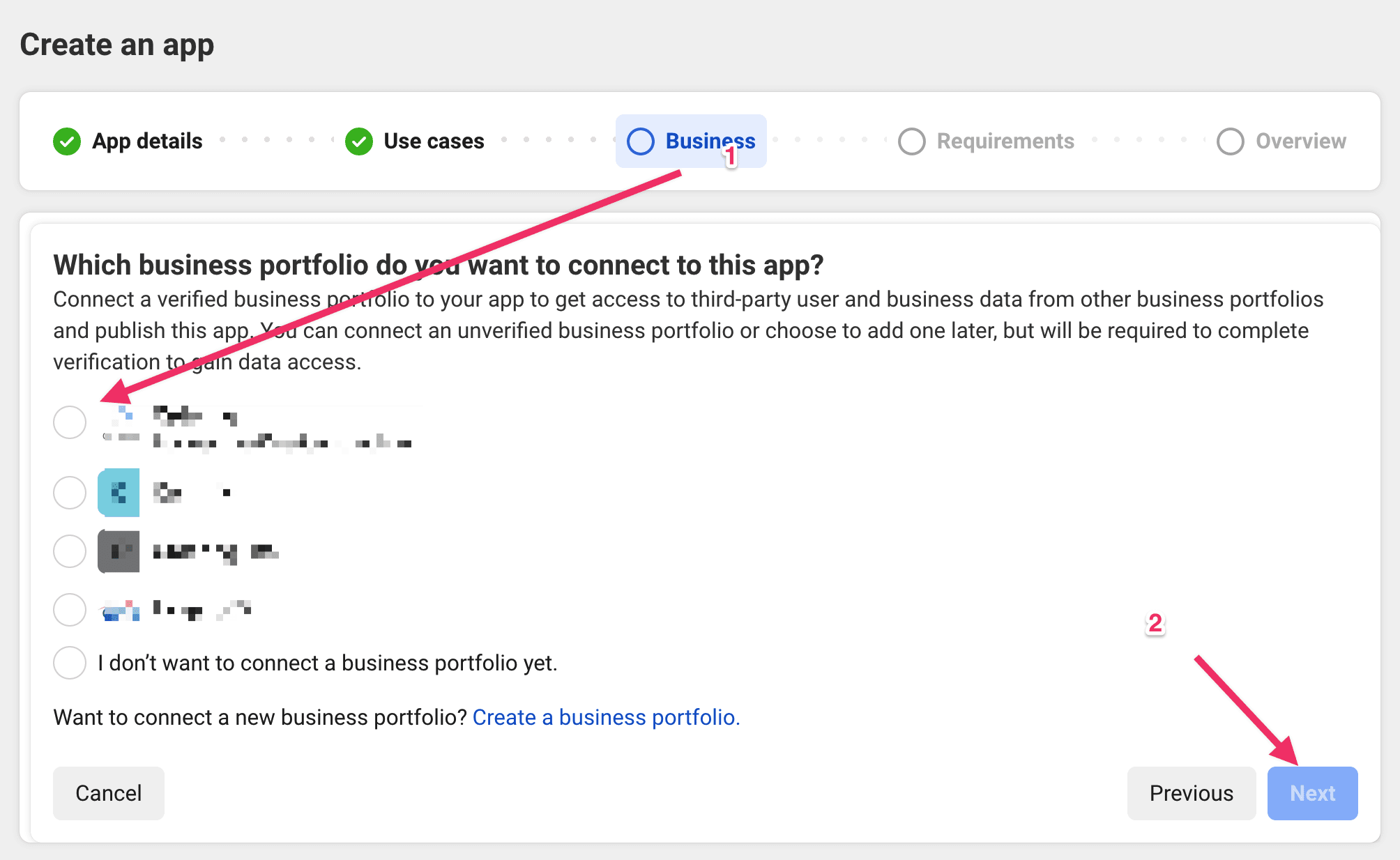
Select the business portfolio to connect, or skip if the console allows it, then select **Next**.
[](https://docs.ordering.co/assets/files/a130da51716af80e03dd7838-e8a08eab89ba97c690943c6f07b5f838.png)
### Requirements
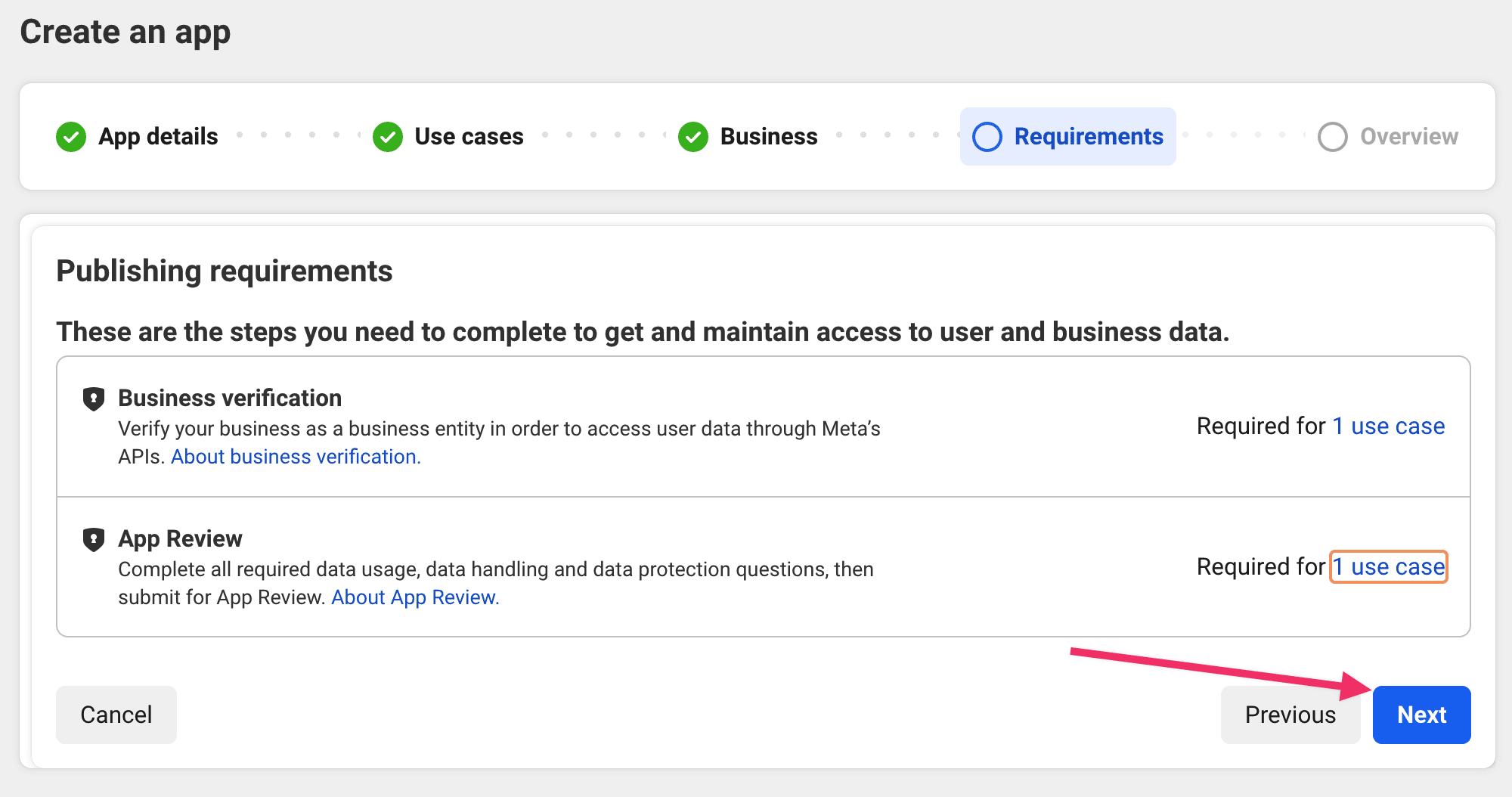
Confirm that **Business verification** and **App Review** appear in the publishing requirements, then select **Next**. Checking the list does not complete verification or review.
[](https://docs.ordering.co/assets/files/23045bcecd3a3580df9a1125-9b2bebb66c7a94705192be8efb48470f.png)
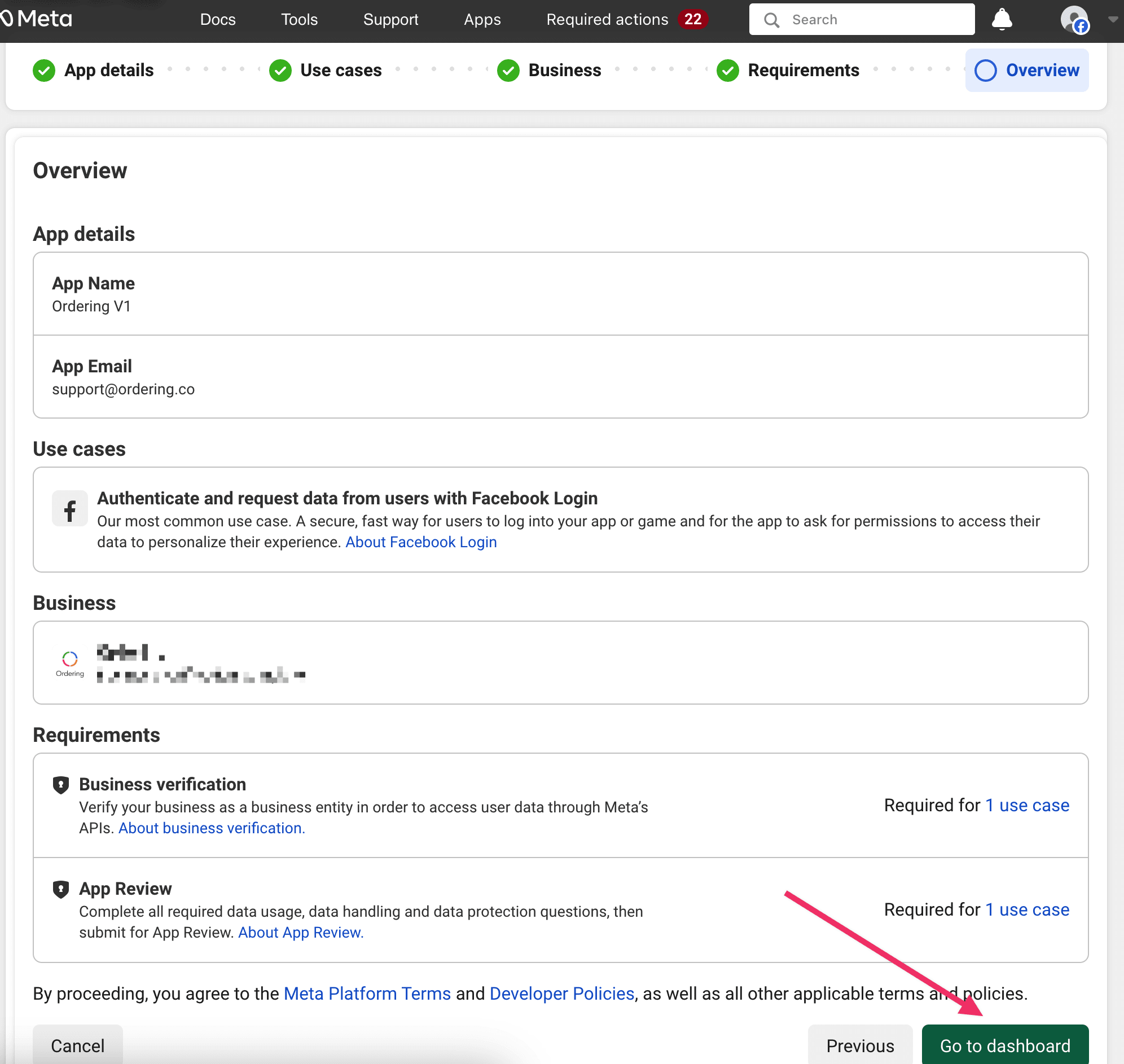
### Overview
Review the name, use case, business, and requirements, then select **Go to dashboard**.
[](https://docs.ordering.co/assets/files/a58b213660c328e1233fb181-dee1c745a0a1e1edb5b7a828a03c4290.png)
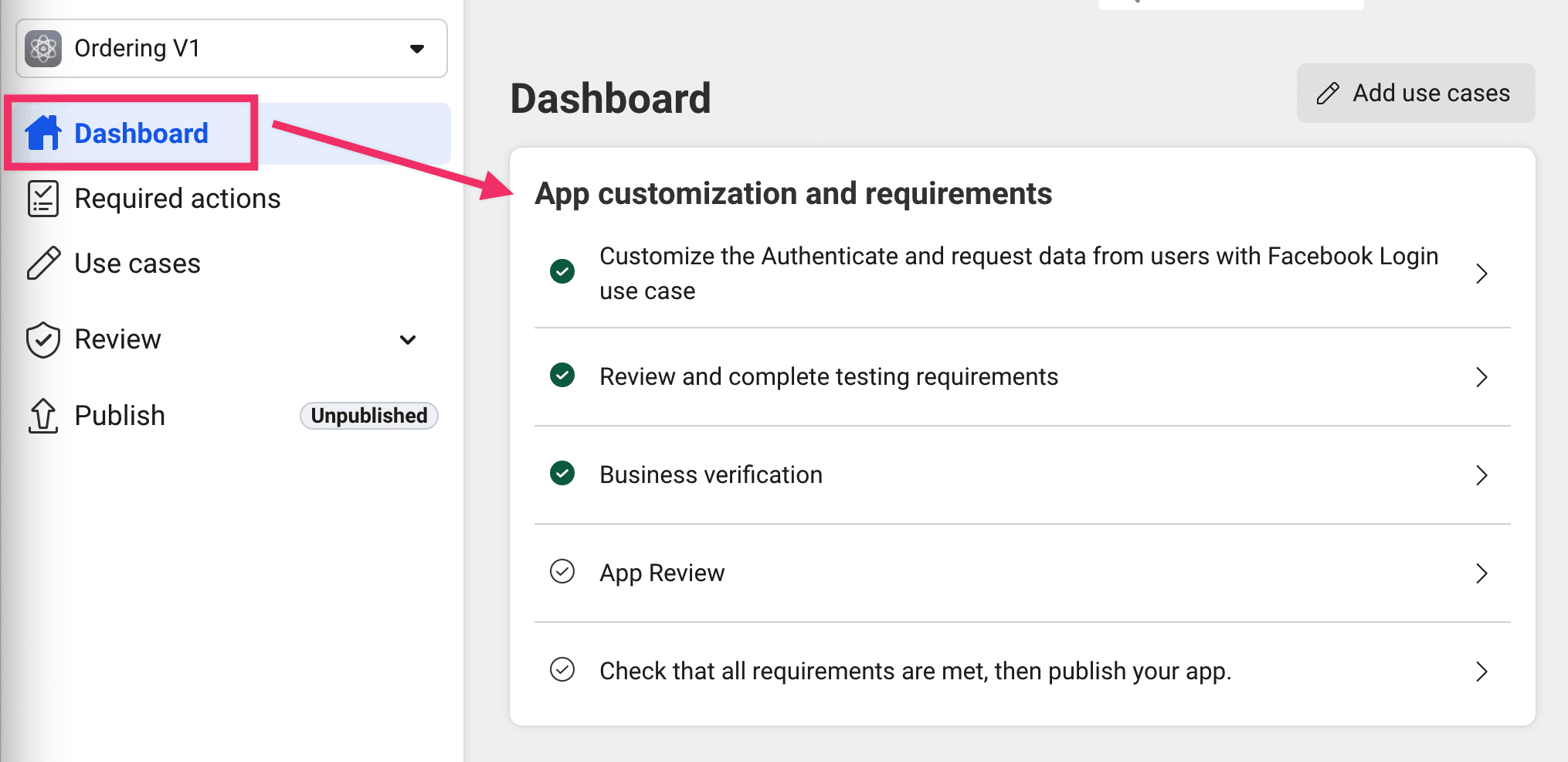
## Complete the Facebook dashboard checklist
The app dashboard lists the remaining setup items. Work through each one the console marks incomplete.
[](https://docs.ordering.co/assets/files/5dc3bc3d50322c1fcf366310-f6656f99d00dafd7a61bb68affa7b200.png)
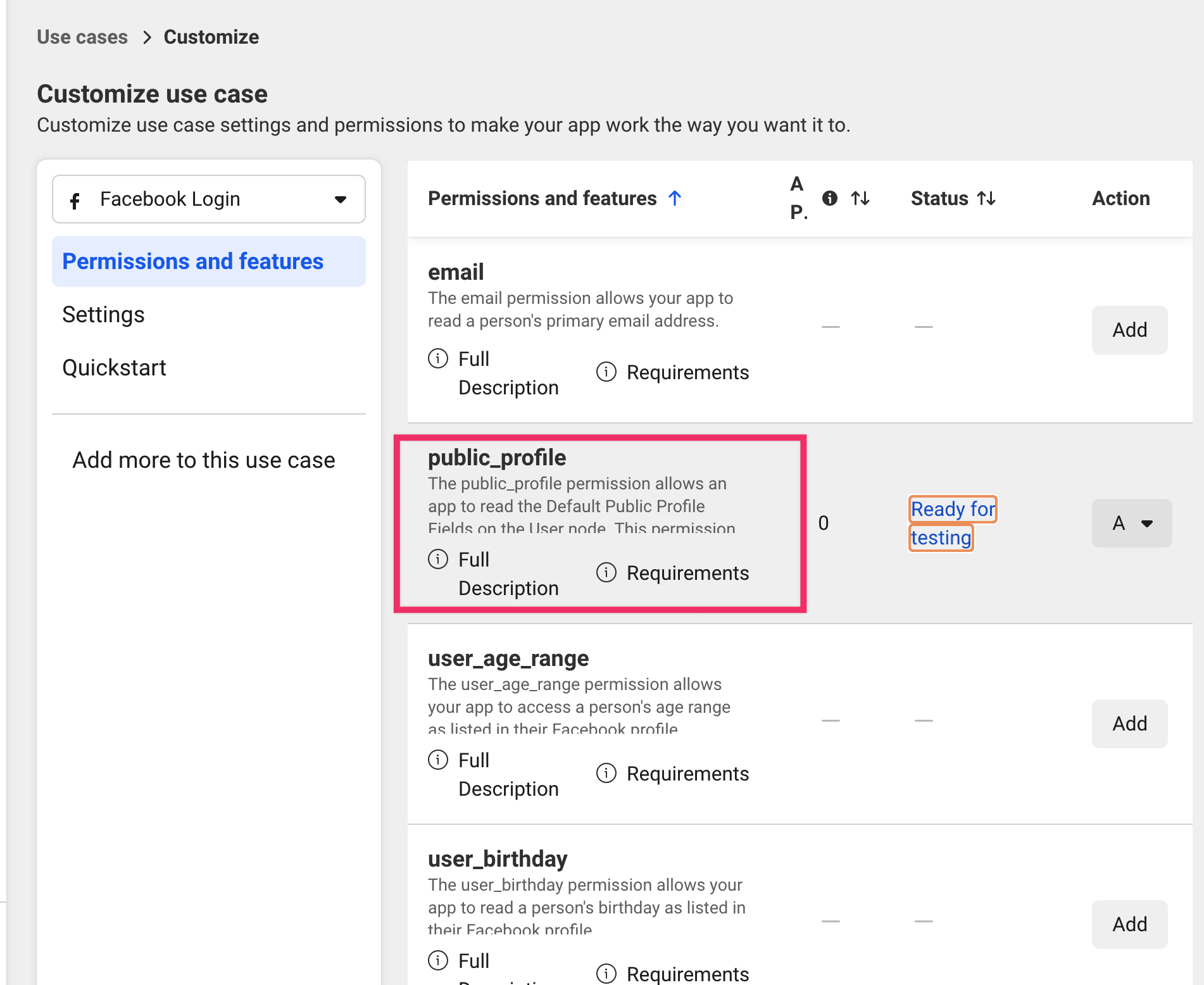
1. **Customize the Authenticate and request data from users with Facebook Login use case.** Open it, confirm it is activated, then return to the dashboard.
[](https://docs.ordering.co/assets/files/f3446693a36328aa6573a0e8-f6891ad38d1f671e20895f4b5819ecbb.png)
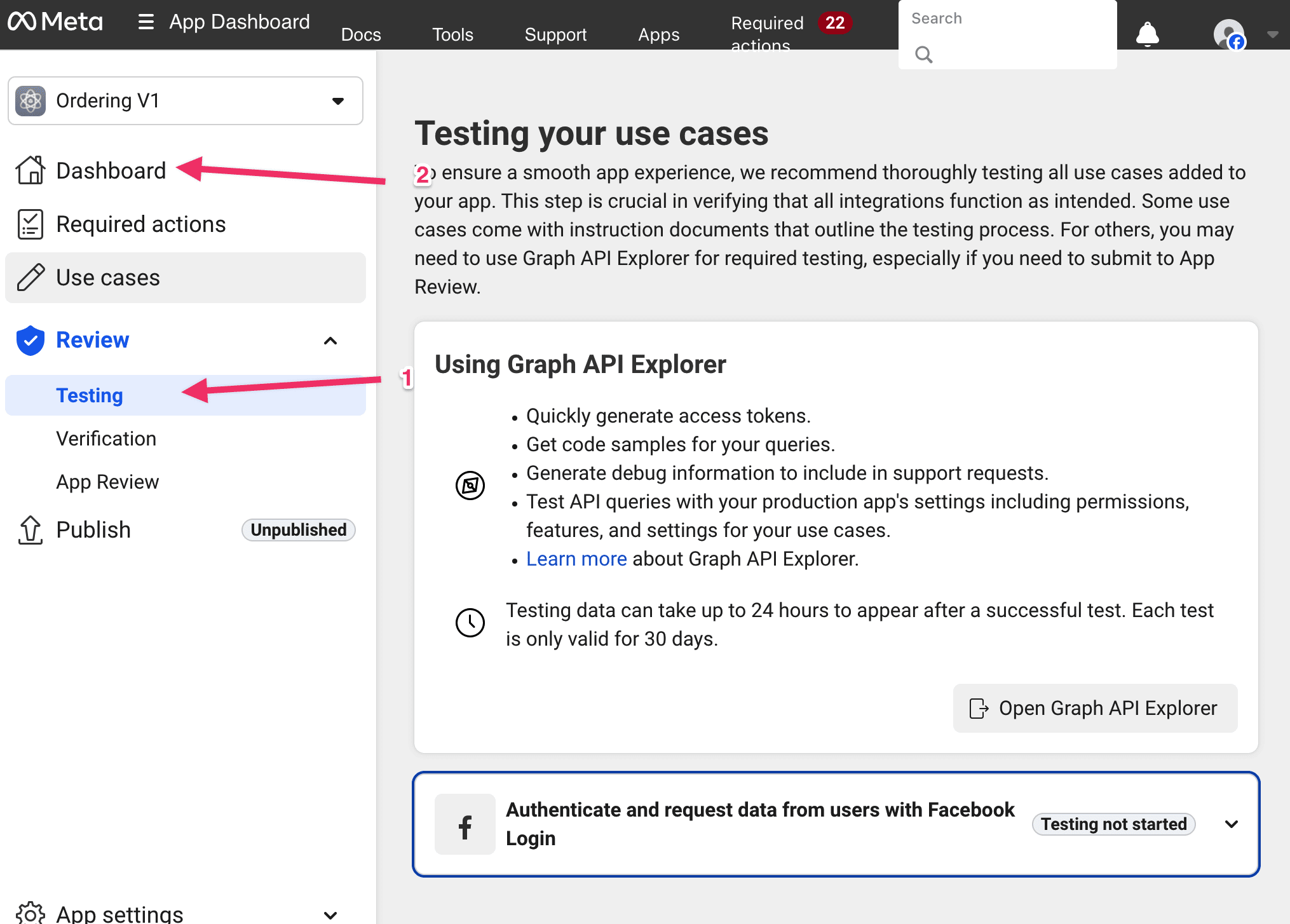
2. **Review and complete testing requirements.** After you return, this item is often already checked. If it is not, open it and go back to the dashboard.
[](https://docs.ordering.co/assets/files/05fbffbfcb6cc1e191c2f20c-818463e73456c870be4bde1b4052c30f.png)
3. **Business verification.** If it is not checked, open **Business Verifications** and complete Meta's steps. Skipping this can block Live mode for people who are not app testers.
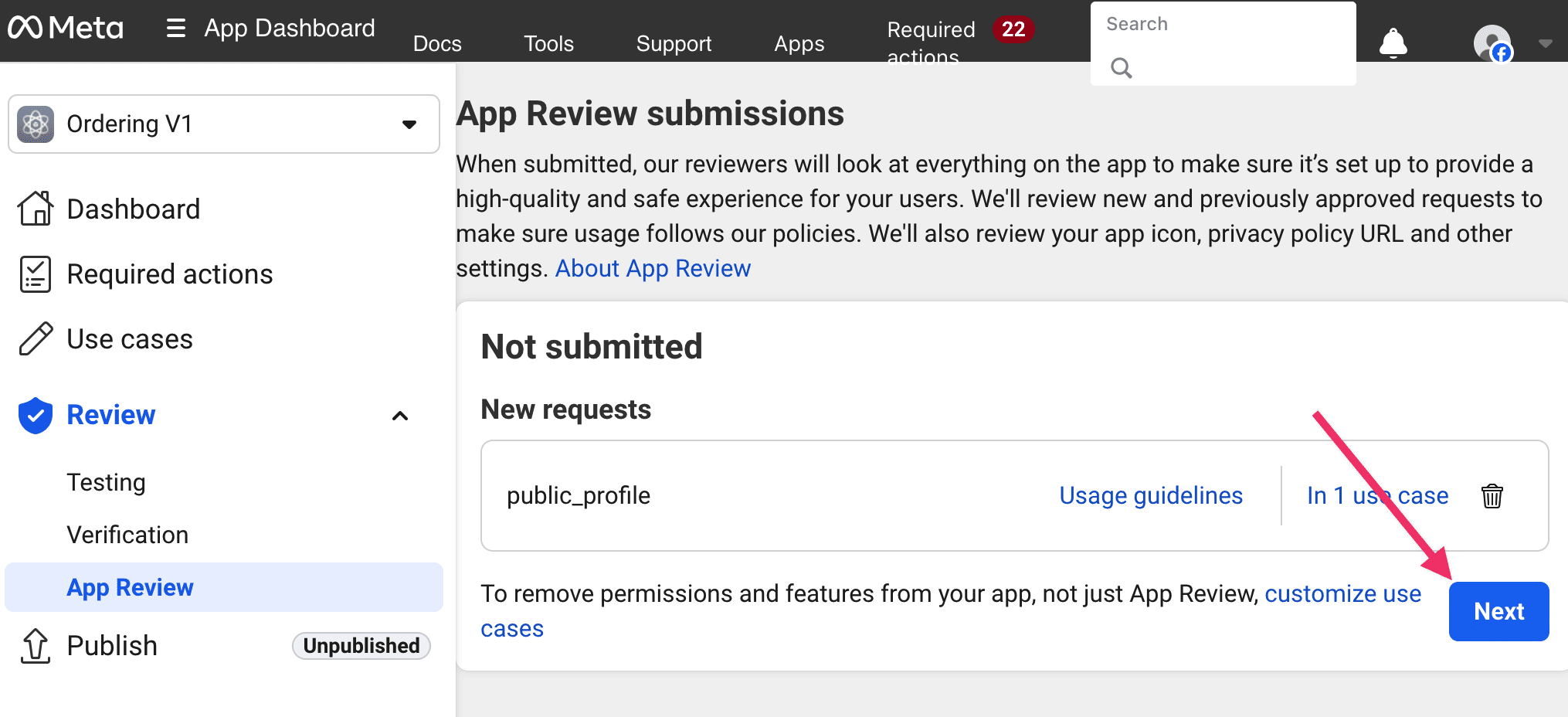
4. **App Review.** Open it and select **Next**.
[](https://docs.ordering.co/assets/files/7b8a7294c4cd373255d0edef-41a608274925060c5bcdca8ebbc472a3.png)
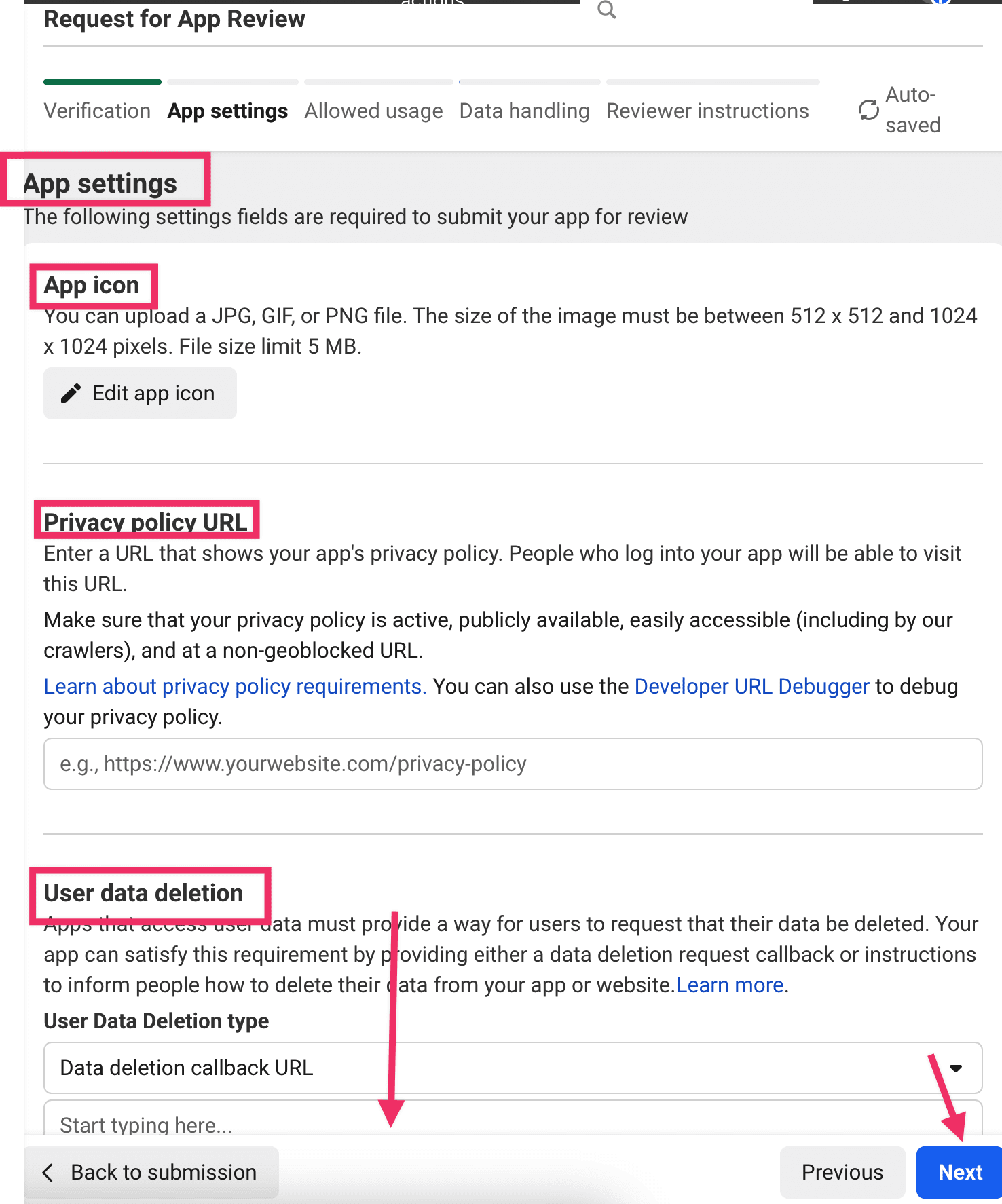
5. **App settings.** Upload the **App icon** in the format Meta lists. Add the **Privacy Policy** URL, configure **User data deletion**, select the **App category**, and enter the **Primary contact** email. Then continue.
[](https://docs.ordering.co/assets/files/caa74ccf91c27b8c7e23dc4f-60c95c3be25e8ed6f8c2b70c854daa62.png)
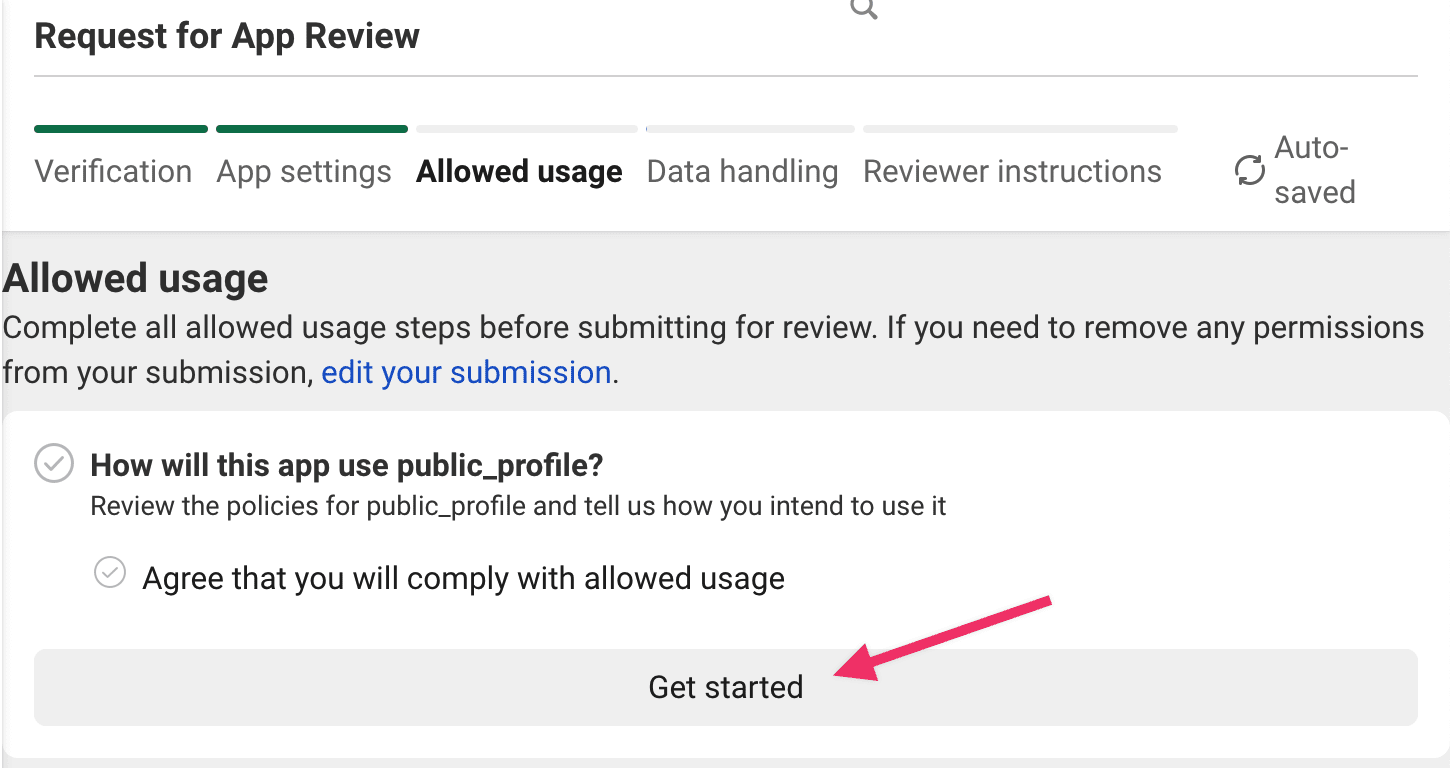
**Allowed usage:** Select **Get started**, select the checkbox, then **Save** and **Next**.
[](https://docs.ordering.co/assets/files/00d6ed30dac5a67c7a532b98-4b0f2775e79695fc29bc4765243c4df5.png)
**Data handling:** Before completing this section, ask the organization owner:
- Which Platform Data, if any, does this organization share or process through this app?
- Which organization-approved person or entity is responsible for that data, and where are they located?
- How should each remaining Data Handling question be answered under the organization's authorized privacy decisions?
Do not use a default answer from a screenshot or this guide.
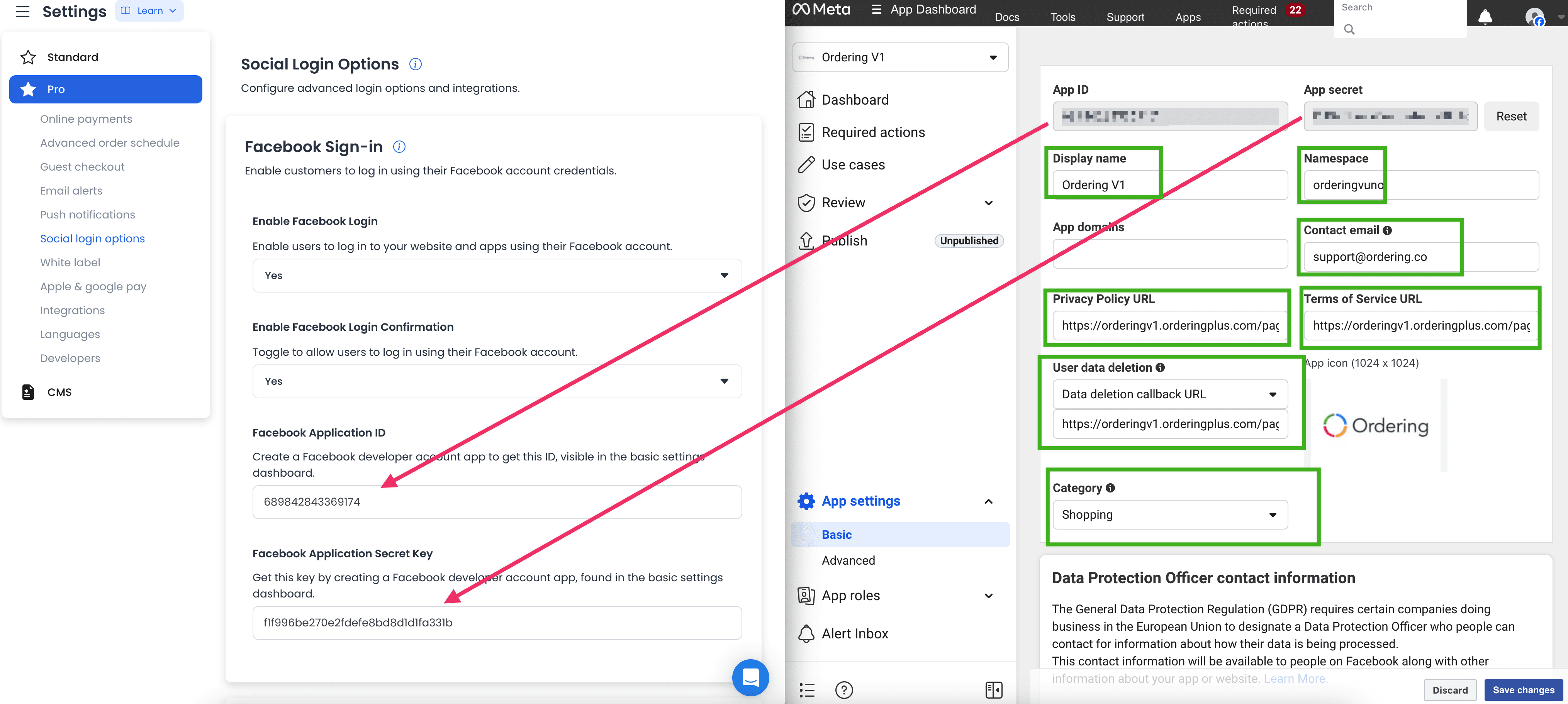
**Reviewer instructions:** Select **Go to settings**. A new window opens. Copy the **App ID** and **App secret** for the Ordering.co Dashboard, and complete every field marked in the green box.
[](https://docs.ordering.co/assets/files/4414ed68977e61e7108a77a1-0e34a72778b8d5b887838c340a5b3117.png)
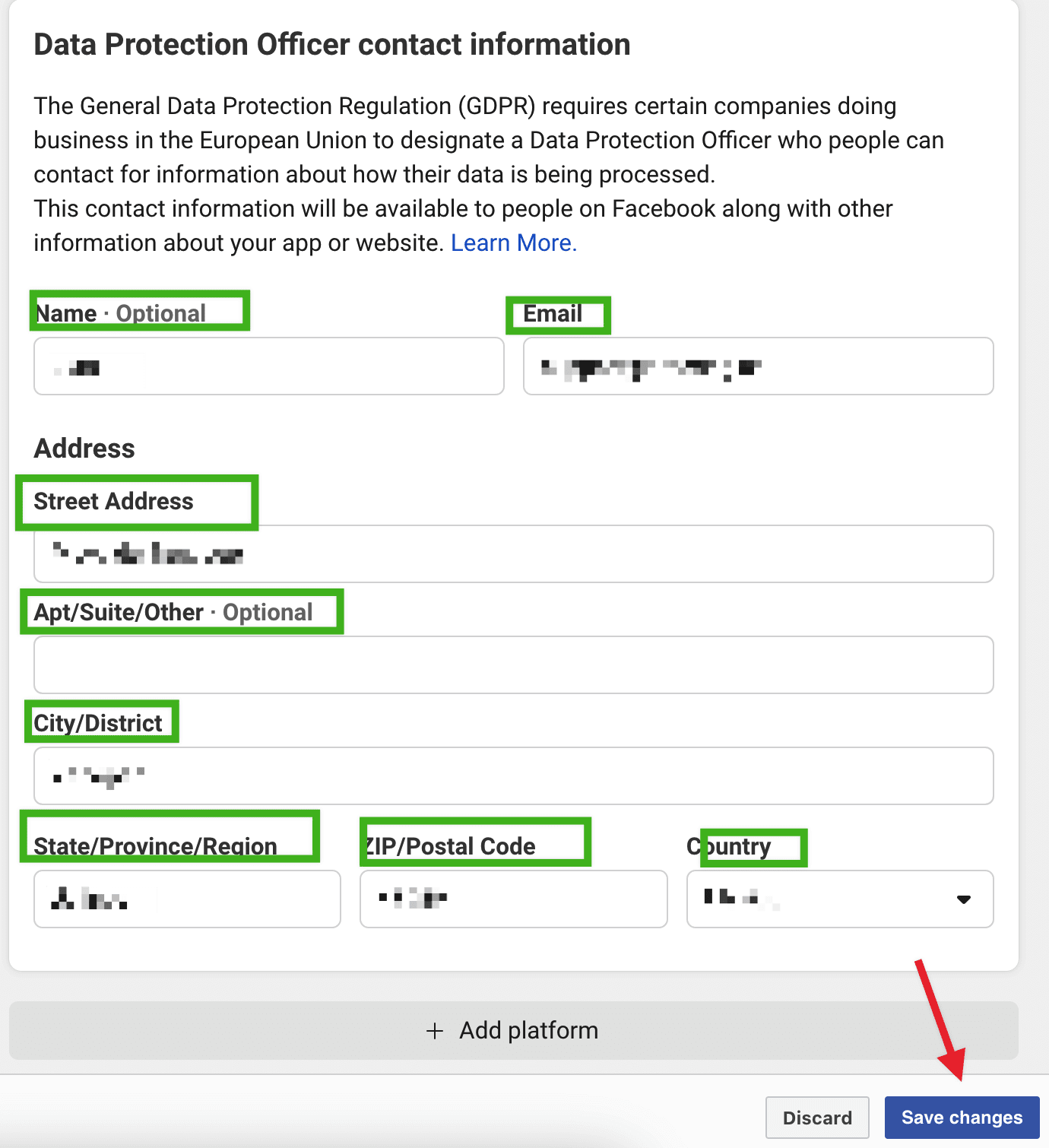
**Data protection officer contact information:** Before completing this section, ask the organization owner whether it applies to this app and, if it does, which organization-approved contact details belong there. Do not invent a contact or copy one from a screenshot. Then save the changes.
[](https://docs.ordering.co/assets/files/c0b85da41b7434a829885003-b497683b72f4cfba0d163762bc18403d.png)
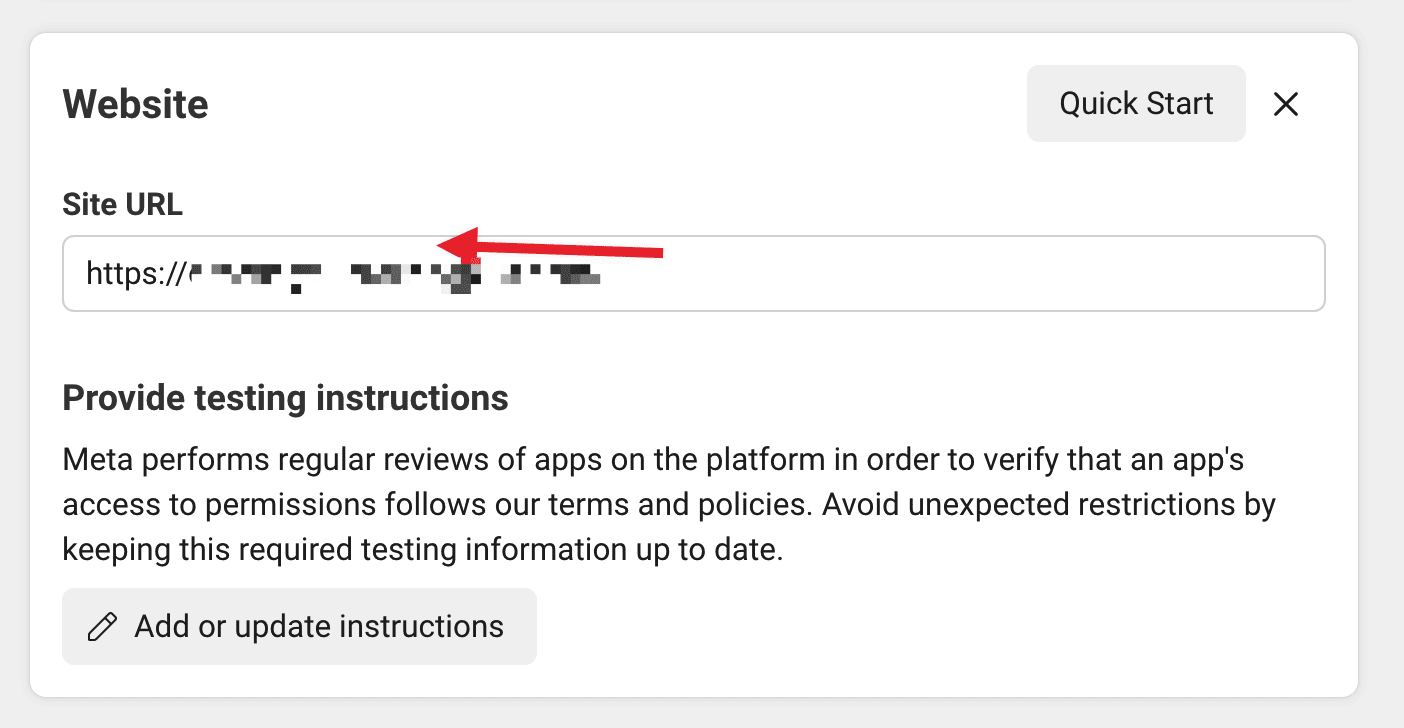
At the bottom of the page, select **Add platform**, choose **Web**, and add the website URL that will show Facebook Login. Save the changes.
[](https://docs.ordering.co/assets/files/bce093580e5b64f796ea29af-900674c3aac11a77ebef48e83e86304f.png)
6. Return to **Review** → **App Review**. In **Provide instructions for accessing the app**, describe how a reviewer uses Facebook Login, for example:
1. Go to your site.
2. Select the login button.
3. Select **Continue with Facebook**.
4. Enter Facebook credentials.
You can attach a video of the test. Remaining fields are optional unless your app needs them. Select **Next**.
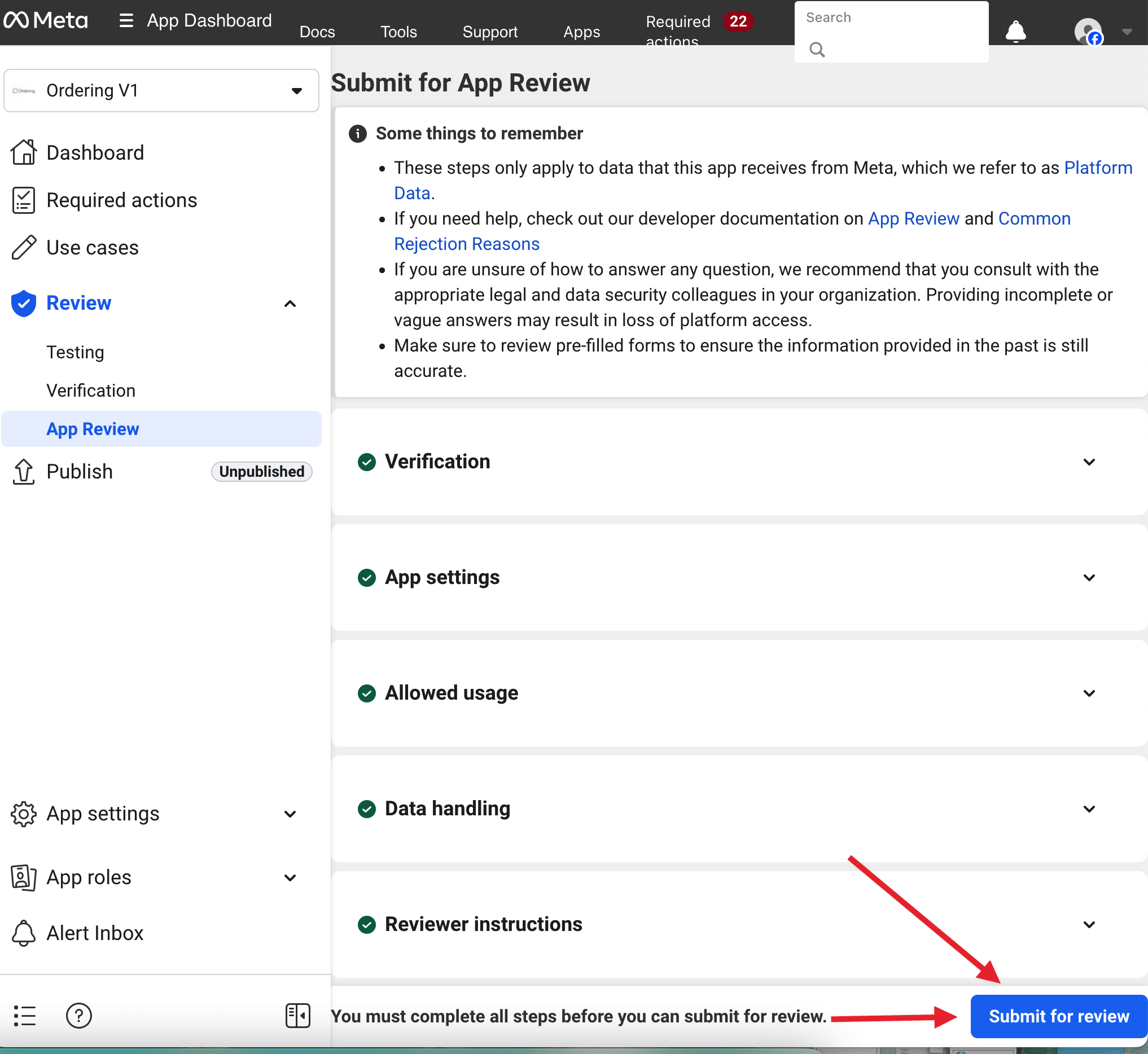
7. When the Review steps are complete, submit the app for review.
[](https://docs.ordering.co/assets/files/814814a070b0f37450928526-7db7869e13170bfb5b16708aece9affb.png)
Submitting a review requests Meta's decision. It does not put Facebook Login into Live mode or prove Ordering.co sign-in.
## Fill Settings → Basic
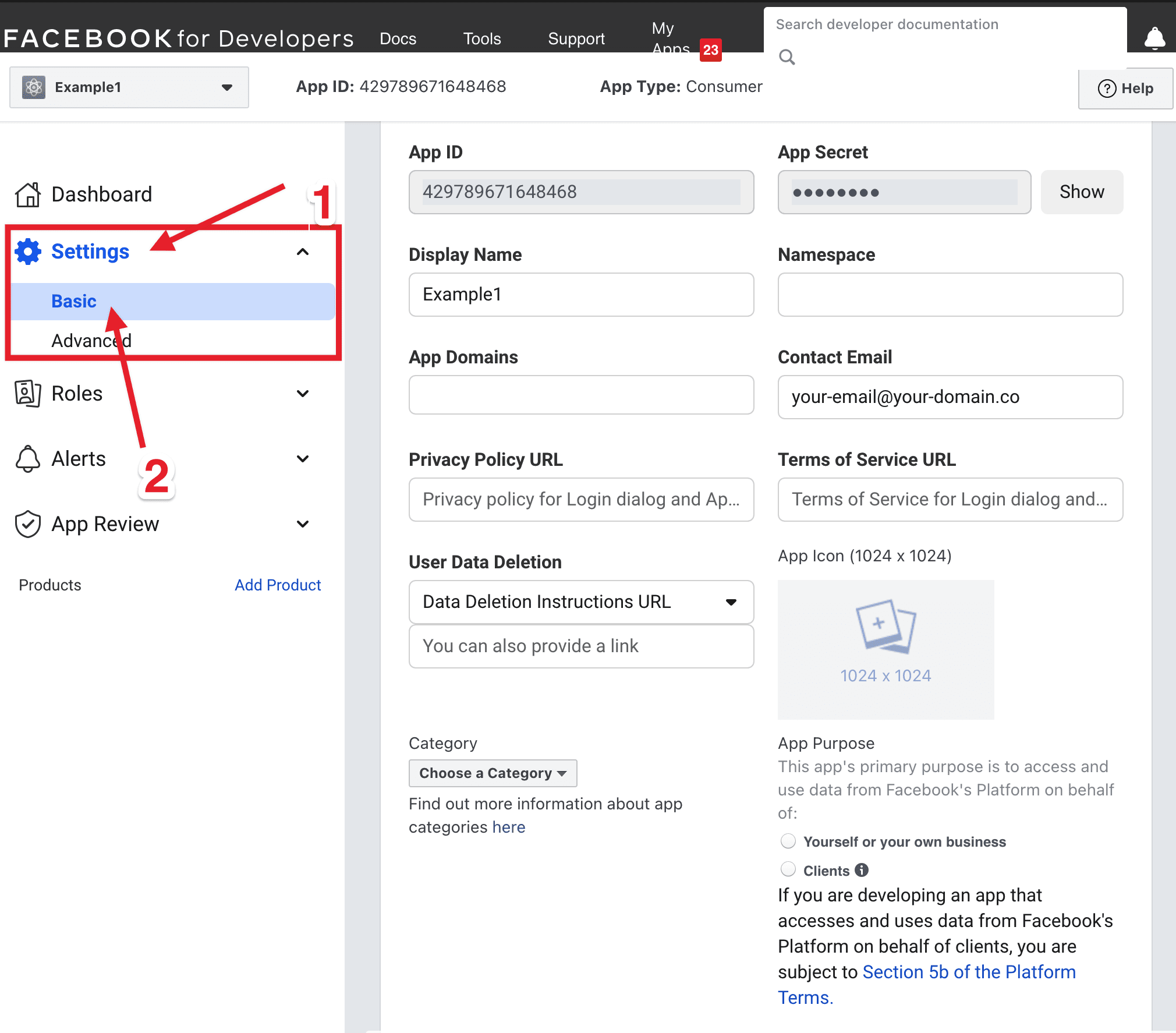
If the left menu still shows **Settings** → **Basic**, complete those fields as well. They overlap the App settings checklist and remain the place older consoles store domains and legal URLs.
[](https://docs.ordering.co/assets/files/5d8be1ff0e6b254e99d6ff27-224b1da56f722f526a1e6d28a3710965.png)
- **Display Name:** The name of your Ordering.co app.
- **Namespace:** The app name in lowercase with no spaces.
- **App Domains:** `localhost` and your custom domain (type the URL instead of pasting it).
[](https://docs.ordering.co/assets/files/3c3dd291929c3b1a2a29f342-63f65842d35870c04796dc4d8d5180f5.png)
- **Contact Email:** A contact address for the app.
- **Privacy Policy:** The privacy policy URL. Facebook Login does not work without it.
- **Terms of Service URL:** The terms URL. If you do not have one, create it in the Static pages manager on the Ordering.co website.
- **User Data Deletion:** **Data Deletion Instructions URL** (recommended) or **Data Deletion Callback URL**. Implement a page with deletion instructions and enter that URL.
- **App Icon:** Upload the icon.
- **Category:** The category that matches the project.
- **App Purpose:** The purpose that matches the project (the sources recommend **clients**).
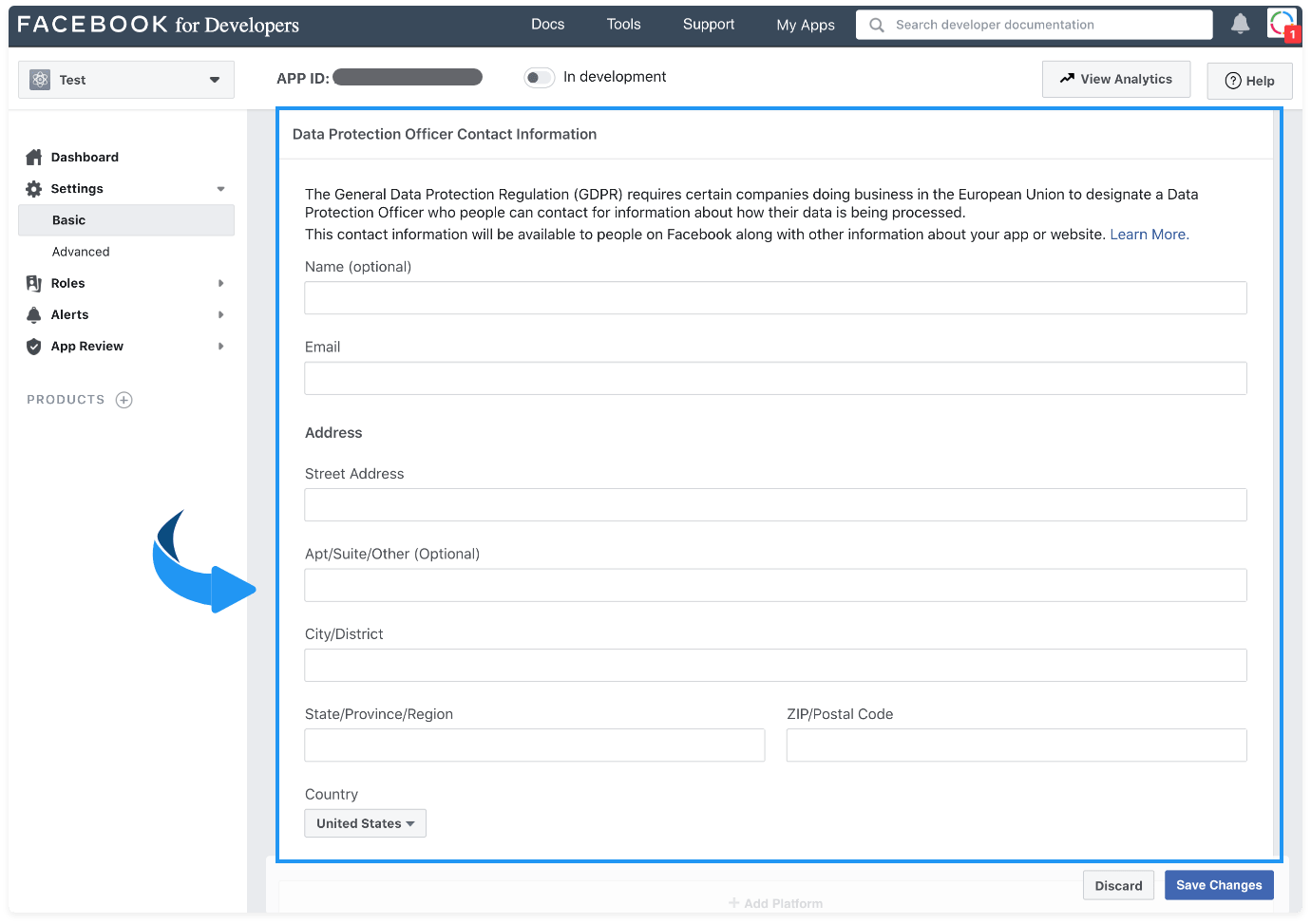
For **Data Protection Officer Contact Information**, ask the organization owner whether the field applies and, if it does, which organization-approved contact details belong there. Do not transfer an individual's details from a screenshot or another organization.
[](https://docs.ordering.co/assets/files/cb4925585a52ef37dd055ddc-25bf85f13ce87112d6fd648b6d6292a0.png)
## Add a website platform
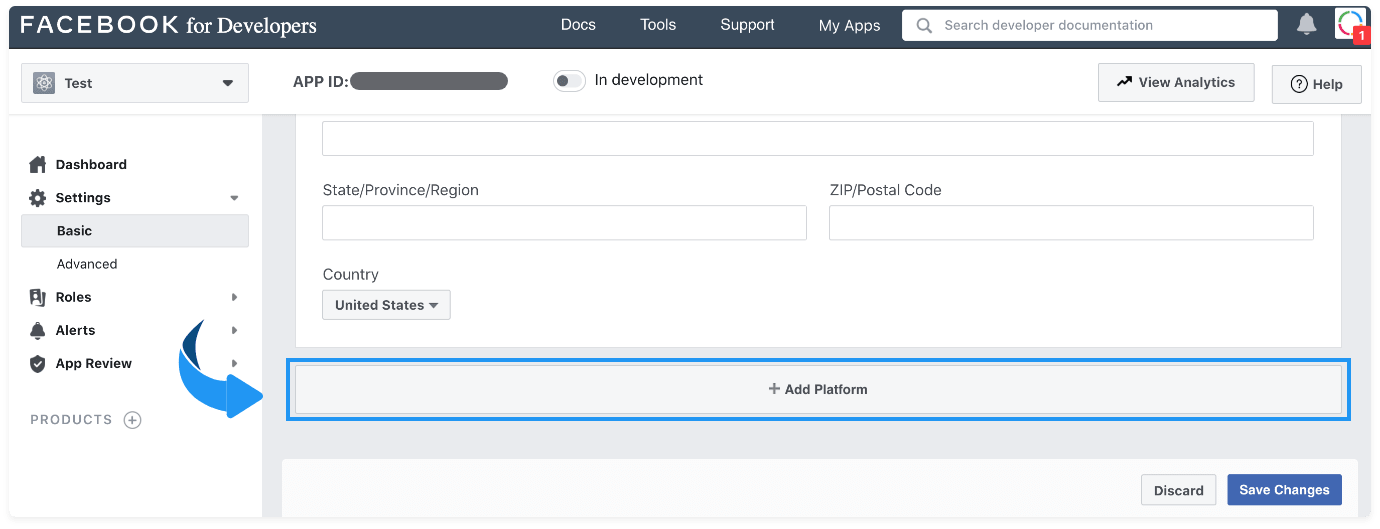
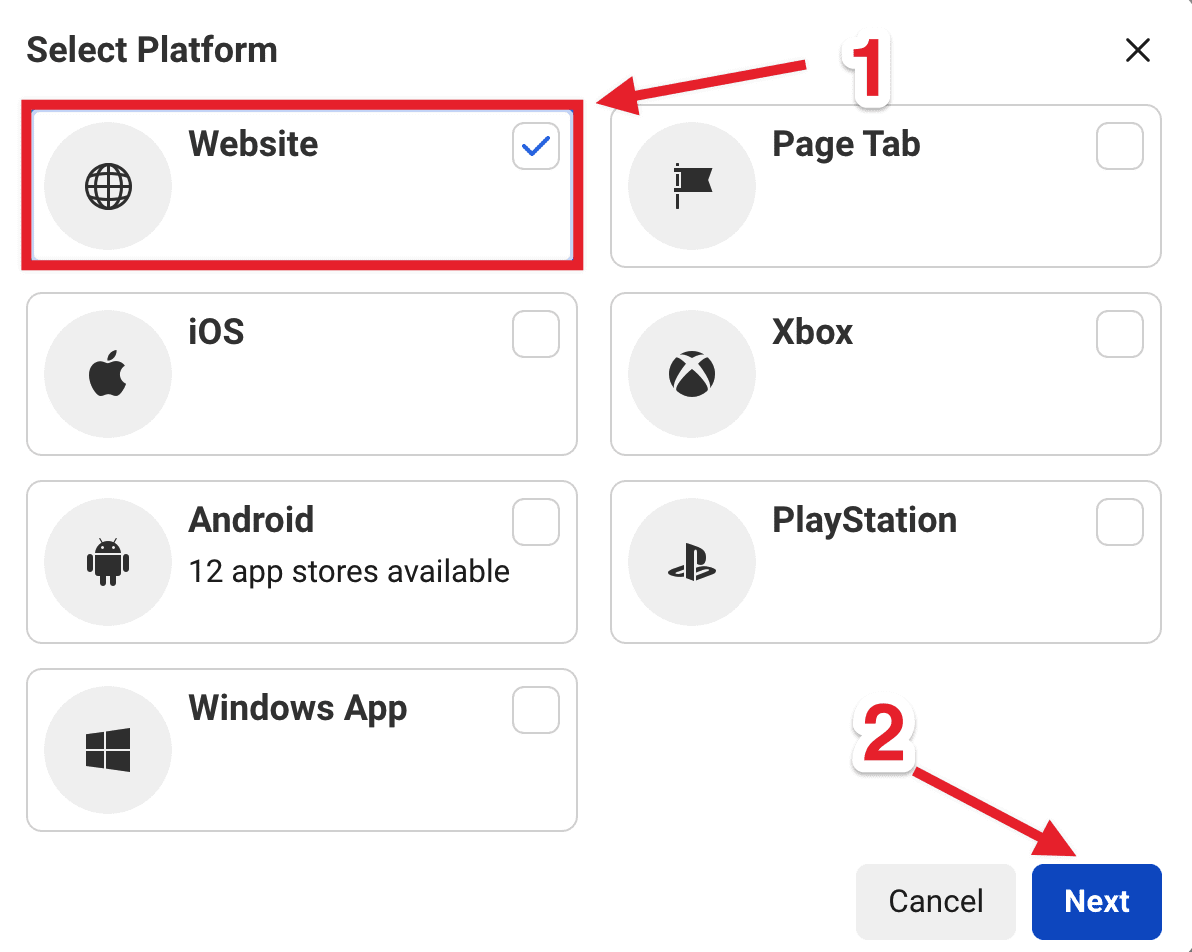
Select **+ Add Platform**, choose **Website**, then **Next**.
[](https://docs.ordering.co/assets/files/368d182fafc4b3a6b30d852e-180e0d3a00ac8cee170307f98469a547.png)
[](https://docs.ordering.co/assets/files/204f62e1551f9457ba11a623-9ccf22fdf5039a290357a69d42ccda17.png)
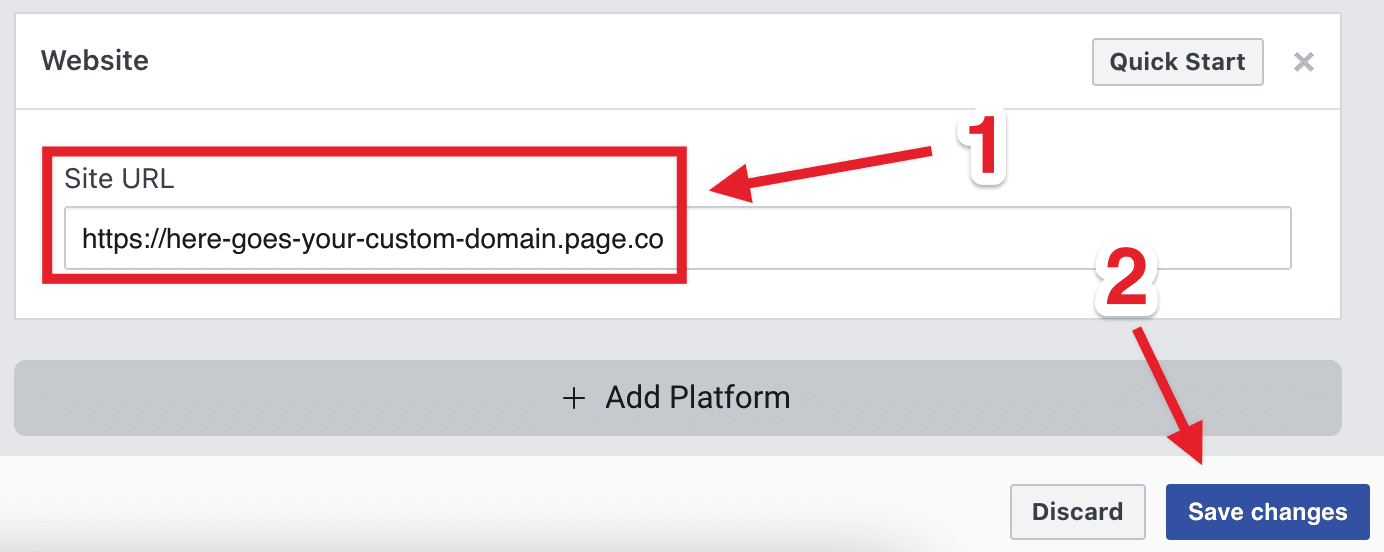
In **Site URL**, enter the custom domain (for example, `https://www.ordering.co/`) and select **Save Changes**.
[](https://docs.ordering.co/assets/files/d6fd6779f0829c59bef26db8-a68c85d4ca9b8fe4cd5735f35ed66c99.png)
## Add an iOS app
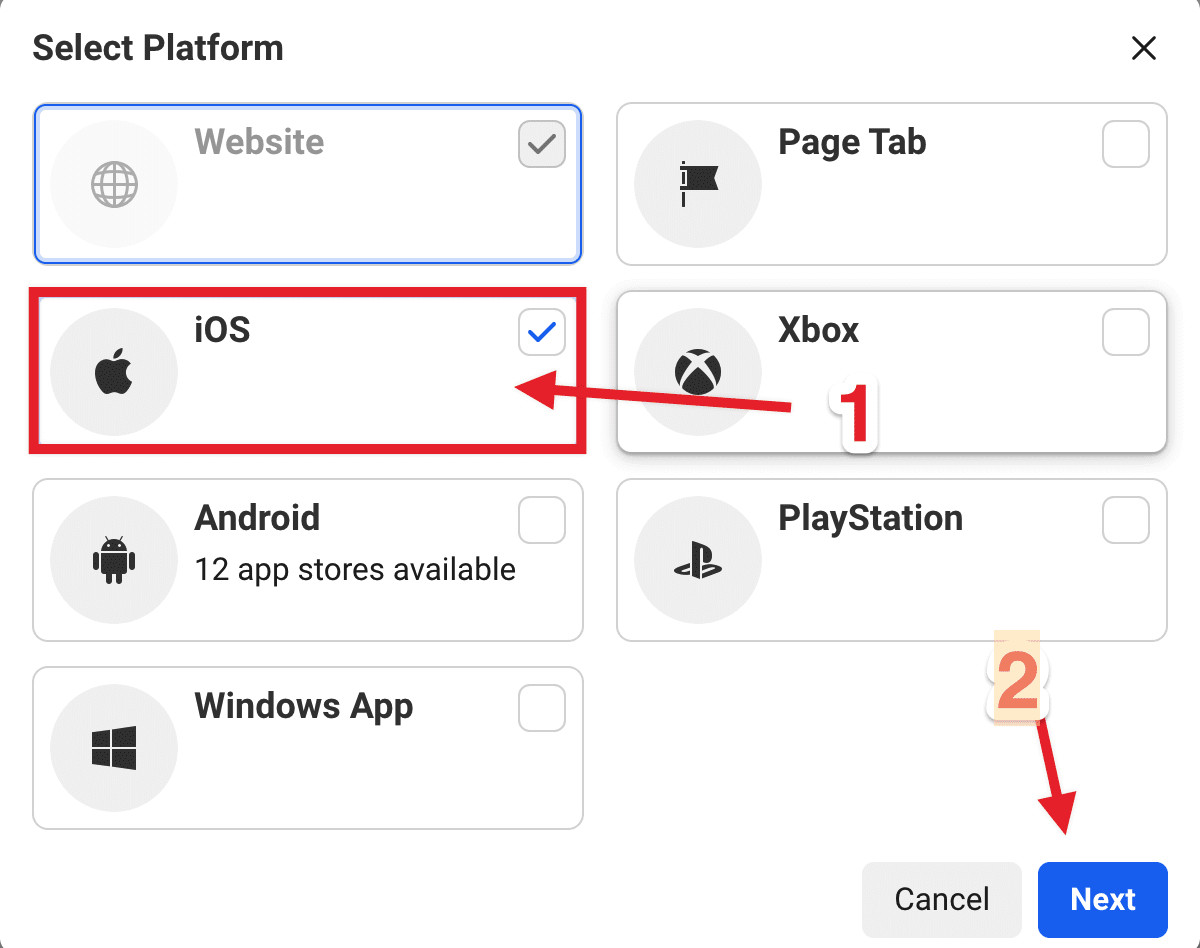
Select **+ Add Platform**, choose **iOS**, then **Next**.
[](https://docs.ordering.co/assets/files/396b68f98e1f4ffe606bf9f9-8cf6ea069d12d1feacc89c0c25b446ae.png)
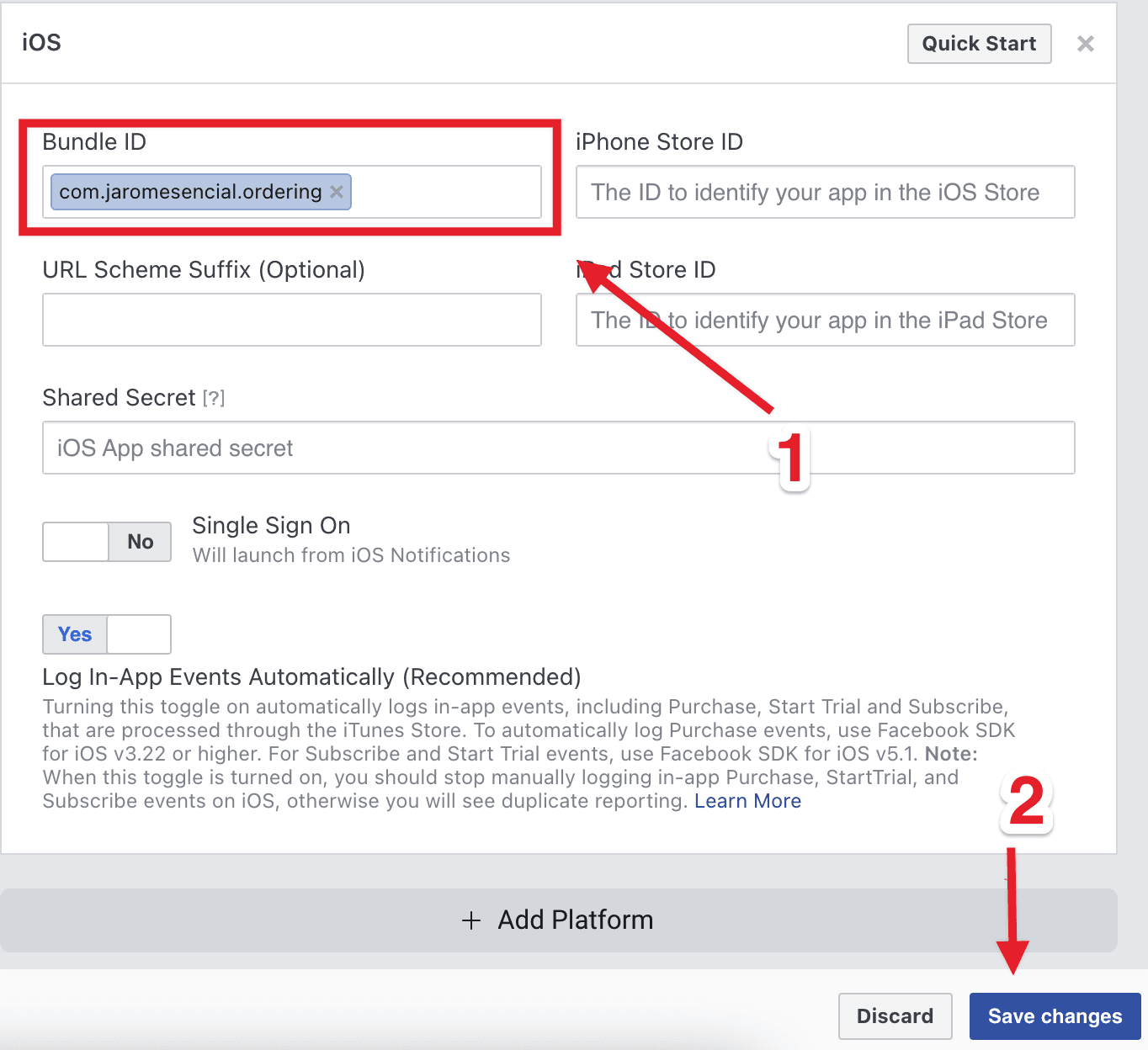
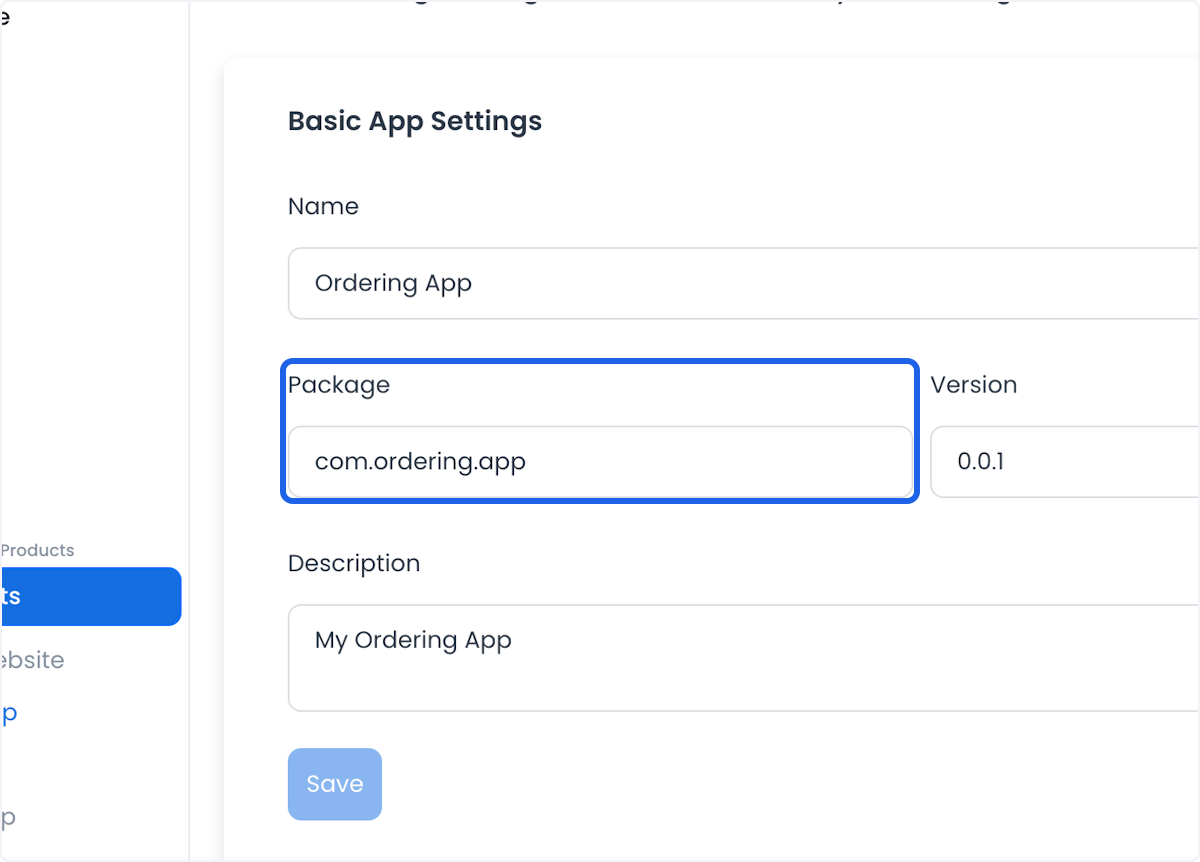
Enter the **Bundle ID**. Copy the package bundle of the Ordering.co app from the builder **Settings** field **Package**.
[](https://docs.ordering.co/assets/files/6dc4c979c492fc6f0cf0efb3-a2d235a7c06763a1b824616a0ee73c50.png)
[](https://docs.ordering.co/assets/files/d4471faa8902a2fe31c289a2-becd9efe5c0d410fe47ef6ffac11839d.png)
## Add an Android app
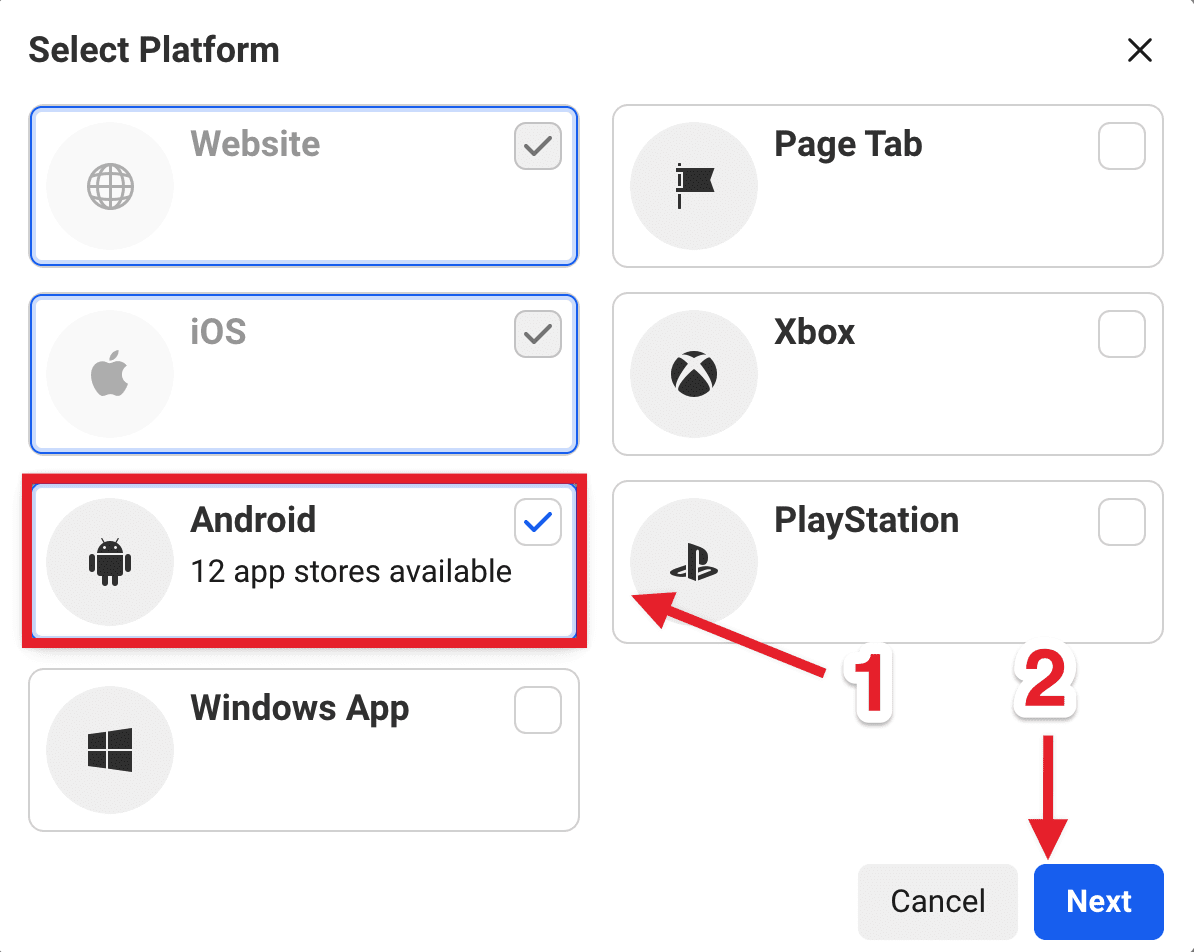
Select **+ Add Platform**, choose **Android**, then **Next**.
[](https://docs.ordering.co/assets/files/62b1d51464872fa1d91d2621-c3479fd7cd9ddd4ac1cb68d66071c031.png)
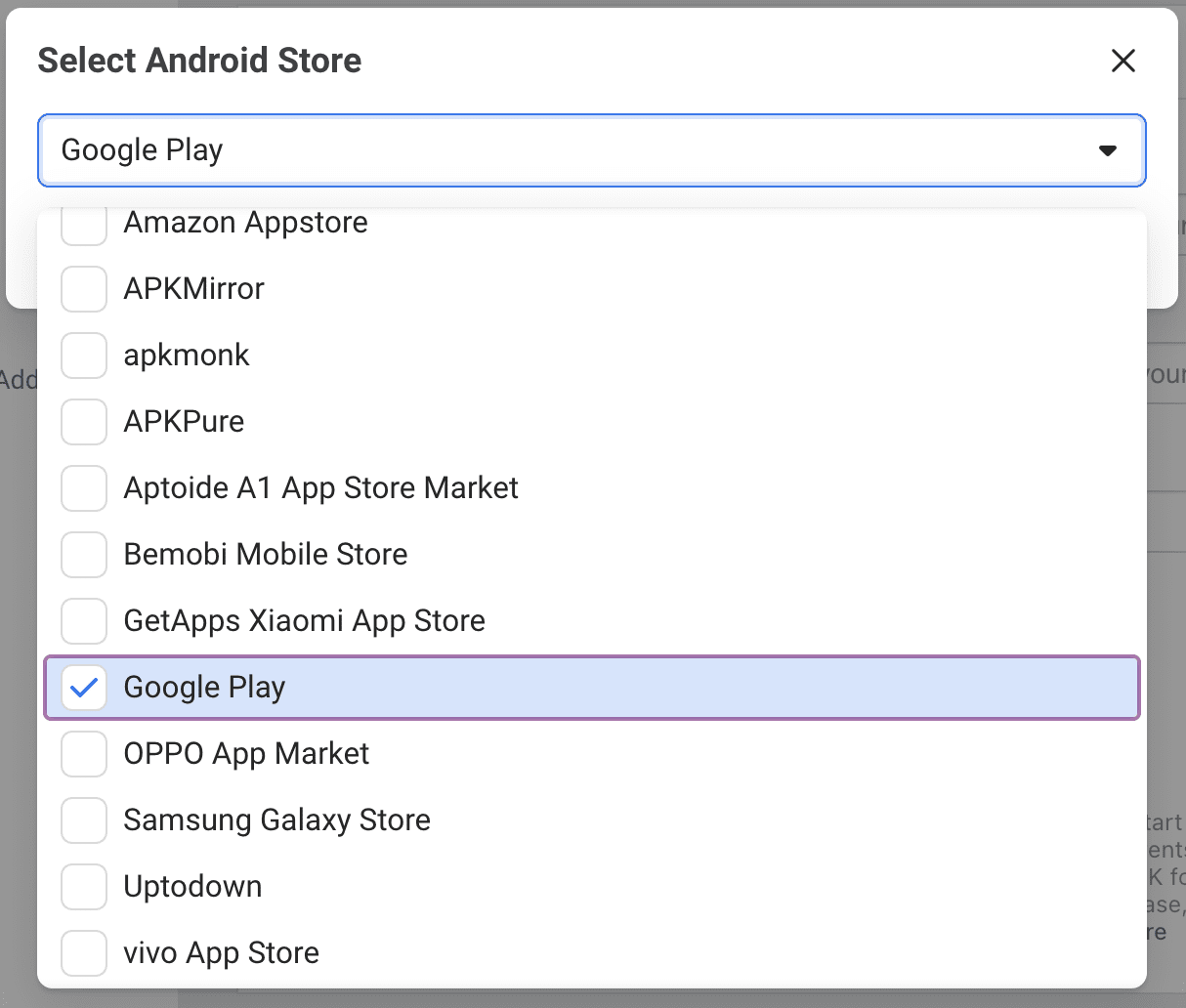
Select **Google Play**, then **Next**.
[](https://docs.ordering.co/assets/files/f781be9b5dc1d56324cc8f66-6e19ec209056427881b8695014f84a1c.png)
Fill:
- **Package names:** The same package bundle as iOS. Example: `com.orderingapp.ordering`.
- **Class Name:** `com.facebook.loginactivity`
- **Key Hashes:** Paste these six key hashes:
```text
P06REiEMufbvSOrQ76OaICh4L50=
TwtQwSSbQbitJBrpdPuZwp56eaA=
KNhJ+X6VJU/FVwXiAV3fs1KGC7c=
wwaw8MEJvRZJY0UDqH1D5hg97ns=
nQDiV5o9r4uzoIMvN/xzEDi1QF4=
Xo8WBi6jzSxKDVR4drqm84yr9iU=
```
Leave **Log In-App Events Automatically (Recommended)** active.
[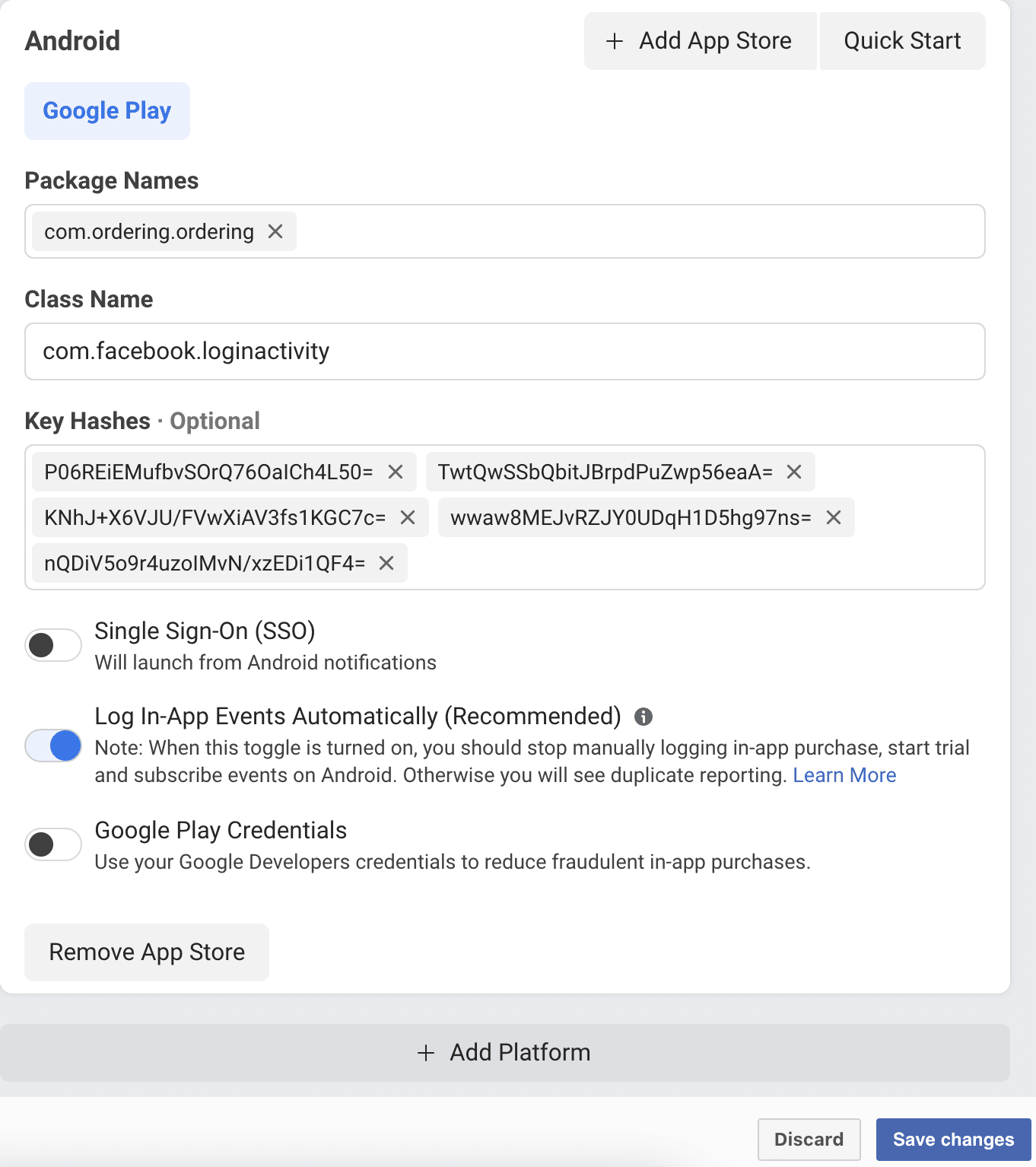](https://docs.ordering.co/assets/files/e6634b2b98dca7d1791cd8de-34873bcc916829335effa501804df68f.png)
Save the changes. Open **Add product** in the left panel and select **Set up** on Facebook Login.
[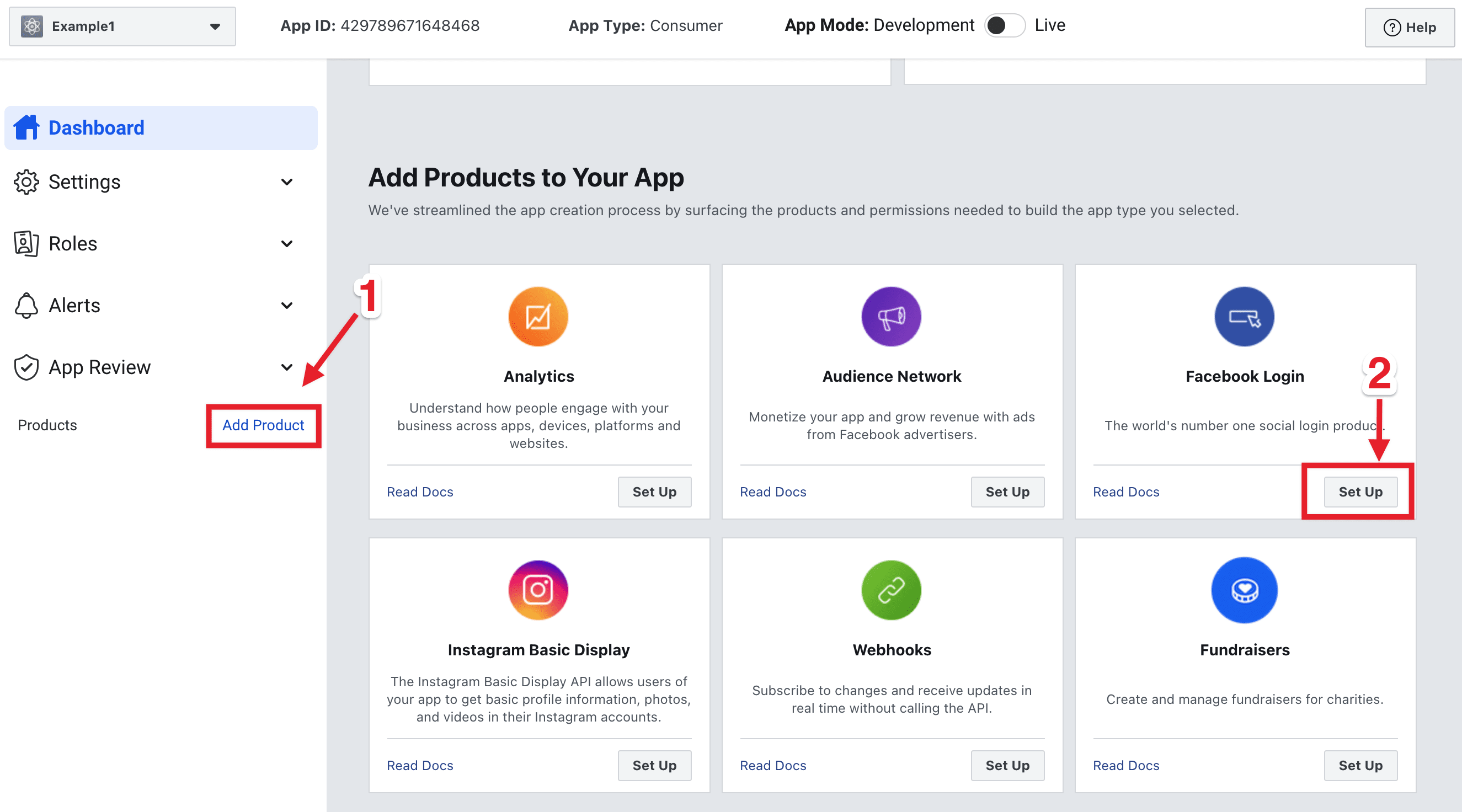](https://docs.ordering.co/assets/files/ec201392f6427ca1ba13004f-c6b33a3c5b99c01384ddaebd45905d46.png)
Open **Settings** in the left panel. Do not open **Quickstart**.
[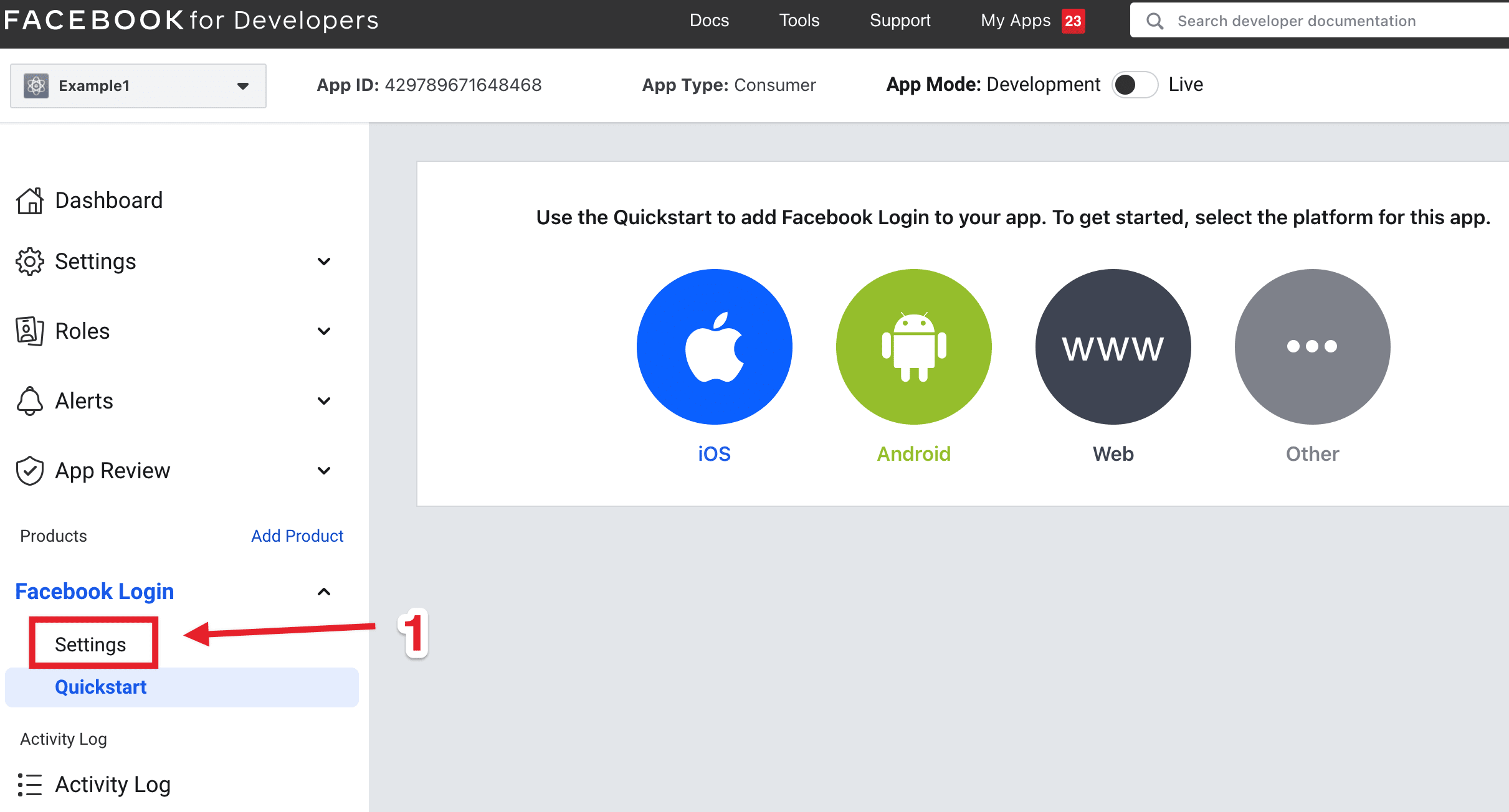](https://docs.ordering.co/assets/files/7ade5c63c7b435cfccb2b50a-c433d01854ce498bcb494fd5664782b3.png)
### OAuth login toggles and redirect URIs
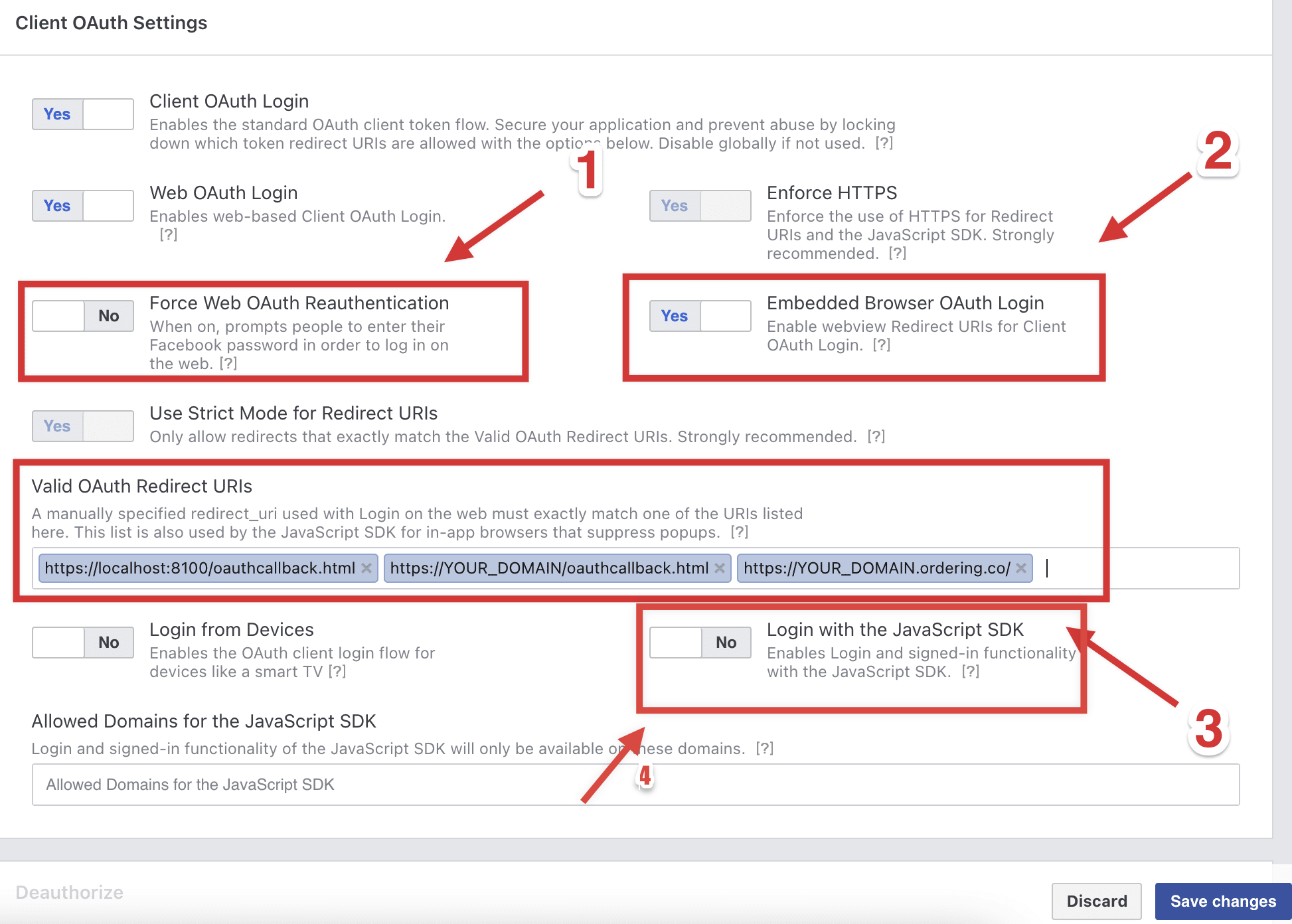
Deactivate **Force Web OAuth Login**. Activate **embedded Browser OAuth Login**.
[](https://docs.ordering.co/assets/files/a4c72c71a5c815672ef49fbd-7858acf697e3b3c6d318e50968066365.png)
In **Valid OAuth redirect URIs**, add:
- `https://localhost:8100/oauthcallback.html`
- `https://YOUR_DOMAIN/oauthcallback.html`
Replace `YOUR_DOMAIN` with the custom domain. Example: `https://www.ordering.co/oauthcallback.html`. Enable the JavaScript SDK, then **Save**.
Meta console labels for these OAuth controls can change. Keep the redirect path `/oauthcallback.html` on both localhost and the production domain.
## Switch the Facebook app to Live mode
To enable Facebook Login in **Live** mode, the Ordering.co app should already be live on Google Play and the App Store.
### Recommendations
- Configure Facebook Login in **Development** (tester credentials) and upload the apps to the stores first.
- Or enable Live mode for the website only. After the native apps are live, finish the app platforms, add the Facebook Login ID on the Ordering.co app, and upload a new app version.
Switch from **Development** to **Live** only when those conditions are met.
[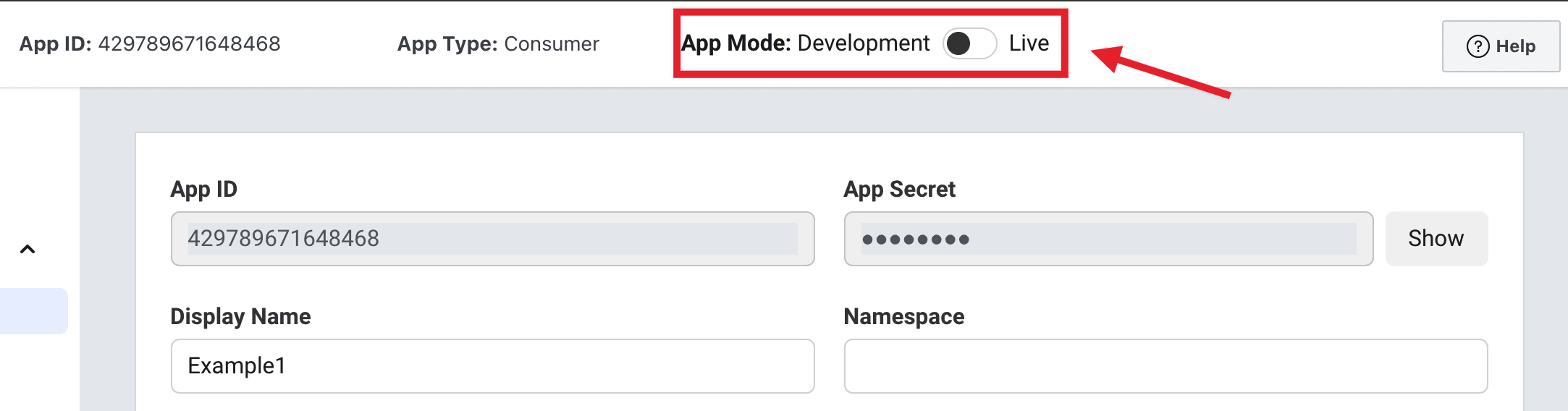](https://docs.ordering.co/assets/files/7dc05903458b94bd11826976-ee5b47d2772331d05122a05f8da1f001.png)
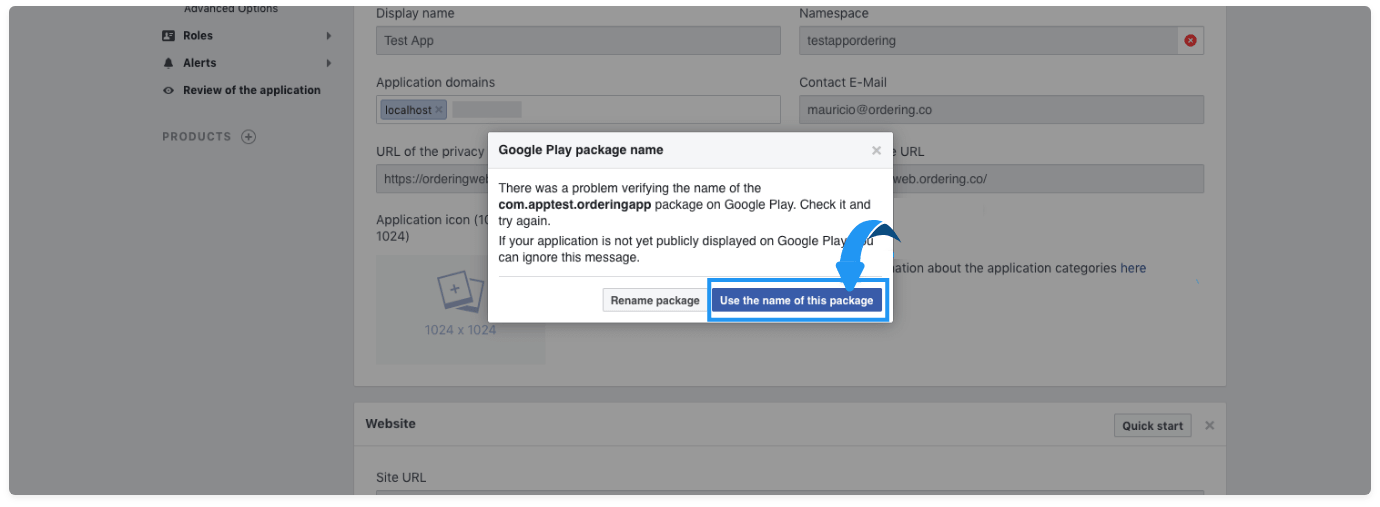
If a popup appears, select **Use the name of this package** to continue.
[](https://docs.ordering.co/assets/files/f1e5ec064966afb54c1c79bb-bdaa8301059d0f238f4e480a4aff9af1.png)
Switching the toggle does not complete App Review, store listing, or a customer Facebook sign-in.
## Add Facebook credentials in the Ordering.co Dashboard
Open **Settings → Security & login → Facebook Login**. Turn on the Facebook login switch. Enter the App ID and App Secret in the provider fields returned by the project, then select **Save changes**. Keep the App Secret private. Verify the login separately with a synthetic account in the intended test channel.
## Resolve an invalid key hash
If Facebook returns `Invalid key hash. The key hash "xxxxxxxxxxxxxxxx=" does not match any stored key hashes`, open the Android platform configuration and add that hash next to the six hashes listed above.
## Practical configurations
- **Seamless onboarding:** Keep **Enable Facebook Login Confirmation** off only when Facebook already returns every field you require.
- **Personalization:** Use the Facebook profile fields the app is allowed to receive. Extra permissions can require App Review.
- **Social sharing and ads:** Sharing to Facebook or running Meta ads is outside this login setup.
- **Store-first Live mode:** Do not switch the Facebook app to Live for native apps until those apps are listed.
## Conclusion
Create the Facebook app, add website and mobile platforms, register the OAuth redirect URIs and key hashes, then paste the App ID and App Secret in Ordering.co. Set **Enable Facebook Login** to **Yes** when the storefront should show the button. Confirm a Facebook sign-in on the website or app before you treat the method as working.
For the product overview, see [Facebook Login on Ordering.co](https://www.ordering.co/integrations/facebook-login/).
---
[Back to the main guide](https://docs.ordering.co/docs/products/dashboard/settings/pro/social-login-options/)