Set up Facebook login
Facebook Login lets customers authenticate with an existing Facebook account. Meta hosts the login challenge. Ordering.co stores the App ID and App Secret and shows the button when Enable Facebook Login is Yes.
Benefits
- Convenience: Customers use Facebook credentials instead of another username and password.
- Provider security: Facebook Login uses Meta's authentication protocols.
- Easier return visits: Faster access can increase how often customers open the storefront.
- Basic profile data: Facebook can share the fields your app is allowed to request, which you can use to complete an Ordering.co account.
- Lower signup friction: Fewer new-account fields can increase registrations.
Saving Dashboard fields or switching a Meta toggle does not by itself prove a customer can sign in.
Create a Facebook app
Create a developer account at https://developers.facebook.com/. Meta's current creation flow uses use cases. Older consoles used an app type such as Consumer. Follow the screens your account actually shows, and keep the App ID and App Secret for the Dashboard.
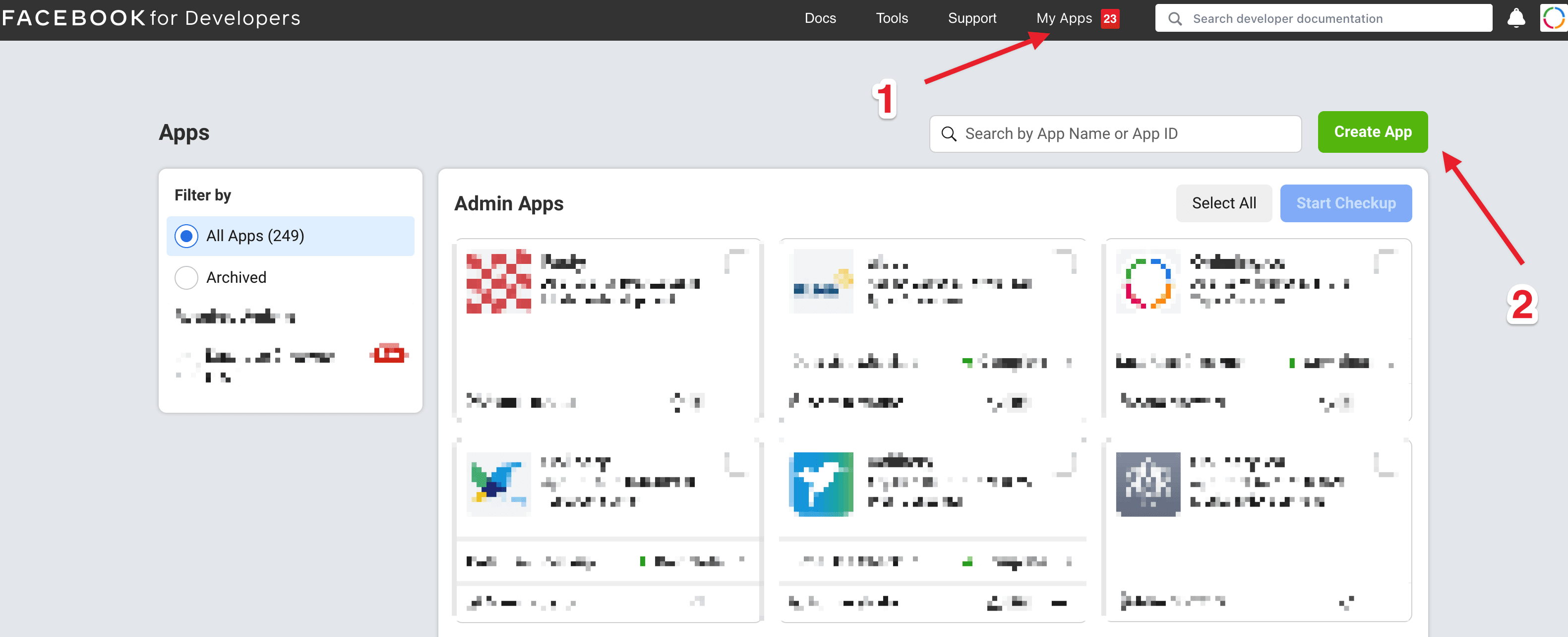
Meta documents this flow in Create an App with Meta. Start at https://developers.facebook.com/apps/creation/, or open My Apps and select Create App.
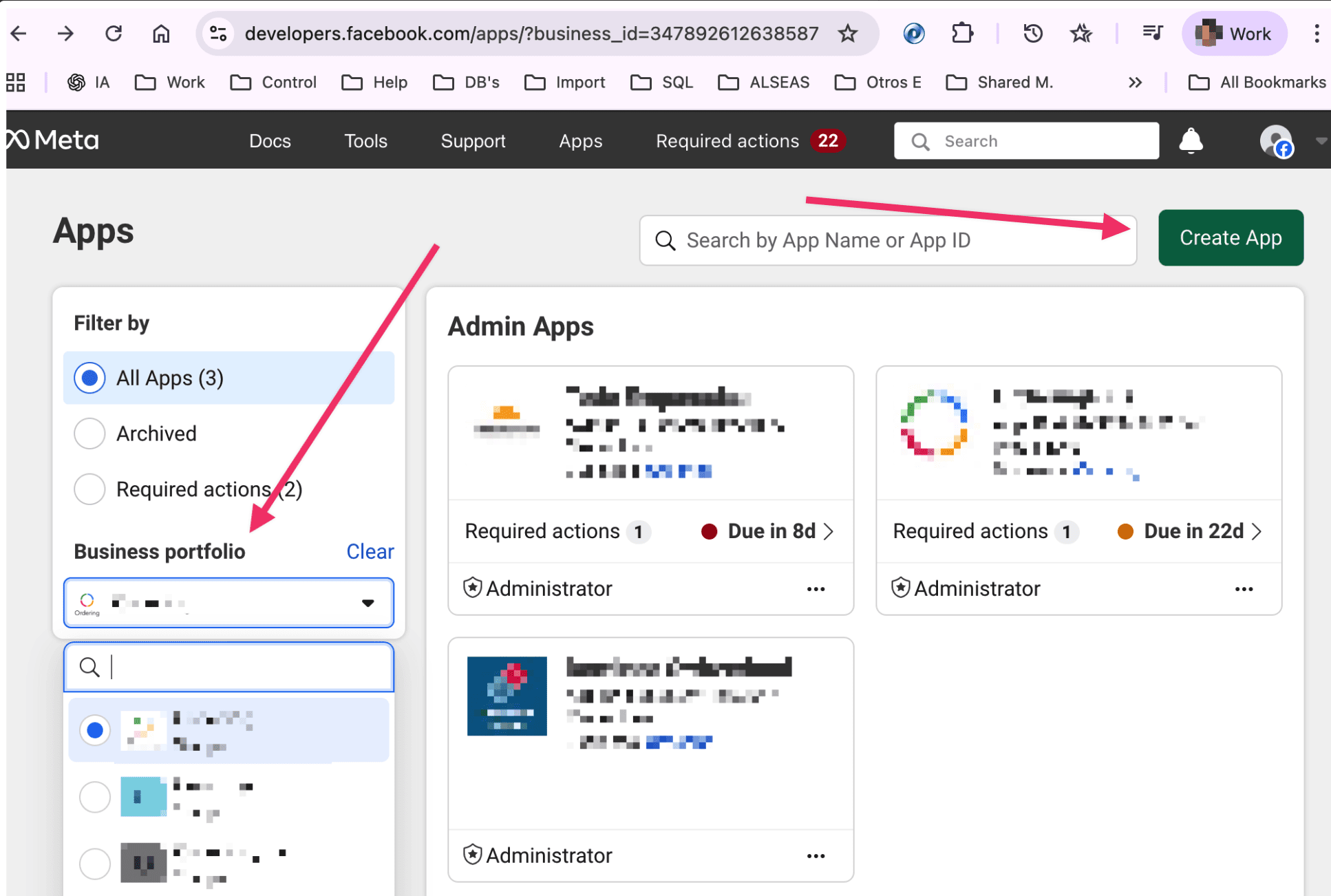
Older My Apps layouts also expose Create App in the header.
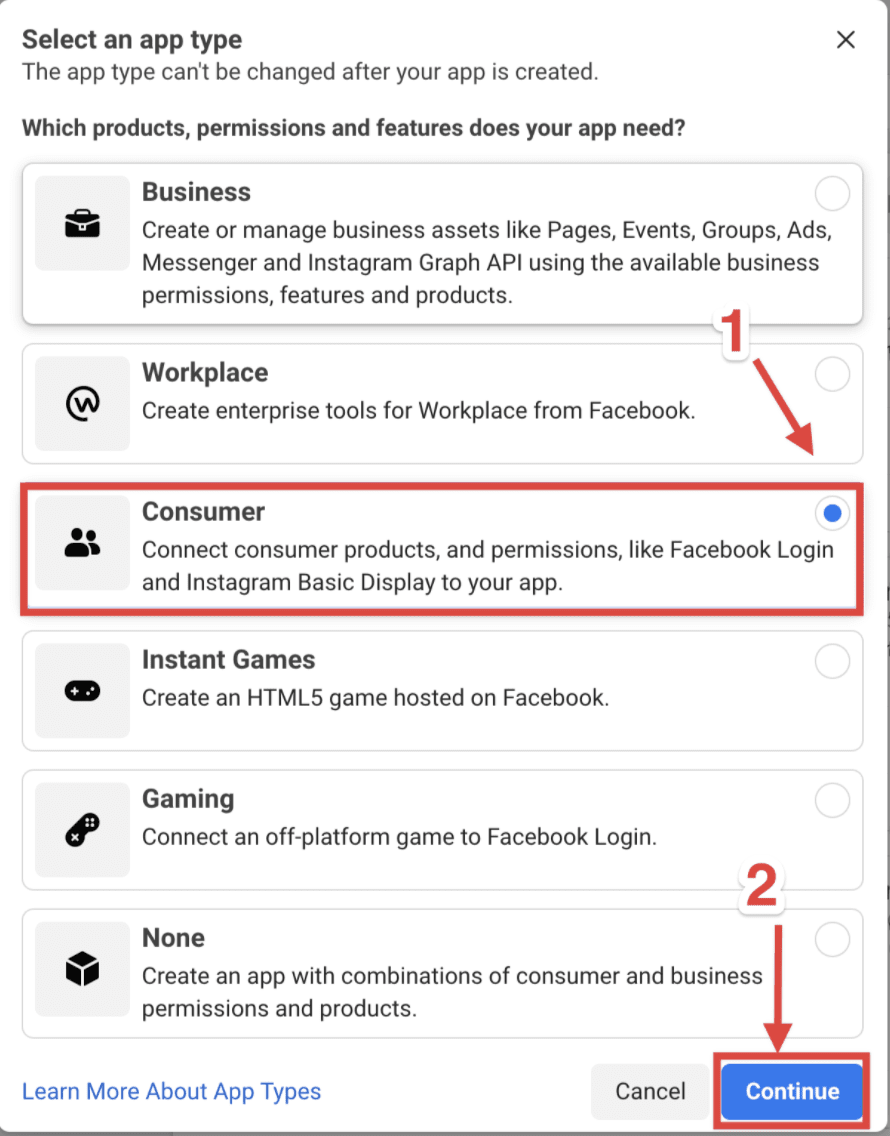
If the console still lists app types, select Consumer and continue.
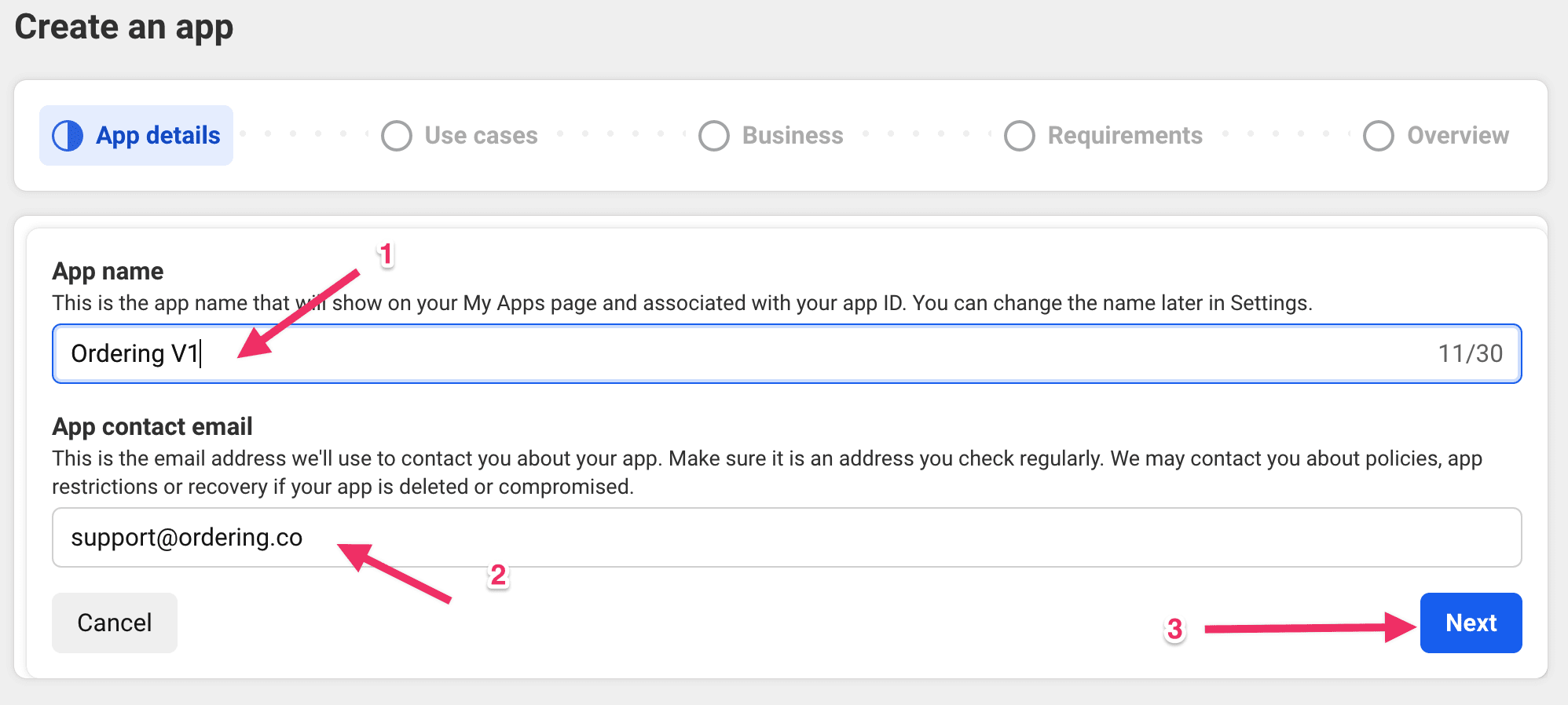
App details
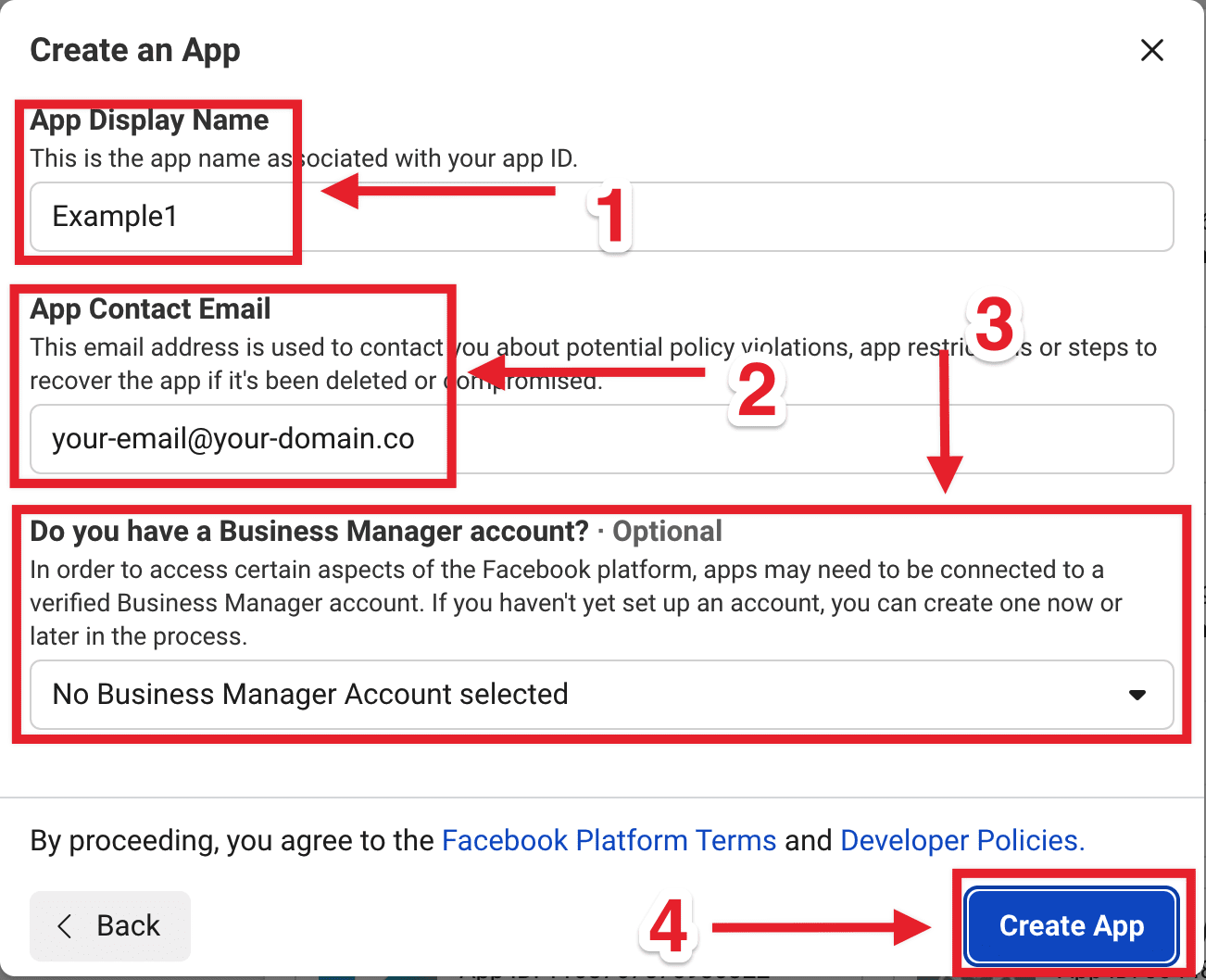
Enter the app name and the app contact email, then select Next.
On older Create App screens, fill:
- App Display Name: The name of your Ordering.co app.
- App Contact Email: Confirm the email on the Facebook account.
- Do you have a business Manager Account?: Select a portfolio, or No Business Manager Account selected.
- Create App
Use cases
Open the full use-case list (the console may label this All (18)) and select Authenticate and request data from users with Facebook Login. Then select Next.
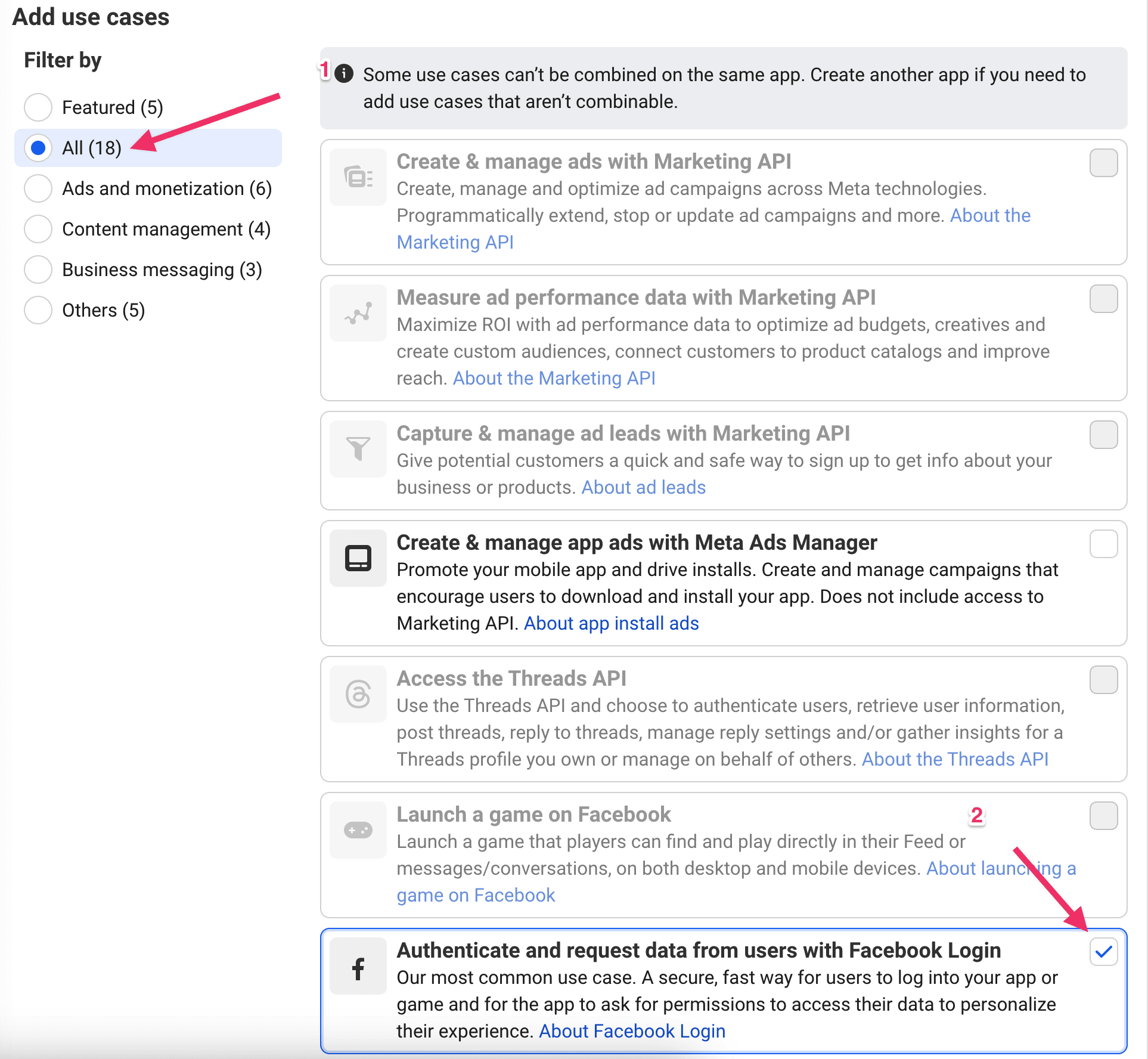
Meta treats this as the Facebook Login use case. You cannot mix it with some other use cases on the same app.
Business
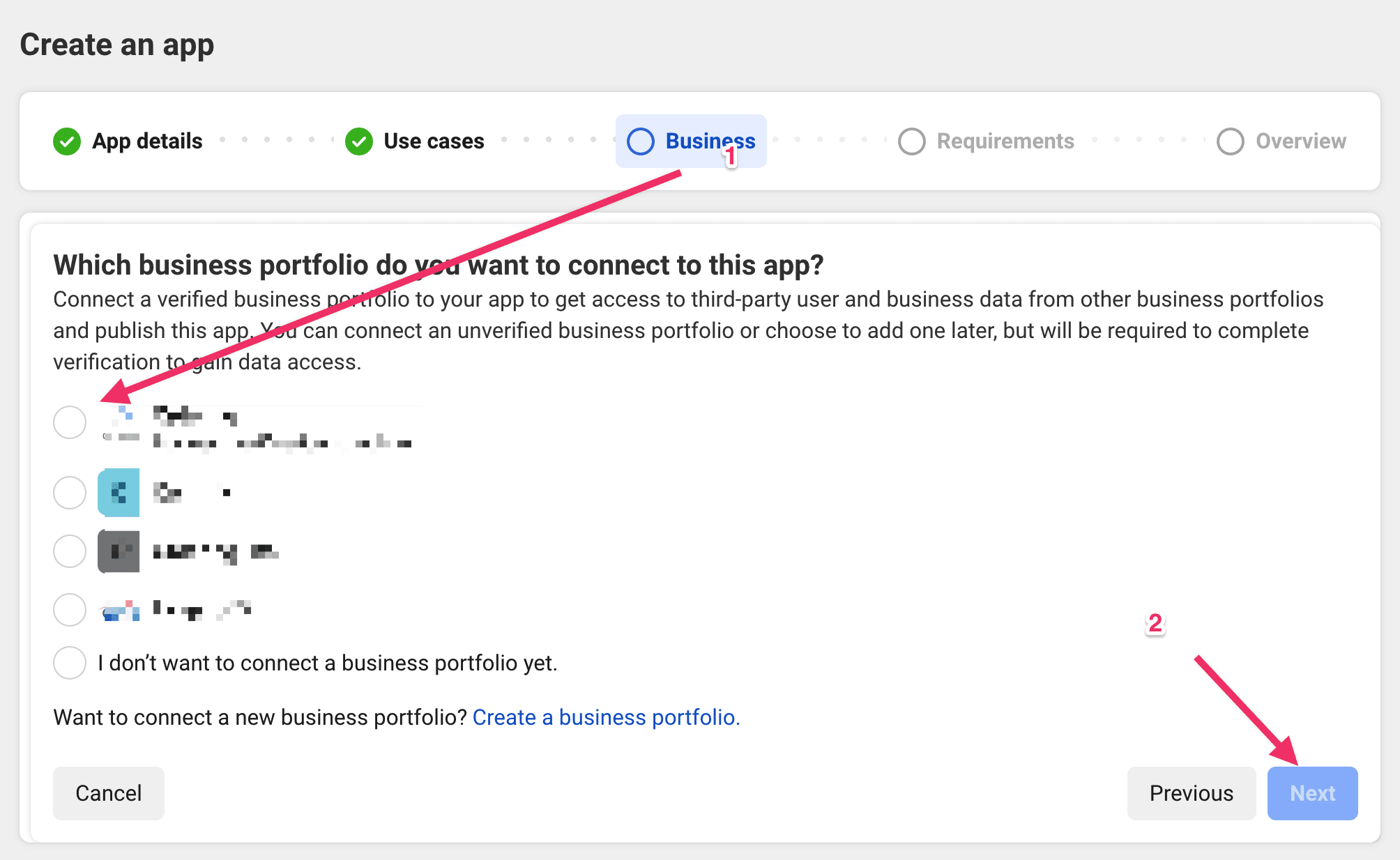
Select the business portfolio to connect, or skip if the console allows it, then select Next.
Requirements
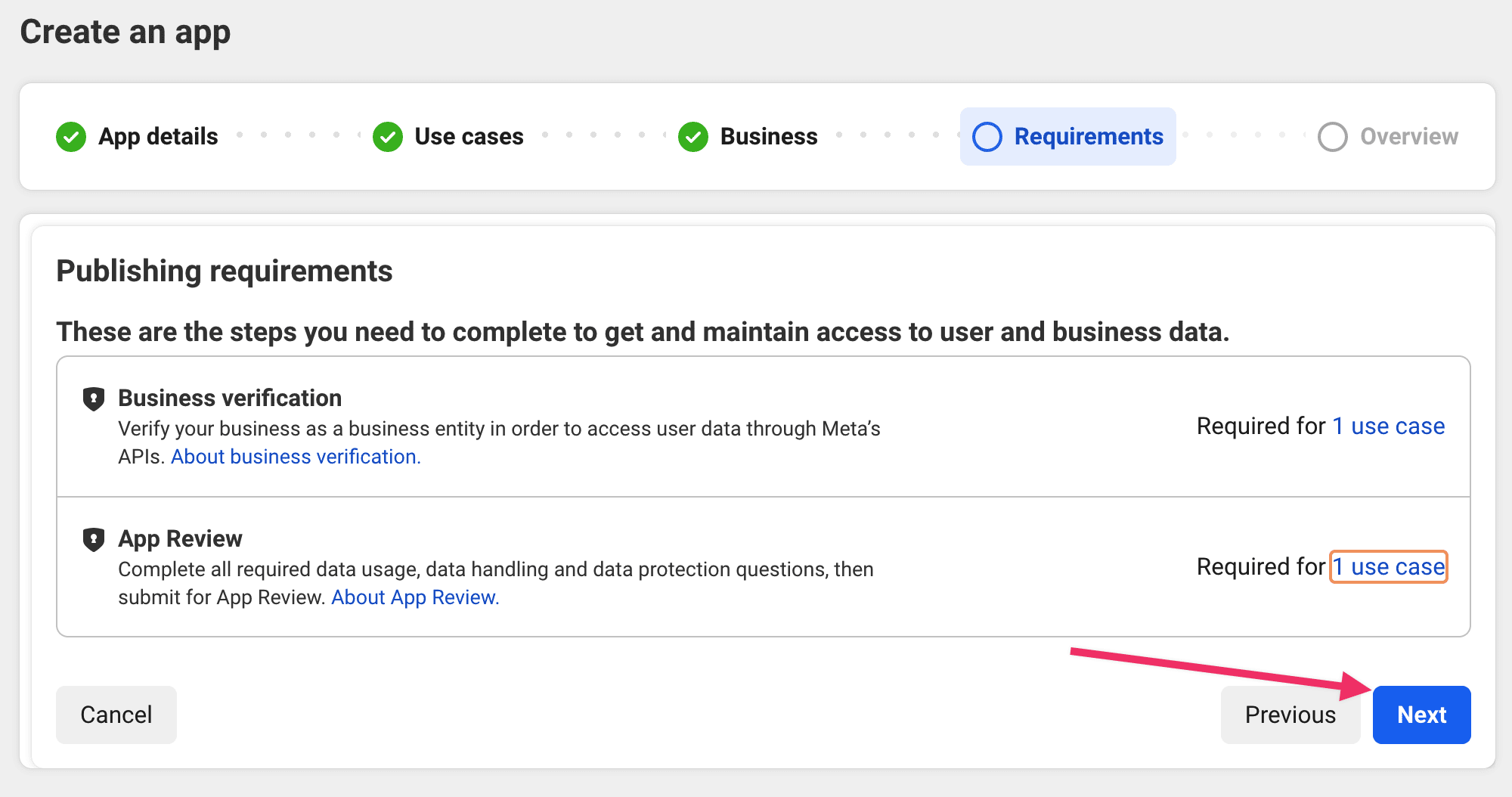
Confirm that Business verification and App Review appear in the publishing requirements, then select Next. Checking the list does not complete verification or review.
Overview
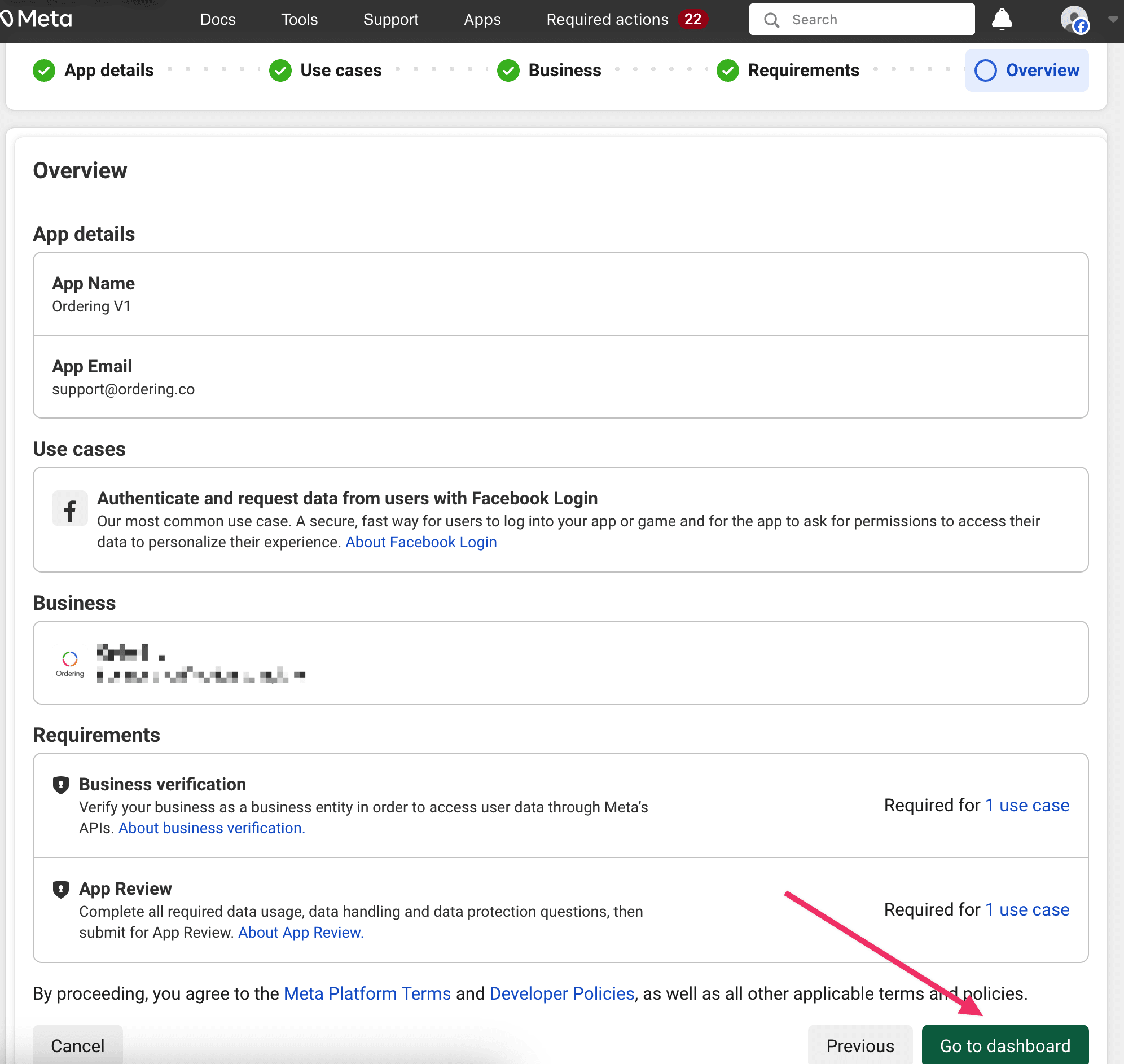
Review the name, use case, business, and requirements, then select Go to dashboard.
Complete the Facebook dashboard checklist
The app dashboard lists the remaining setup items. Work through each one the console marks incomplete.
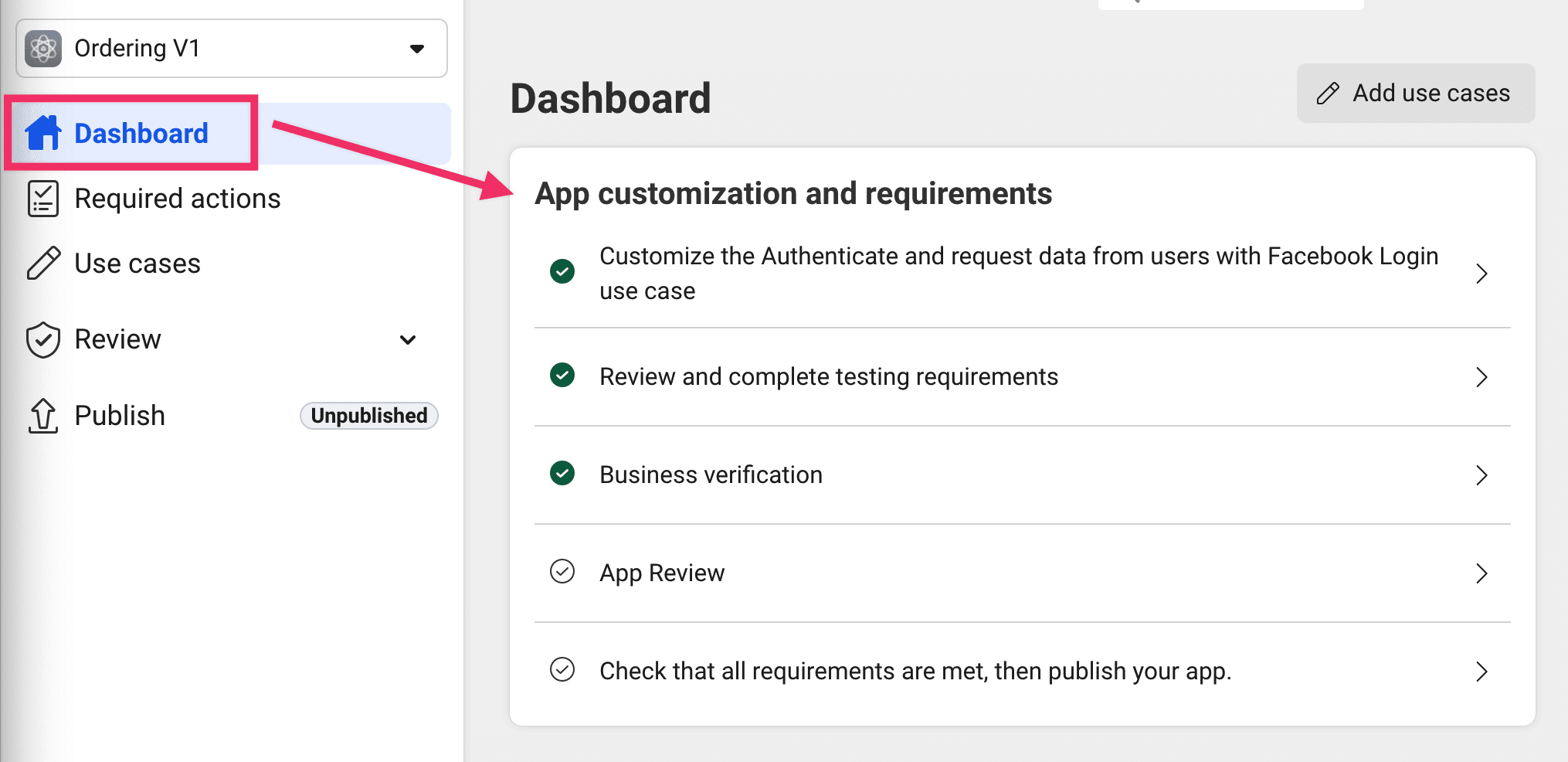
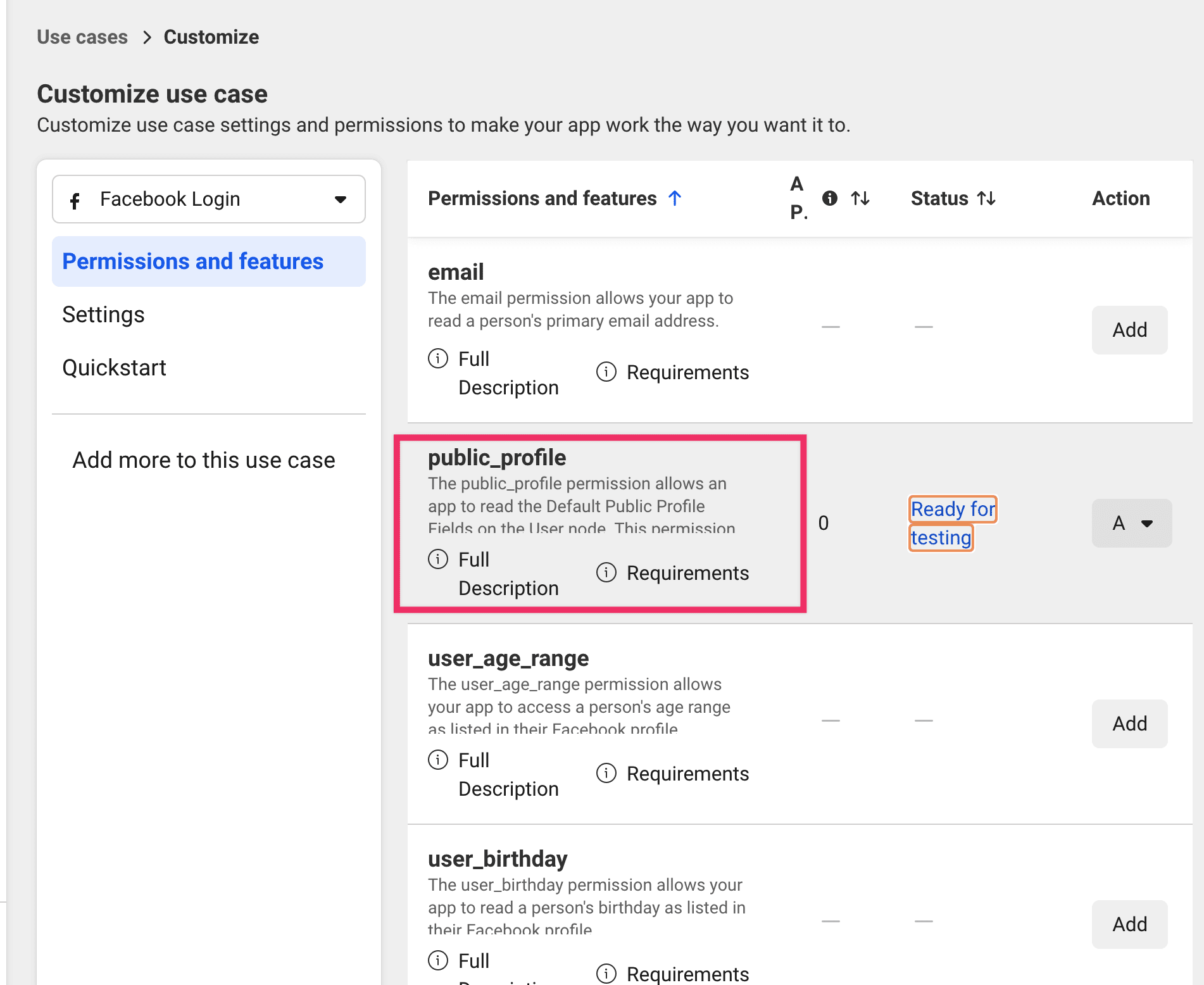
- Customize the Authenticate and request data from users with Facebook Login use case. Open it, confirm it is activated, then return to the dashboard.
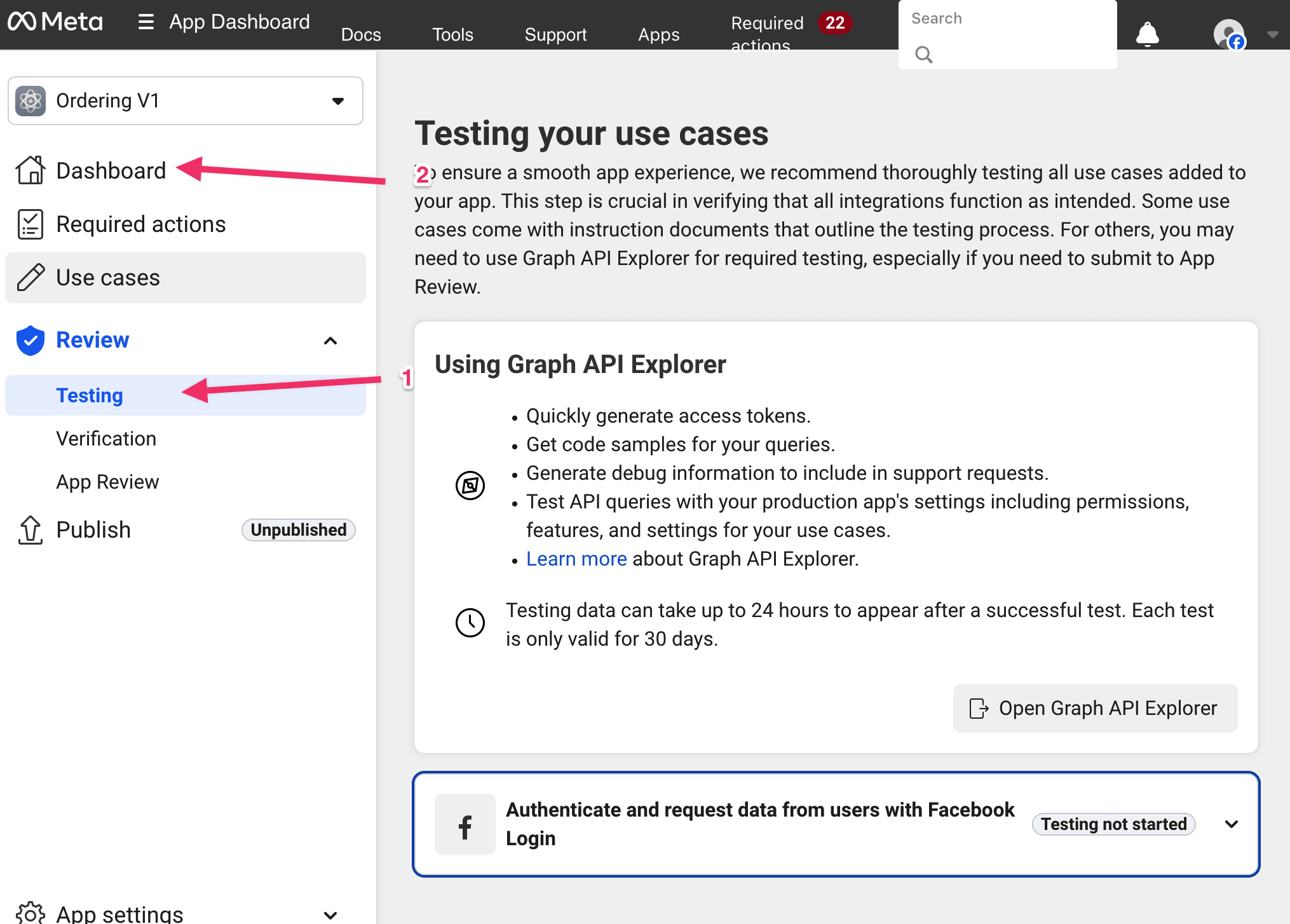
- Review and complete testing requirements. After you return, this item is often already checked. If it is not, open it and go back to the dashboard.
-
Business verification. If it is not checked, open Business Verifications and complete Meta's steps. Skipping this can block Live mode for people who are not app testers.
-
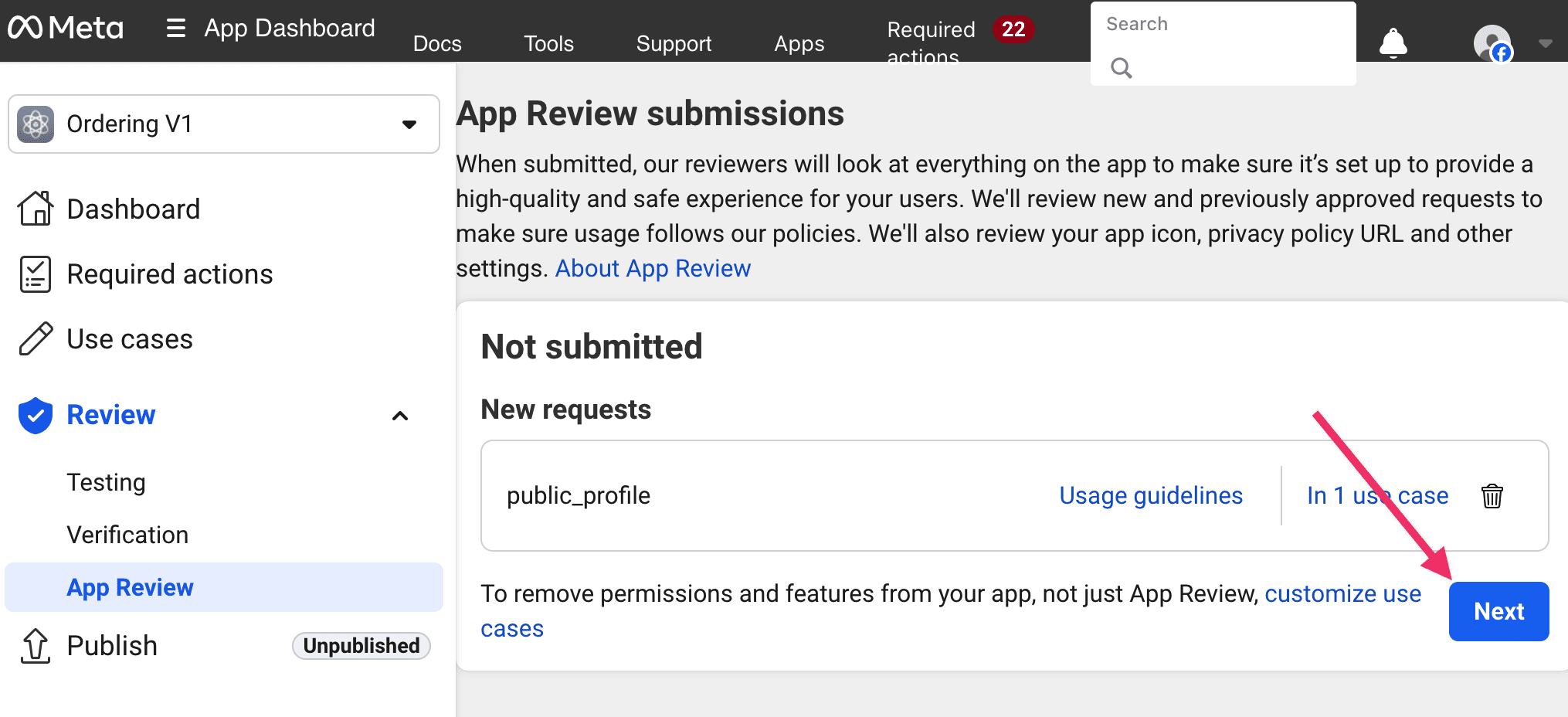
App Review. Open it and select Next.
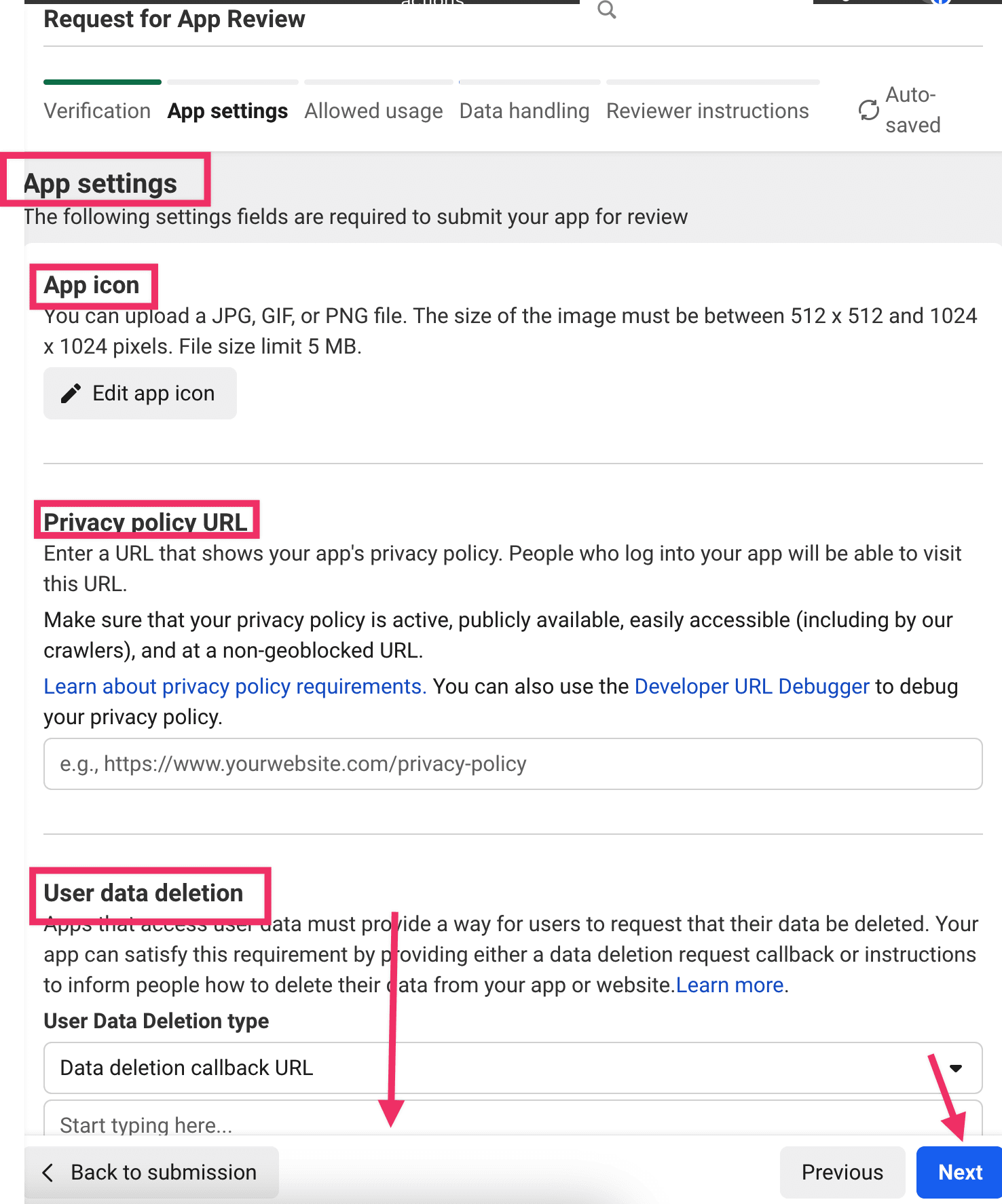
- App settings. Upload the App icon in the format Meta lists. Add the Privacy Policy URL, configure User data deletion, select the App category, and enter the Primary contact email. Then continue.
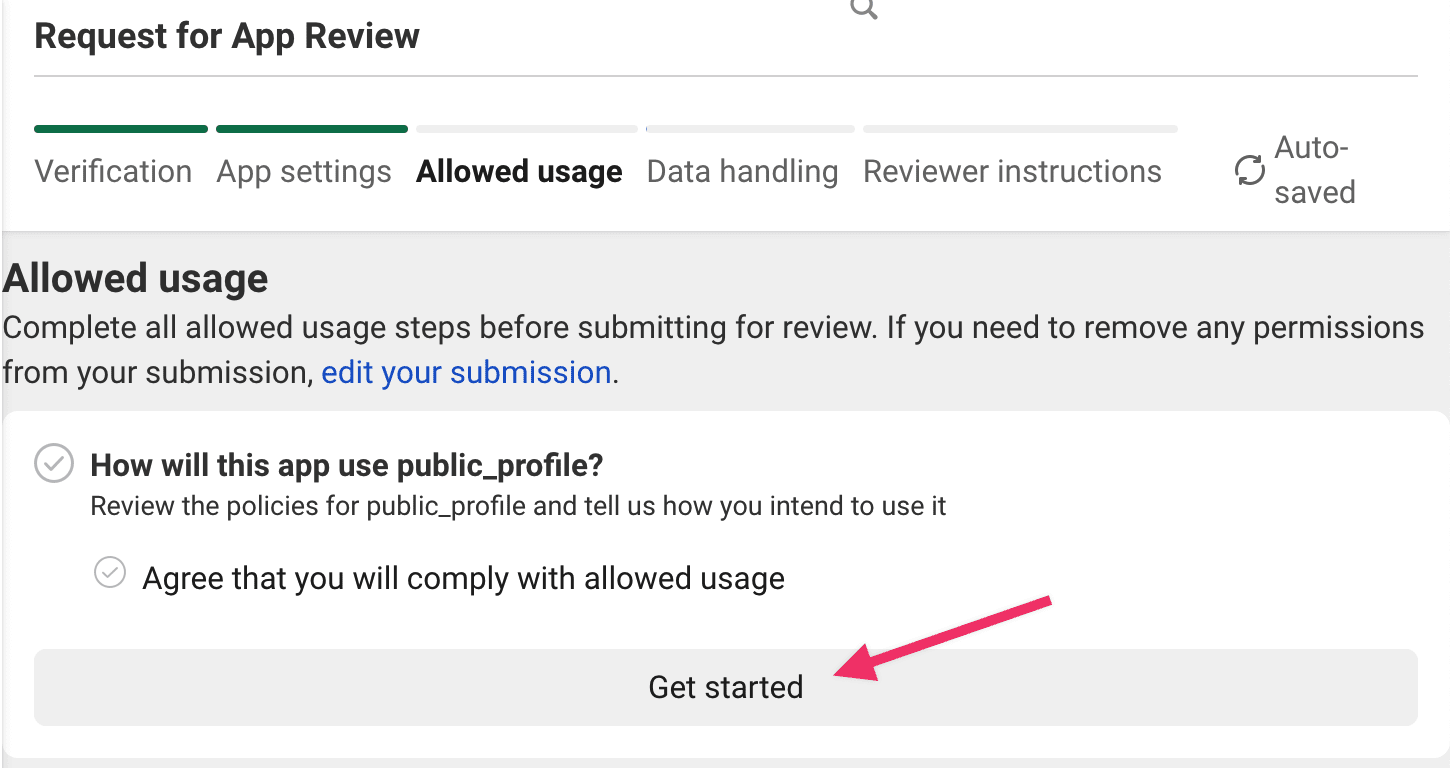
Allowed usage: Select Get started, select the checkbox, then Save and Next.
Data handling: Before completing this section, ask the organization owner:
- Which Platform Data, if any, does this organization share or process through this app?
- Which organization-approved person or entity is responsible for that data, and where are they located?
- How should each remaining Data Handling question be answered under the organization's authorized privacy decisions?
Do not use a default answer from a screenshot or this guide.
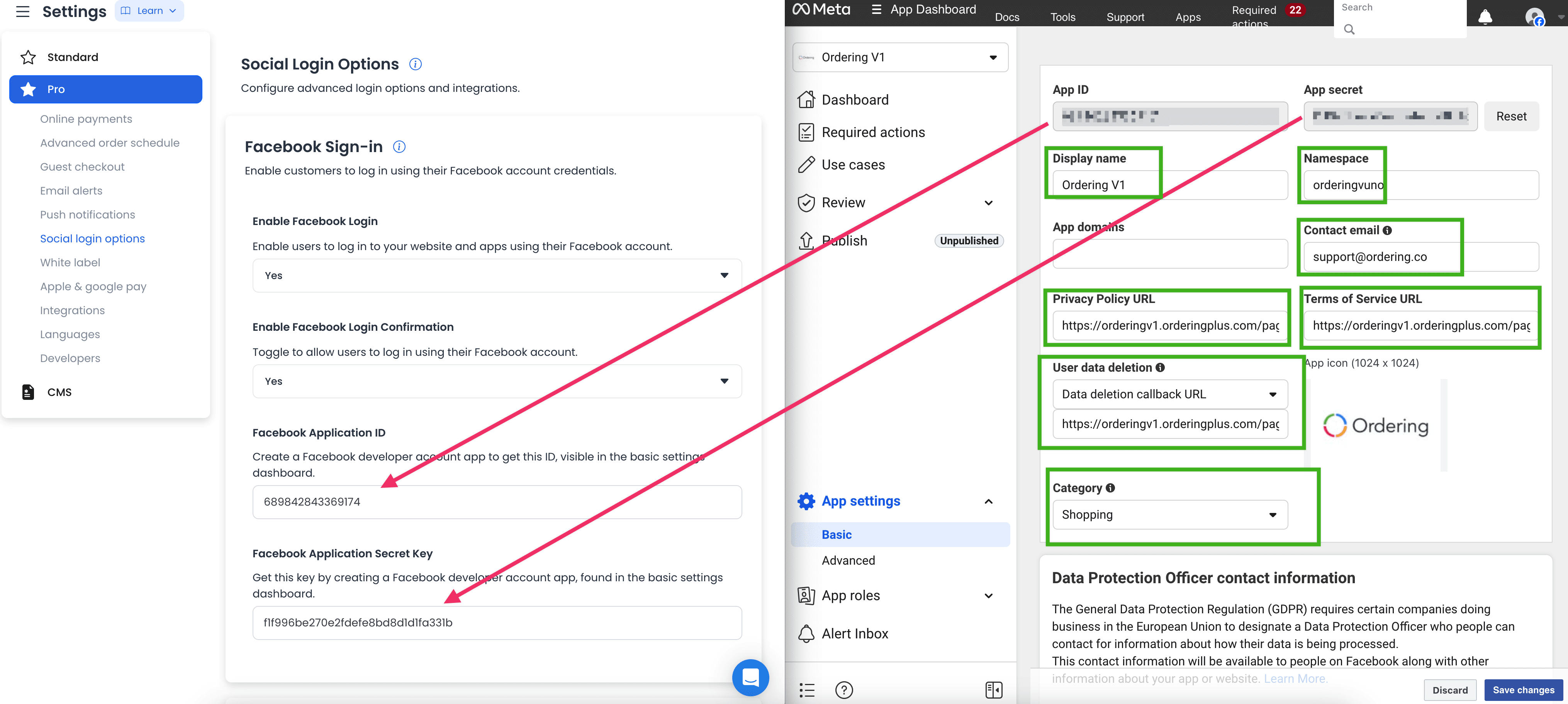
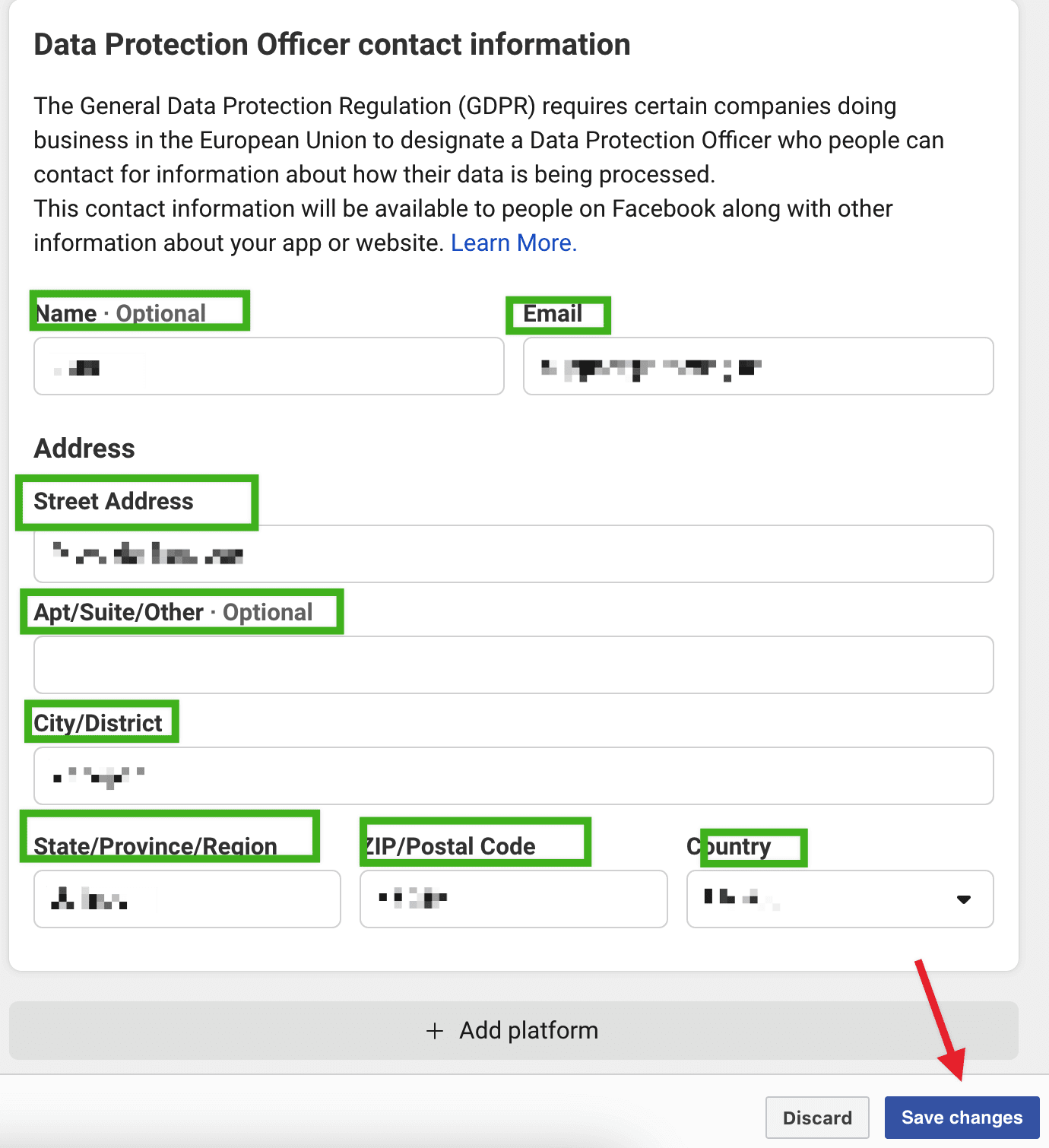
Reviewer instructions: Select Go to settings. A new window opens. Copy the App ID and App secret for the Ordering.co Dashboard, and complete every field marked in the green box.
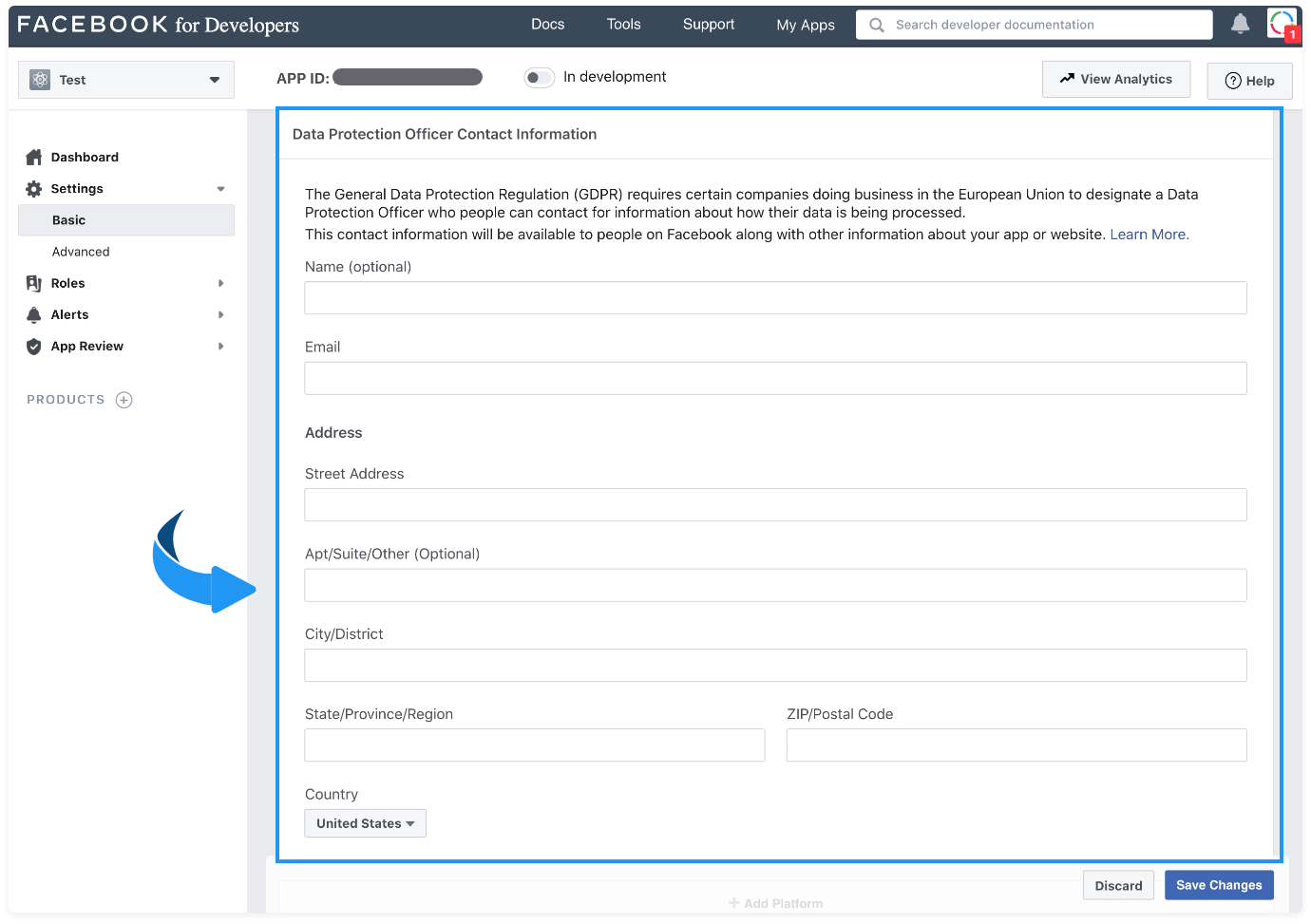
Data protection officer contact information: Before completing this section, ask the organization owner whether it applies to this app and, if it does, which organization-approved contact details belong there. Do not invent a contact or copy one from a screenshot. Then save the changes.
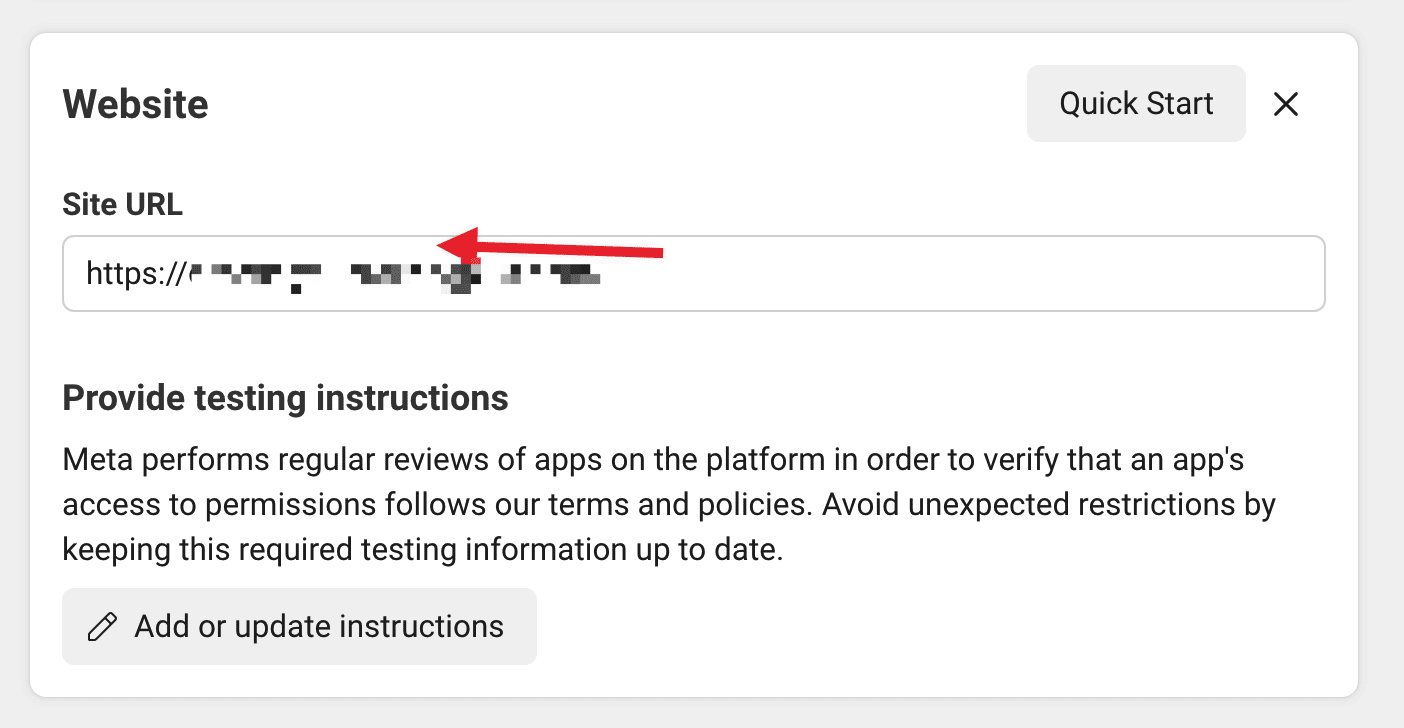
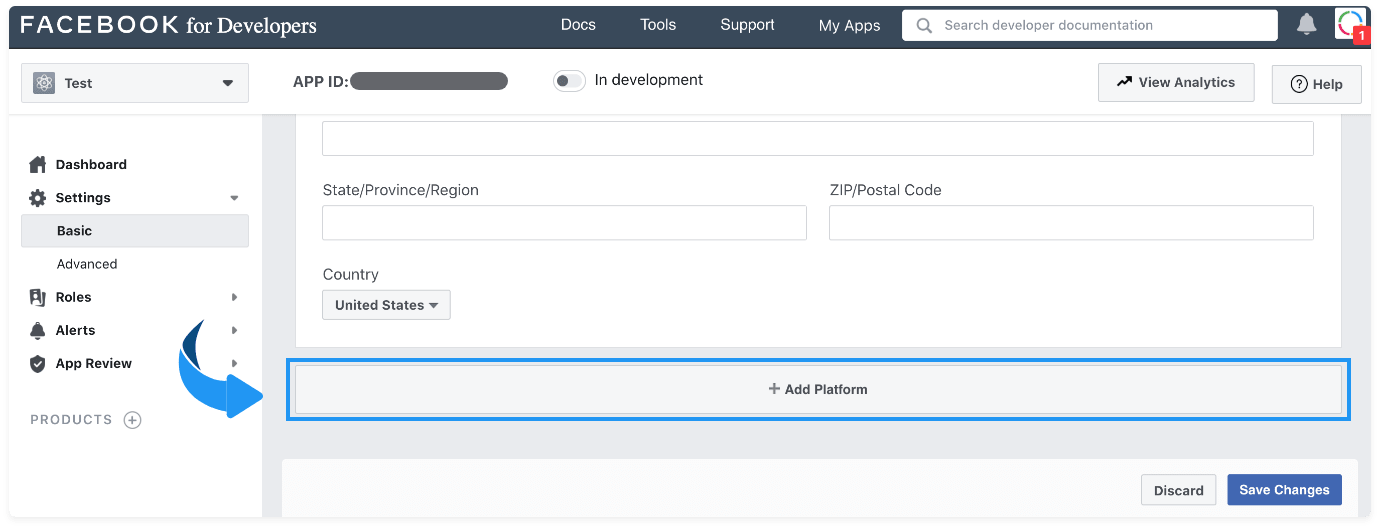
At the bottom of the page, select Add platform, choose Web, and add the website URL that will show Facebook Login. Save the changes.
-
Return to Review → App Review. In Provide instructions for accessing the app, describe how a reviewer uses Facebook Login, for example:
- Go to your site.
- Select the login button.
- Select Continue with Facebook.
- Enter Facebook credentials.
You can attach a video of the test. Remaining fields are optional unless your app needs them. Select Next.
-
When the Review steps are complete, submit the app for review.
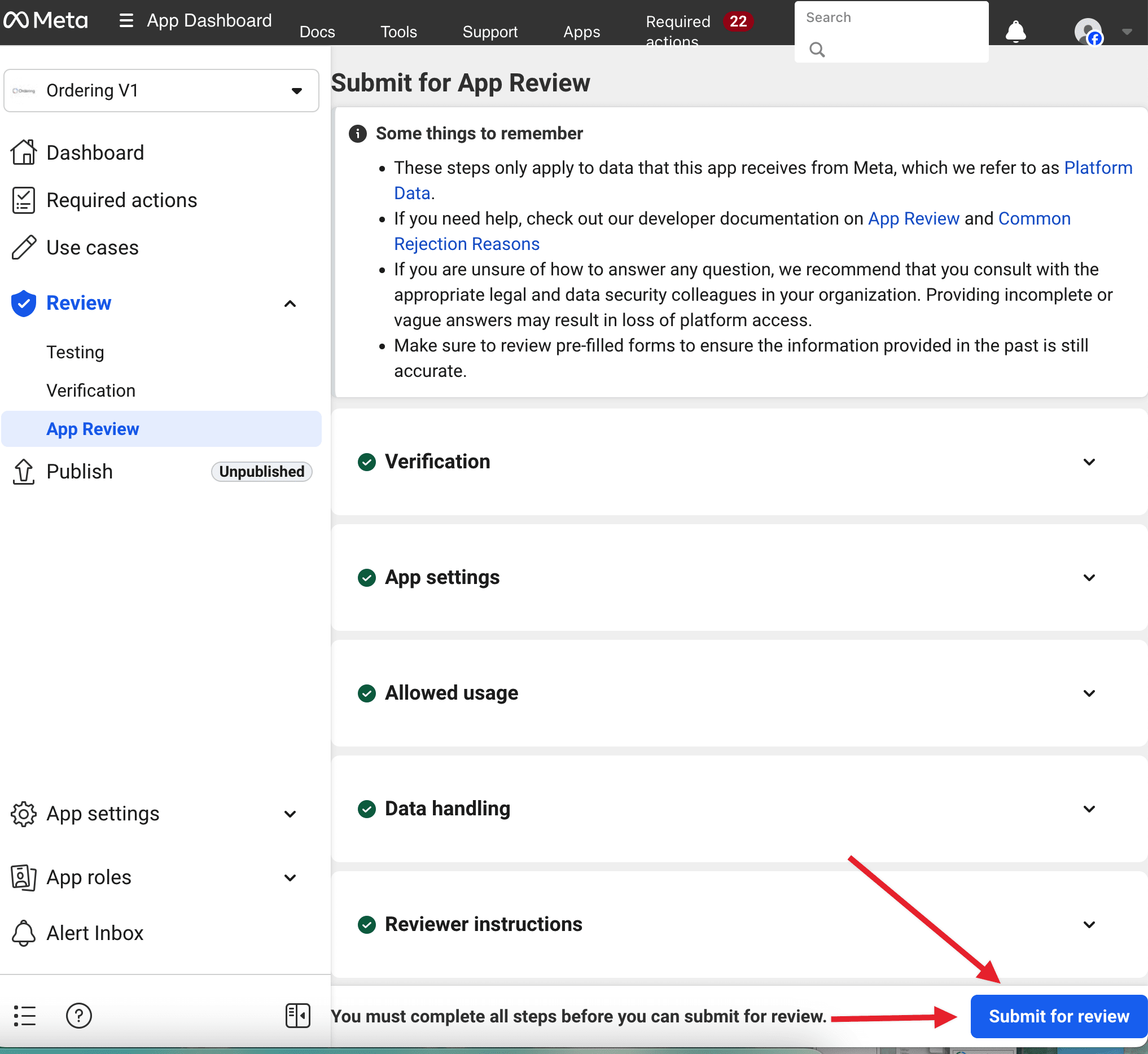
Submitting a review requests Meta's decision. It does not put Facebook Login into Live mode or prove Ordering.co sign-in.
Fill Settings → Basic
If the left menu still shows Settings → Basic, complete those fields as well. They overlap the App settings checklist and remain the place older consoles store domains and legal URLs.
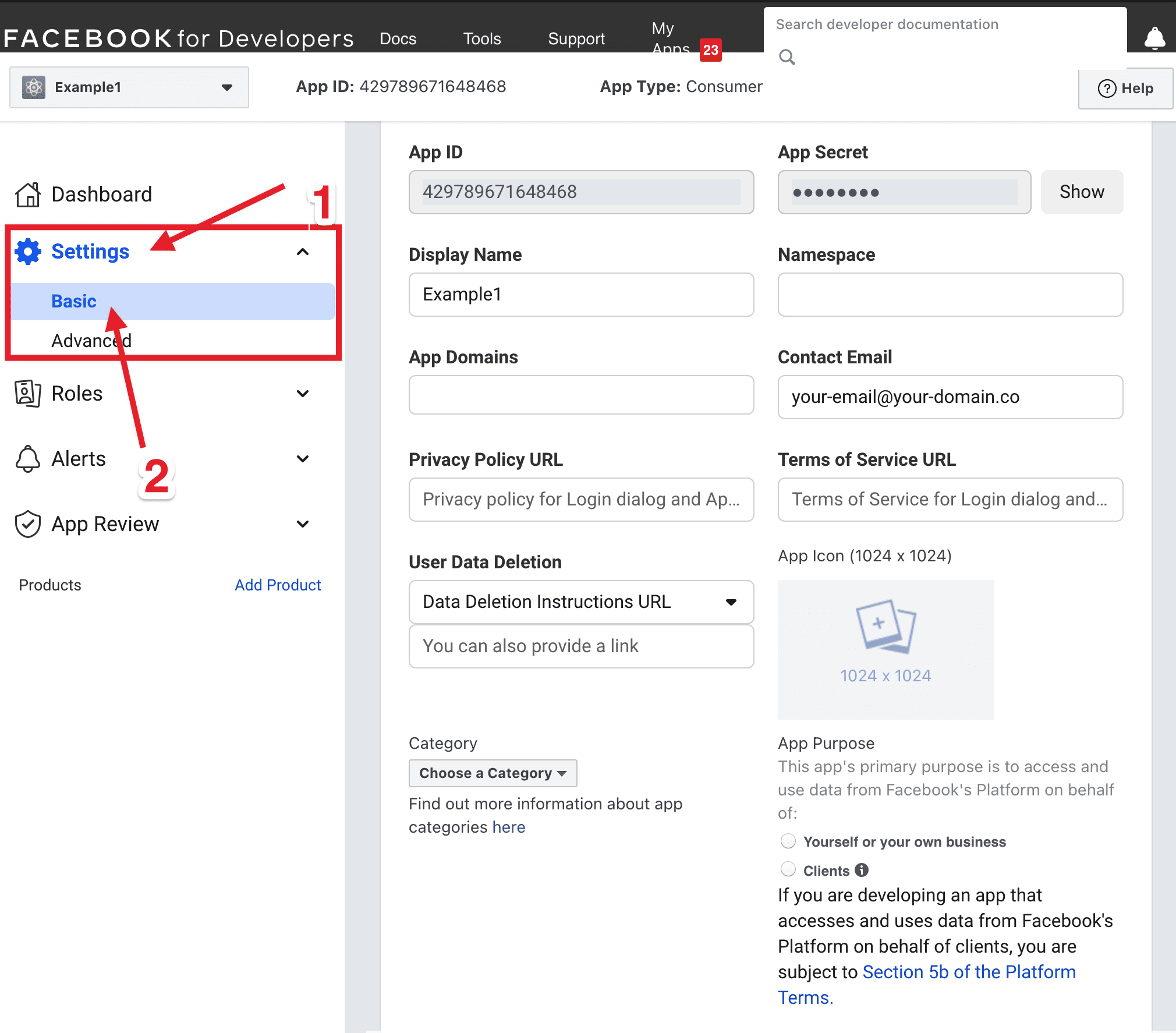
- Display Name: The name of your Ordering.co app.
- Namespace: The app name in lowercase with no spaces.
- App Domains:
localhostand your custom domain (type the URL instead of pasting it).

- Contact Email: A contact address for the app.
- Privacy Policy: The privacy policy URL. Facebook Login does not work without it.
- Terms of Service URL: The terms URL. If you do not have one, create it in the Static pages manager on the Ordering.co website.
- User Data Deletion: Data Deletion Instructions URL (recommended) or Data Deletion Callback URL. Implement a page with deletion instructions and enter that URL.
- App Icon: Upload the icon.
- Category: The category that matches the project.
- App Purpose: The purpose that matches the project (the sources recommend clients).
For Data Protection Officer Contact Information, ask the organization owner whether the field applies and, if it does, which organization-approved contact details belong there. Do not transfer an individual's details from a screenshot or another organization.
Add a website platform
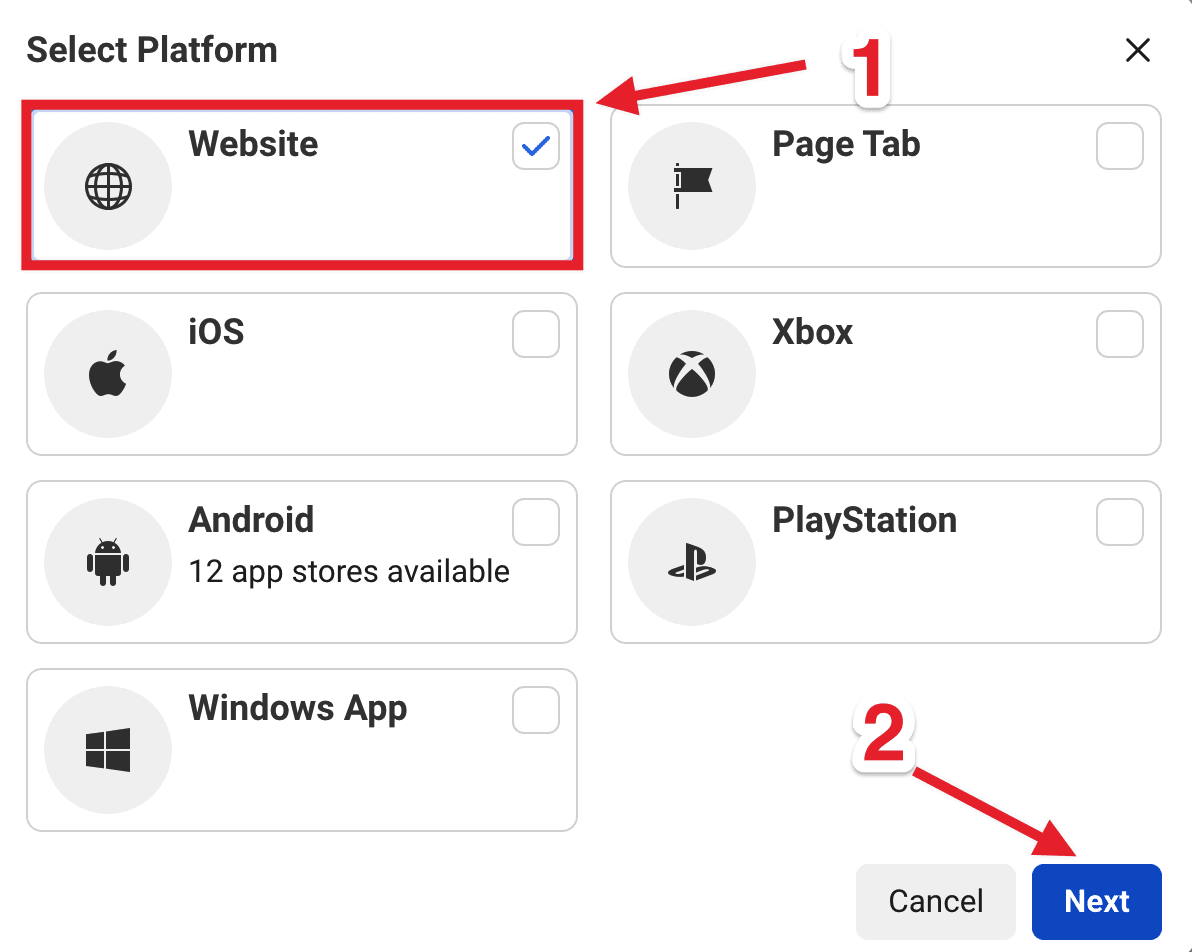
Select + Add Platform, choose Website, then Next.
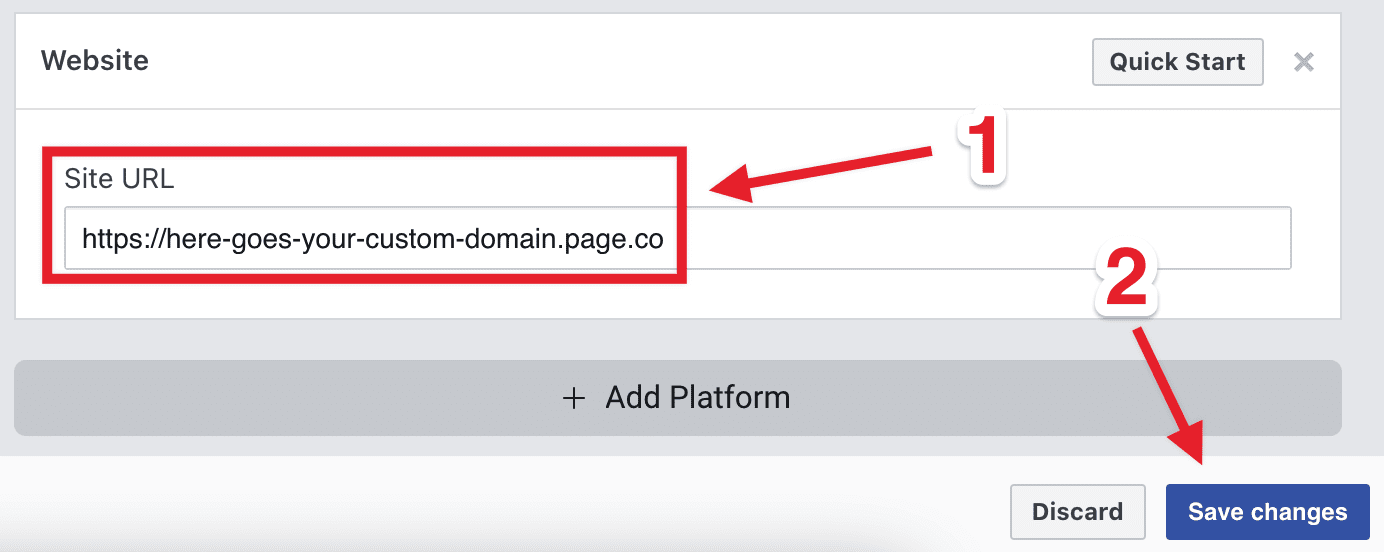
In Site URL, enter the custom domain (for example, https://www.ordering.co/) and select Save Changes.
Add an iOS app
Select + Add Platform, choose iOS, then Next.
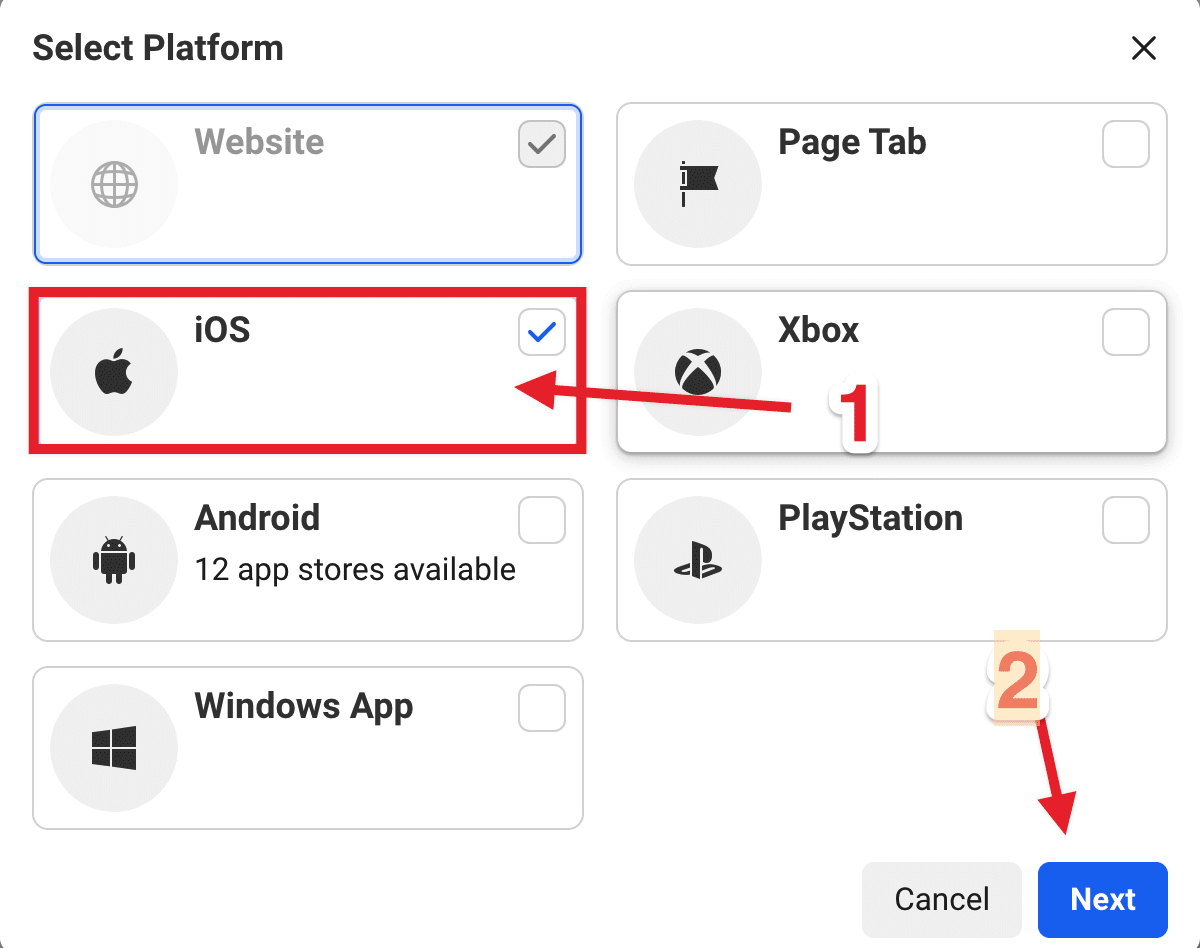
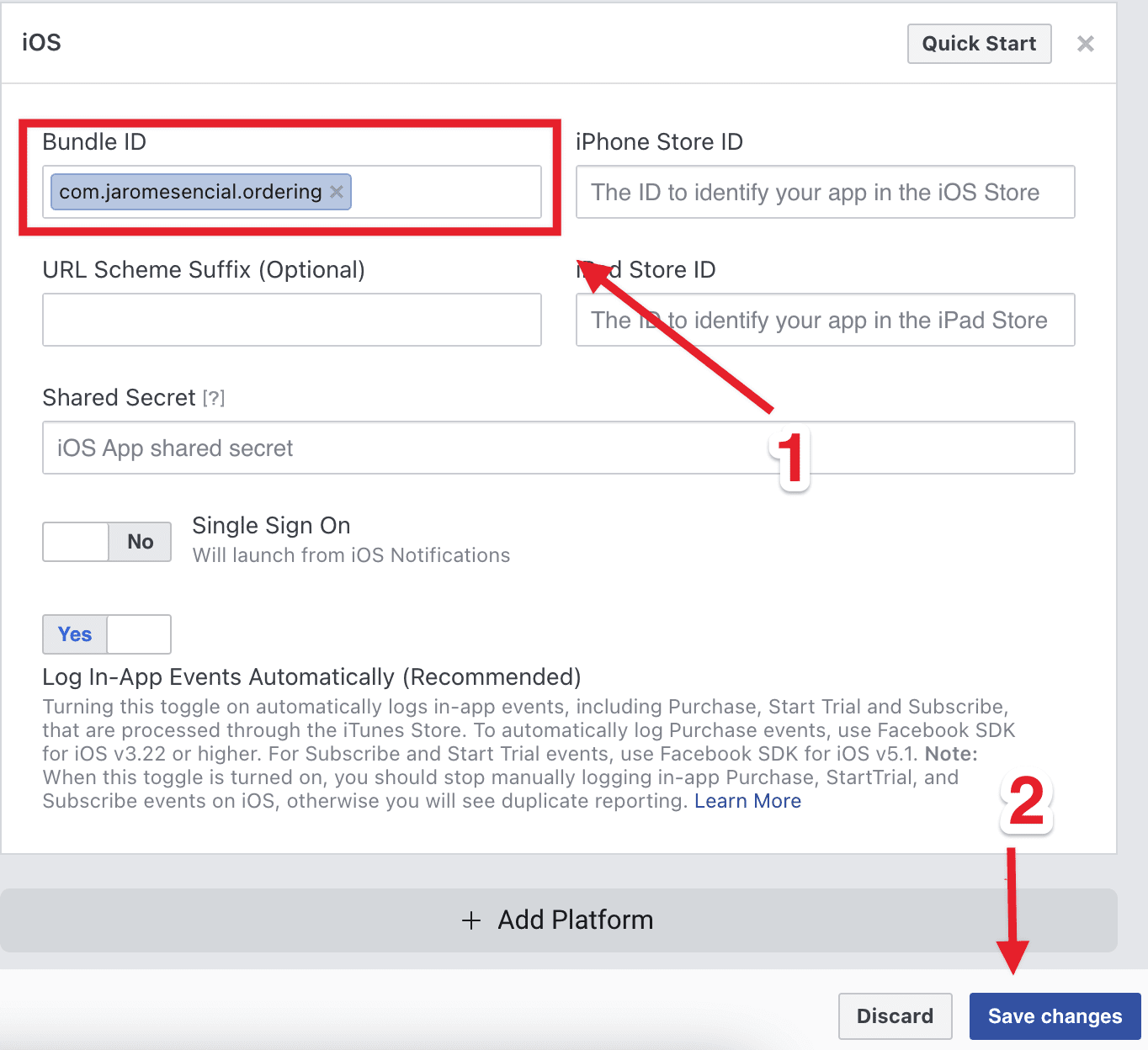
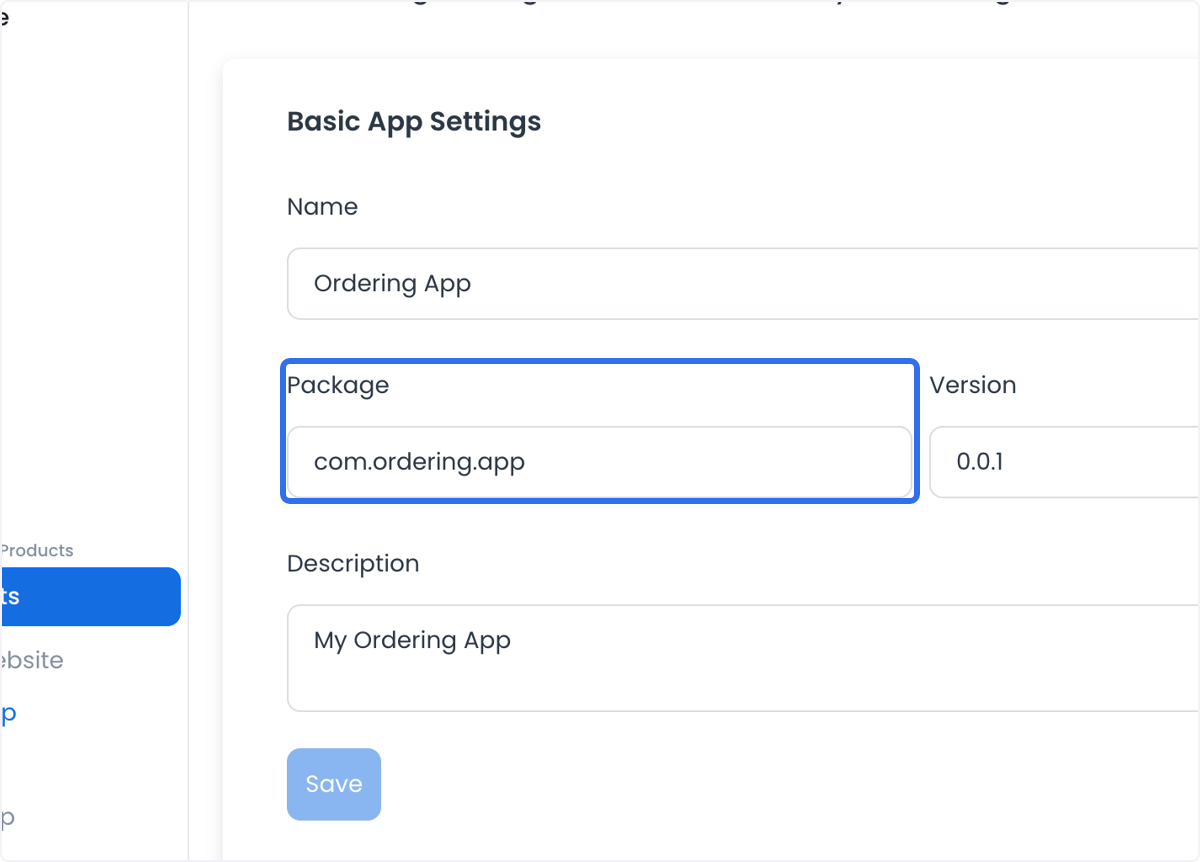
Enter the Bundle ID. Copy the package bundle of the Ordering.co app from the builder Settings field Package.
Add an Android app
Select + Add Platform, choose Android, then Next.
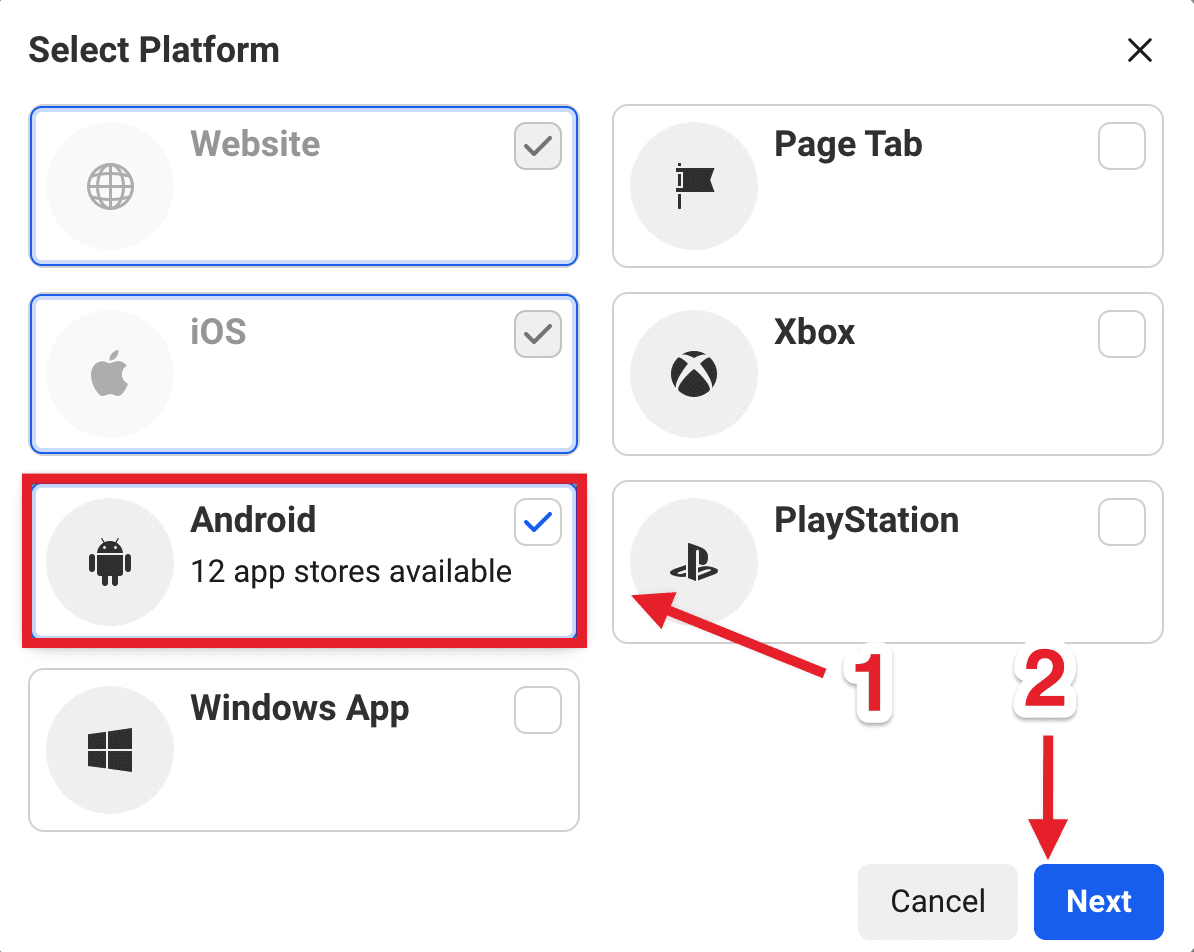
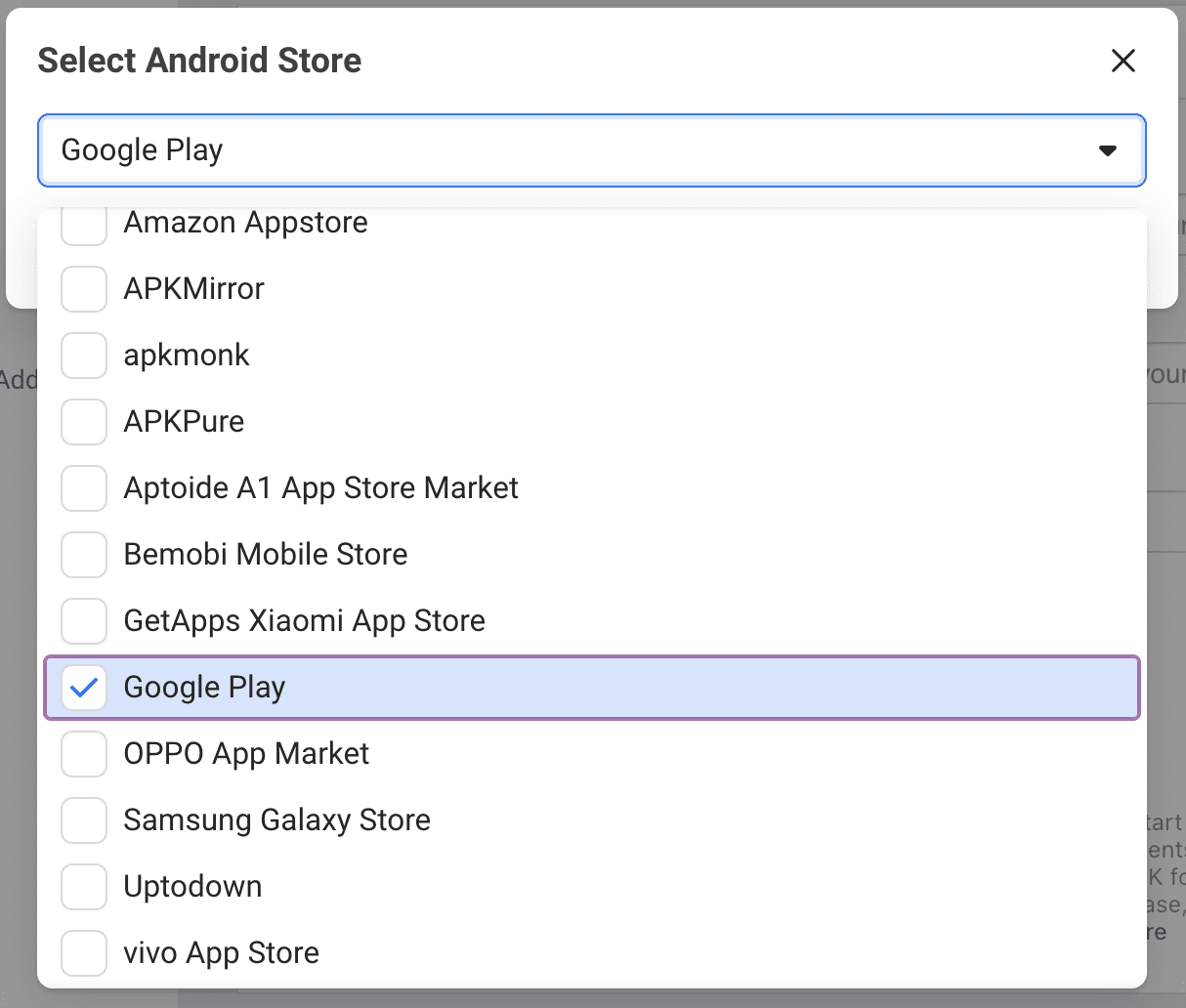
Select Google Play, then Next.
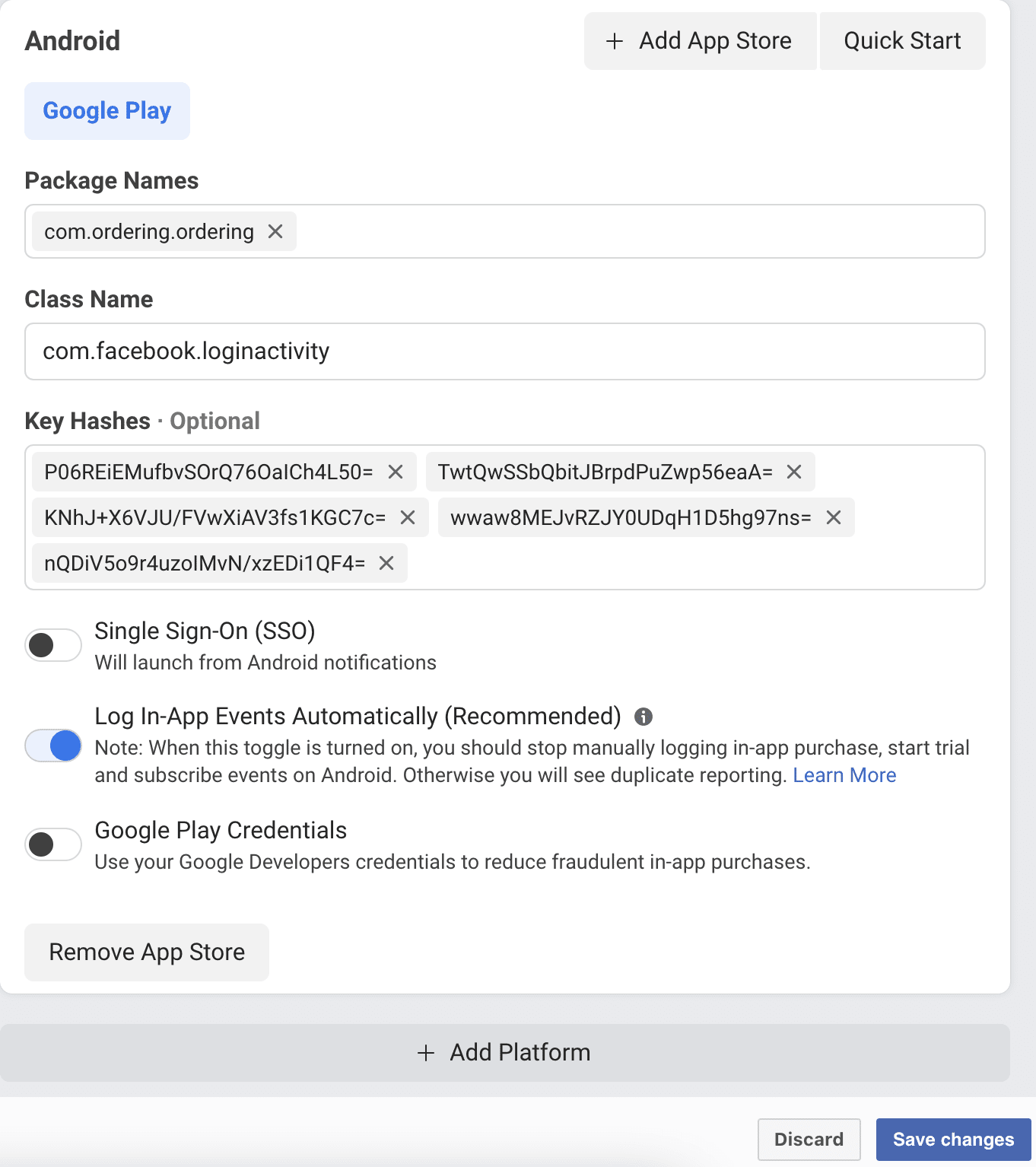
Fill:
- Package names: The same package bundle as iOS. Example:
com.orderingapp.ordering. - Class Name:
com.facebook.loginactivity - Key Hashes: Paste these six key hashes:
P06REiEMufbvSOrQ76OaICh4L50=
TwtQwSSbQbitJBrpdPuZwp56eaA=
KNhJ+X6VJU/FVwXiAV3fs1KGC7c=
wwaw8MEJvRZJY0UDqH1D5hg97ns=
nQDiV5o9r4uzoIMvN/xzEDi1QF4=
Xo8WBi6jzSxKDVR4drqm84yr9iU=
Leave Log In-App Events Automatically (Recommended) active.
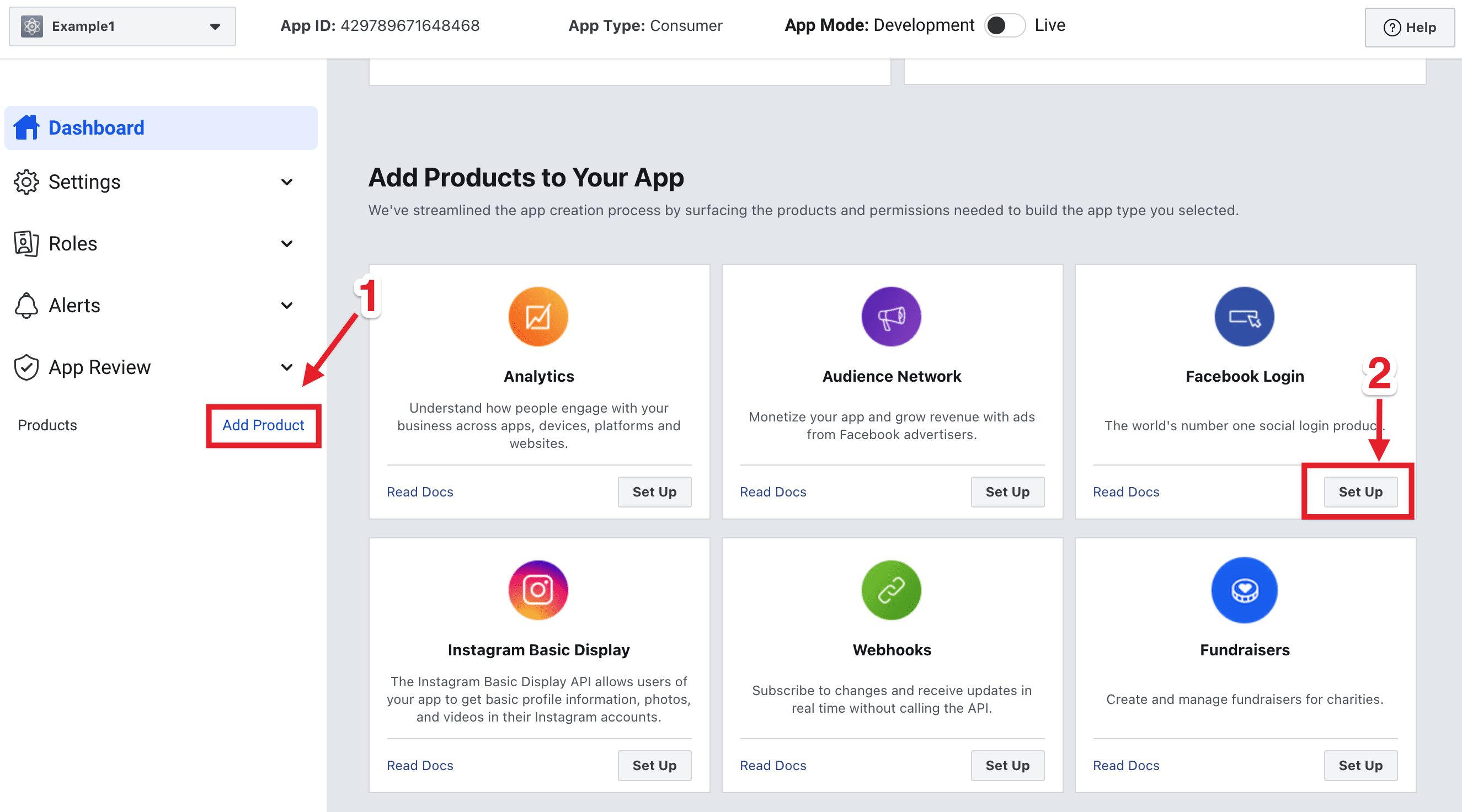
Save the changes. Open Add product in the left panel and select Set up on Facebook Login.
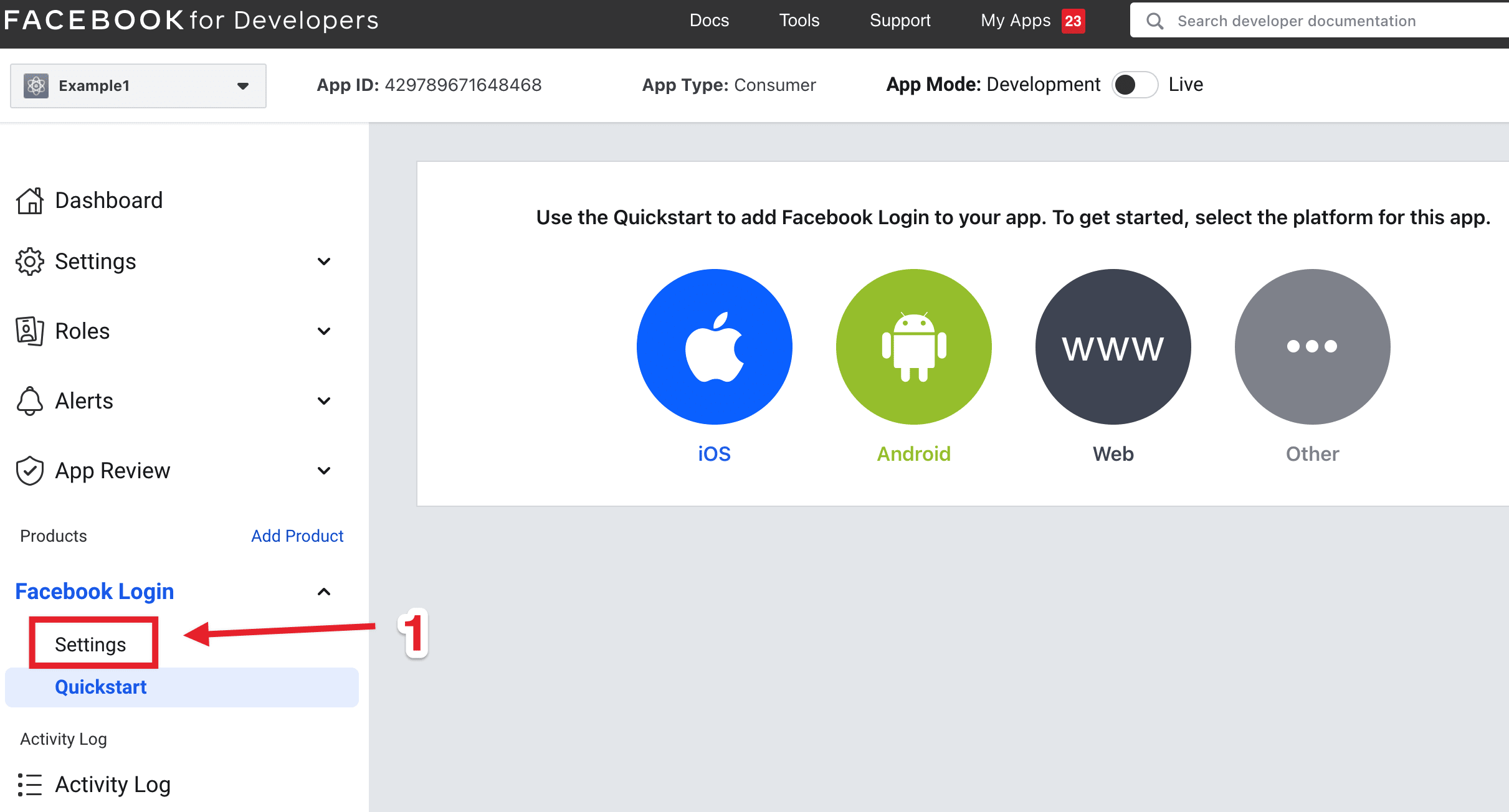
Open Settings in the left panel. Do not open Quickstart.
OAuth login toggles and redirect URIs
Deactivate Force Web OAuth Login. Activate embedded Browser OAuth Login.
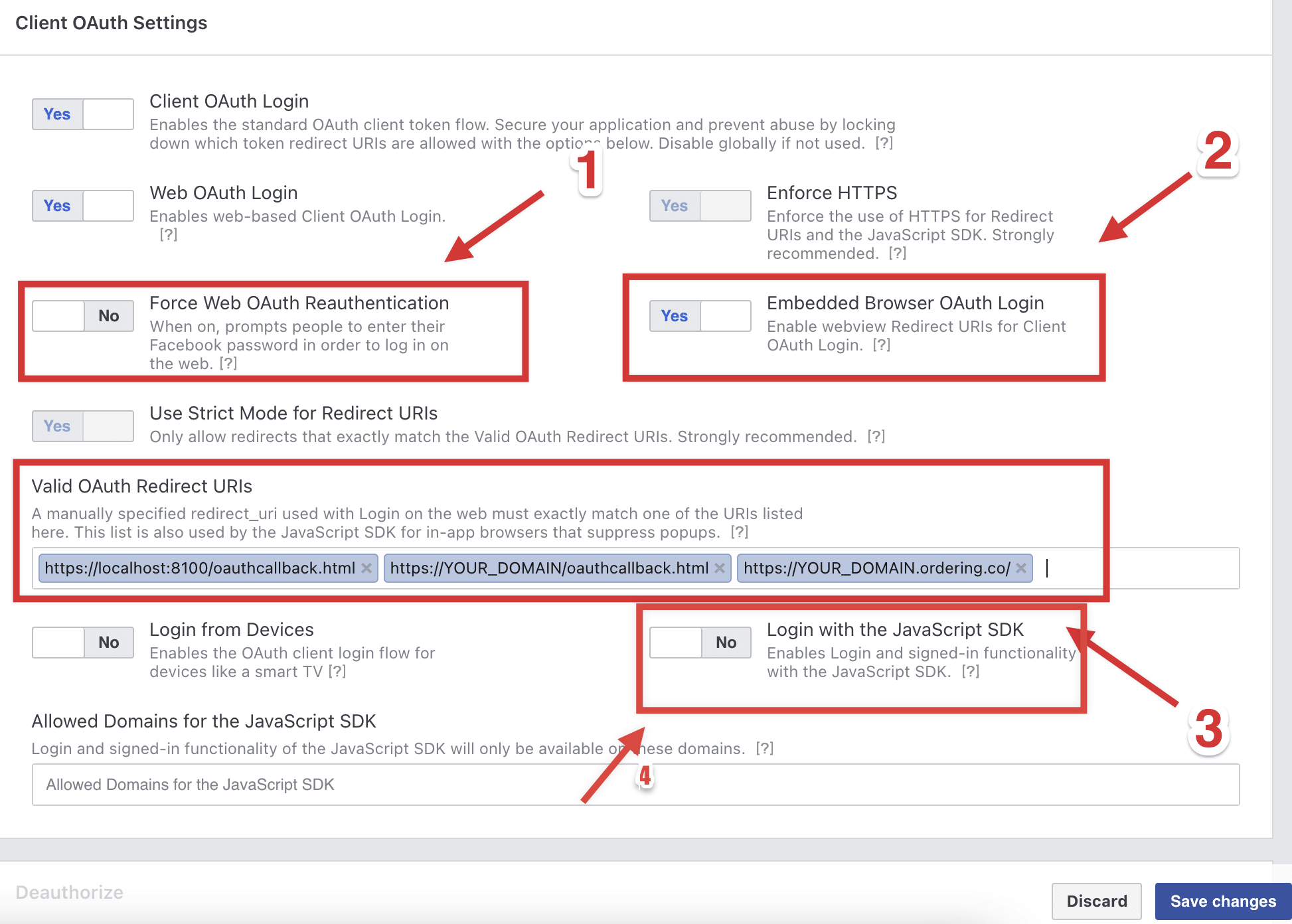
In Valid OAuth redirect URIs, add:
https://localhost:8100/oauthcallback.htmlhttps://YOUR_DOMAIN/oauthcallback.html
Replace YOUR_DOMAIN with the custom domain. Example: https://www.ordering.co/oauthcallback.html. Enable the JavaScript SDK, then Save.
Meta console labels for these OAuth controls can change. Keep the redirect path /oauthcallback.html on both localhost and the production domain.
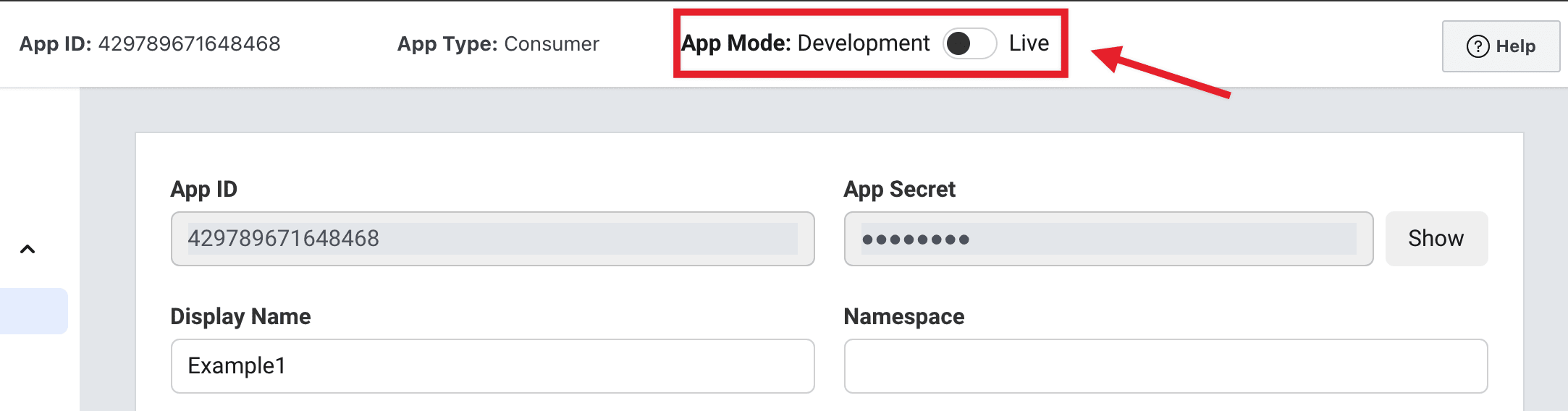
Switch the Facebook app to Live mode
To enable Facebook Login in Live mode, the Ordering.co app should already be live on Google Play and the App Store.
Recommendations
- Configure Facebook Login in Development (tester credentials) and upload the apps to the stores first.
- Or enable Live mode for the website only. After the native apps are live, finish the app platforms, add the Facebook Login ID on the Ordering.co app, and upload a new app version.
Switch from Development to Live only when those conditions are met.
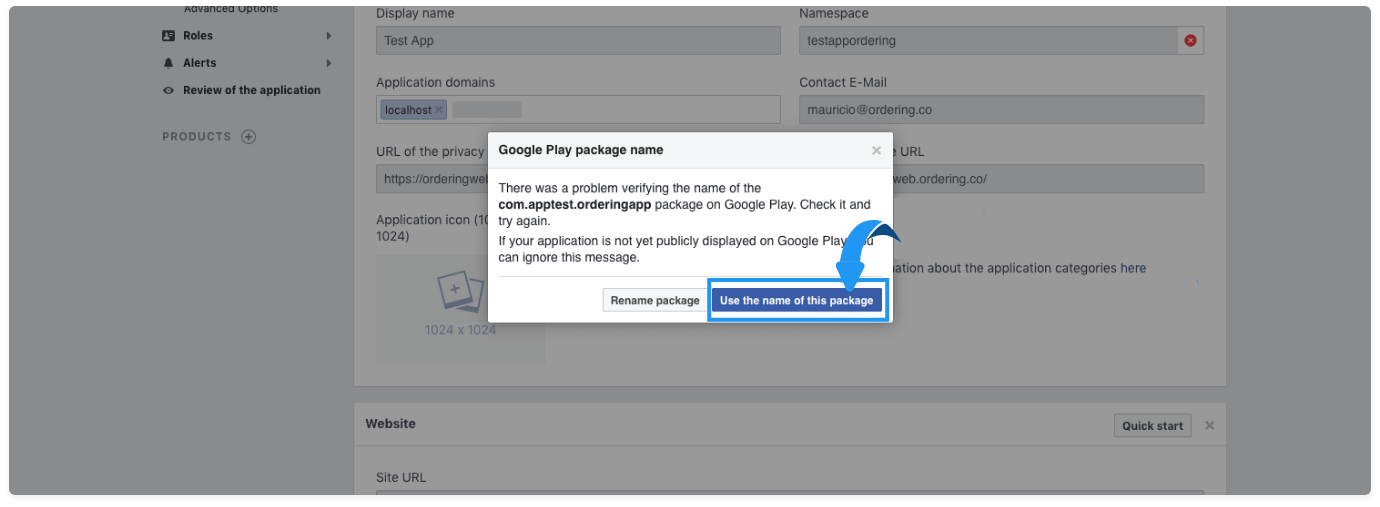
If a popup appears, select Use the name of this package to continue.
Switching the toggle does not complete App Review, store listing, or a customer Facebook sign-in.
Add Facebook credentials in the Ordering.co Dashboard
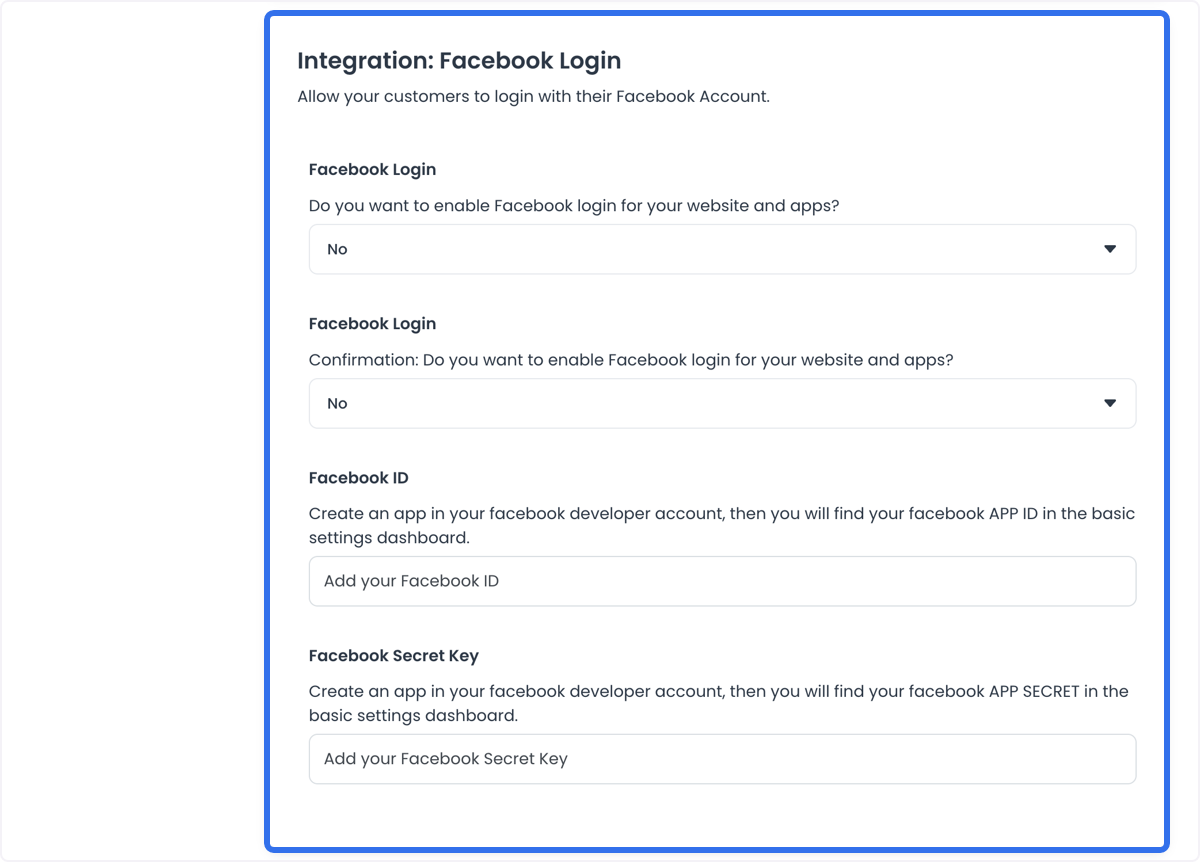
Copy the App ID into Facebook Application ID under Settings → Pro → Social login options → Facebook Sign-in.
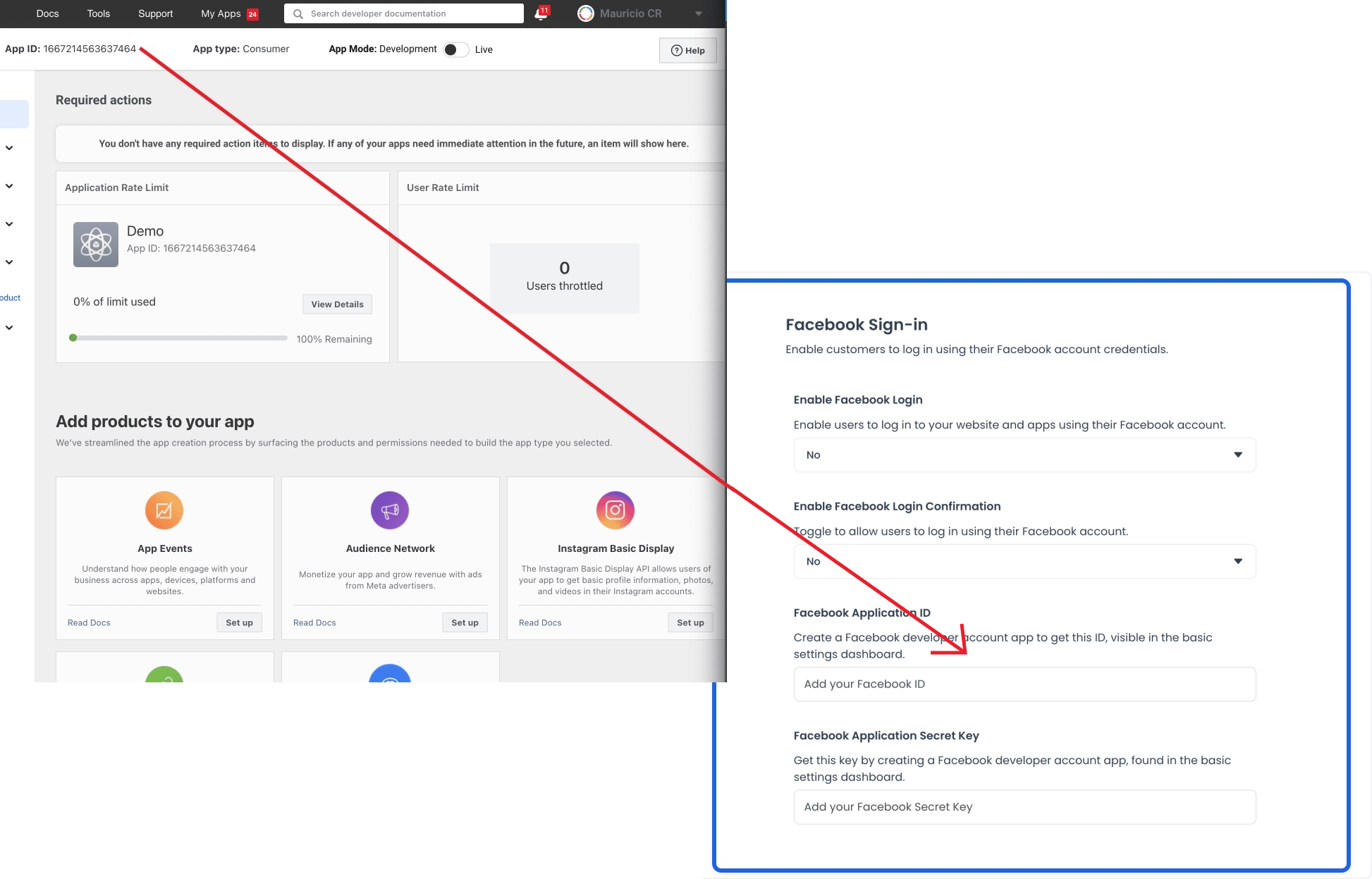
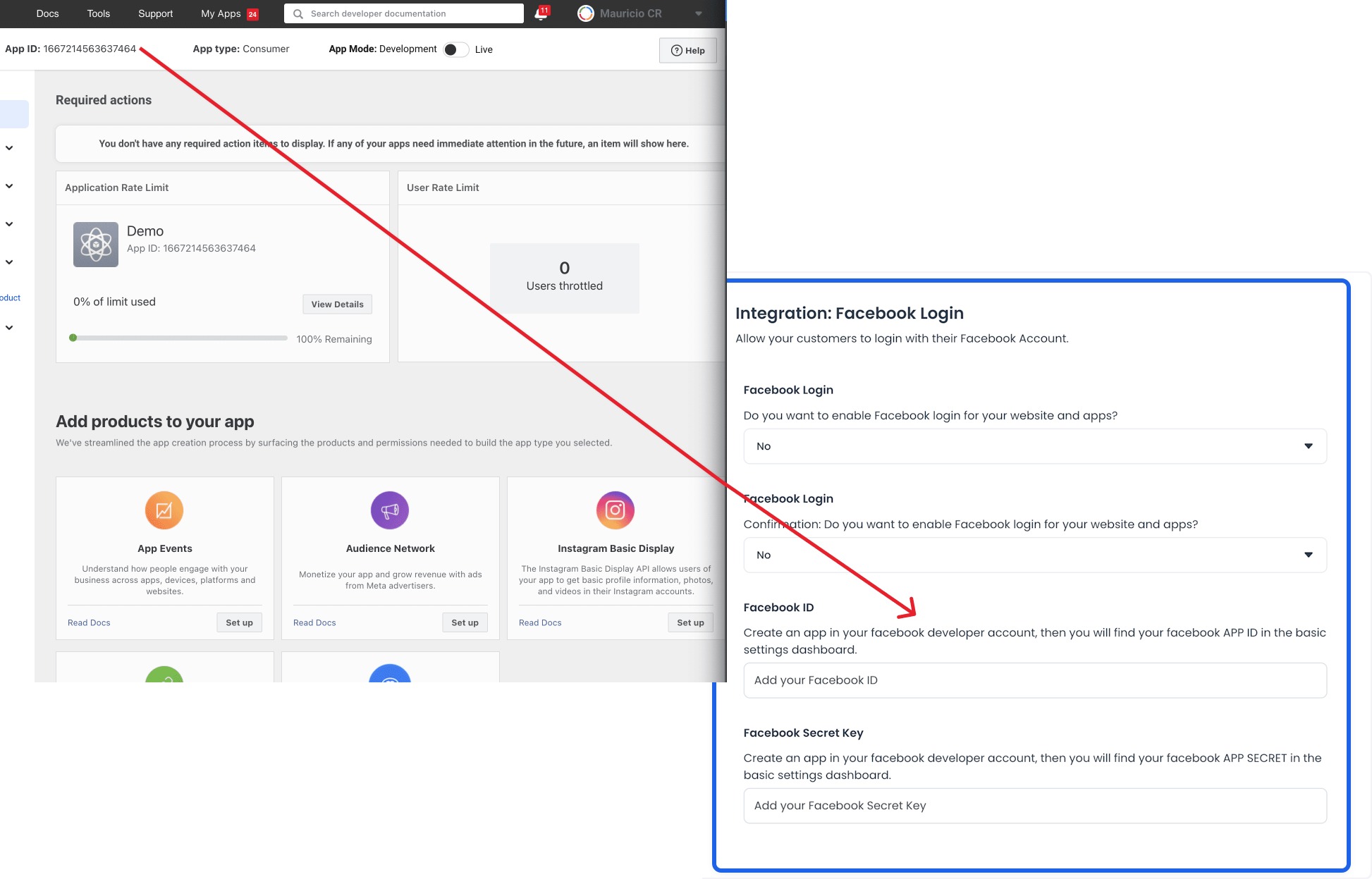
Facebook_app_name must match the name in the Facebook Developer account. Paste the App Secret into Facebook Application Secret Key, then save.
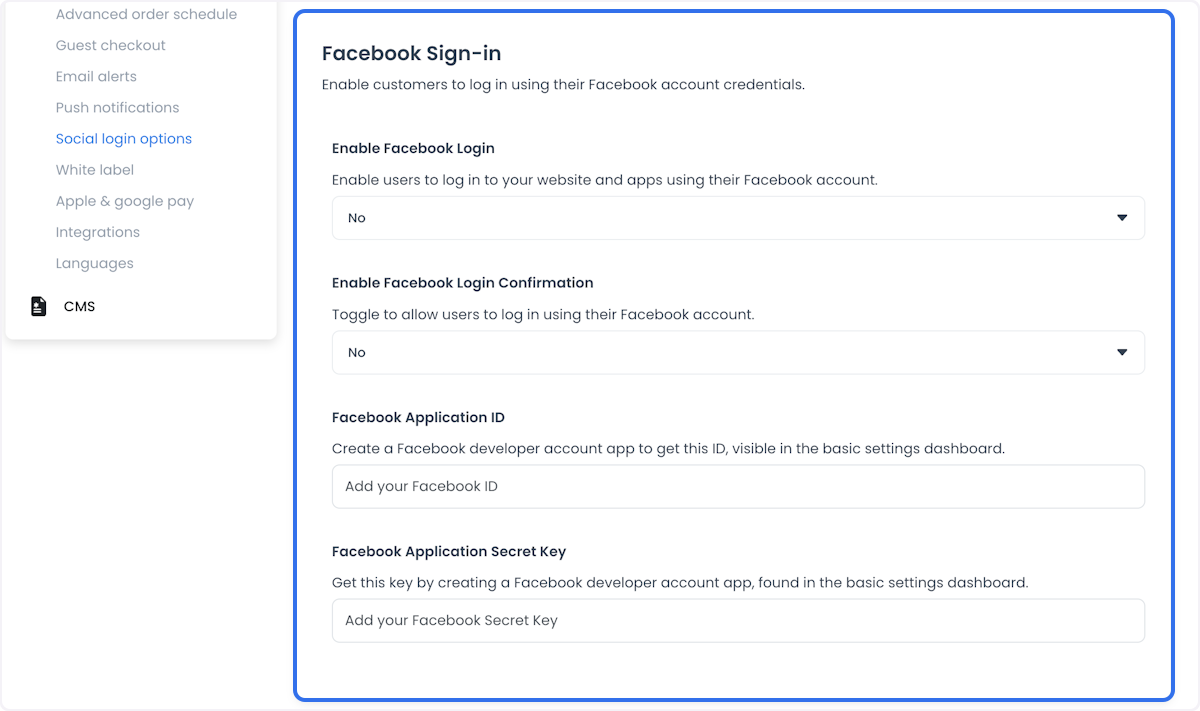
Some Dashboards listed this under Settings → Operation Settings → Facebook Settings. Use Social login options → Facebook Sign-in when that is the label you see.
Resolve an invalid key hash
If Facebook returns Invalid key hash. The key hash "xxxxxxxxxxxxxxxx=" does not match any stored key hashes, open the Android platform configuration and add that hash next to the six hashes listed above.
Practical configurations
- Seamless onboarding: Keep Enable Facebook Login Confirmation off only when Facebook already returns every field you require.
- Personalization: Use the Facebook profile fields the app is allowed to receive. Extra permissions can require App Review.
- Social sharing and ads: Sharing to Facebook or running Meta ads is outside this login setup.
- Store-first Live mode: Do not switch the Facebook app to Live for native apps until those apps are listed.
Conclusion
Create the Facebook app, add website and mobile platforms, register the OAuth redirect URIs and key hashes, then paste the App ID and App Secret in Ordering.co. Set Enable Facebook Login to Yes when the storefront should show the button. Confirm a Facebook sign-in on the website or app before you treat the method as working.
For the product overview, see Facebook Login on Ordering.co.