Set up Apple login
Give customers a Sign in with Apple button on the website and Customer App. Apple issues the App ID, Services ID, and private key. Ordering.co stores those values under Social login options → Apple Sign-in.
Configure Sign in with Apple
Open Certificates, Identifiers & Profiles in the Apple Developer account.
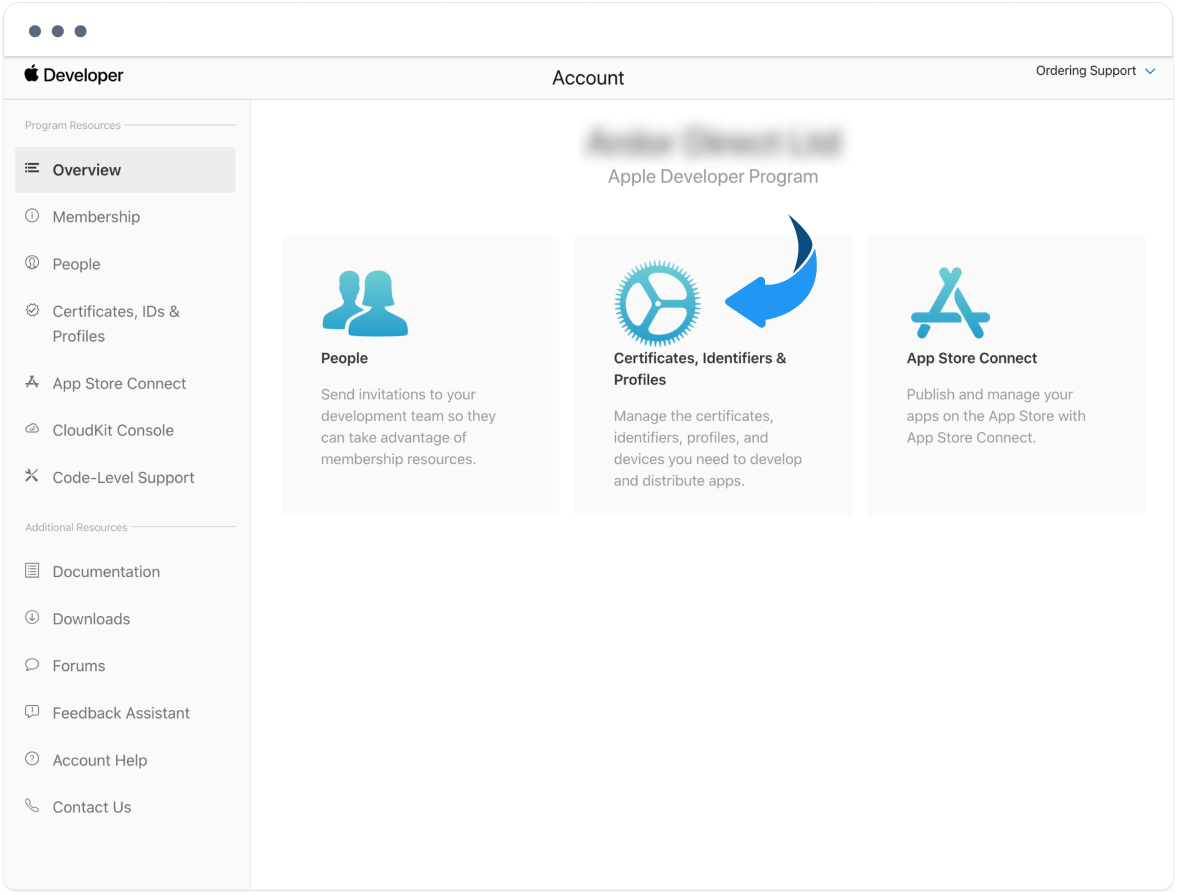
Apple documents the web side of this setup in Configure Sign in with Apple for the web.
Step 1. Register an App ID
Do this step if you have not created the app identifier yet, or if you only operate a website. If the App ID already exists with Sign in with Apple, skip to Step 2.
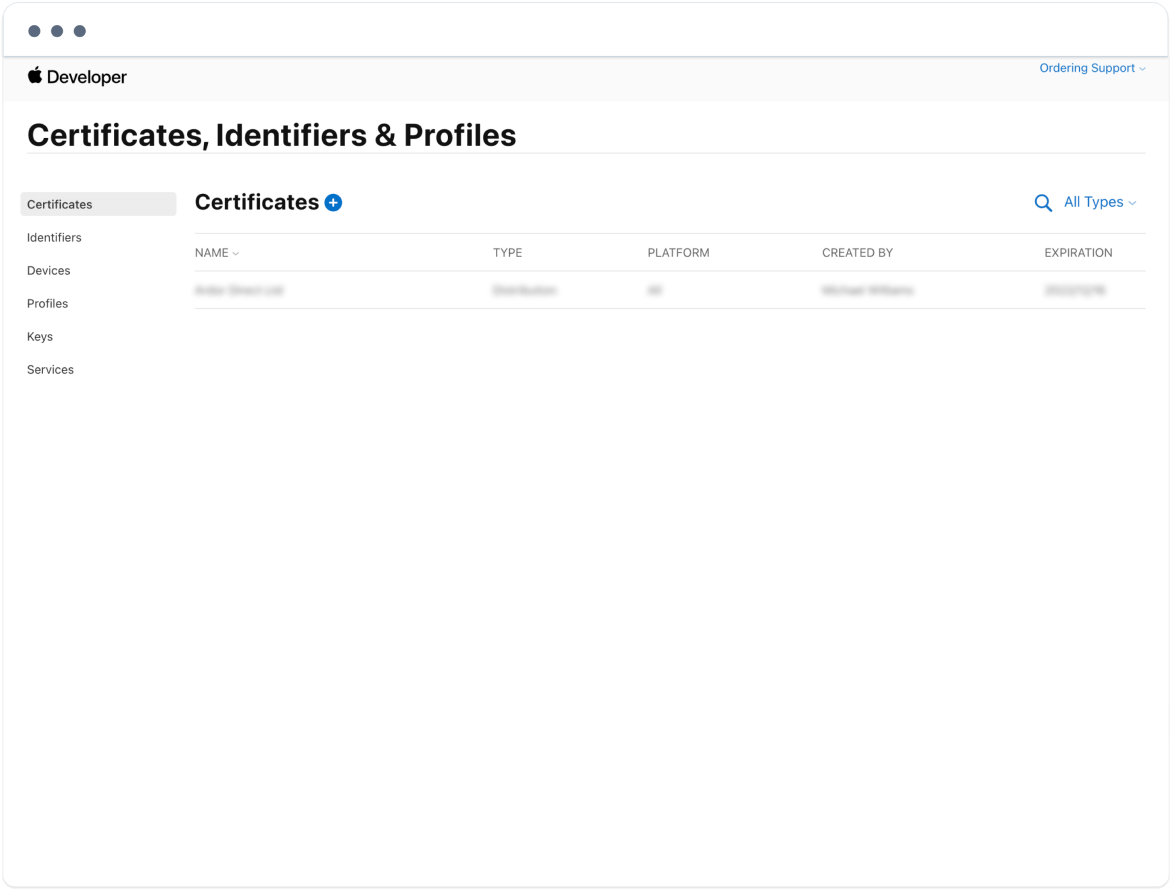
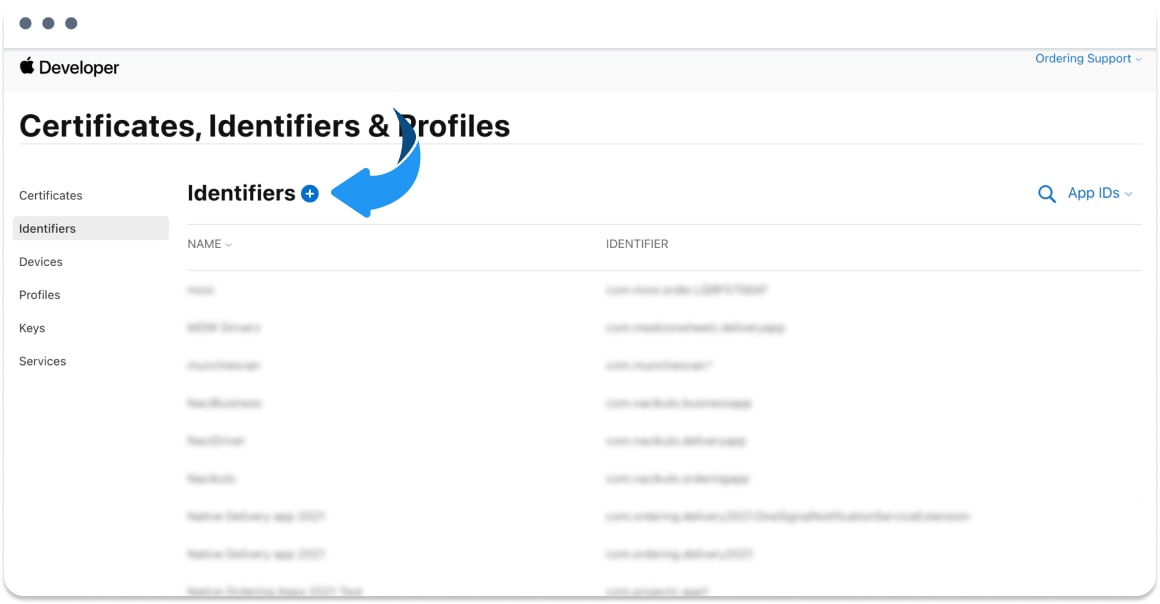
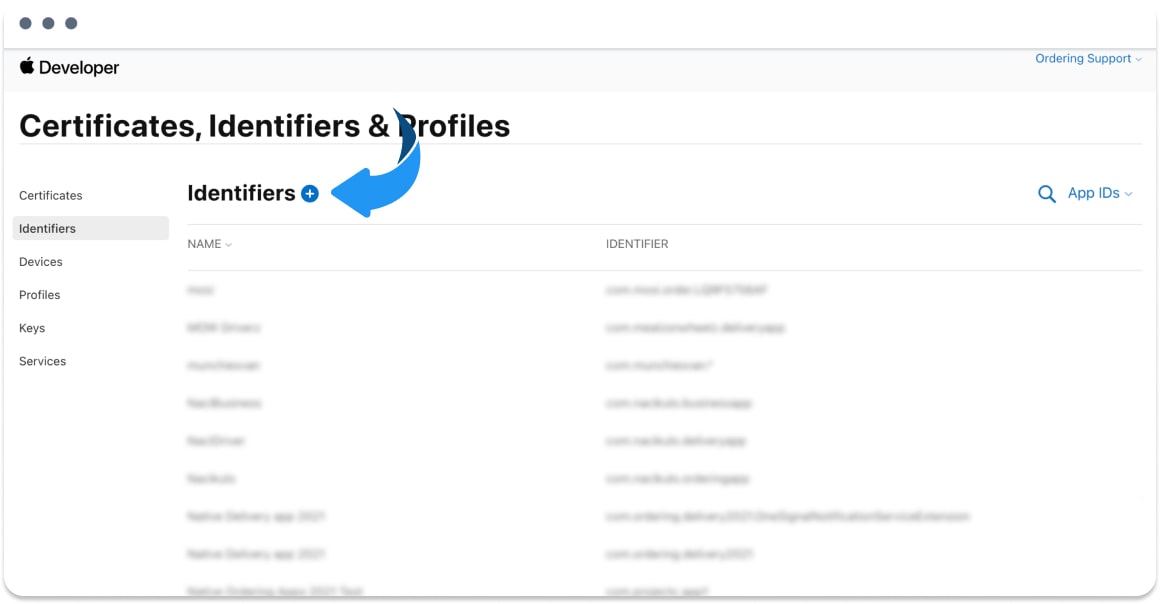
In the left menu, open Identifiers and select the blue + button.
Select App IDs, then Continue.
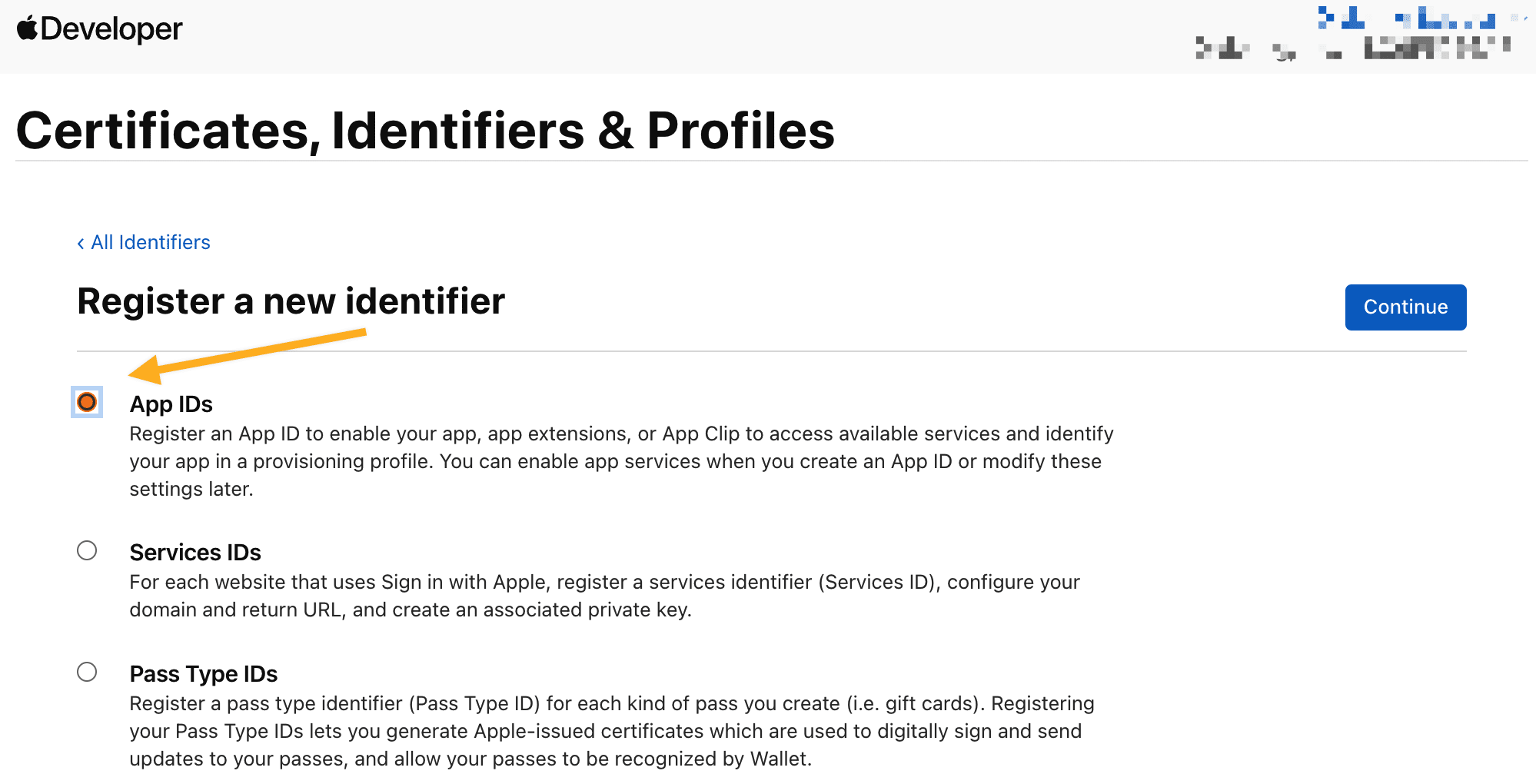
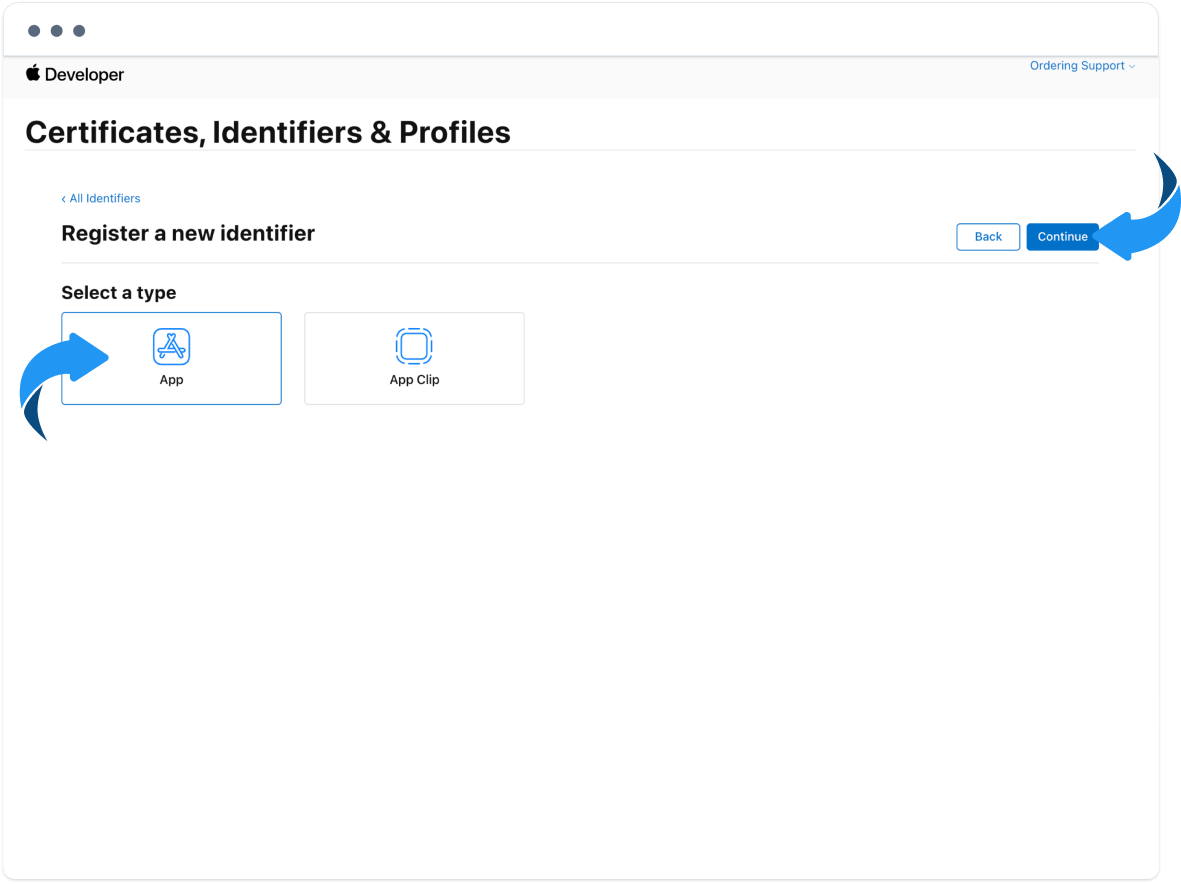
Select App, then continue.
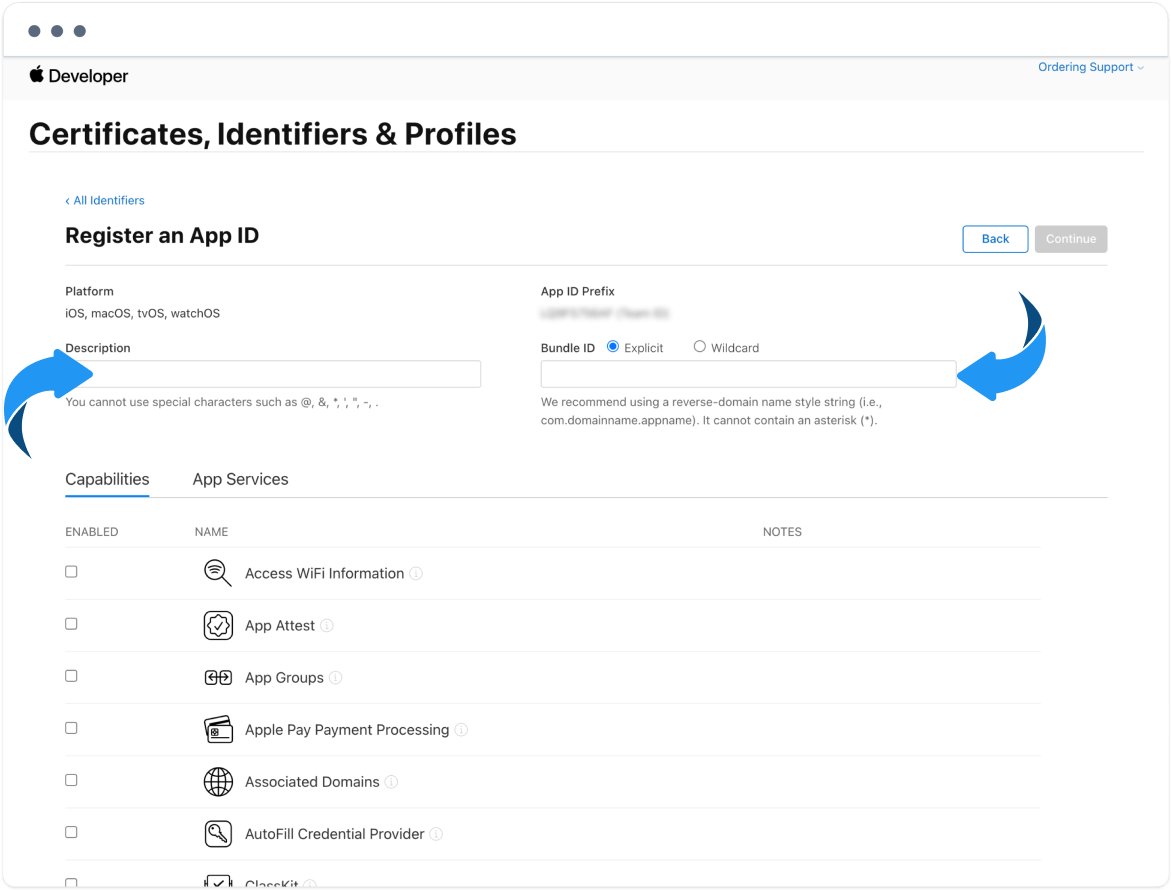
Enter a Description (example: newtestingapporder) and a Bundle ID. One documented pattern appends .login to the app bundle, for example com.newtestingapporder.app.login. Another documented example uses the app bundle itself, for example com.newtestingapporder.app. Use the identifier that matches the Customer App you will publish.
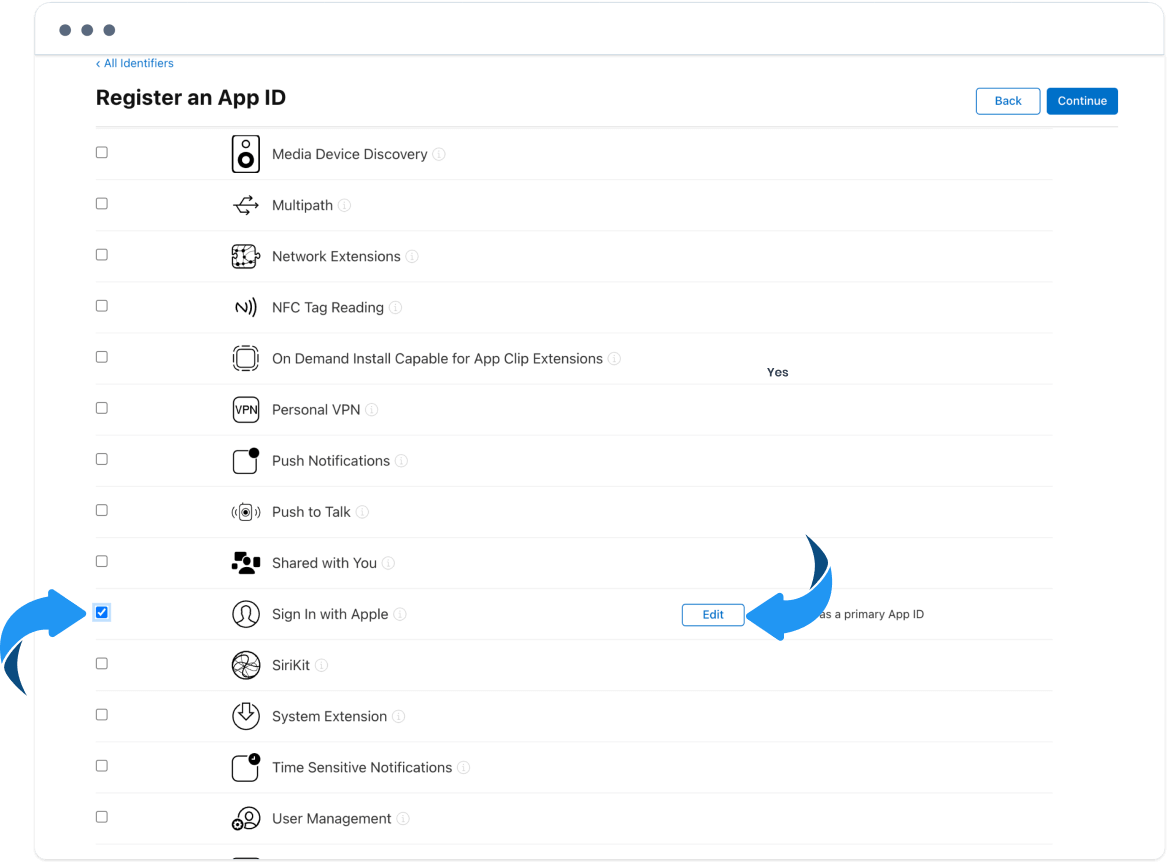
Enable Sign in with Apple and select Edit.
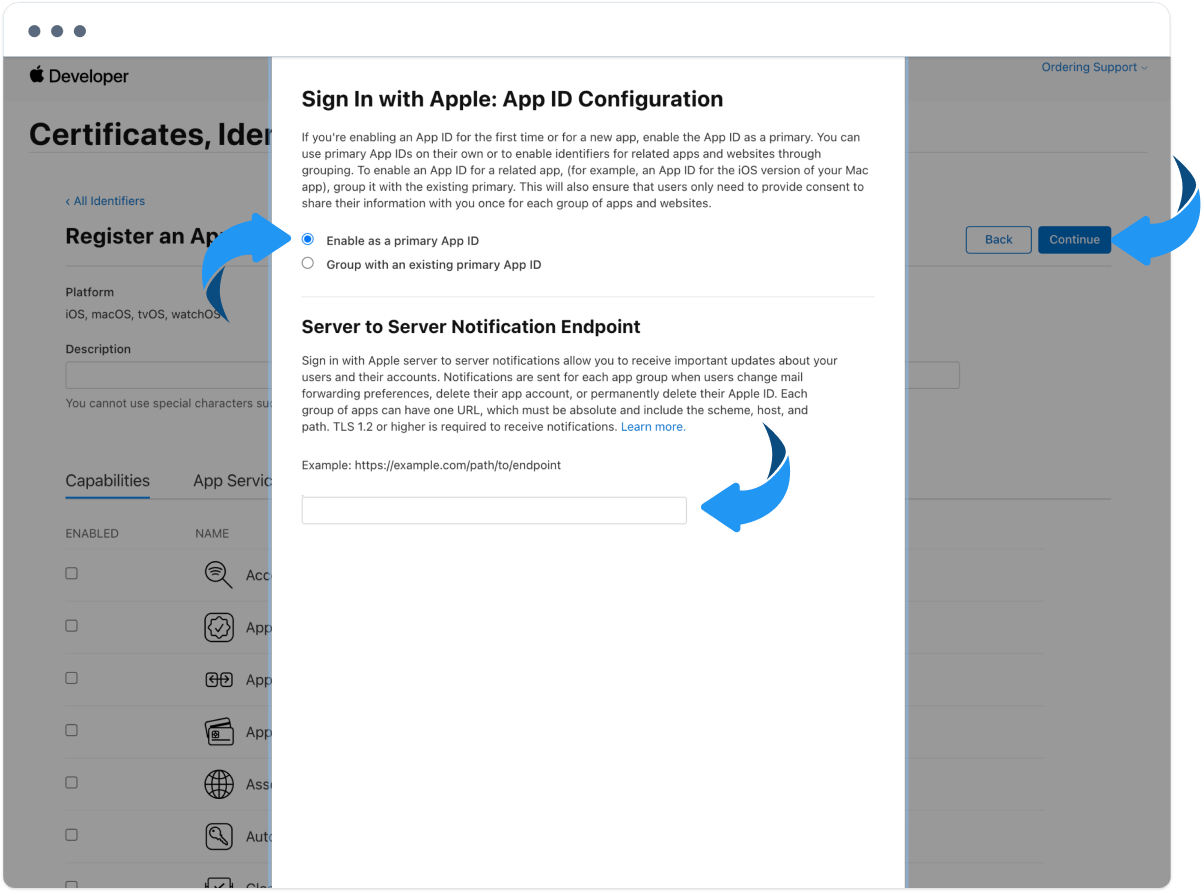
Leave Enable as a primary App ID selected, leave the following field empty, and select Continue.
Select Register.
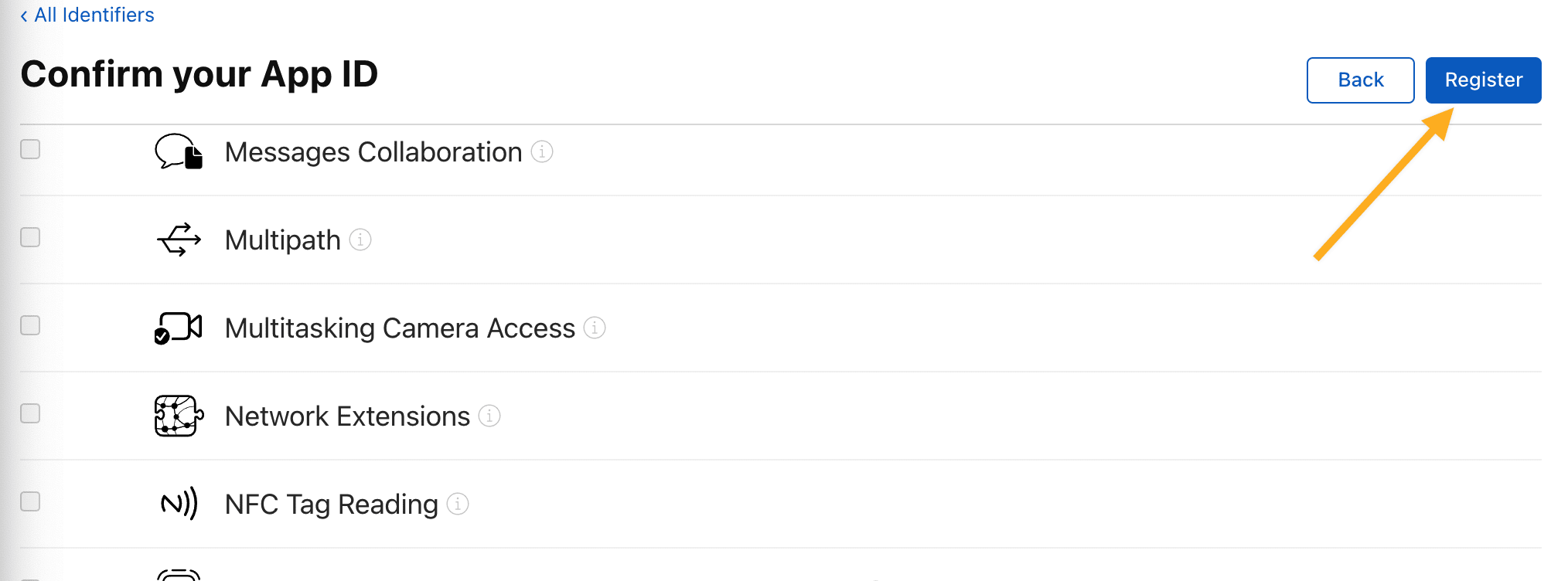
The new App ID appears in the list.
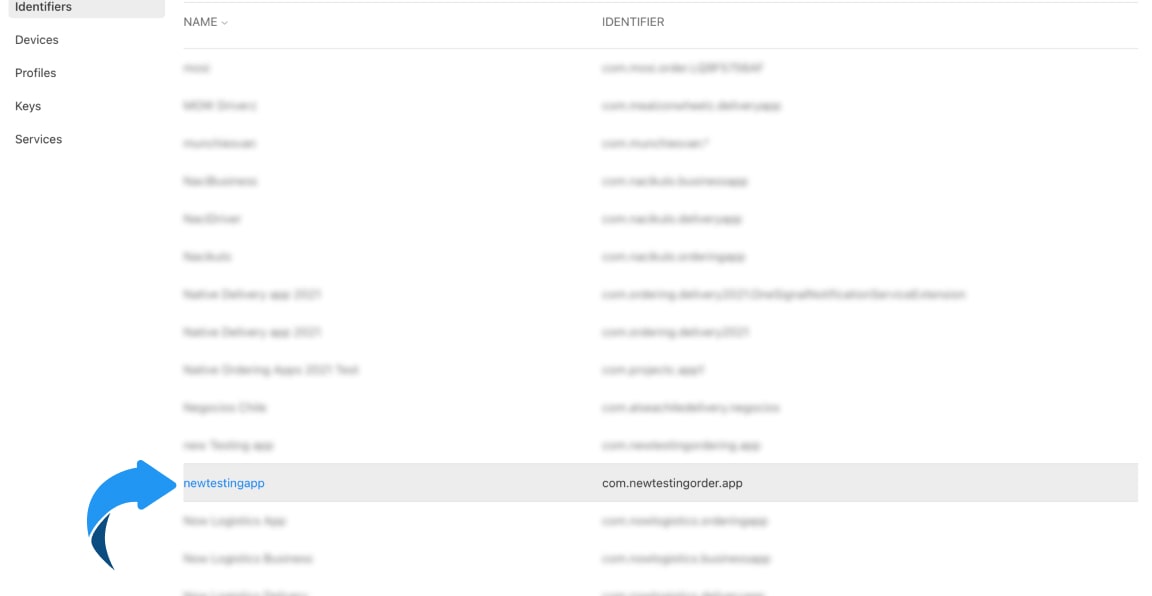
Step 2. Register a Services ID
Select + again.
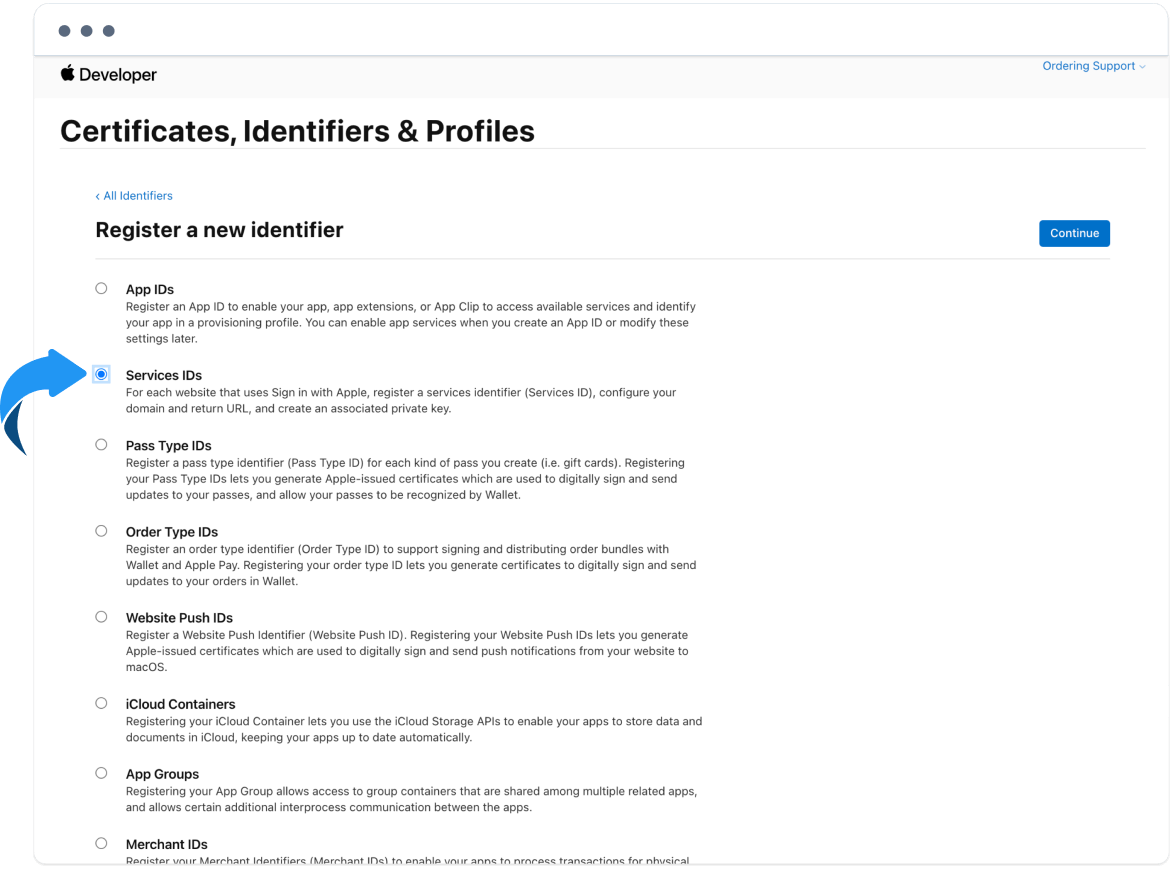
Select Services IDs, then Continue.
Enter a description and a unique identifier, then Continue.
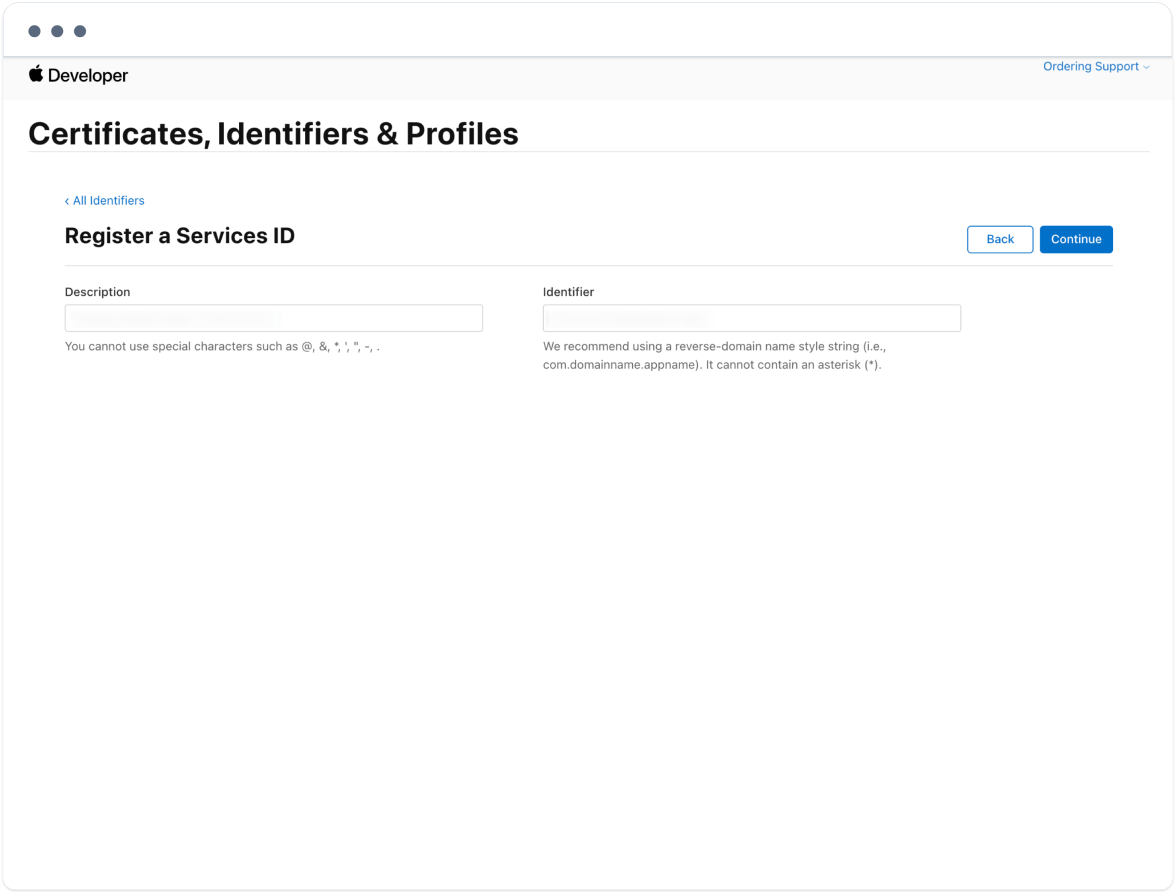
Register the Services ID.
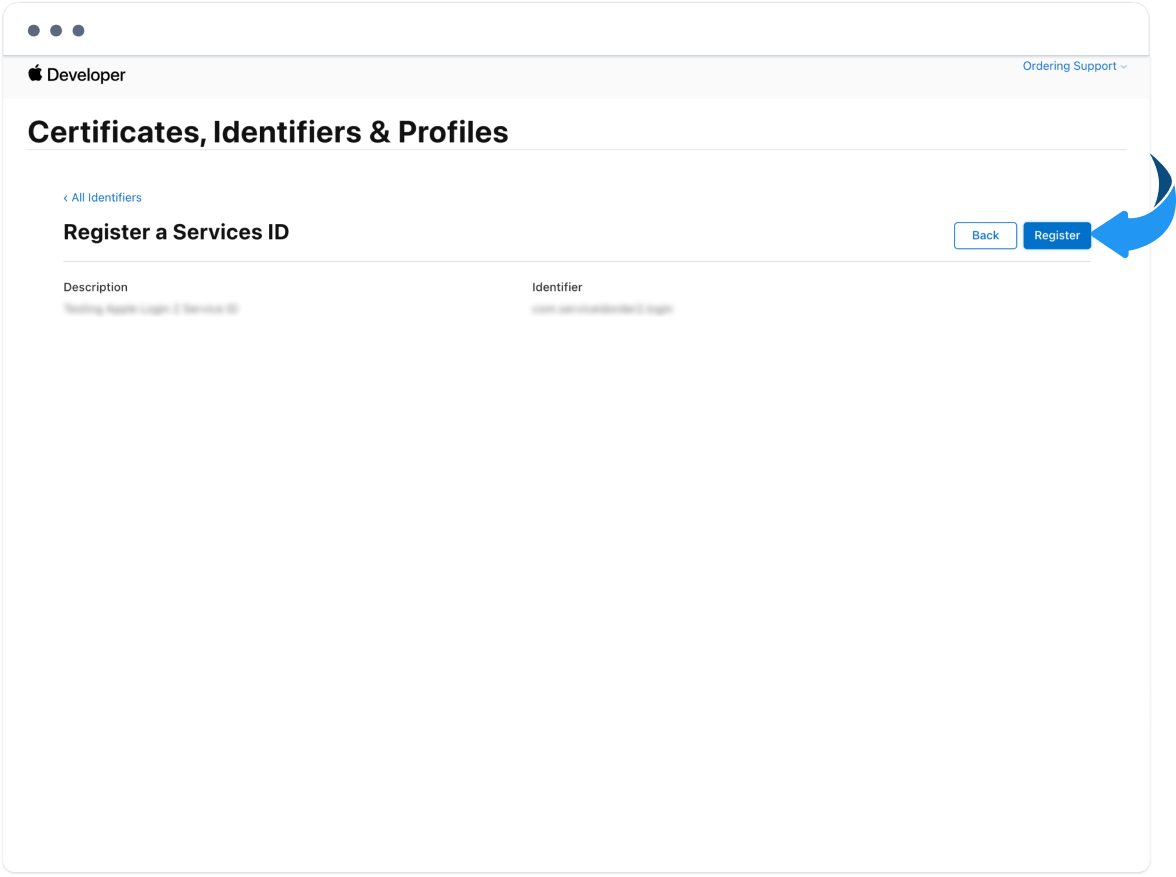
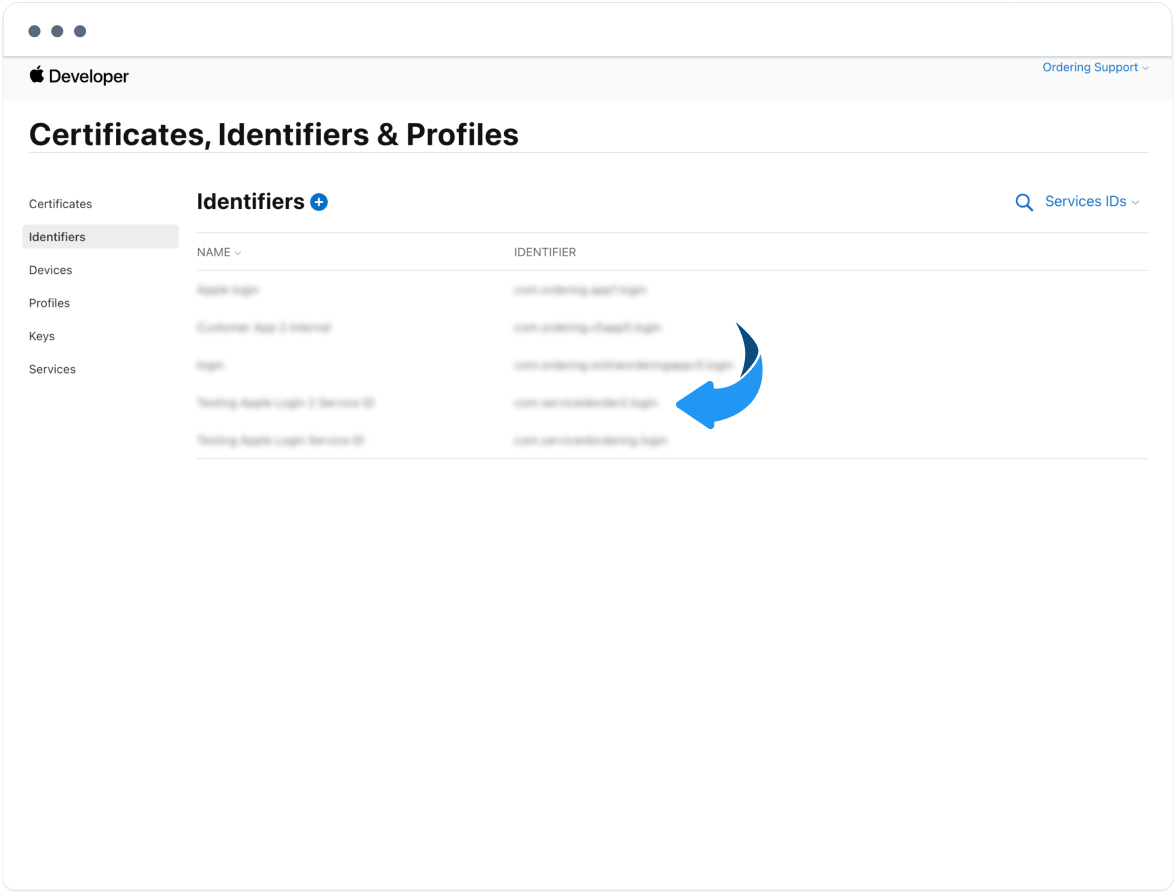
Open the identifier, select Sign in with Apple, then Configure.
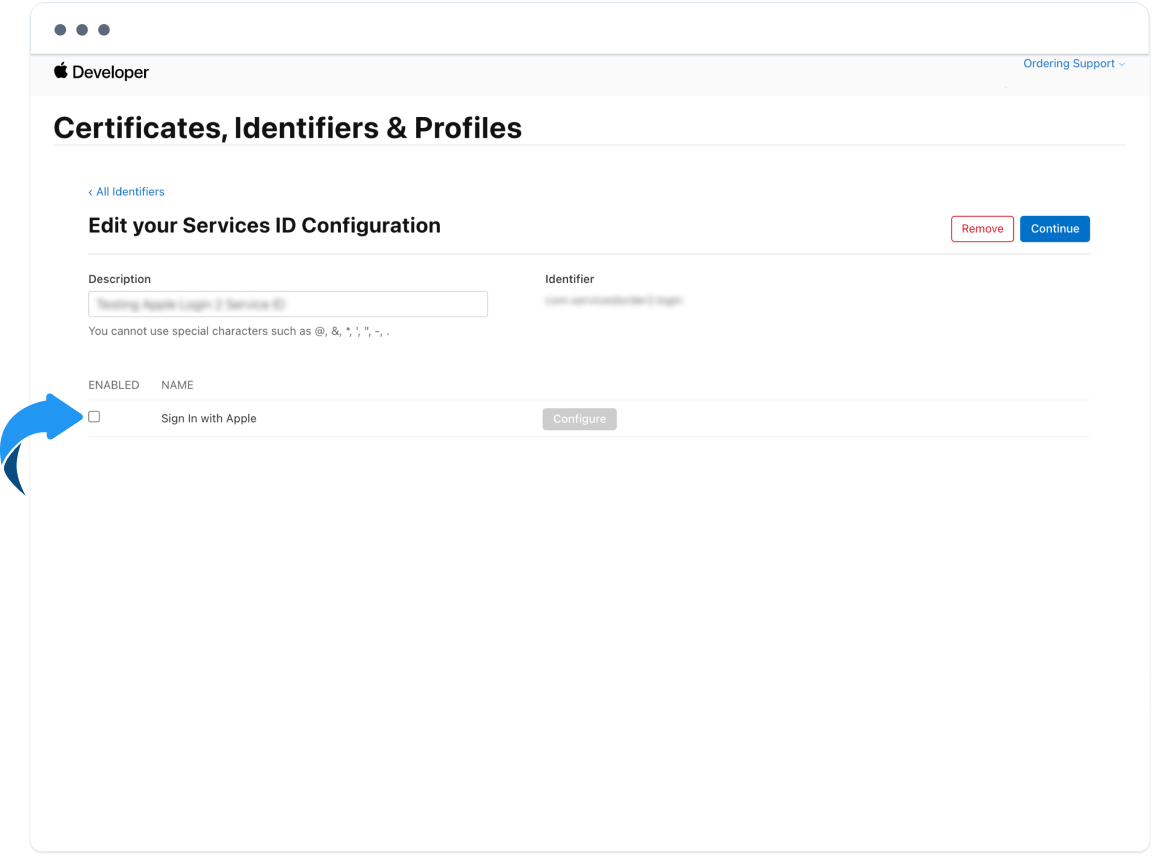
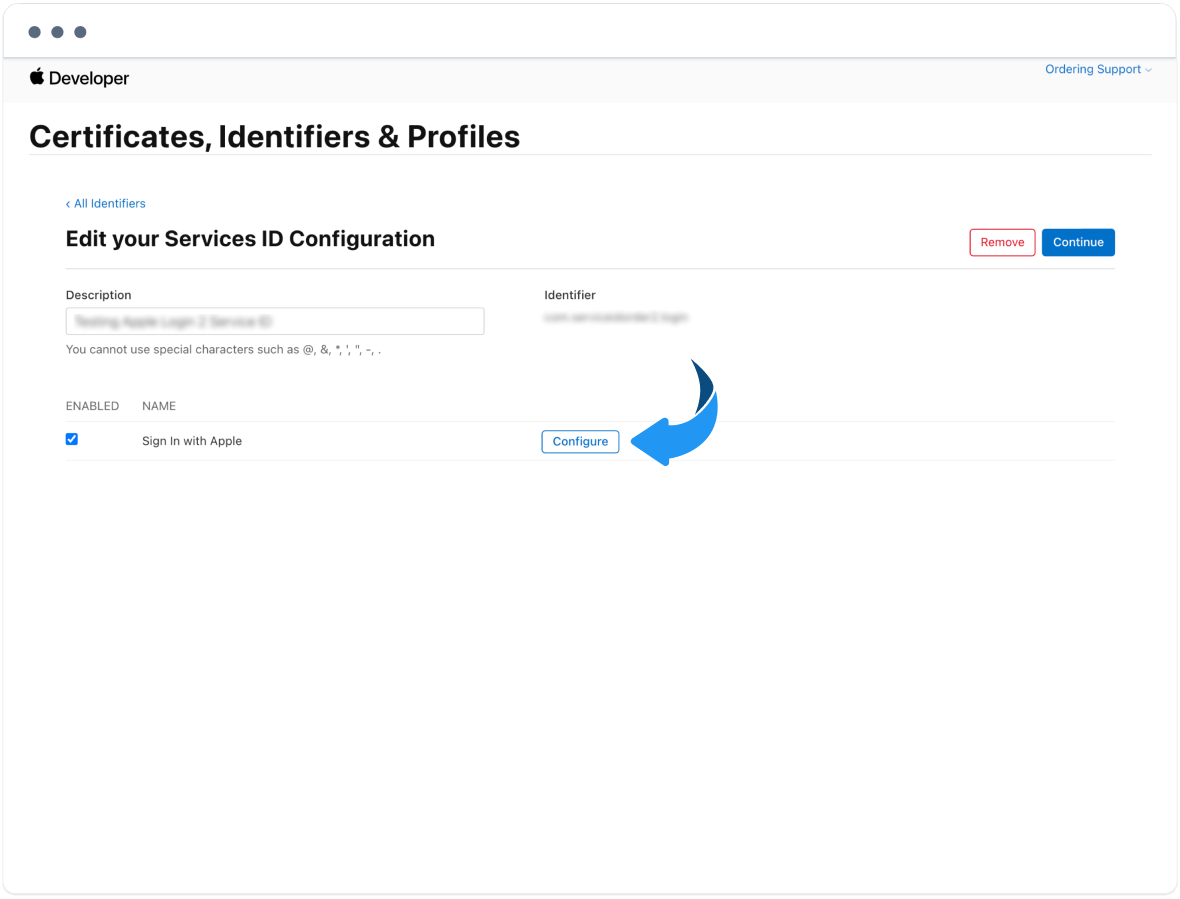
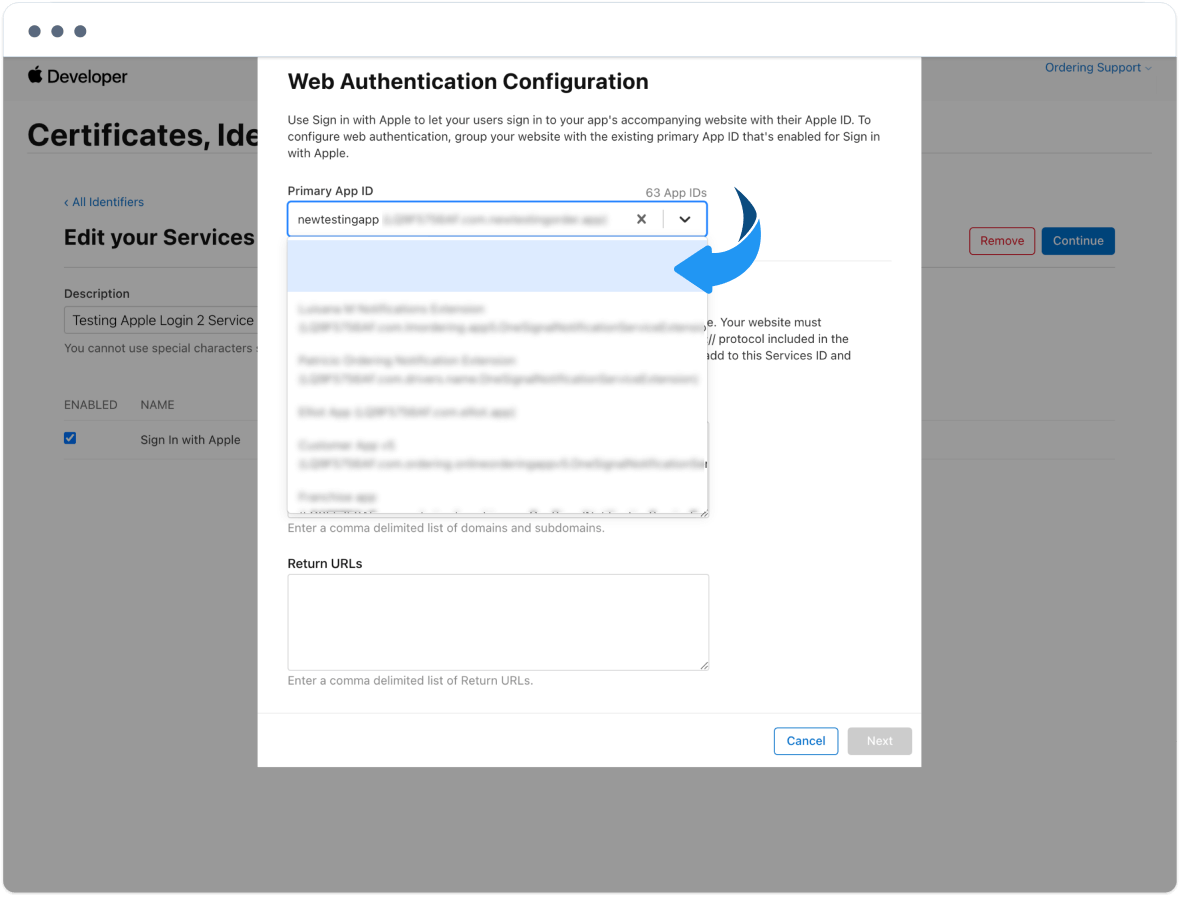
In the popup, select the app you registered in Step 1.
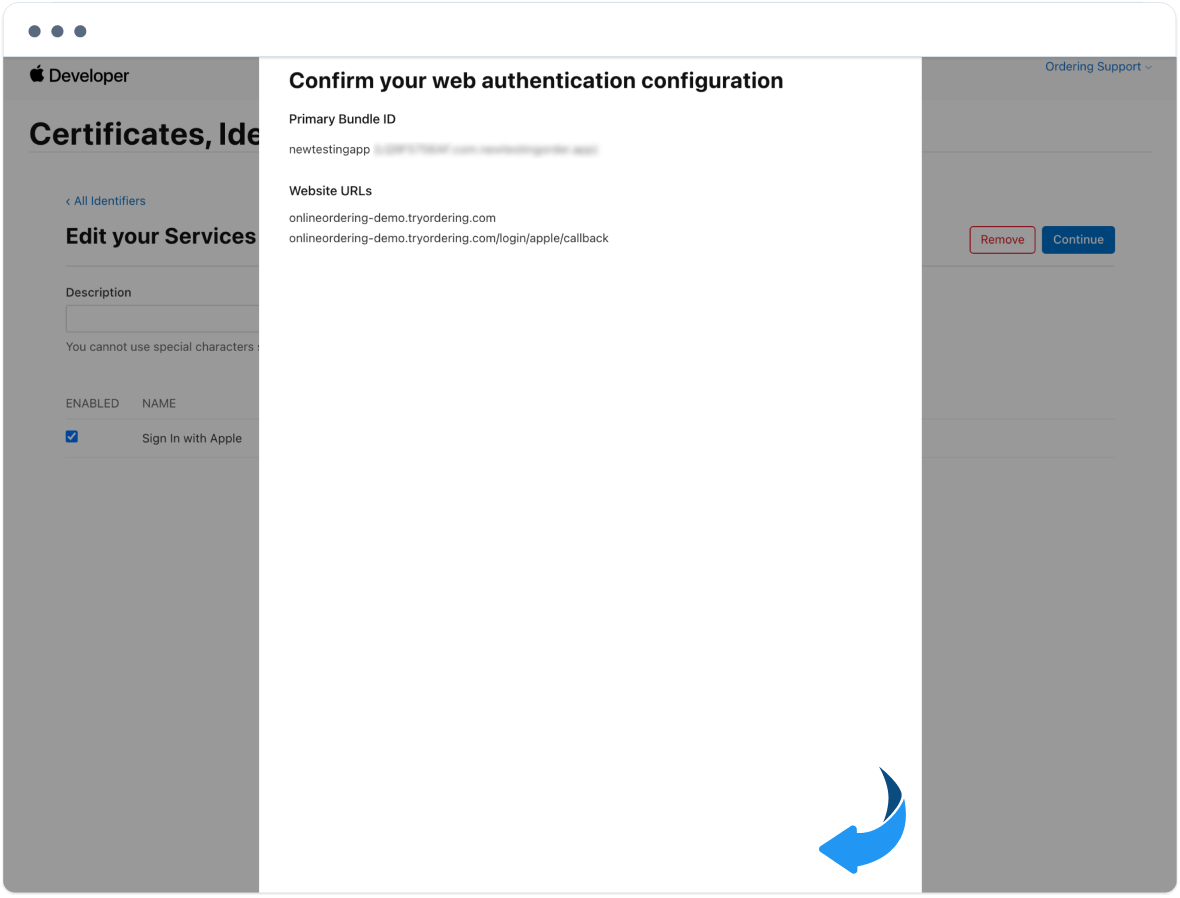
Under Website URLs, enter the domain and the return URL. The return URL is the domain plus /login/apple/callback and must include https://. Example:
https://sourcedemo.tryordering.com/login/apple/callback
For a franchise website, use /searchlogin/apple/callback instead:
https://sourcedemo.tryordering.com/searchlogin/apple/callback
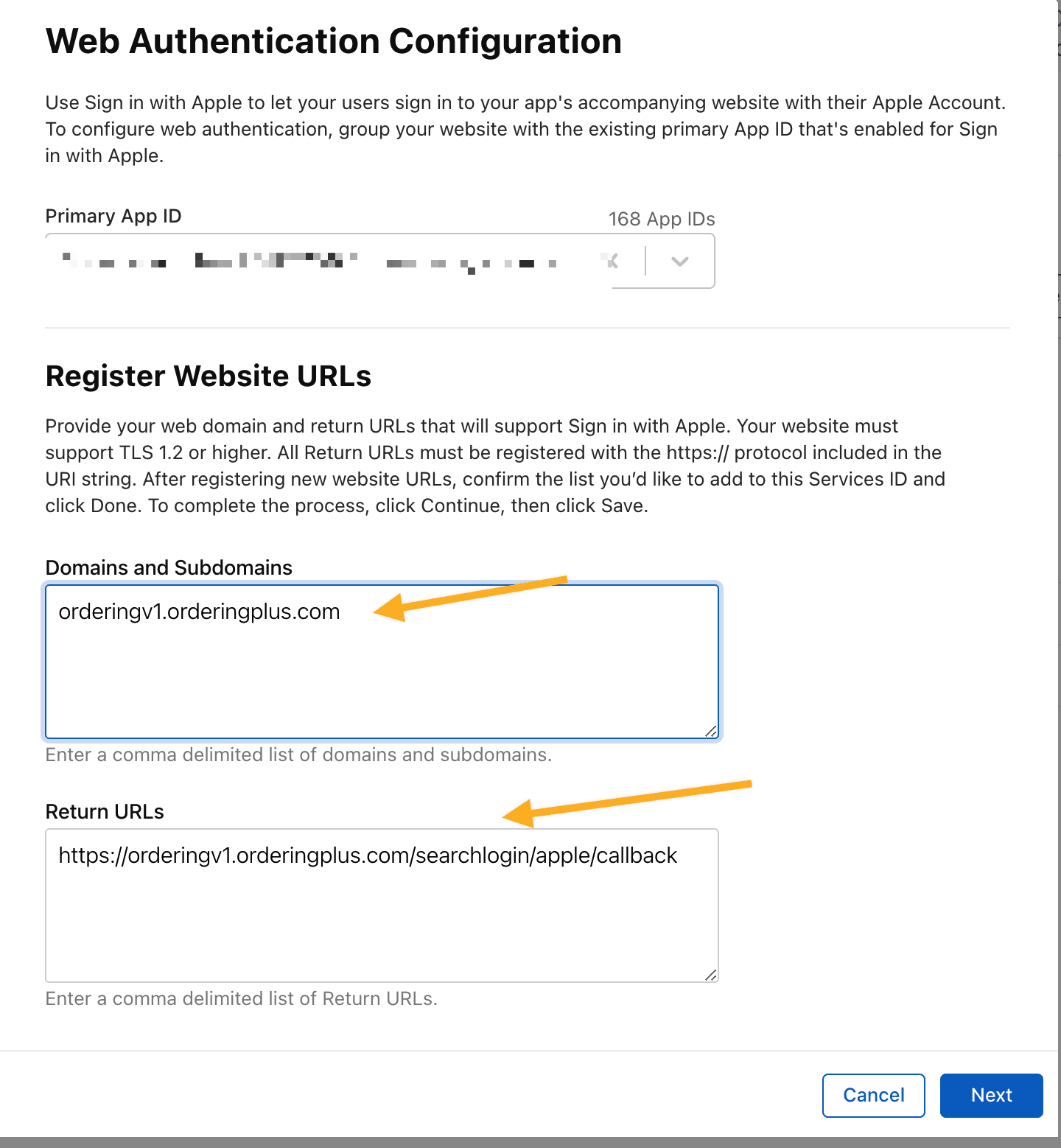
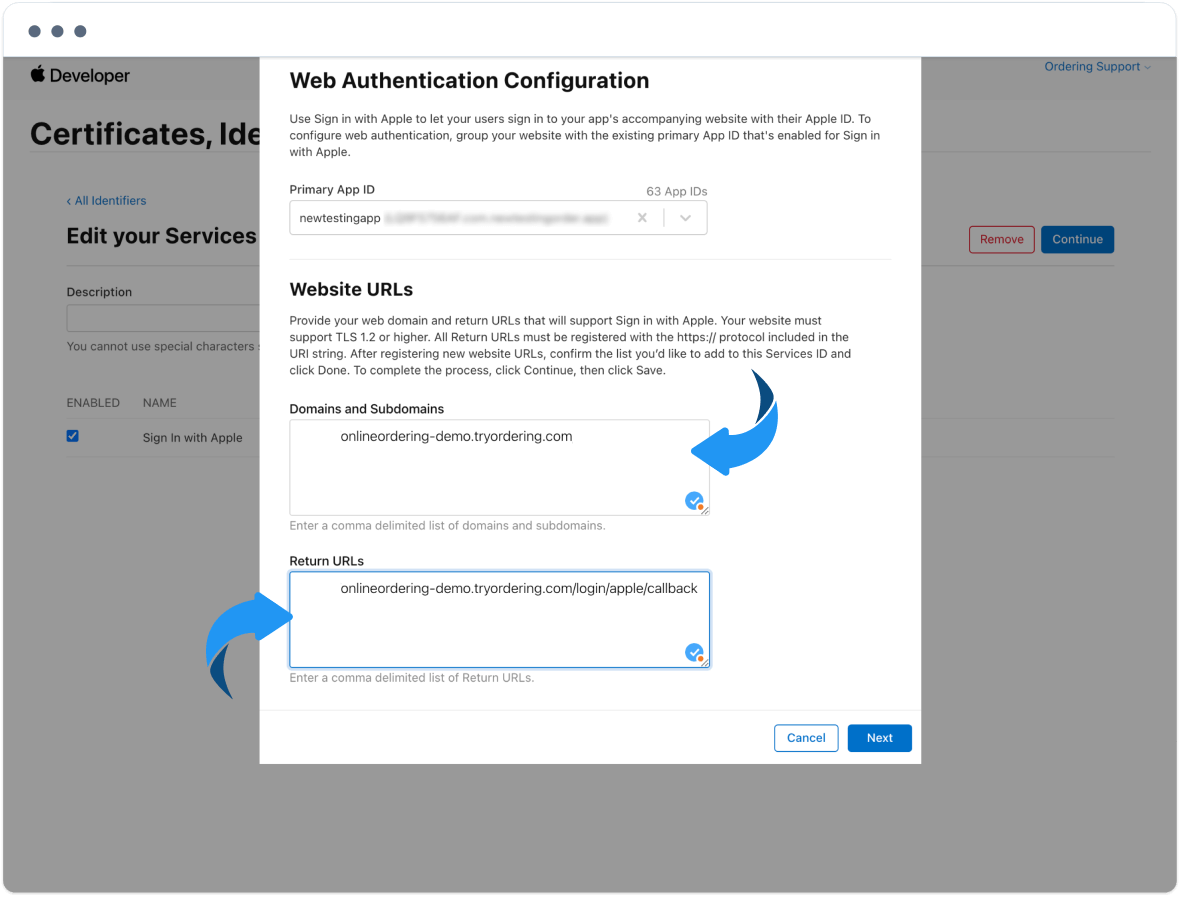
Save the confirmation. Apple requires an absolute return URL with scheme, host, and path.
Step 3. Create a Sign in with Apple key
Open All Identifiers.
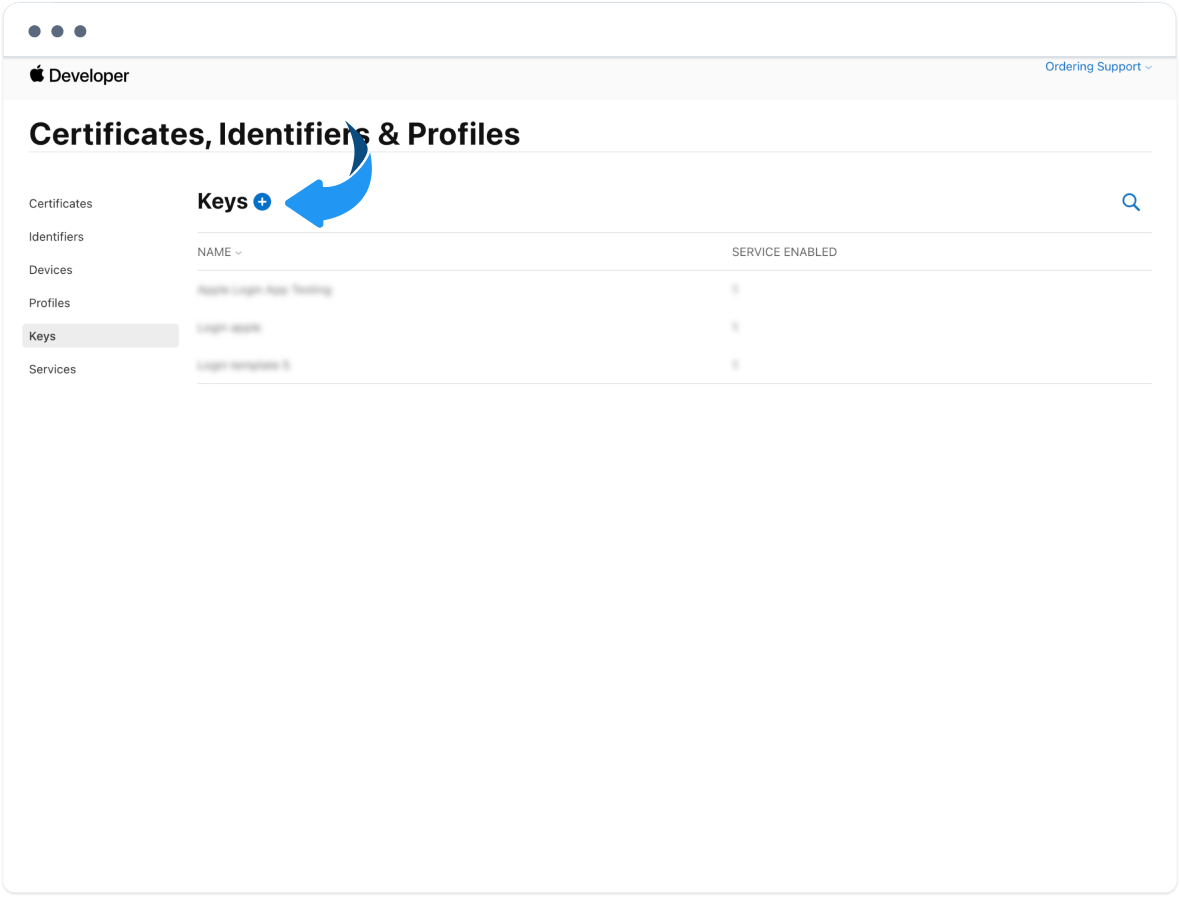
Open Keys and select the blue + button.
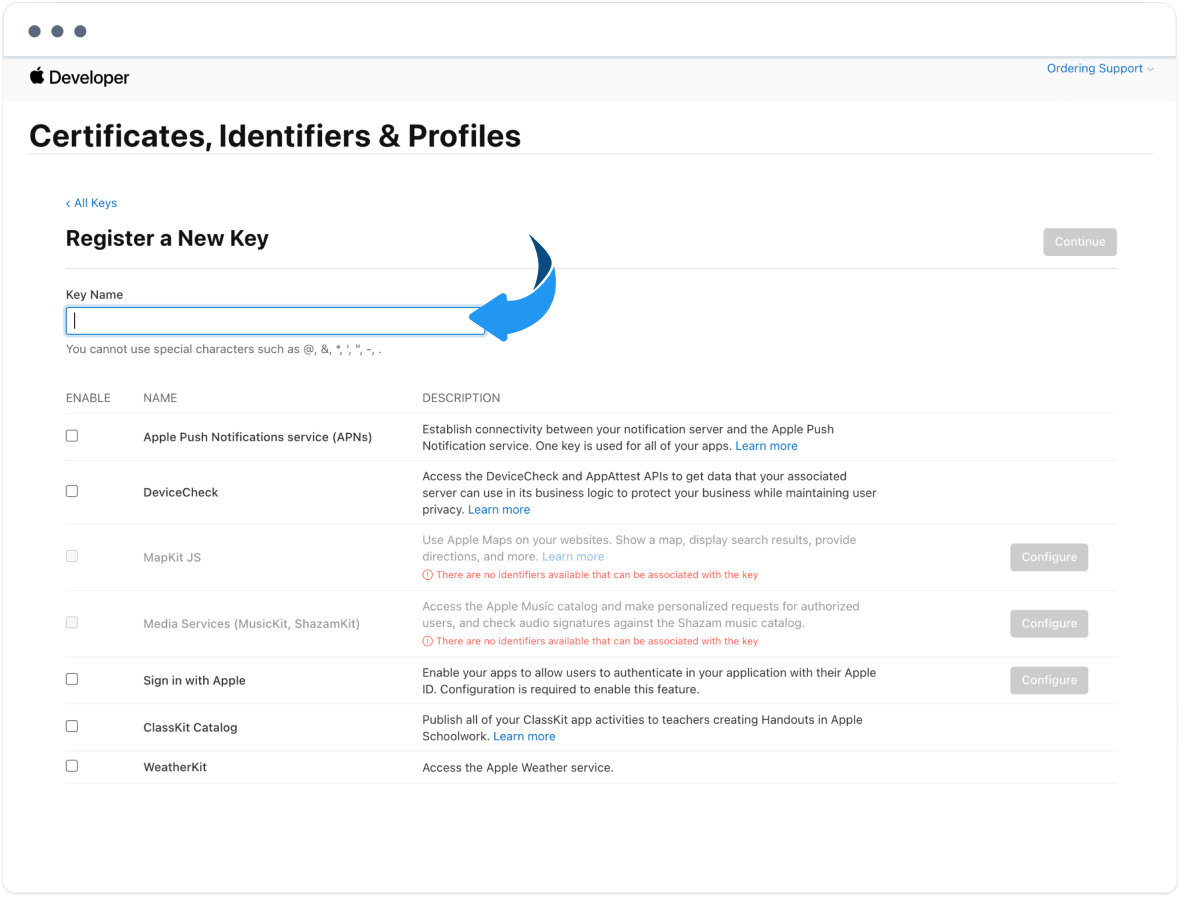
Enter a key name.
Select Sign in with Apple, then Configure.
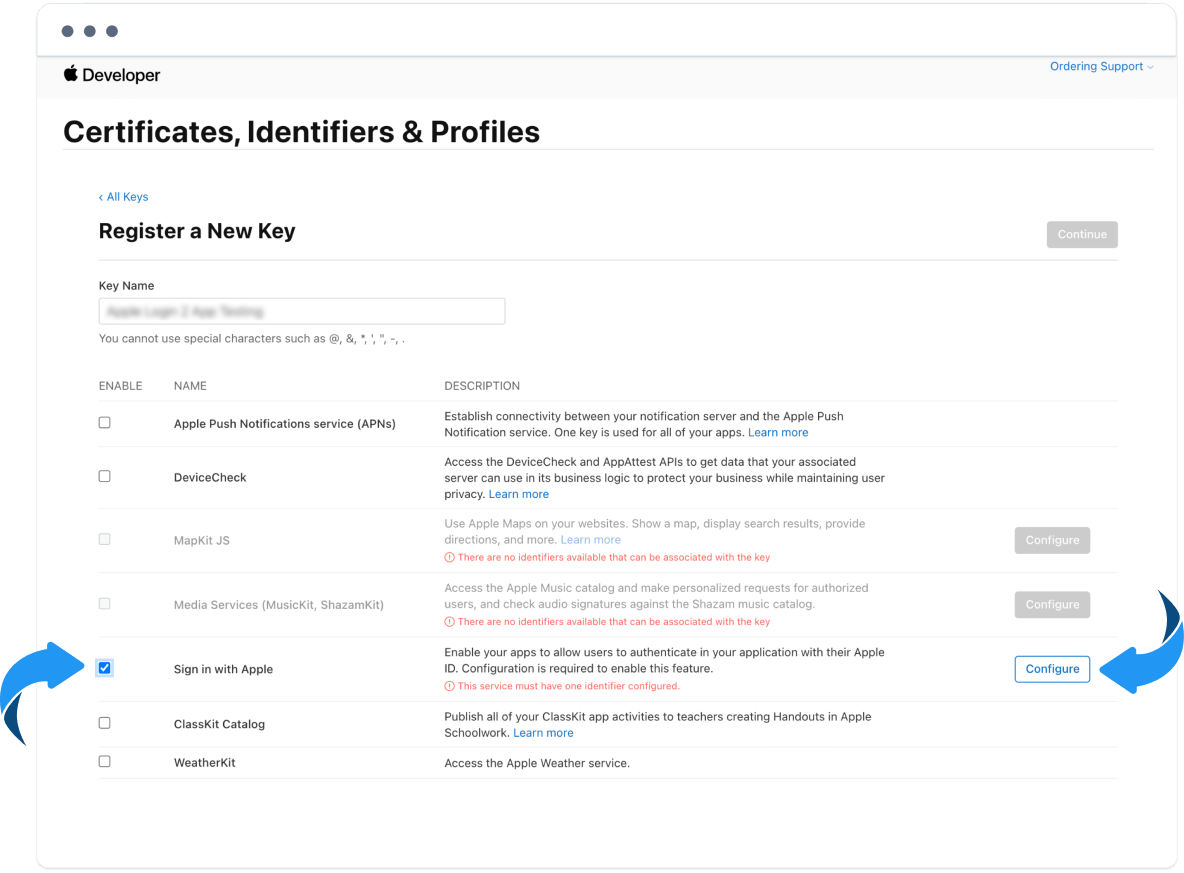
Select the app registered in Step 1, then continue and Register.
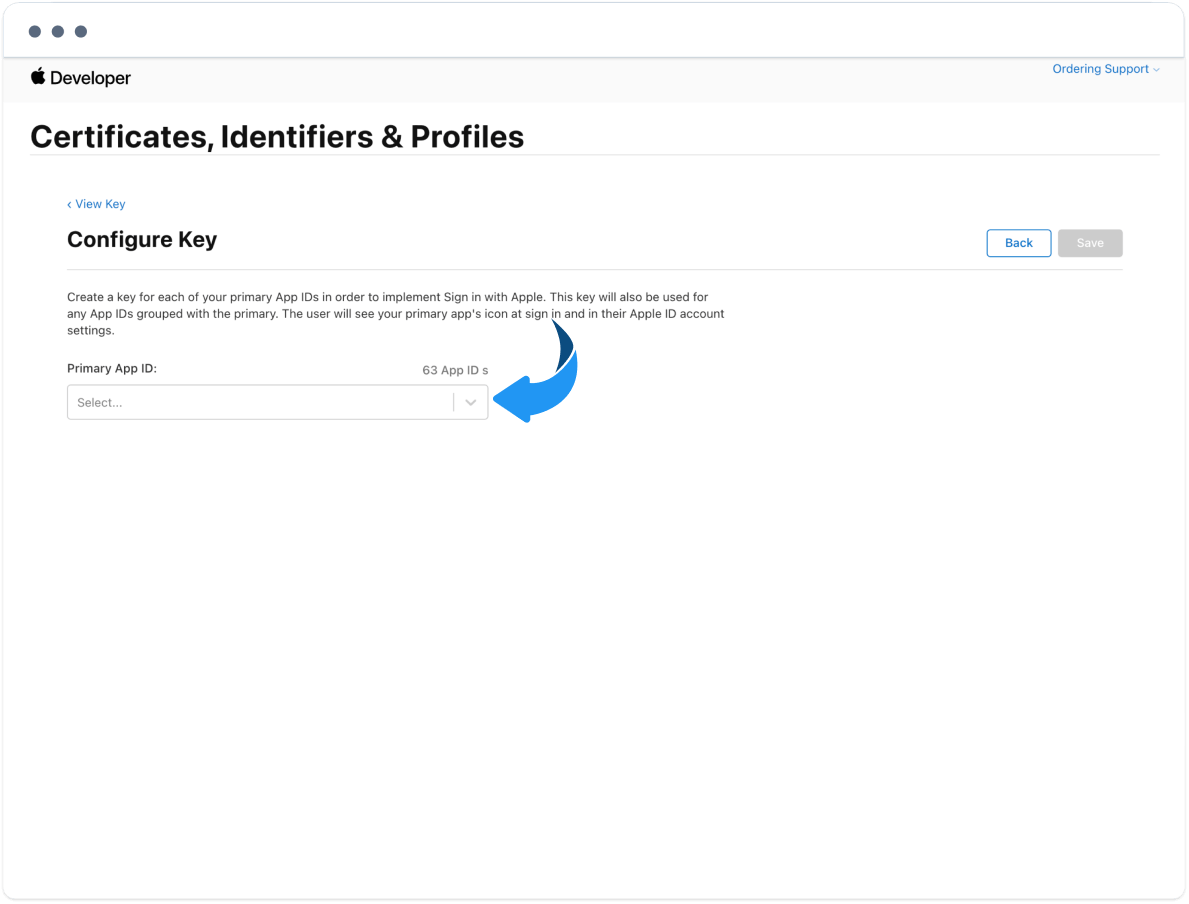
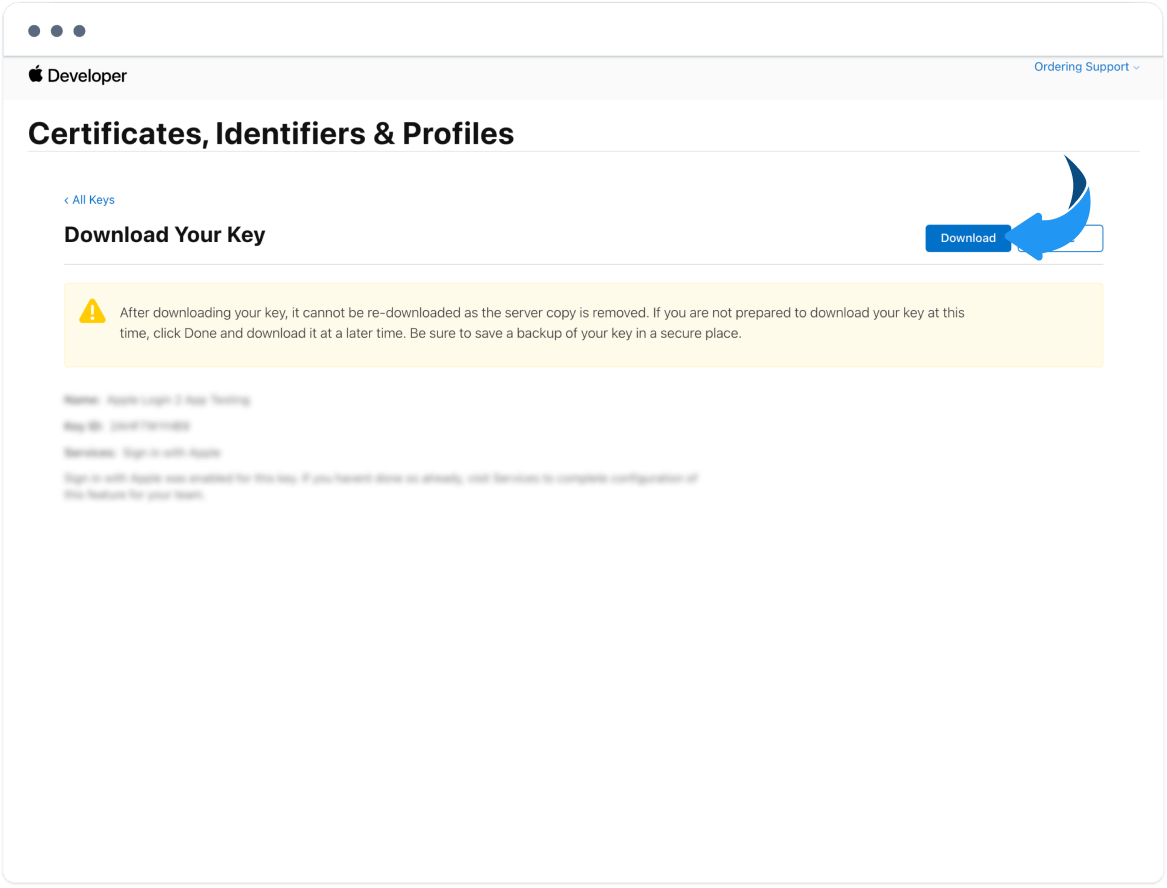
Download the key file and store it. Apple lets you download it once.
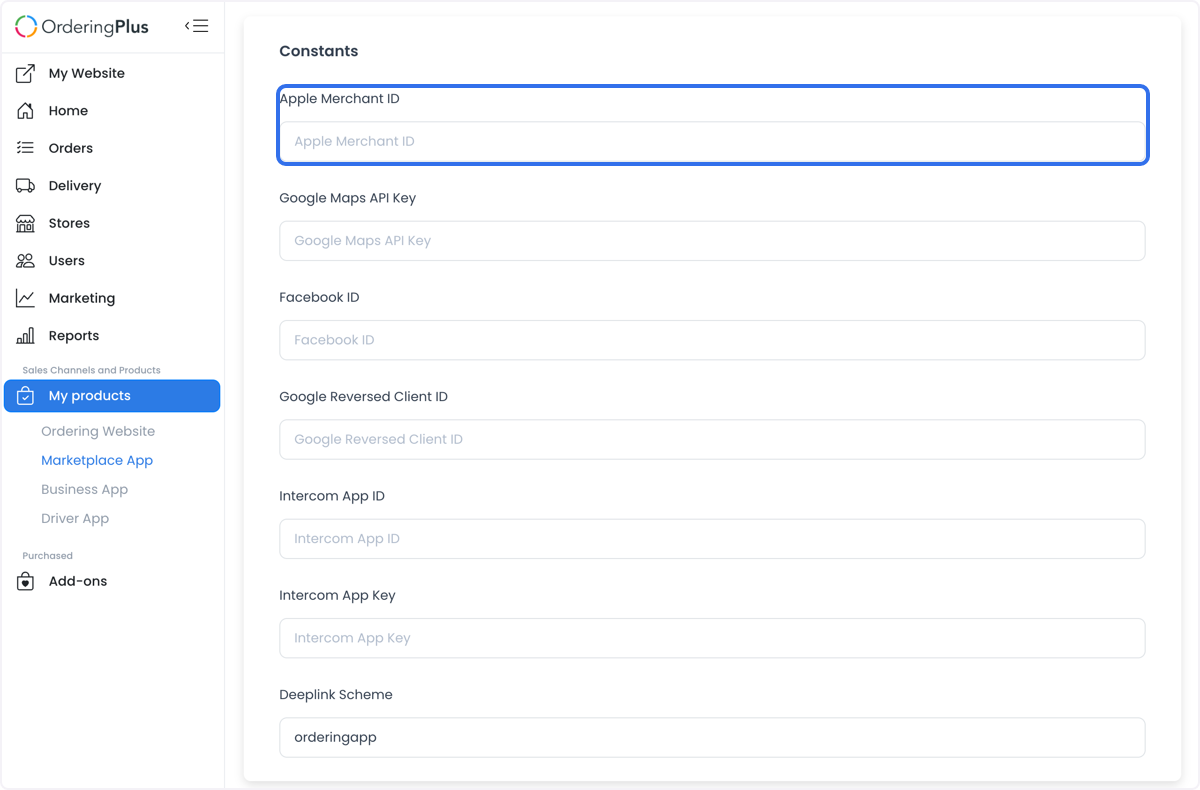
Add Apple Merchant ID on the Customer App
In the Ordering.co Dashboard, open Products → Customer App and add Apple Merchant ID. Use the format Team ID + app identifier, for example LXXXXXXXXF.com.demo.orders.
Prepare the private key file
Open the downloaded .p8 file.
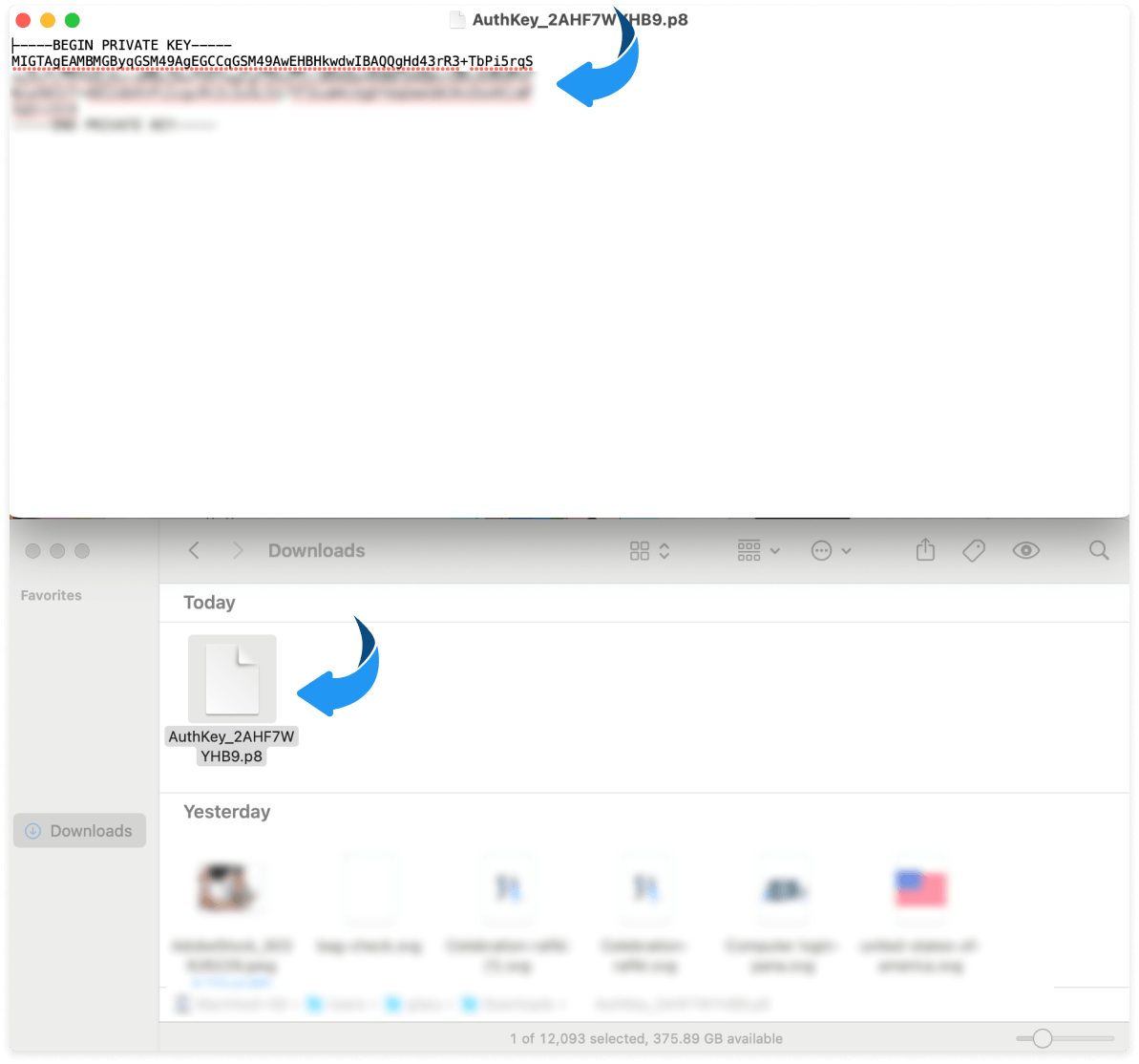
Delete the first and last lines (the BEGIN and END wrapper).
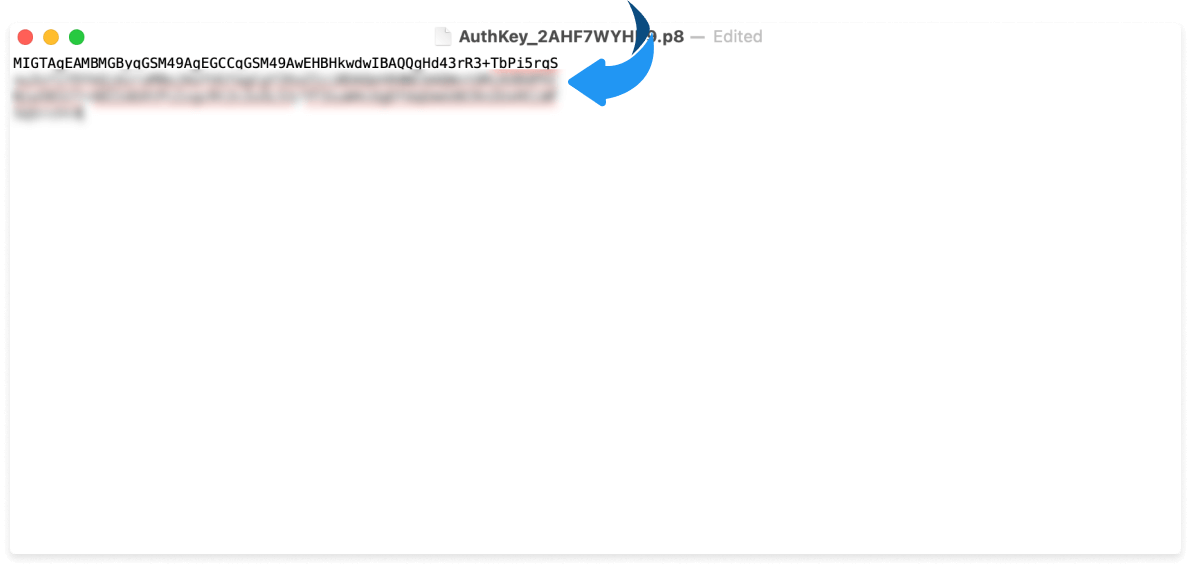
Collapse the remaining lines into a single line (remove the spaces between lines) and copy it.
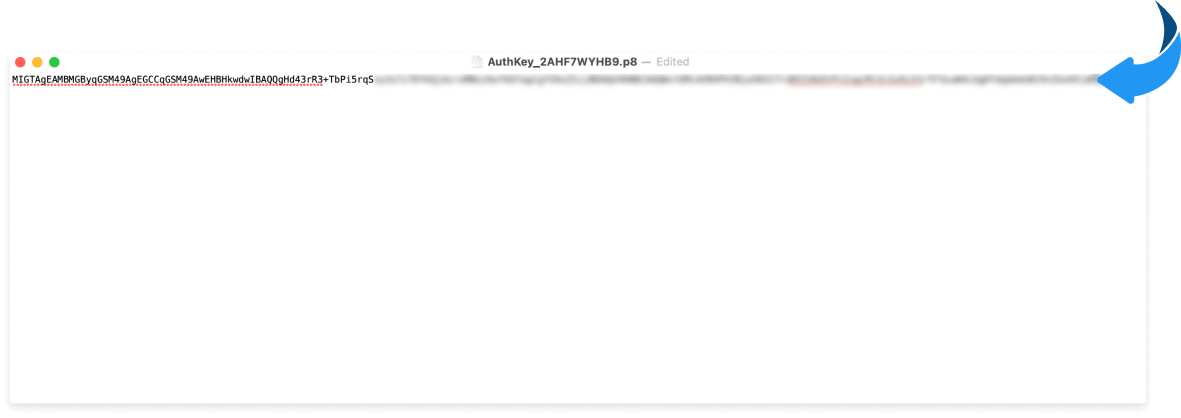
Treat that string as a secret. Do not paste it into tickets or chat.
Add the keys in Social login options
Open Settings → Pro → Social login options → Apple Sign-in.
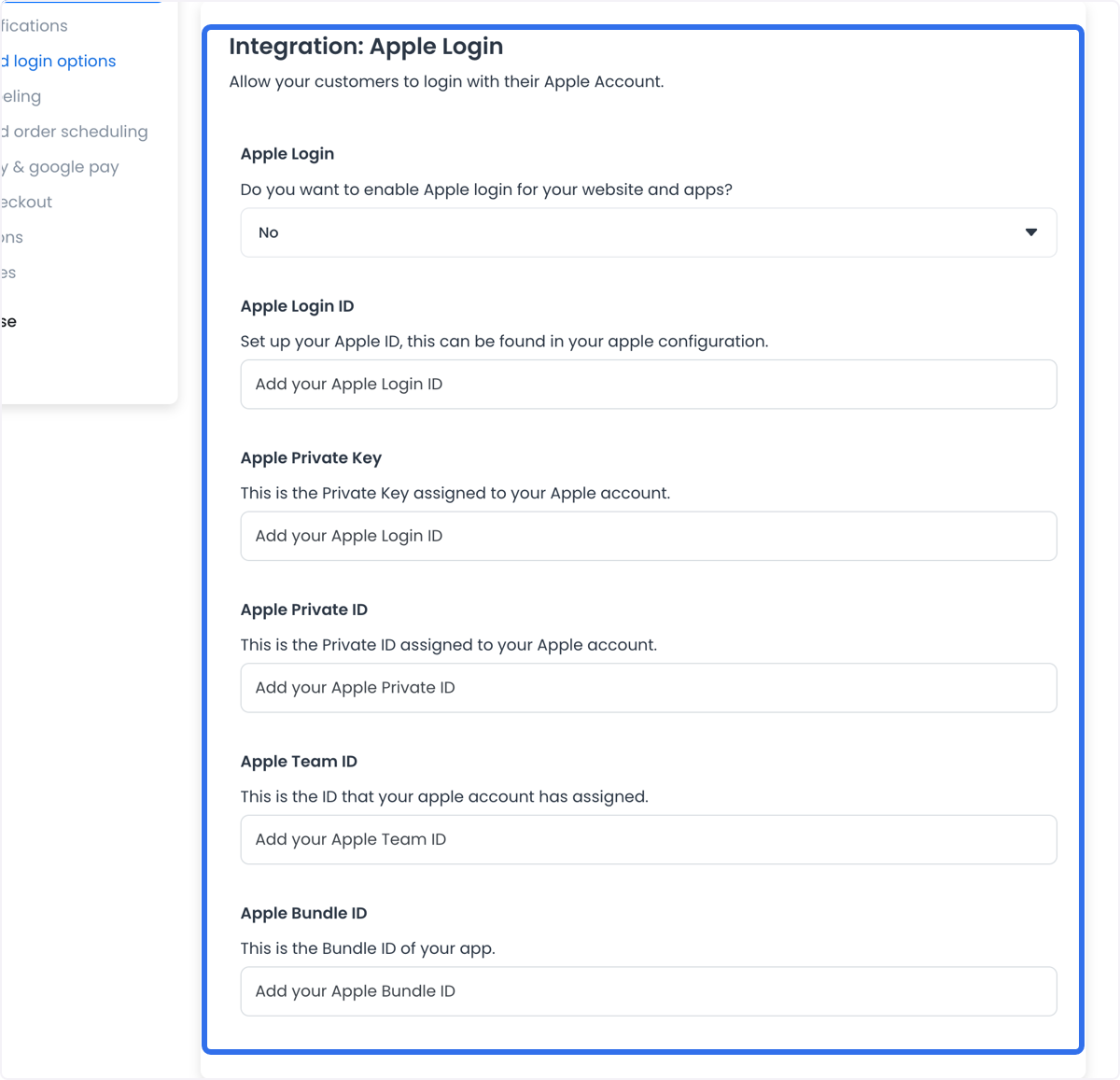
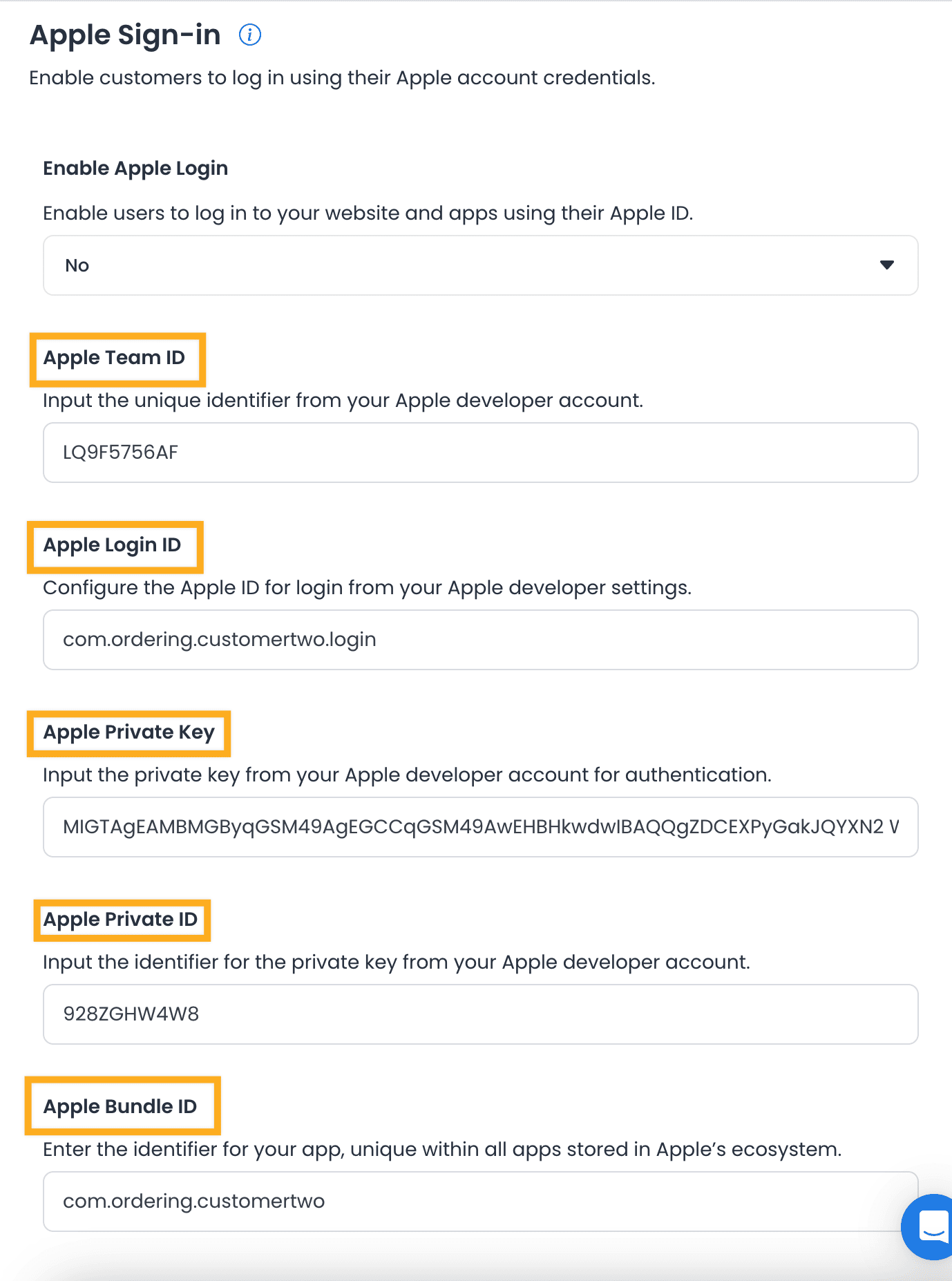
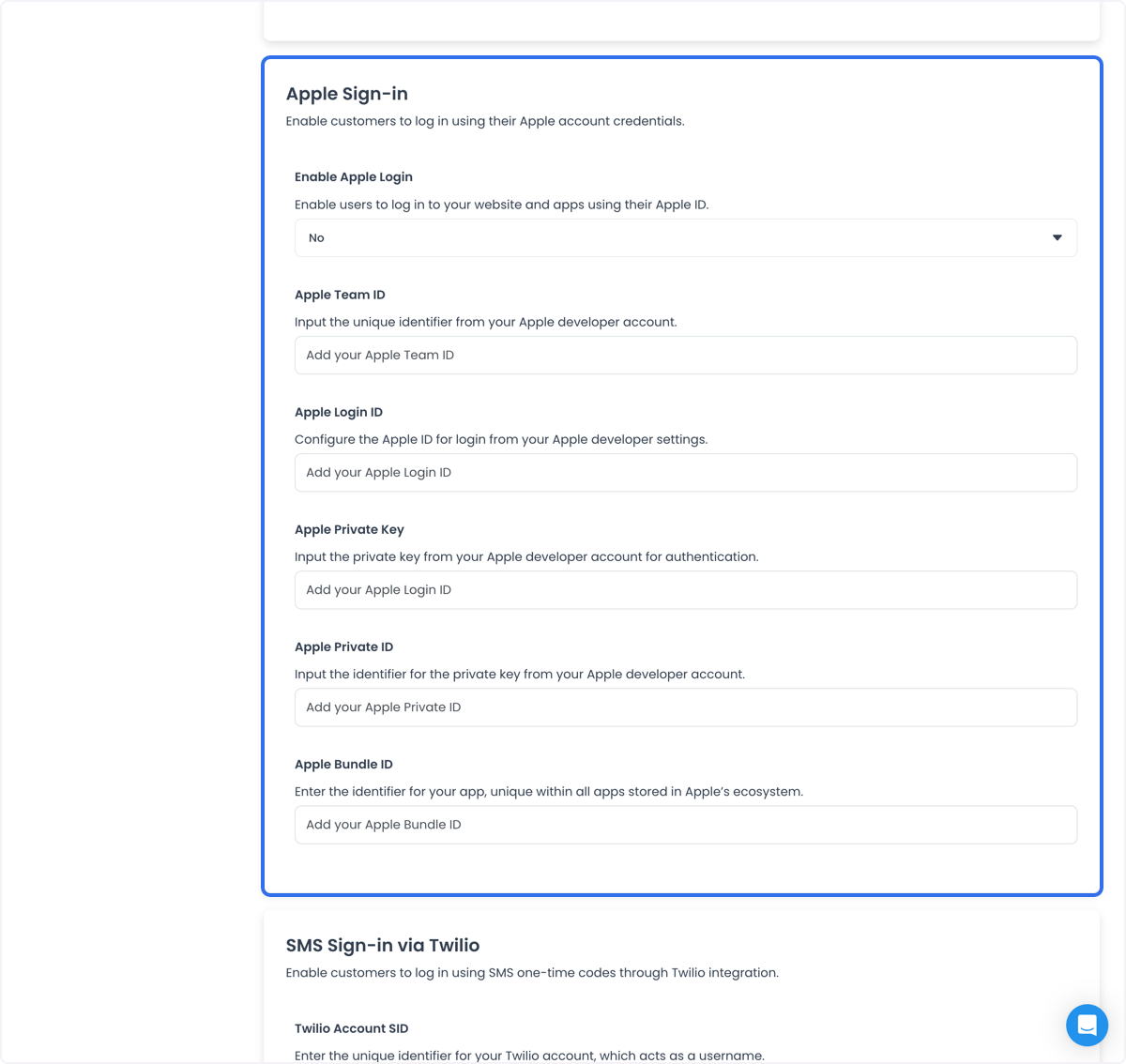
Apple Private Key
Paste the single-line contents of the downloaded key into Apple Private Key.
Apple Private ID
In Apple Developer, open Keys, select the key you created, copy Key ID, and paste it into Apple Private ID.
Apple Bundle ID
This is the identifier of the app package. In Identifiers, open the app you created, copy Bundle ID, and paste it into Apple Bundle ID.
Apple Login ID
Copy the Identifier from the Services ID and paste it into Apple Login ID.
Also enter Apple Team ID from the Apple Developer membership details.
Enable Apple Login
Set Enable Apple Login to Yes so the Customer App can show Sign in with Apple. Saving the credential fields without this toggle leaves the button hidden. Enabling the toggle does not by itself complete an Apple sign-in.
For the product overview, see Sign in with Apple on Ordering.co.