Social login options
Offer customers a faster way to register and sign in. Social login, email OTP, and phone OTP reduce extra credentials, keep the storefront available, and let you choose which authentication methods appear on the website and apps.
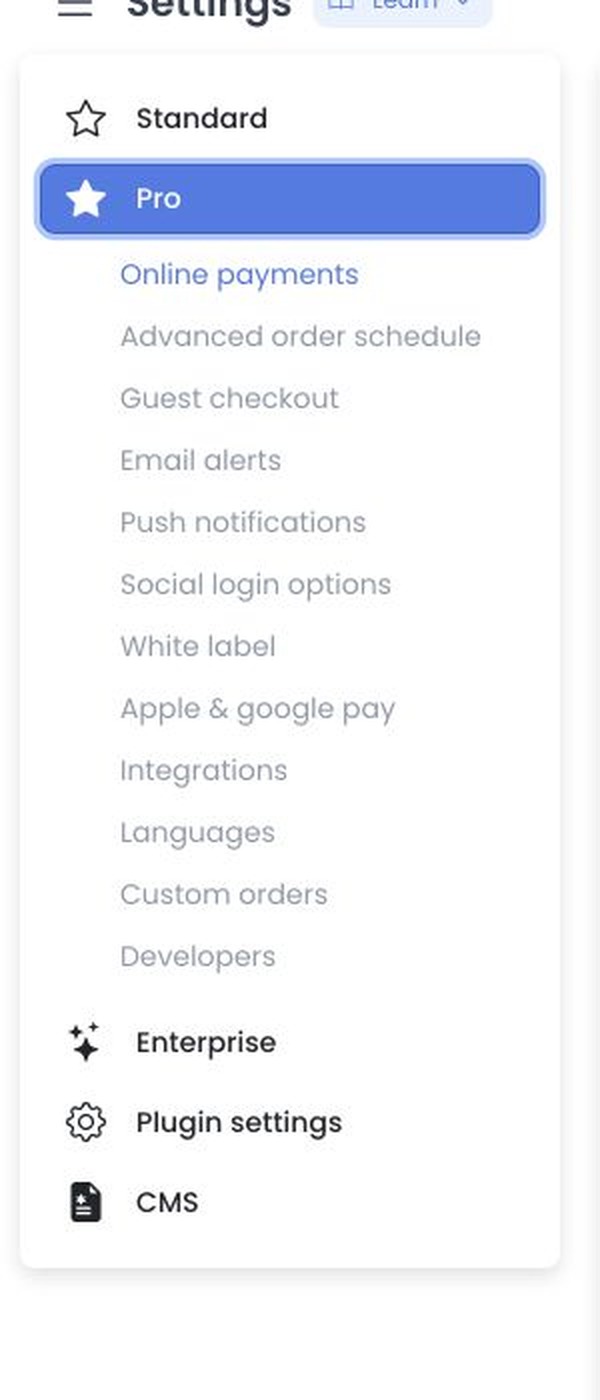
Open Settings → Pro → Social login options. The Pro item is the Dashboard category that contains this control. Presence of the category does not by itself mean Facebook, Google, Apple, or Twilio is live for customers.
Treat App IDs, client IDs, client secrets, private keys, tokens, redirect URLs, and callback URLs as sensitive. Do not paste them into tickets, chat messages, or other shared records. Saving a field in the Dashboard only confirms that Ordering.co accepted the configuration. It does not prove that the provider approved the app, completed Live mode, or signed a customer in.
Benefits
- Convenience: Customers sign in with an account they already use instead of creating another password.
- More registrations: Multiple login methods let people choose email, phone, or a social account.
- Security features from the provider: Facebook, Google, and Apple apply their own authentication controls. That does not replace your Dashboard session settings.
- Smoother storefront: Returning customers can enter without recalling a marketplace-only password.
Related procedures
Use these guides to create provider apps and paste the resulting credentials:
Facebook Sign-in
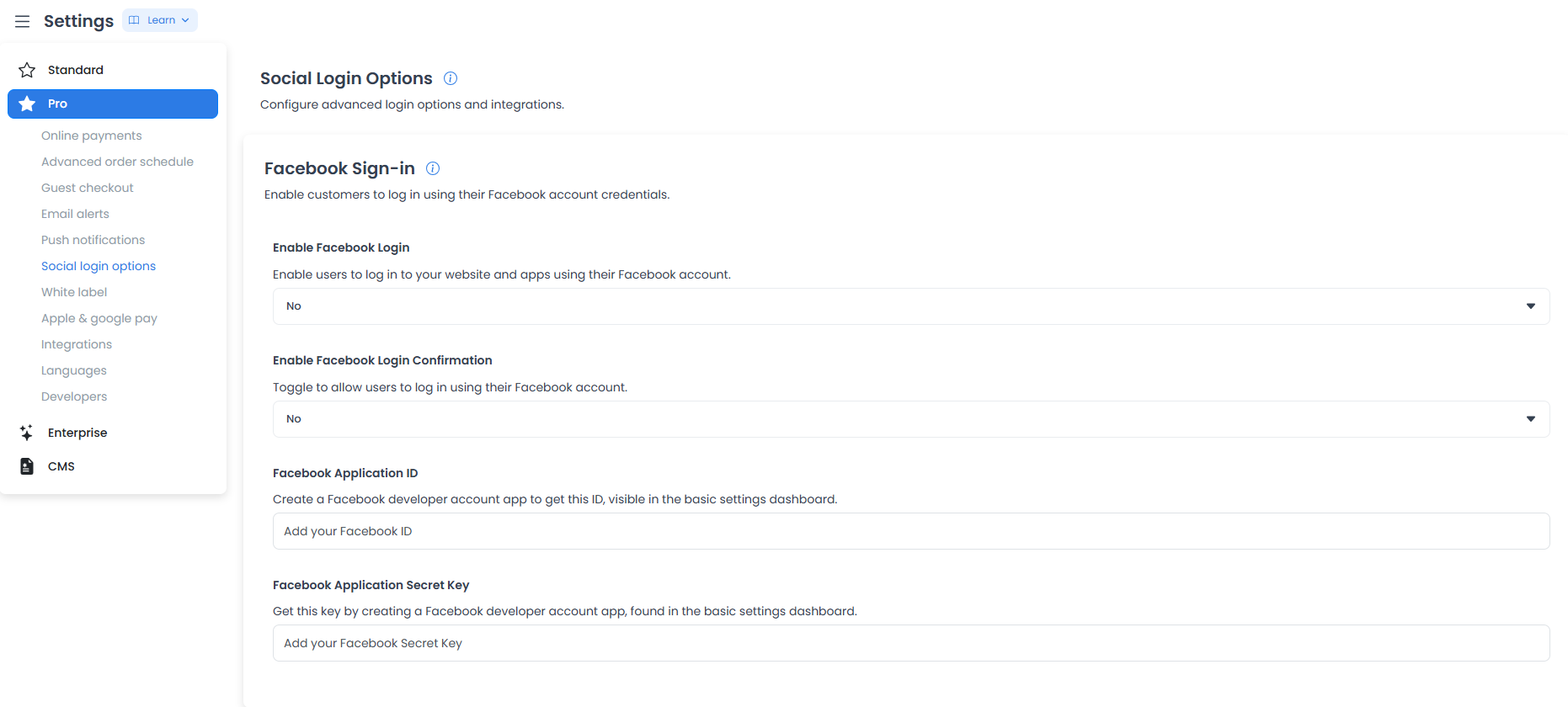
Enable customers to log in with their Facebook account. Complete the Facebook app first; this page only records the Dashboard fields. See Set up Facebook login.
Enable Facebook Login
Controls whether Facebook login is available.
- Yes: The Login with Facebook button is active and visible on the website and apps.
- No: The Facebook login option is disabled and hidden.
Enable Facebook Login Confirmation
Controls whether the customer must review information after Facebook authenticates them.
- Yes: After Facebook connects, a confirmation screen appears so the customer can review or complete missing information (for example, a phone number) before the account is finalized.
- No: The customer is logged in immediately. Ordering.co creates the account from the data Facebook provided, without that extra step.
Facebook Application ID
Enter the App ID from Facebook Developers under the app's basic settings.
Facebook Application Secret Key
Enter the App Secret from the same basic settings. This value authorizes the connection. Keep it private.
Google Sign-in
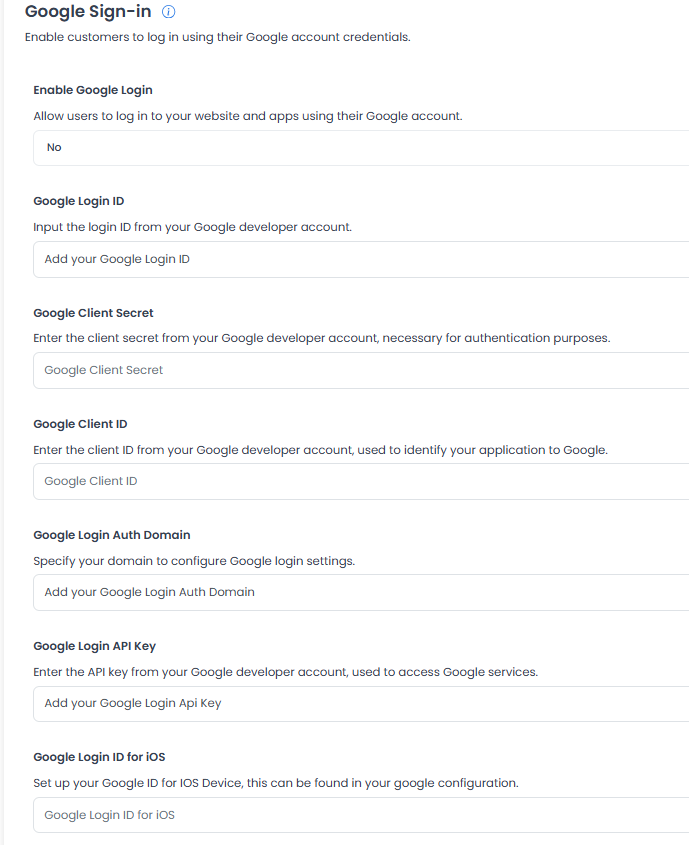
Allow customers to log in or sign up with a Google account. Create the Firebase / Google project first. See Set up Google login.
Enable Google Login
- Yes: The Login with Google button appears on the website and mobile apps.
- No: Google login is disabled and hidden.
Google Login ID
Enter the login ID from the Google / Firebase project. The website procedure uses the Firebase Web Client ID in this field.
Google Client Secret
Enter the Client Secret generated in the Google project. Ordering.co uses it for the authentication exchange with Google.
Google Client ID
Enter the Client ID that identifies this application to Google.
Google Login Auth Domain
Enter the authorized domain for the project (for example, yourplatform.com). It must match the domain configured for Google sign-in so the login window can open.
Google Login API Key
Enter the API Key from the Google / Firebase project.
Google Login ID for iOS
Enter the Google login ID required for Apple devices. Copy it from the iOS app configuration in the Google project (GoogleService-Info.plist / iOS client).
Apple Sign-in
Enable Sign in with Apple. This method is especially relevant for iOS app customers. Create the App ID, Services ID, and key in Apple Developer first. See Set up Apple login.
Enable Apple Login
- Yes: The Sign in with Apple button is active and visible on the website and apps.
- No: Apple login is hidden.
Apple Team ID
Enter the 10-character Team ID from Apple Developer membership details.
Apple Login ID
Enter the Services ID (Login ID) created in Apple Developer for this website or app.
Apple Private Key
Enter the private key generated in Apple Developer. Ordering.co uses it for the server handshake with Apple. Keep it private.
Apple Private ID
Enter the Key ID that belongs to that private key.
Apple Bundle ID
Enter the app Bundle ID (for example, com.yourbusiness.app). It must match the identifier registered with Apple.
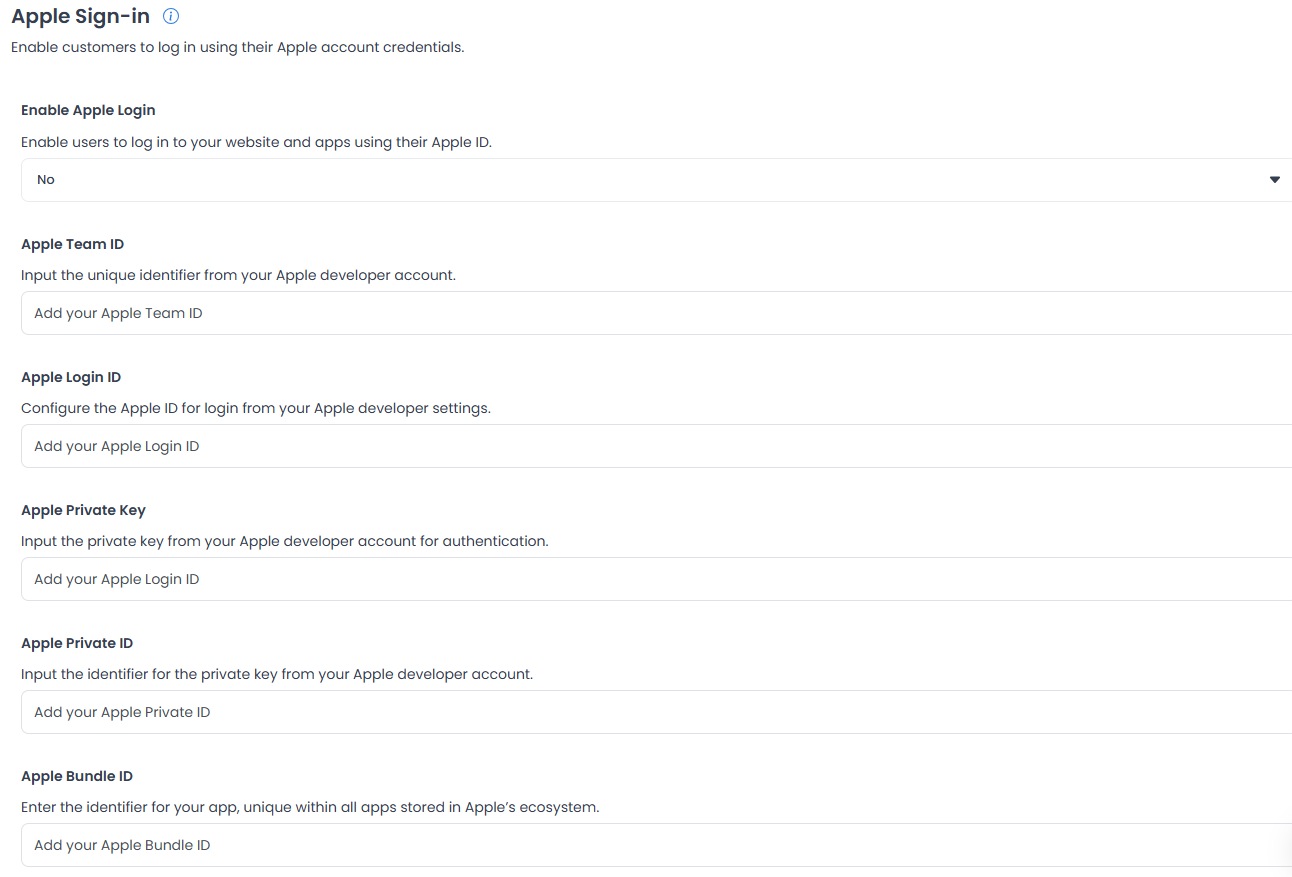
Setting Enable Apple Login to Yes after the credential fields are filled is what shows Apple login on the Customer App. Saving the keys alone does not complete a Sign in with Apple session.
SMS Sign-in via Twilio
Allow customers to log in or sign up with one-time passwords sent by SMS or WhatsApp. You need an active Twilio account. See Set up Twilio OTP for where each value comes from in the Twilio Console.
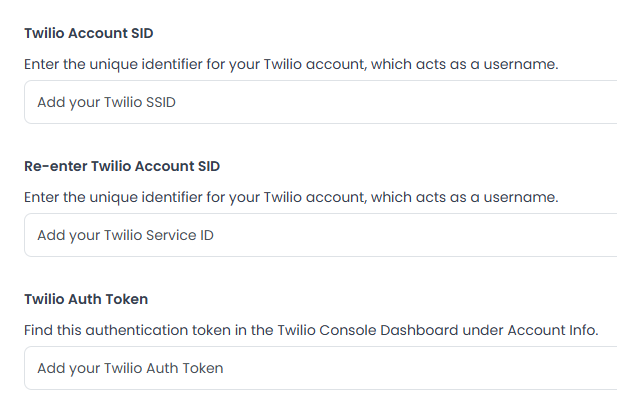
Twilio account credentials
- Twilio Account SID: Enter the Account SID. Twilio treats this as the account username.
- Re-enter Twilio Account SID: Type the Account SID again (the field may also be labeled for a Service ID) so a typo does not ship.
- Twilio Auth Token: Enter the Auth Token from the Twilio Console Account Info pane.
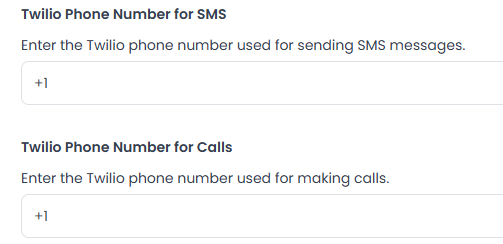
Phone number configuration
- Twilio Phone Number for SMS: The Twilio number authorized to send SMS.
- Twilio Phone Number for Calls: The Twilio number used when voice verification is enabled. You can use the same number for SMS and calls.
OTP settings
Choose how customers use SMS and WhatsApp one-time passwords.
Enable Login with SMS OTP
- Yes: Existing users can log in by entering their phone number and receiving a verification code by SMS.
- No: Users must use another login method (email or social accounts).
Enable Signup with SMS OTP
- Yes: New users can create an account with only a phone number and an SMS verification code.
- No: Registration via SMS OTP is disabled.
Enable WhatsApp OTP
- Yes: Ordering.co sends the verification code via WhatsApp instead of (or in addition to) standard SMS.
- No: WhatsApp verification is disabled.
Twilio WhatsApp configuration
- Twilio WhatsApp Number: The phone number Twilio has approved for sending WhatsApp messages. Every WhatsApp message is sent from this number.
- Twilio WhatsApp Template SID: The Content SID of the pre-approved WhatsApp template used for verification codes. Twilio and Meta require an approved authentication template for WhatsApp Business API traffic.
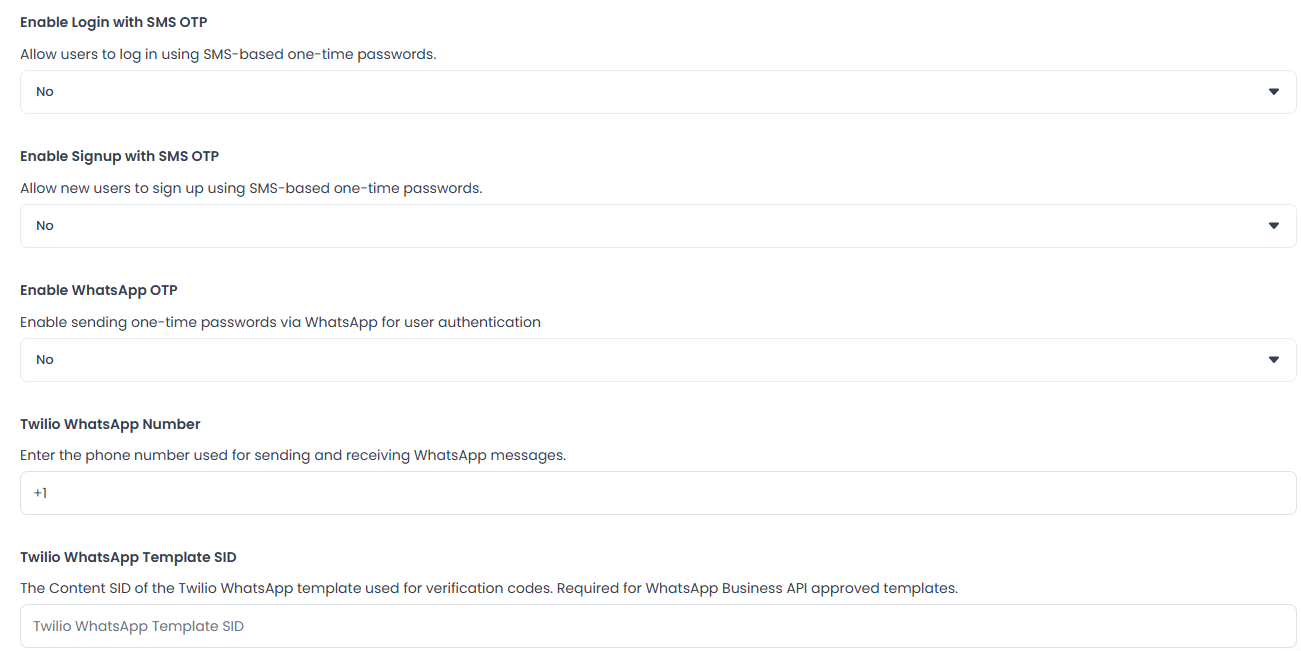
After these Twilio fields are configured, the selling tools ask for a verification code before they let a user log in or sign up. Filling the fields does not by itself prove that Twilio delivered an SMS or WhatsApp message.
Other login options
Customize email, password, OTP, and session behavior. These controls are independent of Facebook, Google, and Apple.
Enable Signup with Full Details
- Yes: New users must provide email, mobile phone number, and a password.
- No: Registration requirements are reduced, depending on the other active settings.
Enable Signup with Email OTP
- Yes: New users can sign up by receiving a temporary code in email, without setting a password first.
- No: Email OTP registration is disabled.
Enable Login with Email and Password
- Yes: Users can log in with their registered email and password.
- No: This method is hidden; users must use social login or OTP.
Enable Login with Mobile Phone and Password
- Yes: Users can log in with their mobile phone number and password.
- No: Mobile phone login is disabled.
Enable Login with Email OTP
- Yes: Existing users can request a one-time code sent to their email instead of using a password.
- No: Users must use a password or social login.
Login: Block mono session user
Prevents the same user from holding more than one active session.
- Yes: Ordering.co blocks a login attempt if that user already has an active session on another device.
- No: Users can stay logged in on multiple devices at the same time.
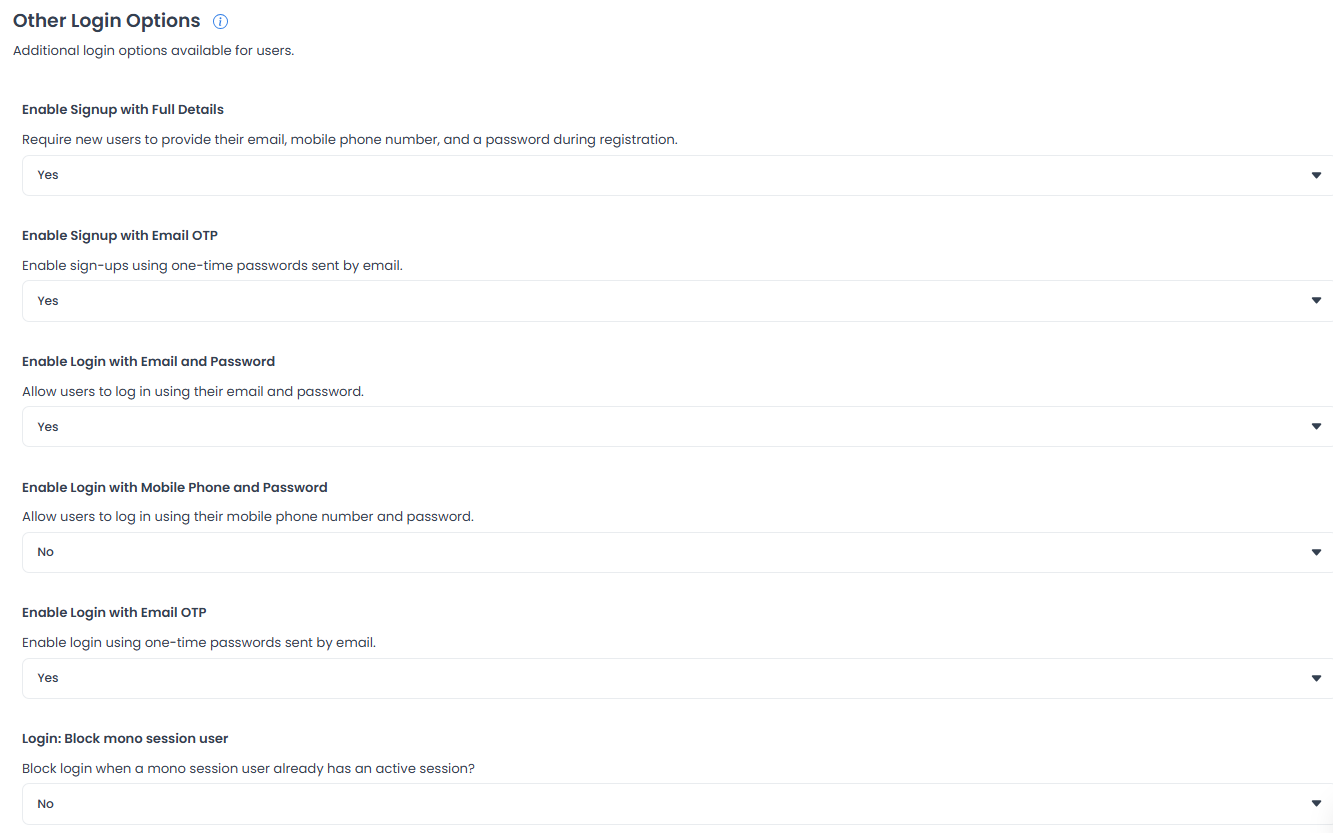
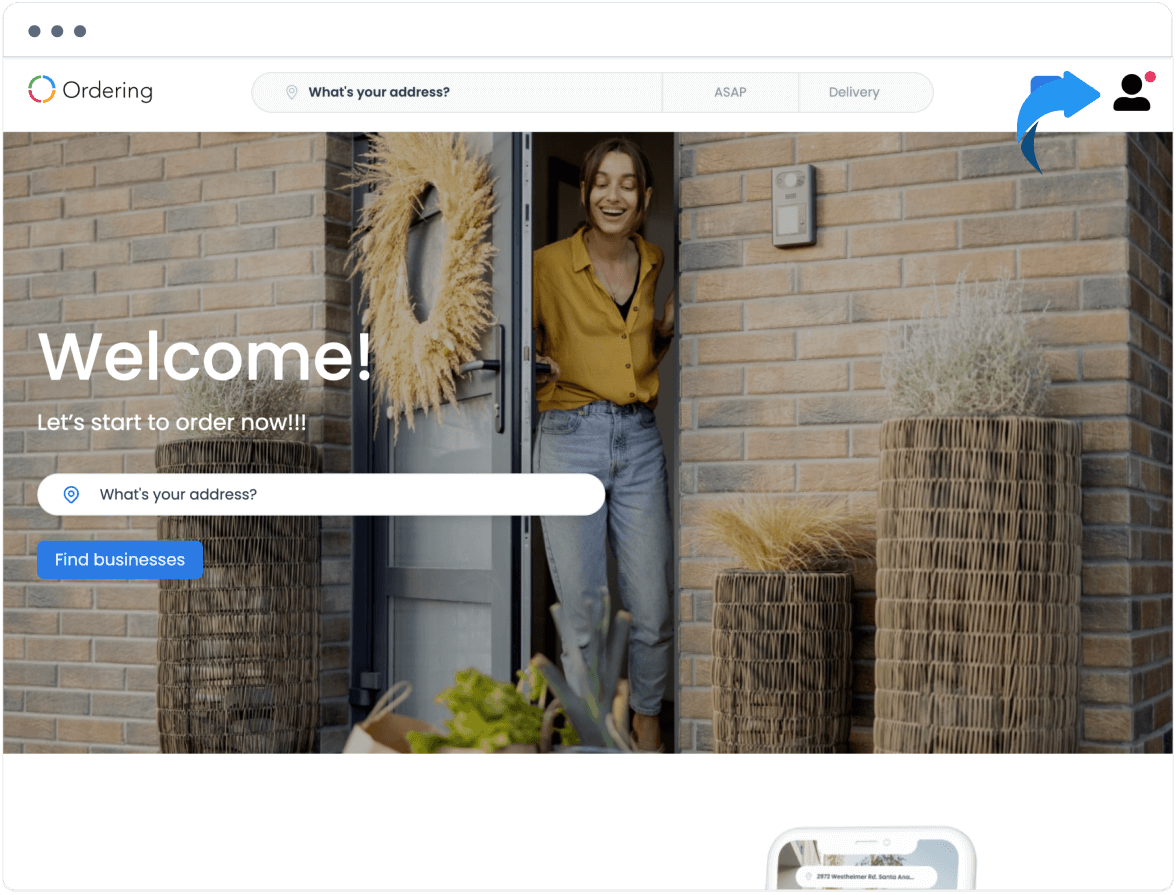
Enable email and phone OTP on the storefront
Turn the intended OTP options on in Other Login Options, then save.
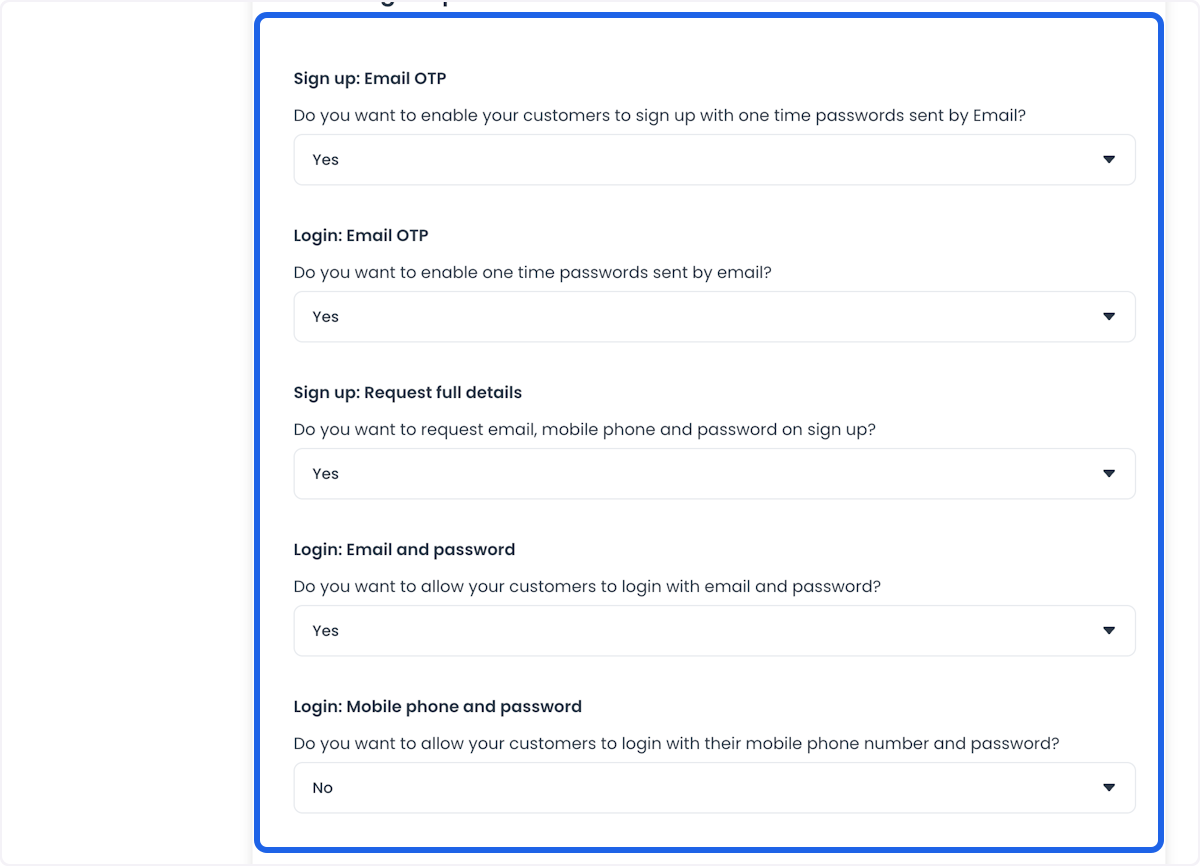
When those options are enabled, frontend products can show the matching login and signup paths. Enabling a toggle does not by itself send a code.
How email OTP looks
The customer enters an email, accepts the terms and conditions, and selects Get verify code. Ordering.co sends a code to that email. If the message is slow to arrive, the customer should check the spam folder, then enter the code in the popup to finish registration.
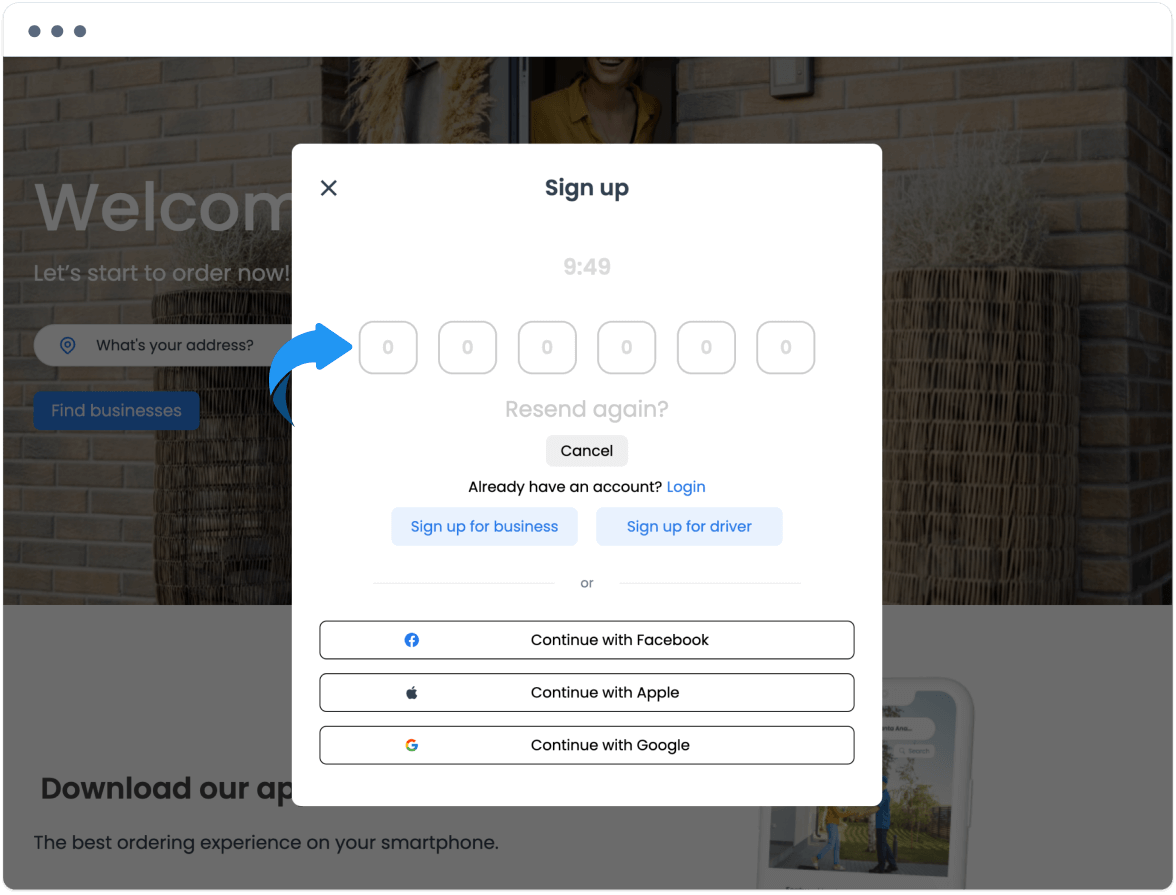
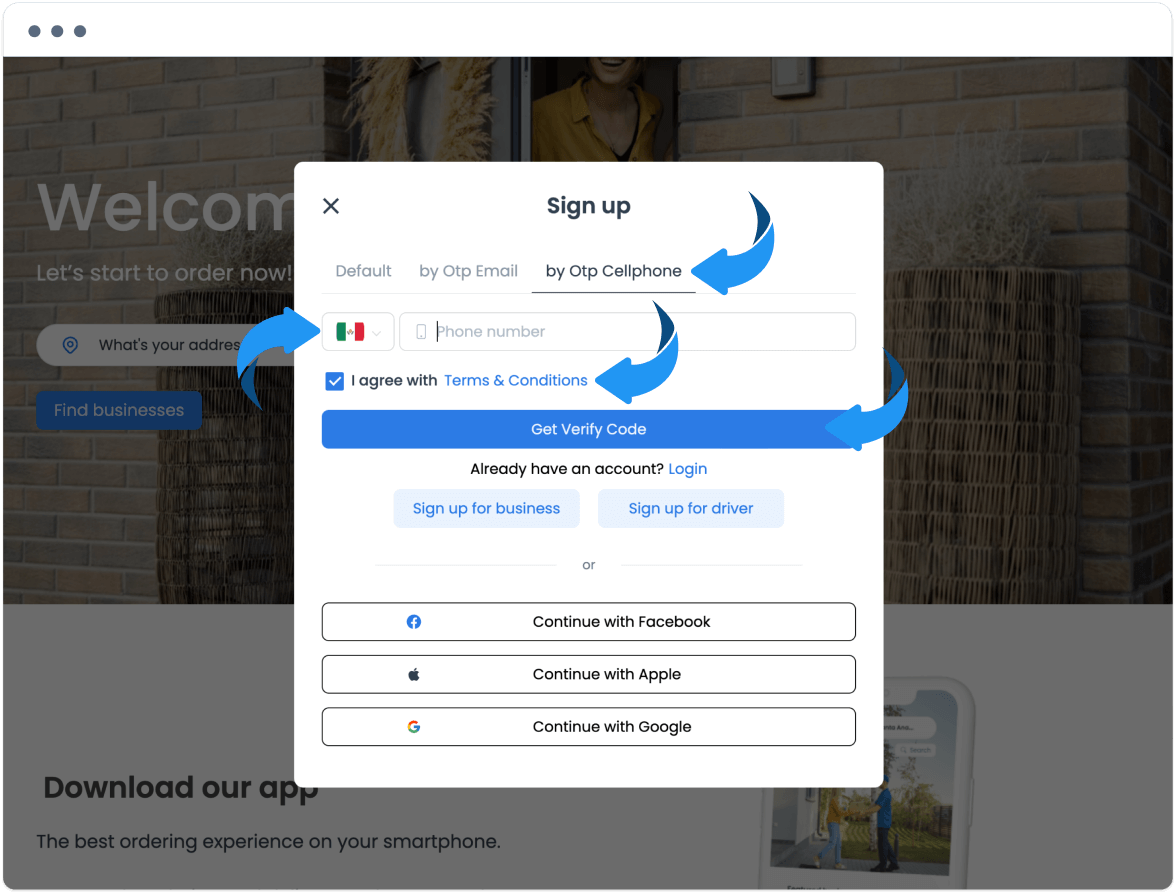
How phone OTP looks
OTP by Phone follows the same pattern: the customer enters a phone number instead of an email and receives the code in a message.
The same verification popup collects the code.
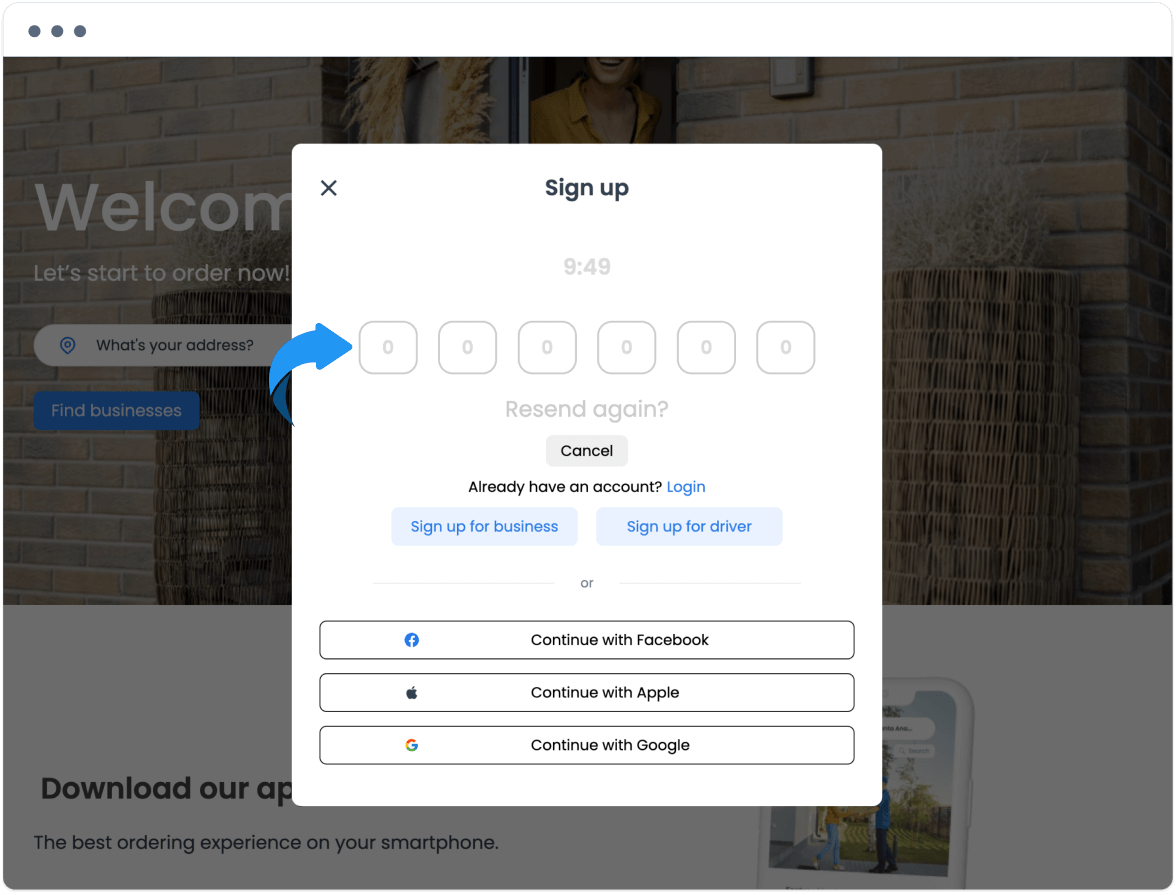
After a successful verification, the customer is registered and the storefront shows the signed-in account.
Practical configurations
- Match the method to the audience: Offer social login, email OTP, and phone OTP together when customers arrive from mixed channels.
- Reduce abandoned signup: Keep the enabled methods short. A confirmation screen (Facebook) or full-details signup adds fields; use them when you need the extra data.
- Personalize later campaigns: Social login can supply basic profile data the provider shares. That is not the same as running ads from this page.
- Limit concurrent sessions: Turn Login: Block mono session user on when account sharing is a risk.
Conclusion
Configure the Dashboard fields here, then finish each provider in its own console. Multiple login methods make registration easier and let you choose email, phone, Facebook, Google, Apple, or Twilio OTP. A saved configuration is ready for the storefront to read; confirm the live sign-in on the website or app before you treat the method as working.
For an overview of every sign-in and protection option, see login and security integrations on Ordering.co.
Related guides: Settings overview · Settings logs