Push notifications
Connect OneSignal and choose which order-status events notify administrators, business owners, customers, and drivers. Open Settings → Pro → Push notifications. Pro is the Dashboard category that contains this page. Presence of the category does not mean OneSignal is live, that a device registered a token, or that a notification was delivered.
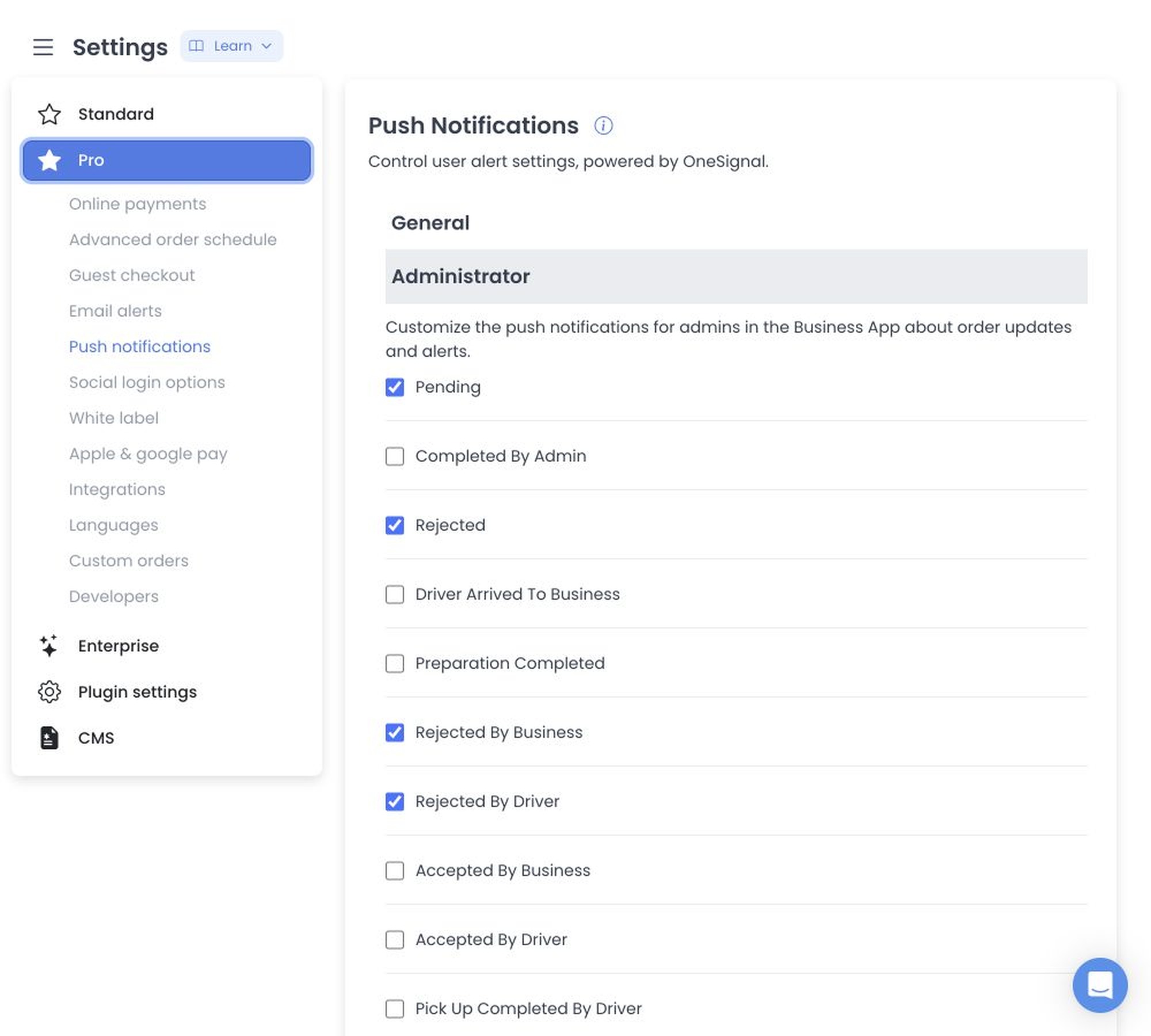
The page groups configuration into General, Administrator, Business, Customer, and Driver. Recipient sections let you select the order-status triggers each group can receive. General controls can be text, select, or protected-password inputs depending on the project.
Treat OneSignal App IDs and REST API keys as sensitive. They authorize sending messages to your user base. Do not paste them into tickets, chat messages, or other shared records. Saving a field only confirms that Ordering.co accepted the configuration. It does not prove a registered device token, user permission, queued notification, or delivery.
Changes are staged, then saved one configuration at a time. A later failure can leave an earlier update stored. Reload the page and confirm every field you changed before you retry.
Create the OneSignal apps and copy the IDs and keys in Set up OneSignal.
Related procedures
General
Link the platform with OneSignal so automated alerts can be sent to administrators, business owners, drivers, and customers.
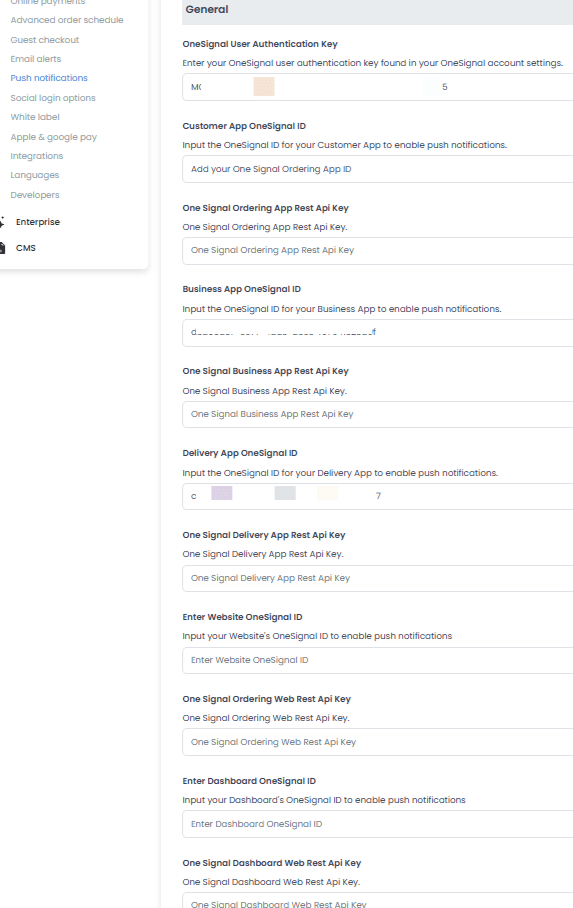
OneSignal credentials
Enter the App ID and REST API key for each application environment. Repeat the OneSignal setup for every app that should receive pushes.
| Field | Description |
|---|---|
| OneSignal User Authentication Key | Obsolete. It is no longer required for the standard integration. |
| Customer App OneSignal ID | OneSignal project ID for the Customer mobile application. |
| One Signal Ordering App Rest Api Key | REST API key used to trigger notifications for the Customer app. |
| Business App OneSignal ID | Project ID for the Business/Owner mobile application. |
| One Signal Business App Rest Api Key | REST API key used for merchant-related alerts. |
| Delivery App OneSignal ID | Project ID for the Driver/Courier mobile application. |
| One Signal Delivery App Rest Api Key | REST API key used for delivery and logistics alerts. |
| Website OneSignal ID | ID used to enable web push in the browser. |
| One Signal Ordering Web Rest Api Key | REST API key for alerts on the web ordering platform. |
| Dashboard OneSignal ID | ID for notifications in the web administration panel. |
| One Signal Dashboard Web Rest Api Key | REST API key for Dashboard alerts. |
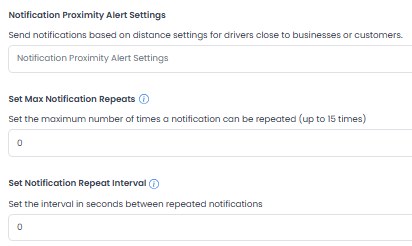
Proximity and frequency settings
These settings control physical triggers and how often a user is alerted.
- Notification Proximity Alert Settings: Distance radius (in meters or kilometers) that can trigger notifications when a driver is near a business or a customer.
- Set Max Notification Repeats: How many times a notification sound or alert repeats if it is not acknowledged (up to 15).
- Set Notification Repeat Interval: Duration in seconds to wait between each repeated notification. The interval is at least 15 seconds.
Saving a repeat count does not prove that a repeat job ran.
Role-based repeat controls
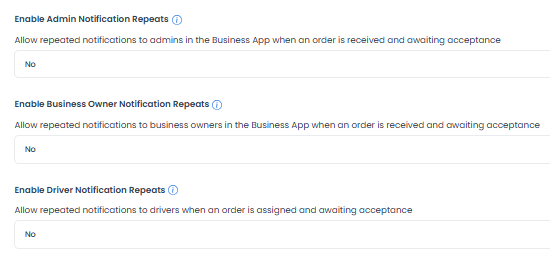
Toggle persistent alerts for specific user types when an order is pending acceptance:
- Enable Admin Notification Repeats: Repeats alerts for administrators in the Business app. Tooltips associate this control with Pending and Order Ready.
- Enable Business Owner Notification Repeats: Repeats alerts for store owners. Tooltips associate this control with Pending.
- Enable Driver Notification Repeats: Repeats alerts for drivers when an order is assigned and awaiting their response. Tooltips associate this control with Order Ready.
Interface and alternative channels
-
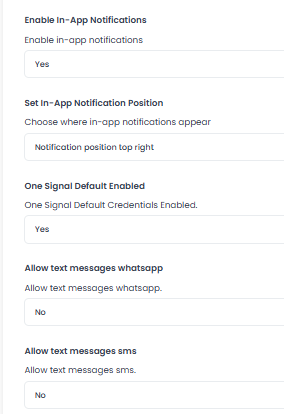
Enable In-App Notifications: If Yes, notifications can pop up while the user is actively using the app.
-
Set In-App Notification Position: Where on the screen the alert appears (for example, Notification position top right).
-
One Signal Default Enabled: Whether the platform's default credentials should be active.
Set this to No to use your own OneSignal App IDs and REST API keys. If it stays Yes, custom credentials are ignored and notifications may not be delivered. Changing this value can delete stored Dashboard web notification-token rows before the config response completes. Confirm the setting before you save.
-
Allow text messages WhatsApp: Enables sending order-status updates or alerts via WhatsApp. This still requires additional external configuration.
-
Allow text messages SMS: Enables sending SMS text-message alerts. This still requires additional external configuration.
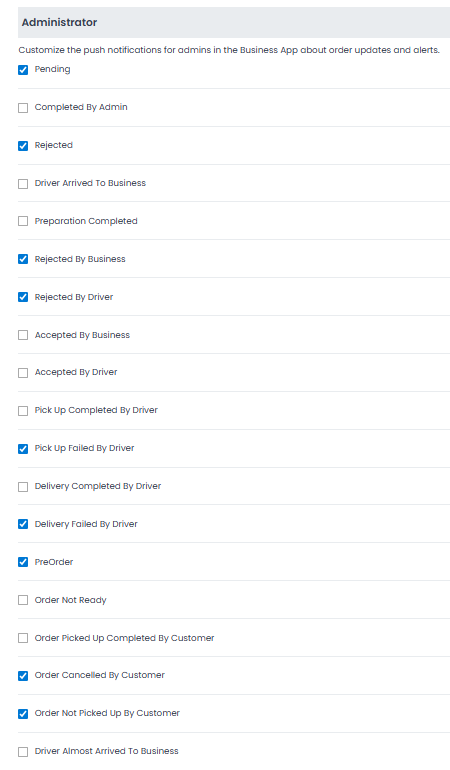
Administrator
After the OneSignal connection is in place, choose which events trigger a push to administrators and team members.
- Pending: New orders awaiting action.
- Completed By Admin: An administrator manually closes an order.
- Rejected: General order rejections.
- Driver Arrived To Business: Arrival for pickup.
- Preparation Completed: The kitchen or business has finished the order.
- Rejected By Business: Rejection from the store.
- Rejected By Driver: A driver declines an assigned task.
- Accepted By Business: The store has started the order.
- Accepted By Driver: A driver has taken the delivery task.
- Pick Up Completed By Driver: The order is in transit.
- Pick Up Failed By Driver: Issues during collection.
- Delivery Completed By Driver: Successful hand-off to the customer.
- Delivery Failed By Driver: Issues during the final drop-off.
- PreOrder: Scheduled future orders.
- Order Not Ready: Business signal for delays.
- Order Picked Up Completed By Customer: Curbside or pickup models.
- Order Cancelled By Customer: Immediate alert to stop operations.
- Order Not Picked Up By Customer: Abandoned pickup orders.
- Driver Almost Arrived To Business: Proximity alert for pickup.
- Driver Almost Arrived To Customer: Proximity alert for delivery.
- Customer Almost Arrived To Business: Pickup synchronization.
- Customer Arrived To Business: The customer is outside waiting.
- Driver Waiting For Order: A driver is at the store but the order is delayed.
- Driver Arrived To Customer: The driver is at the delivery location.
- Driver Assigned: A driver has been linked to the order.
- Driver Is Close: Proximity notification for logistics tracking.
- New Business Owner Signup: Notification for a new business-owner registration.
- New Driver Owner Signup: Notification for a new fleet member.
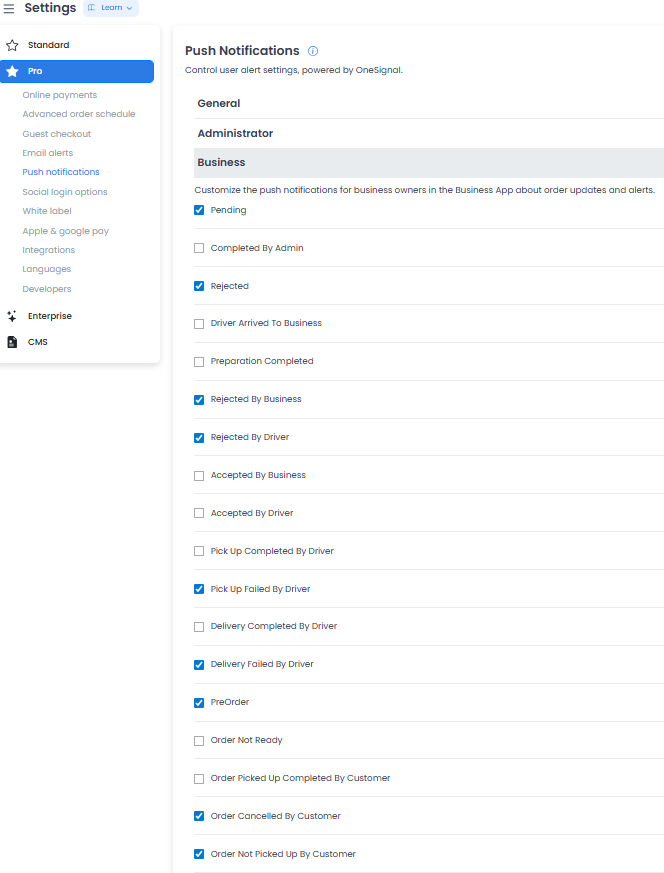
Business
Choose the pushes that Business Owners receive in the Business App.
- Pending: Alerts the business that a new order needs to be accepted.
- Completed By Admin: An admin closed an order from the back office.
- Rejected: General rejection alerts.
- Driver Arrived To Business: Staff can see that the driver is at the door for pickup.
- Preparation Completed: Confirmation that the order is ready for the driver.
- Rejected By Business: Log of the business's own rejections.
- Rejected By Driver: A driver drops the task so the store can watch the new assignment.
- Accepted By Business: Confirmation of order start.
- Accepted By Driver: A driver is on the way to pick up the order.
- Pick Up Completed By Driver: The order has left the premises.
- Pick Up Failed By Driver: High priority. The driver could not collect the order.
- Delivery Completed By Driver: The customer received the order.
- Delivery Failed By Driver: Issues at the drop-off point.
- PreOrder: Scheduled orders so the kitchen can plan.
- Order Not Ready: Signal for internal delays.
- Order Picked Up Completed By Customer: Takeout or curbside orders.
- Order Cancelled By Customer: Immediate alert so the kitchen can stop preparation and avoid wasted food.
- Order Not Picked Up By Customer: Abandoned pickup orders at the store.
- Driver Almost Arrived To Business: A heads-up to start packing.
- Driver Almost Arrived To Customer: Monitoring the final stage of delivery.
- Customer Almost Arrived To Business: Preparation for curbside or pickup customers.
- Customer Arrived To Business: The customer is outside; staff should bring the order out.
- Driver Waiting For Order: A driver is being delayed in the shop.
- Driver Arrived To Customer: Tracking for the store owner.
- Driver Assigned: A driver has been found for the order.
- Driver Is Close: Proximity alert (usually 5–10 minutes away).
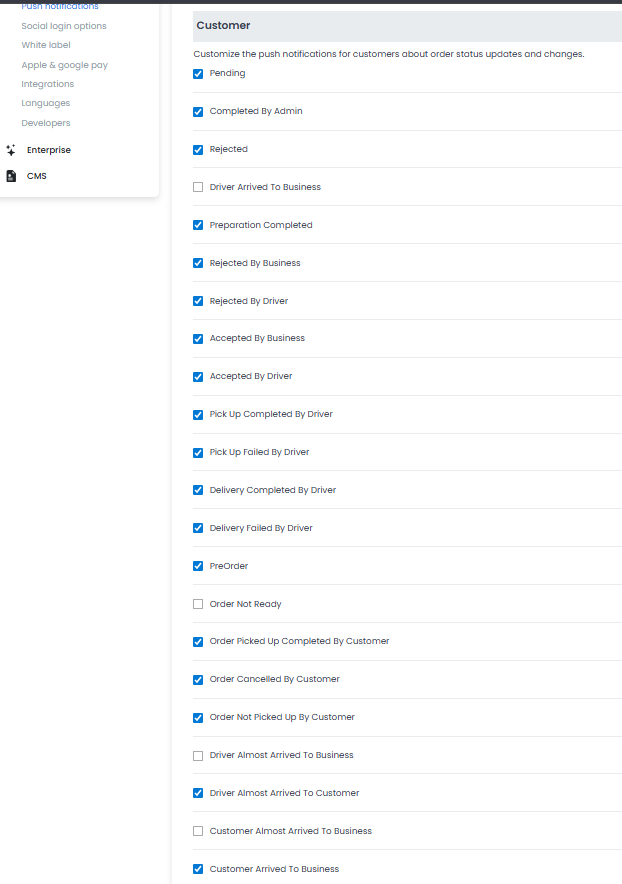
Customer
Choose the pushes that end users receive on mobile devices or browsers.
- Pending: The order has been placed and is waiting for the store.
- Completed By Admin: The order was finalized by an administrator.
- Rejected: The order cannot be processed.
- Driver Arrived To Business: The driver is at the pickup location. Often left disabled to avoid extra customer alerts.
- Preparation Completed: The order is ready and being packed.
- Rejected By Business: The merchant cancelled the order.
- Rejected By Driver: An internal logistics change. Often left disabled for customers.
- Accepted By Business: The restaurant is working on the order.
- Accepted By Driver: A delivery person is dedicated to the order.
- Pick Up Completed By Driver: The order is on its way.
- Pick Up Failed By Driver: Delay in the collection phase.
- Delivery Completed By Driver: The order was delivered.
- Delivery Failed By Driver: The driver cannot complete the drop-off.
- PreOrder: Confirmation for scheduled orders.
- Order Not Ready: The business is delayed.
- Order Picked Up Completed By Customer: Confirmation for takeaway orders.
- Order Cancelled By Customer: Confirmation of the customer's own cancellation.
- Order Not Picked Up By Customer: Reminder for an uncollected pickup.
- Driver Almost Arrived To Business: Tracking the driver's proximity to the store. Often treated as internal.
- Driver Almost Arrived To Customer: High-value "get ready" alert when the driver is close to the delivery address.
- Customer Almost Arrived To Business: Tracking the customer's proximity for pickup.
- Customer Arrived To Business: Confirmation that the system recorded the arrival.
- Driver Waiting For Order: Usually not shown to the customer.
- Driver Arrived To Customer: The driver is at the door.
- Driver Assigned: A delivery person has been found.
- Driver Is Close: A short (about five-minute) warning before delivery arrives.
Checking a box does not prove the customer granted notification permission or that OneSignal delivered the message.
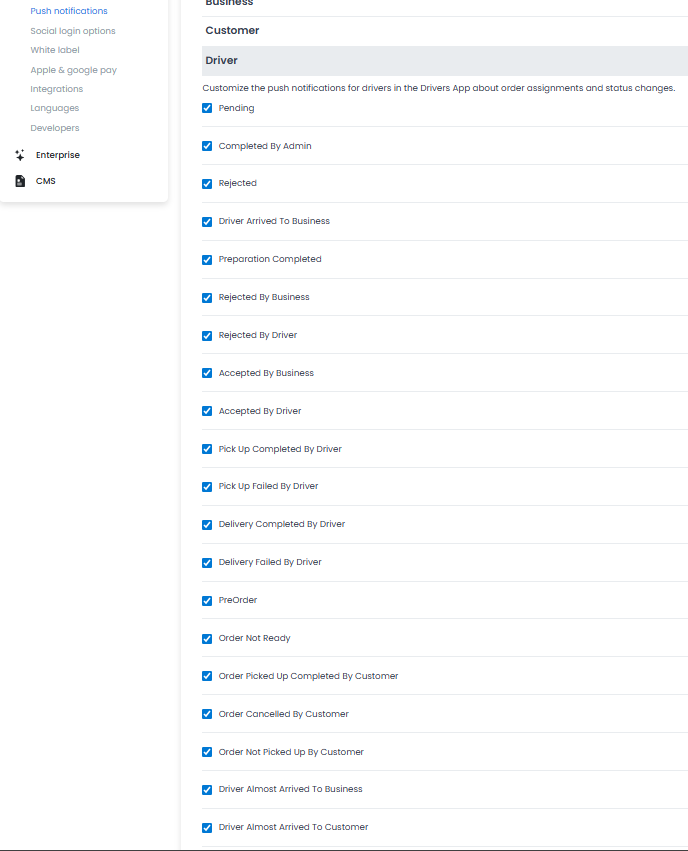
Driver
Choose the pushes that Drivers receive.
- Pending: A new order is available for pickup or assignment.
- Completed By Admin: The order they were handling was closed by an administrator.
- Rejected: Cancellations or rejections.
- Driver Arrived To Business: The system registered arrival at the store.
- Preparation Completed: High value. The driver can now pick up the order, which reduces waiting time.
- Rejected By Business: The store cannot fulfill the assigned order.
- Rejected By Driver: Log of the driver's own declined tasks.
- Accepted By Business: The store has started the order.
- Accepted By Driver: Confirmation of the driver's own acceptance.
- Pick Up Completed By Driver: The order is in their possession.
- Pick Up Failed By Driver: Unsuccessful collection.
- Delivery Completed By Driver: Successful drop-off.
- Delivery Failed By Driver: Issues during the final delivery phase.
- PreOrder: Scheduled future tasks.
- Order Not Ready: The business needs more time.
- Order Picked Up Completed By Customer: A pickup order was handled by the client.
- Order Cancelled By Customer: Immediate priority. Prevents the driver from traveling for a cancelled order.
- Order Not Picked Up By Customer: Log for abandoned orders.
- Driver Almost Arrived To Business: Proximity confirmation for pickup.
- Driver Almost Arrived To Customer: Proximity confirmation for delivery.
- Customer Almost Arrived To Business: Coordination with a customer pickup.
- Customer Arrived To Business: On-site handover.
- Driver Waiting For Order: Optional tracking of idle time at the store.
- Driver Arrived To Customer: Confirmation that they are at the destination.
- Driver Assigned: A new delivery task is in their queue.
- Driver Is Close: Proximity alert for tracking.
Save the page
After you enter credentials and select triggers, save the page. Until you save, the apps do not receive the new values. Confirm delivery on a test device that granted notification permission; see Set up OneSignal.
For product overviews, see OneSignal on Ordering.co and WhatsApp order notifications.
Related guides: Email alerts · Settings overview · Settings logs