Set up Stripe Link
Back to the main online payments guide
Stripe Link in this guide is the Call Center payment-link workflow for an individual business. It creates a Stripe payment link for a Call Center cart, then lets staff send that link to the customer's phone by SMS or WhatsApp when the business has those messaging channels enabled. It is not Stripe's accelerated Link checkout product.
A successful send response means the application accepted the messaging request. It does not prove that the message was delivered or read, that the customer opened the link, or that Stripe completed a payment.
Before you start
Prepare the following:
- Access to the intended business's payment-method settings and to the Call Center.
- A Stripe account. Complete Stripe's verification and activation requirements before attempting to accept live payments.
- Matching Stripe publishable and secret credentials for the environment you intend to use.
- If you will send the link through Twilio, an enabled Twilio messaging configuration with the required account credentials and sender numbers.
Use the same environment for every Stripe credential. Test and live keys are separate, and a mixed pair can make the payment flow fail.
Get the Stripe credentials
- Sign in to the Stripe Dashboard.
- Open API keys from Developers.
- Confirm whether you are viewing a test or live environment before copying a key.
- Copy the publishable and secret values requested by the business's Stripe Link configuration.
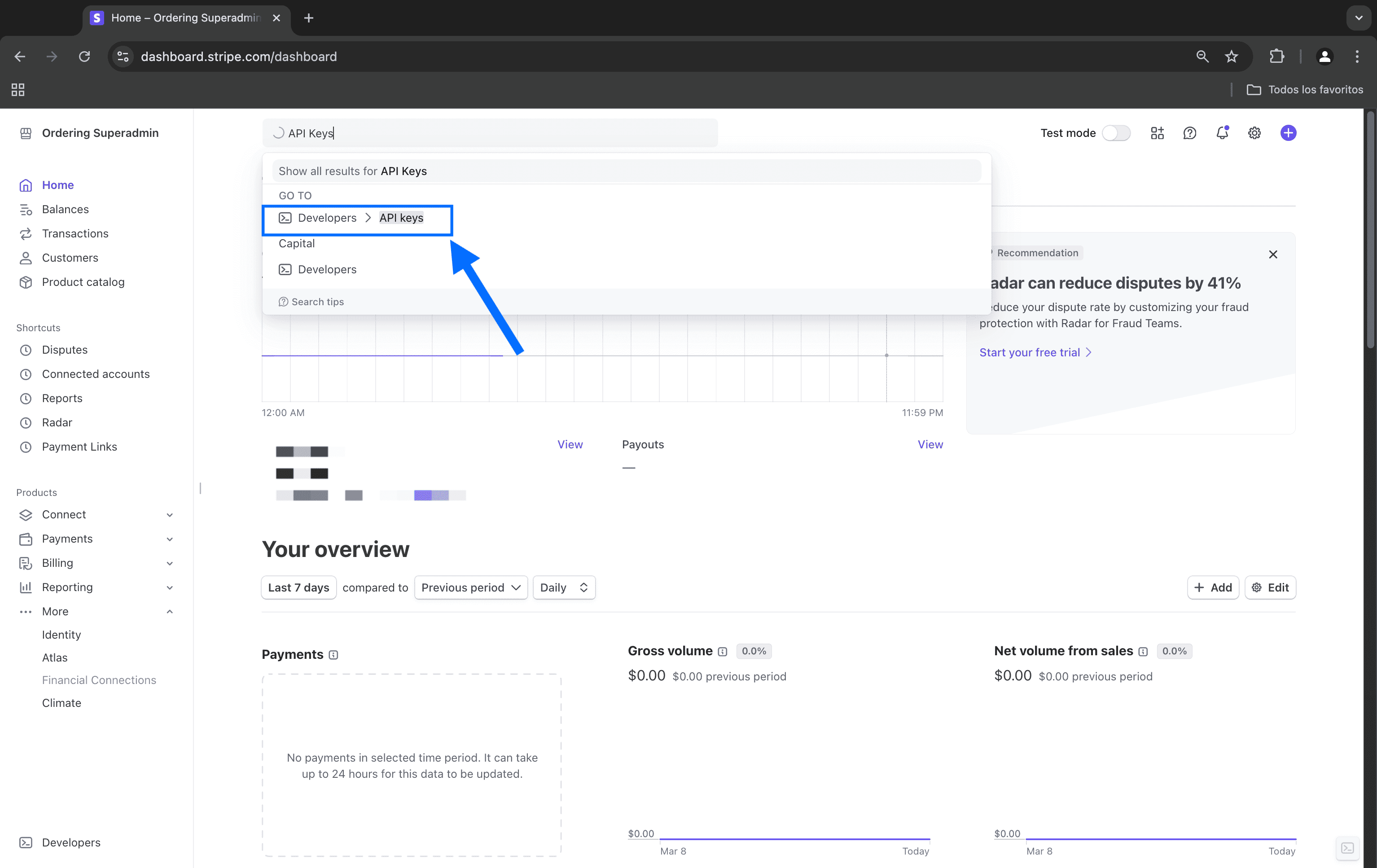
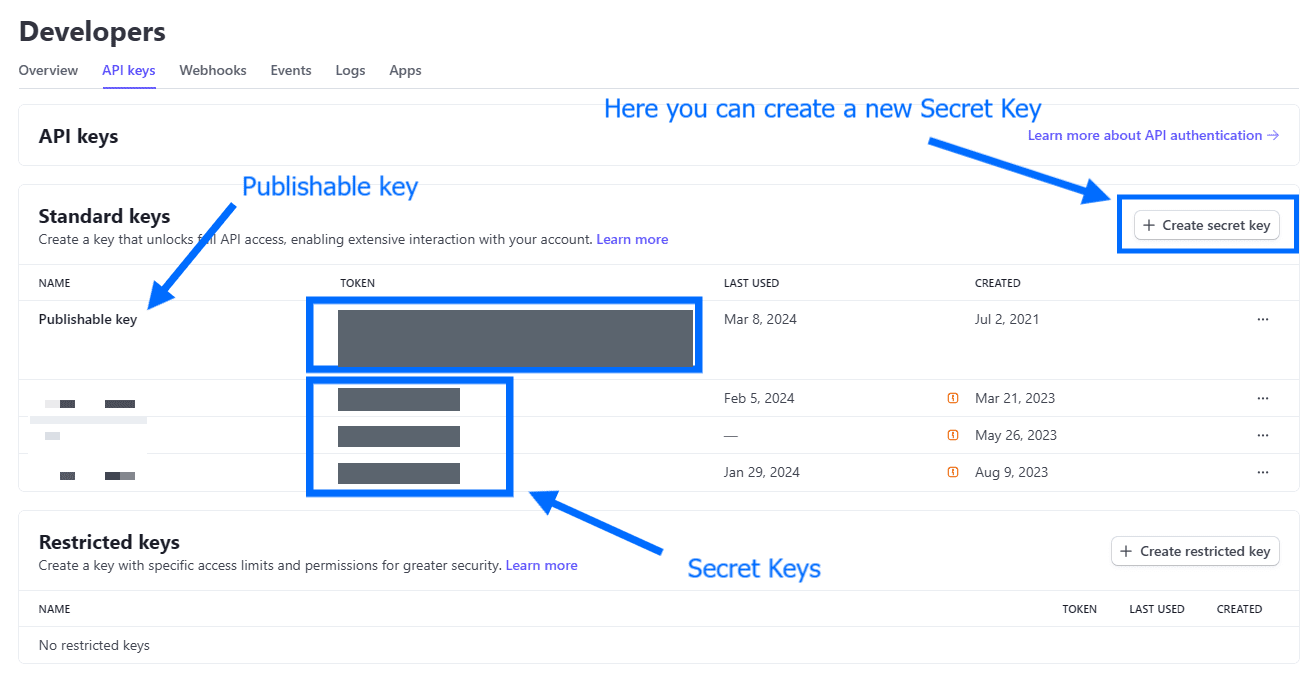
Publishable keys have a different use from secret or restricted keys. Use the exact key type requested by the Dashboard field, keep sensitive keys in an approved secrets store, and never place them in messages, screenshots, support tickets, or source control. Stripe recommends restricted keys only when their compatibility and required permissions have been confirmed; do not substitute one for a required Secret Key field without that evidence. A manually created live secret key can be shown only once by Stripe; do not assume that every secret or test key follows the same display behavior.
For more detail, review Stripe's API key guidance.
Configure Stripe Link for the business
- In the Ordering.co Dashboard, open the payment-method configuration for the intended business.
- Select the Stripe Link configuration.
- Enter the matching publishable and secret values in the fields shown for the selected environment.
- Save the changes, then reopen the configuration and confirm that the intended environment and fields are still selected.
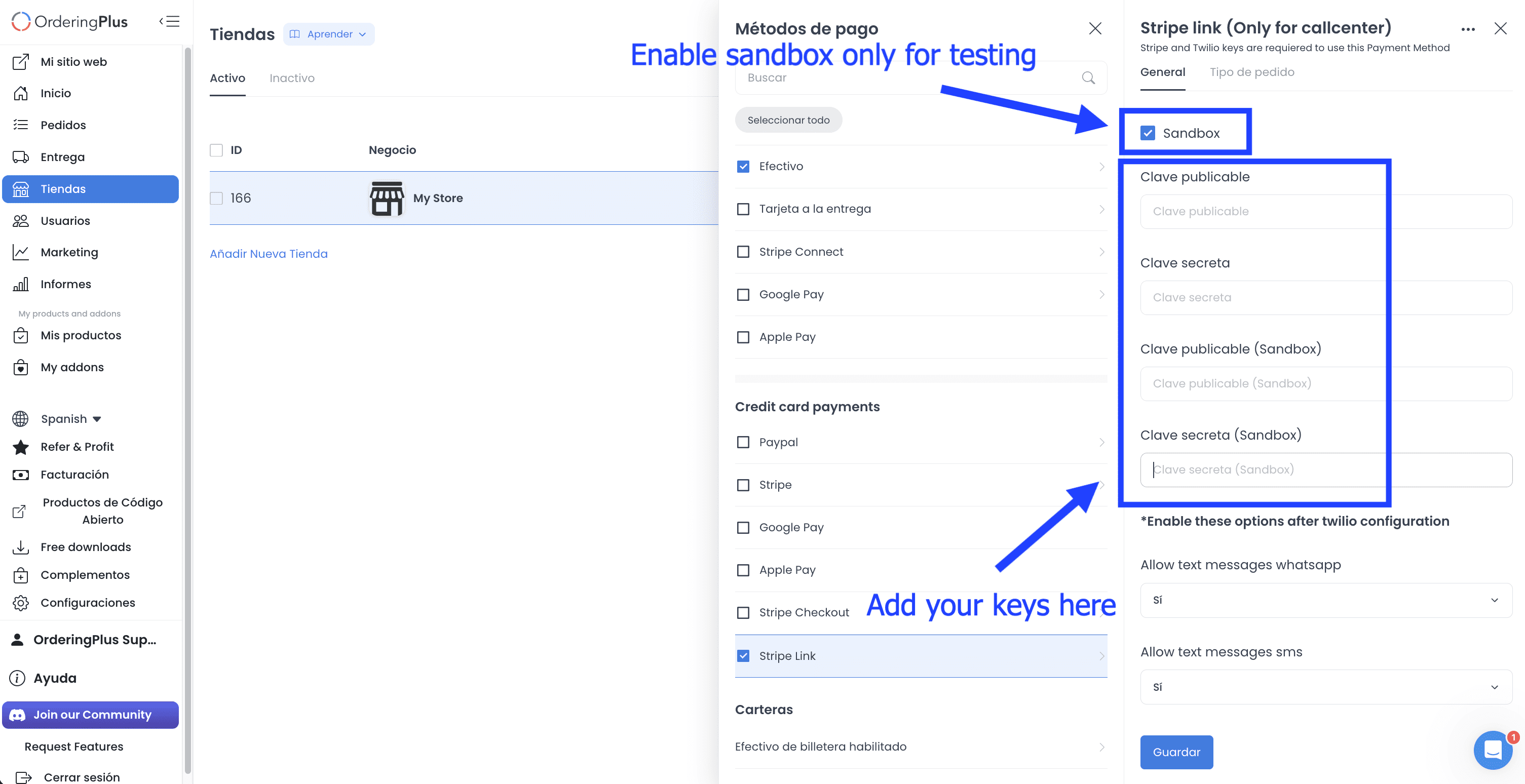
The application selects the stored sandbox or live credential set based on the payment method's environment setting. Saving the form records configuration; it does not confirm that Stripe accepted the credentials or that a customer can complete a payment.
Configure the messaging path
When the business uses Twilio to send payment links, configure its messaging account and sender settings before using the Call Center flow.
- Sign in to the Twilio Console.
- Collect the account information, authentication token, and sender-number details required by the matching Dashboard fields.
- In the Dashboard, open the settings area shown for your project. The screenshot shows Settings > Pro > Social Login Options; use the labels in your current Dashboard rather than relying on that older screen layout.
- Confirm that the Twilio service is enabled and that the configured SMS and WhatsApp sender numbers are valid for your operation.
- Save the settings, then return to the Call Center for a controlled test.
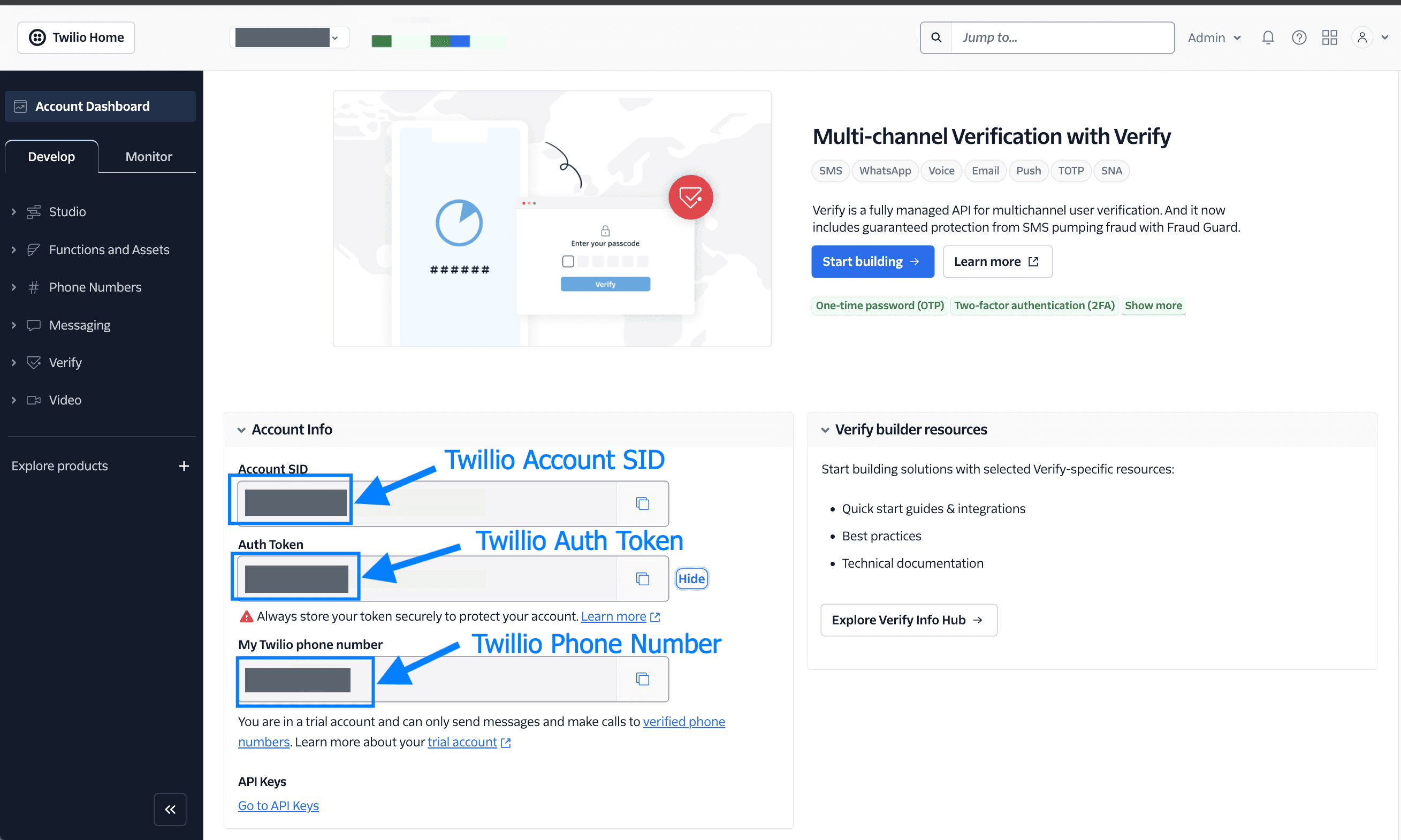
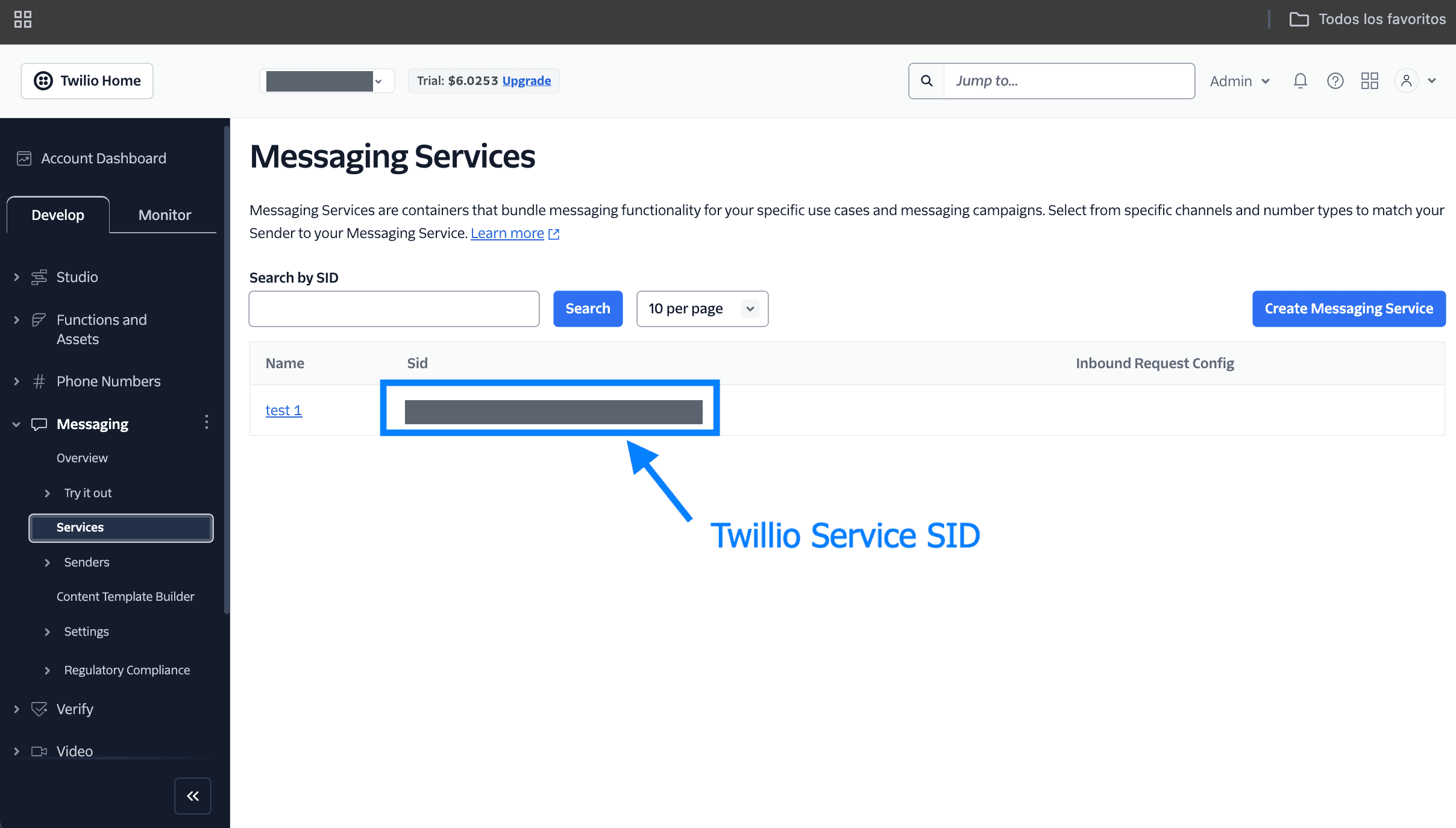
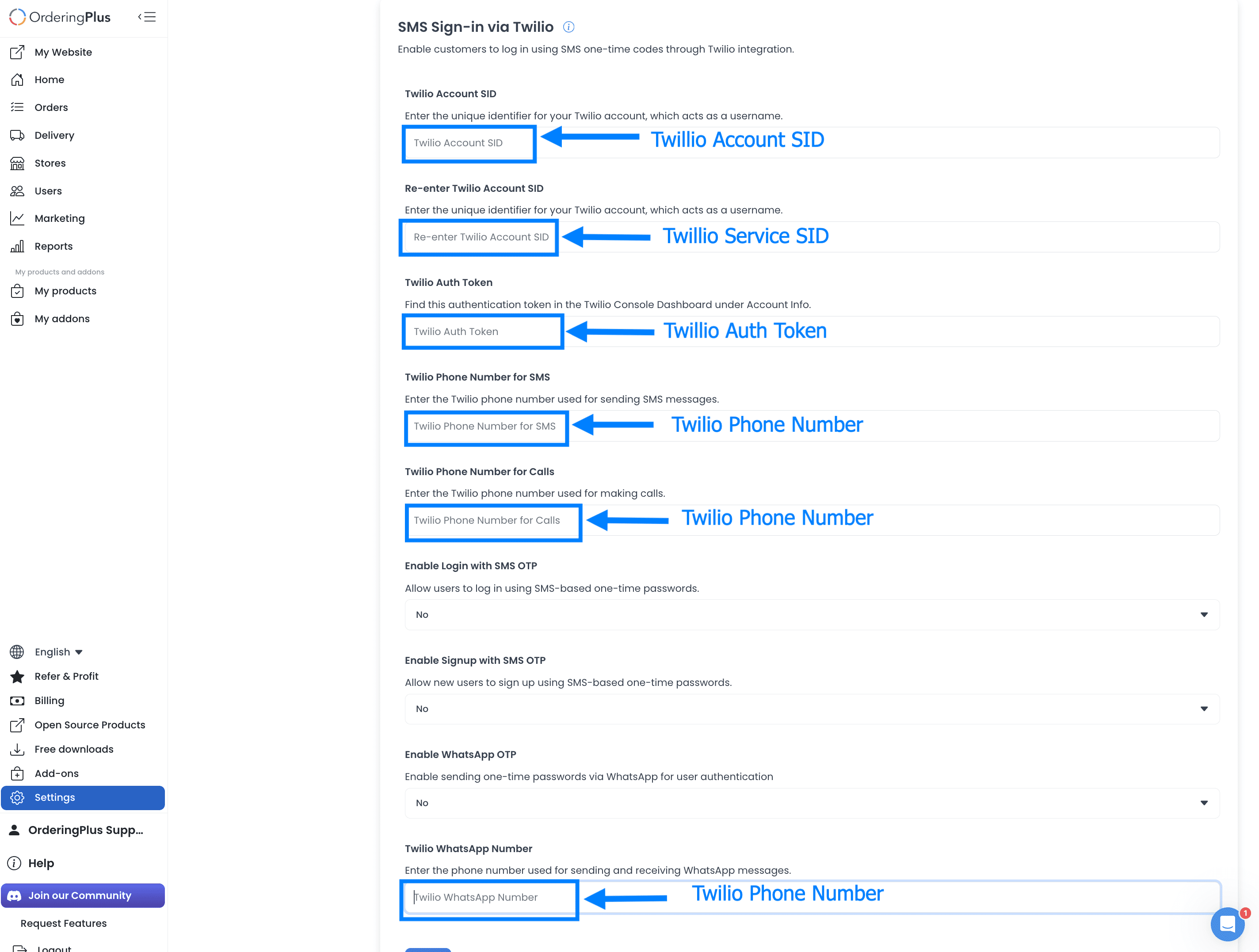
The second field in this settings layout is labeled Re-enter Twilio Account SID, but it stores the Twilio Verify service ID used for one-time-code login. It is not a second Account SID. A Verify service SID starts with VA; a Messaging Service SID starts with MG. Do not copy the Messaging Service value shown in the Console screenshot into the Verify field.
The payment-link messaging flow uses the Account SID, Auth Token, and configured sender numbers. It does not require a Verify service ID. Leave unrelated one-time-code settings unchanged when configuring payment-link messaging.
Twilio account status, trial restrictions, sender verification, and destination rules can affect delivery. The Call Center can show an SMS button, a WhatsApp button, both, or the link itself depending on the business configuration.
Send a payment link from Call Center
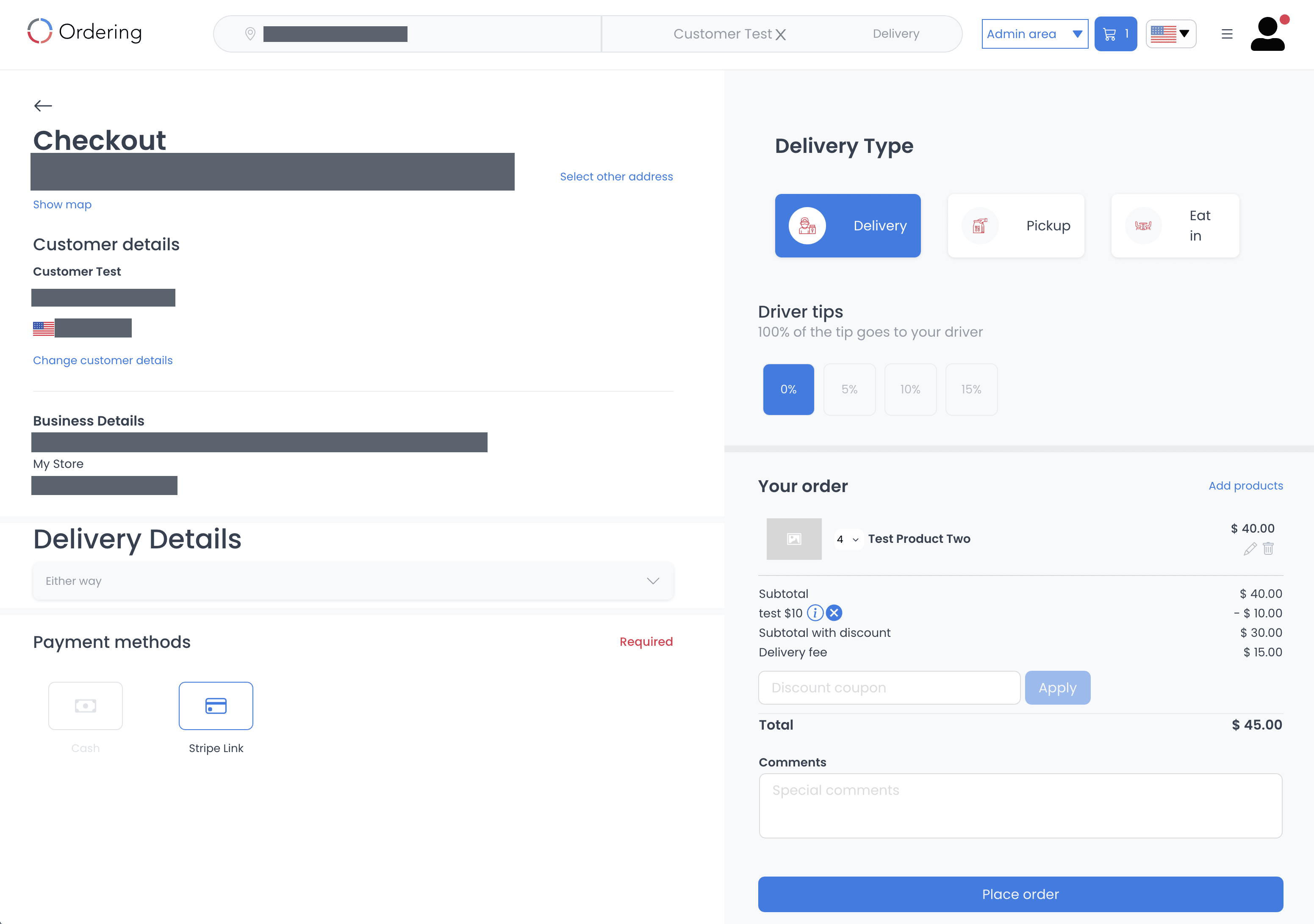
- In Call Center, select Stripe Link for the cart that should receive a payment link.
- Confirm the customer's name and phone number.
- Wait for the payment link to become available.
- Select Send SMS or Send WhatsApp when that channel is enabled for the business. If neither channel is enabled, use the displayed link through an approved workflow.
- Tell the customer to open the link and complete the Stripe payment steps.
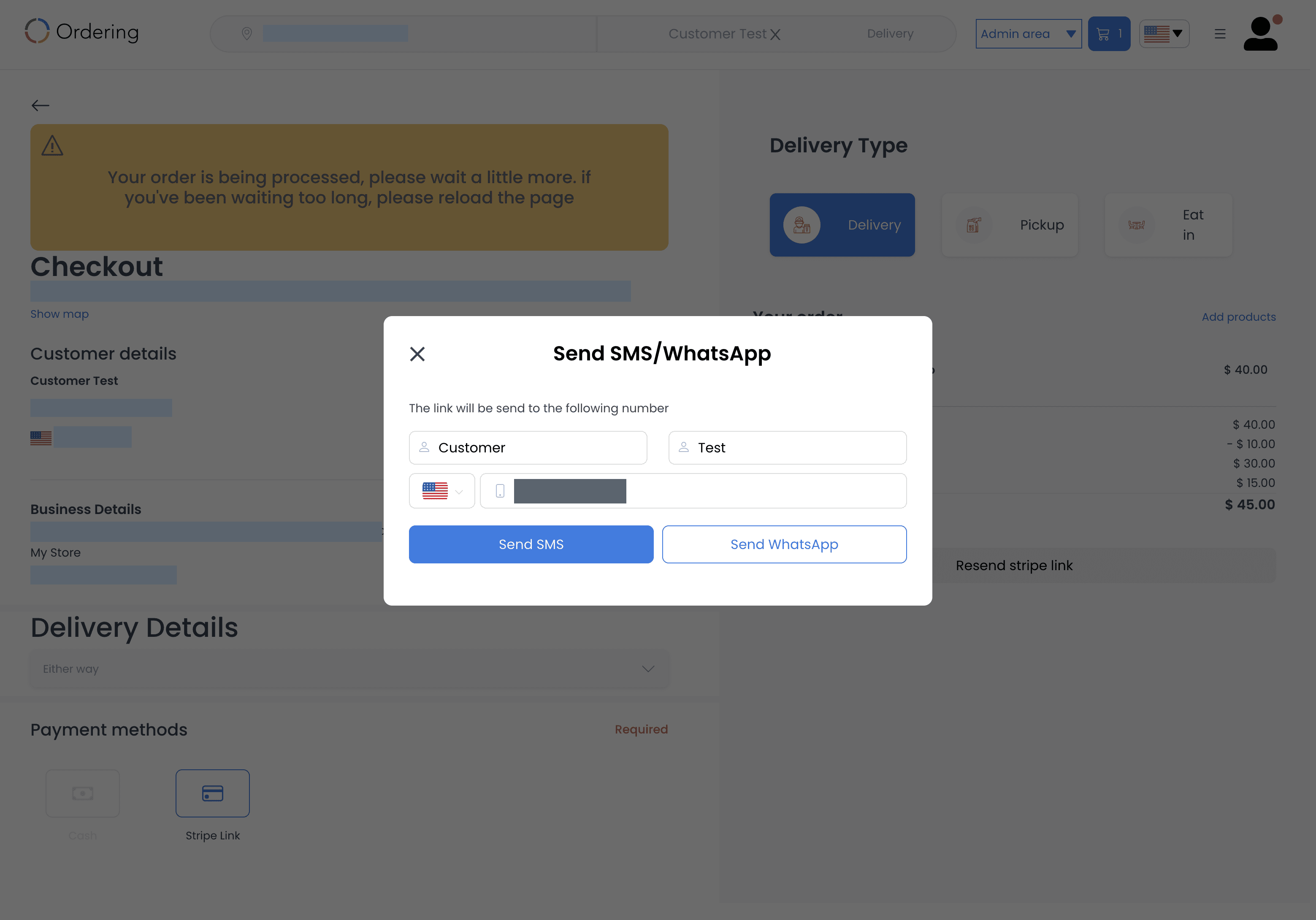
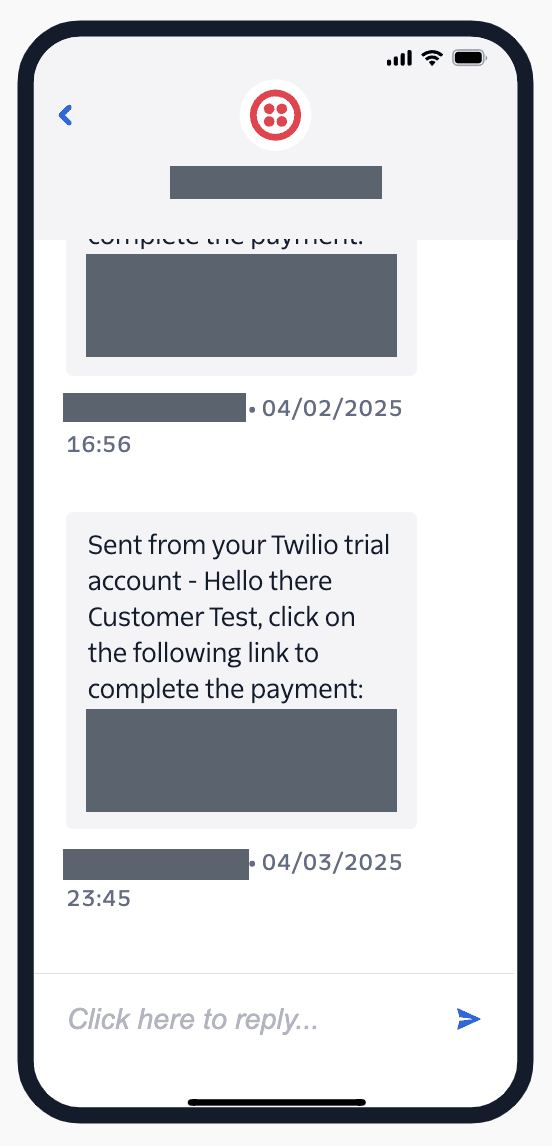
The Call Center's send action posts the payment URL to the messaging endpoint. A provider HTTP success response can make the interface show that the link was sent, but it does not confirm delivery, a customer click, or payment completion. Verify those outcomes separately in the approved operational and Stripe workflows.
Complete the payment through Stripe
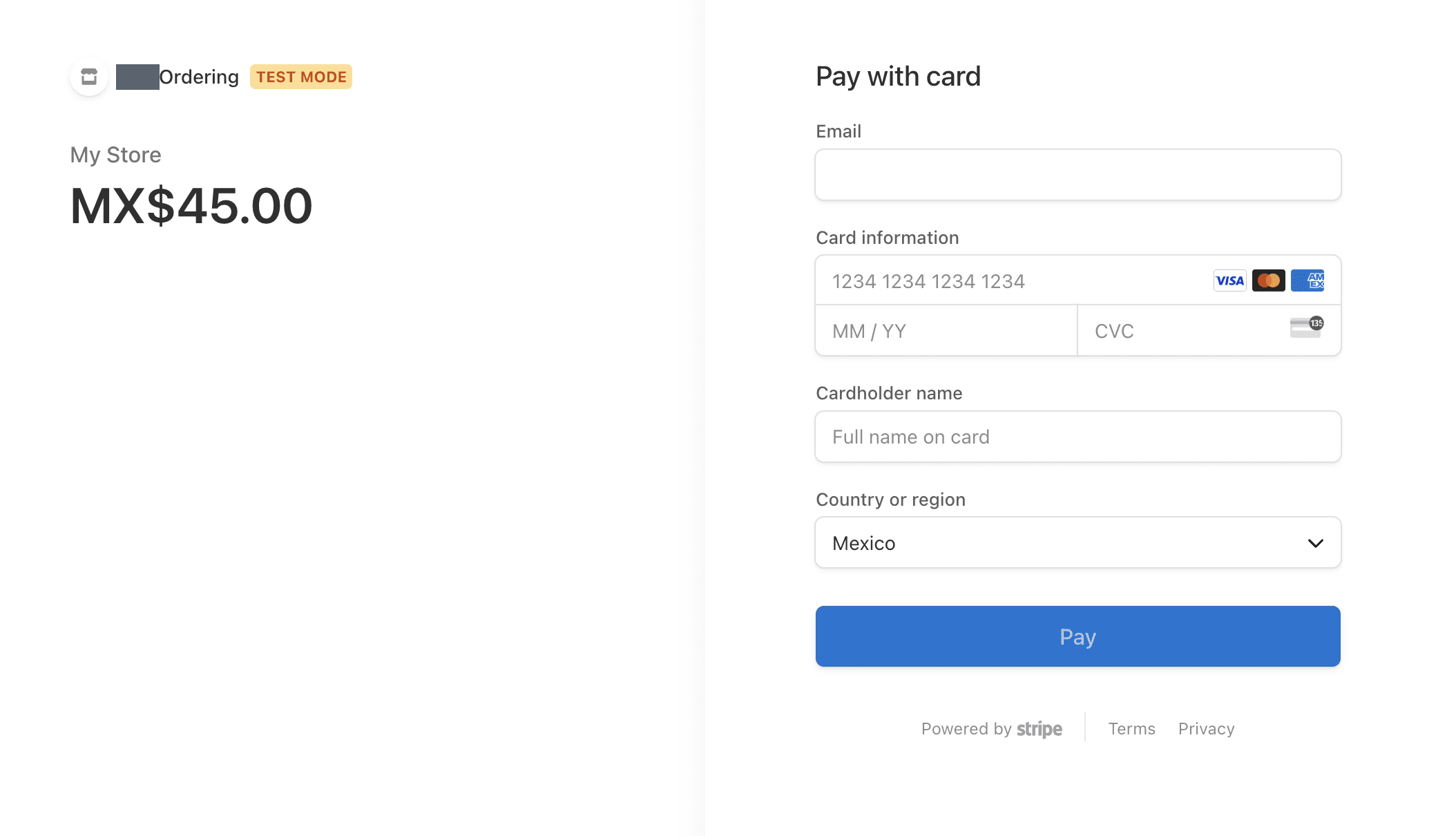
After receiving the link, the customer opens the Stripe-hosted payment page and completes the card-payment steps. A test-mode page can look like the following example. Reaching this page does not by itself confirm a completed payment.
Test before live use
- Start with a controlled test business and matching Stripe test credentials.
- Confirm that Call Center generates a link and displays only the messaging channels that are enabled for that business.
- Verify the message and checkout using your approved test procedure.
- Before switching to live credentials, confirm that Stripe verification, sender requirements, and the business's payment configuration are ready for live use.
Troubleshooting
The payment link is not available
Reload the Call Center page and review the selected payment method. Confirm that the business has a complete credential set for the selected environment and that the Stripe Link configuration was saved.
The SMS or WhatsApp button is missing
The Call Center displays a channel only when the business enables it. Review the business messaging configuration, the enabled service, and the sender-number settings. If neither channel is enabled, the Call Center can display the link instead.
The messaging request fails
Confirm the Twilio Account SID, Auth Token, service state, and configured sender numbers. Keep the Account SID, Verify service ID, and Messaging Service SID separate; the similarly labeled fields do not accept interchangeable values.
The customer received a link but the payment is not complete
Delivery or receipt of a link does not complete payment. Confirm the customer checkout result and the relevant Stripe and Ordering.co operational records through your approved process.