Set up Stripe Global
Back to the main online payments guide
Stripe Global lets you keep one Stripe configuration in the Ordering.co Dashboard and enable that payment method for the businesses that should use it. The global configuration supplies the currency, test mode, and four Stripe API-key fields; enabling Stripe for a business is a separate step.
This procedure applies only to Stripe Global. It does not configure Stripe Checkout, Stripe Link, or Stripe Connect.
Saving settings records configuration. It does not prove that Stripe accepted the keys, that a customer can complete checkout, or that a payment will authorize, settle, or pass fraud checks. Test the customer flow separately.
Before you start
Prepare the following:
- A Stripe account. To accept live payments, complete Stripe's business verification and the activation requirements for the Stripe services you use.
- Access to the Ordering.co Dashboard settings and to each business where you want to enable Stripe.
- A live publishable key, live secret key, test publishable key, and test secret key from the same Stripe account.
- The transaction currency you intend to present to customers.
Stripe's publishable keys can be used in client-side integrations. Secret keys are sensitive: retrieve them in a trusted session, keep them in a secrets vault, do not send them through email or chat, and do not place them in source control or support tickets. The Ordering.co form currently has dedicated Secret Key fields, so use the key type requested by each field.
Get the Stripe keys
- Sign in to the Stripe Dashboard.
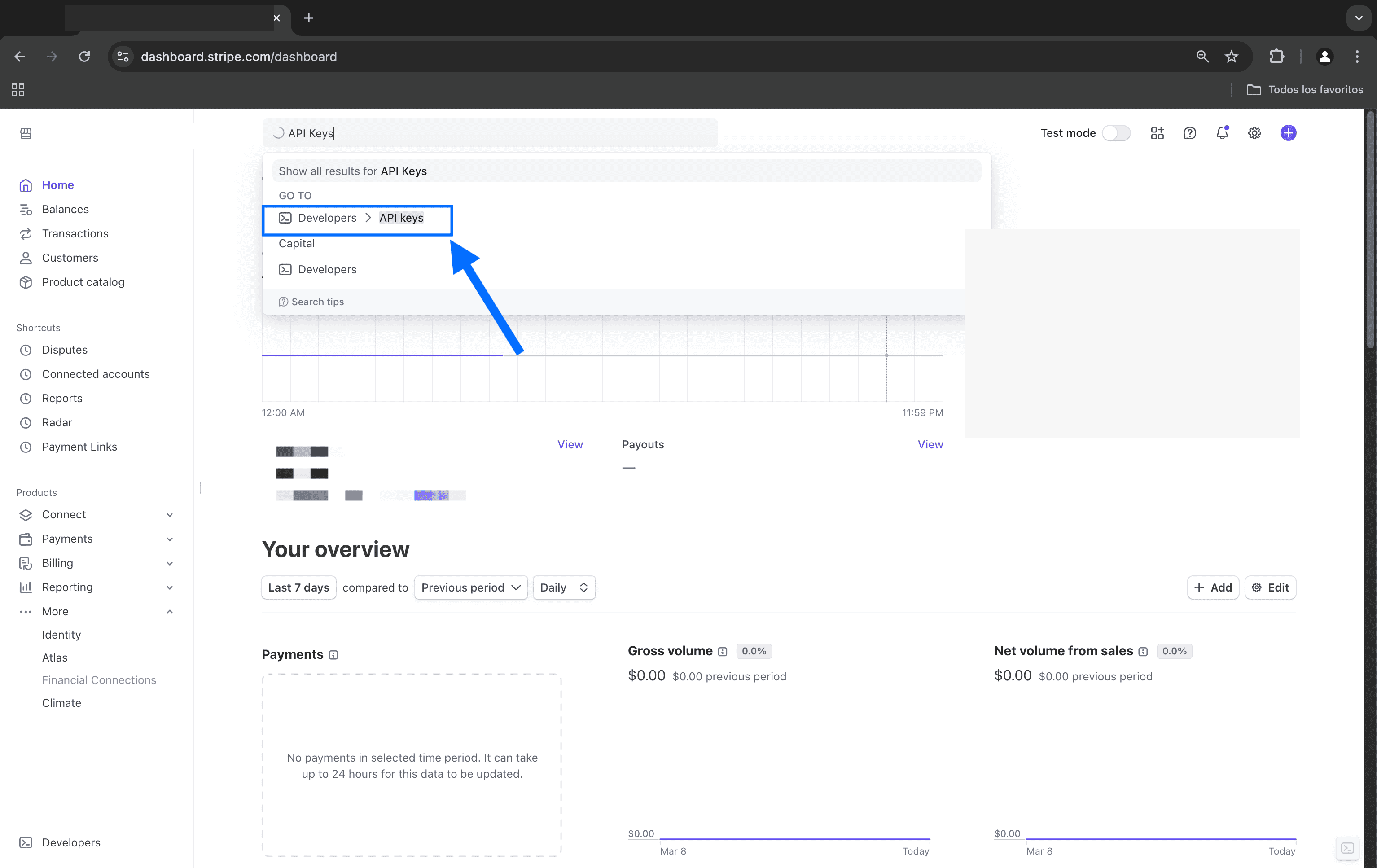
- Open the API keys page. You can also search for API keys in Stripe and open Developers > API keys.
- Confirm whether you are viewing the live account or a Stripe test environment before copying a key. Test and live objects and keys are separate.
- Copy the publishable and secret keys for both environments. Stripe can show a newly created live secret key only once, so store it securely before closing the dialog.
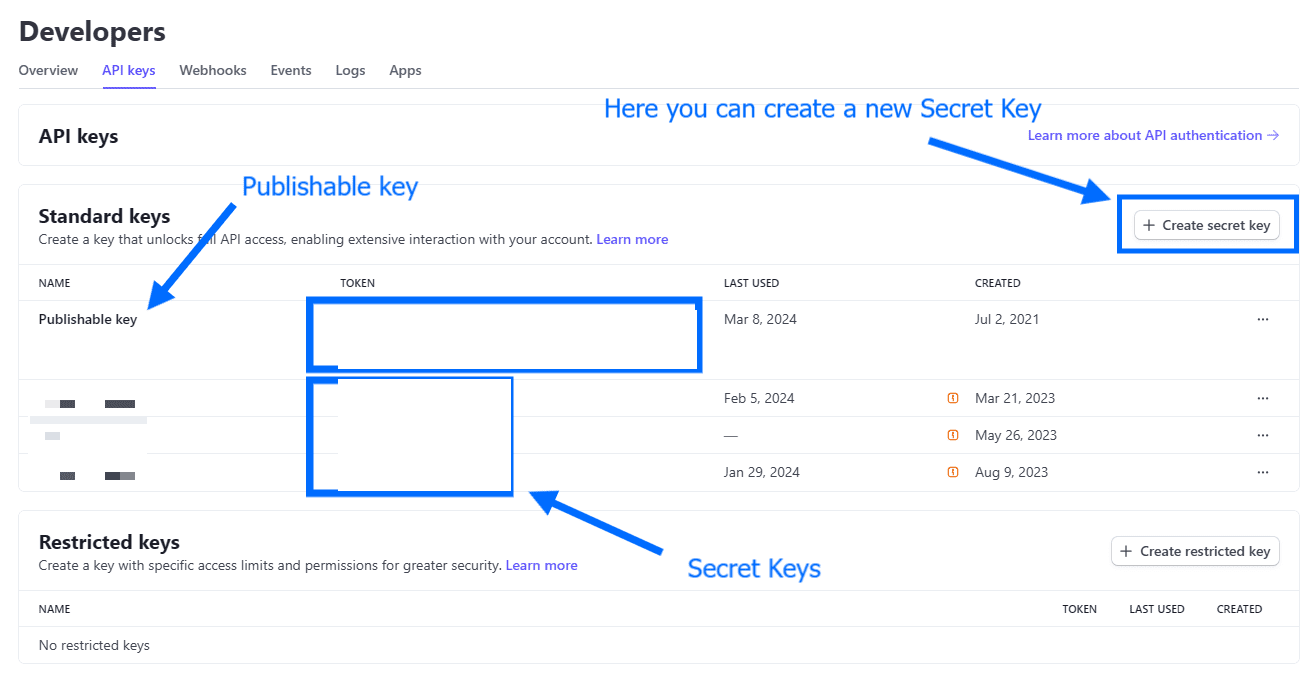
Do not mix a test publishable key with a live secret key, or keys from different Stripe accounts. Never use real card details while testing.
Open the global Card payments settings
- In the Ordering.co Dashboard, go to Settings.
- Open Card payments.
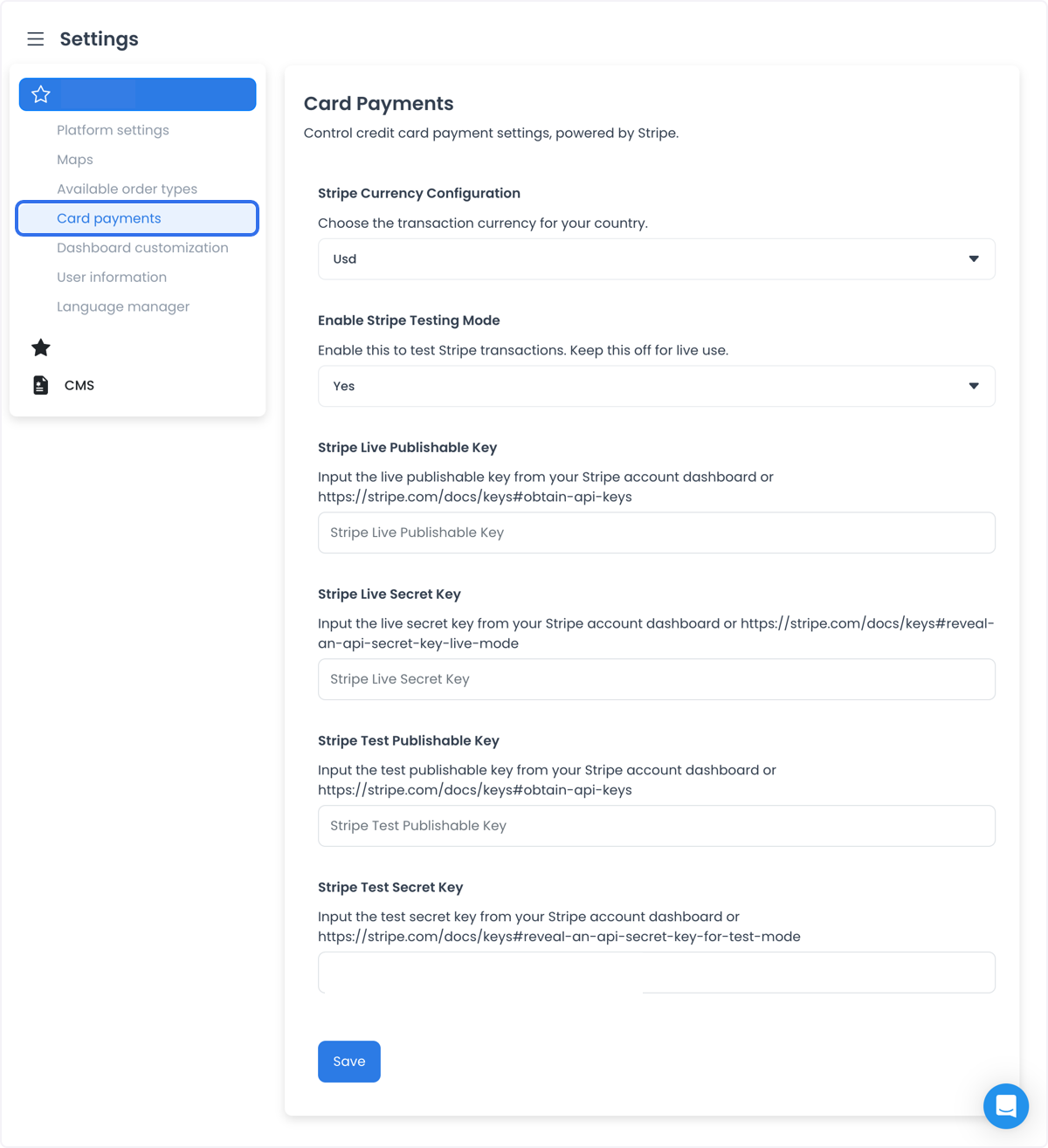
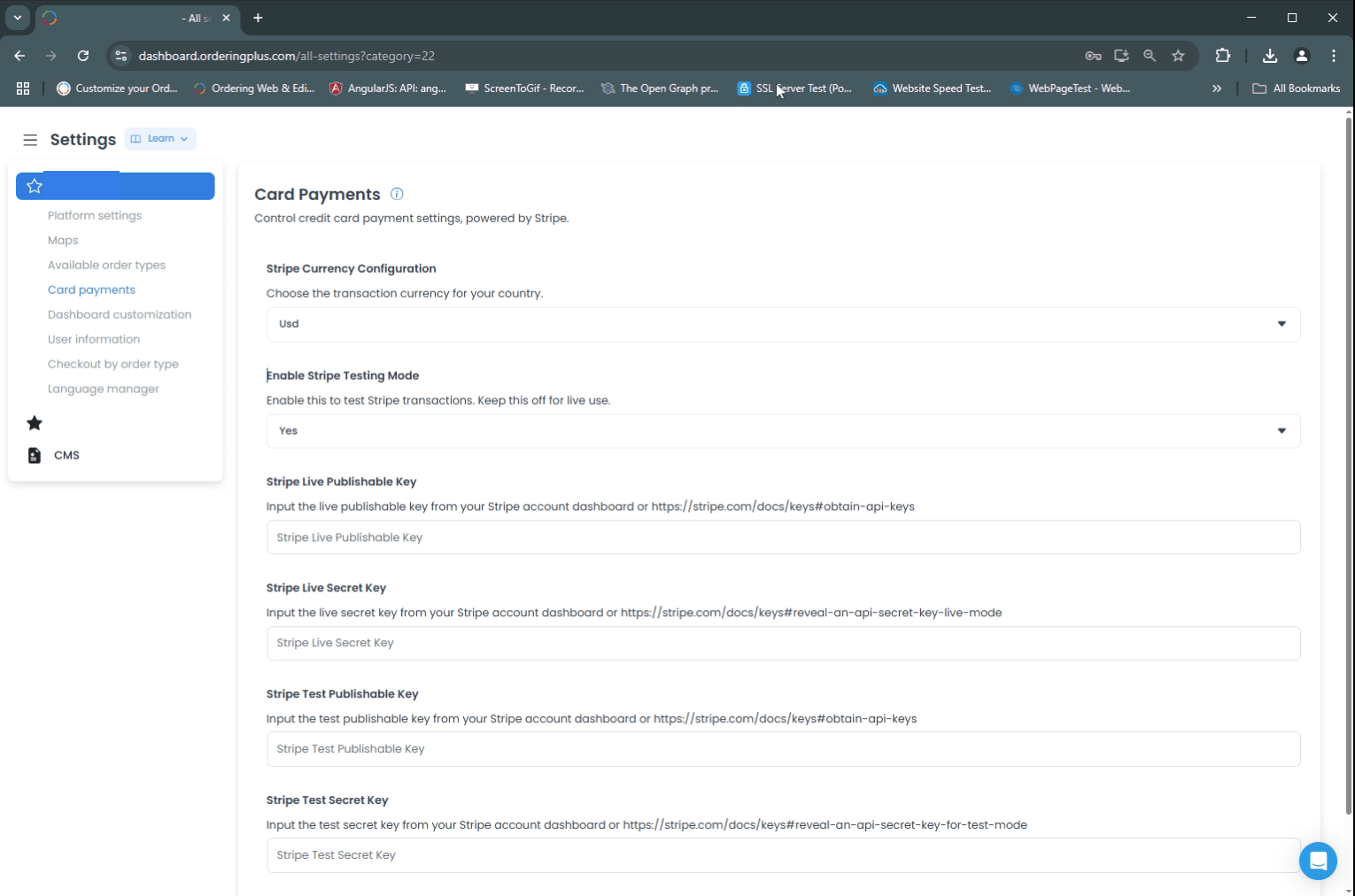
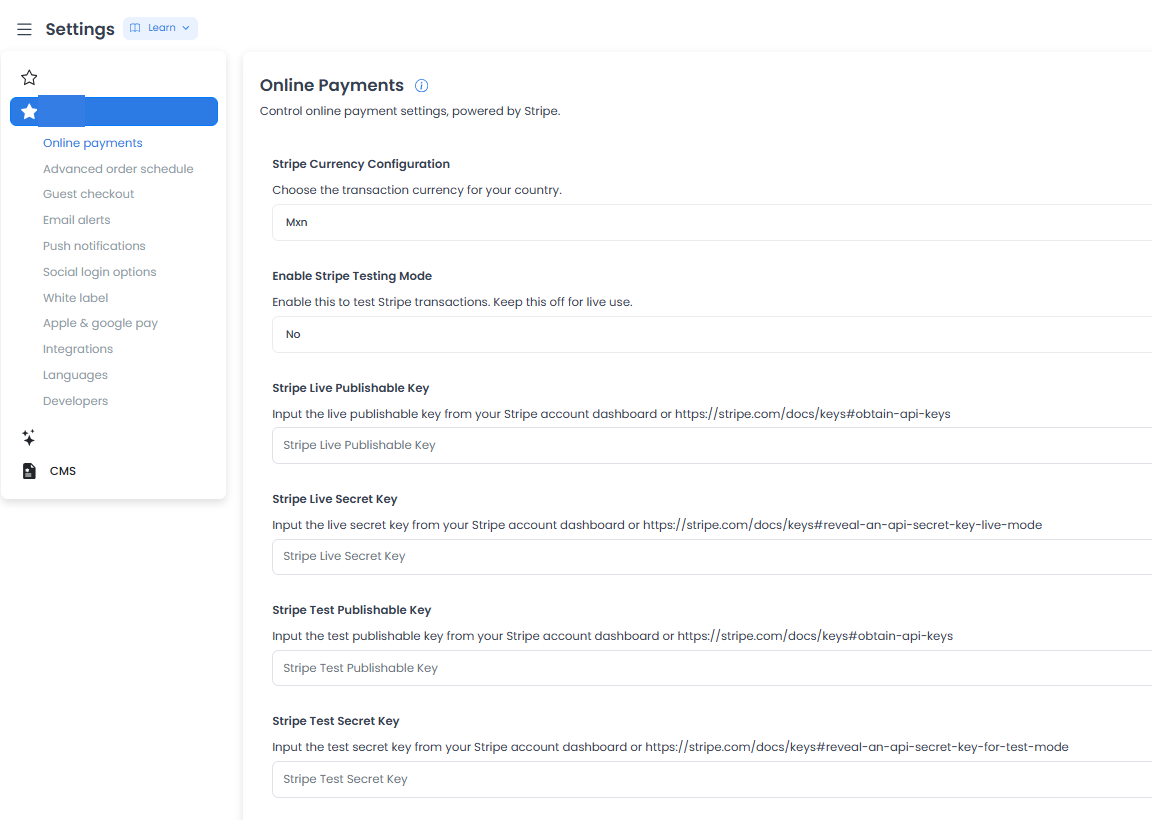
The current configuration is named Card Payments and is powered by Stripe. Depending on the Dashboard version, the same global setup can appear as Online Payments or Credit Card Payments.
The complete settings form can also appear in the following layouts:
Choose the transaction currency
In Stripe Currency Configuration, select the currency that Ordering.co should present for these Stripe transactions. The Dashboard catalog includes many international currencies, including USD, MXN, and COP.
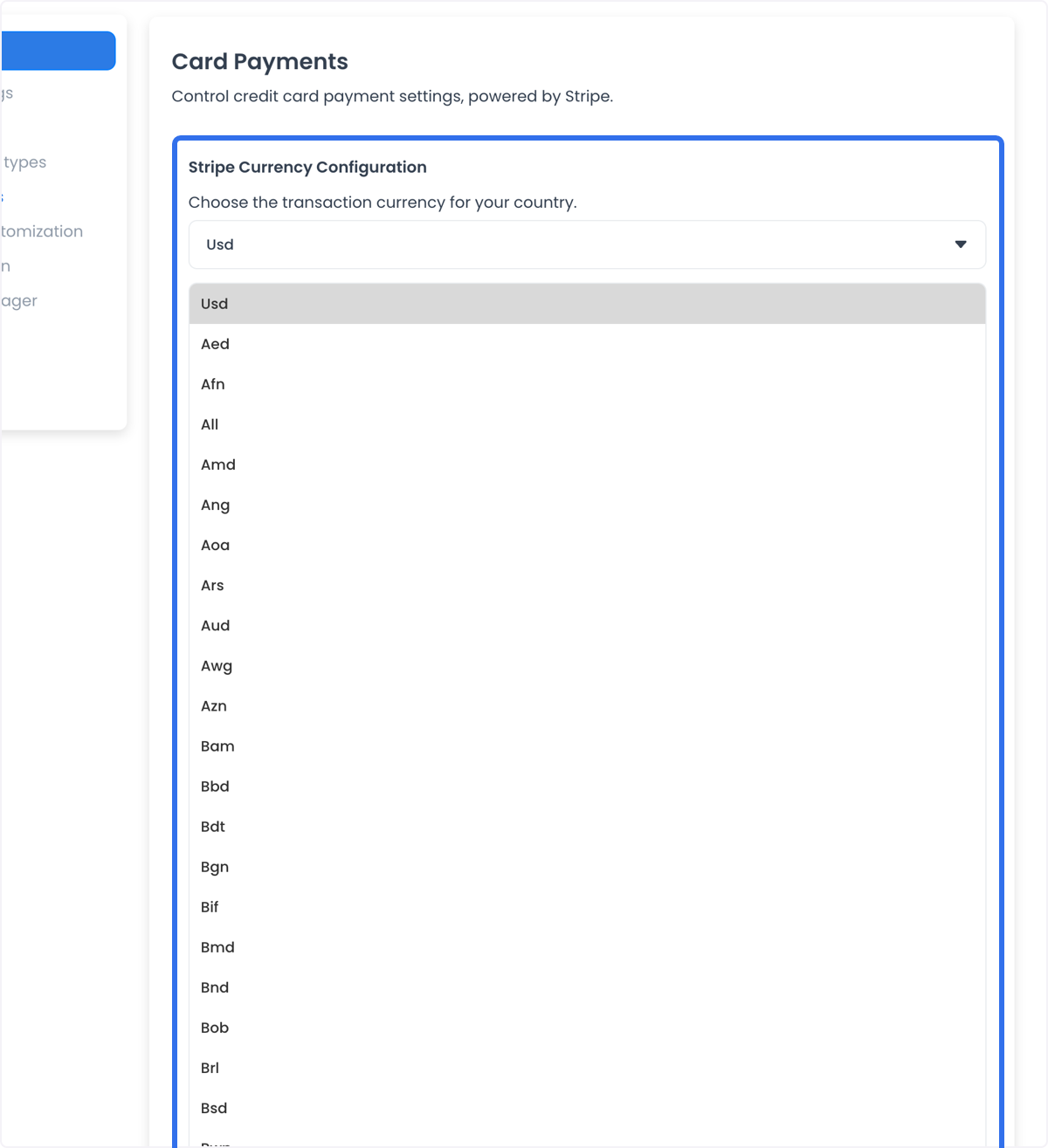
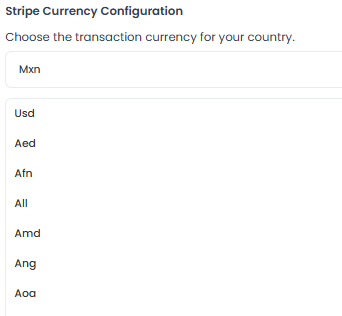
The selected currency is the presentment currency, not a guarantee that it matches your Stripe settlement currency. Confirm that your Stripe account supports the currency for your country and payment methods. If the presentment currency differs from the customer's payment-method currency or your settlement currency, the issuer or Stripe can apply currency conversion and related fees. If the currency you need is not available in Ordering.co, contact support@ordering.co before proceeding.
Configure test mode
Use Enable Stripe Testing Mode to choose which set of keys Ordering.co uses:
- Yes: use the test publishable and test secret keys. Stripe test transactions are simulated and do not move funds.
- No: use the live publishable and live secret keys. Card networks and payment providers can process real payments in live mode.
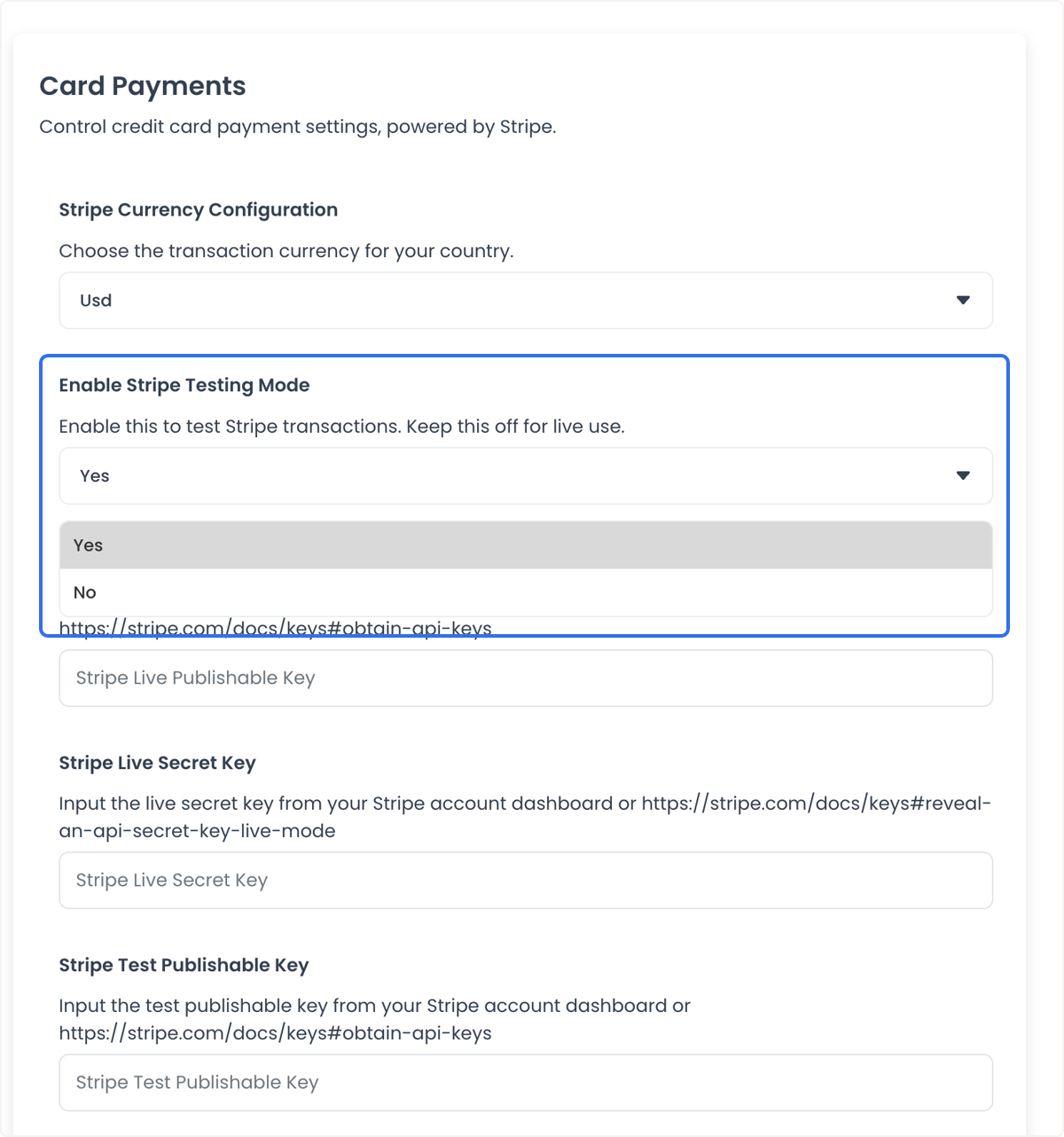
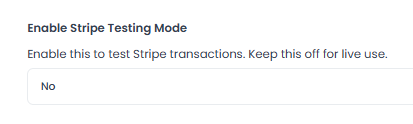
Start with Yes. Use only Stripe's official test values to simulate successful payments, declines, authentication, and other cases. Do not use a real card number in test or live mode for testing.
Enter the four key fields
Complete all four fields. Ordering.co checks these global fields before it allows Stripe to be enabled for a business.
| Ordering.co field | Stripe value | Used when |
|---|---|---|
| Stripe Live Publishable Key | Live publishable key | Testing mode is No |
| Stripe Live Secret Key | Live secret key | Testing mode is No |
| Stripe Test Publishable Key | Test publishable key | Testing mode is Yes |
| Stripe Test Secret Key | Test secret key | Testing mode is Yes |
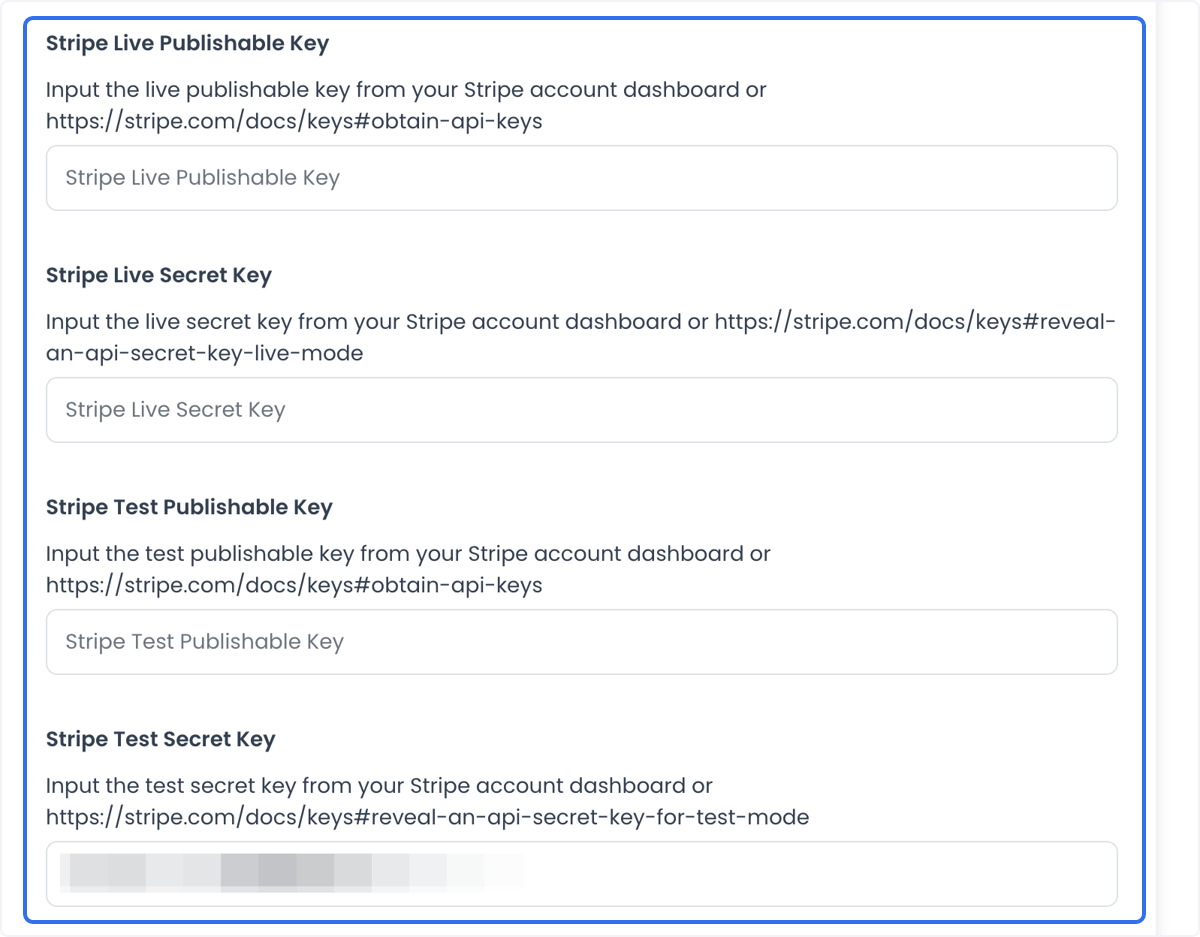
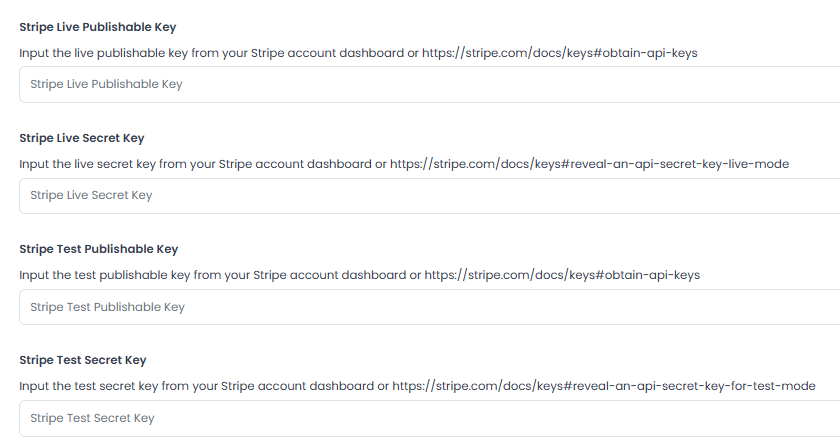
Select Save after checking the currency, testing mode, and key/environment pairing.
At the inspected API revision, updating any of the four Stripe key configurations clears stored Stripe customer mappings and resets Stripe Connect configuration and credentials. Coordinate key rotation, then retest the affected Stripe Global and Stripe Connect flows before relying on them.
Test before live use
- Keep Enable Stripe Testing Mode set to Yes.
- Save the four fields with the test keys in their dedicated test fields.
- Enable Stripe for a non-production or otherwise approved test business using the next section.
- Place controlled test orders with Stripe's official test values. Cover at least one successful payment and the failure or authentication cases important to your operation.
- Confirm the expected result in the customer checkout, the Ordering.co order, and Stripe's test data or logs.
A successful simulated payment proves only the tested sandbox path. It does not prove live account activation, live-key validity, settlement, or every customer and currency combination.
Enable Stripe for a business
The global settings provide credentials, but they do not turn Stripe on for every business automatically.
- Go to Stores and open the intended business.
- Open Payment methods.
- Find Stripe in the credit-card payment methods.
- Select the checkbox to enable Stripe for that business.
- Review the available order types and, when shown, channels for that business. Save any changes in the Stripe payment-method panel.
- Repeat these steps for each business that should use the global Stripe account.
If the four global key fields are incomplete, the Dashboard can prevent activation and ask you to complete the payment data. A business manager can also be directed to contact an administrator when global Stripe configuration is unavailable to that role.
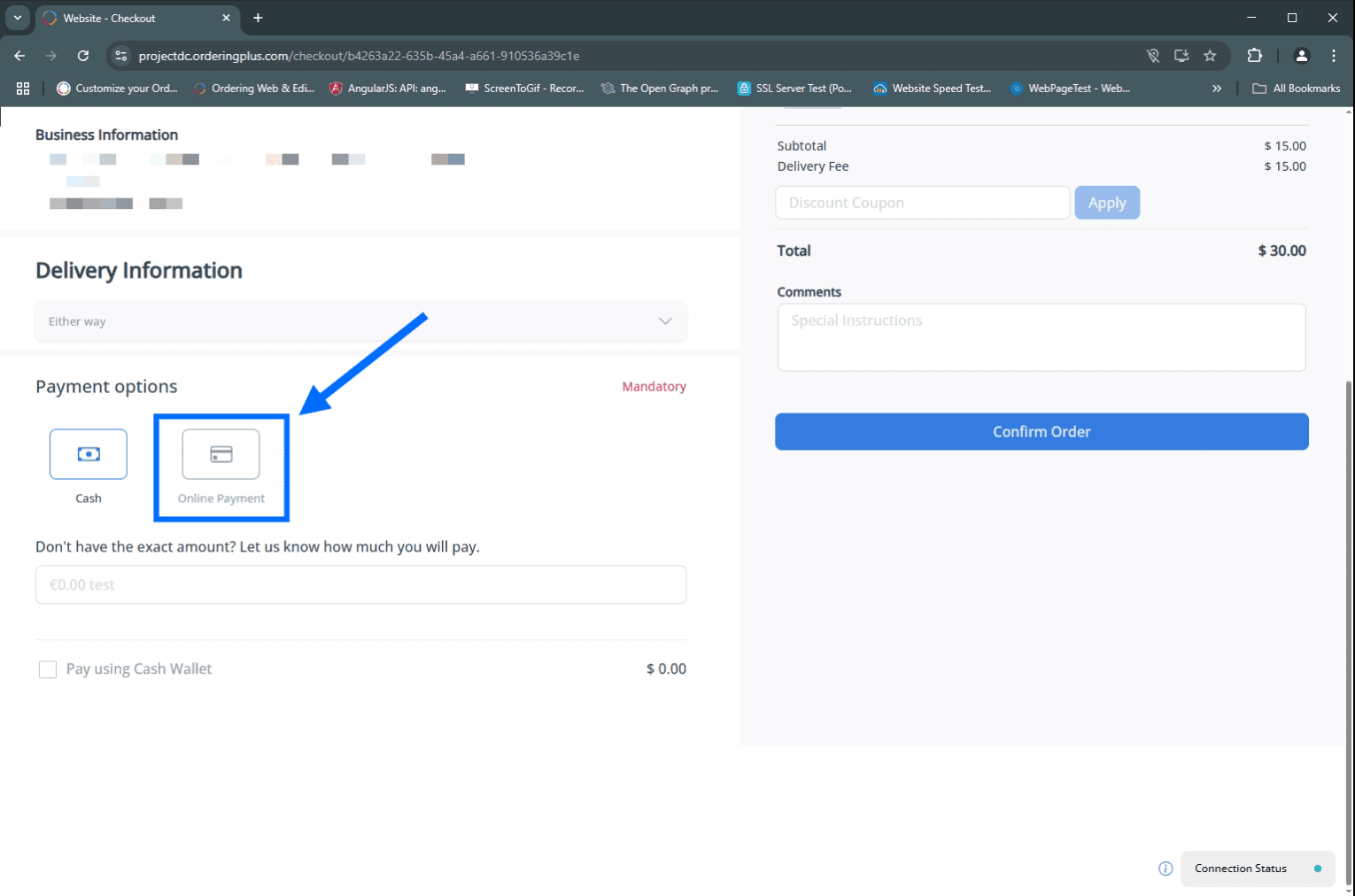
Seeing the option at checkout confirms that the method is available for that business and checkout context. It does not confirm authorization or settlement.
Switch to live mode
When testing is complete:
- Confirm that Stripe has verified the business and activated the services required for live payments.
- Confirm that both live fields contain the live keys and both test fields still contain their test keys. The dedicated fields let you switch modes without overwriting the other environment.
- Set Enable Stripe Testing Mode to No.
- Select Save.
- Confirm that Stripe remains enabled only for the intended businesses and order types.
- Follow your approved launch process to validate the live checkout, Stripe activity, and resulting Ordering.co order. Saving alone is not the validation.
Use Stripe's go-live checklist to review key security, error handling, logs, live objects, and any webhooks used by your broader Stripe integration.
Optional: configure card fields
Ordering.co also provides Card fields settings for controlling which additional credit-card fields are enabled or required by site. This is separate from Stripe Global credentials and business activation. Open Settings > User information > Card fields, choose a site, and review each field's Required and Status switches.
A dedicated Card fields guide is not currently available.
Common operating scenarios
- Preparing a launch: configure test keys, enable Stripe only for an approved test business, and exercise successful and unsuccessful test cases before switching modes.
- Operating in more than one market: select a supported presentment currency for the intended operation, then confirm country, payment-method, conversion, and settlement behavior in Stripe.
- Rotating credentials: replace the affected live and test fields deliberately, account for the related cleanup described above, and rerun the relevant test and live-readiness checks.
- Strengthening payment security: protect secret keys, limit who can access the Stripe and Ordering.co settings, rotate exposed credentials, and review Stripe activity. Stripe provides security and fraud tools, but configuring this page does not guarantee fraud prevention.
Troubleshooting
Stripe cannot be enabled for a business
Confirm that all four global key fields have values. Check that you have administrator access to the global configuration, then reopen the business payment method.
A test payment behaves like a live payment, or the reverse
Check Enable Stripe Testing Mode and verify that each publishable key is paired with the secret key from the same Stripe account and environment. Test keys cannot process live payments.
The customer does not see Stripe
Confirm that Stripe is enabled for that business and for the relevant order type and channel. Then begin a fresh checkout. Visibility does not by itself validate the payment flow.
A saved configuration still fails at checkout
Review the environment pairing, Stripe account activation, supported currency, and Stripe request logs. Saving the form does not validate the credentials against Stripe.
A secret key was exposed
Expire or rotate the exposed key in Stripe immediately, update the matching Ordering.co field, and rerun the affected tests. Remove the value from messages, logs, screenshots, and source control where it appeared.
Stripe references
- Set up and activate a Stripe account
- Manage Stripe API keys
- Test a Stripe integration
- Review Stripe-supported currencies
- Complete Stripe's go-live checklist
Back to the main online payments guide
Related integration
Explore the Stripe integration with Ordering.co for an overview of the integration. Use this guide for configuration and operating details.