Set up Stripe Checkout
Back to the main online payments guide
Stripe Checkout lets an individual business route a customer from its checkout to a Stripe-hosted payment session. Configure the business credentials first, then verify the customer flow in the intended environment.
Saving the credentials, creating a Checkout session, or redirecting a customer to Stripe does not prove that a payment succeeded. Confirm the final payment result through the approved Stripe and Ordering.co operational workflows.
Before you start
Prepare the following:
- Access to the intended business's payment-method settings.
- A Stripe account. Complete Stripe's verification and activation requirements before attempting to accept live payments.
- Matching publishable and secret credentials for the Stripe test or live environment you intend to use.
- An approved way to test the customer checkout before enabling live credentials.
Keep the environment paired: use test publishable and secret values together, or live publishable and secret values together, from the same Stripe account.
Get the Stripe credentials
- Sign in to the Stripe Dashboard.
- Open API keys from Developers.
- Confirm whether you are viewing a test or live environment before copying a key.
- Copy the publishable and secret values requested by the Stripe Checkout fields for the business.
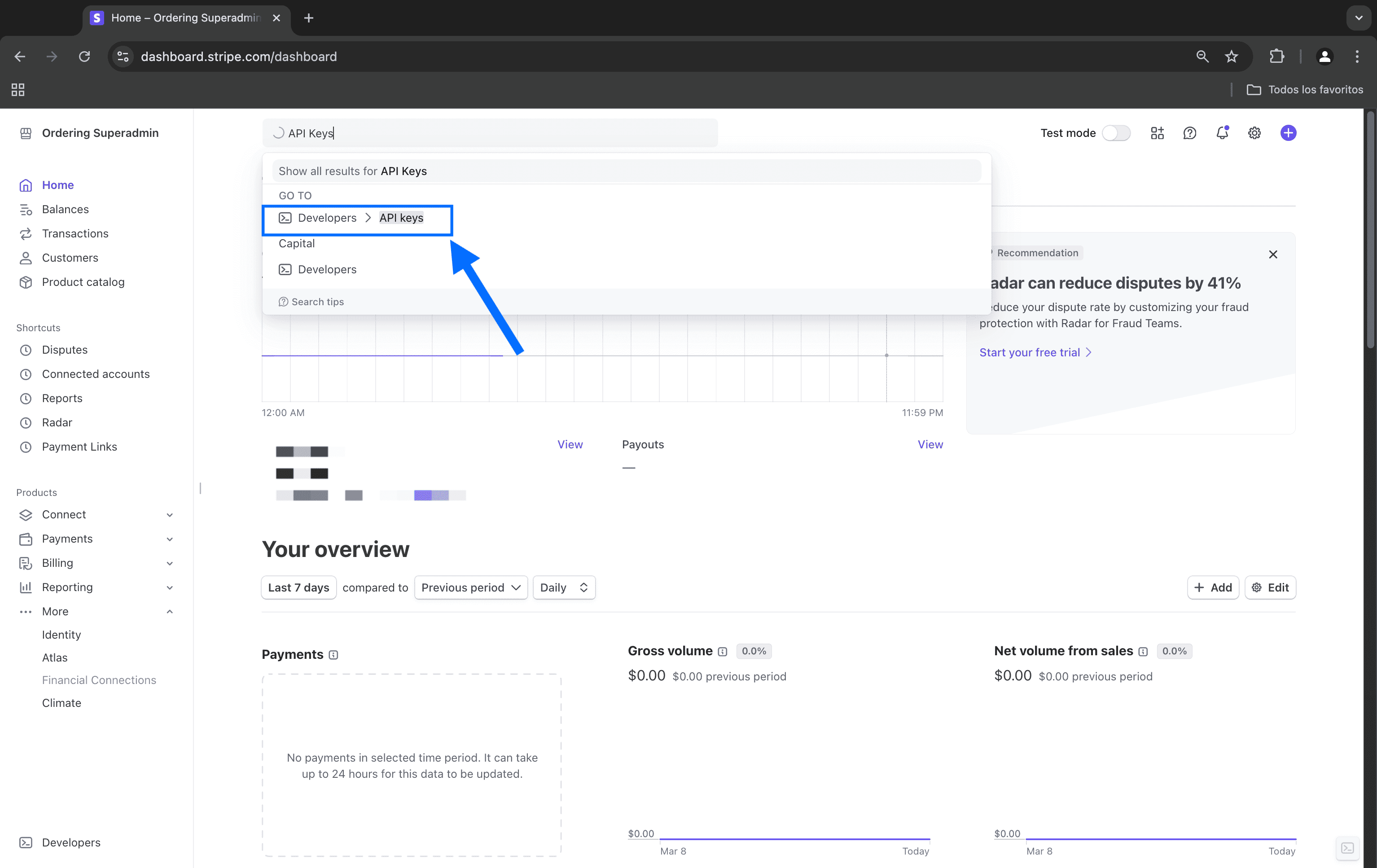
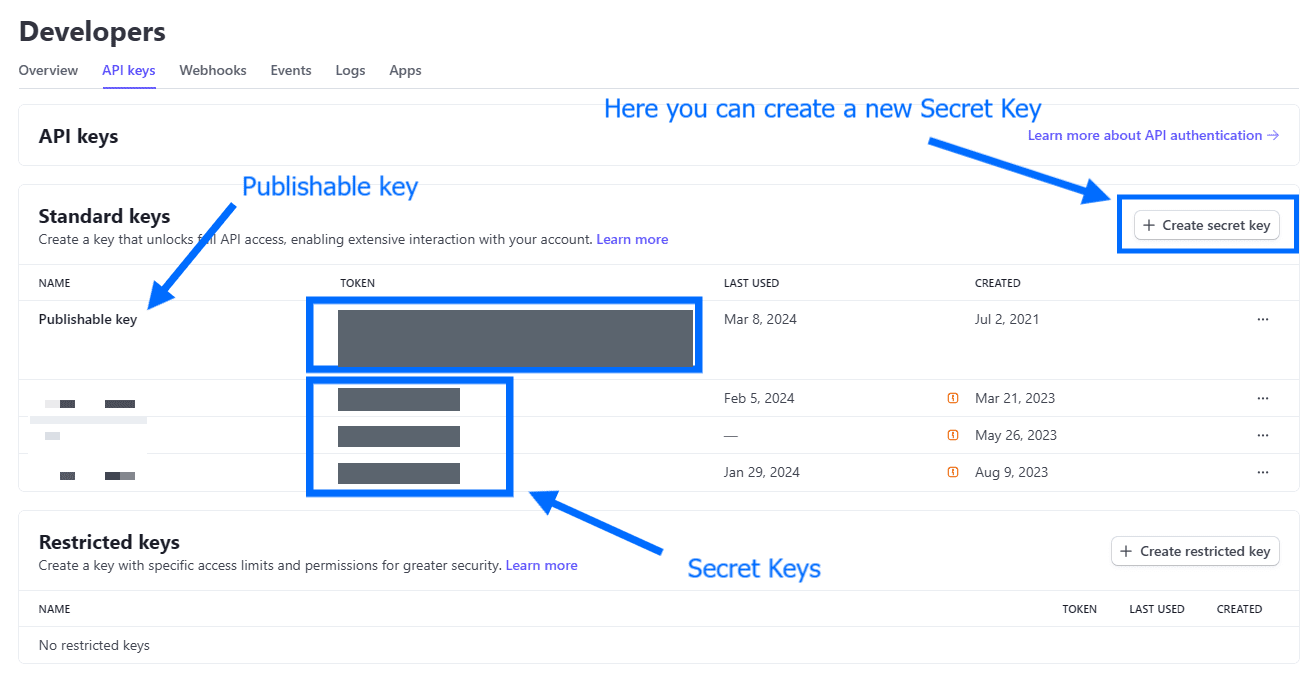
Use the exact key type requested by the Dashboard field. Publishable keys have a different use from secret or restricted keys; keep sensitive keys in an approved secrets store and never place them in messages, screenshots, support tickets, or source control. Stripe recommends restricted keys only when their compatibility and required permissions have been confirmed; do not substitute one for a required Secret Key field without that evidence. A manually created live secret key can be shown only once by Stripe, so store it securely before closing the dialog. Do not assume that every secret or test key has the same display behavior.
For more detail, review Stripe's API key guidance.
Configure Stripe Checkout for the business
- In the Ordering.co Dashboard, open the payment-method configuration for the intended business.
- Select the Stripe Checkout configuration.
- Enter the matching publishable and secret values in the fields shown for the selected environment.
- Save the changes.
- Reopen the configuration and confirm that the intended environment and field values are selected.
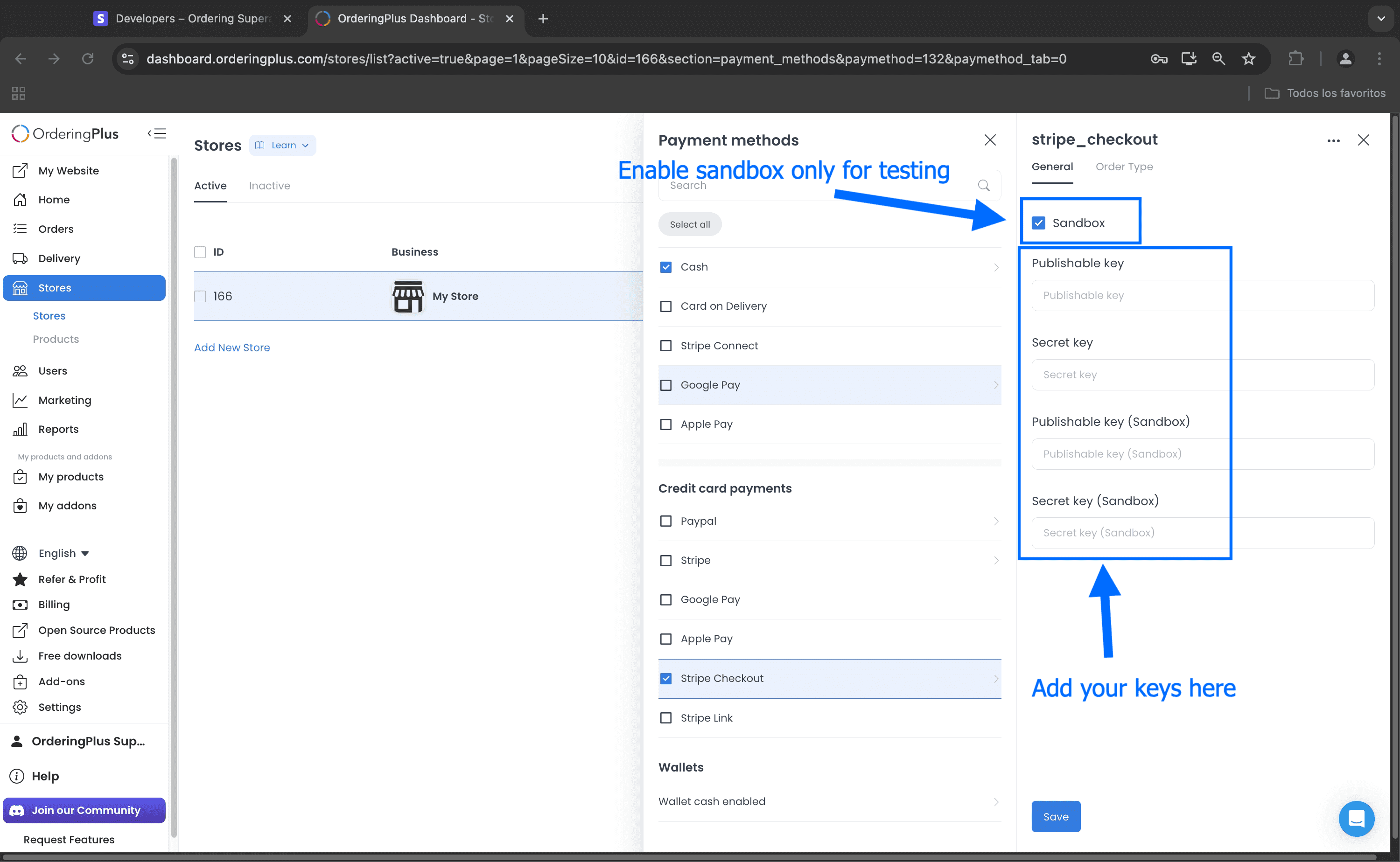
The integration chooses the stored sandbox or live credential set from the payment method's environment setting. Saving the form does not validate the credentials with Stripe, create a customer session, or complete a payment.
Verify the customer flow
- Start with a controlled test business and matching Stripe test credentials.
- Open the business's customer checkout and select Stripe Checkout.
- Continue to the Stripe-hosted session and use your approved Stripe test procedure.
- Confirm the expected result in the customer checkout, the Ordering.co order flow, and Stripe's test data or logs.
- Before switching to live credentials, confirm that the Stripe account, currency, and business configuration are ready for live use.

The Checkout flow creates a Stripe-hosted session for the cart and later checks its Stripe payment status. A customer reaching the Stripe page, returning to the store, or seeing the payment option does not by itself confirm payment completion.
Troubleshooting
Stripe Checkout does not open
Confirm that the business has a complete credential set for the selected environment. Check that test values are paired with test mode or live values with live mode, then save and reopen the business configuration.
The customer reaches Stripe but the order is not confirmed
The redirect is only one step in the payment flow. Confirm the Stripe session result and the corresponding Ordering.co order result through the approved operational process.
A credential was exposed
Rotate or expire the exposed Stripe credential in Stripe, update the matching business field, and rerun the affected test. Remove the value from messages, logs, screenshots, and source control where it appeared.