Set up Paystack
Related integration
Explore the Paystack integration with Ordering.co for an overview of the integration. Use this guide for configuration and operating details.
Install the Paystack plugin, add the webhook and API keys from your Paystack account, and enable the method for each business that should offer it. Saving keys or checking the enable box only confirms that the Dashboard accepted the configuration. It does not prove that Paystack authenticated the keys, received a webhook, authorized a charge, or settled a payment.
Do not test live payments from this guide.

Treat every Paystack secret key as sensitive. Do not paste keys into tickets, chat messages, or other shared records. Keep test keys in sandbox fields and live keys in live fields.
Before you start
Prepare the following:
- Permission to install plugins and edit payment methods in the Ordering.co Dashboard.
- A Paystack account with access to Settings and API Keys & Webhooks.
- The project code used in the webhook path (the
{PROJECT_CODE}segment). - The list of businesses that should offer Paystack.
Install the plugin
Install the Paystack plugin from this URL. Some projects already have it installed by the Ordering.co team.
Plugin URL: https://paystack.plugins.orderingplus.com
paystack.plugins.orderingplus.com is the plugin hostname. Do not replace it with another host.
If the Paystack payment method does not appear later, confirm that this plugin is installed for the project before continuing.
Open Paystack Settings
- Log in to your Paystack Dashboard.
- Open Settings.
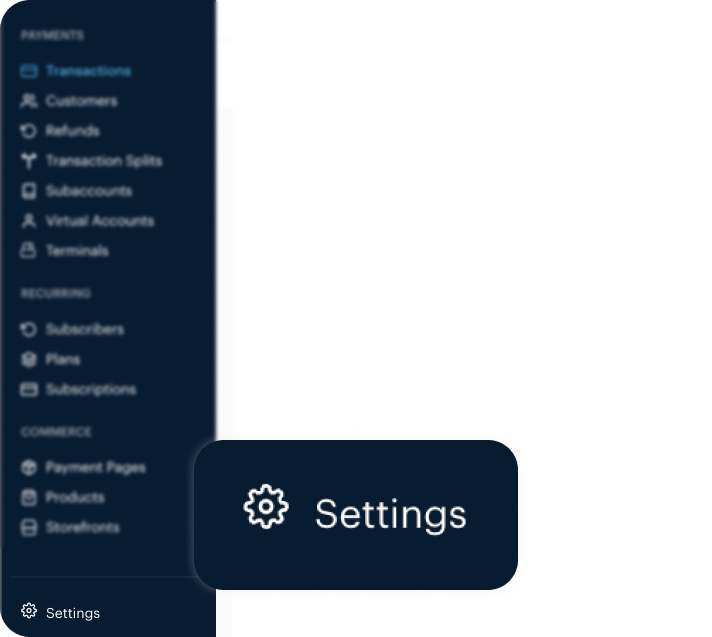
Access API Keys and Webhooks
Inside Paystack, open API Keys & Webhooks. Copy the keys and webhook values from this page.
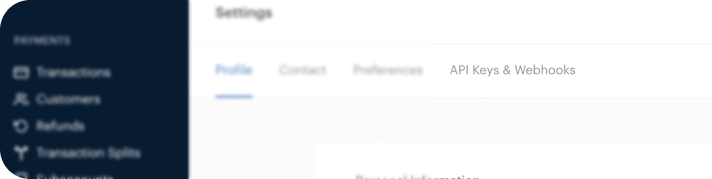
Paystack shows separate Public Key and Secret Key values for Test and Live. Copy the pair that matches the mode you will use in Ordering.co.
Configure the webhook (Test mode)
Before you add the webhook, set Paystack to Test Mode.
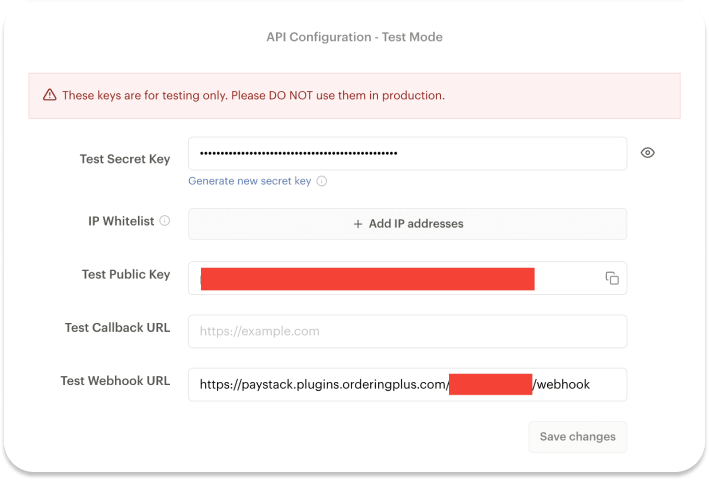
Add this Webhook URL:
https://paystack.plugins.orderingplus.com/{PROJECT_CODE}/webhook
Replace {PROJECT_CODE} with the project code for this Ordering.co project. Example:
https://paystack.plugins.orderingplus.com/orderingv1/webhook
Saving the webhook in Paystack does not prove that Ordering.co received an event.
Add Paystack keys in the Dashboard
From Paystack, copy:
- Public Key (Test)
- Secret Key (Test)
- Public Key (Live)
- Secret Key (Live)
Then open the business in the Ordering.co Dashboard, go to Payment methods, and open Paystack.
Paste each key into its matching field. The payment-method form shows Paystack Secret Key and Paystack Public Key plus a Sandbox Mode checkbox:
- Select Sandbox Mode and enter the Test public and secret keys while you validate the integration.
- Clear Sandbox Mode and enter the Live public and secret keys only when this business should use live credentials.
Do not place test values in a live configuration or live values in a sandbox configuration.
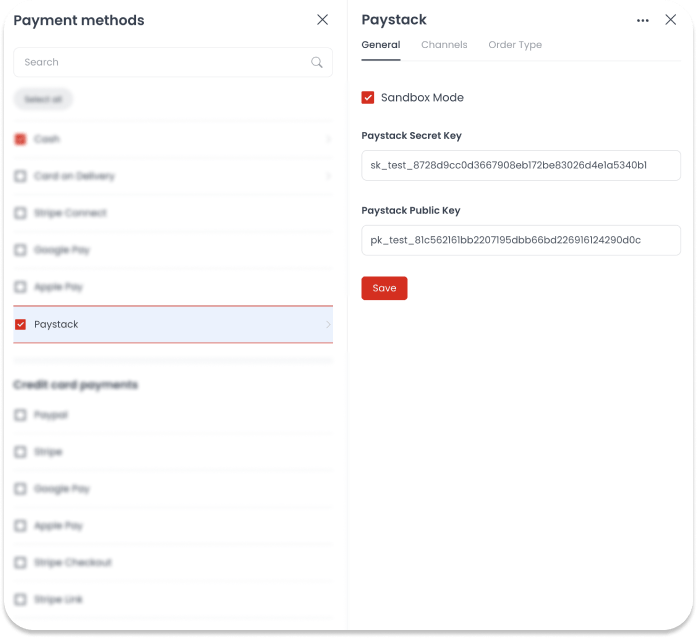
If the Channels or Order Type tabs appear, choose every channel and order type that should offer Paystack.
Enable Paystack
After the keys are in the matching fields:
- Check the box next to the Paystack payment method.
- Select Save.
Enabling the method and saving the keys only stores the configuration. Confirm a test authorization in Paystack Test mode, on the intended business, channel, and order type, before you treat the method as working. A successful save is not a successful charge.