Set up Mercado Pago
Install the Mercado Pago plugin, configure its project-wide settings, and then enable it for each business that should offer the payment method. The general plugin mode and the business-level Sandbox Mode control are separate settings; configure both deliberately.
For a product overview, see Mercado Pago Checkout Pro in Ordering.co. This connection is currently available on Ordering Web and Customer App.
Mercado Pago's Checkout Pro documentation lists Argentina, Brazil, Chile, Colombia, Mexico, Peru, and Uruguay under availability by country. This provider-level coverage does not confirm merchant eligibility or availability in a specific Ordering.co project. Confirm that the plugin appears in your project and that your Mercado Pago application matches the country where the business operates.
Treat every Access Token and Client Secret as sensitive. Mercado Pago identifies the Access Token as a private backend credential. Do not paste credentials into tickets, chat messages, or other shared records.
Before you start
Prepare the following:
- Permission to install plugins and edit settings and payment methods in the Ordering.co Dashboard.
- A Mercado Pago application for the intended operating country.
- Its production Public Key, Access Token, Client ID, and Client Secret. Mercado Pago requires production credentials to be activated before they can be used for real payments.
- The corresponding test credentials for sandbox validation.
- The list of businesses, channels, and order types that should offer Mercado Pago.
Mercado Pago explains where to obtain and activate these values in its credentials guide.
Saving credentials or enabling a payment method only confirms that the configuration was accepted by the Dashboard. It does not by itself confirm provider authentication, payment authorization, settlement, or regional availability.
Install the plugin
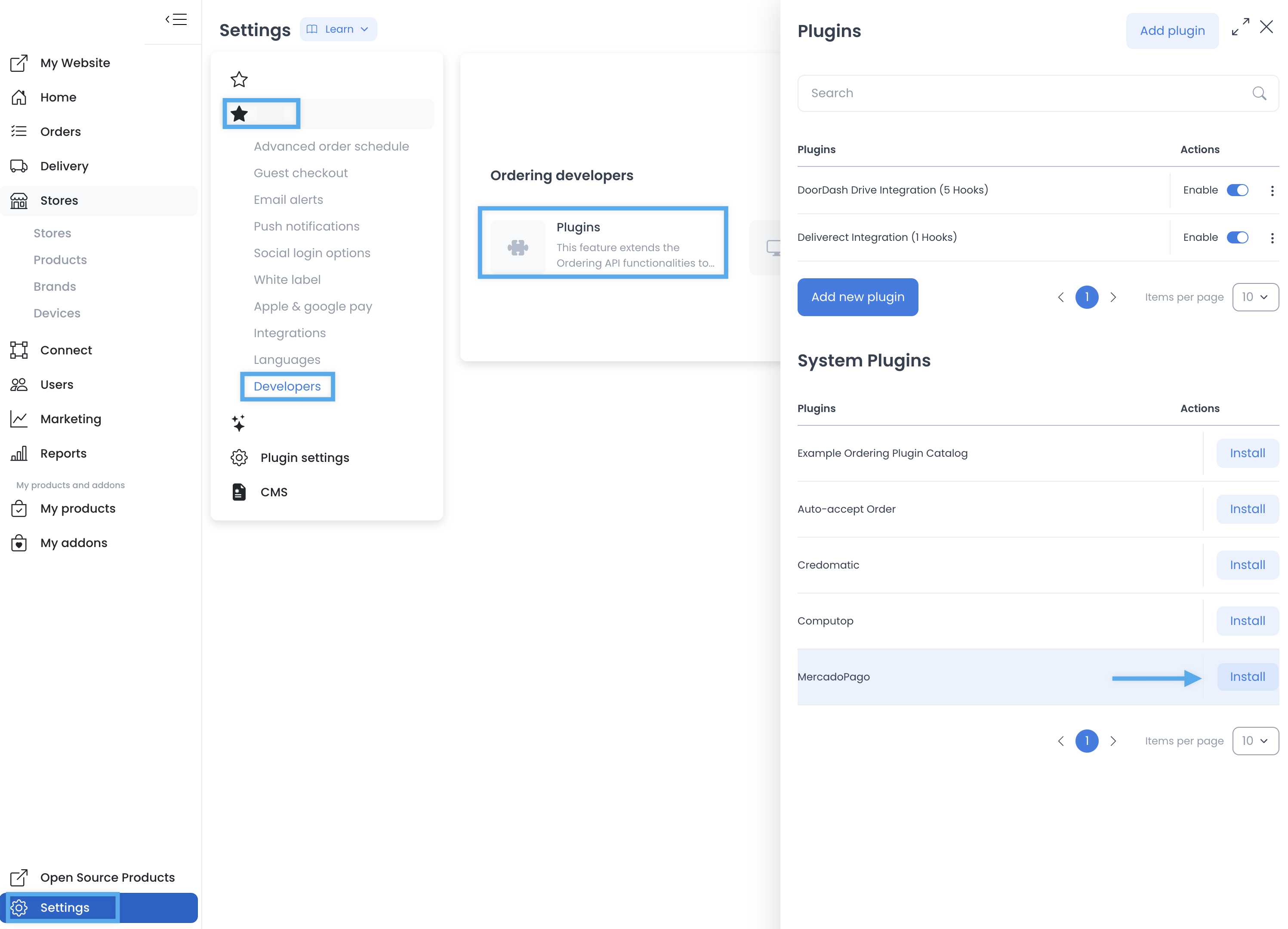
- In the Ordering.co Dashboard, go to Settings.
- Open Pro, select Developers, and open Plugins.
- Under System Plugins, locate MercadoPago and select Install.
After the installation request completes, the installed entry can appear as Checkout Pro MercadoPago Integration in the upper plugin list. The exact list can vary by project.
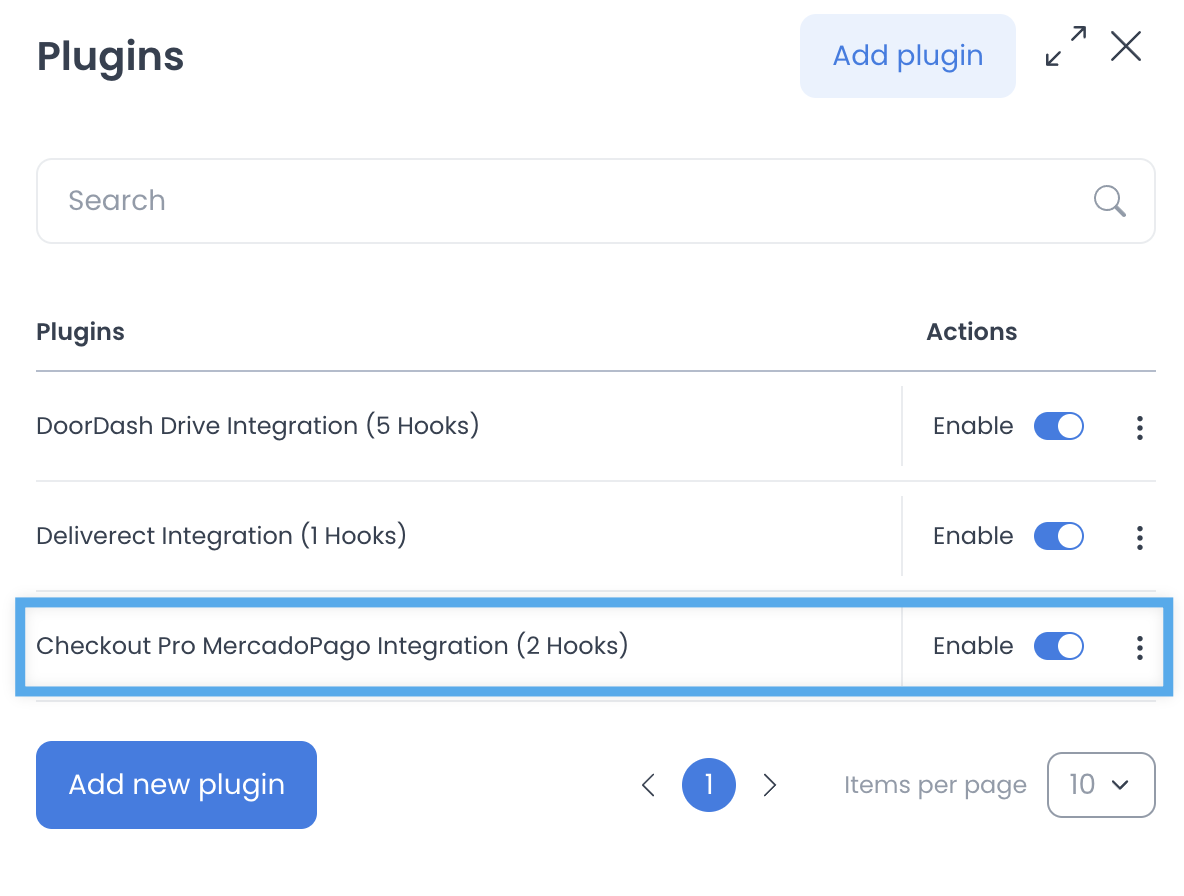
If the installed entry does not appear, refresh the plugin list and confirm that the installation completed before continuing.
Configure the general plugin settings
- Return to Settings and open Plugin settings.
- Select the generated Plugin checkout pro MercadoPago integration category.
- Enter the MercadoPago Access Token assigned to this plugin configuration.
- Set MercadoPago Sandbox Mode:
- Select Yes while validating with Mercado Pago test credentials and test payment tools.
- Select No only when you are ready to use the live configuration.
- Save the change if the page presents a save action.
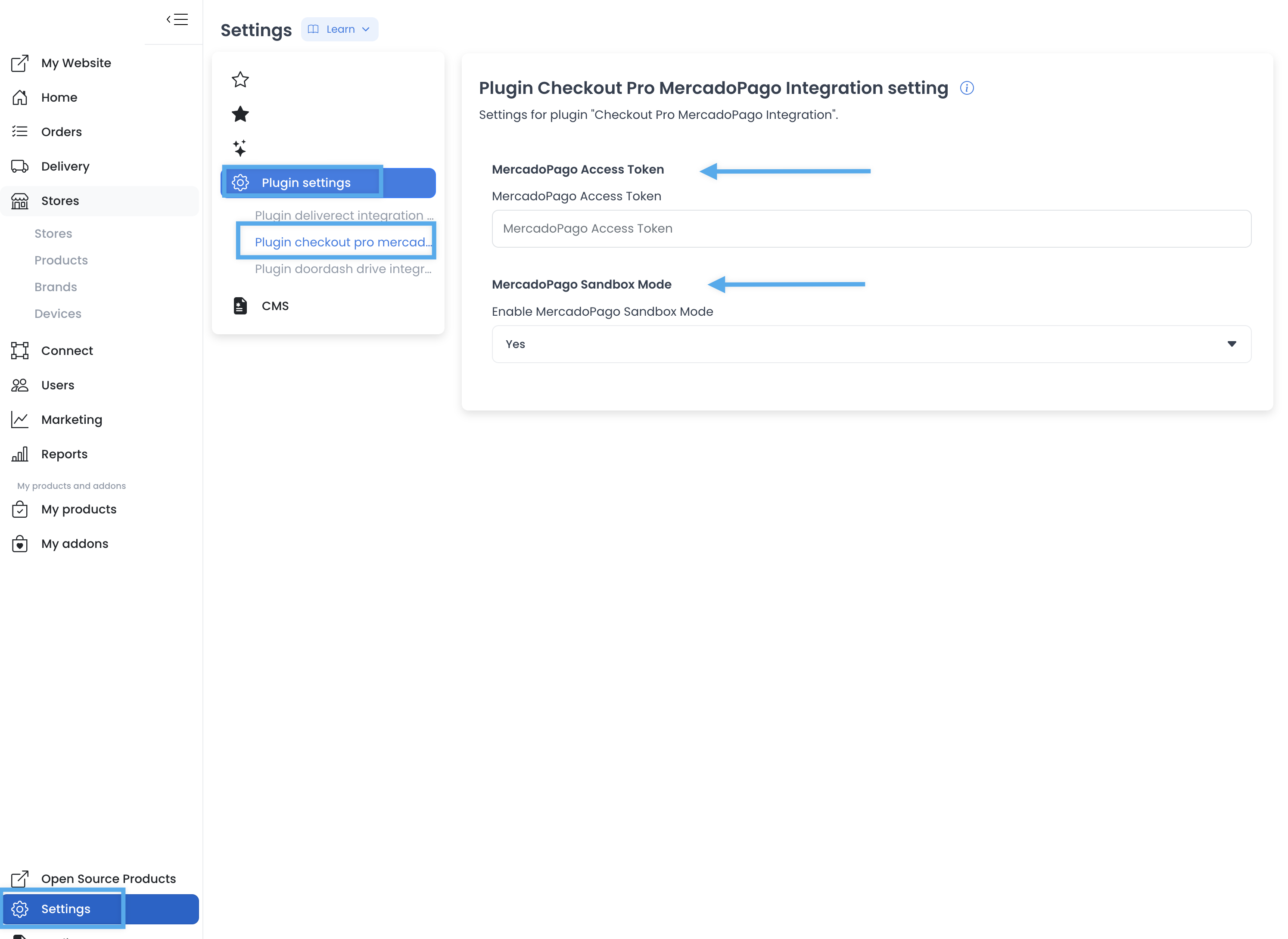
This mode is the general setting for businesses that use the plugin. It does not replace the separate Sandbox Mode checkbox in each business's payment-method configuration.
Configure and enable Mercado Pago for a business
Repeat these steps for every intended business:
- Go to Stores, open Stores, and select a business.
- Open Payment methods and locate Checkout-pro Mercadopago.
- Open the payment method to configure its General tab.
- In the first credential group, enter the live values in their matching fields:
- PUBLIC KEY
- ACCESS TOKEN
- Client ID
- Client secret
- In the second credential group, enter the corresponding test values:
- Public Sandbox Key
- SANDBOX ACCESS TOKEN
- SANDBOX CLIENT ID
- SANDBOX CLIENT SECRET
- Select the business-level Sandbox Mode checkbox while this business should use its sandbox credentials. Clear it only when this business should use its live credentials.
- If the Channels tab appears, choose every channel where the method should be available. If All is selected, the method is not limited to individual channels.
- In Order type, select the order types that should offer Mercado Pago.
- Select Save, then check the Checkout-pro Mercadopago entry to enable it for the business. If enabling it first opens an incomplete-data warning, finish the required credential fields, save, and enable it again.
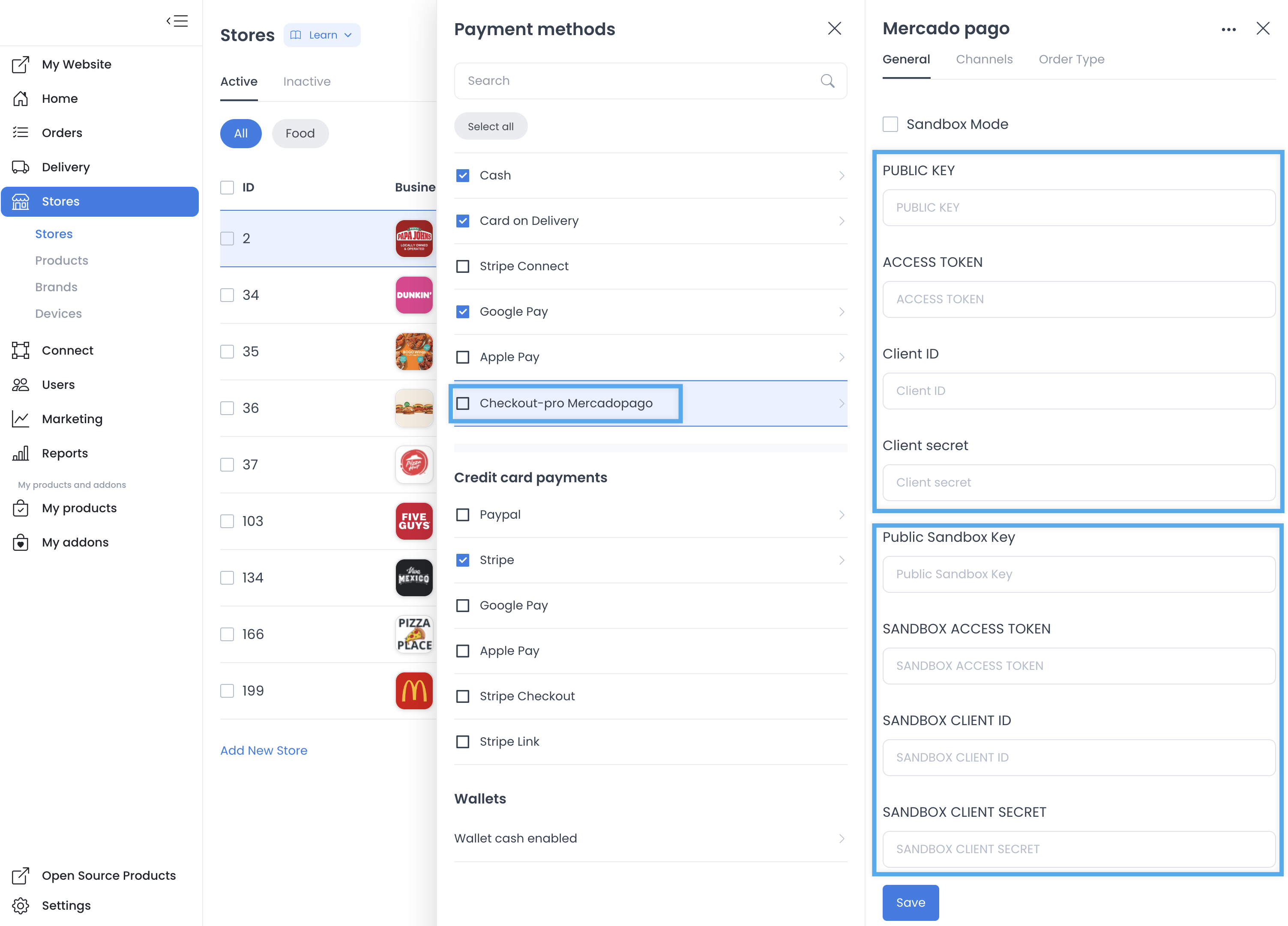
The first credential group is for live mode, and the second is for sandbox mode. Do not place test values in live fields or production values in sandbox fields.
Validate sandbox and live configuration
Sandbox validation
- Keep the general MercadoPago Sandbox Mode set to Yes.
- Select Sandbox Mode for the business under test.
- Use the matching test credentials and Mercado Pago's test accounts and cards. Mercado Pago requires buyer and seller test users to use the same operating country; see its Checkout Pro test accounts guide.
- Confirm that the intended business, channel, and order type expose Mercado Pago at checkout.
- Complete the provider's test flow and review the result in the appropriate test environment.
Move an intended business to live mode
- Confirm that the production credentials are active in Mercado Pago and are present in the first credential group.
- Clear the business-level Sandbox Mode checkbox and save.
- Set the general MercadoPago Sandbox Mode to No when the businesses using the general plugin configuration are ready for live operation.
- Recheck the intended channels and order types.
The available evidence does not establish which control takes precedence when their values conflict. Keep the general and business-level modes aligned. If you need different modes across businesses, validate that behavior in an isolated test environment before enabling live payments.
Practical configurations
- Retail businesses: Enable Mercado Pago only for the storefronts that have matching provider credentials, and scope the method to the channels and order types those businesses operate.
- Online orders: Validate the checkout in sandbox before making the method live, including each intended channel and order type. A successful test does not guarantee that a later live payment will be authorized or settled.
Troubleshooting
- Plugin settings are missing: Confirm that Checkout Pro MercadoPago Integration appears as installed and enabled, then reload Settings. The settings navigation is populated from the categories returned for the project.
- The payment method is not listed: Confirm that the Mercado Pago plugin configuration is present for the project. The Dashboard can hide the business payment option when that configuration is absent.
- The Dashboard reports incomplete payment data: Fill every required field in the active credential group, save, and then enable the method again.
- Sandbox attempts use the wrong credentials: Verify both the general mode and the business-level checkbox, then confirm that the sandbox fields contain test credentials from the same Mercado Pago application and country.
- Live operation stops after credentials are renewed: Replace the old credential pair in the Dashboard. Mercado Pago states that renewed production credentials must replace the previously configured values for the integration to continue operating.