Online payments
Configure payment methods so each project or business can use the provider and payment flow that fits its operation. This overview explains what the Dashboard settings control, what they do not confirm, and where to find the focused setup procedure for each supported flow.
Find the settings for your project
Open Settings, then select the payment-related category displayed for your project. The Dashboard builds its Settings categories from the configuration returned for that project, so the category name, grouping, and available fields can differ. An older screenshot does not guarantee that the same category is enabled or appears in the same location in your Dashboard.
The image below is a historical interface example. Use it to recognize the currency and testing-mode controls, not as a current navigation map or a complete list of fields.
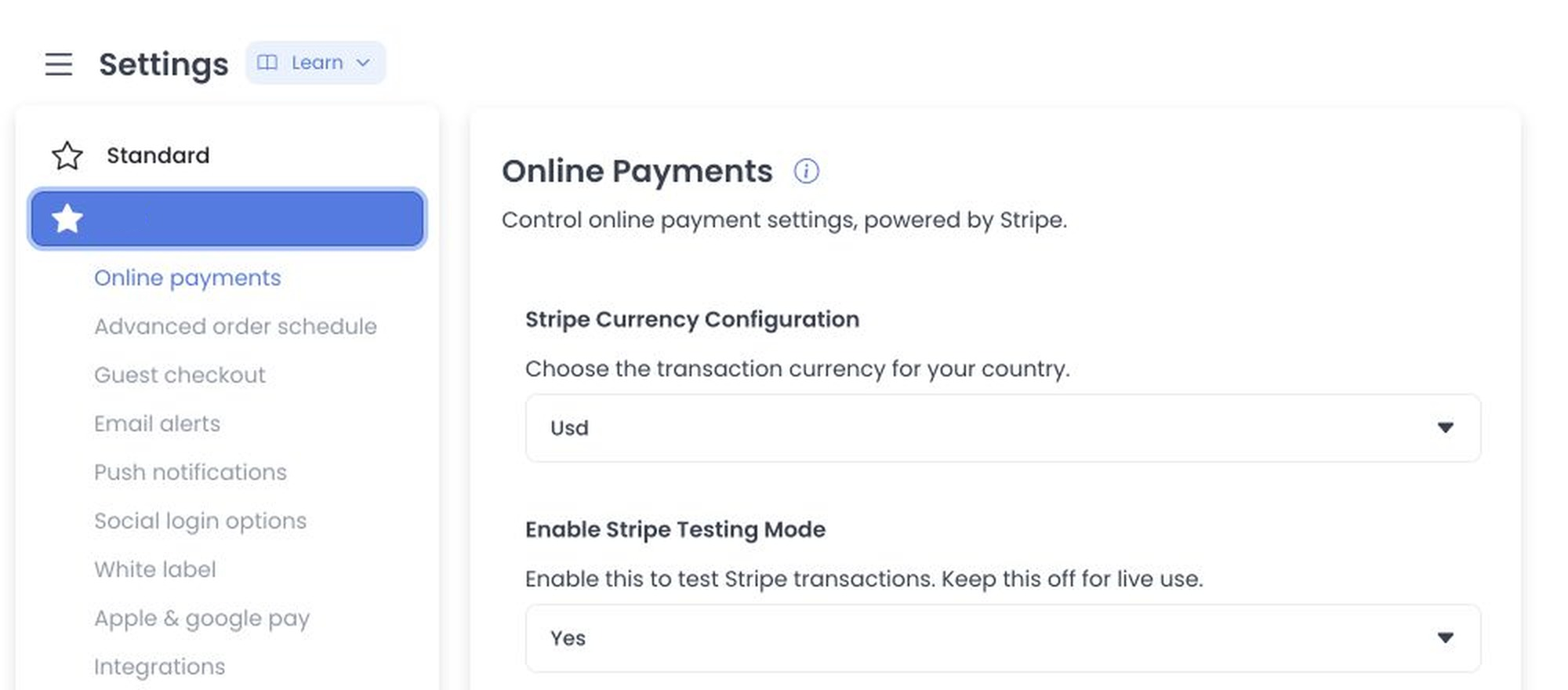
Understand what configuration controls
The Dashboard renders the fields returned for the category you open. Depending on the payment method, configuration can include a transaction currency, testing or live mode, publishable and secret keys, access tokens, webhooks, or store-level activation.
Treat secret keys, access tokens, and webhook credentials as sensitive. Enter them only in the intended Dashboard fields, and keep them out of documentation, messages, screenshots, and source control. Confirm that each live or test credential goes in its matching field.
A visible field or provider name shows that configuration is available to the current project; it does not confirm that the provider account is verified, credentials are valid, a webhook can be delivered, or a payment can be authorized, settled, or refunded.
Save and verify changes
Most field changes remain pending until you select Save. The Dashboard sends changed settings one at a time. If a later update fails, an earlier one may already have been saved. After any error, reload the category and verify every field you changed before retrying. If a returned category includes an image field, completing the crop saves that image immediately instead of waiting for the main Save action.
Saving configuration is only the setup step. Complete the provider-specific procedure, enable the method for the intended business or store when required, and use the provider's test mode, when available, to verify the checkout flow before enabling live mode. A successful save does not by itself prove a successful payment or provider outcome.
Choose a setup guide
- Configure cash and card on delivery — enable pay-at-delivery options for the appropriate stores without configuring an online gateway.
- Set up Computop — install the Computop plugin, add its credentials in Plugin Settings, and enable it for the intended stores.
- Set up Credomatic — install the Credomatic plugin, configure its live and test credentials, and select the mode used by each store.
- Set up Mercado Pago — install the Mercado Pago plugin, add the account token and mode settings, and configure the stores that will use it.
- Set up Paystack — install Paystack, configure its webhook and test or live keys, and enable the payment method.
- Set up Stripe Checkout — configure Stripe Checkout credentials for an individual business and verify its customer checkout flow.
- Set up Stripe Global — configure shared Stripe currency, test and live credentials, testing mode, and store activation.
- Set up Stripe Link — configure Stripe and messaging credentials for Call Center payment links sent to a customer's phone.
- Plan an Authorize.net connection — coordinate the merchant's location, gateway/merchant account arrangement, processor, and intended project flow. This is a scope note, not a self-service Dashboard setup procedure.
Related guides
Related integration
Compare payment gateways by business country for an overview of the integration. Use this guide for configuration and operating details.
For an Authorize.net project, use the connection planning note to prepare a coordinated scope review. It does not provide a verified configuration procedure.