Languages
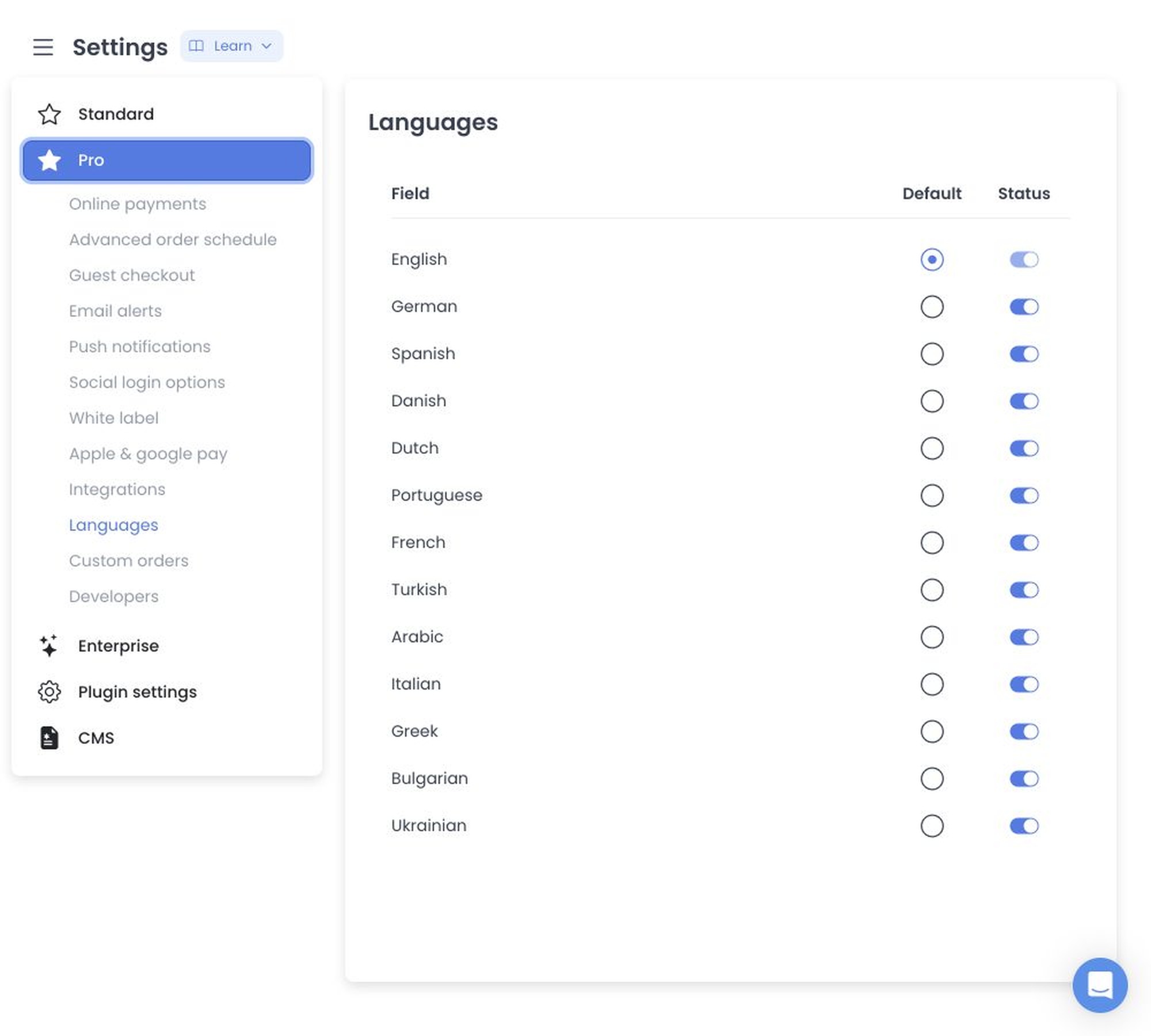
Use Languages to manage the language records returned for your project: enable or disable individual languages, then choose one enabled language as the default. These controls manage language availability in Dashboard; they do not translate Business, menu, product, or storefront content.
Before you begin
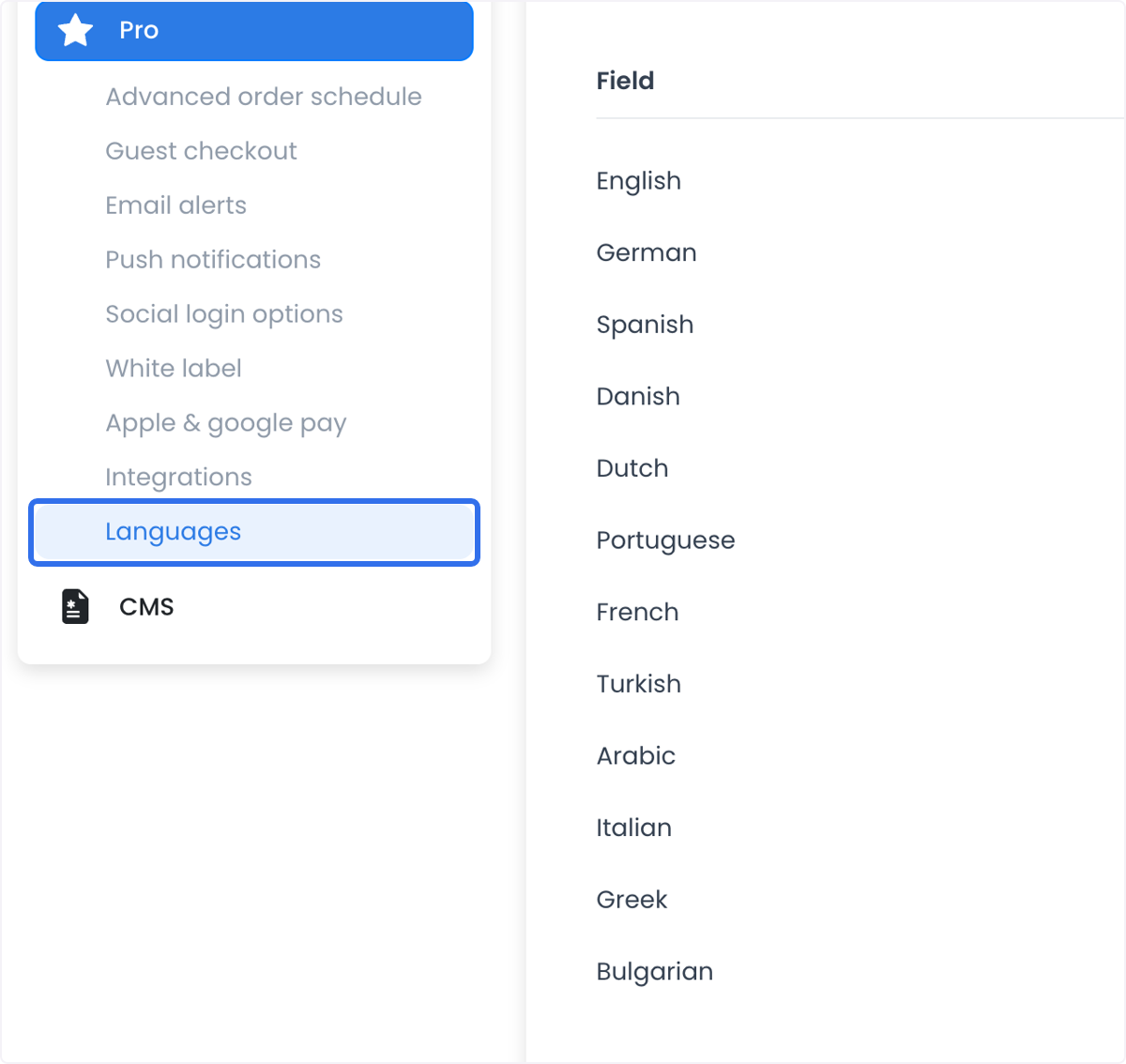
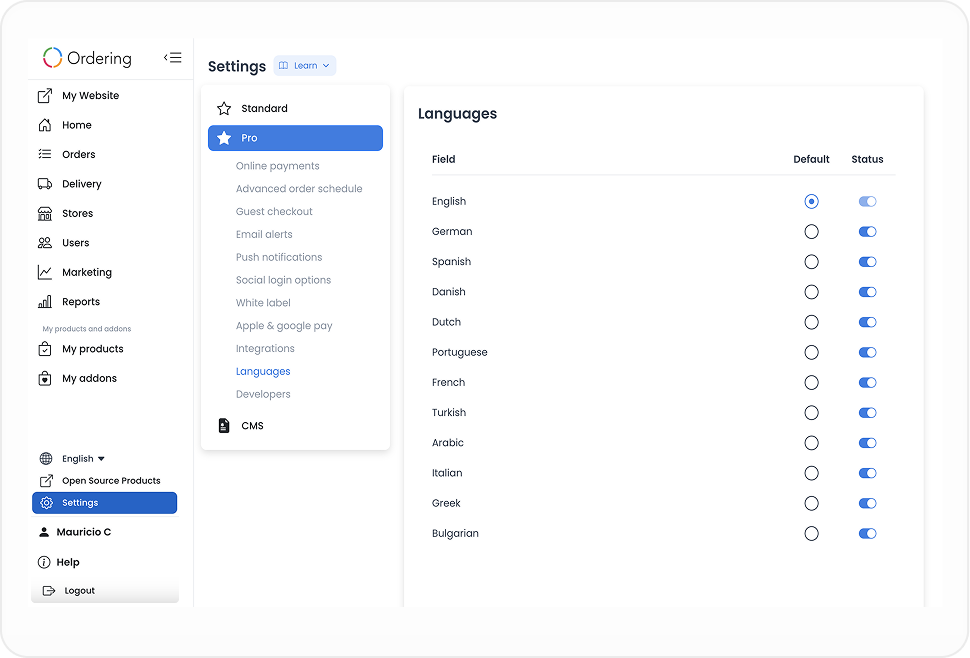
- Open Settings, then select Languages when it appears in your Dashboard navigation.
- You need a level-0 administrator session. The category and its language list are returned for each project, so the entries in your Dashboard can differ from the examples below.
- Use Language manager to work with translation records. Enabling a language here does not by itself translate content or establish a storefront language-selection rule.
Enable languages and set the default
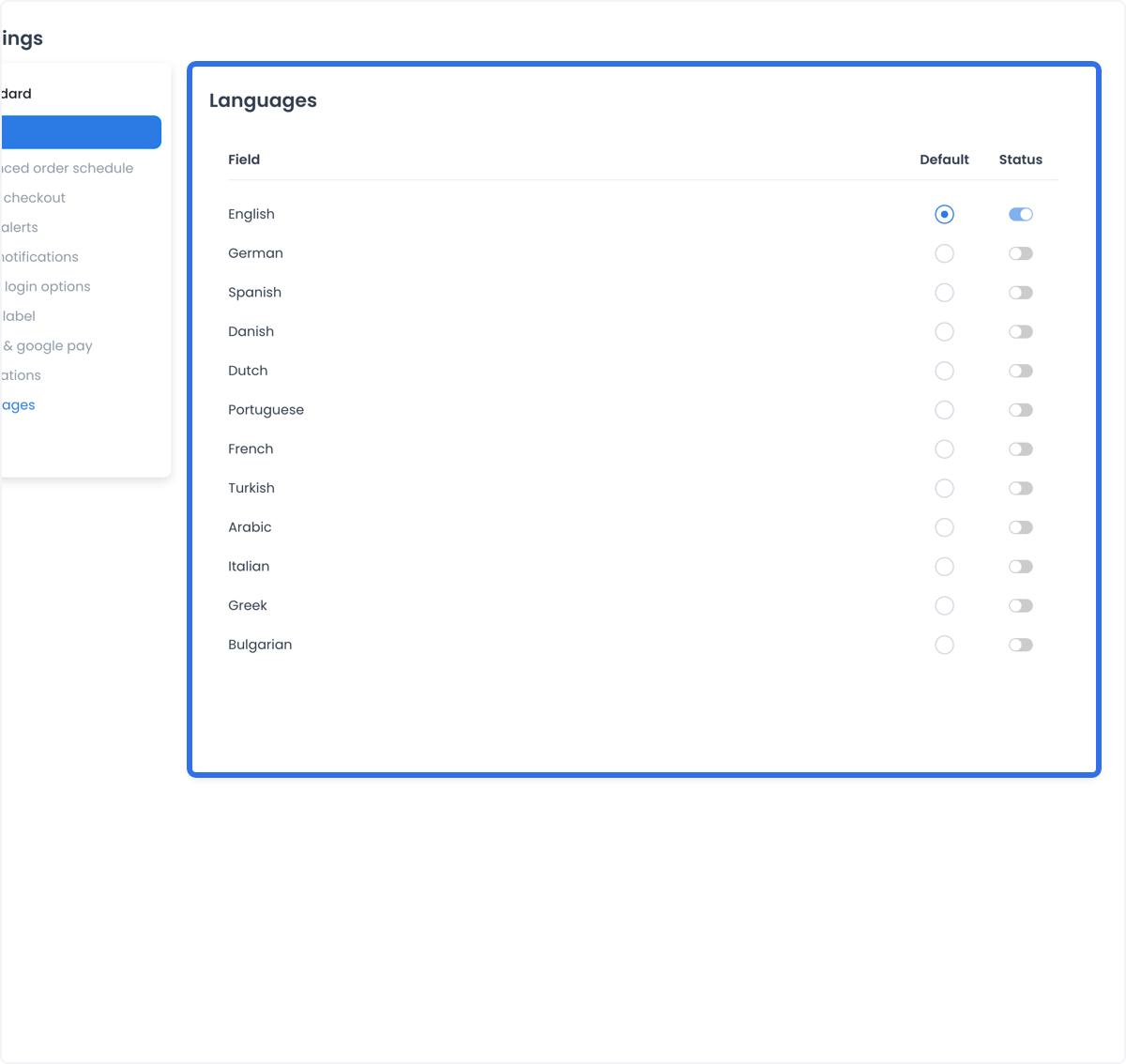
- Review the rows in Field. Each row represents one available language record.
- Use Status to enable or disable a language. In the documented interface, this control saves immediately rather than waiting for a page-wide Save action.
- Select Default for the enabled language that should be the default. The captured control design supports one default language at a time.
- Confirm the screen after changing the default. The documented interface saves that change immediately, updates the local list, and reloads after the request path returns.
In the documented UI, the current language row has its Status switch disabled. Do not treat the language list in a screenshot as a fixed catalogue: historical captures show English, German, Spanish, Danish, Dutch, Portuguese, French, Turkish, Arabic, Italian, Greek, Bulgarian, and Ukrainian, but a project can return a different list.
Check the operational result
An enabled language is available only according to the returned configuration for that project. After changing Status or Default, confirm the value shown in Dashboard, then test an eligible ordering flow in an approved test environment. A browser preference, a translated storefront, or a customer-facing language change is not established by this setting alone.
If a language you need is not in the returned list, it cannot be added from this screen. Record the requested language and resolve it with the team that manages your Ordering.co implementation; no in-product add-language action is documented here.
When this setting is useful
- Make an available language selectable for a broader or regional audience. This can support accessibility and a more localized experience only when the relevant content and ordering flow also support that language.
- Enable languages as you enter a new market.
- Match available languages to a localized campaign or regional audience.
- Adjust enabled languages for a seasonal audience without treating the example list as permanent availability.
For example, an operation serving customers in the United States, Mexico, and Germany might enable English, Spanish, and German and choose English as the default. Check the actual storefront before assuming that a browser preference changes the language a customer sees.
Status and Default are independent immediate-save controls. Make one intentional change at a time and confirm the returned value before moving on.
Related guides: Language manager · Settings categories