Set up Intercom Messenger
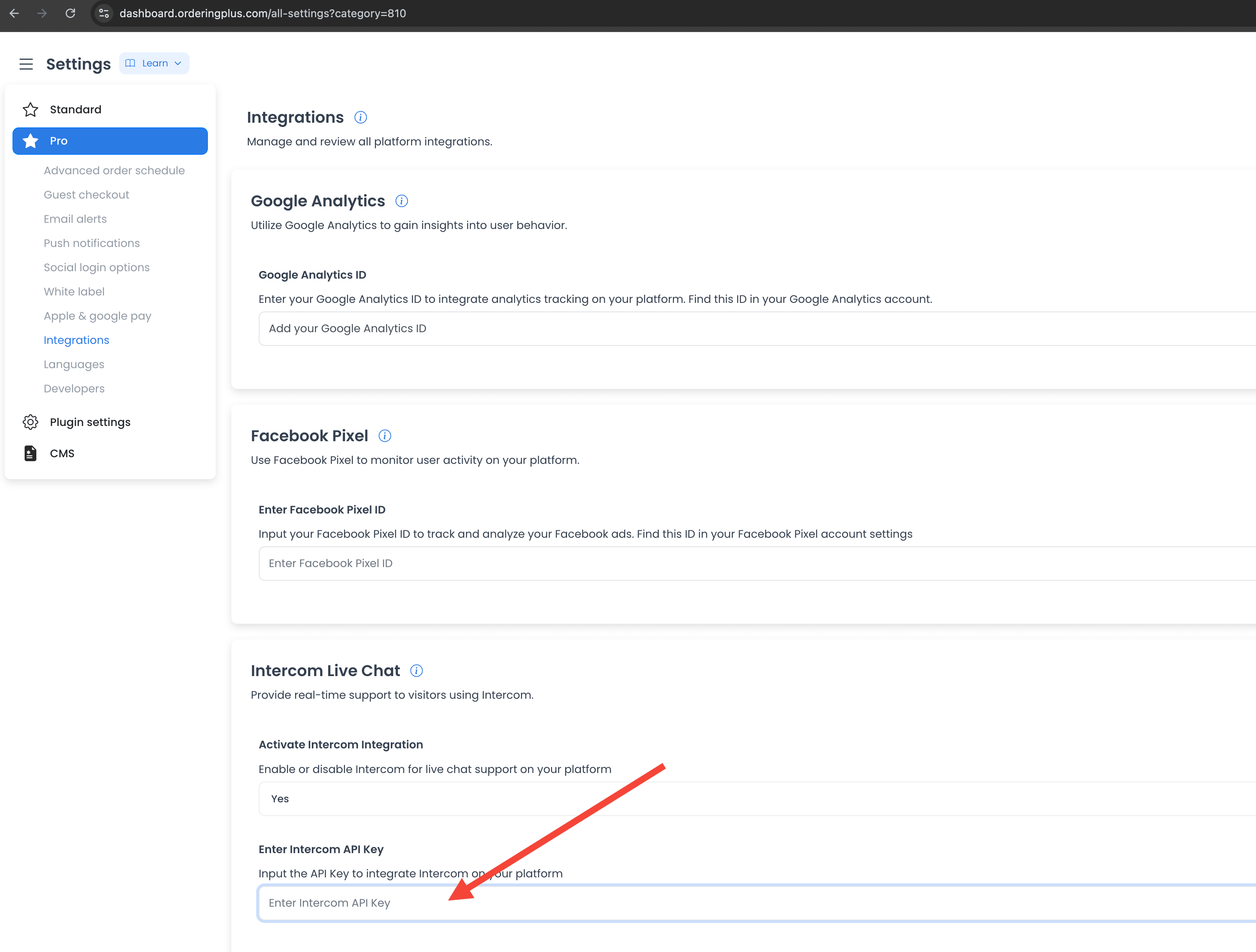
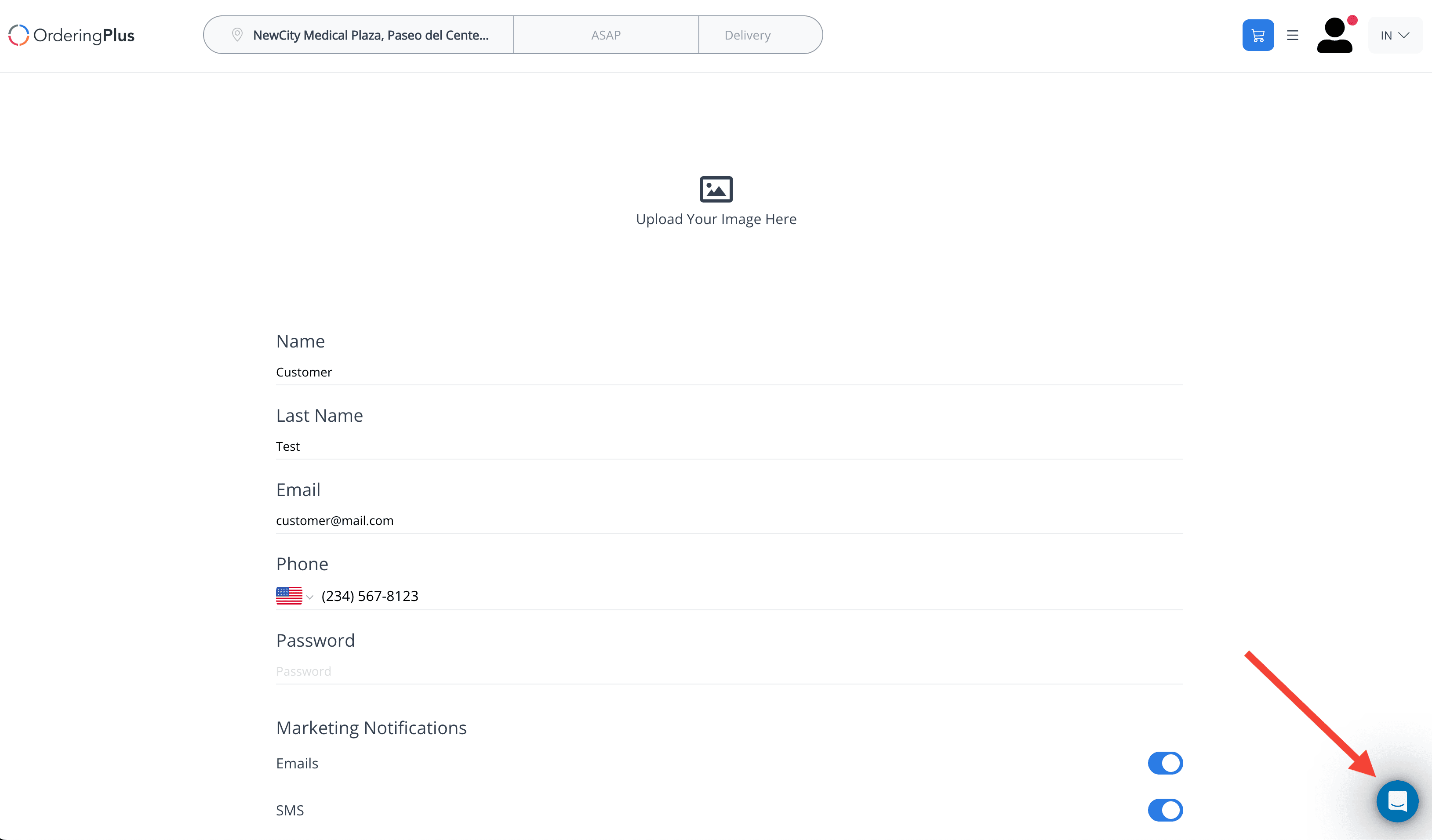
Intercom Messenger is the live-chat widget Intercom hosts for your workspace. Ordering.co stores the enablement toggle and Enter Intercom API Key on Settings → Pro → Integrations. When Activate Intercom Integration is Yes and Intercom accepts the install, the chat bubble can appear on the storefront—often in the profile section of the website.
Saving the Dashboard fields does not by itself load Messenger. Keep the Intercom app_id and any access token private.
The Dashboard field is labeled Enter Intercom API Key (older layouts may show Intercom Api Key). The Messenger install copies the Intercom app_id into that field. A separate Integrations overview points an Intercom Developer Hub Access token at the same field. Use the value your Intercom workspace provides for the chat you are enabling, then confirm the widget on the storefront.
Copy the Messenger app ID
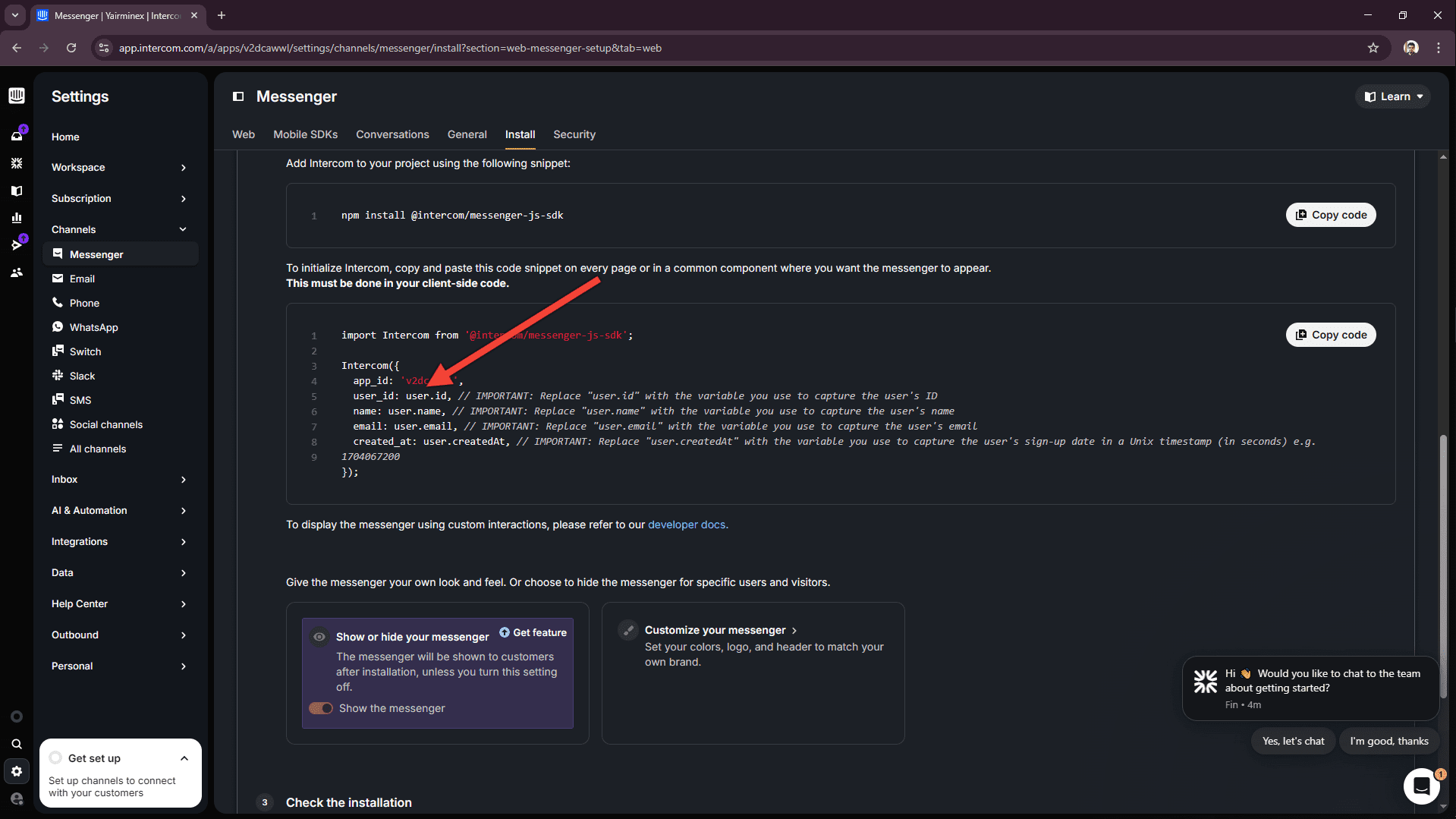
- Open your Intercom account and go to Settings.
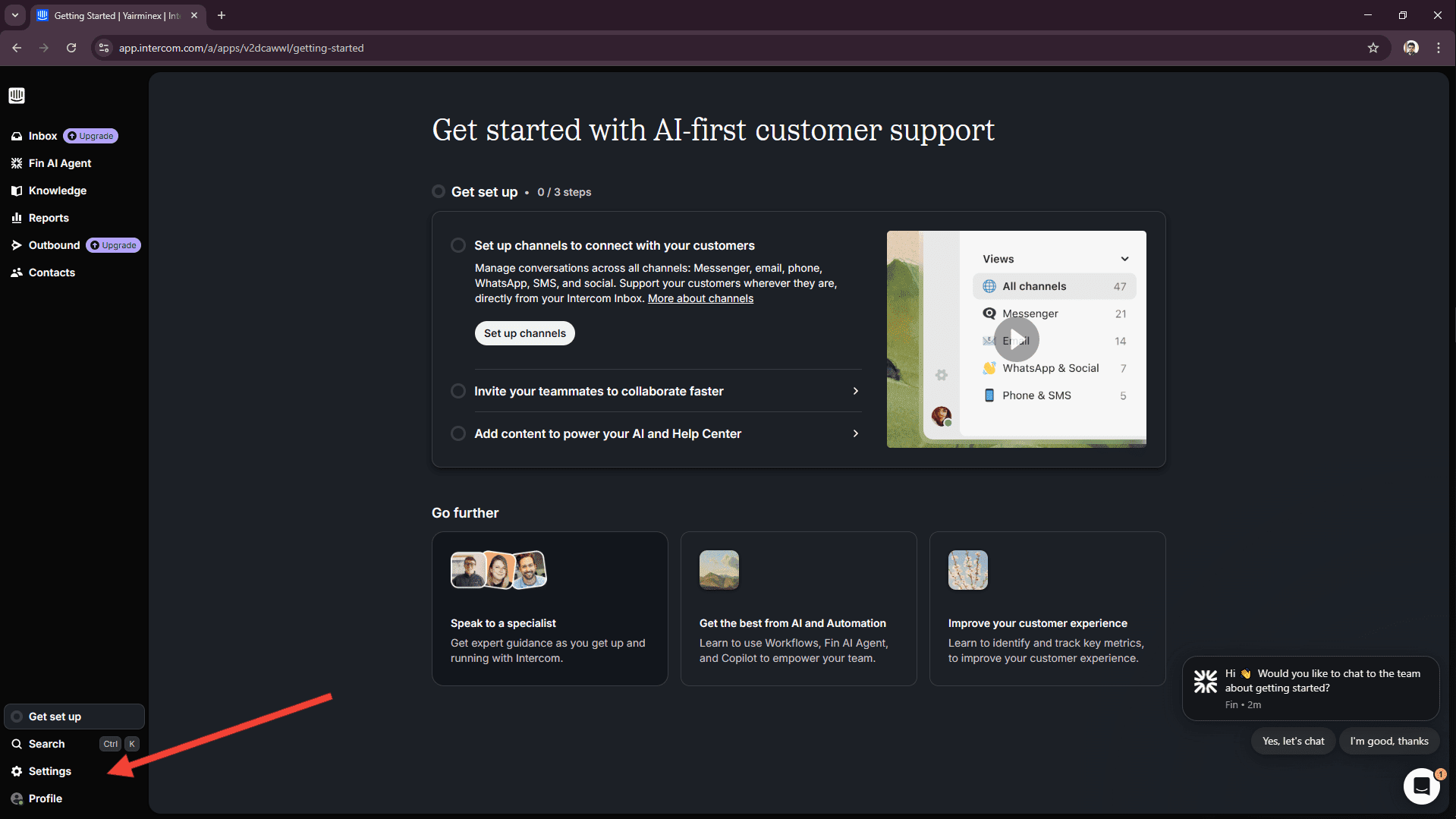
- In the left sidebar, open Channels, then select Messenger.
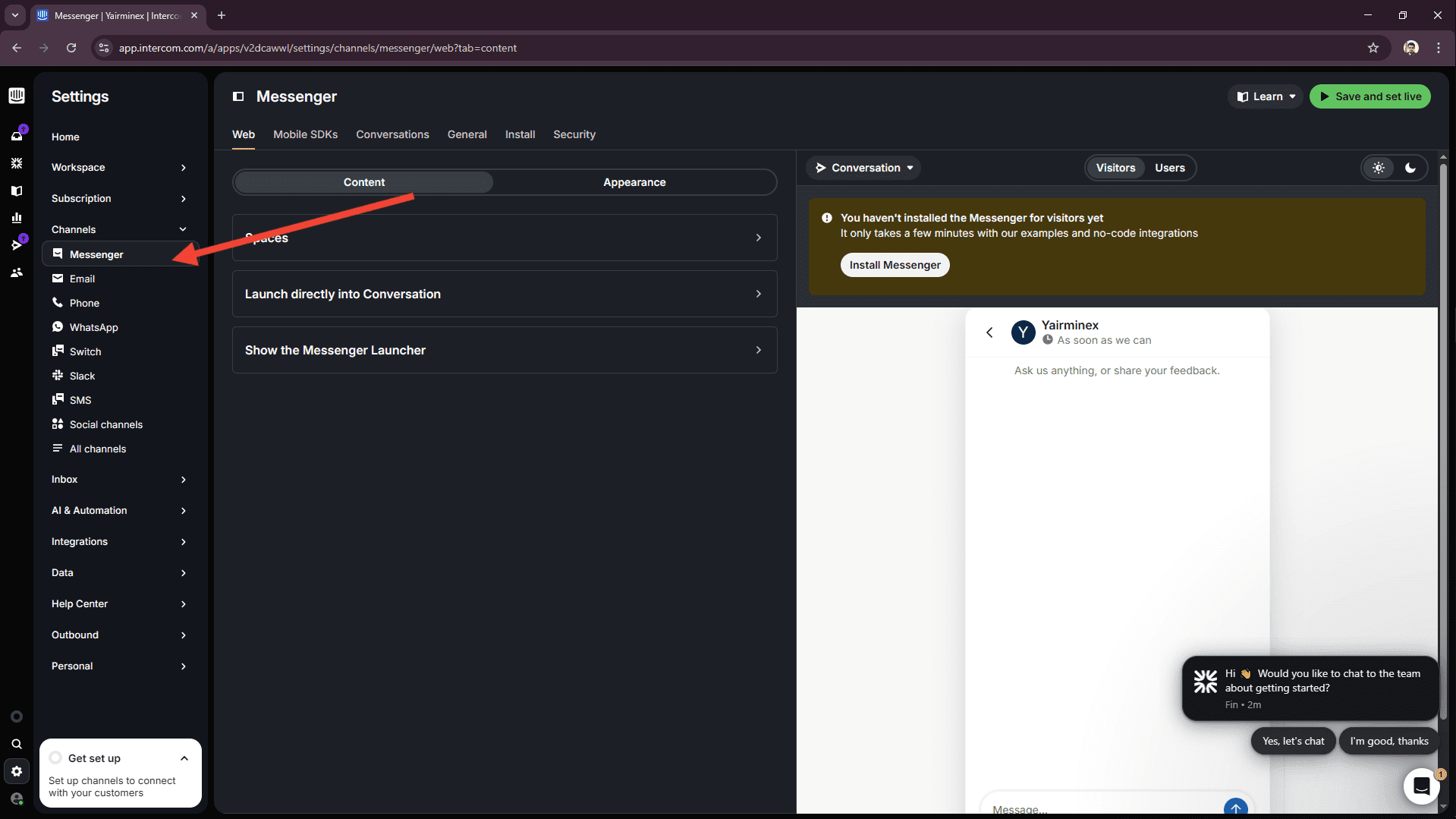
- Open the Install tab and select Install for web.
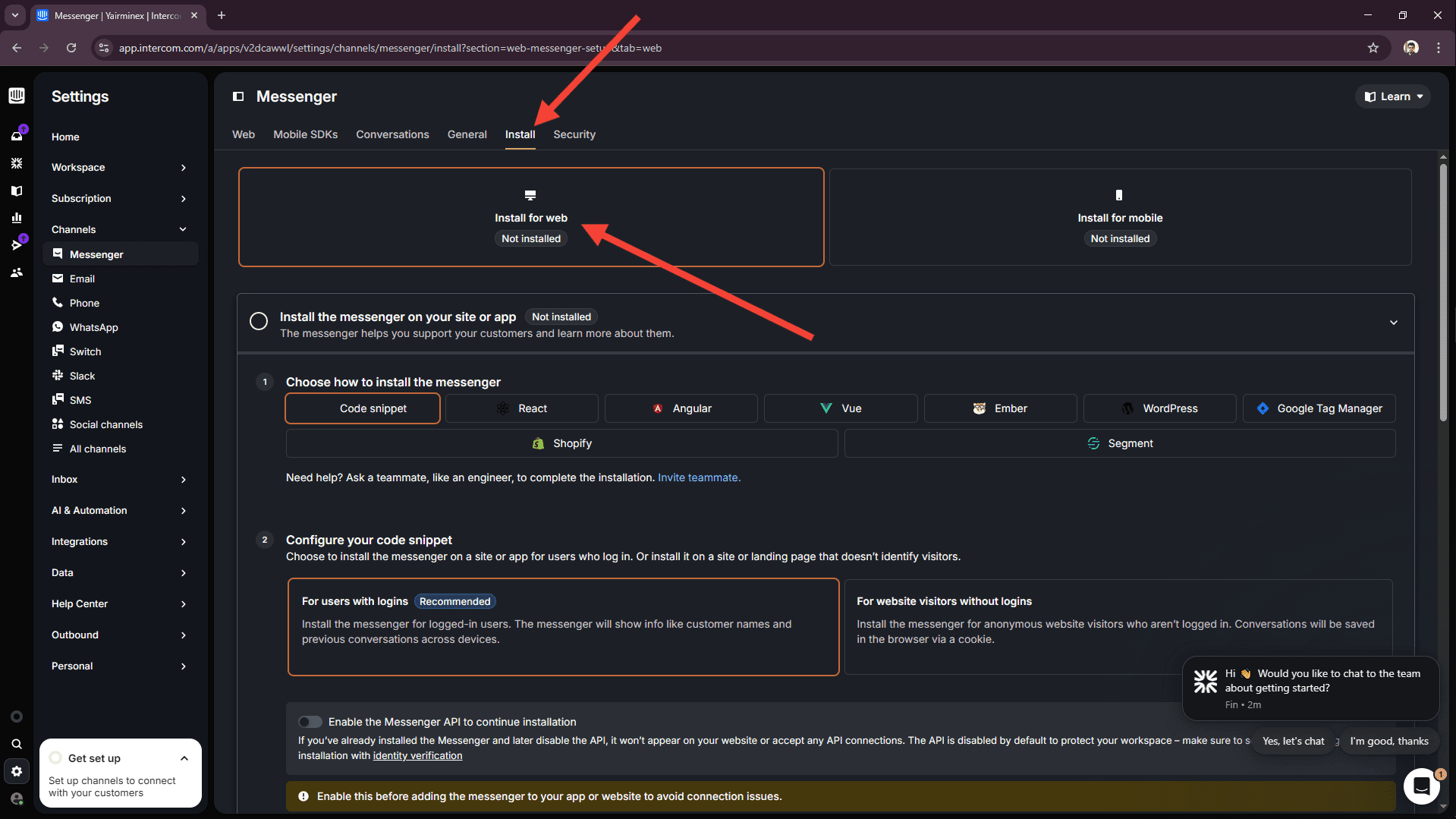
- Enable Messenger API. Intercom keeps this off until you turn it on so the Messenger is not added before the workspace is ready.
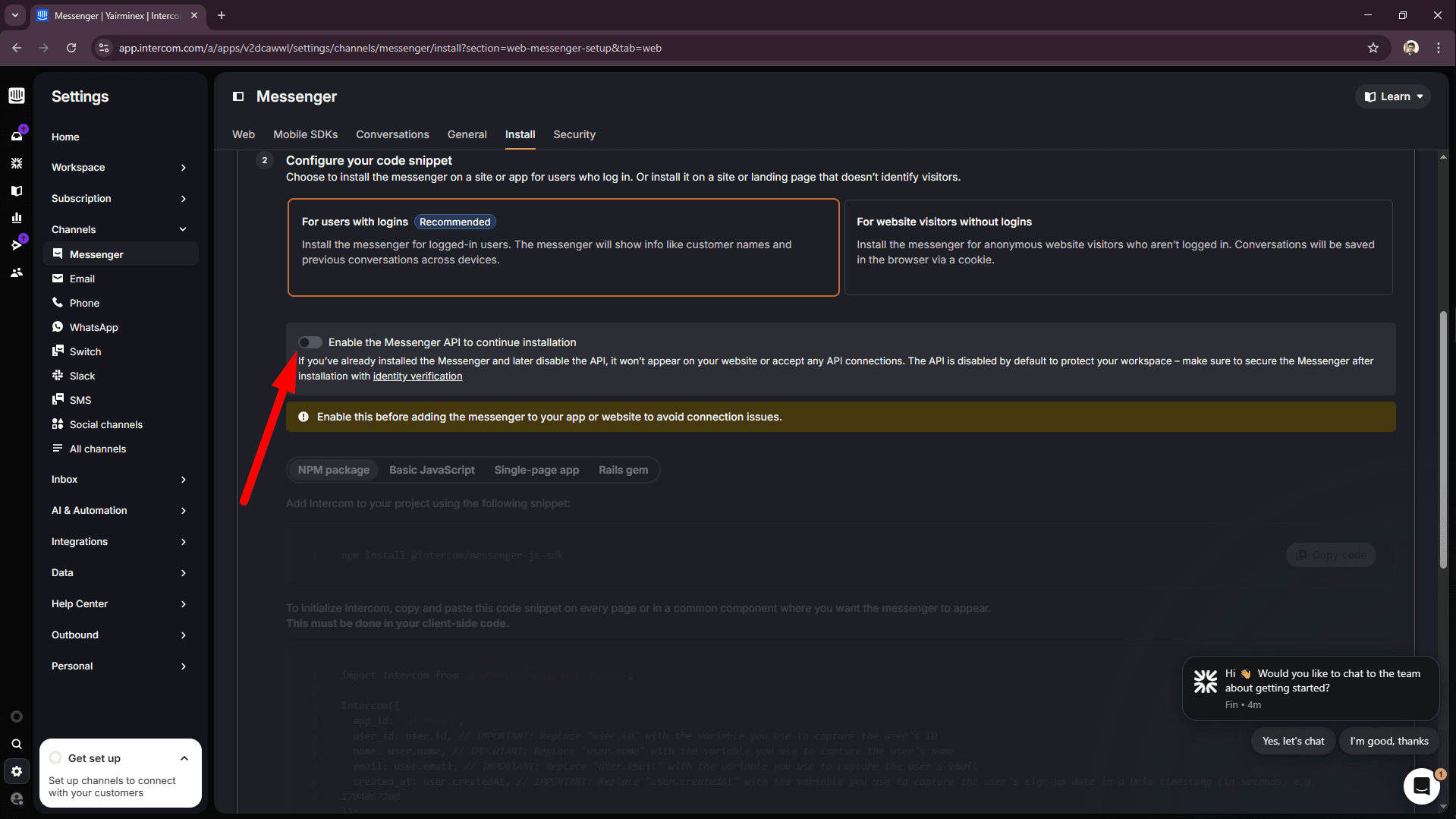
- Scroll down and copy your
app_idfrom the install snippet.
- In the Ordering.co Dashboard, open Settings → Pro → Integrations. Set Activate Intercom Integration to Yes. Paste the
app_idinto Enter Intercom API Key, then select Save.
- After Intercom and the storefront load Messenger, the chat control appears on the website profile.
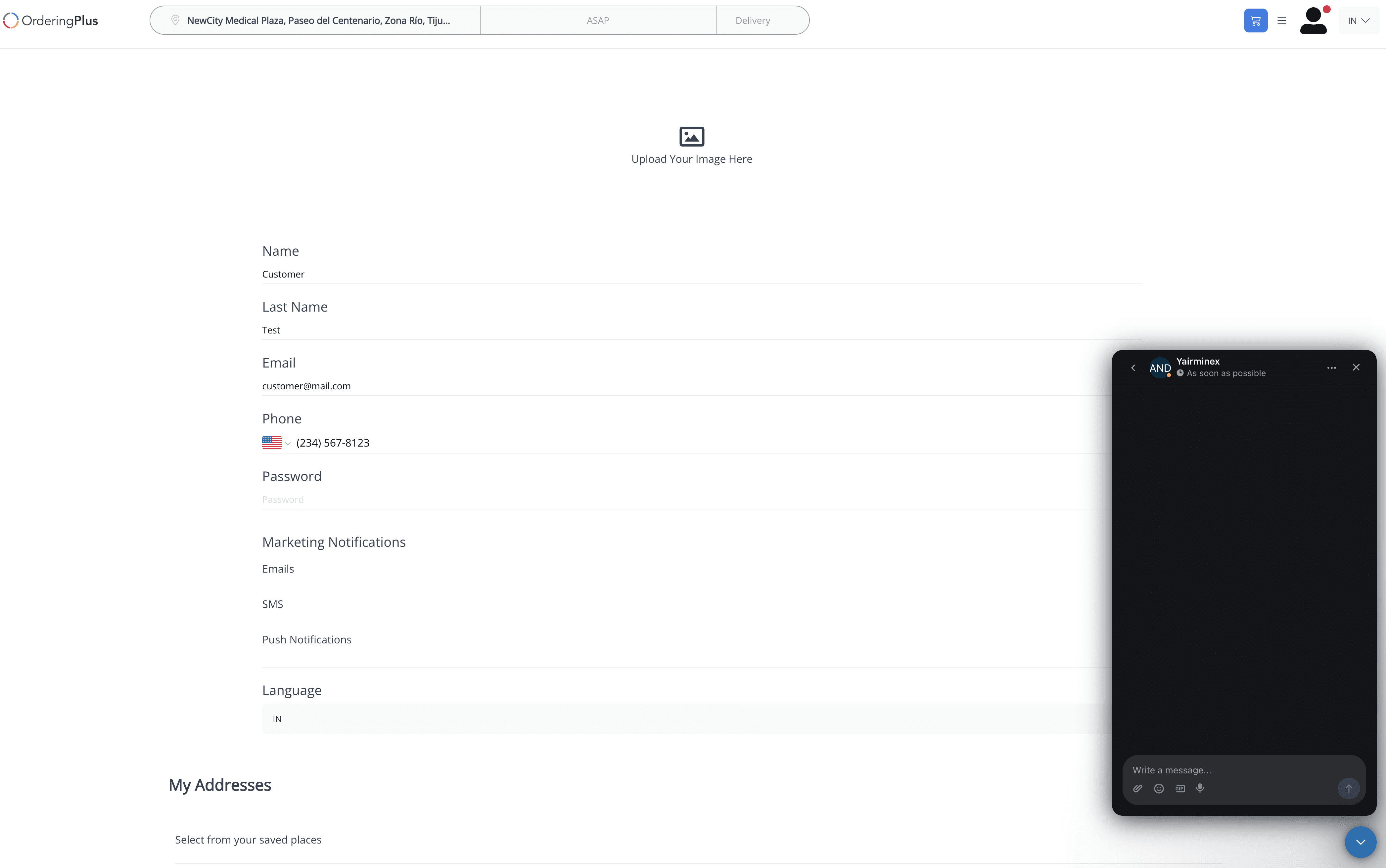
When the launcher opens and you can send a message in your Intercom workspace, Messenger is working. The screenshots show an example workspace; use your own app_id.
Copy an Intercom access token from Developer Hub
The Integrations overview also documents an Intercom Access token from Developer Hub. Follow these steps when you need that token for Enter Intercom API Key.
- Log in to Intercom.
- Open Developer Hub.
- Select New app, or open an existing app.
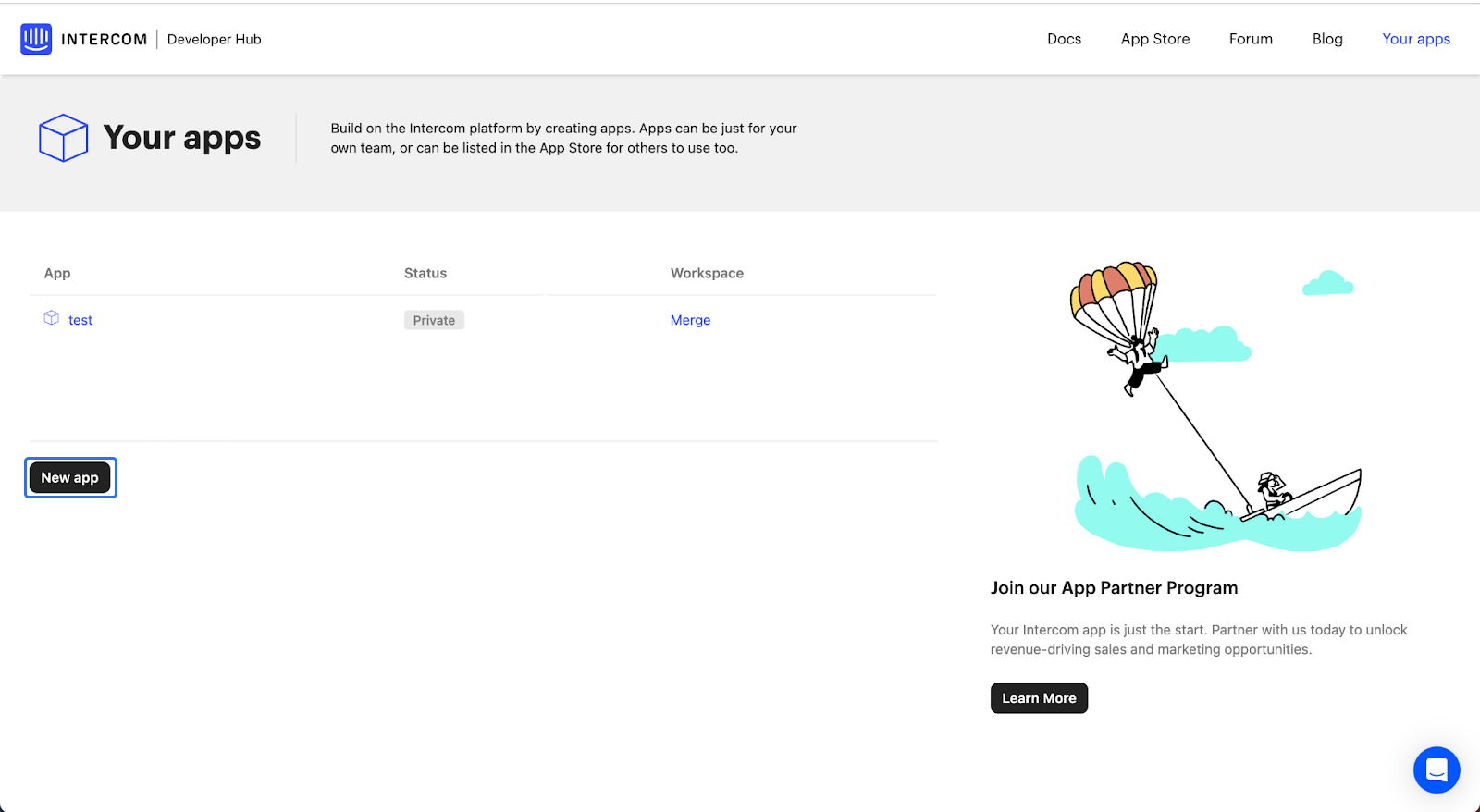
- Open Authentication in the left menu. This is where Intercom shows API keys and access tokens for the app.
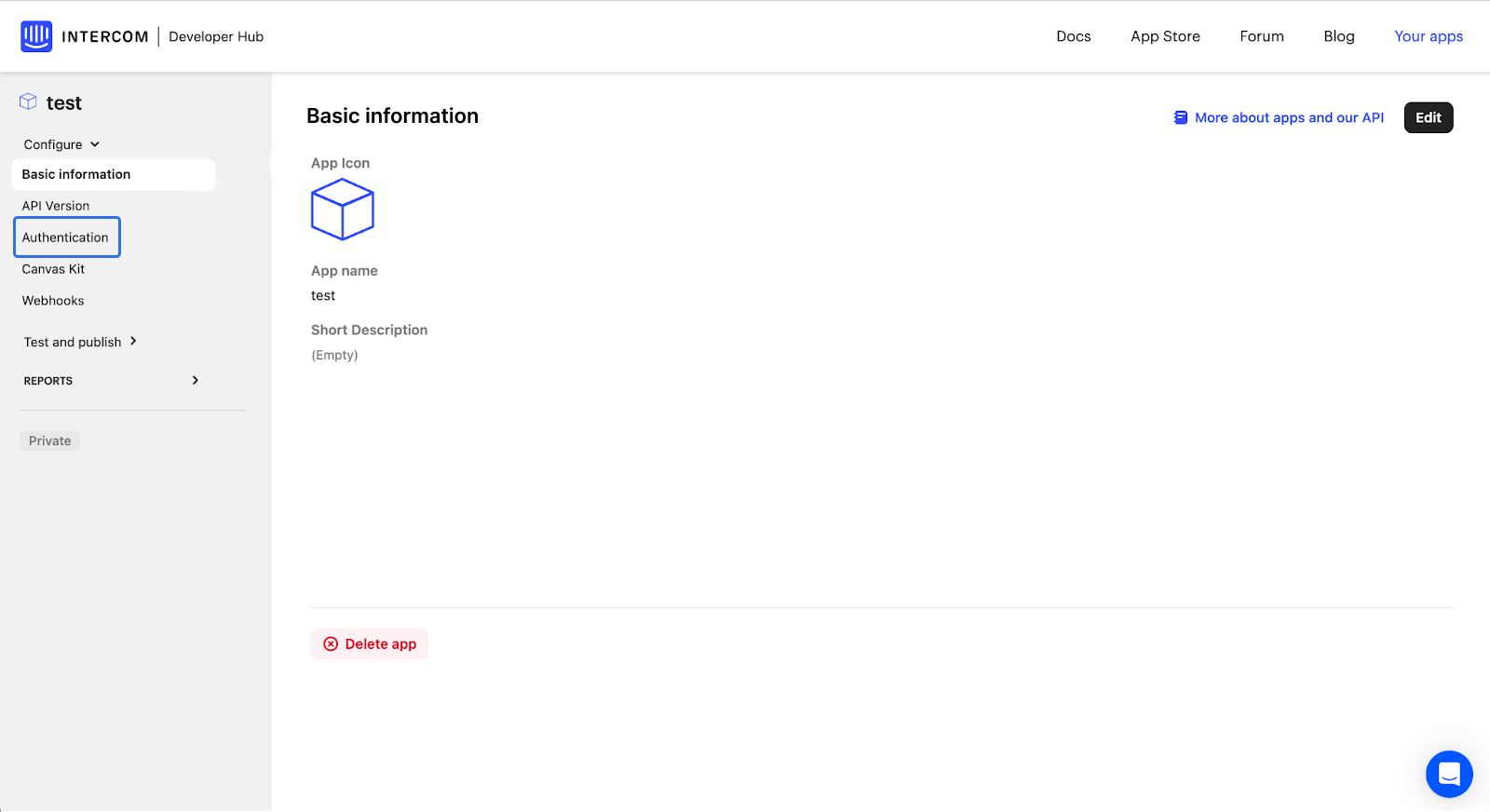
- If the app does not have a token yet, generate it in Authentication. If it already exists, copy the Access token. Paste it into Enter Intercom API Key and save.
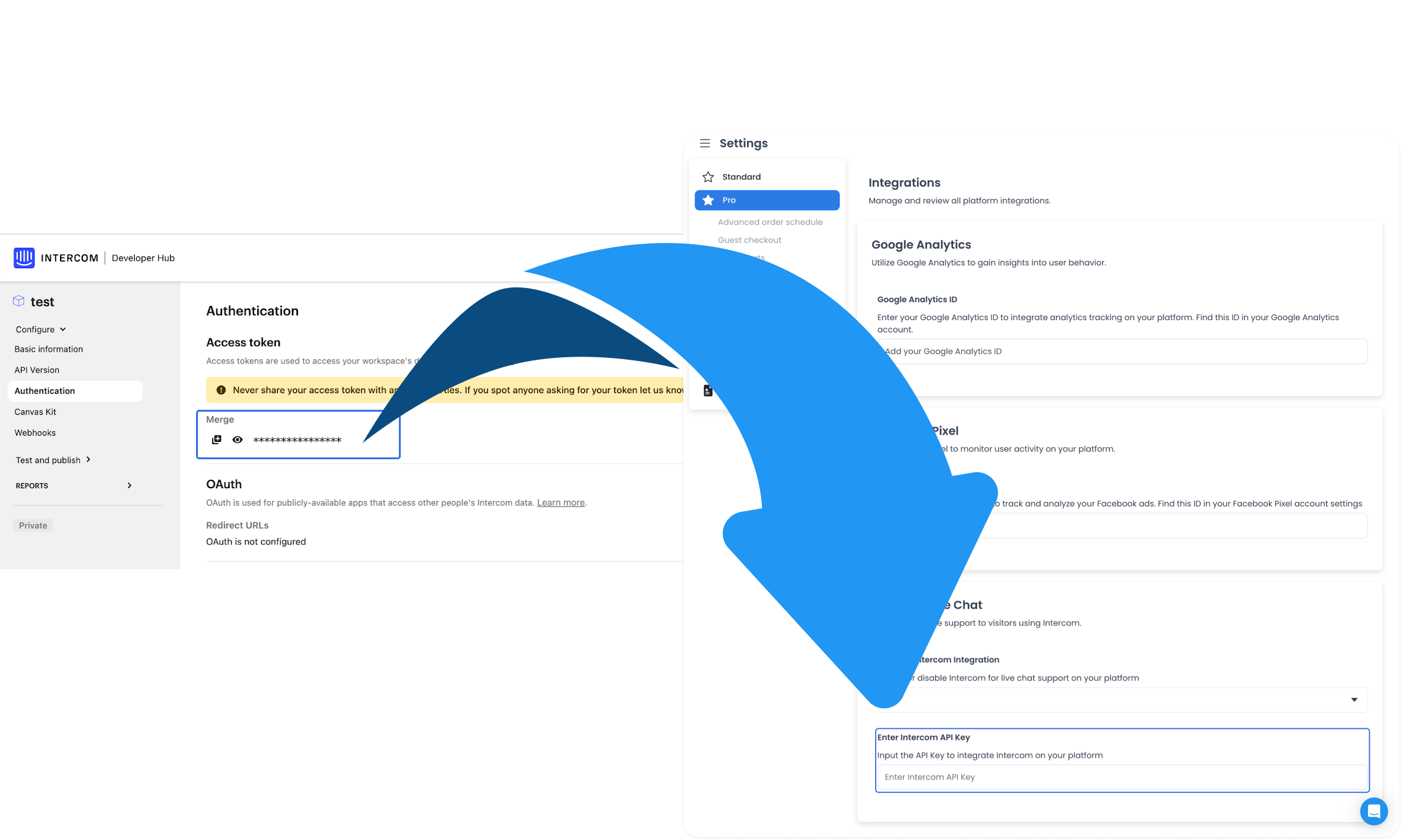
Intercom treats the access token as a secret. Do not share it. Copying a token or an app_id into the Dashboard does not prove that Messenger is loaded for customers.
For the product overview, see Intercom on Ordering.co.