Set up Facebook Pixel
Meta Pixel integration for Ordering.co
Facebook Pixel (Meta Pixel) is a piece of code Meta associates with your website. Ordering.co stores the Pixel ID in Settings → Pro → Integrations. Meta uses that ID to measure the effectiveness of advertising by recording actions people take on the site.
With the Pixel you can track conversions, optimize campaigns, create custom audiences, and review how people interact with the storefront. Saving the ID in the Dashboard does not fire the Pixel or send events to Meta.
Copy your Facebook Pixel ID
- Log in to the Facebook account that manages the business Page.
- Open Facebook Events Manager.
- In the left-hand navigation, select the ad account associated with the Pixel you want to use.
- If a Pixel already exists, it appears in the list of Pixels for that ad account. Select the Pixel name to open its details.
- At the top of the screen, copy the Pixel ID (a series of numbers) next to the Pixel name.
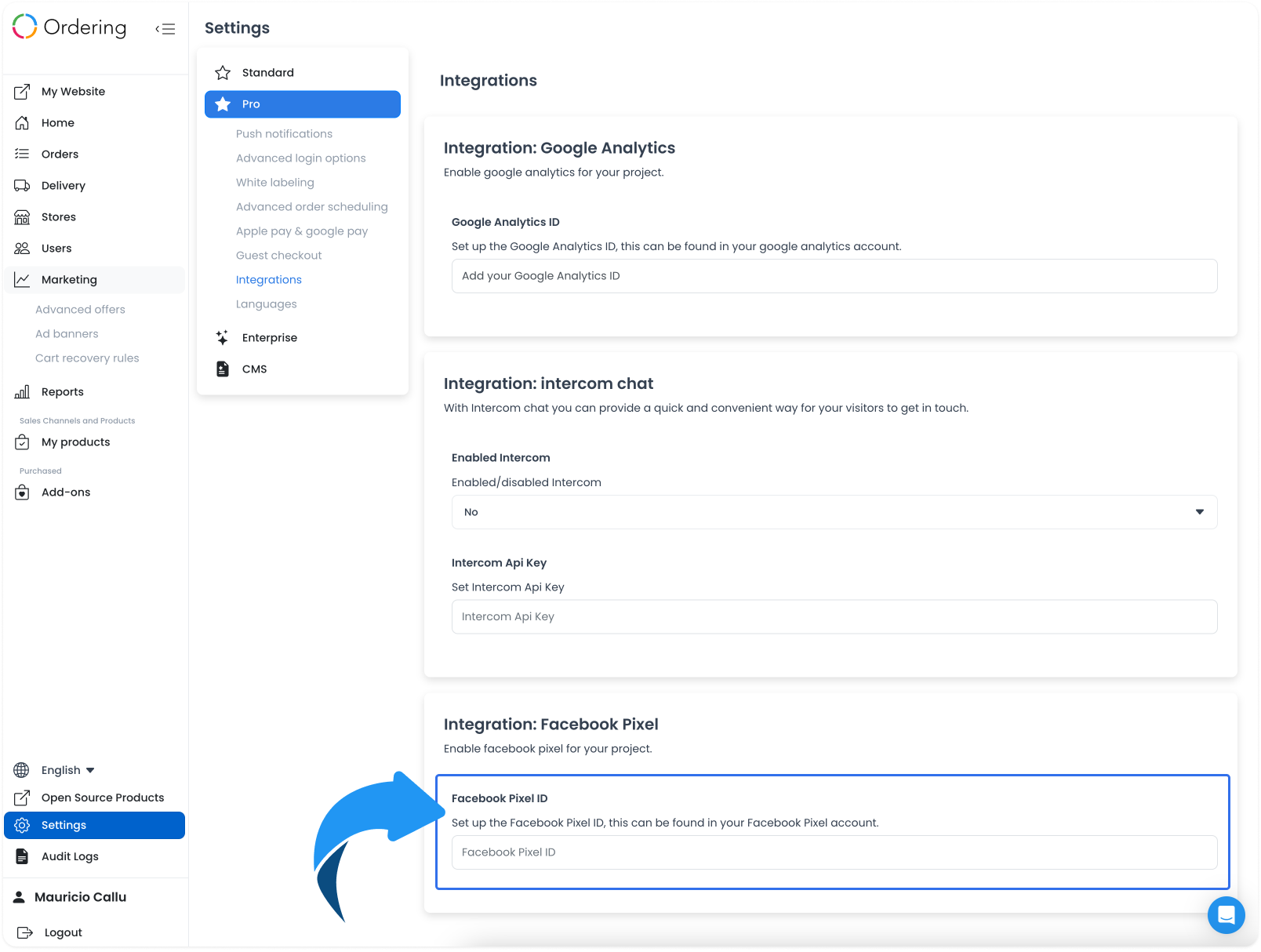
Paste that ID into Enter Facebook Pixel ID on the Ordering.co Integrations page, then scroll to the bottom and select Save.
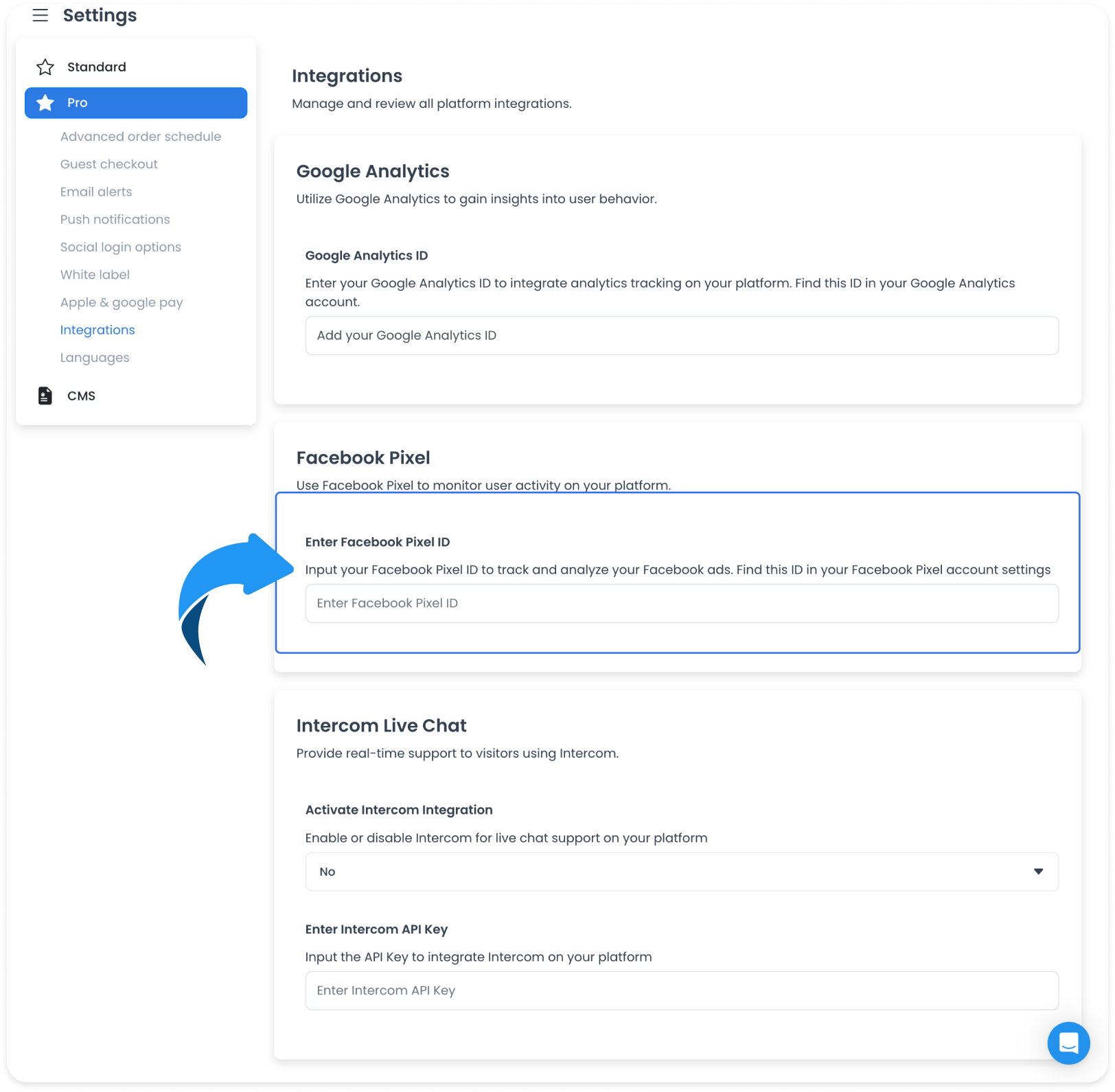
Some Dashboards label the same control Facebook Pixel ID under Integration: Facebook Pixel.
Create a new Facebook Pixel
If you do not have a Pixel yet, create one in Events Manager:
- Select Connect Data Sources and choose Web.
- Choose Facebook Pixel, then follow Meta's steps to name the Pixel and add the website URL.
- After Meta creates the Pixel, copy the Pixel ID (and, if you install the tag yourself, the Pixel code). You can paste the code into the website HTML or load it through a tag manager such as Google Tag Manager.
Ordering.co Integrations stores the Pixel ID. It does not paste the full Pixel snippet for you. Meta documents Pixel setup in Create and install a Meta Pixel.
Benefits
- Conversion tracking: Record actions people take on the website after they see an ad, such as purchases or sign-ups.
- Ad optimization: Meta can use Pixel events to find people who are more likely to take the action you care about.
- Custom audiences: Build audiences from website interactions and use them in later campaigns.
- Remarketing: Reach people who visited the site but did not convert.
- Measurement: Review how people move through the storefront so you can adjust the campaign.
Those results appear in Meta after the Pixel is installed, the ID is saved, and the storefront sends events. The Dashboard save is only the identifier.
Practical configurations
- E-commerce: Track sales, product views, and abandoned carts to optimize sales and remarketing campaigns.
- Lead generation: Measure form sign-ups and build audiences of people who showed interest.
- Content: See which articles or pages people visit so later ads and content can match that interest.
- Events: Track registrations and ticket sales when you promote events.
- Services: Track inquiries and optimize ads for people who are likely to request a service.
Conclusion
Copy the Pixel ID from Events Manager, paste it into Enter Facebook Pixel ID, and save the Integrations page. Confirm events in Meta Events Manager before you treat the Pixel as working.