Integrations
This Dashboard page documents Google Analytics, Facebook Pixel (Meta Pixel), and Intercom Live Chat settings. Open Settings → Pro → Integrations. The Pro item is the Dashboard category that contains this page. A listed field does not establish that a provider received data, that a particular event is sent, or that chat is loaded for customers.
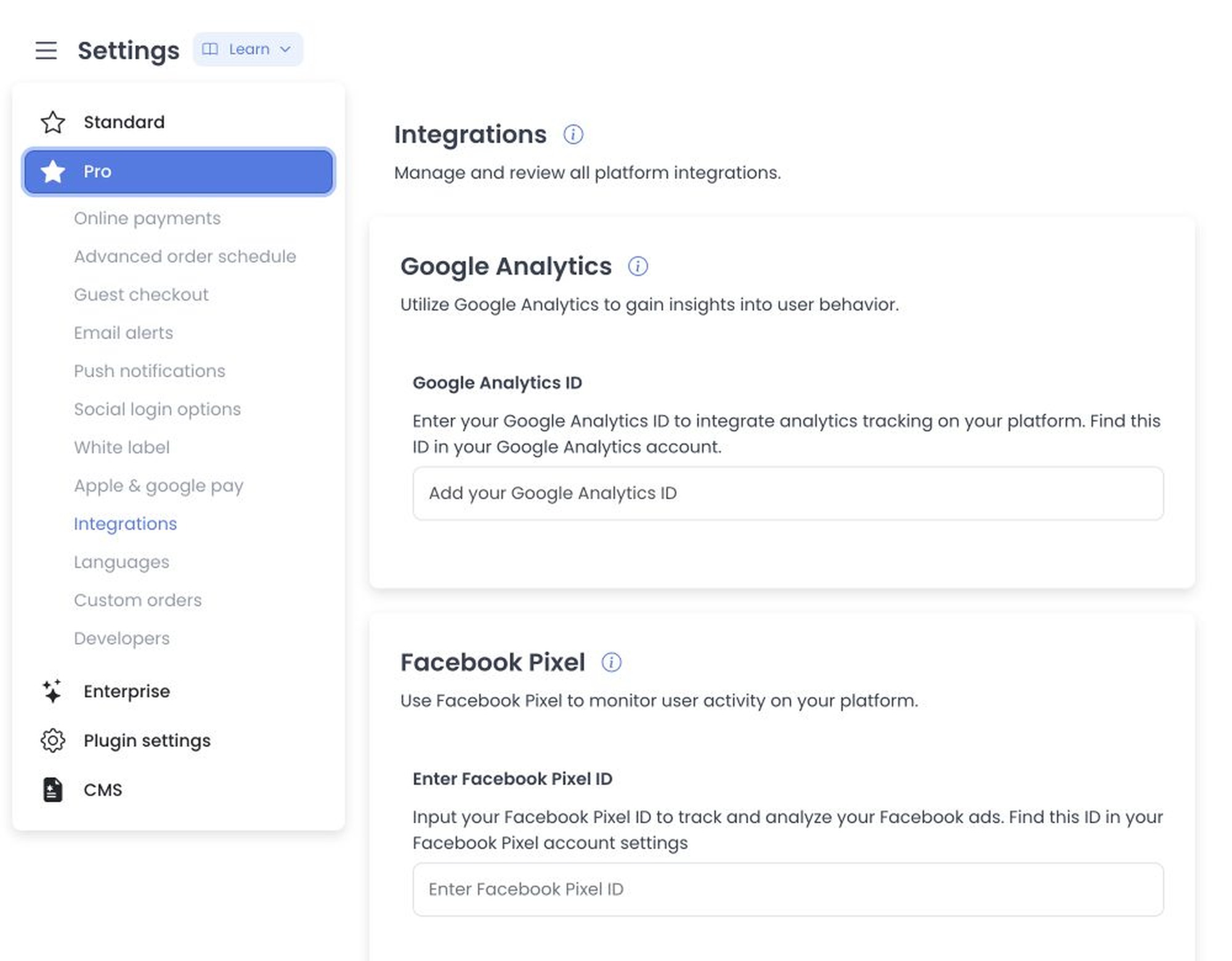
Treat Google Analytics IDs, Facebook Pixel IDs, and Intercom API keys as sensitive. Do not paste them into tickets, chat messages, or other shared records. Saving a field only confirms that Ordering.co accepted the configuration. It does not prove that Google collected a hit, that Meta received a pixel event, or that Intercom loaded the Messenger.
After you select Save, the Dashboard writes each Integrations field one at a time. An earlier field can already be stored if a later field fails. Saving does not roll the whole page back.
Benefits
- Analytics: Google Analytics can report on data its property receives. The documented ID field does not identify which Ordering.co surfaces or events send that data.
- Advertising measurement: Meta documents browser Pixel events and their provider-side uses. The Ordering.co guide documents an ID field, not a guaranteed event list or event delivery.
- Live support: Intercom Live Chat can put a chat bubble on the storefront so visitors can ask for help during checkout.
These outcomes depend on provider configuration, the relevant code or widget reaching the storefront, the data the project supplies, and (where required) customer consent. Filling a Dashboard field does not create that traffic or prove that an event arrived.
Related procedures
Use these guides for documented field information or project-scope coordination. A linked scope note is not a self-service Dashboard setup:
- Set up Facebook Pixel
- Set up Google Analytics
- Coordinate a Google Tag Manager setup
- Set up Intercom Messenger
- Connect Zapier
- Import a menu from Ordering Network
Zapier webhooks and Ordering Network imports are not fields on this Integrations page. Configure Zapier under Developers webhooks. Ordering Network import runs from store setup.
Google Analytics
Google Analytics can report on web or app data after that data reaches a property. Ordering.co's public guide documents the ID field but does not define a current project event map or prove that a particular surface sends events.
Google Analytics ID: For a current Google Analytics 4 web data stream, use its Measurement ID, which starts with G-. Find it in Google Analytics under Admin → Data Streams. Older Universal Analytics properties used a Tracking ID (usually UA-), shown under Tracking info → Tracking Code; that label is historical and is not a current GA4 Measurement ID. The available Ordering.co documentation does not confirm that this field accepts a legacy UA- value, so do not treat one as a supported current GA4 configuration.
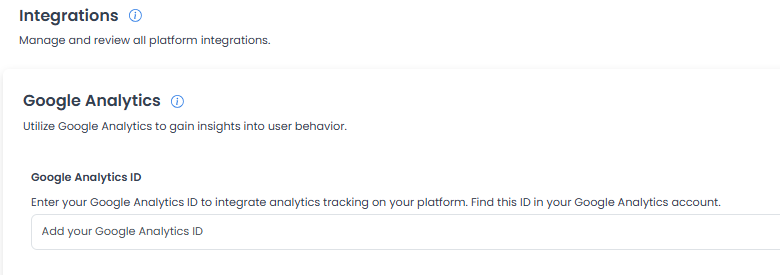
Create the Google Analytics property and copy the ID in Set up Google Analytics. Saving the ID here does not start reporting.
Facebook Pixel
Meta Pixel is a browser-side measurement tool. Meta defines provider events, but this Dashboard field does not establish which events an Ordering.co project sends.
Enter Facebook Pixel ID: Input the Pixel ID for the Meta data source selected for your project. Copy it from Events Manager in Facebook Business Suite. Meta documents event names such as Add to Cart and Purchase; the Ordering.co guide does not confirm those events are sent by a storefront.
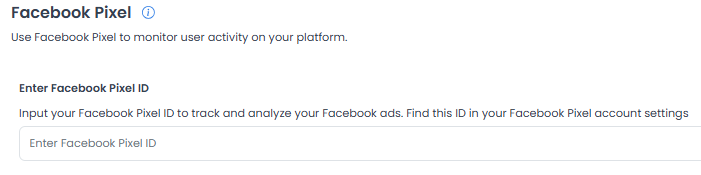
Obtain or create the Pixel ID in Set up Facebook Pixel. Saving the ID does not fire the pixel.
Intercom Live Chat
Provide real-time support to visitors and customers on the platform using Intercom.
Activate Intercom Integration:
- Yes: The Intercom chat bubble can appear on the platform.
- No: The integration is disabled and hidden.
Enter Intercom API Key: Input the key Intercom provides so Ordering.co can authorize the connection. The Messenger install guide copies the Intercom app_id into this field. Keep the value private.
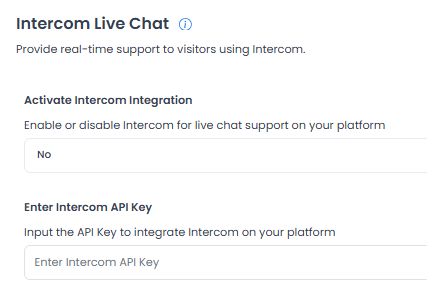
Copy the Messenger app_id or the Developer Hub access token in Set up Intercom Messenger. Setting Yes and saving the key does not by itself load the chat widget.
Save the Integrations page
After you enter the IDs or API keys, scroll to the bottom of the page and select Save. Until you save, the storefront does not receive the new values.
Google Analytics and Meta Pixel are external measurement tools; Ordering.co Dashboard reports are a separate native reporting surface. Intercom is a separate support widget. Each result depends on the corresponding project configuration and data reaching the intended destination.
Practical configurations
- Performance tracking: Use Google Analytics to monitor site performance, identify popular products, and understand customer journeys after the property is receiving hits.
- Remarketing campaigns: A Pixel ID is only an identifier. Confirm which events reached the intended Meta data source before using them to evaluate or configure a campaign in Meta Ads Manager.
- Customer support: Use Intercom Live Chat to assist customers in real time. The widget appears only after Intercom accepts the install and the storefront loads Messenger.
Developers is a separate toolset
Developers is a different Settings → Pro toolset for Plugins, Webhooks, and API Keys. Use Developers for those credential and event-delivery tools. Do not expect Plugins, Webhooks, or API Keys on this Integrations page.
Analytics and reporting scope
Google Analytics and Meta Pixel are external website measurement destinations. Google Tag Manager is a tag-management product; this public Dashboard guide does not document a customer GTM field or container-install workflow. A container, saved identifier, or provider event list does not prove that a project sends an event. Confirm its data source, event names, consent handling, and receipt for the specific project.
Ordering Analytics refers to native Ordering.co Dashboard reports. Its Business reports and Enterprise reports views have different controls and access boundaries. The documentation does not describe a universal CSV export: some Enterprise report cards have card-specific downloads, while the Orders list CSV is a separate scoped request with background generation and email delivery.
Project scope pages:
Dashboard reporting guides:
Loyalty and project-scoped CRM connections
Ordering Loyalty is a native Ordering.co product with separate points, Cash Wallet, and channel-specific experiences. It is documented outside this Pro Integrations form: see Ordering Loyalty and the Dashboard points and levels guides.
For HubSpot, Mailchimp, or a future Klaviyo connection, use the project review notes: HubSpot connection scope, Mailchimp connection scope, and Klaviyo connection planning. Klaviyo remains Coming soon; the note helps define a project request but does not confirm a data flow or describe fields or setup controls on this Dashboard page.
Conclusion
Use this page for its documented Dashboard fields and controls. Confirm data receipt with the relevant provider, and check its project scope before treating a report, measurement event, or widget as working.
Related guides: Developers · Settings overview · Settings logs