Guest checkout
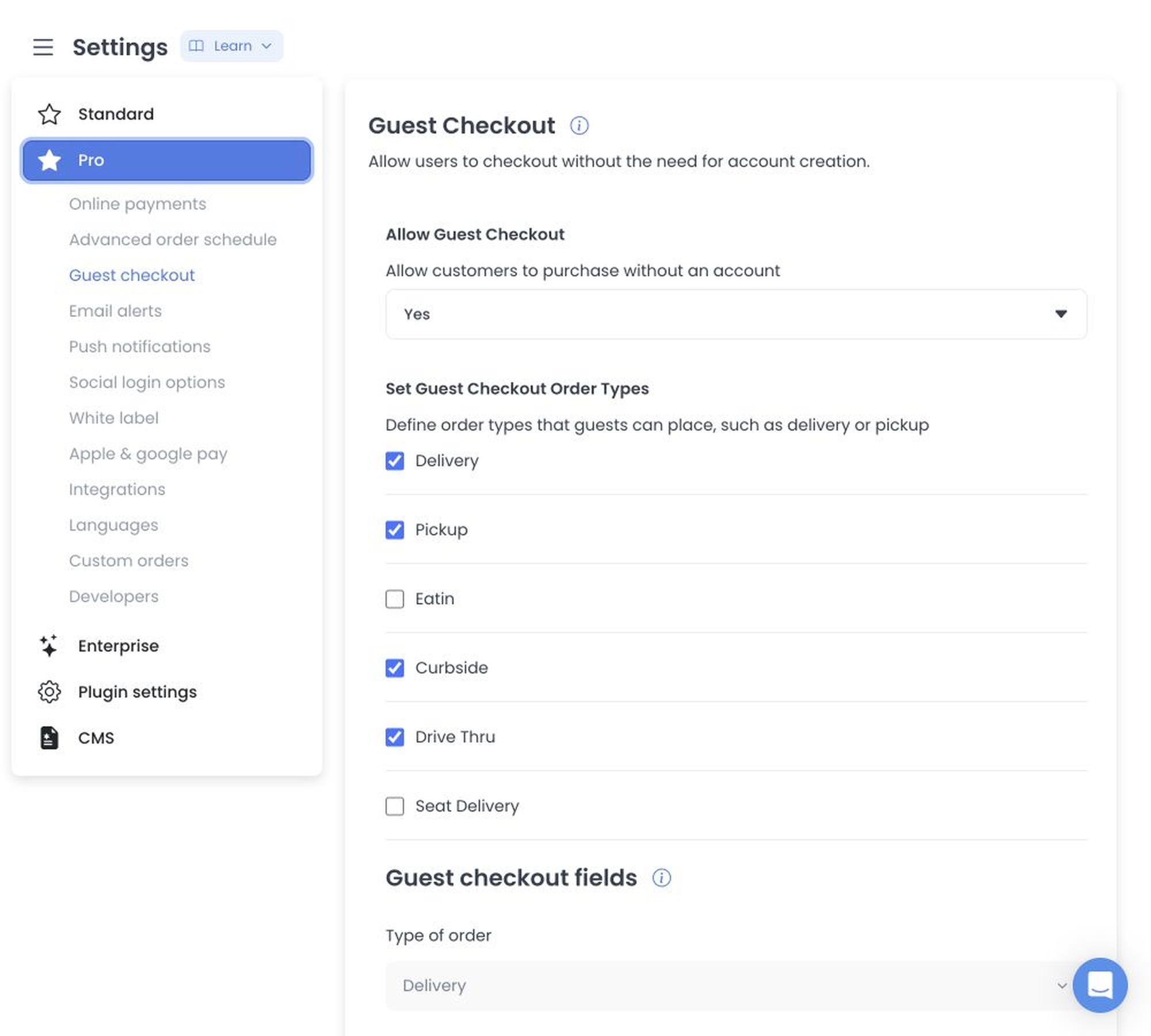
Use Guest checkout to configure whether eligible customers can continue without an account, which returned order types can use that path, and which fields are required for each order type. The category, available order types, and fields are project-specific.
Before you begin
Open Settings, then select Guest checkout when it appears in Dashboard. You must be signed in as an Administrator (level 0); the Settings sidebar separately excludes read-only sessions. The category must be available for the project, and a usable guest path also depends on the returned order types and the applicable Business, menu, and checkout configuration.
Allow or restrict guest checkout
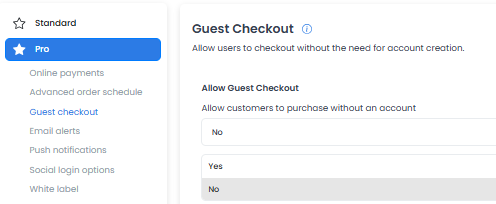
- In Allow Guest Checkout, select the value appropriate for your operation.
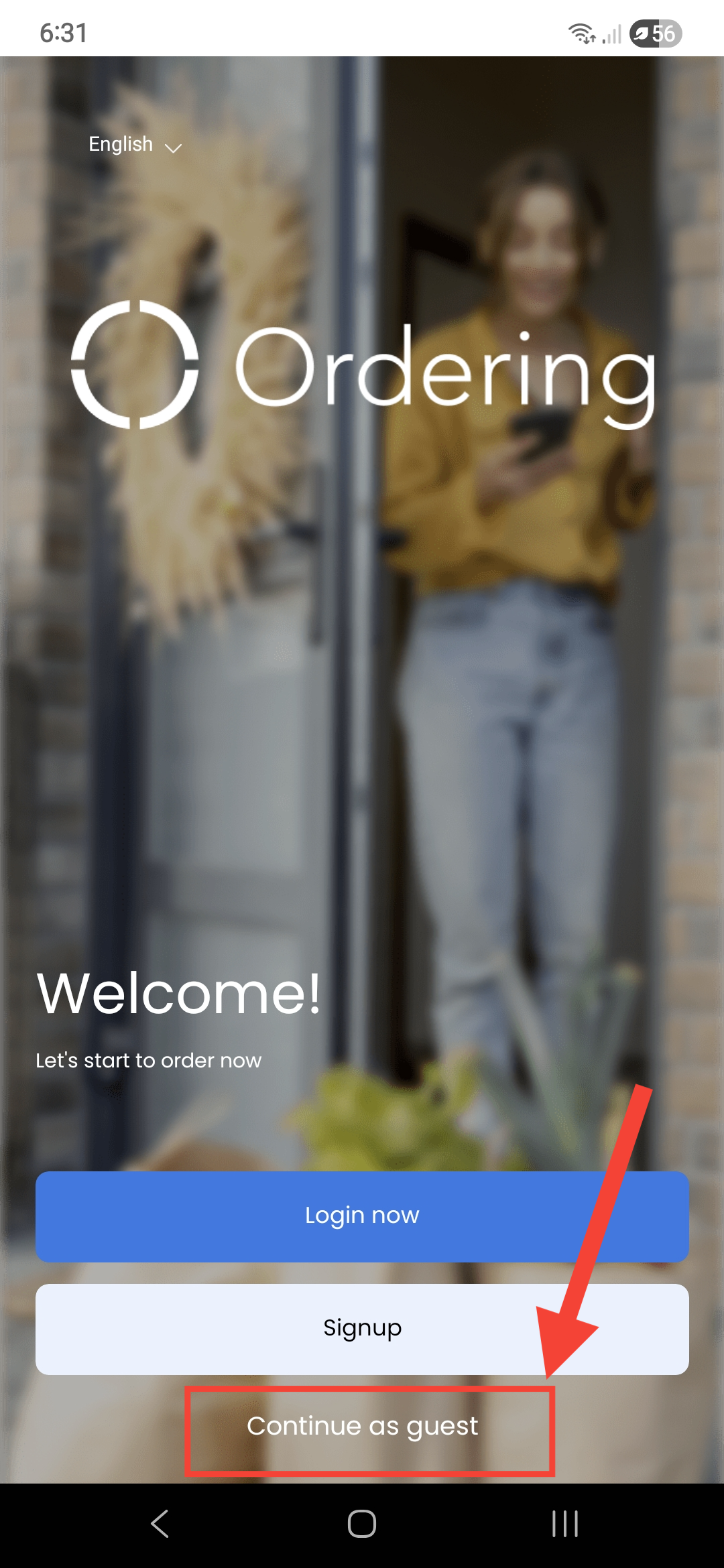
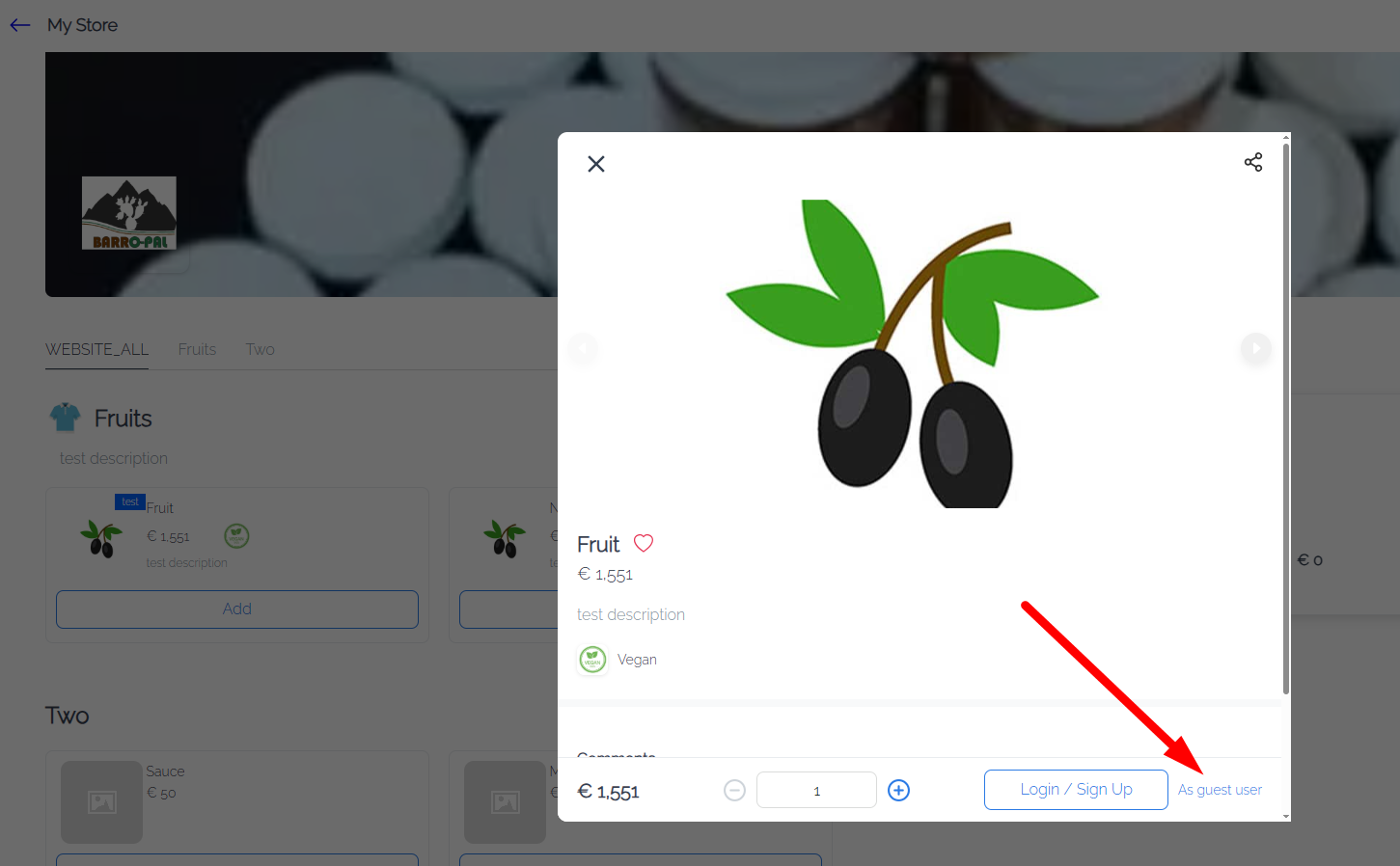
- In the historical interface, Yes is intended to make a guest checkout path available and can affect whether a shopper reaches store or product browsing before authentication. No directs customers to sign up or log in before restricted actions. Confirm the actual storefront behavior in an approved test environment.
- Save the category-level changes using the action shown in Dashboard.
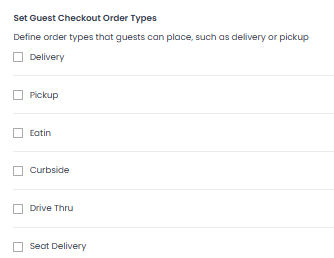
Select guest checkout order types
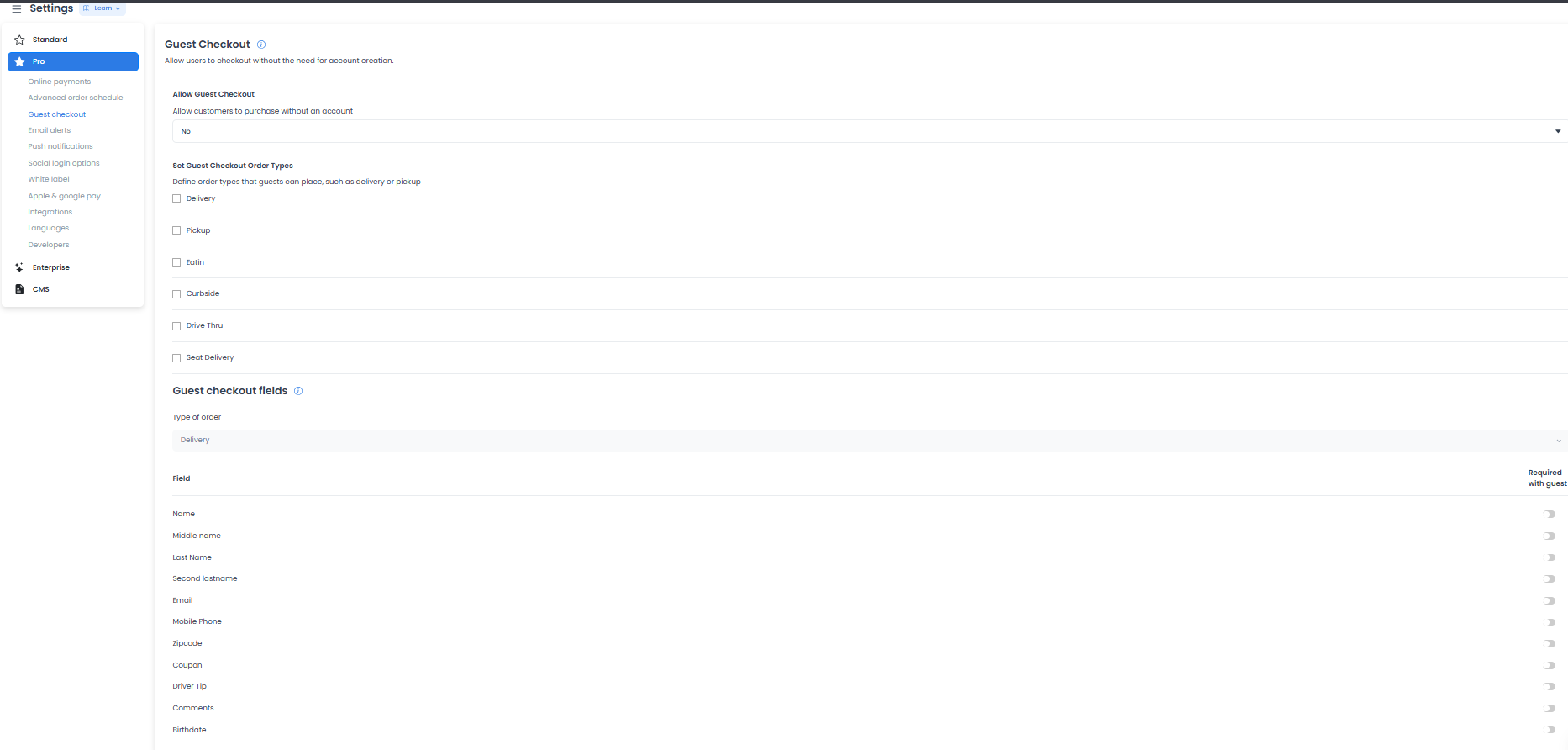
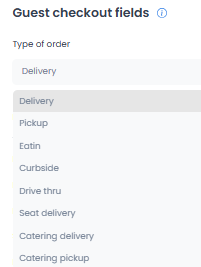
Choose only the order types your operation can fulfill for a customer without a saved profile. The historical configuration lists Delivery, Pickup, Eatin, Curbside, Drive Thru, and Seat Delivery. A separate historical order-type selector also shows Catering delivery and Catering pickup. These labels are examples, not a guaranteed project catalogue.
In the historical guidance, Delivery represents residential or office fulfillment; Pickup means the customer collects the order; Eatin is ordering at a table; Curbside brings the order to a vehicle; Drive Thru uses a pickup window; and Seat Delivery targets a specific seat in a venue. Catering labels represent larger or scheduled event orders. Confirm how the returned options work in your project.
For Delivery, decide whether your operation is prepared to fulfill requests from customers who do not have a saved profile. The returned order-type list is filtered by project configuration, so an option that is absent or unusable can have more than one cause.
Set fields required for each order type
- Select a value in Type of order.
- Review the fields returned for that order type.
- Use Required with guest for the information your operation needs to fulfill that order type.
The historical field list groups information as follows:
- Identity: Name, Middle name, Last Name, and Second lastname.
- Contact: Email and Mobile Phone.
- Preferences and information: Zipcode, Coupon, Driver Tip, Comments, and Birthdate.
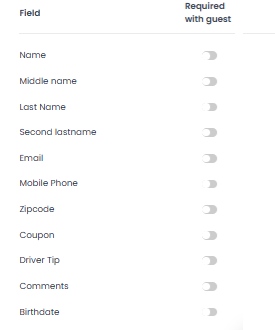
In the documented interface, the generic category form stages changes and saves them sequentially. The documented Required with guest switches are different: each switch immediately submits a change for one field and order-type pair, without waiting for the category Save action. Make one intentional field change at a time and confirm the returned state.
Check the customer and operations result
The documented checkout behavior treats a required guest field as information that must be completed before the customer can continue; the historical flow describes incomplete required fields being called out before confirmation. Optional fields can remain visible while being skippable. Test the actual validation messages, receipt flow, order identification, and fulfillment workflow in an approved test environment.
The historical guidance recommends considering Name, Email, and Mobile Phone when the operation needs a clear contact point. Collect only the information your operation needs for the selected order type.
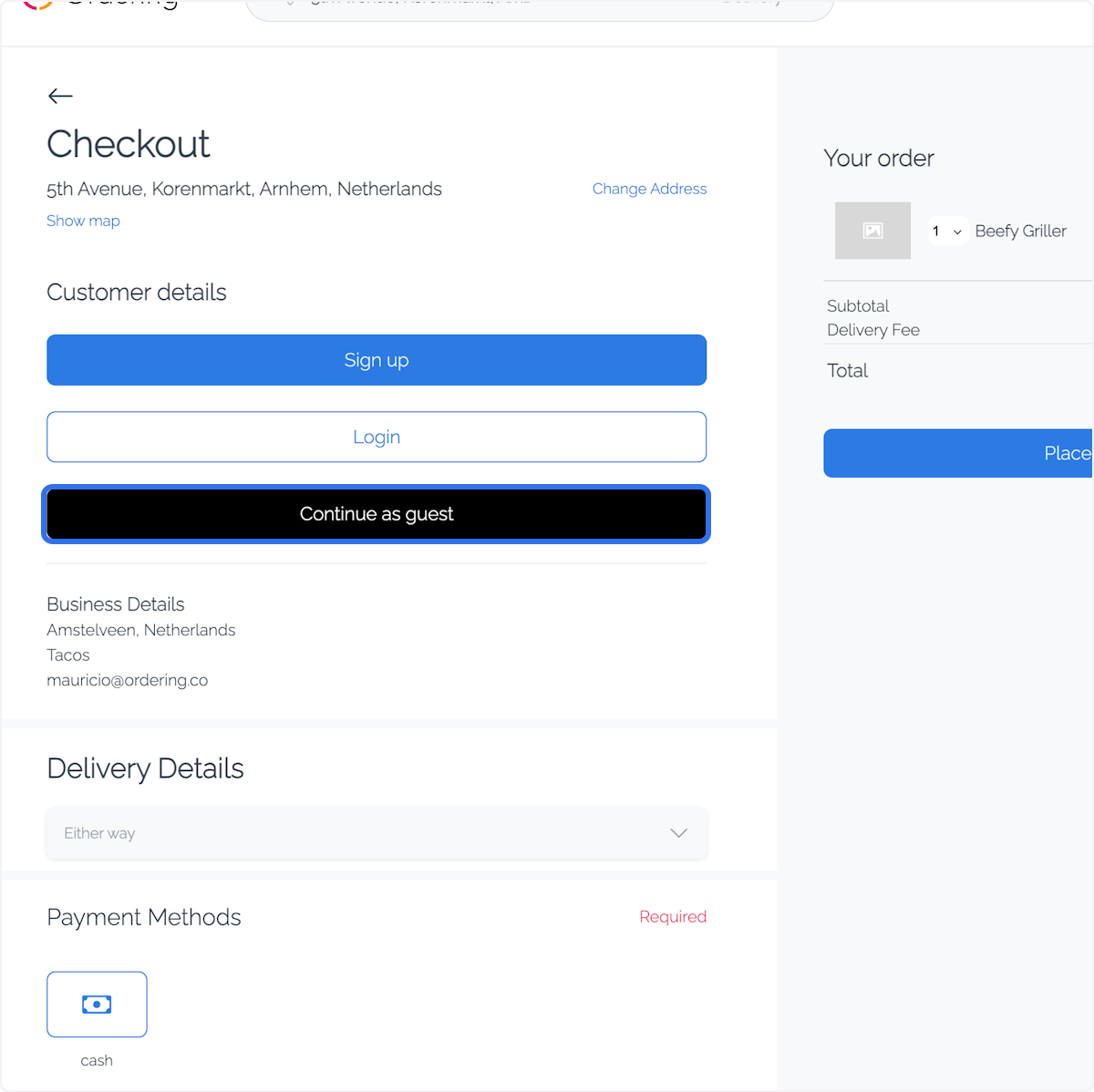
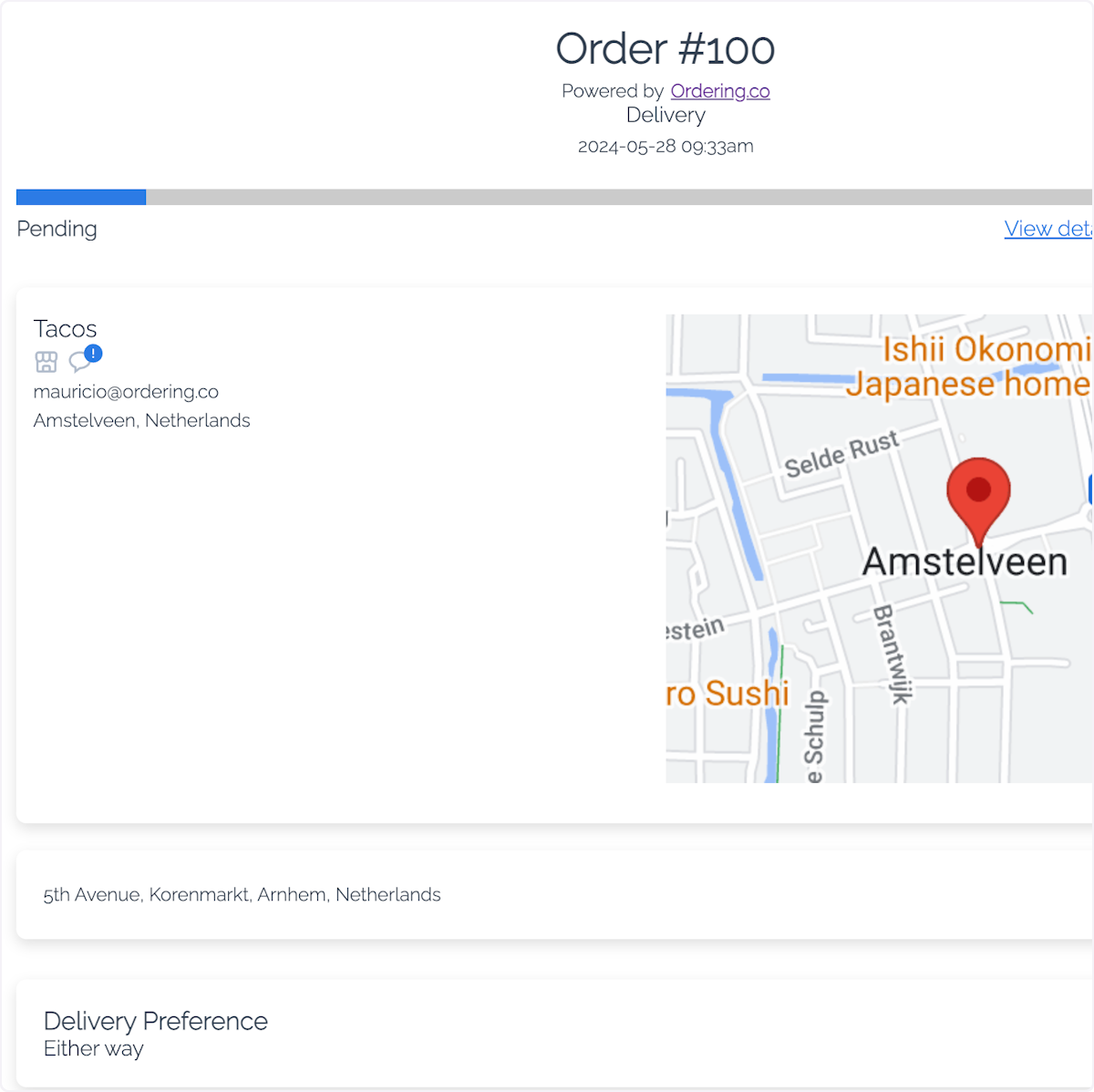
The historical manager capture labels a guest order as Guest user. That label, and guest checkout generally, can reduce an initial account-creation step for eligible customers, but neither guarantees a specific browsing experience, conversion result, receipt delivery, or order-management label. Measure the result in your own approved environment.
Troubleshoot a missing option or field
- An order type is missing or cannot be used: Check the category value, allowed order types, project configuration, and the relevant Business or menu availability. One symptom does not identify a single cause.
- A field is missing or still required: Fields are filtered by order type before rendering. Recheck the selected order type and the returned field configuration before changing another switch.
Category-level settings and Required with guest switches do not use the same save path. A successful field switch does not confirm that unsaved category-level changes were saved, and a category save does not replace field-level confirmation.
Related guides: Checkout by order type · Available order types