Custom orders
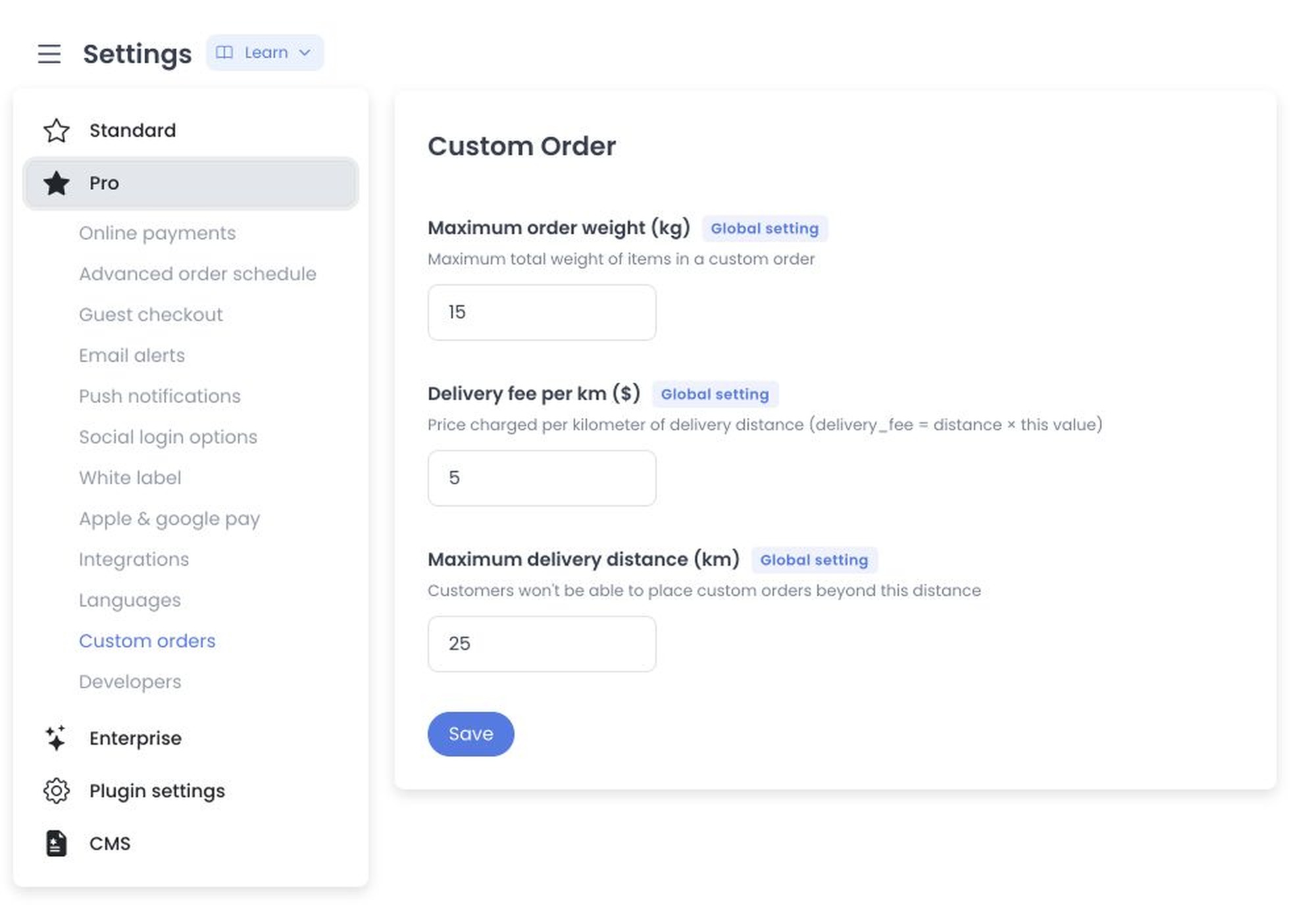
Use Custom orders to configure the numeric settings returned by the custom_order plugin. This settings screen is separate from Orders → Create custom order and does not submit an order itself.
Before you begin
In the documented interface, the category appears only after Dashboard identifies the Custom Order plugin as installed for the project. You also need the administrator access required for global settings. If the category is absent, Dashboard can redirect to the plugin listing; that symptom alone does not explain whether installation, access, or returned configuration is the cause.
The plugin supplies its own schema. Field names, descriptions, initial values, numeric types, units, currency, validation, and availability can differ by project. Use the labels and values returned in your Dashboard rather than treating the historical example below as a fixed schema.
Configure the returned numeric settings
- Open Settings, then select Custom orders when it appears.
- Review each returned field and its description before changing a value.
- Enter values that match the operational guardrail you intend to set.
- Select Save, then confirm the returned result before making another change.
The historical returned-schema example contains these administrator-only global keys:
- Maximum order weight (kg) (
max_weight) — a weight limit for an order. - Delivery fee per km ($) (
delivery_fee_multiplier) — a distance-based fee value. - Maximum delivery distance (km) (
max_distance) — a distance limit for delivery eligibility.
In the documented interface, numeric inputs advertise a minimum of 0. Whole-number settings use a step of 1, and decimal settings use a step of 0.01. When no edited value is present, the input placeholder shows the value returned by the plugin.
Save behavior and validation
The documented Save action converts each displayed local value with parseFloat(value) || 0 and sends the displayed settings together in one request to the plugin settings endpoint. A blank or non-numeric local value can therefore be submitted as 0; do not use a blank value to mean “unlimited.” Plugin-side validation, persistence, and the operational result remain separate from the local input behavior.
While the request is pending, the documented form disables itself. A success toast or an error response only reports the local request outcome; it does not by itself prove that a customer-facing order flow changed.
How these settings relate to the order flow
The historical workflow describes a signed-in customer using a Custom order action to provide pickup and drop-off locations, instructions, an item list, and a declared value. It frames this flow for requests beyond standard delivery, such as collecting forgotten keys, buying a specified item, or completing a specialized drop-off. It also describes a distance-based fee, a tracking view, and an order-management flow where an operator can review the request and assign a driver.
Those are separate operational behaviors. This settings page does not prove that an action is visible, that a fee is calculated, that a map or tracking view is available, or that an order can be assigned. Validate the full workflow through Create custom order in an approved test environment.
The video may show an older interface, so verify the fields and results in the project you operate.
Saving sends the displayed plugin settings together. Review every value before saving, and do not infer an order, payment, location, customer-data, or provider result from the settings response alone.
For the product overview, see Custom orders on Ordering.co.
Related guide: Create custom order