Advanced order schedule
Use Advanced order schedule to configure the documented preorder controls for a project. The category, its fields, and their values are returned by Dashboard, so only use the values shown in your own settings screen.
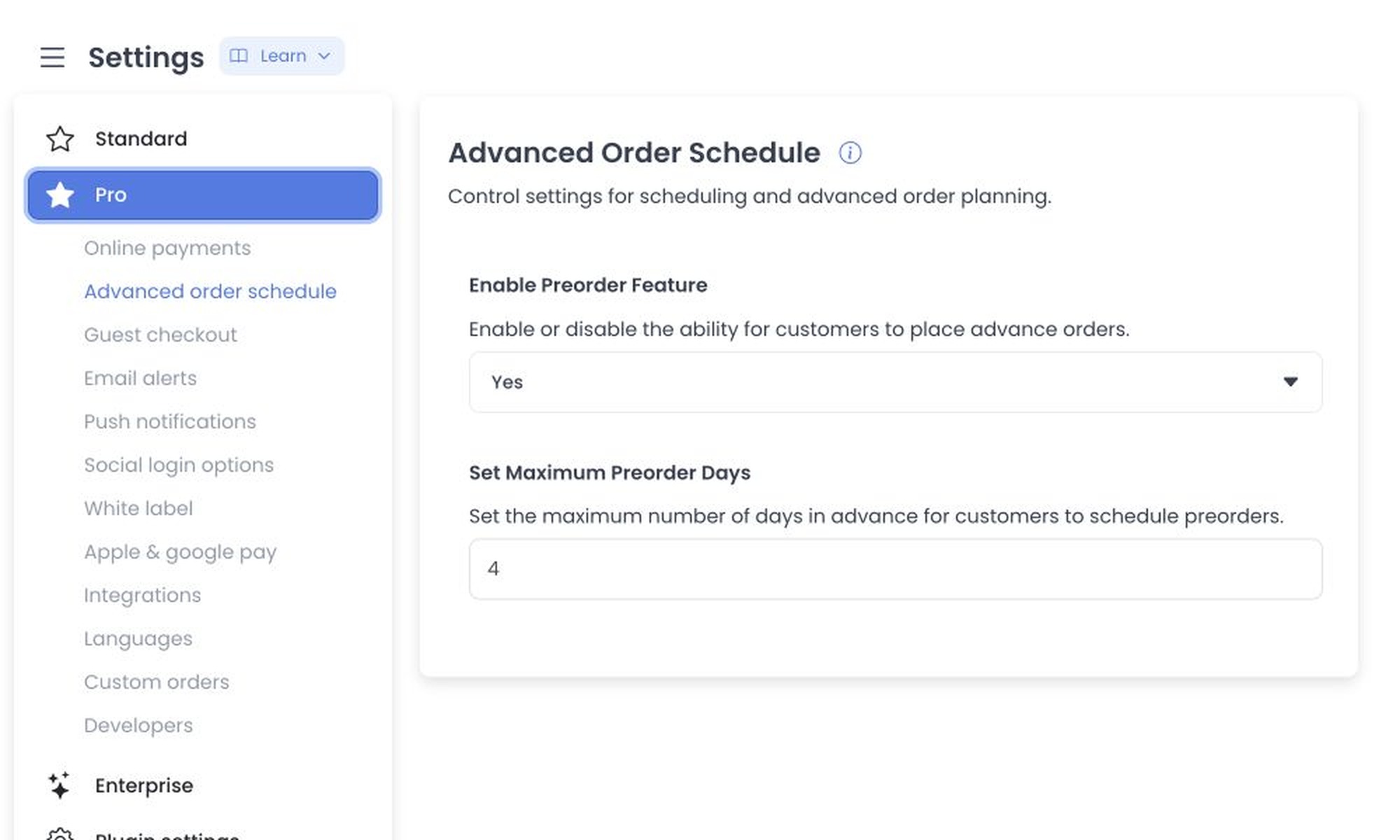
Before you change the schedule
Open Settings and select Advanced order schedule when it appears in the returned settings list. You must be signed in as an Administrator (level 0).
This configuration is only one part of a scheduled-order experience. Business schedules, menus, time zones, order availability, and the customer checkout flow can also affect whether a customer sees an available date or time. A category that is missing from Dashboard does not identify the reason it is unavailable.
Configure the preorder window
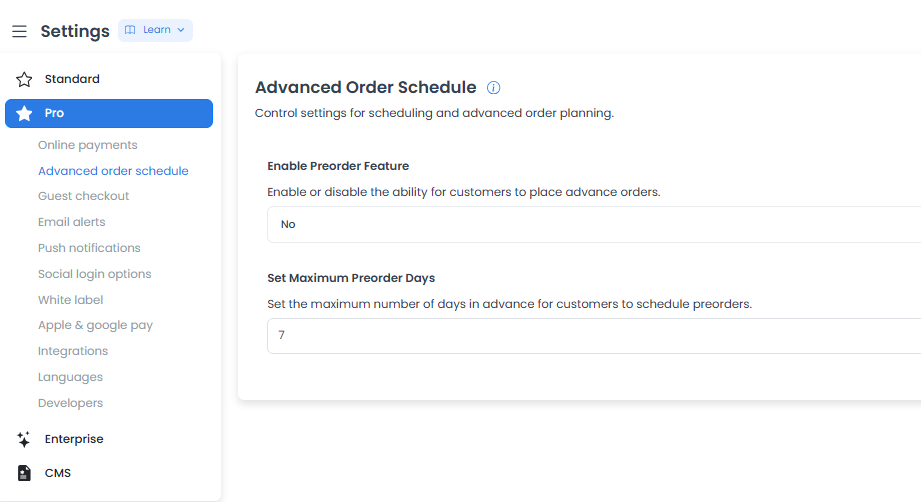
- In Enable Preorder Feature, choose the value appropriate for the ordering flows you operate. The historical interface uses Yes and No: Yes is intended to expose future date and time selection in eligible website or app flows, while No is described as an immediate preparation-and-delivery path.
- When the setting is enabled, enter a value in Set Maximum Preorder Days to define the intended advance-order window. The documented client prevents a staged value below
1; it does not establish the accepted format, units, or calendar behavior for every project. - Use the Save action shown in your Dashboard and confirm the returned values. The documented shared editor submits changed configurations sequentially, so an earlier change can be accepted even when a later change fails.
The current client associates the maximum-days value with an enabled preorder setting. Do not assume a numeric value alone creates available slots or bypasses schedule, menu, time-zone, or checkout rules.
What an eligible customer may see
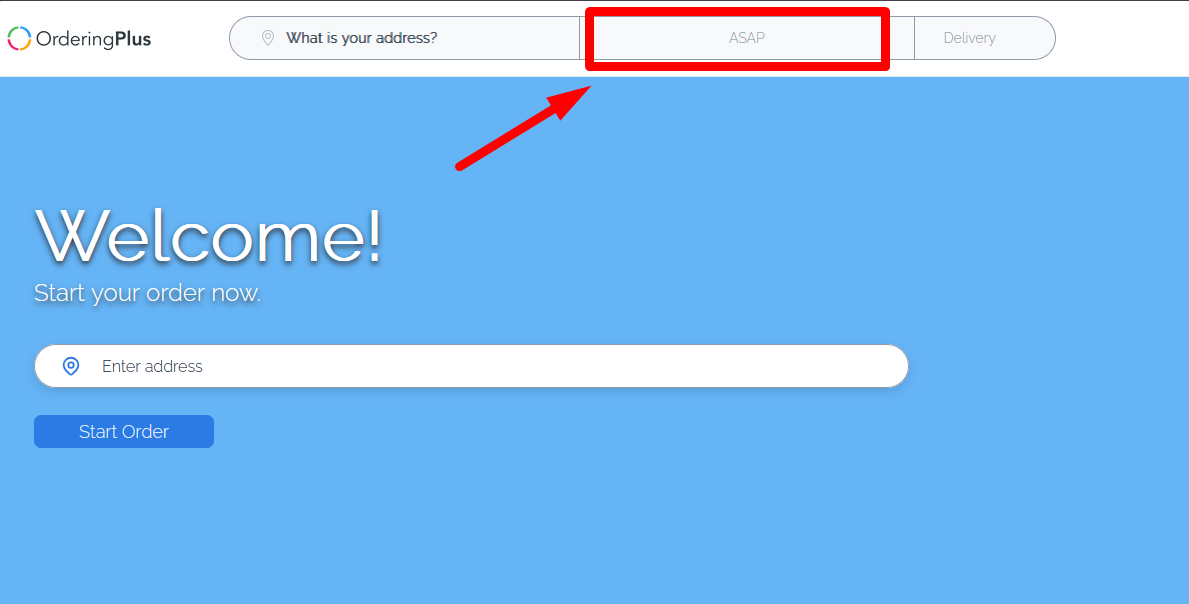
The historical customer-facing capture shows an ASAP selector near the start of an ordering flow. When an eligible flow supports the configured setting, the documented behavior describes a customer switching from an immediate order to a future date and time, within the configured window. A calendar and time picker may appear after that selection. Treat this as a workflow to verify in your own project, not as a universal storefront result.
Choose a window that matches operations
Use the maximum-days value to reflect the time your operation needs to prepare in advance. The historical guidance uses 14 or 30 days as examples for catering or bakery operations that need more advance notice; those examples are not a required setting. You may also configure the window around holiday demand, events, or regular deliveries, then validate the result against your actual capacity and schedule.
Saving is not an all-or-nothing transaction in the documented editor. Review all affected fields after a save and test an eligible ordering flow in an approved test environment.
Related guides: Settings categories · Available order types