Connect Uber Direct
Use the Uber Direct plugin to supply provider credentials and receive the delivery-status and courier-update callbacks required by your operation. Treat installation, credential storage, webhook registration, delivery assignment, and completed delivery as distinct states.
An Uber Direct entry in Plugin settings, an account selection, or a registered webhook does not prove that Uber Direct accepted credentials, received an order, assigned a courier, delivered an order, or notified a customer. Verify each outcome through an approved test with the owners of both systems.
Each screenshot in this guide opens at full size. Do not copy credentials, account identifiers, delivery details, or values from another workspace.
Before you begin
Prepare the following before changing either system:
- An authorized Uber Direct account with access to its Developer area.
- An Administrator (level 0) account with access to the Ordering.co Dashboard Plugin settings for Uber Direct. The setting also requires a returned plugin category for the project.
- The account identifiers and credentials issued for the intended Uber Direct environment.
- The lowercase project code approved for the callback paths.
- Approval to register outbound callback destinations and run a controlled test.
If the Uber Direct integration is not available in the Dashboard, do not add an unconfirmed plugin address or substitute a different provider. Use the approved onboarding path for your workspace.
1. Select the intended Uber Direct account and environment
- Create or sign in to the authorized account at Uber Direct.
- Open the provider's Developer area.
- Select the account and environment intended for this connection before you collect any credentials.
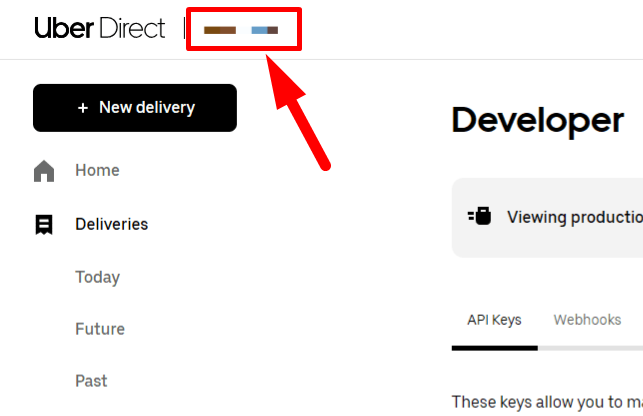
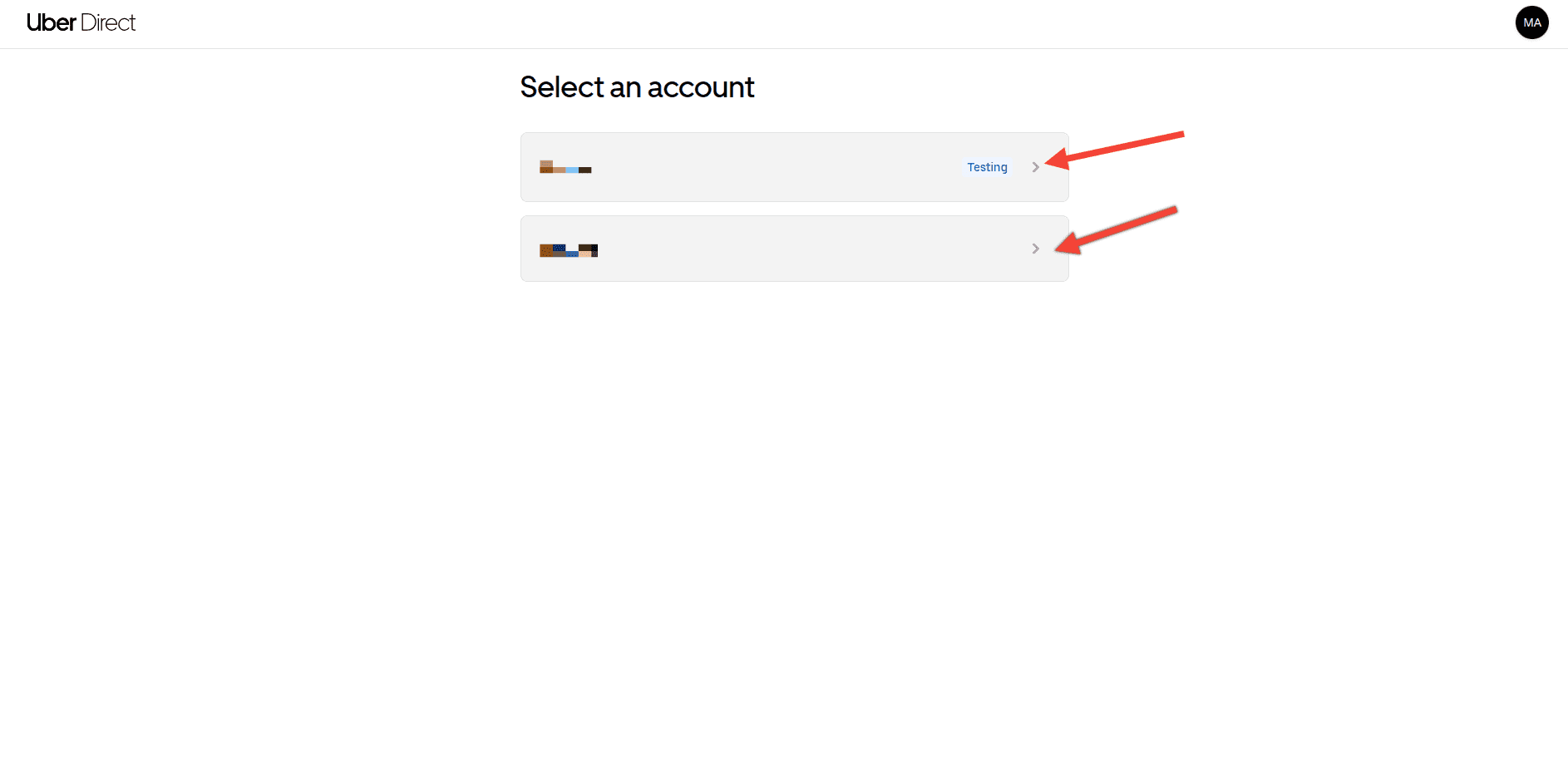
Keep test and production information separate. A selected environment only determines where you are viewing configuration; it does not validate the credentials or connect an Ordering.co project.
2. Add provider credentials in Plugin settings
- In the Ordering.co Dashboard, open Plugin settings and select Uber Direct Integration.
- Enter only the values issued for the environment selected in Uber Direct.
- Save the configuration through the approved administration process.
The integration can show an account identifier, Client ID, and Client Secret, plus equivalent fields for another environment. Some provider screens label the account identifier as Customer ID, while the plugin screen can label a related field Organization ID. Use the labels and values supplied by the authorized account owner; do not assume that similarly named fields are interchangeable.
Treat the Client Secret and all account identifiers as sensitive. Do not send them in chat, tickets, screenshots, recordings, or unapproved documents. This guide intentionally does not display credential values.
Saving the form demonstrates only that the Dashboard accepted a configuration action. It is not evidence of provider authentication, a connection, a webhook delivery, or a delivery transaction.
Review other delivery settings separately
The Uber Direct setting can also show Sandbox Mode, Add Delivery Fee, Accept Cash Orders, Cancel Reason (sandbox), Enable Dropoff Verification (pincode), Business Name, and Sync ETA Time. Review each value with the delivery operation and provider onboarding owner before changing it. A field being visible or saved does not establish fee handling, cash acceptance, cancellation behavior, dropoff verification, ETA synchronization, dispatch, tracking, or delivery.
3. Register the required provider callbacks
In Uber Direct, open Developer and then Webhooks. Register the following paths only when they match the approved project code for your workspace:
| Callback | Path | Provider event |
|---|---|---|
| Delivery status | https://uber-direct.plugins.orderingplus.com/{project_code}/webhooks/deliveries/update | event.delivery_status |
| Courier update | https://uber-direct.plugins.orderingplus.com/{project_code}/webhooks/deliveries/courier_update | event.courier_update |
Replace {project_code} with the approved lowercase project code. Do not infer another hostname, path, project code, or event from this table.
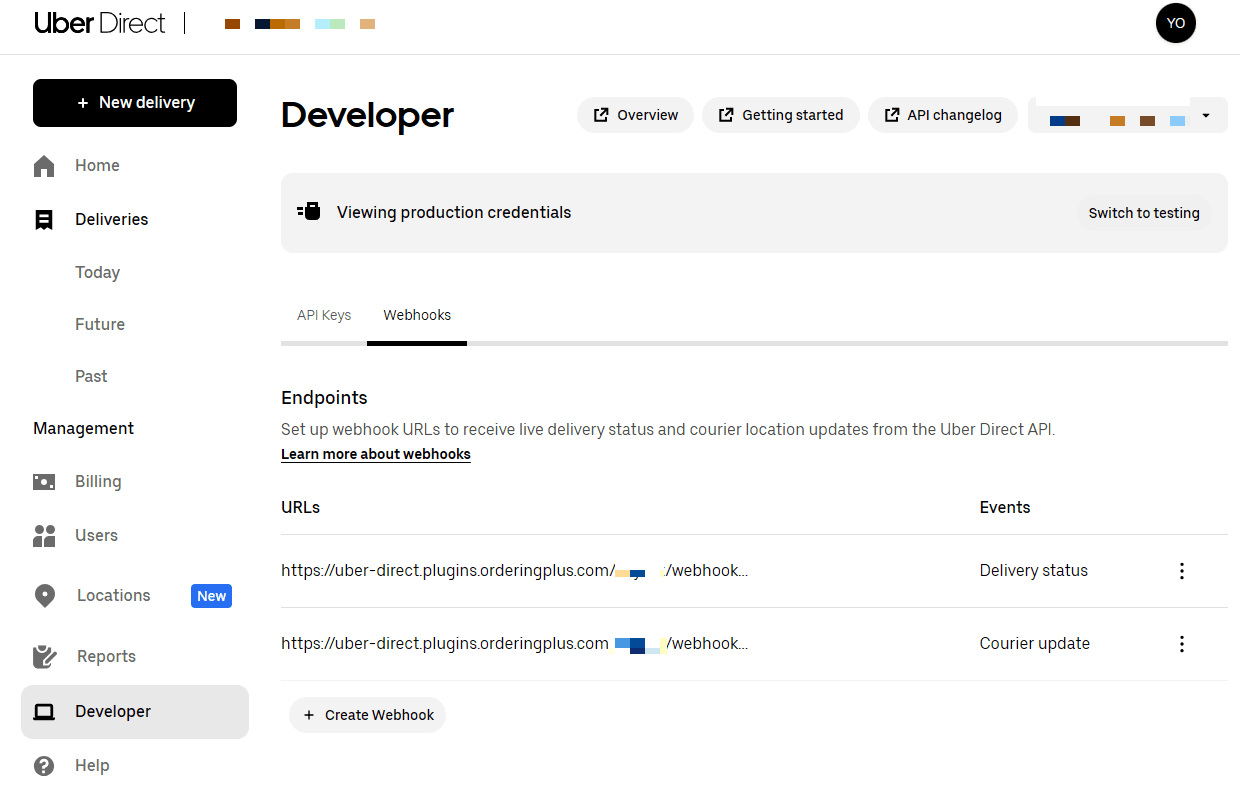
Registration tells the provider where it may send those event types. It does not establish that a callback was delivered, accepted, processed, retried, or visible to an operator or customer.
4. Validate an approved delivery flow
After the integration owners authorize a controlled test, use one eligible test order and confirm the stages in sequence:
- The intended Ordering.co order is eligible for the configured delivery service.
- Uber Direct accepts the request for the intended environment.
- The provider creates or assigns the delivery.
- The expected delivery-status and courier-update callbacks are received by the approved endpoints.
- The delivery appears in the intended provider view with the expected status.
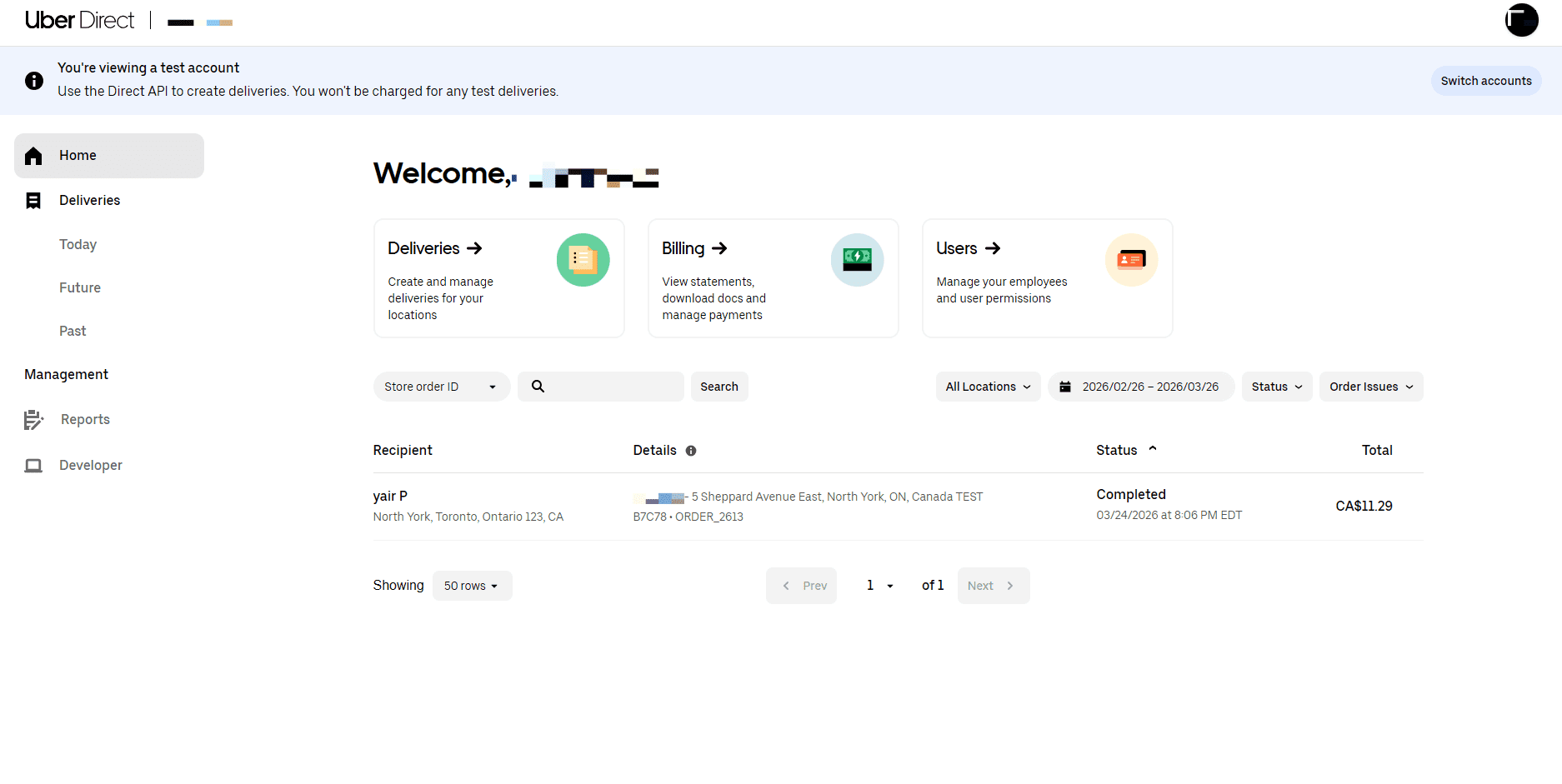
Do not use a live customer order to diagnose configuration. A dashboard list, provider button, callback registration, or a saved credential is not a successful delivery receipt.
What to verify at each boundary
| Boundary | Evidence to look for | What it does not prove |
|---|---|---|
| Installation and configuration | The Uber Direct setting is available and the intended fields were saved. | Provider authentication or delivery-service availability. |
| Provider credentials | Values came from the authorized account and match the selected environment. | That the values are active, authorized, or accepted by Uber Direct. |
| Connection | Both system owners confirm the project, account, and callback configuration. | That an order, status, or courier update has travelled between systems. |
| Order and data sync | One approved test has the expected order and status identifiers in each authorized system. | That every future order will be accepted or synchronized. |
| Dispatch | The provider accepts the eligible test request and creates the expected delivery workflow. | That a courier has been assigned or a delivery is complete. |
| Delivery | Provider status confirms the completed approved test. | That payment has been captured or that a customer notification was delivered. |
| Payment | This guide does not configure fees, payment collection, refunds, or settlement. Verify those in their own approved workflow. | A delivery integration is not payment authorization or settlement evidence. |
| Notifications | The webhook events are operational callbacks, not proof of a customer-facing notification. Test customer communications separately. | An event registration does not establish delivery, reading, or timing of a notification. |
| Outcome | The same approved test can be traced through the intended order, dispatch, and provider status. | A visible setting, saved token, or application button is not a completed transaction. |
Troubleshooting
The provider rejects the configuration
Confirm that the account, environment, account identifier, Client ID, and Client Secret all came from the same authorized Uber Direct account. Do not paste any of those values into a support request.
No status or courier update appears
Confirm that the registered paths use the approved lowercase project code and the corresponding event is enabled. A registered path does not prove outbound delivery, so the provider and endpoint owners must check the approved test without exposing payloads or customer information.
A delivery does not appear in Uber Direct
Check that the test order was eligible for the intended delivery service and submitted in the matching environment. Separate an order being created, a delivery being accepted, a courier being assigned, and a delivery being completed; each can fail independently.
Related guides: Plugins · Delivery services · Configure a delivery service
Ordering.co integration page: Uber Direct