Connect Shipday
Use the Shipday integration to configure a delivery service for the intended businesses, schedule, payment methods, and delivery zones. The intended workflow can send eligible orders to Shipday, support driver assignment, and make tracking available after dispatch. Installation, credential storage, webhook setup, order transfer, assignment, tracking, and delivery completion remain separate steps.
Enabling a service, saving an API key, or selecting an assignment trigger does not prove that Shipday accepted an order, assigned a driver, shared tracking, completed a delivery, captured payment, or notified a customer. Verify each result with an approved controlled test.
Each screenshot in this guide opens at full size. Never copy keys, tokens, account data, orders, addresses, or delivery details from another workspace.
Before you begin
Collect the following before you configure the integration:
- An Administrator (level 0) account with access to Developers → Plugins, Plugin settings, and Connect → Delivery services in the Ordering.co Dashboard. Plugin settings also requires its category to be returned for the project.
- An authorized Shipday account with access to its integration settings.
- A Shipday API key issued for the intended account.
- A new webhook token with no more than 32 characters.
- The project-specific API link supplied for the Shipday webhook setup.
- Approval to configure the businesses, hours, payment methods, zones, and assignment behavior that the service will use.
Keep the API key and webhook token in your approved secret-management process. Do not paste them into chat, tickets, recordings, or shared documents.
1. Install the Shipday plugin
- In the Ordering.co Dashboard, open Settings → Developers → Plugins.
- Select Add new plugin.
- Enter the Shipday plugin address:
https://shipday-delivery.plugins.orderingplus.com
- Add the plugin and confirm that the Shipday integration is available for configuration.
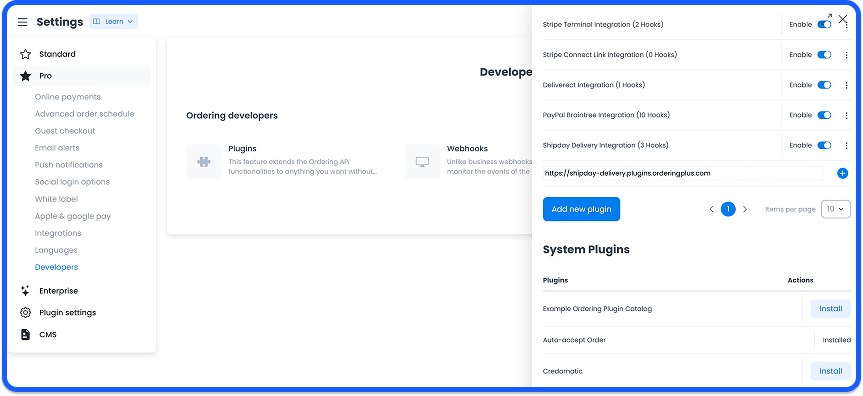
If the integration does not appear, do not substitute another plugin address. Use the approved setup path for the project.
2. Configure the API key and webhook token
- In Shipday, open the account's integration settings and locate the Direct integrations API key.
- In the Ordering.co Dashboard, open Plugin settings and select the Shipday integration.
- Enter the Shipday API key.
- Create a webhook token with a maximum of 32 characters.
- In Shipday's Webhook Setup, add the project-specific API link supplied for this connection and enter the exact same webhook token.
The webhook token must match exactly in both systems, including letter case. Do not invent an API link or reuse a token, key, or link from a different project or environment.
An API key, webhook token, API link, or credential value is sensitive integration data. This guide does not display or link to credential-bearing screenshots.
Completing these fields only records configuration. It does not prove that Shipday accepted the key, that the webhook can deliver a status update, or that an order can be dispatched.
3. Configure the delivery service
- In the Ordering.co Dashboard, open Connect → Delivery services.
- Find Shipday Delivery Integration.
- Enable the service only when your operation is ready to use it.
- Open the service to configure its Driver Group.
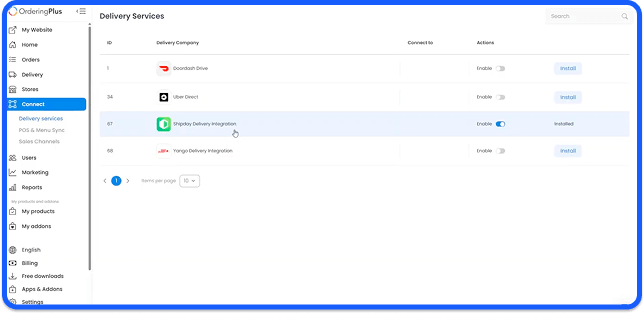
Configure each tab deliberately:
| Configuration tab | What to set | Boundary to confirm |
|---|---|---|
| General | The API key and webhook token, the automatic-assignment trigger, and any auto-reject expiration rule. | A selected trigger does not prove that an order will reach Shipday or be assigned. |
| Businesses | The restaurants or stores that may use this service. | A selected business does not make every order eligible. |
| Schedule | The days and hours when the service should operate. | A saved schedule does not establish provider availability. |
| Payment methods | The payment methods that are eligible for this delivery service, such as cash, Stripe, PayPal, or Apple Pay where applicable. | Selecting a method does not capture, refund, settle, or reconcile payment. |
| Delivery zones | The geographic zones that the service should cover. | A zone mapping does not ensure a driver can accept an order. |
Use Configure a delivery service for the surrounding Dashboard workflow.
4. Validate order, dispatch, and tracking behavior
After the connection owners approve a controlled test, use an eligible test order and confirm the sequence:
- The test order belongs to a selected business, payment method, schedule, and delivery zone.
- The configured trigger is reached, such as Accepted by business when that is the selected trigger.
- Shipday receives the intended order data.
- An authorized operator can assign the order to an available driver, or the approved automatic-assignment setting applies.
- The tracking and delivery status shown for the approved test match the intended order and driver workflow.
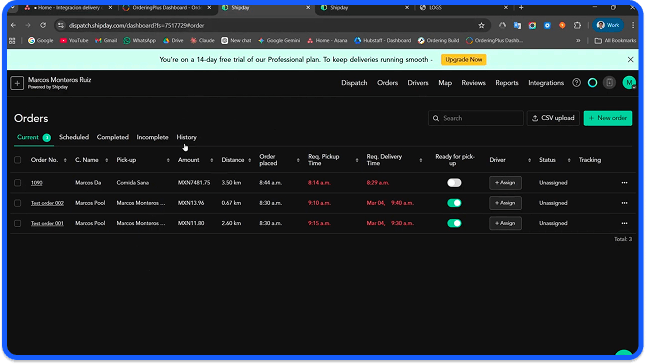
Do not use a live customer order to diagnose the integration. A visible order list, enable switch, or tracking page is not on its own proof that the correct order was dispatched or delivered.
What to verify at each boundary
| Boundary | Evidence to look for | What it does not prove |
|---|---|---|
| Installation and configuration | The Shipday plugin and delivery-service settings are present and the intended fields were saved. | That Shipday accepted credentials, a webhook, or an order. |
| Provider credentials | The API key and webhook token were obtained for the intended account and configured in the matching systems. | That the credentials are active, accepted, or authorized for the intended operation. |
| Connection and webhook | The provider and endpoint owners confirm the project-specific webhook configuration. | That a callback has been sent, delivered, retried, or processed. |
| Order and data sync | An approved test reaches Shipday with the expected order details after the selected trigger. | That every future order will transfer or contain correct data. |
| Dispatch | The approved test is eligible and the provider accepts it for assignment. | That a driver has accepted it or completed delivery. |
| Delivery and tracking | An authorized operator confirms the approved test's expected tracking and final provider status. | That payment or a customer message was completed. |
| Payment | Eligible methods were selected for the delivery service. | That a payment was authorized, captured, refunded, settled, or reconciled. |
| Notifications | Tracking or webhook updates can support a workflow, but they do not prove a customer notification was sent or read. | A provider status update is not notification-delivery evidence. |
| Outcome | The same approved test can be traced from eligibility through provider assignment and final status. | A saved token, dashboard response, or app button is not a completed transaction. |
Operating practices
- Use an approved test before exposing the service to live customers.
- Keep the webhook token identical in both systems; a mismatch prevents reliable callback validation.
- Align delivery zones with the areas that the available Shipday drivers can serve.
- Enable automatic assignment and auto-reject behavior only after the operation has approved their trigger and timing.
- Review the delivery service's eligible payment methods as part of the operating setup; payment handling itself remains a separate workflow.
- If a Dashboard log view is available for your workspace, treat its request and response data as sensitive and use the approved support process rather than copying it into a ticket or chat.
Troubleshooting
Shipday does not receive the test order
Confirm the selected business, schedule, zone, payment method, and assignment trigger for the approved test. Then have the provider and endpoint owners verify the connection without sharing keys, tokens, URLs, payloads, customer data, or order details.
The order is received but cannot be assigned
Check the approved service schedule, delivery zone, and driver availability. Provider acceptance, driver assignment, and delivery completion are distinct results and must be investigated separately.
Tracking or a status update is missing
Confirm that the project-specific API link and case-sensitive webhook token are the same approved values in both systems. A saved setting does not show whether a callback was delivered or processed, so verify the approved test at both endpoints.
Related guides: Plugins · Delivery services · Configure a delivery service