PayPal Braintree plugin
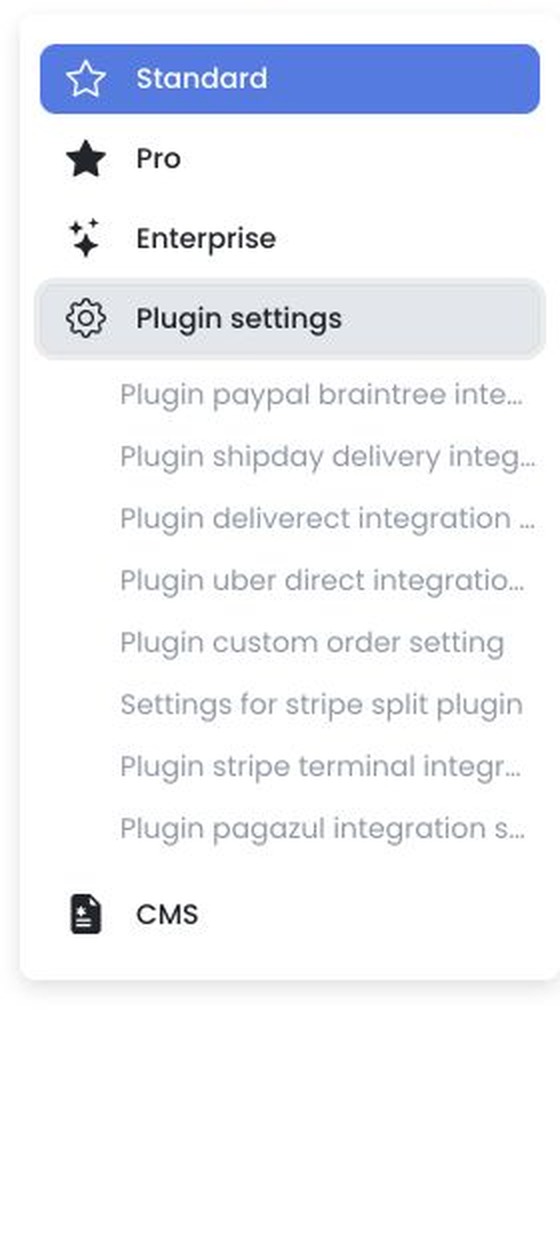
For Ordering.co’s current PayPal integration offer, see the PayPal integration page. Your project may include a PayPal Braintree category under Plugin settings; its presence and configuration depend on the project.
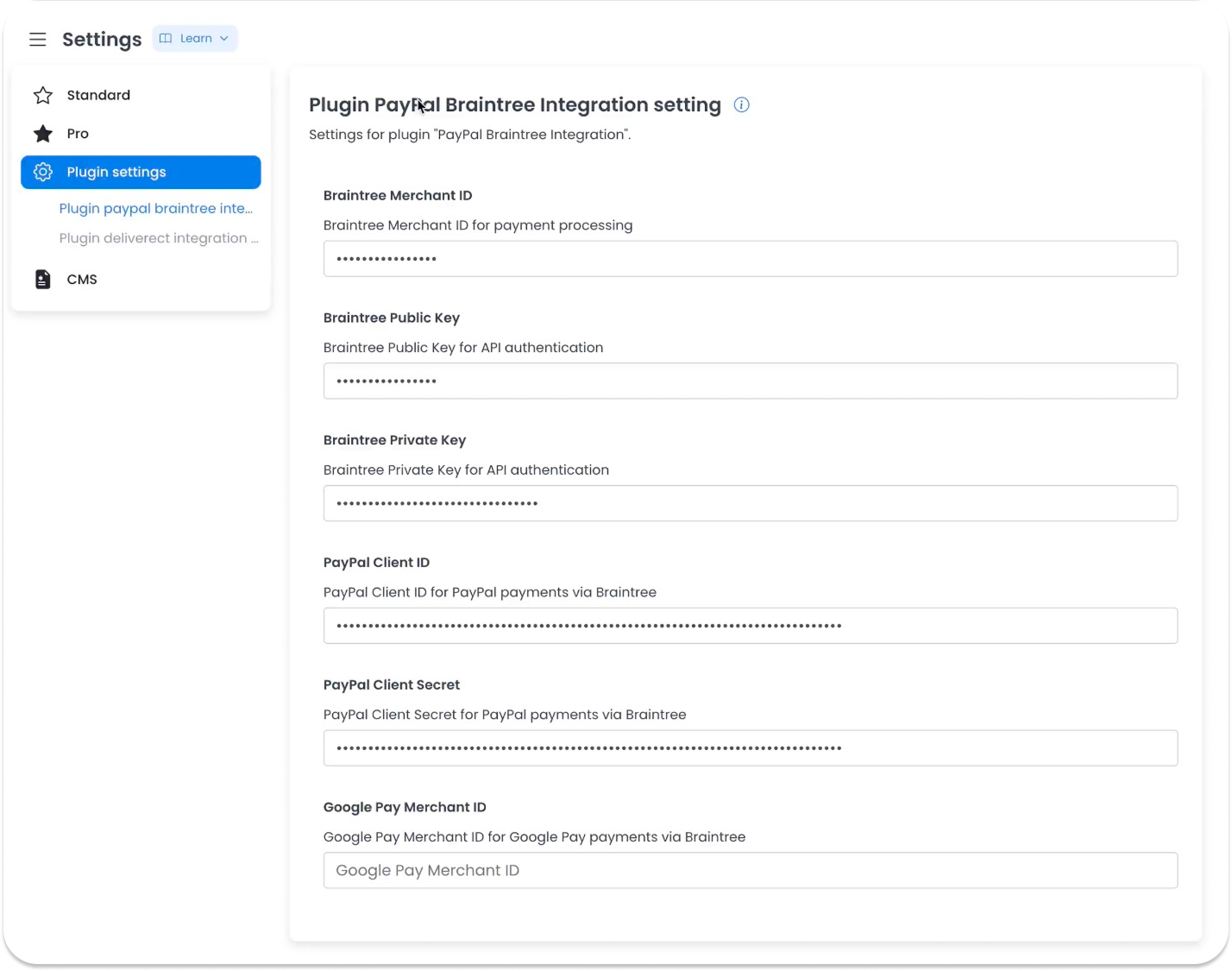
Settings and credentials
Depending on the project, settings can include Braintree environment selection, merchant identifiers, public and private keys, PayPal or Google Pay identifiers, fraud controls, promotion settings, file-transfer credentials, and encryption settings. Available fields, required values, validation, and provider behavior depend on the configured plugin and account.
The Plugin settings editor stages ordinary fields until Save and applies them sequentially; image changes may apply immediately. Braintree fields and available actions depend on the plugin configuration in your project.
Provider and data boundary
Payment, fraud, promotion, file-transfer, encryption, and webhook behavior may involve external providers. Confirm provider requirements and project eligibility with the authorized payment owner before changing settings.
Merchant identifiers, public or private keys, client tokens or secrets, webhook secrets, fraud-provider secrets, SFTP credentials, PGP material, endpoints, transaction IDs, customer or payment data, and provider responses must not be captured or published.
Availability
Available fields and behavior depend on the project’s PayPal/Braintree setup. A plugin listing does not confirm checkout availability, payment authorization, capture, refunds, webhooks, provider connectivity, or successful configuration.
Check your project configuration
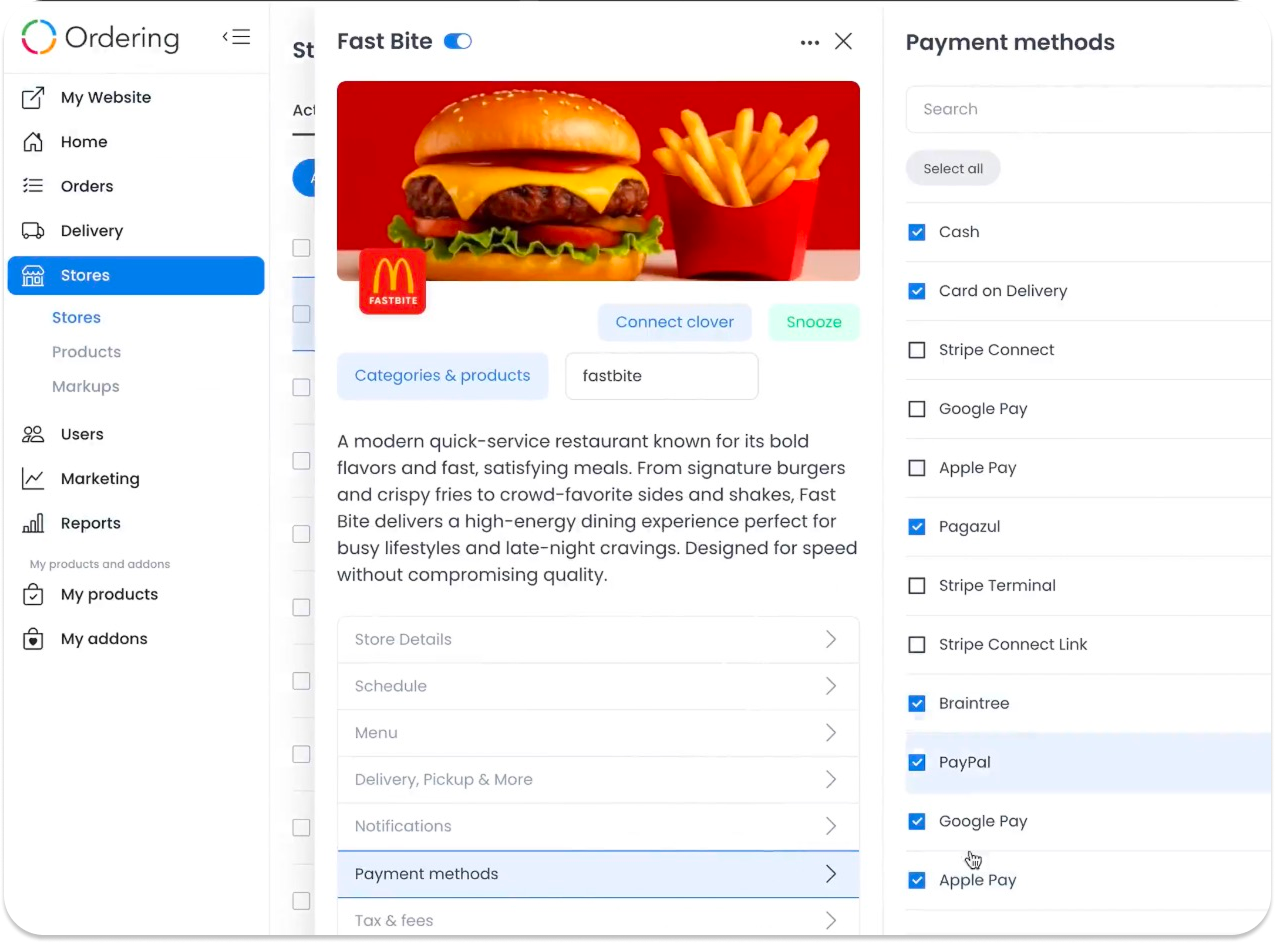
If the plugin is available, confirm its status under Plugin settings and the store’s Payment methods. The exact navigation, required fields, installation state, and saved values can vary by project. Never copy credentials or merchant identifiers into screenshots, tickets, or shared messages.
Another historical capture shows a Braintree row and wallet labels in a store payment-method view. It does not establish that the row, status control, or any wallet option is currently available.
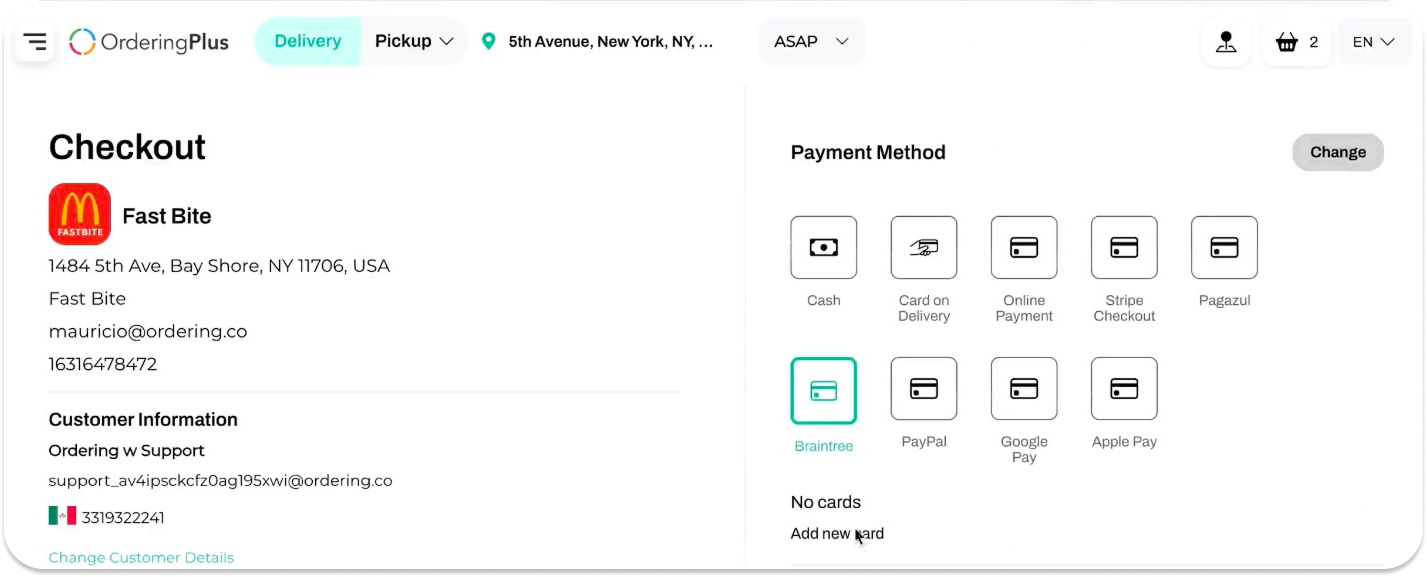
Payment flow
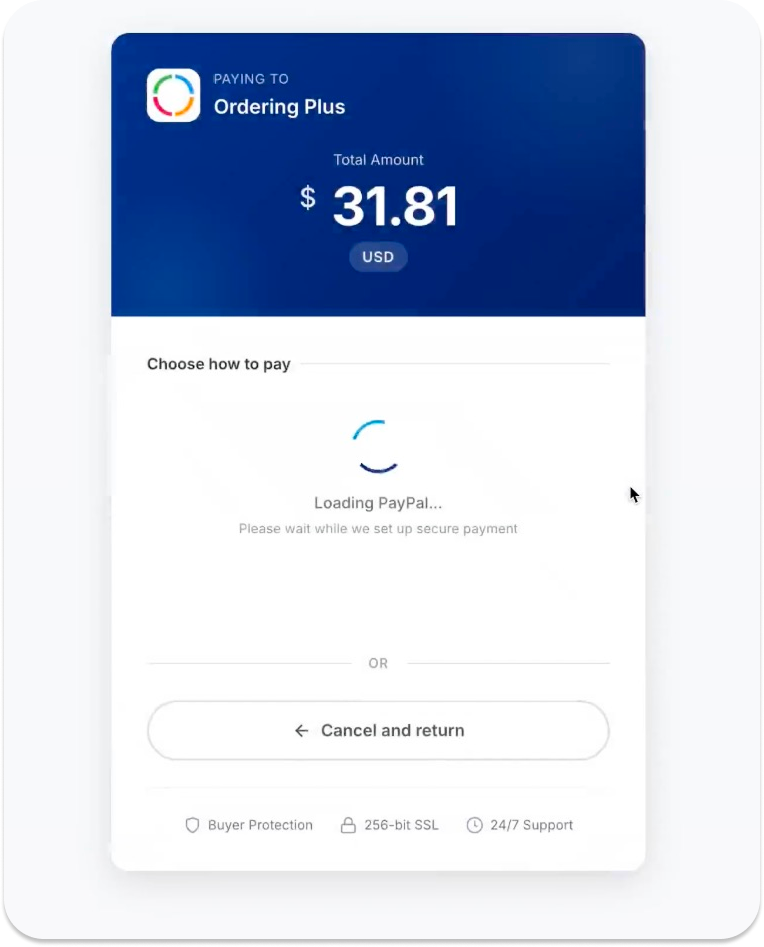
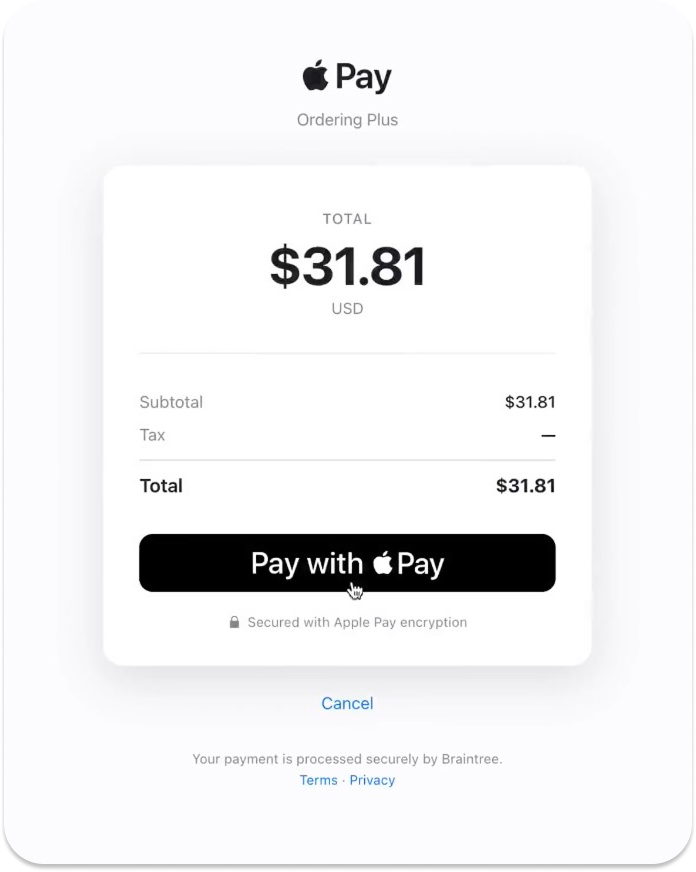
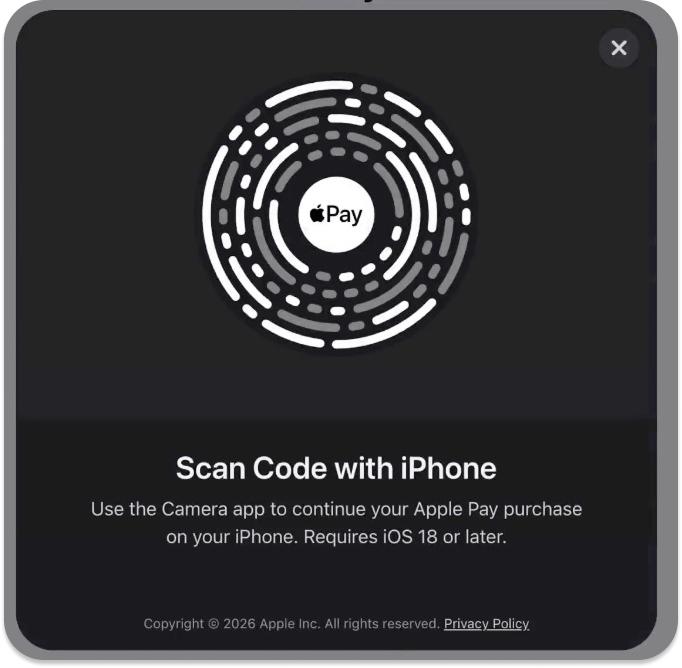
Card, PayPal, and wallet screens may be part of a payment flow. Their presence does not confirm authentication, encryption, provider redirects, validation, a transaction, order status, checkout availability, or payment success. A displayed Order is in progress state is not a payment confirmation.
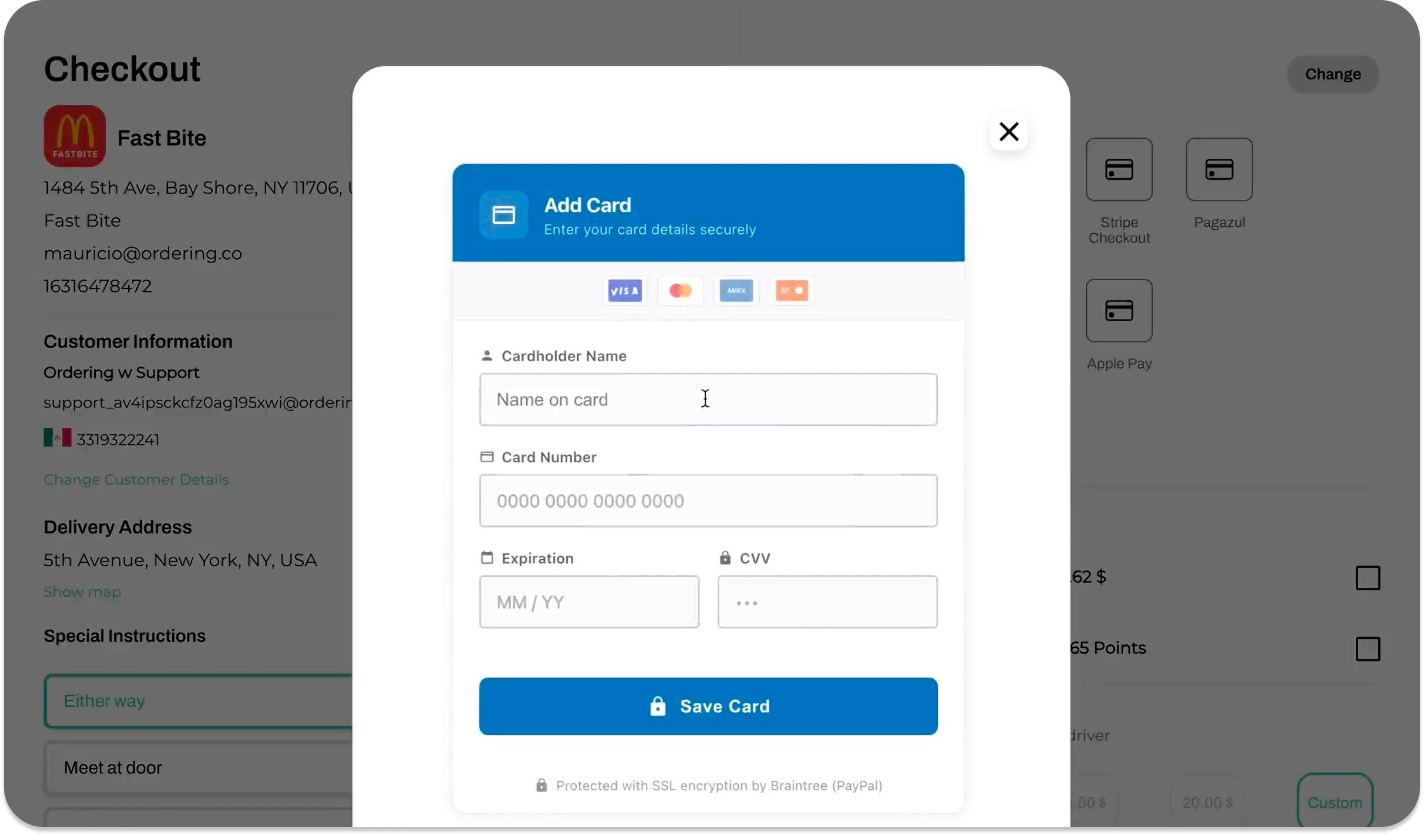
A PayPal prompt may appear when that payment option is configured.
Depending on the project and device, the payment flow may also display an Apple Pay sheet or QR code.
Configure safely
Confirm current provider setup, availability, country eligibility, currencies, settlement, payouts, and store-level behavior with the provider and your Ordering administrator before changing configuration.
For the PayPal-specific historical record, see Historical PayPal setup record.
Related guides: Online payments · Developers · Plugin settings