Connect Deliverect
Use the Deliverect plugin when your operation needs to exchange store, menu, and product updates with Deliverect and send Ordering.co orders to the Deliverect POS workflow. Complete each part in order: installing a plugin, saving credentials, configuring a location, and seeing a provider response are separate states.
An installed plugin, a saved API key, an active location, or a visible button does not prove that Deliverect is connected, that menus are synchronized, or that an order reached a POS. Confirm each outcome with the owner of both systems using an approved test process.
Each screenshot in this guide opens at full size. Never copy account details, identifiers, or values from a screenshot belonging to another workspace.
Before you begin
Have the following ready before you make a configuration change:
- Access to the Ordering.co Dashboard Developers area, including Plugins and API Keys.
- An authorized Deliverect account and the intended Deliverect location.
- The Deliverect Client Account ID for the intended account.
- A secure place to store the Ordering.co API key that you create for this connection.
- The project code and API key for the location mapping, supplied by the authorized project owner.
If your operation needs integration access before configuration, use the Deliverect integration request.
1. Install the plugin
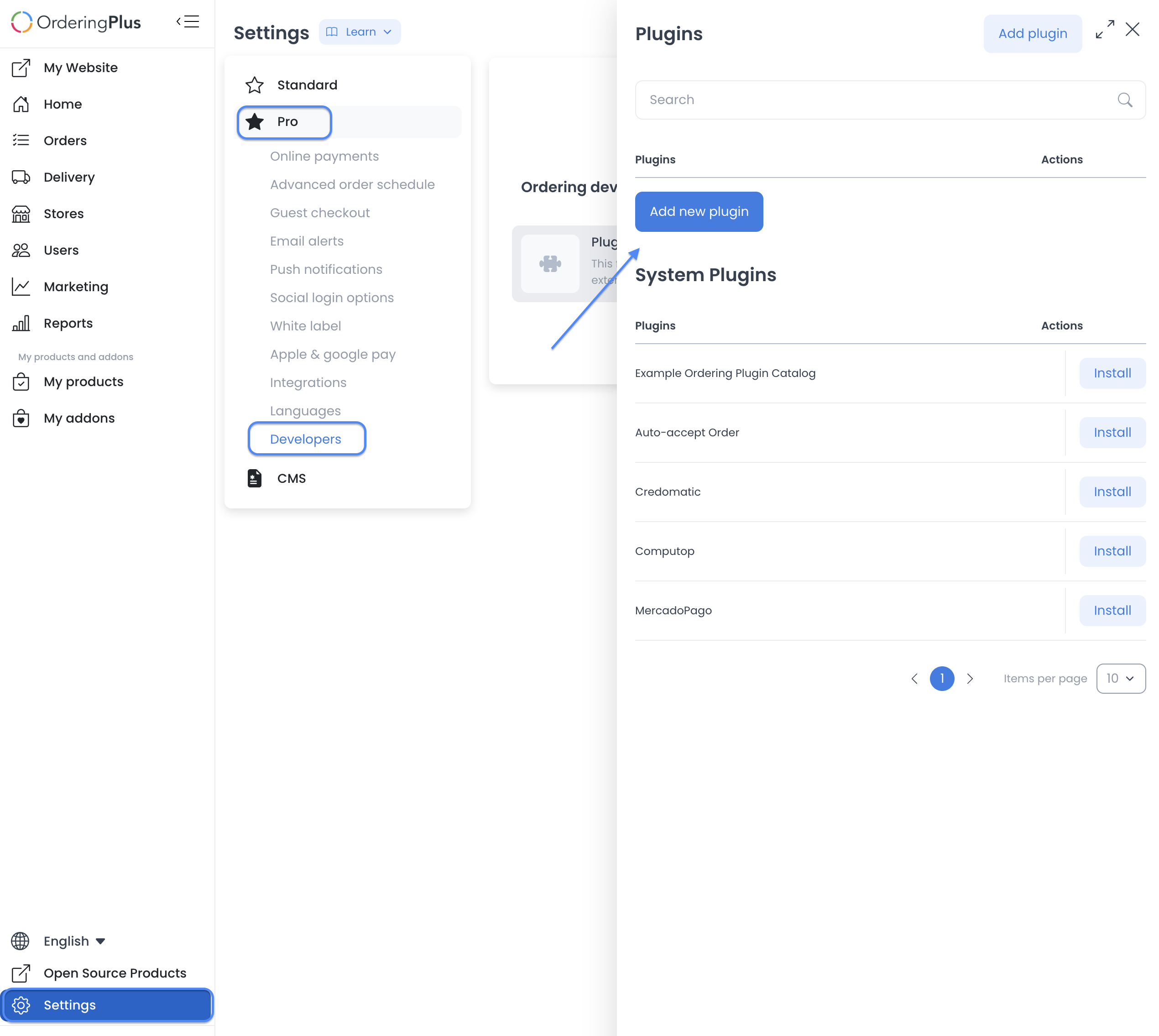
- In the Ordering.co Dashboard, open Settings and then Developers.
- Open Plugins.
- Select Add new plugin.
- Enter the Deliverect plugin address:
https://integrations.ordering.co/deliverect
- Select the plus control to add it.
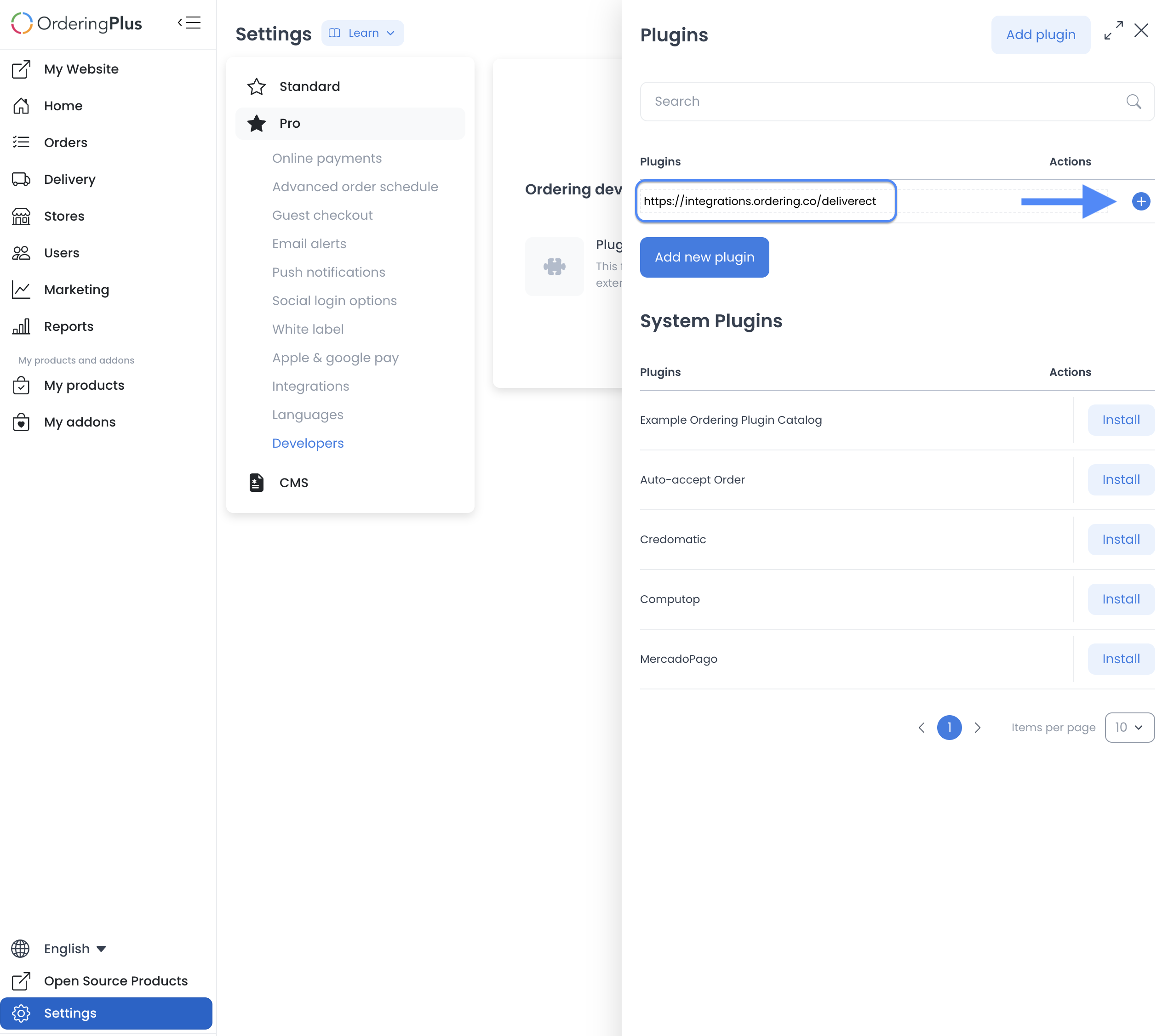
Adding the plugin makes its configuration surface available. It does not by itself authorize Deliverect, create a provider connection, or exchange data.
2. Create and protect the Ordering.co API key
- Return to Developers and open API Keys.
- Select Add API Key.
- Store the newly created key in your approved secret-management process. Do not place it in chat, a ticket, a shared document, or a screenshot.
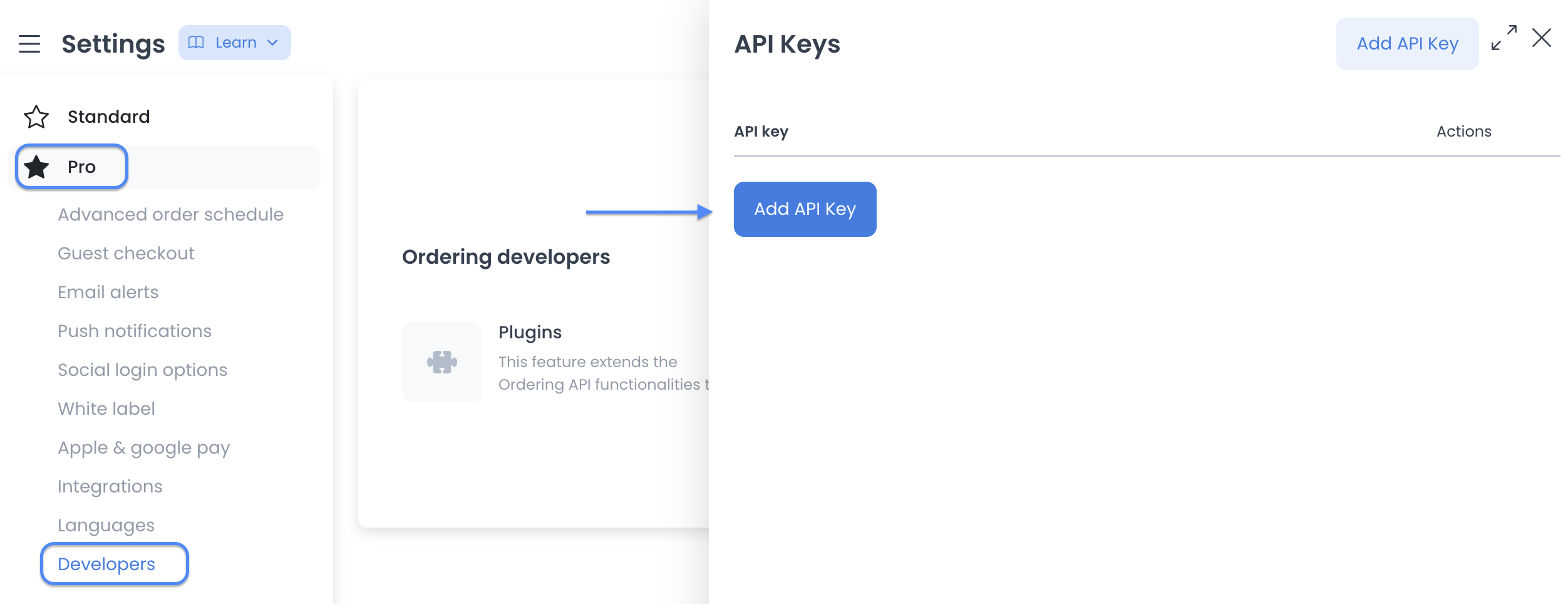
For the general key-management procedure, see Create an API key.
3. Configure the Deliverect plugin
- Open Plugin settings and select the Deliverect integration setting.
- Enter the Ordering API Key you created in the previous step.
- Enter the Client Account ID from the authorized Deliverect account.
- Select the environment that matches the credentials issued for the connection.
- Leave OAuth token and token-expiration fields unchanged unless the provider onboarding instructions specifically direct an authorized administrator to manage them.
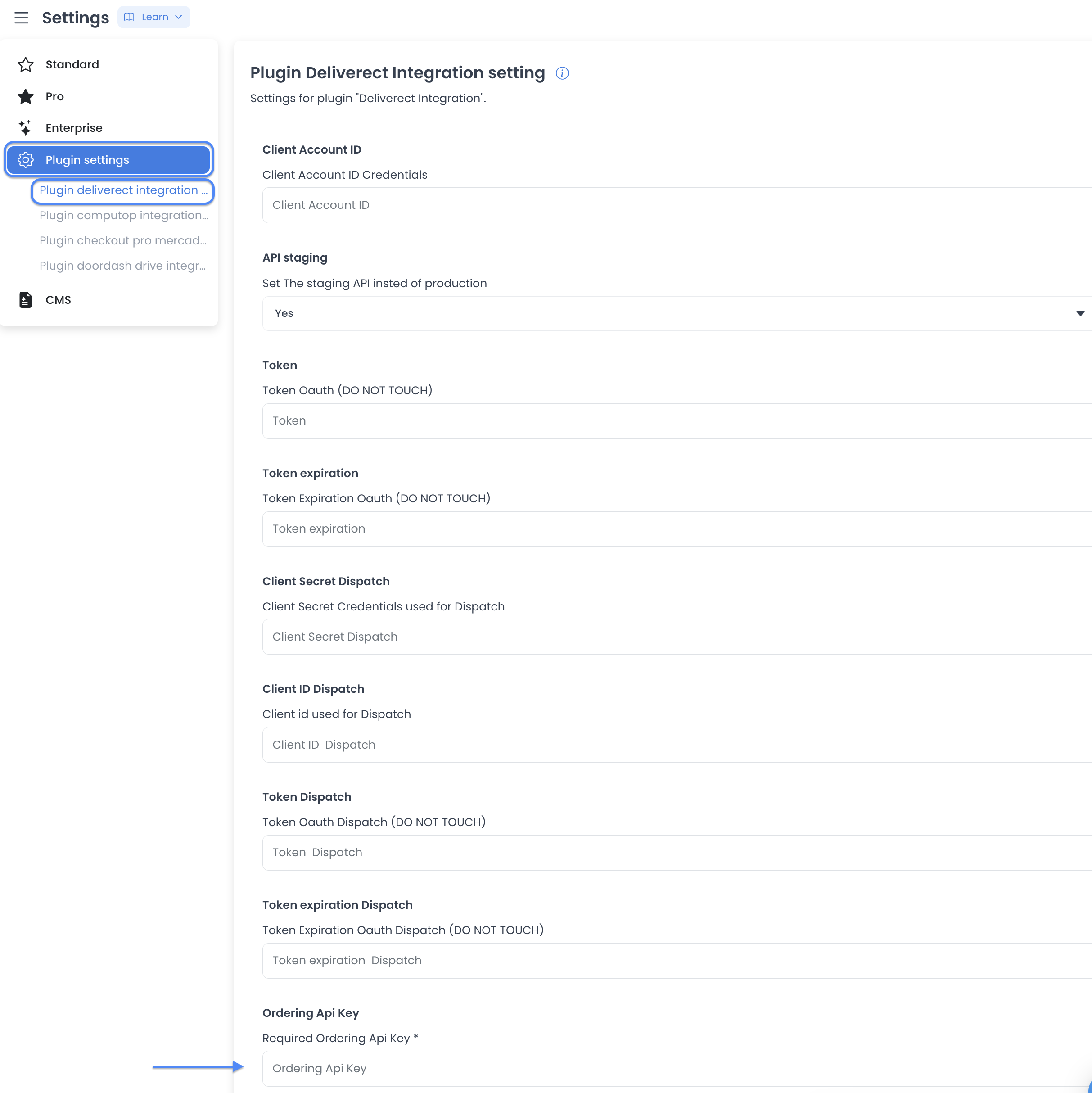
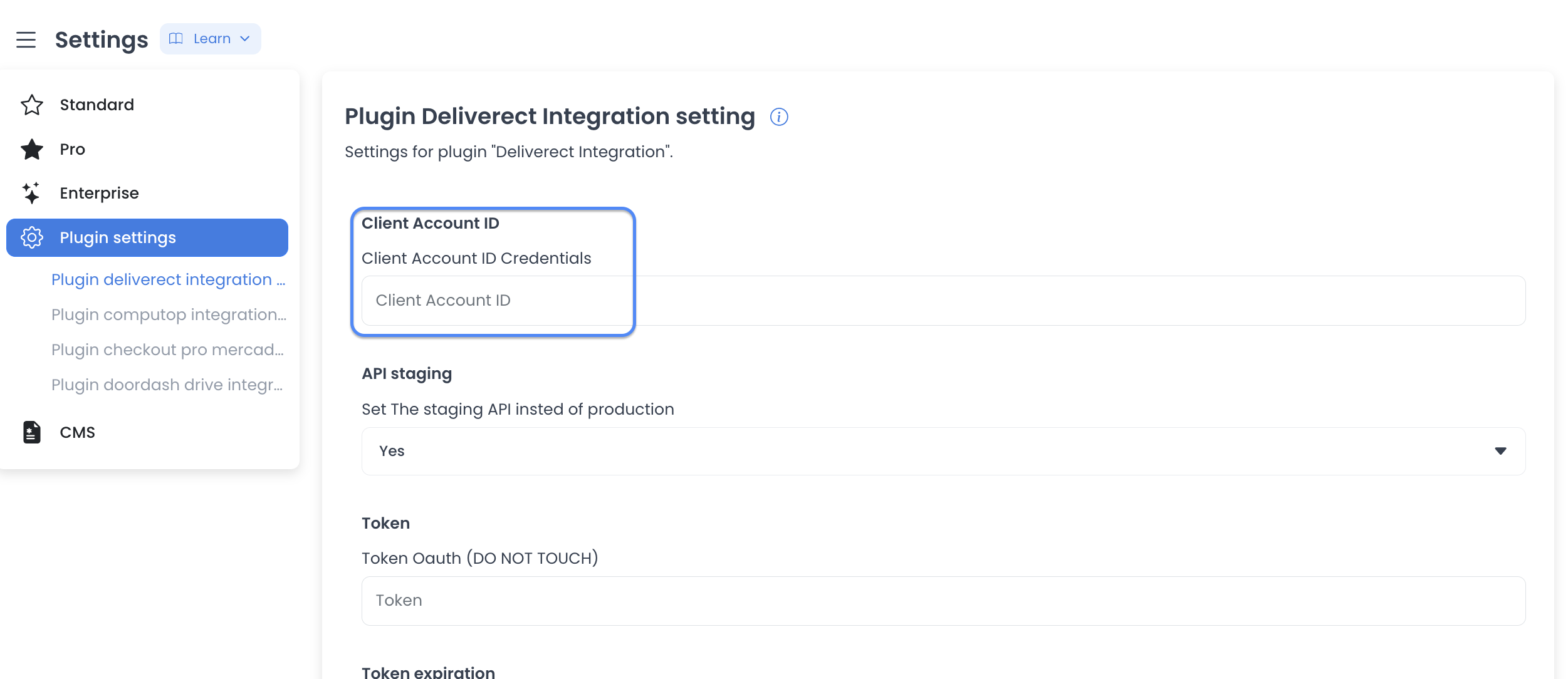
Retrieve the Client Account ID only from the account that is authorized for this operation.
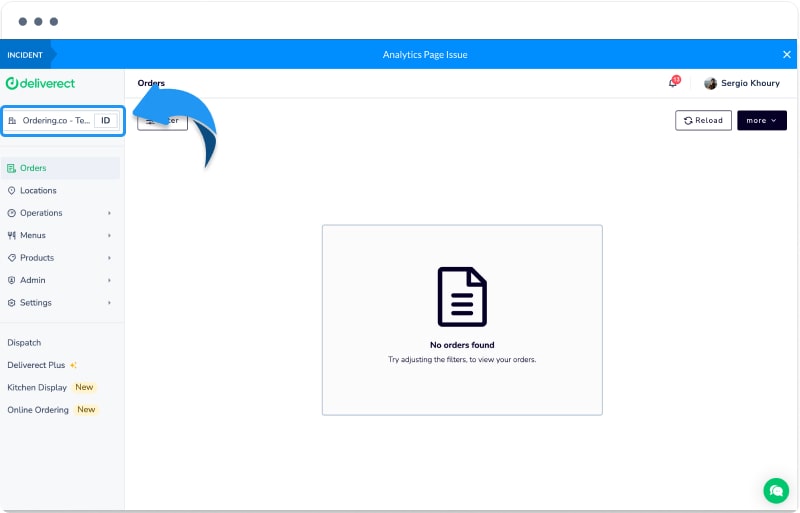
Saving these fields records configuration. It is not evidence that the provider accepted the credentials or that a store is mapped.
Review dispatch credential fields carefully
The Deliverect setting can also show Client Secret Dispatch, Client ID Dispatch, Token Dispatch, and Token expiration Dispatch, alongside the account and environment fields. These are credential or provider-managed fields, not a confirmation that an order was dispatched. Do not type, copy, rotate, or expose a token or client secret unless the authorized provider onboarding process directs the administrator who owns that connection.
4. Map the intended Deliverect location
- In Deliverect, select the location that should connect to Ordering.co and open Edit.
- Open Ordering Channel Settings.
- In External Location ID, use the project-specific mapping format supplied for the connection:
project=your-project-code&api_key=your-ordering-api-key
Replace the placeholders only with values issued for the intended project. Do not reuse a value from a different location or environment.
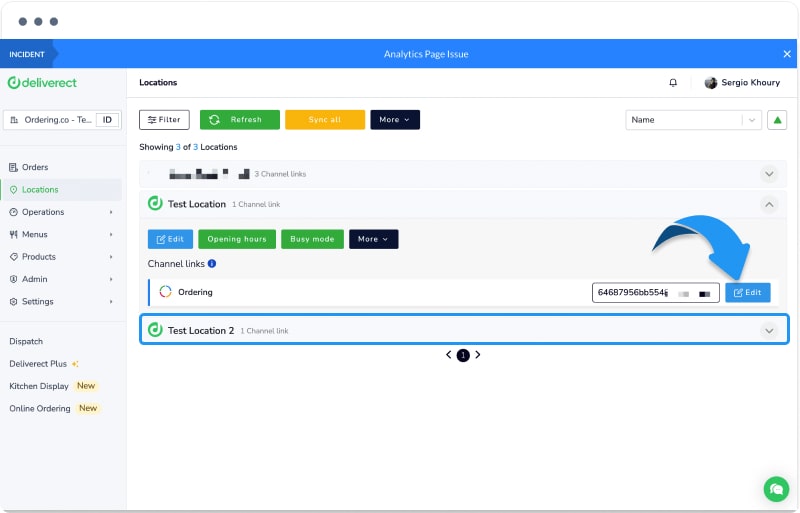
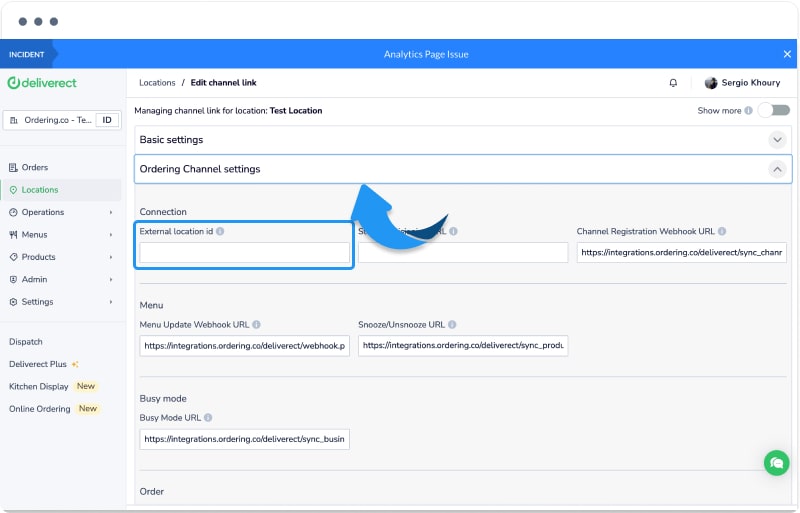
- Save the location settings.
- Activate the location only when the project owner has approved operational use.
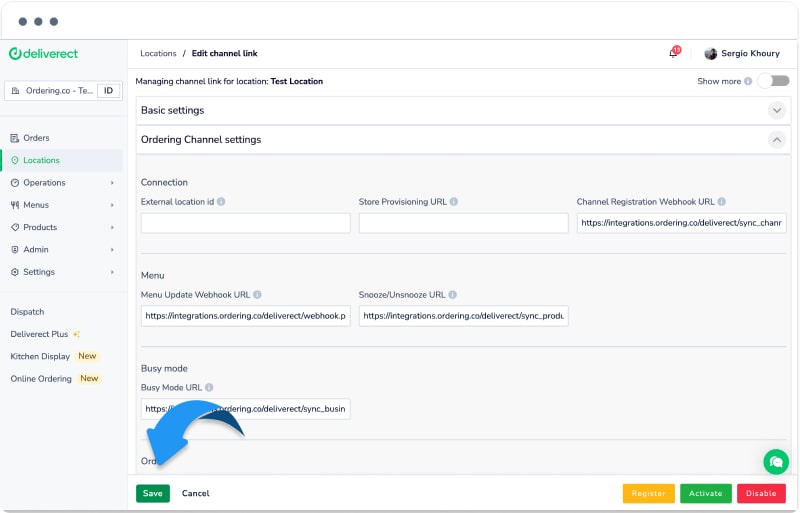
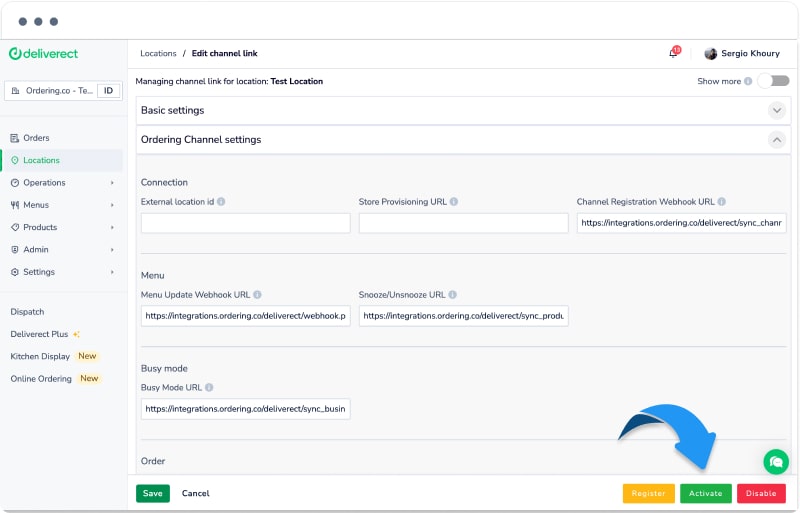
Saving or activating a location does not demonstrate registration, provider acceptance, dispatch, a completed delivery, or a successful menu or order exchange.
5. Validate menu and order exchange
The intended flow is:
- Deliverect sends store, menu, and product updates to Ordering.co.
- Ordering.co sends orders to the Deliverect POS workflow for handling.
After the connection owner approves a controlled test, verify the expected store and products appear in the intended Ordering.co location after a Deliverect menu publication. Then verify that one approved test order is accepted by the intended provider and POS workflow. Do not treat a menu publish control, a local save response, or a dashboard status as proof that either exchange completed.
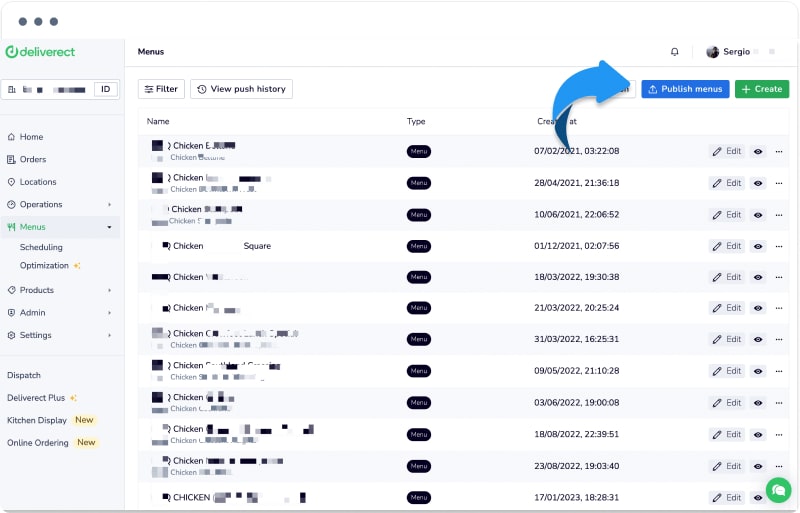
Use POS & Menu Sync for the Dashboard workflow around store mappings and sync controls.
What to verify at each boundary
| Boundary | Evidence to look for | What it does not prove |
|---|---|---|
| Installation and configuration | The Deliverect plugin is present and the intended fields were saved. | That Deliverect accepted credentials or created a connection. |
| Provider credentials | Credentials were obtained from the authorized account and entered in the matching environment. | That they are valid, active, or scoped to the intended location. |
| Connection | Both system owners confirm the intended location mapping and provider registration. | That menu, order, or callback traffic has completed. |
| Menu, order, and data sync | A controlled, approved menu update and order show the expected result in the intended systems. | That future data will synchronize without errors or delay. |
| Dispatch and delivery | Not configured by the steps in this guide. Confirm those workflows with the provider separately. | A POS order, location activation, or menu update is not delivery evidence. |
| Payment and notifications | Not configured by the steps in this guide. Confirm payment handling and customer notifications in their own workflows. | A connected provider does not establish payment capture, settlement, or notification delivery. |
| Outcome | The same approved test can be traced to its intended store, menu, and order result. | A visible provider setting or application button is not a completed transaction. |
Troubleshooting
The plugin is present, but no data is moving
Check that the Client Account ID, environment, Ordering.co API key, and external location mapping all belong to the same authorized connection. Then have the provider owner check the connection without sharing credentials or account data in support requests.
A menu was published, but the menu did not change in Ordering.co
First confirm that the test used the mapped location and that the menu publication was approved. A publish action is not a provider completion receipt. Check the expected store and product data on both sides of the connection before attempting another change.
An order did not reach the POS workflow
Confirm the order belongs to the mapped location and that the controlled test was accepted by the expected systems. Do not expose order, customer, token, or callback details while investigating. The order path and any delivery workflow must be verified independently.
Related guides: Plugins · Create an API key · POS & Menu Sync
Ordering.co integration: Deliverect