Platform settings
Platform settings contains general configuration controls for your Ordering.co platform. The available fields can vary by project.
This page can be available to administrator-level accounts. The fields shown can change with the current platform configuration.
Open Platform settings
- In the Dashboard sidebar, select Settings.
- Select Platform settings when it is available.
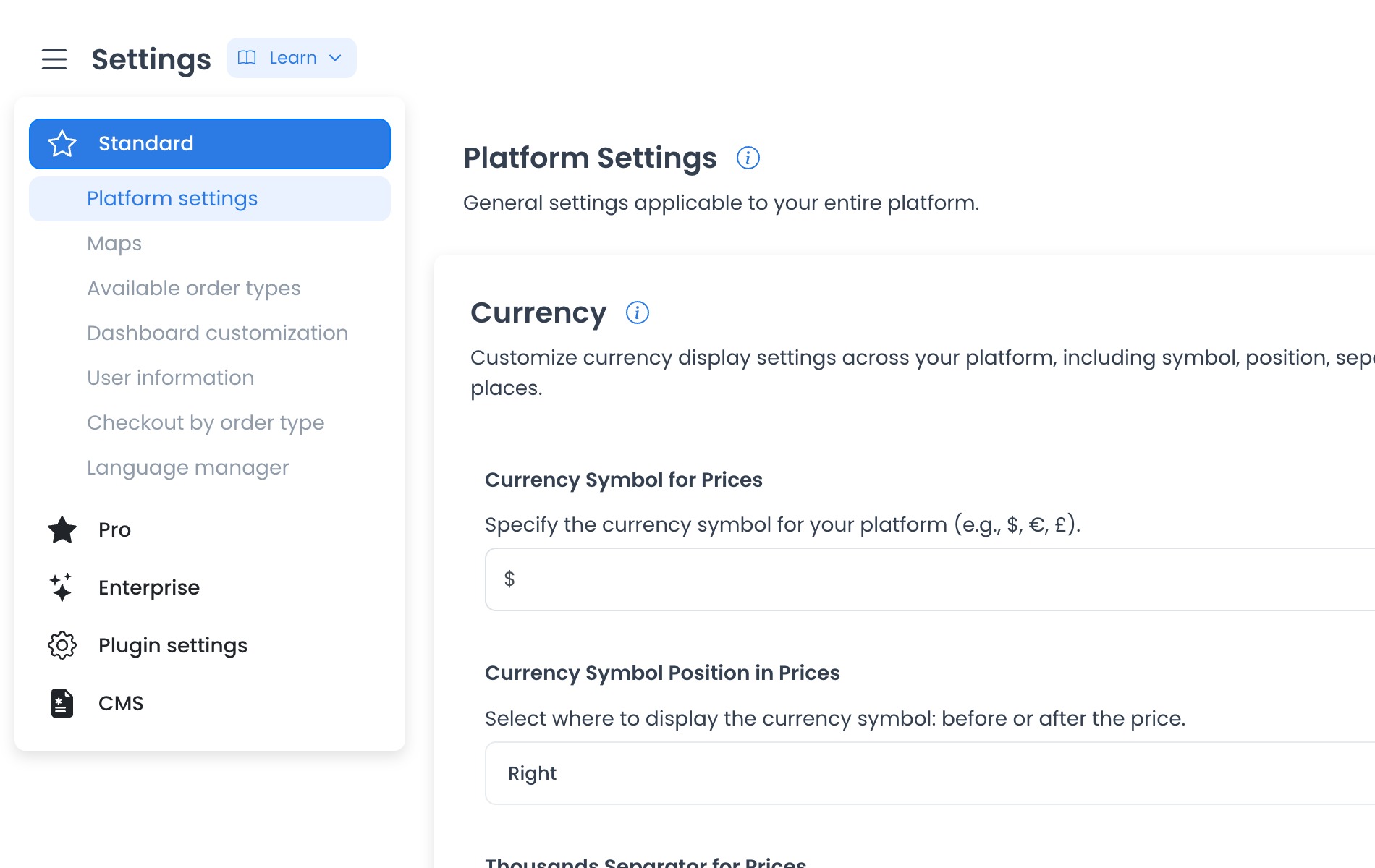
Currency display
The currency controls below affect how amounts are displayed where the project supports them. A saved setting does not change the underlying transaction amount or confirm how every checkout, invoice, or payment provider displays it.
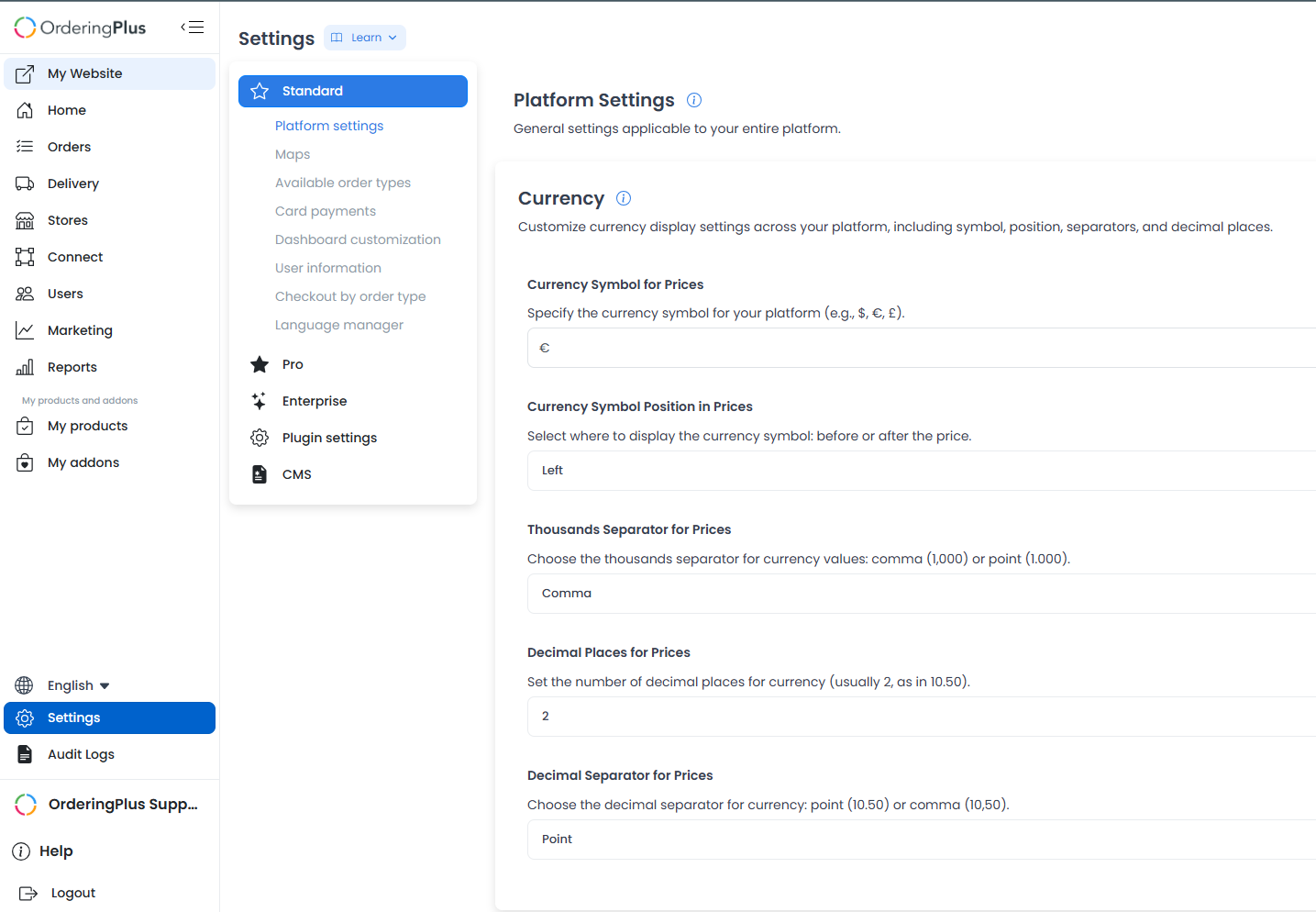
The visible currency section includes controls for:
- Currency Symbol for Prices — Set the displayed symbol (for example,
$,€,£). - Currency Symbol Position in Prices — Choose whether the symbol appears before or after the amount (for example,
$100.00vs.100.00€). - Thousands Separator for Prices — Choose the separator used for thousands, such as a comma (
1,000,000) or a point (1.000.000). - Decimal Places for Prices — Set how many decimal places prices display: 2 decimals (
10.50), 1 decimal (10.5), or 0 decimals (10). - Decimal Separator for Prices — Choose the character that separates the whole number from the decimal part, such as a point (
10.50) or a comma (10,50).
Distance and measurement
These controls set distance and measurement units where supported. They do not change delivery coverage or confirm how a logistics provider calculates a route.
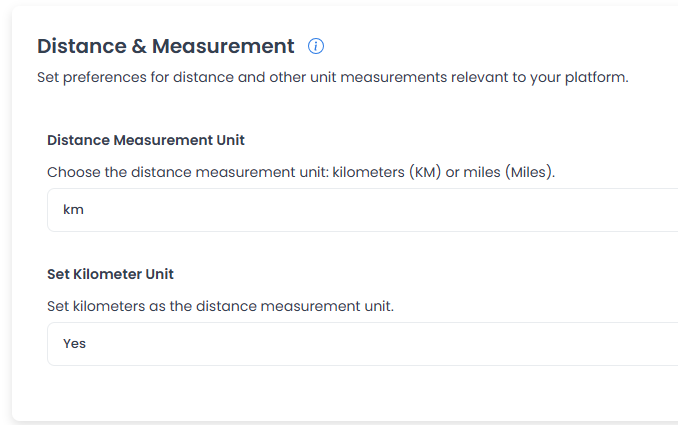
- Distance Measurement Unit — Choose kilometers or miles.
- Set Kilometer Unit — Select the kilometer unit where this control is available.
Fee and tip settings
Fee and tip settings can affect how the platform presents or calculates these amounts. Confirm the intended project behavior before applying a change; a saved value alone does not confirm what customers or drivers will see.
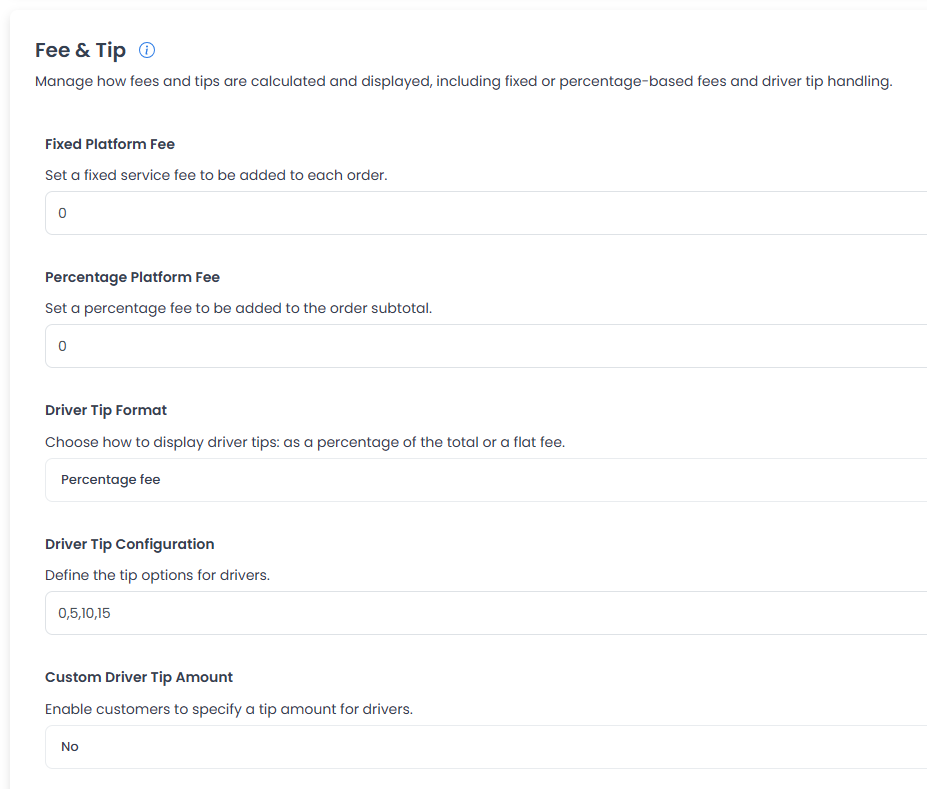
- Fixed Platform Fee — Set a flat monetary value (for example,
2.00). - Percentage Platform Fee — Set a percentage value.
- Driver Tip Format — Choose percentage or flat-amount format.
- Driver Tip Configuration — Set comma-separated preset values (for example,
5,10,15,20) for the selected format. - Custom Driver Tip Amount — Configure whether customers can enter a custom tip amount, where supported.
Registration and terms settings
These settings relate to registration, approvals, terms, and cookie consent. Availability and the resulting signup behavior depend on the project's configuration and enabled features.
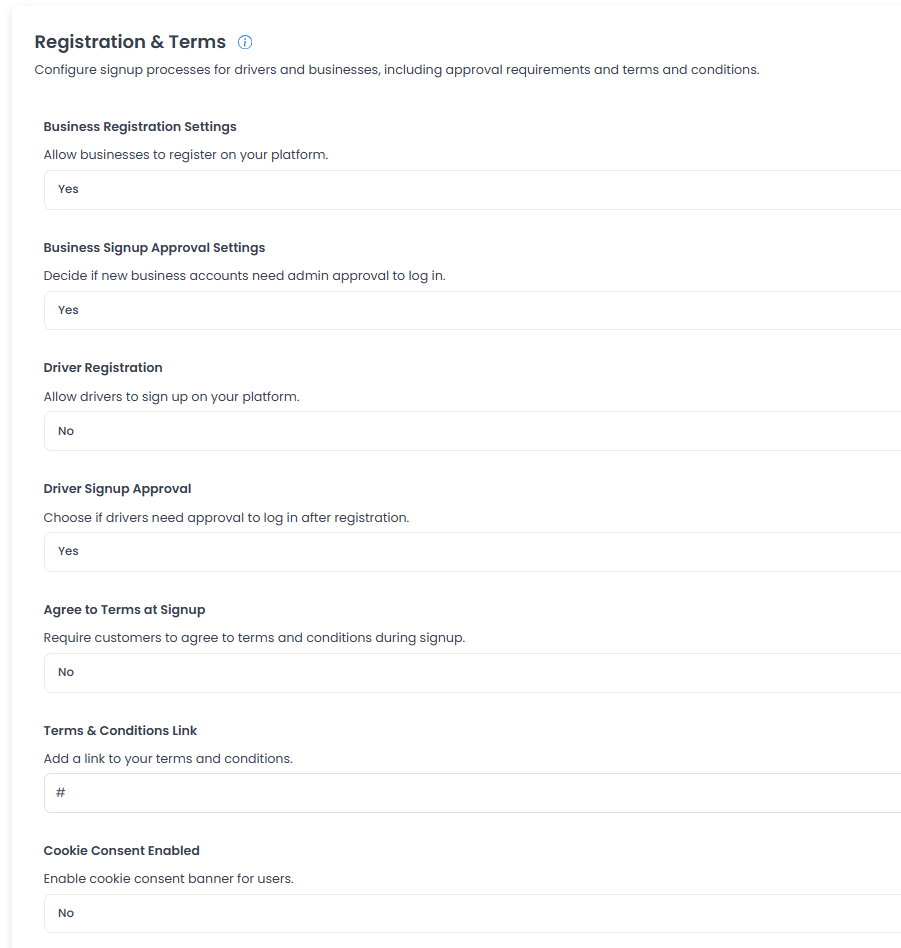
- Business Registration Settings — Configure business registration.
- Business Signup Approval Settings — Configure approval for business accounts.
- Driver Registration — Configure driver registration.
- Driver Signup Approval — Configure approval for driver accounts.
- Agree to Terms at Signup — Configure whether customers must accept terms during signup.
- Terms & Conditions Link — Set the URL for the applicable legal document.
- Cookie Consent Enabled — Configure cookie-consent behavior when available.
Product and order settings
These settings relate to product selection and order-review reminders. Their availability and effect depend on the enabled customer-facing features.
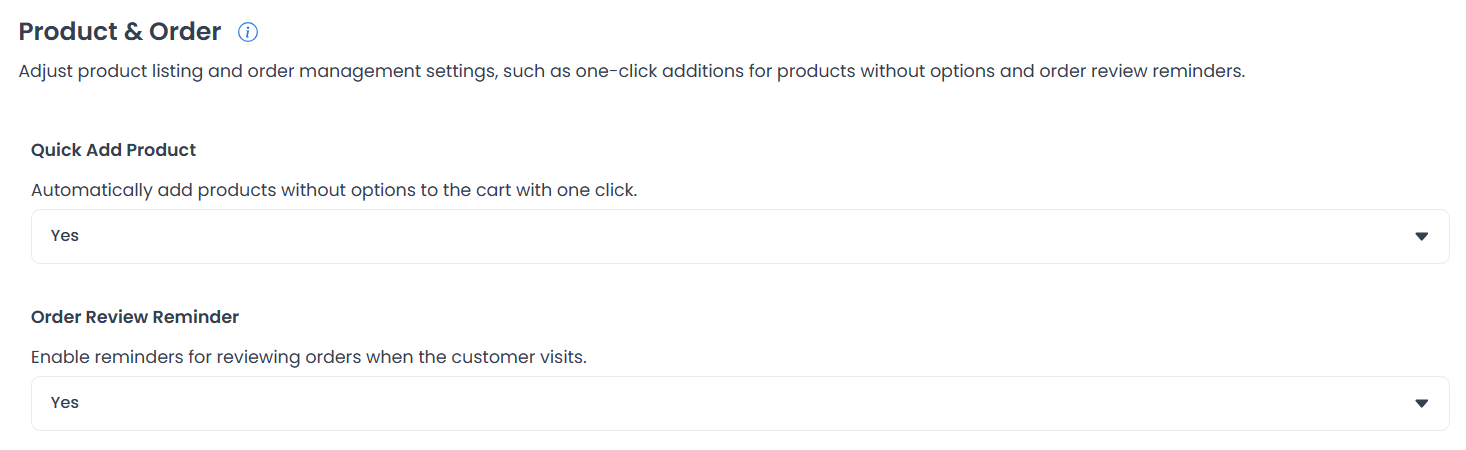
- Quick Add Product — Choose whether eligible products can be added directly or open product details first.
- Order Review Reminder — Configure an order-review reminder where supported.
Date and time format
These controls set general date/time formats and a separate format for preorder scheduling. The displayed format can depend on the customer-facing surface.
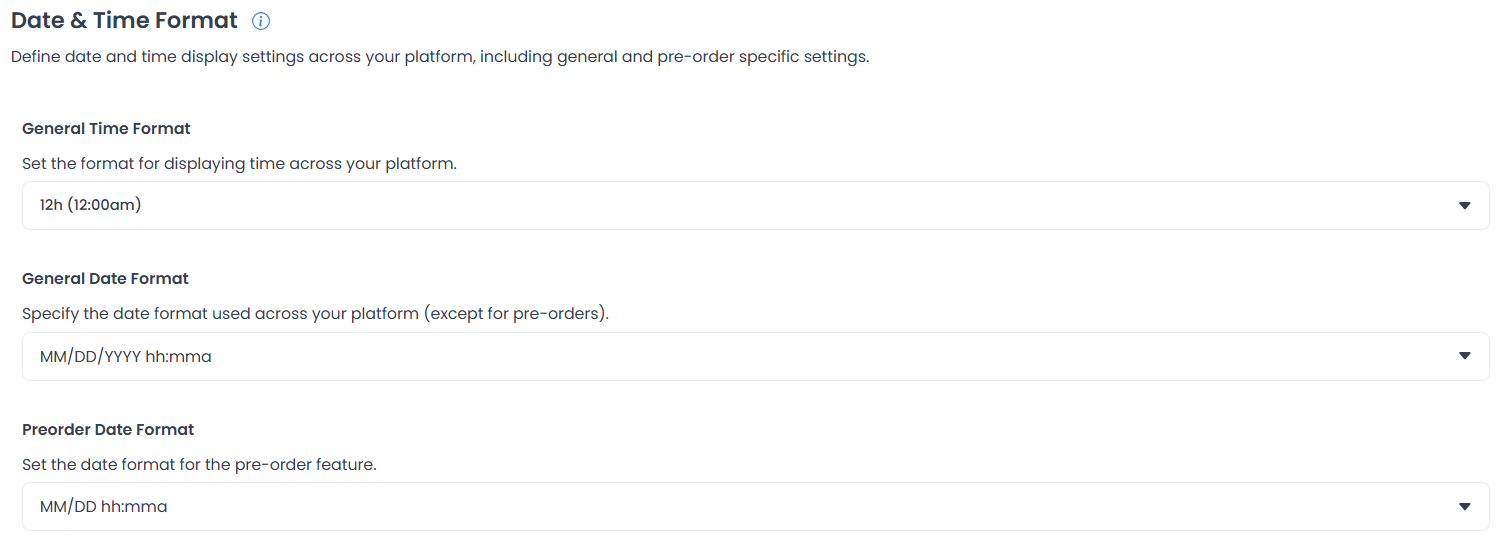
- General Time Format — 24-hour (
00:00), 12-hour (12:00am), or a manually defined custom time string. - General Date Format — Year-Month-Day or Day-Month-Year, each paired with 24-hour or 12-hour time (for example,
2030-12-31 00:00or31-12-2030 12:00am), or a custom string (for example, to use/instead of-, or to reorder toMM/DD). This setting does not apply to pre-orders. - Preorder Date Format — A separate, shortened Month-Day format (with 24-hour or 12-hour time) or a custom layout, used specifically for what customers see when scheduling a pre-order.
Miscellaneous
Other project configuration controls include:
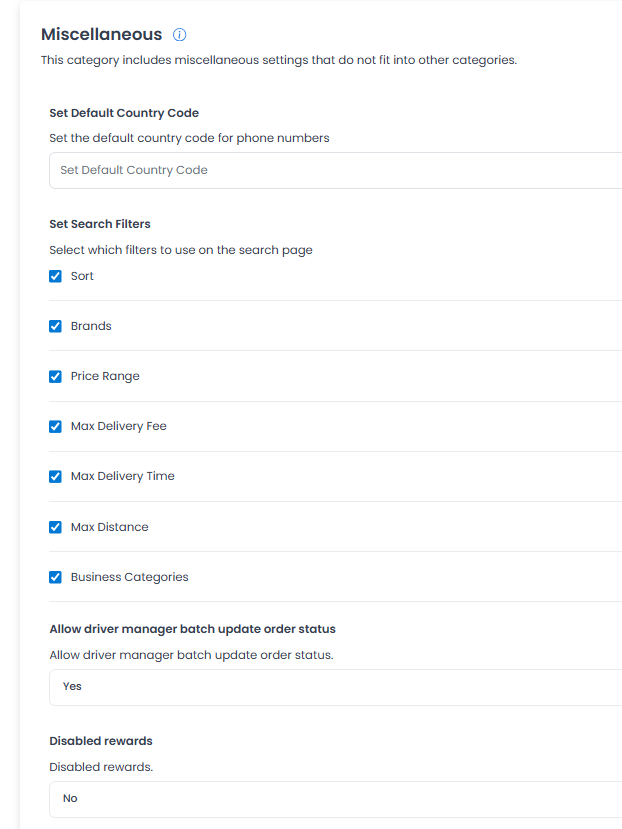
- Set Default Country Code — Set a two-letter ISO country code (for example,
FR,US,MX,ES,DE). - Set Search Filters — Configure available filters such as Sort, Brands, Price Range, Max Delivery Fee, Max Delivery Time, Max Distance, and Business Categories.
- Allow driver manager batch update order status — Configure whether eligible Driver managers can update multiple order statuses.
- Disabled rewards — Configure reward availability where the rewards feature is supported.
Save changes
Select Save after editing the available fields. Dashboard validates values before sending them.
When several settings are saved, an earlier change may succeed even if a later one fails; check each setting after saving.
These settings do not change the underlying transaction amount, fees, or payment-provider behavior. Check the relevant customer-facing surfaces after changing display formats.
Frequently asked questions
Why don't I see Save?
The page shows Save only after it detects a change that can be submitted.
Do these settings apply to one store?
Some settings apply across the platform rather than to one store. Confirm the scope shown in your project before changing a value.