Create a Google Maps API key
Google Maps can support location search, delivery-zone accuracy, and navigation across storefronts and apps. A populated key field does not confirm that the key is active, billing is configured, or the provider is enabled. Confirm those items with the project administrator and Google before relying on Maps features.
If a project is intended to use Google Maps, its owner can use a project-owned API key that is restricted to the approved domains and APIs after independently confirming the intended provider setup. This guide does not establish that Google Maps is active or functional for any project. Add the key in Maps settings.
Create a project and a key
-
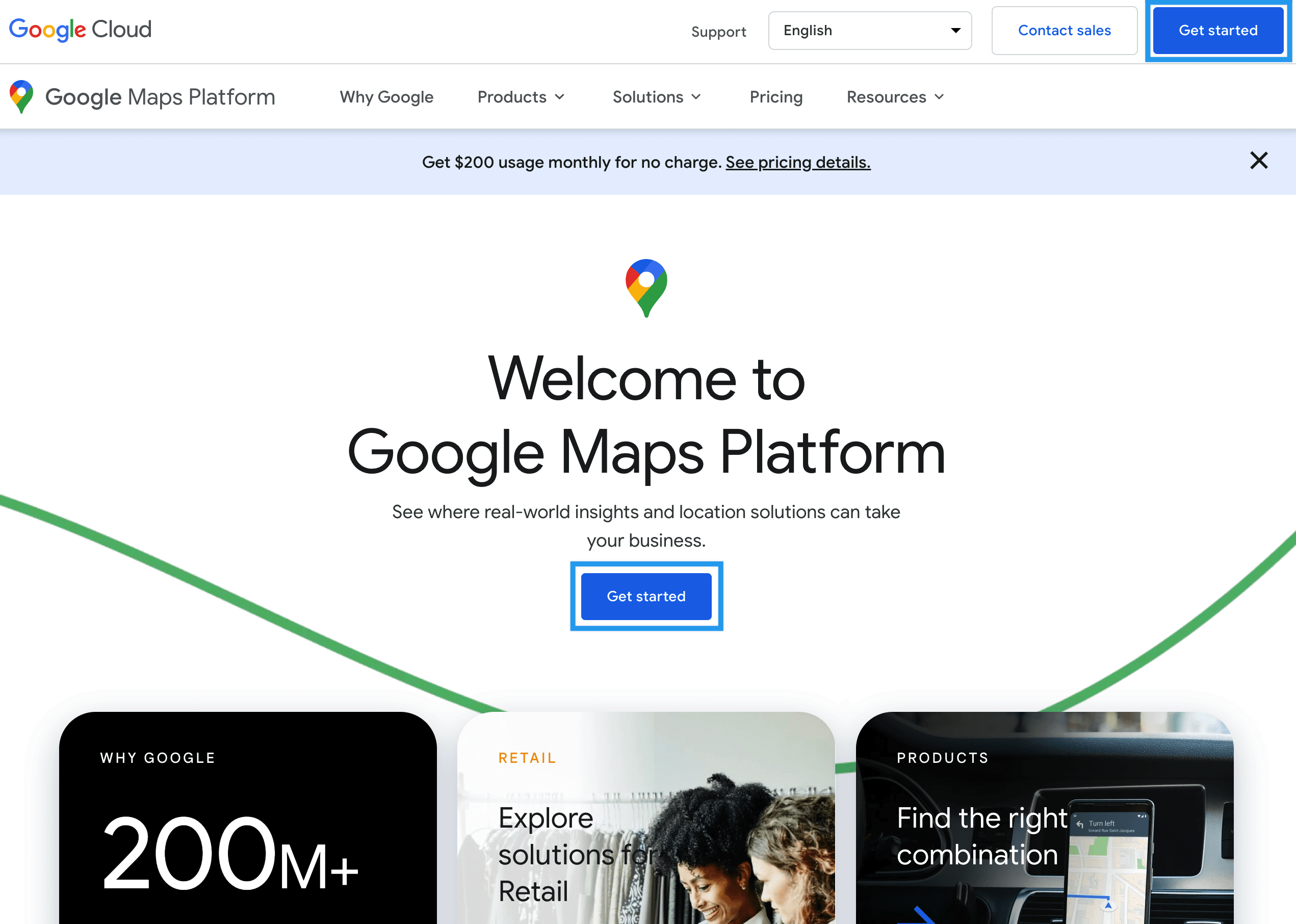
Go to the Google Maps Platform site and select Get Started.
-
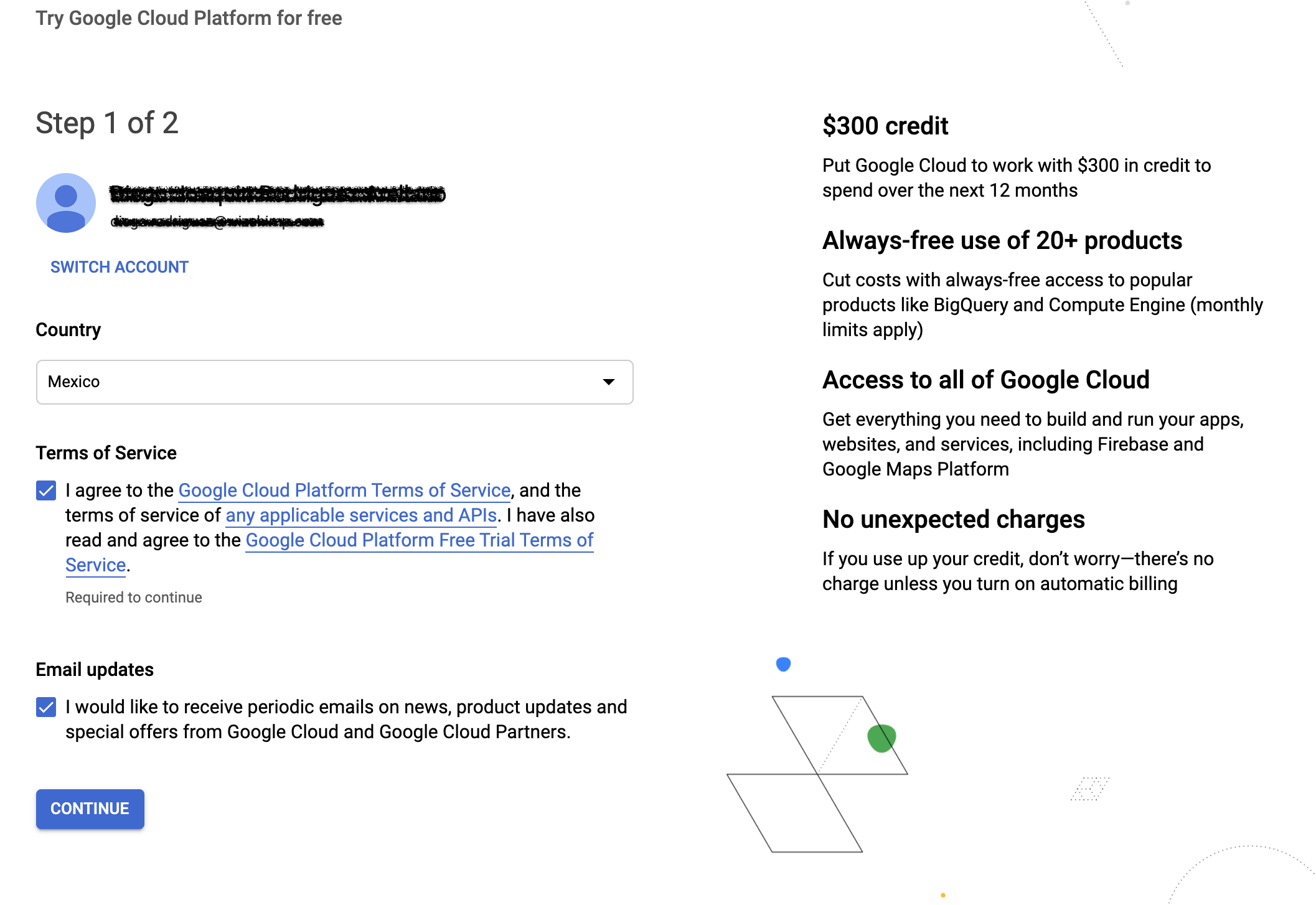
Select your country and accept the terms of service.
-
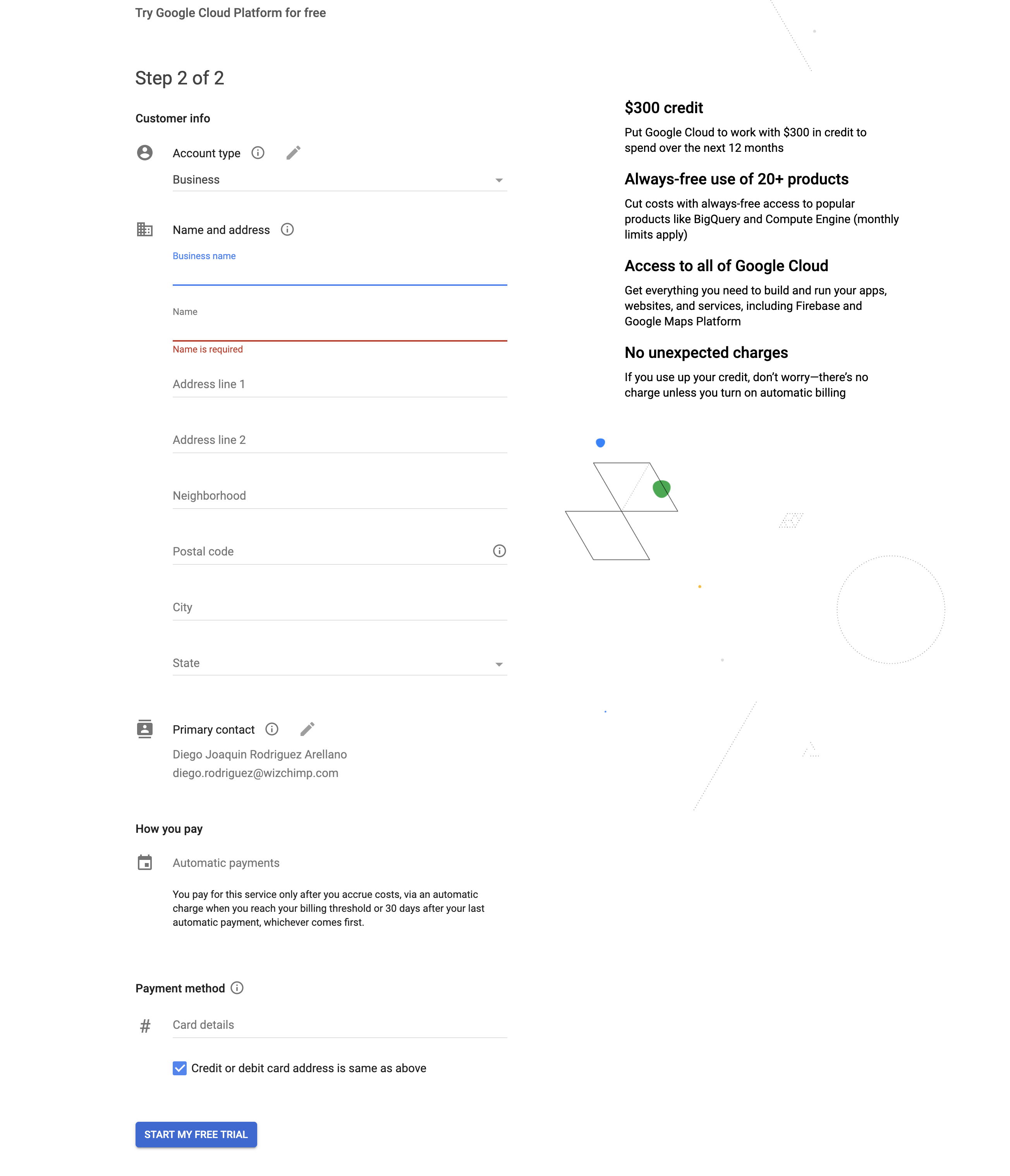
Complete the provider-side billing setup required for your project. Provider requirements can change; use the current instructions in the provider account. This guide does not confirm billing readiness or Maps availability.
Enable the required APIs
-
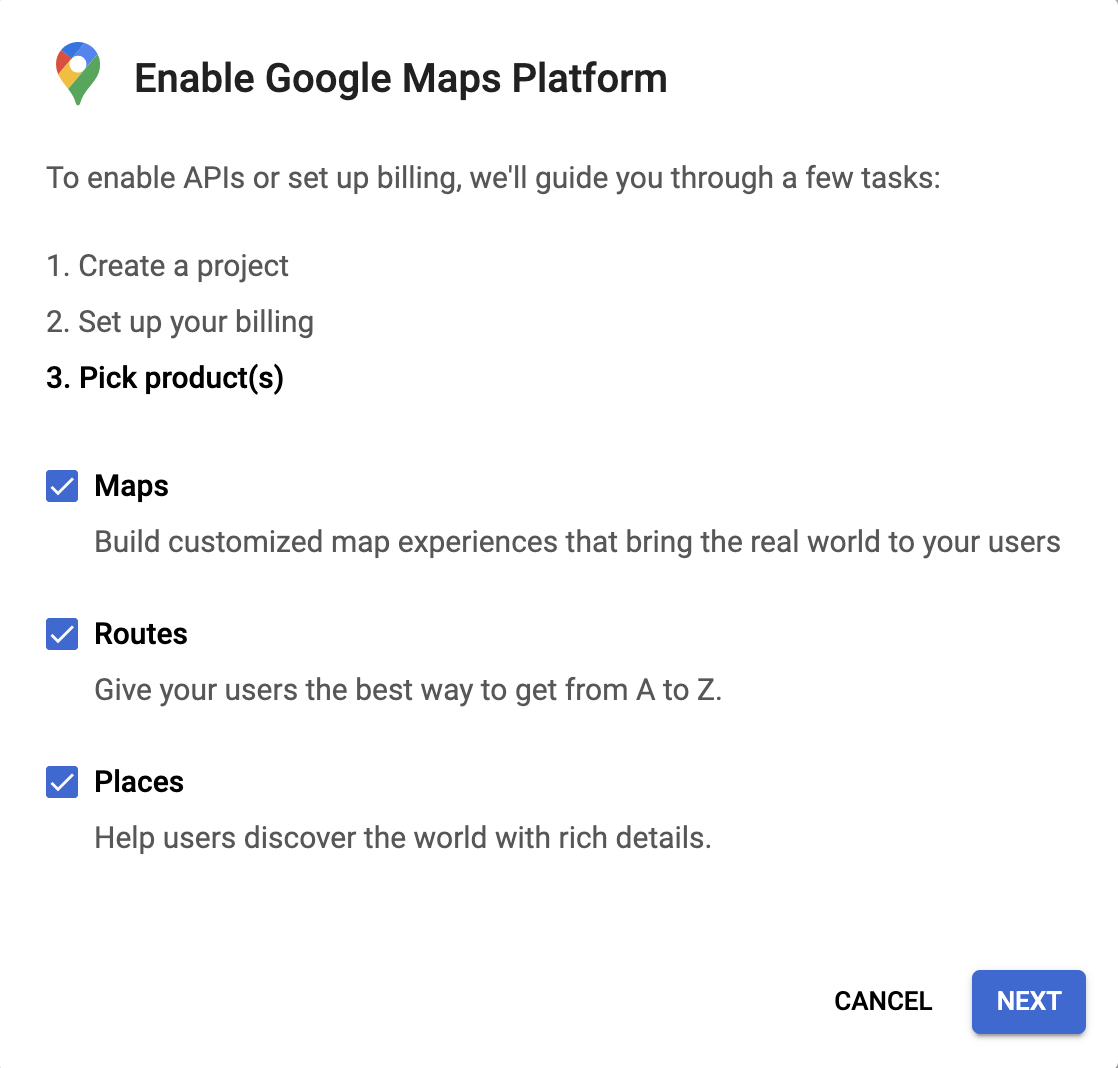
Follow the provider’s current setup flow and enable only the services required for the intended project use. The historical screenshots do not confirm which services are currently enabled.
-
Work through the remaining setup screens.
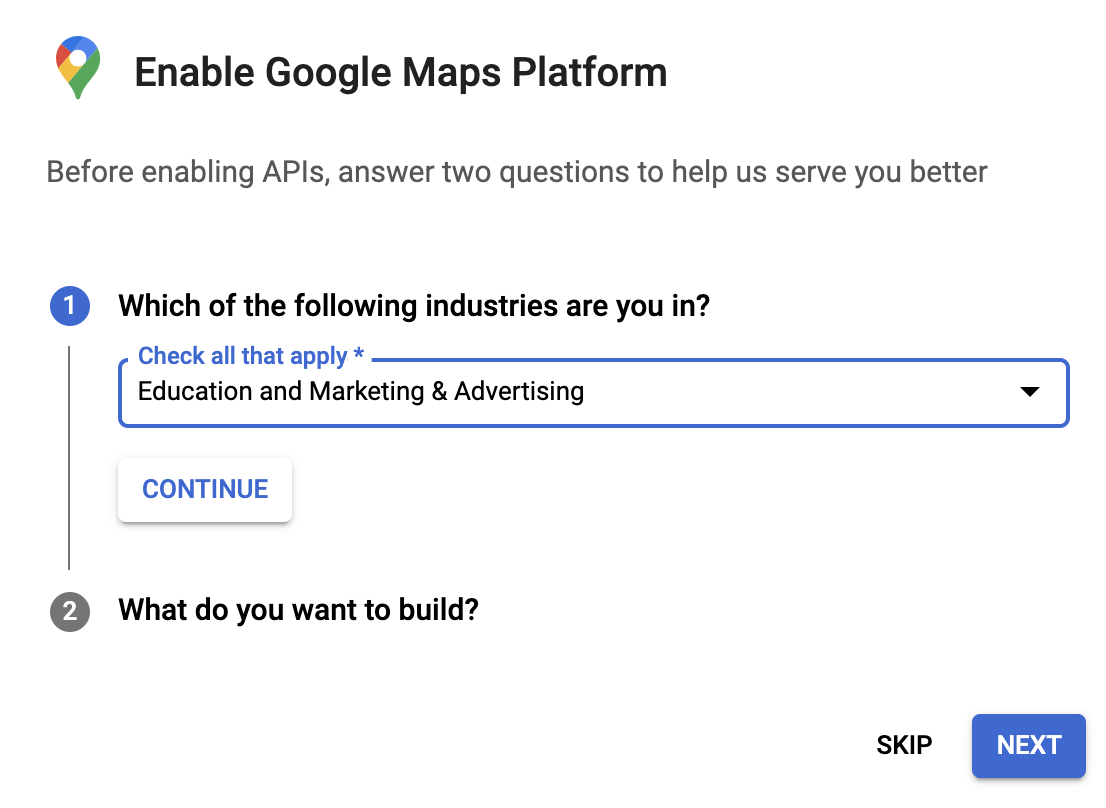
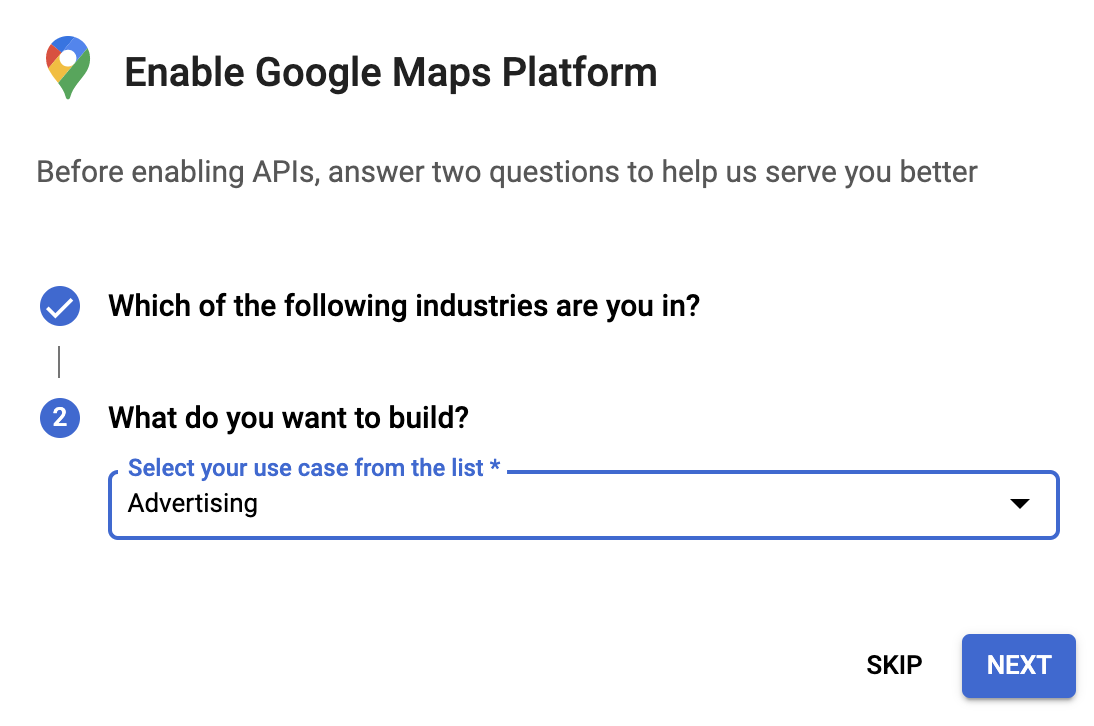
-
When the provider’s current flow offers an enable action, use it only for services the project requires.
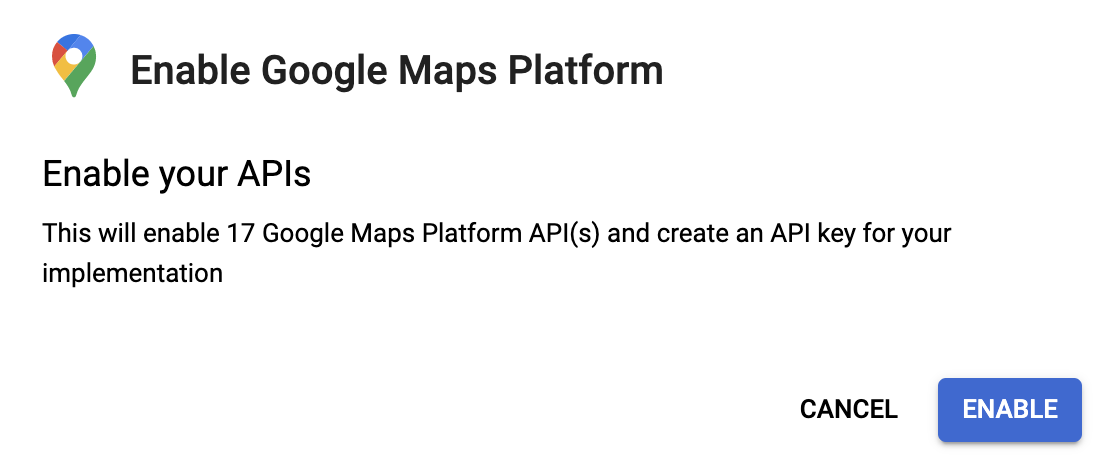
-
If the provider creates a key for the project, keep it private and add it only through the intended configuration workflow. Do not place it in screenshots, support tickets, documentation, logs, or test fixtures.
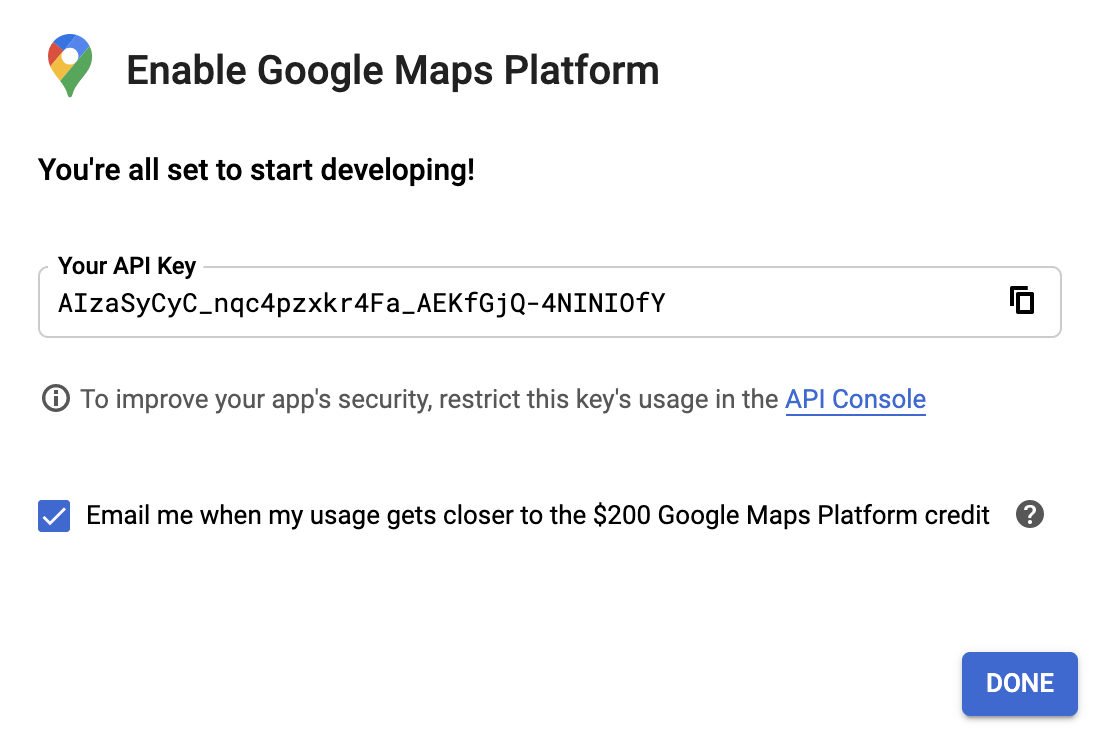
Confirm the APIs are active
-
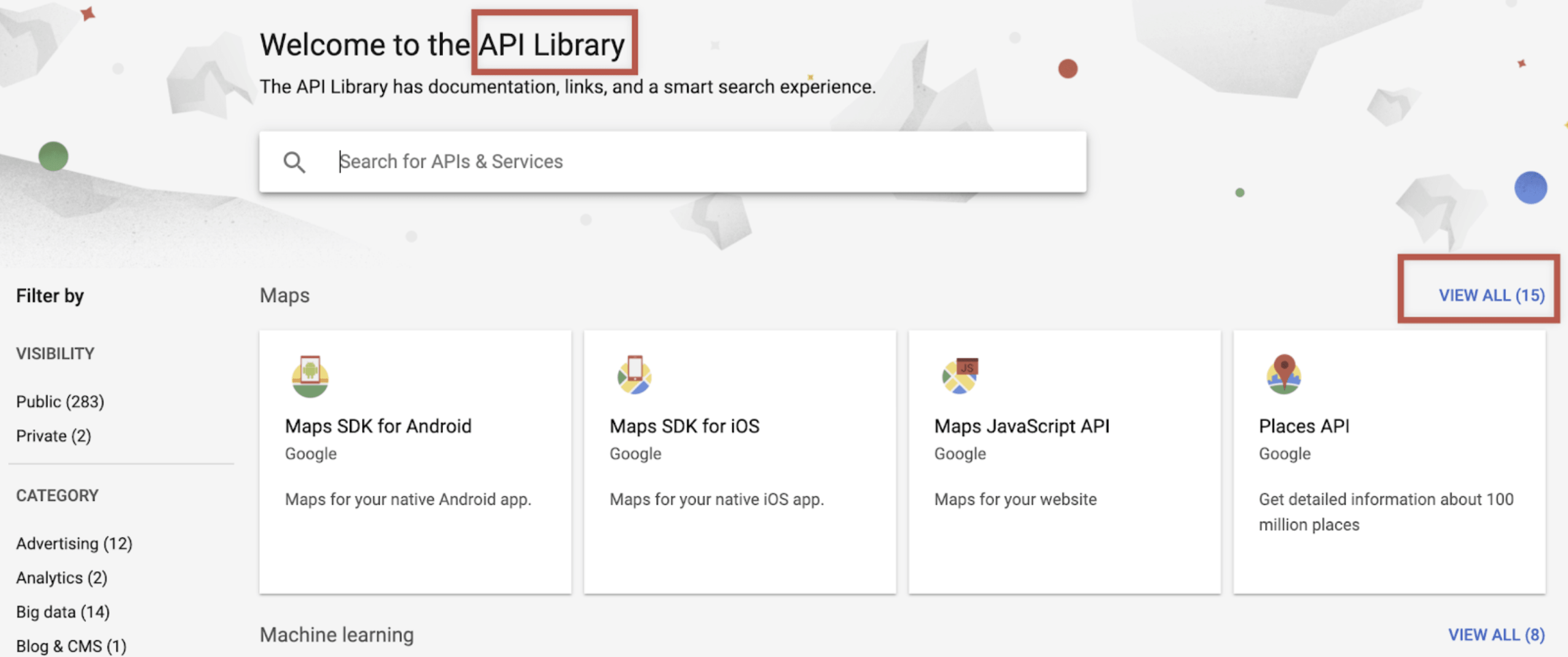
Open the provider’s service library or equivalent current interface.
-
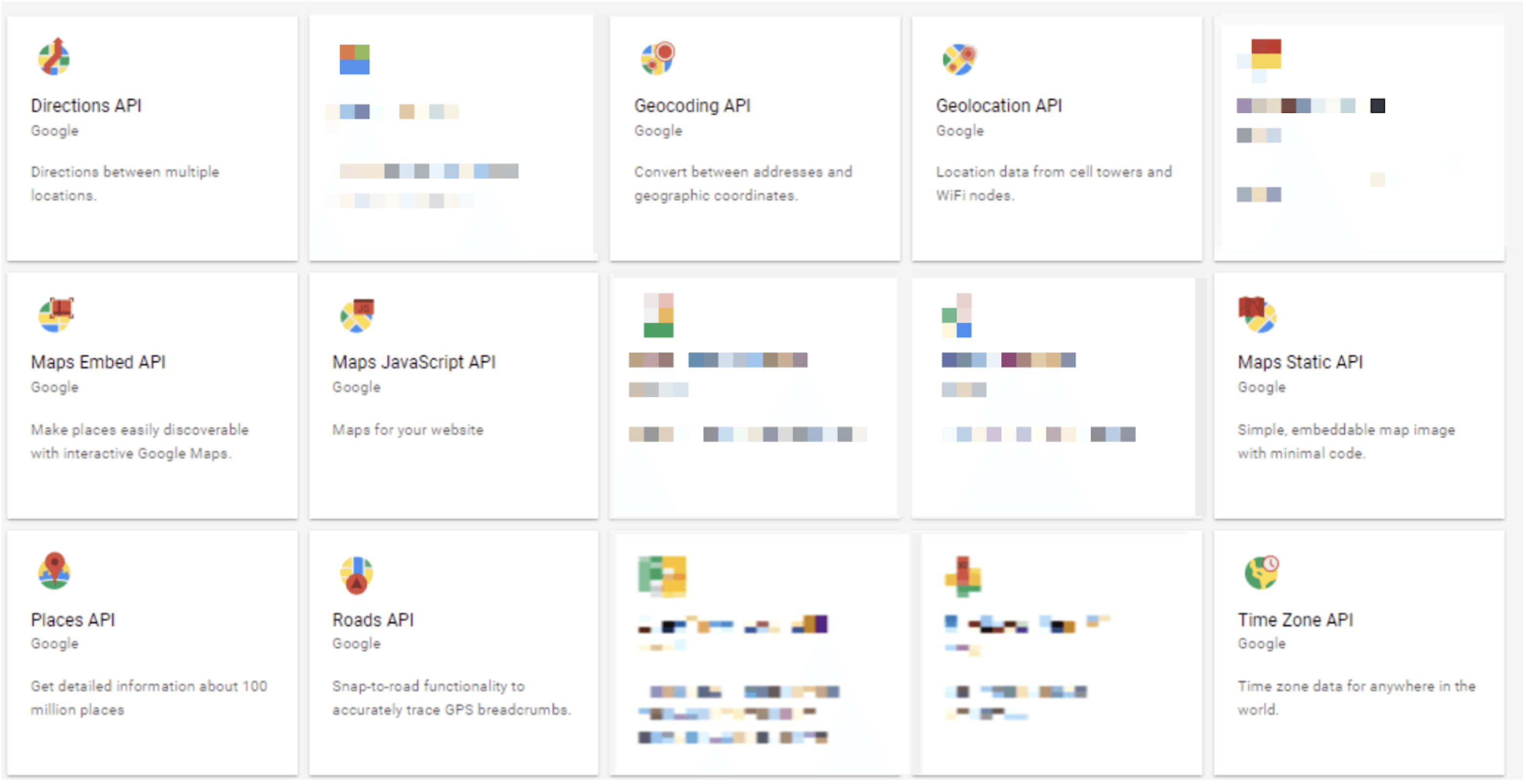
Enable only the services your project needs, using the provider’s current instructions.
-
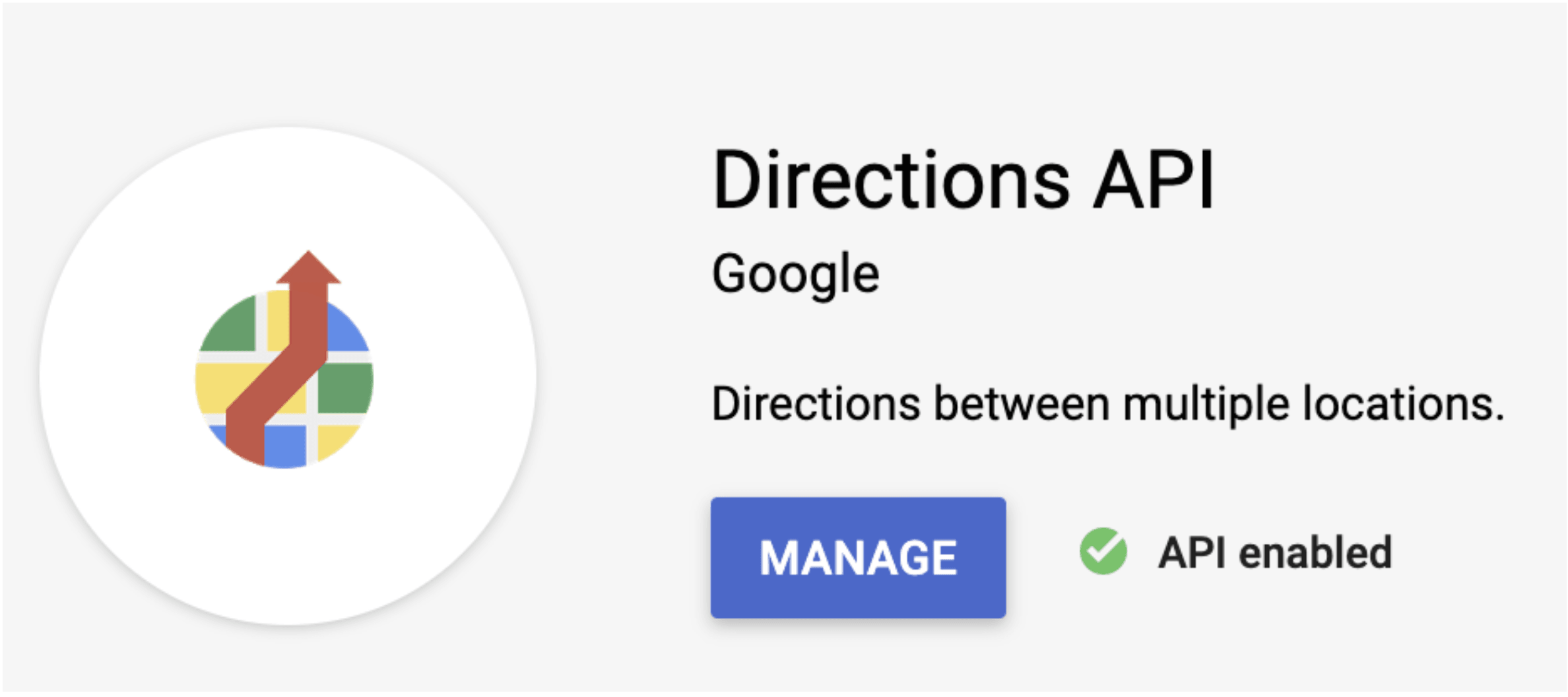
Confirm the required services in the provider account. This guide does not verify provider enablement for any project.
Finish your Google Cloud profile
Complete any remaining provider-side profile steps shown for the project. Those requirements are provider-controlled, and this guide does not verify that a key is active or will remain active.
Add the key to Maps settings
If the project owner has independently confirmed that Google Maps is the intended provider, paste a project-owned, restricted key into Google Maps API Key on the Maps settings page. The provider-selection setting does not, by itself, confirm that Google Maps is active or functional in a deployed project.
Restrict your key
Before using a project-owned key, add both an application restriction that limits it to the project’s approved domains and an API restriction that limits it to only the services the project uses. Never paste an API key into screenshots, support tickets, or shared documents. If a key is exposed, rotate it through the provider account.
For the integration overview and project-scoping limits, see Google Maps integration planning.