Maps
Use Maps to configure the map service and the default location behavior used across your Ordering platform.
Maps is available to Dashboard administrators. The settings shown can vary according to your project's configuration and enabled features.
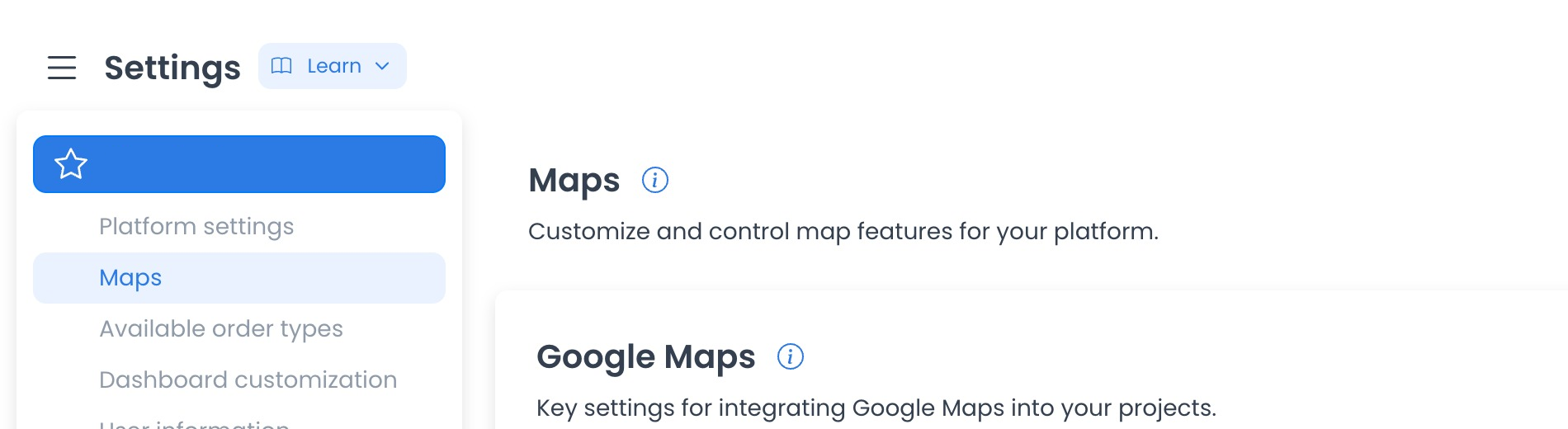
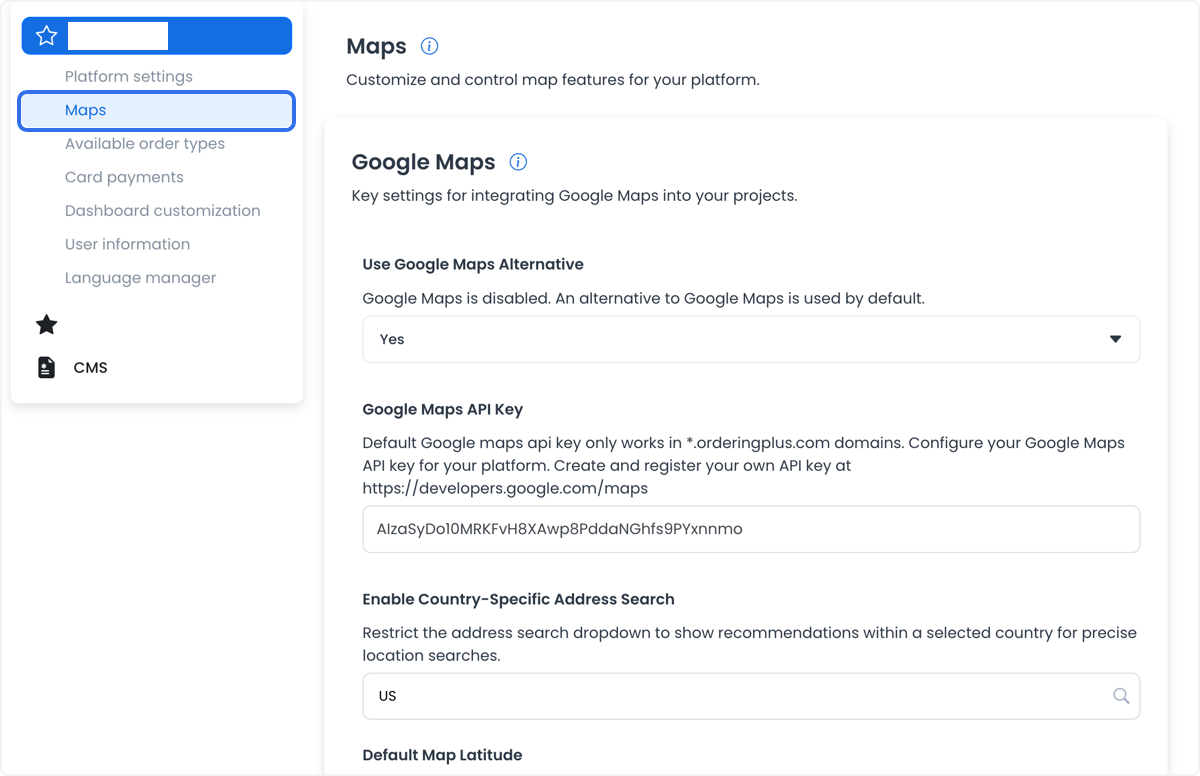
Open Maps settings
- In the Dashboard sidebar, select Settings.
- In the Settings navigation, select Maps.
Configuration reference
Available map settings, labels, providers, and values can vary by project. Check the category and values shown in your project before relying on them.
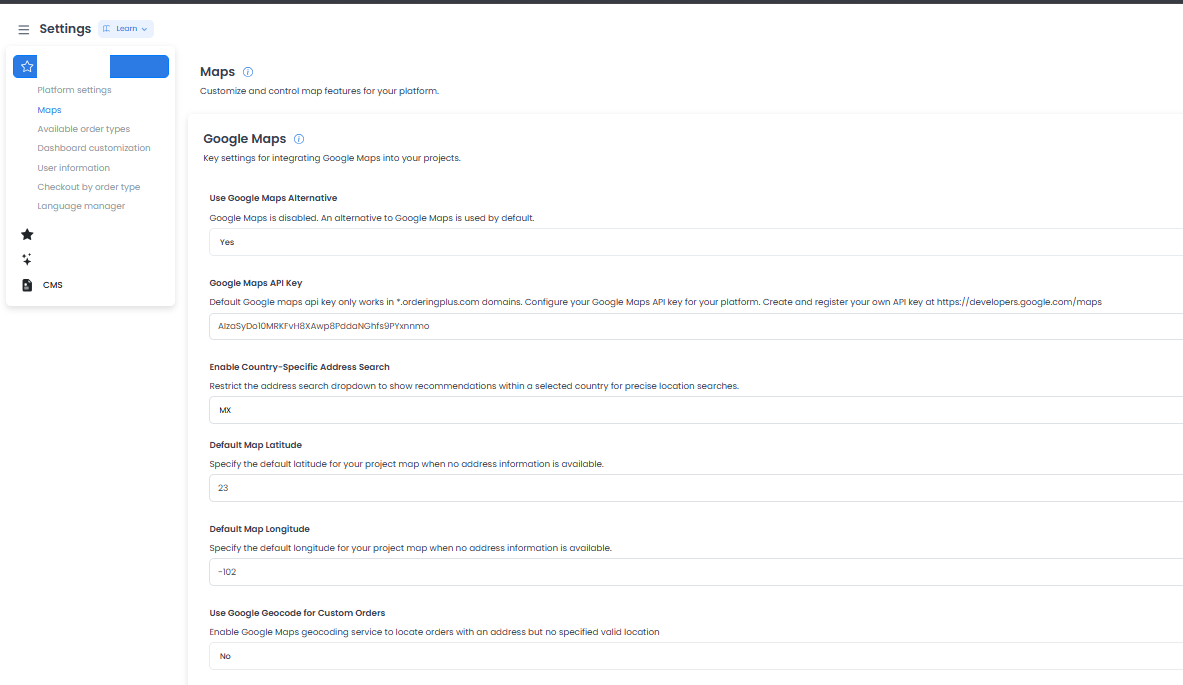
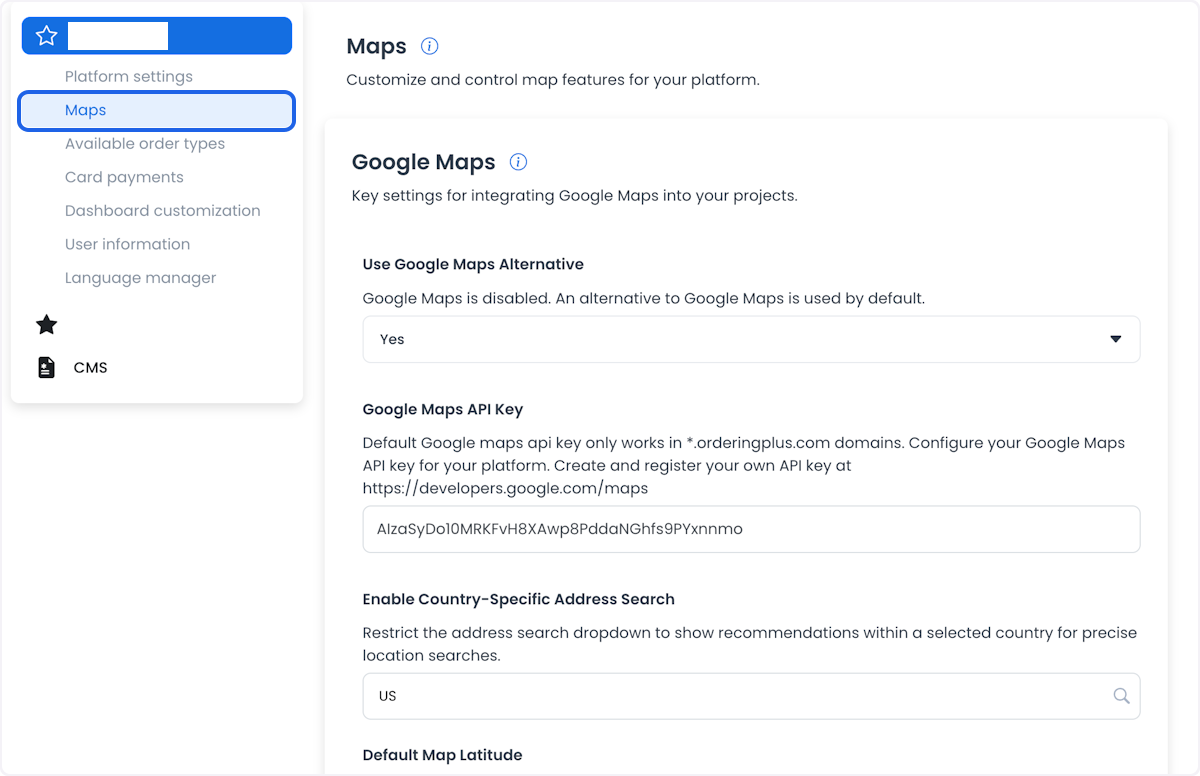
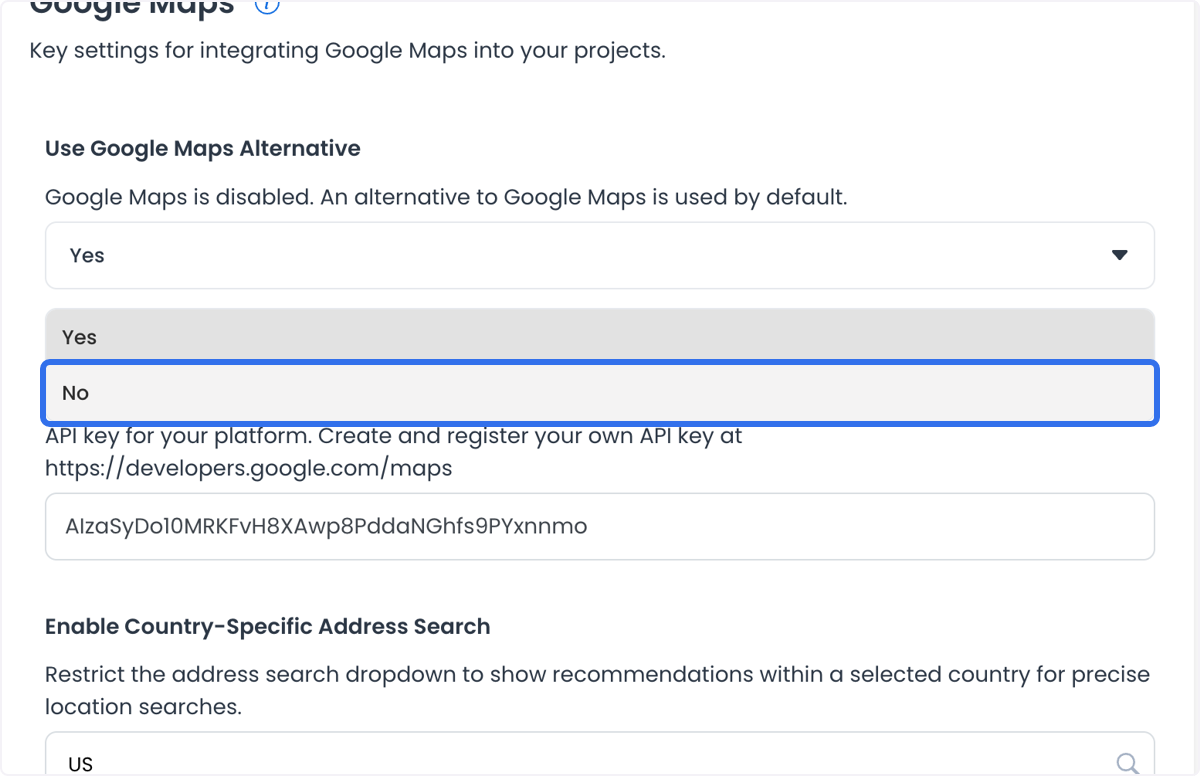
Use Google Maps Alternative
Controls whether the platform uses its configured alternative map service instead of Google Maps.
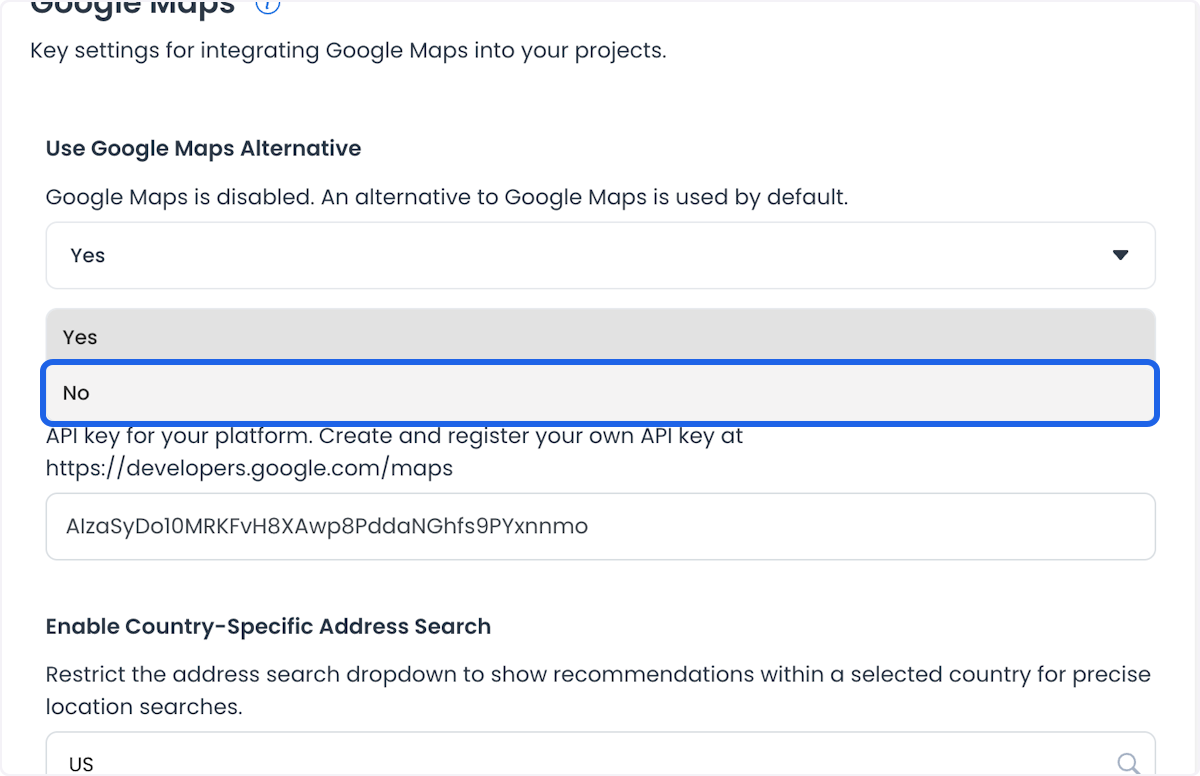
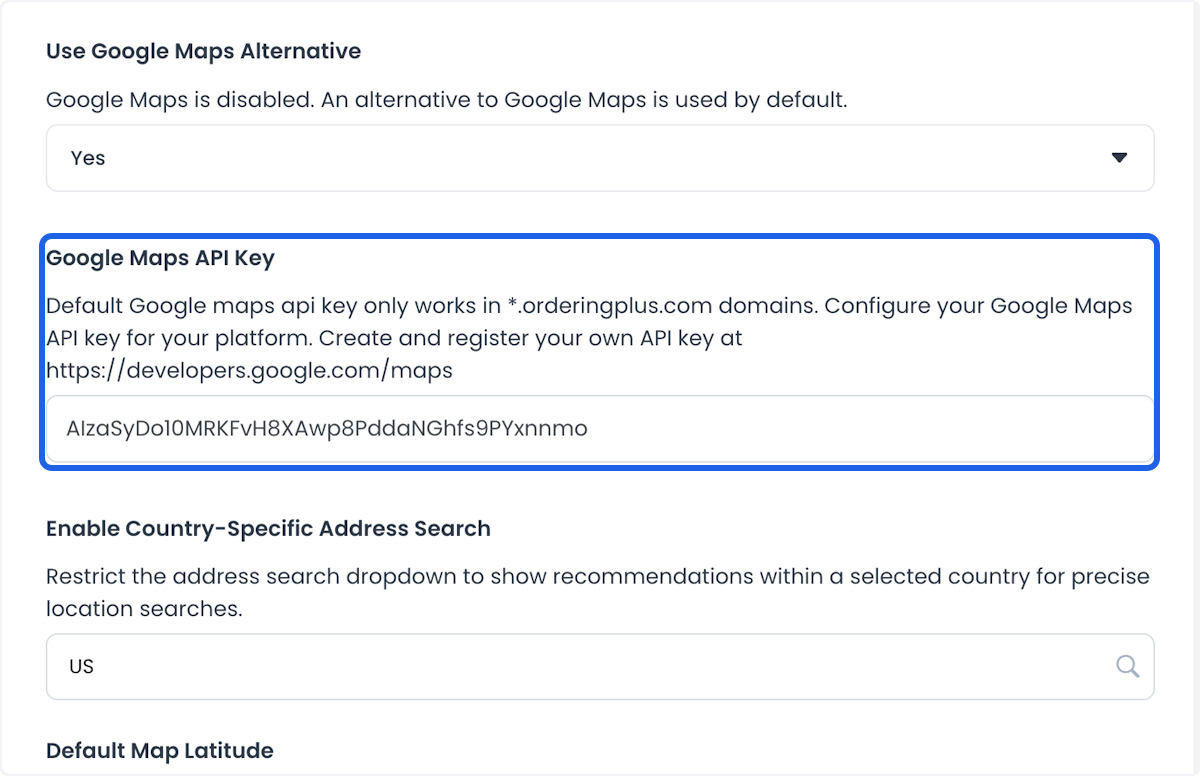
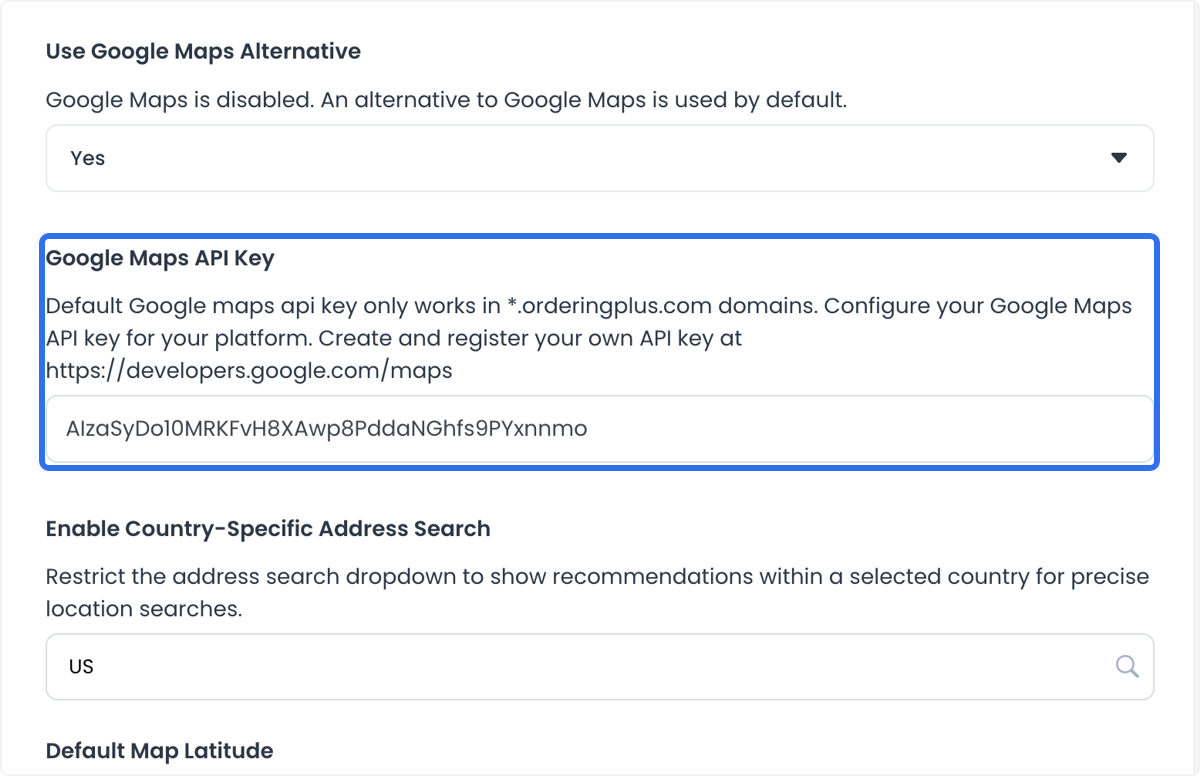
Google Maps API Key
The credential used to connect the platform to Google Maps services.
Never include a provider credential in screenshots, support tickets, documentation, logs, or test fixtures. Credential rotation is an owner-controlled provider action and is not performed from this guide.
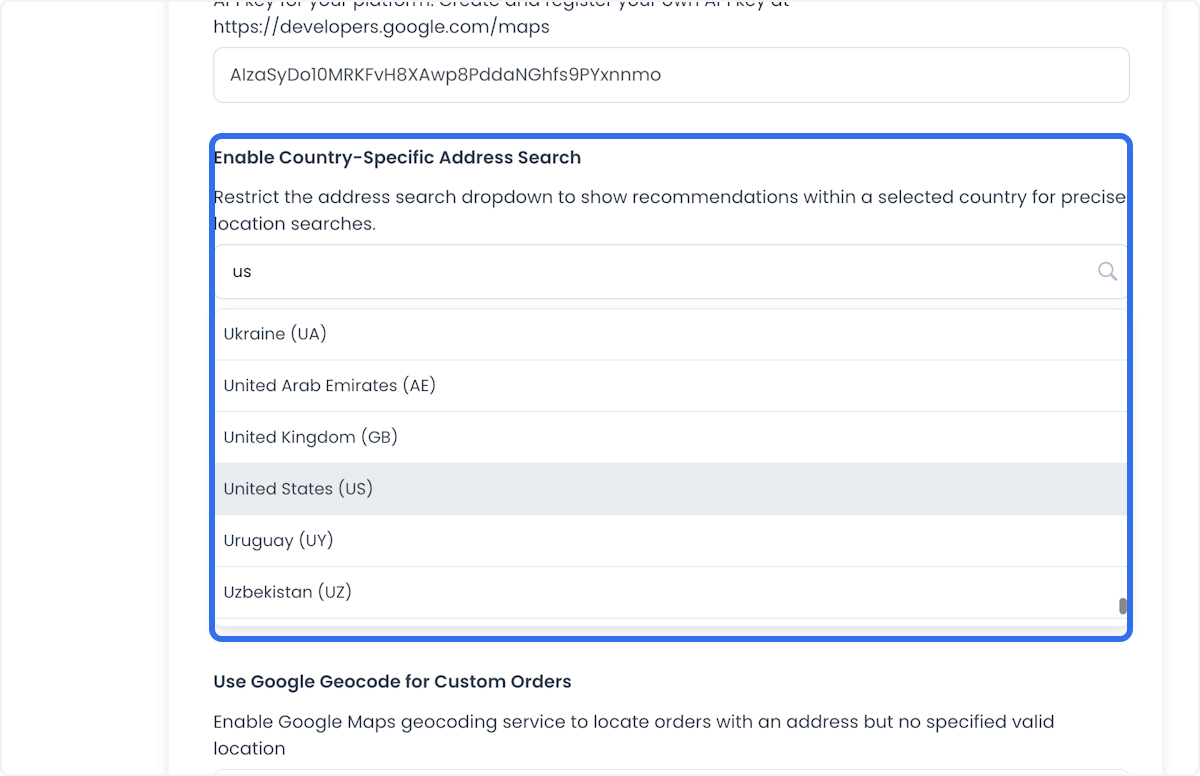
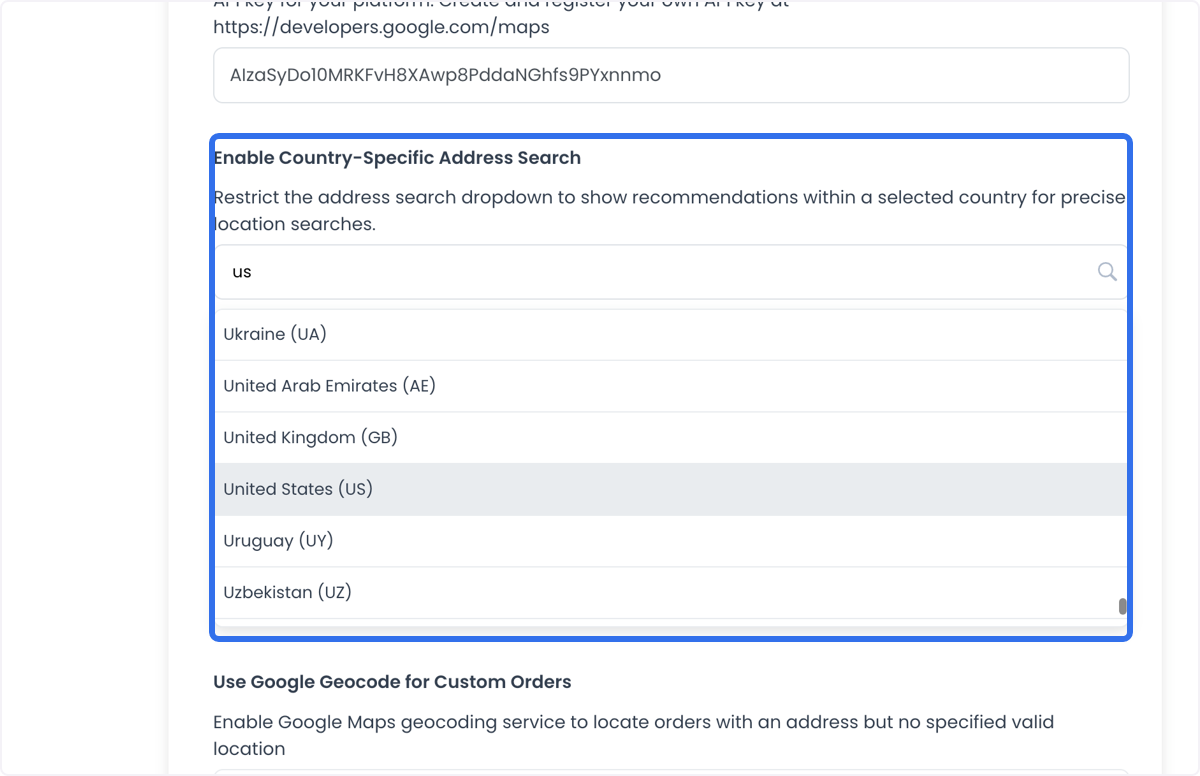
Enable Country-Specific Address Search
Controls whether address suggestions are limited using the configured country selection.
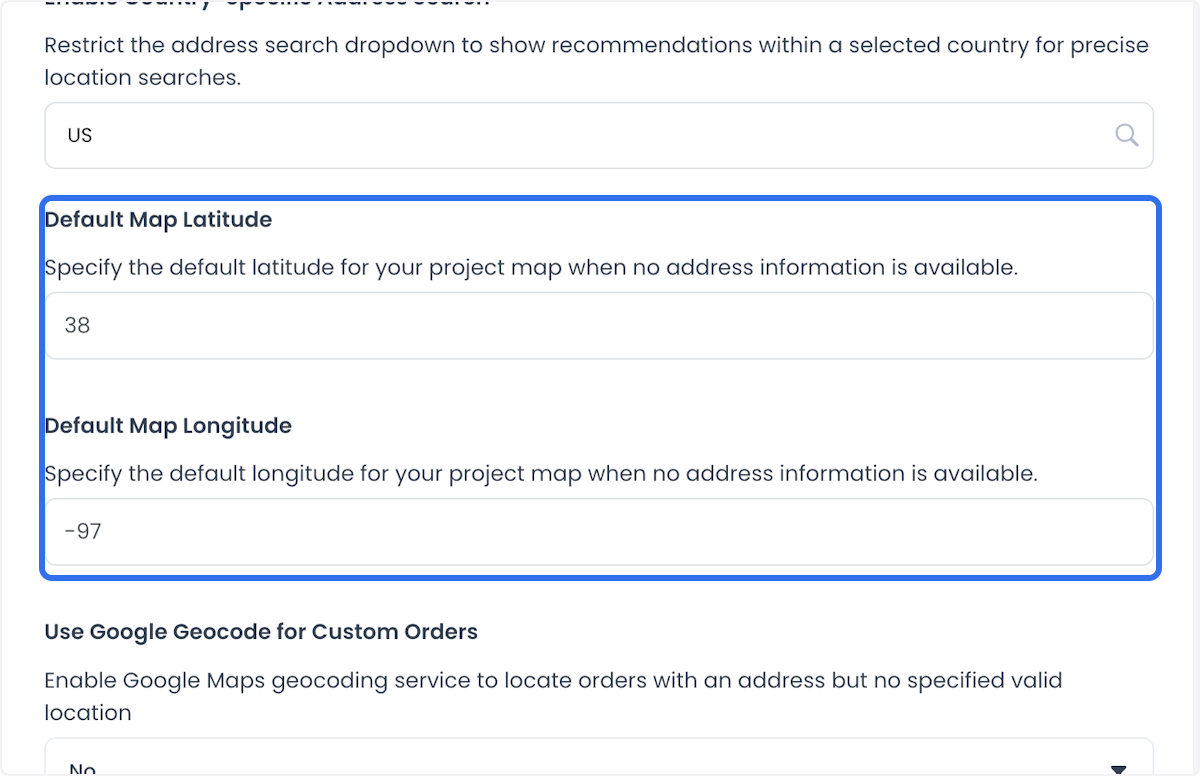
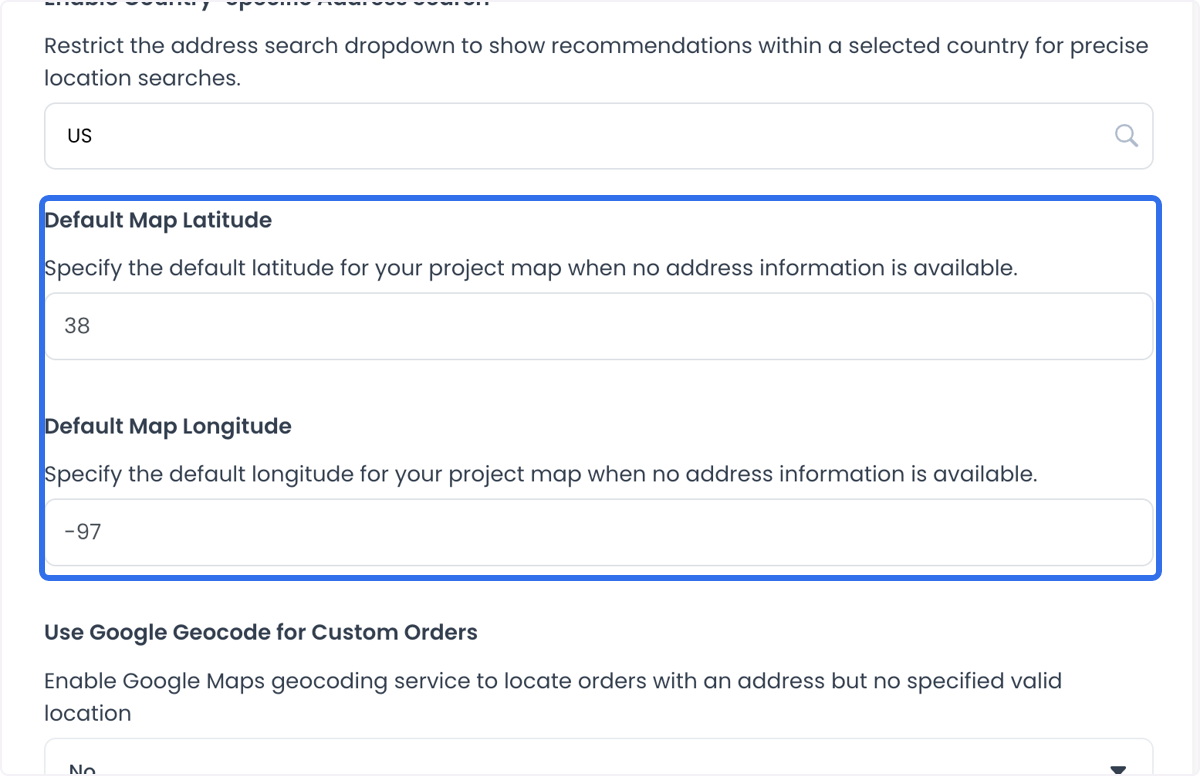
Default Map Latitude
Sets the latitude used as the default map position when an address or another location is not available.
Default Map Longitude
Sets the longitude used as the default map position when an address or another location is not available.
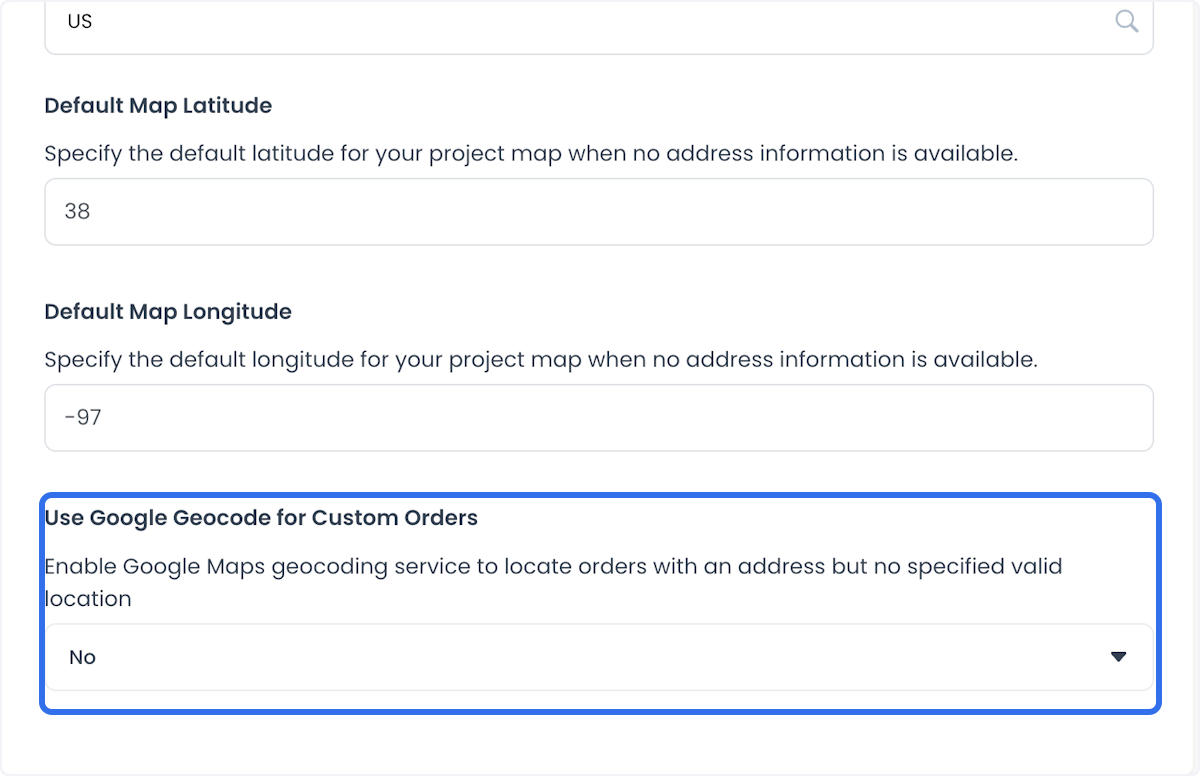
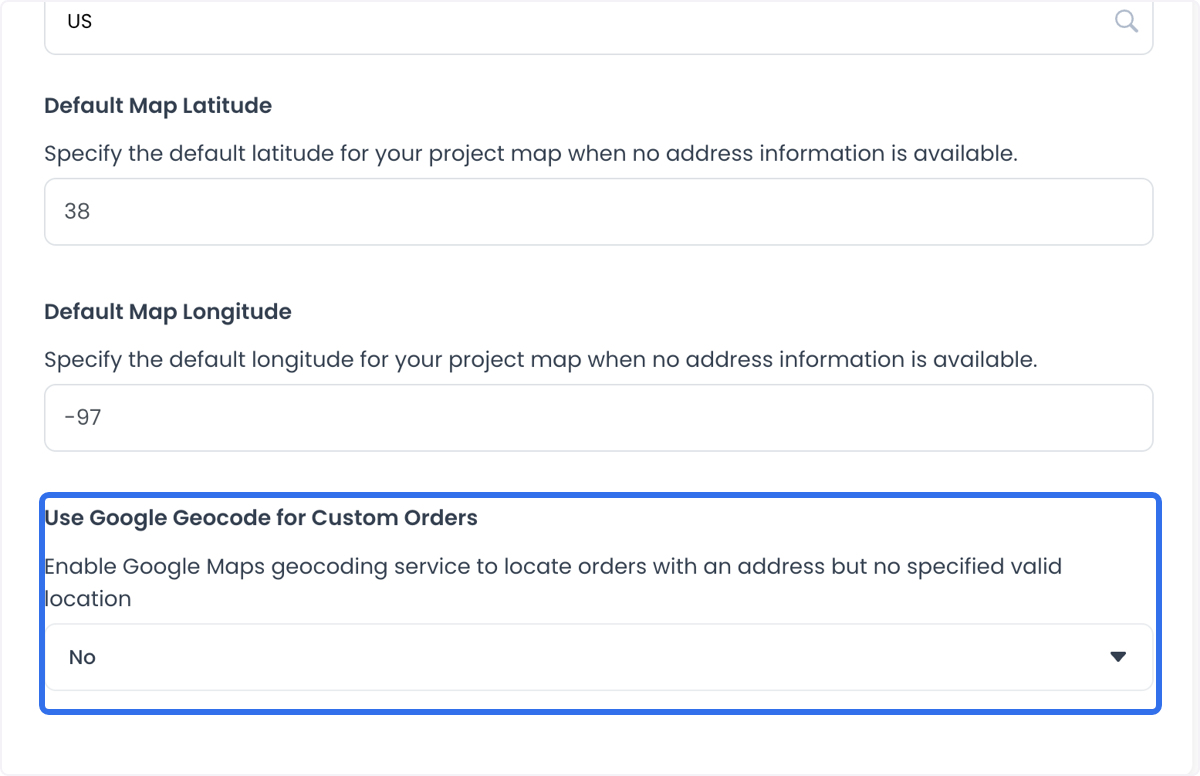
Use Google Geocode for Custom Orders
Controls whether Google geocoding is used when handling addresses for custom orders.
Save changes
Pending changes are submitted one config at a time. If a later update fails, earlier updates may already have succeeded. Review each value before selecting Save, then confirm its status before retrying.
Map settings can affect location features across a project. Their effect depends on the deployed configuration and provider setup.
Map credentials and coordinates may be used by order, store, delivery, reporting, autocomplete, geocoding, timezone, and map-rendering features. Some clients send credentials and coordinates to map providers. Provider availability, billing, quotas, configured fields, and results depend on the project and provider setup.
Frequently asked questions
Why don't I see Maps under Settings?
Confirm that you are signed in as an administrator. Available settings can also vary by project configuration and enabled features.
Why don't I see the Save button?
The Dashboard displays Save after there is a pending change.
Do these settings apply to only one store?
These settings may affect more than one store or other project features. Confirm their intended scope with your project administrator before changing them.
Set up your Google Maps API key
A populated Google Maps API Key field or selected provider does not confirm that the key is active, Maps is functional, billing is configured, or provider setup is complete.
If a project is intended to use Google Maps, use a project-owned API key that is restricted to its approved domains and APIs. The active provider and Maps functionality depend on each project’s deployment and provider configuration.
-
Open Settings, then select Maps.
-
If the project owner has independently confirmed that Google Maps is the intended provider, set Use Google Maps Alternative to No. This setting alone does not demonstrate which provider is active or whether Maps is functional in a deployed project.
-
Paste a project-owned, restricted key into Google Maps API Key only after the project owner has independently confirmed the intended provider setup. See Create a Google Maps API key for provider-side setup and key-restriction guidance. Confirm that billing and required APIs are enabled with the provider.
-
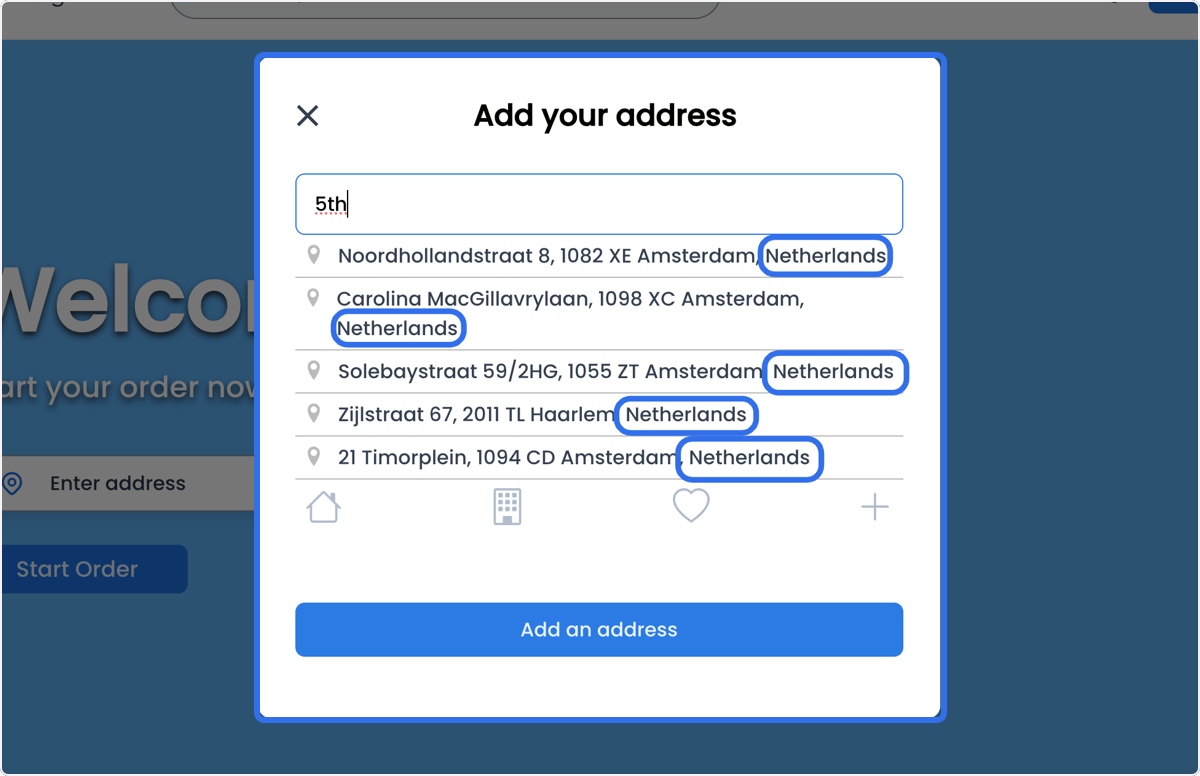
Set Enable Country-Specific Address Search to the two-letter ISO code for your project's country (for example, MX or US) so address suggestions only surface results from that country.
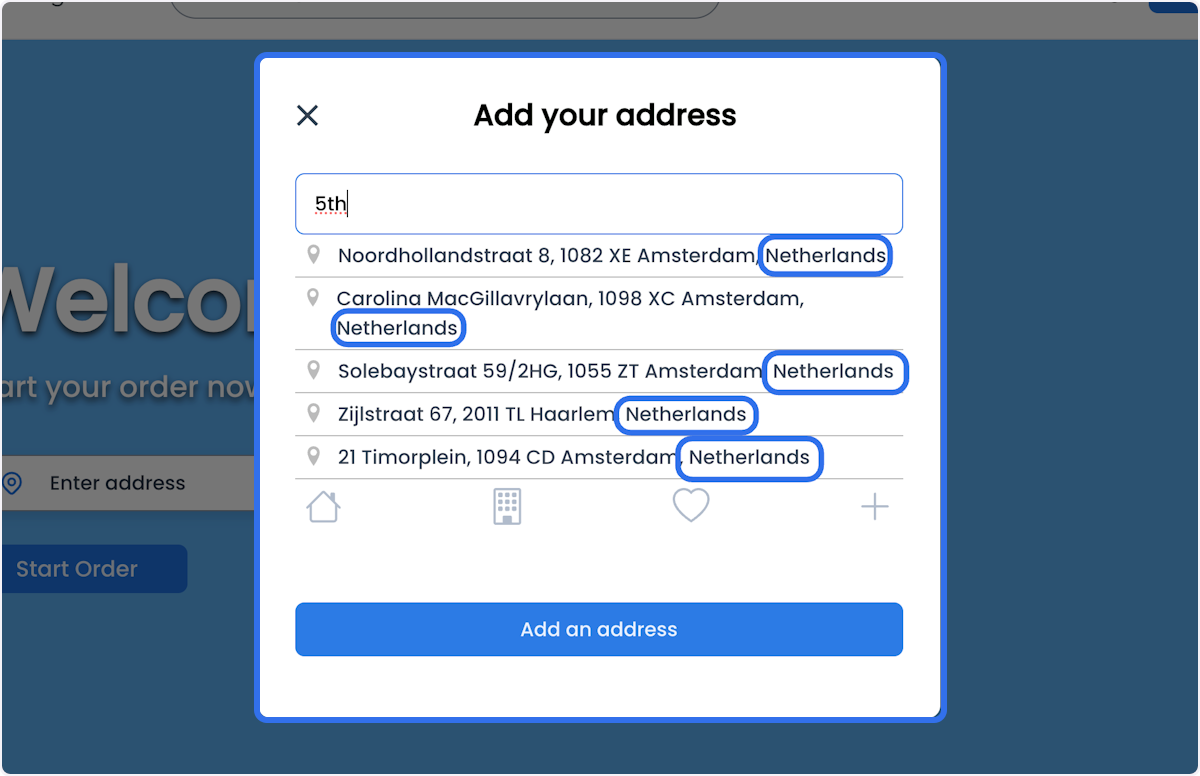
For example, here is how address search behaves on the customer-facing site once the country is set to the Netherlands:
-
Set Default Map Latitude and Default Map Longitude to the coordinates you want the map centered on when no address is available. You can read these coordinates directly off Google Maps for any point.
-
Decide whether Use Google Geocode for Custom Orders should be on based on the project’s intended configuration. When enabled, this setting uses Google geocoding for custom orders created in Dashboard; when disabled, the project can use its internal map tool. The available behavior depends on the project configuration.
Related procedures
For product overviews of the map providers, see Google Maps and Mapbox on Ordering.co.