Language manager
Use Language manager to review and update translation keys and text for a selected product context. This is a live content-management tool: changing a translation can affect language shown to users of the relevant product.
Language manager is available to Dashboard administrators from Settings > Language manager. It is different from the separate Languages feature that can appear when the project configuration exposes it.
Choose the language and product context
- Open Settings and select Language manager.
- If the product selector is shown, choose the product context you intend to review.
- If the language selector is shown, choose the language whose translation text you want to review.
- Use Search to find a loaded key or its text.
- Choose the list or spreadsheet view according to the task.
Available product contexts vary with project configuration, enabled add-ons, and available app/site types. Website and API are always available in the reviewed interface; other products can be conditional. The language selector is shown only when the current project returns more than one enabled language.
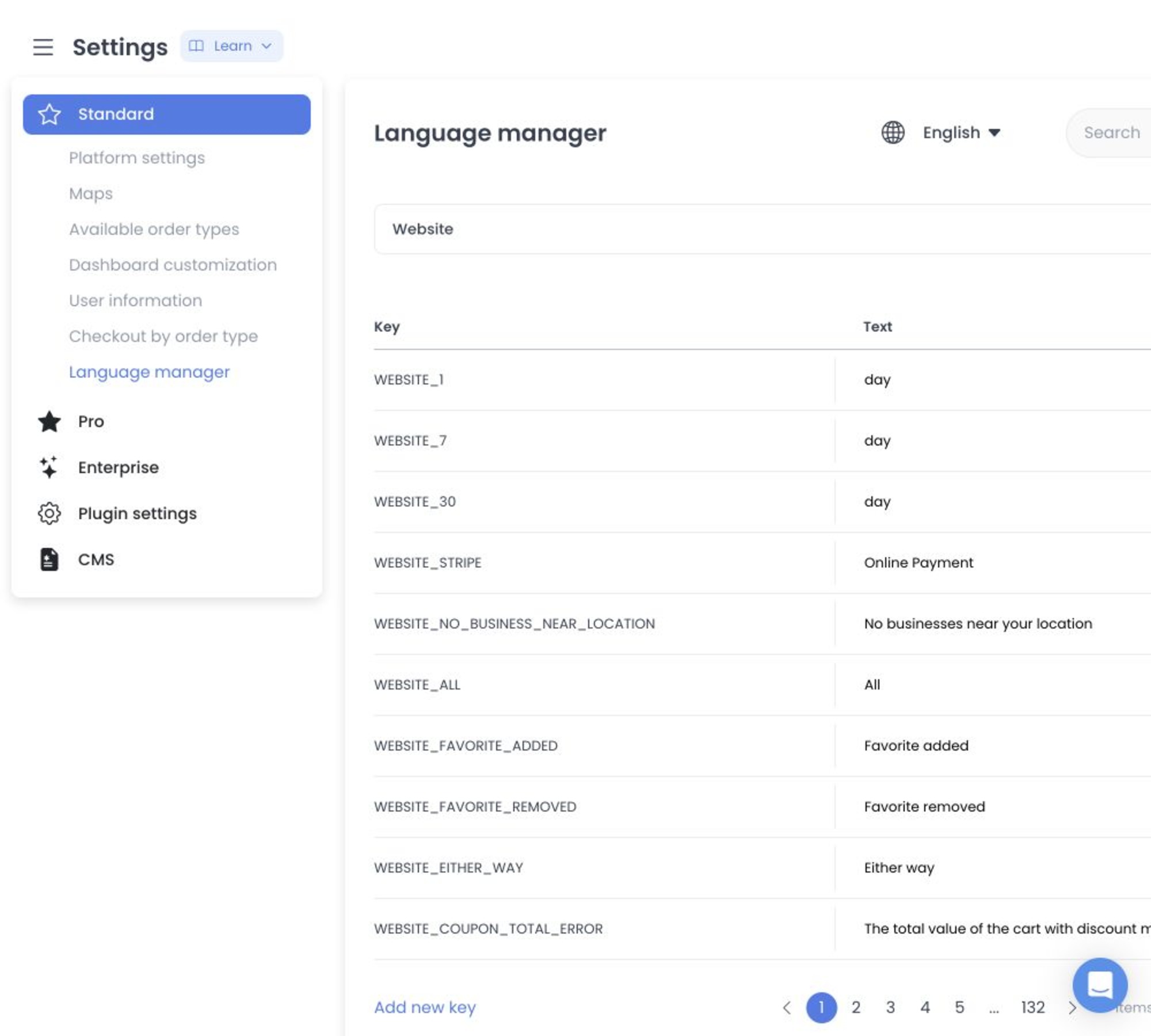
The product and language selectors choose the records loaded for this editor. This screen does not expose default-language, enable/disable-language, create-language, or delete-language controls.
Existing translation records
List view renders a Key and editable Text for each returned record. Search filters the already-loaded key and text/value data in the client.
For an existing row, the table uses a debounced update after an input change and then passes that record to the translation update controller. This debounce does not describe the creation flow; there is no final Save button or preview transaction for an existing row.
Spreadsheet view classifies edited rows as additions or updates and sends them to the bulk-translations path. Its existing-key column is read-only, but the grid is not a staging-only surface.
Creation and prefix behavior
List view exposes Add new key. For a creation row, clicking outside after a nonempty change invokes its create path; the API may still reject an incomplete key/value pair. In product-context mode the controller adds an uppercase product prefix when absent and sends version: v2 with the selected product. This is an immediate-write boundary, not a draft workflow.
Product and language gates
- Website and API contexts are enabled in the fixed UI source.
- Customer App, Dashboard, Business App, Driver App, Kiosk App, and franchise contexts can be conditional on the returned project configuration and enabled add-ons.
- The separate language selector appears only when the current project returns more than one enabled language.
The available add-ons, sites, apps, languages, and translations depend on the project's configuration. Check the options shown in the target project before changing language settings.
Available actions
Language Manager supports individual updates and creation, plus bulk updates and additions. It does not provide a delete action. Translation values may contain unpublished copy, URLs, placeholders, identifiers, or sensitive text.
Related guides: Settings logs · Platform settings
Language manager capabilities
🛠️ Step-by-Step Instructions:
-
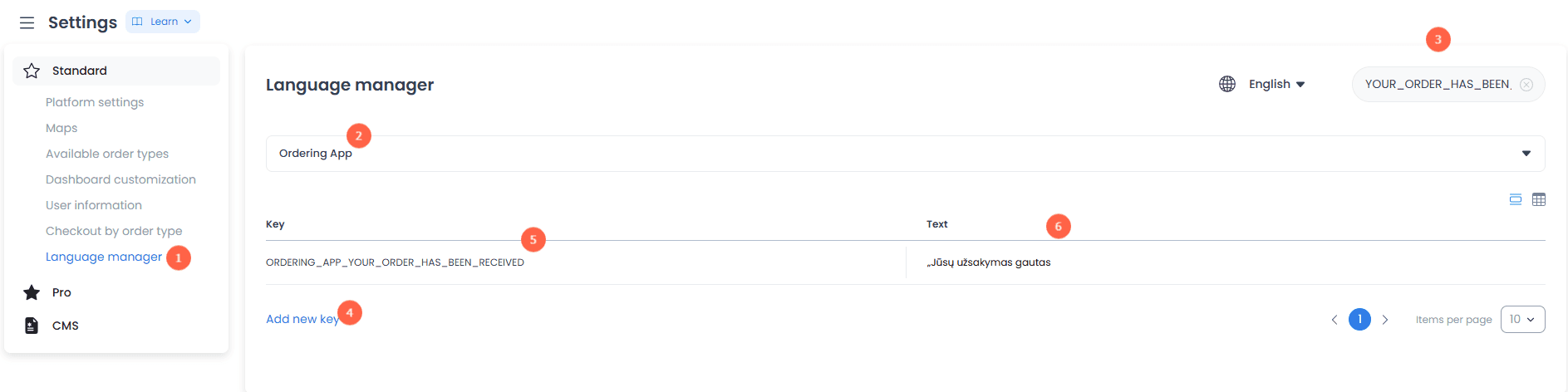
Access: In the side panel, go to Settings and click Language manager (1).
-
Product Selection: Use the dropdown menu (2) to select the specific app or product you wish to modify (for example, Customer App, Website, Dashboard).
-
Search: Use the search bar (3) to find an existing variable by its technical name (Key) or by the current Text it displays.
-
Add New Variable: If the text you need doesn't exist yet, click on + Add new key (4).
-
Assign Key: In the Key column (5), enter the technical name for the variable (e.g., ORDERING_APP_YOUR_ORDER_RECEIVED).
- Tip: Use uppercase and underscores for consistency.
- Assign Text: In the Text column (6), type the actual message or phrase that users will see on the screen.
✍️ Important Notes:
-
Existing translation: Editing an existing row uses the debounced update path; there is no final Save button.
-
New key: Clicking outside a creation row after a nonempty change invokes the create path. An incomplete key/value pair can still be rejected.
-
Language Selection: Double-check that you have the correct language selected (top right, next to the search bar) before making any edits.
💡 Best Practices:
-
Case Sensitivity: Usually, system keys are case-sensitive; it's best to follow the existing naming convention.
-
Testing: Use an approved verification appropriate to the affected product. A refresh alone does not establish propagation or confirm how the text renders.