Security
Use Security to review the verification and account-control fields available in your Dashboard. Security includes settings for signup email and mobile verification, additional-business registration, app-version verification, reCAPTCHA, login-attempt limits, and one-time-code generation limits.
The password-reset screenshot shows example settings, not the current Security schema. Do not copy or publish credentials, policy values, thresholds, provider IDs, tokens, passwords, URLs, user identifiers, or policy details from that screenshot.
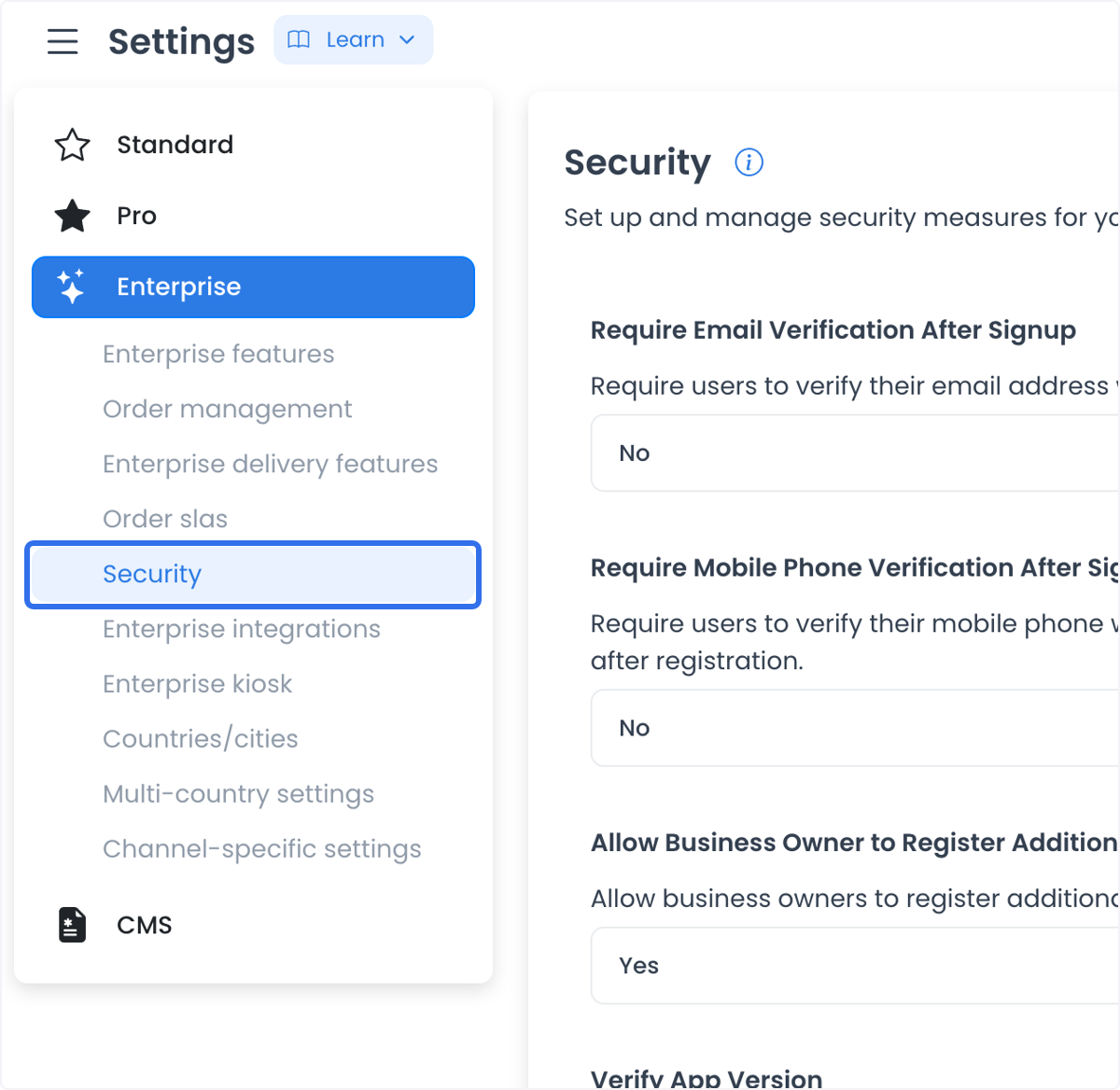
A setting value or a successful save response does not prove that a user completed verification, an account was blocked or allowed, a reCAPTCHA check ran, a one-time code was delivered, a password-reset request was sent, or a policy is enforced in every channel.
Before you change a security setting
- Work only with authorization from the person or team responsible for security policy.
- Decide the policy objective and the affected channel before editing a setting.
- Use an isolated approved test with synthetic accounts when validation is authorized.
- Do not use a live user account, live order, real phone number, real email address, or production credential to discover a setting’s behavior.
- Make one change at a time and record the policy owner’s approved outcome outside this public guide.
User verification and account settings
These settings control user verification and account options:
| Setting | Intended configuration |
|---|---|
| Require Email Verification After Signup | Whether email verification is part of the sign-up workflow. |
| Require Mobile Phone Verification After Signup | Whether mobile-phone verification is part of the sign-up workflow. |
| Allow Business Owner to Register Additional Businesses | Whether the relevant account workflow permits additional business registration. |
| Verify App Version | Whether the app-version check is part of the configured workflow. |
These catalog associations can affect how an account proceeds after signup or how an account workflow is made available. They do not establish that a specific person can sign up, receive a verification message, access an account, register a business, or update an app.
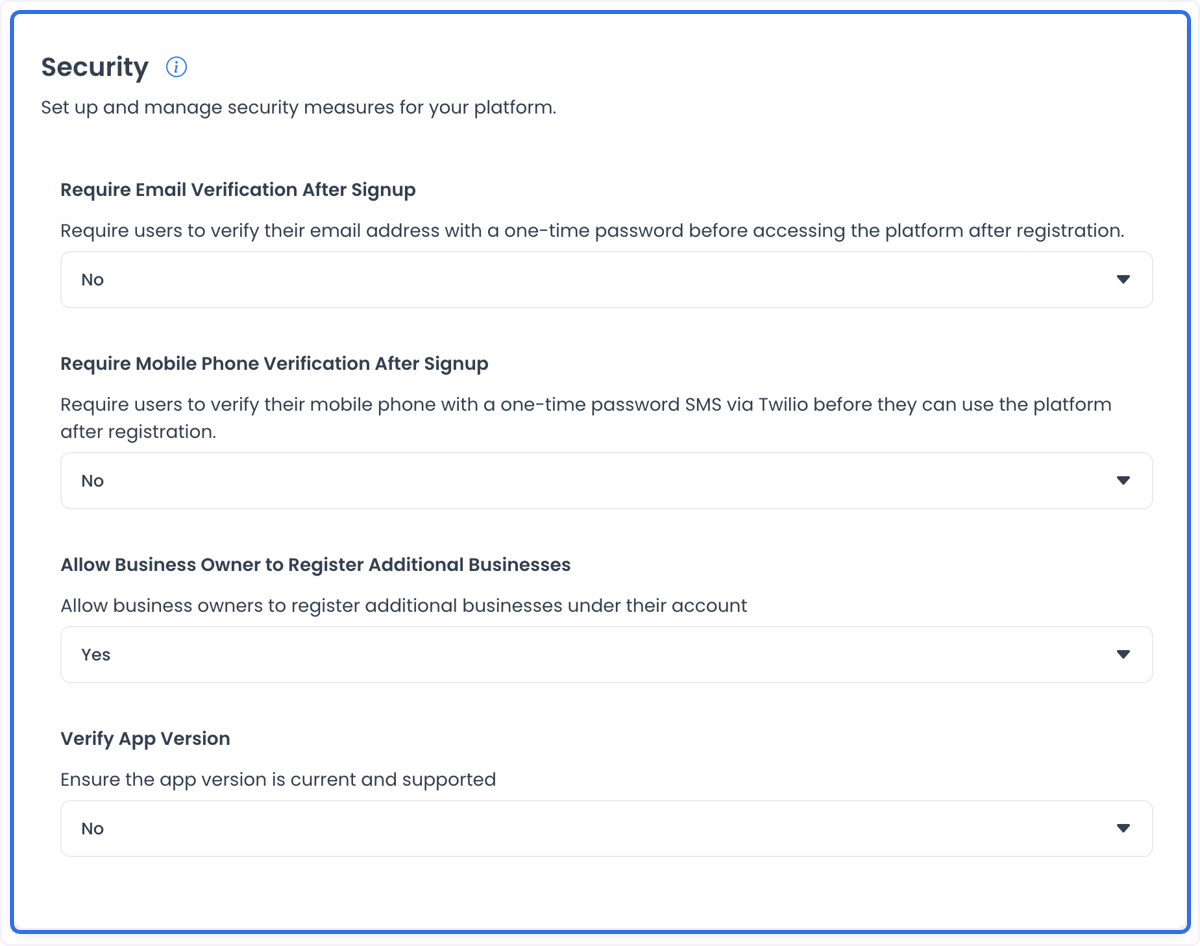
reCAPTCHA settings
reCAPTCHA is one of the current Security settings. Configuring it does not establish which field is currently rendered, which provider is configured, or which challenge mode is active.
Enter a credential only through the approved secret-management and configuration process for the intended account. Do not publish or copy a credential or policy value from that screenshot. A saved setting does not prove that a provider accepted a credential, a challenge appears, a request is blocked, or an order flow is protected.
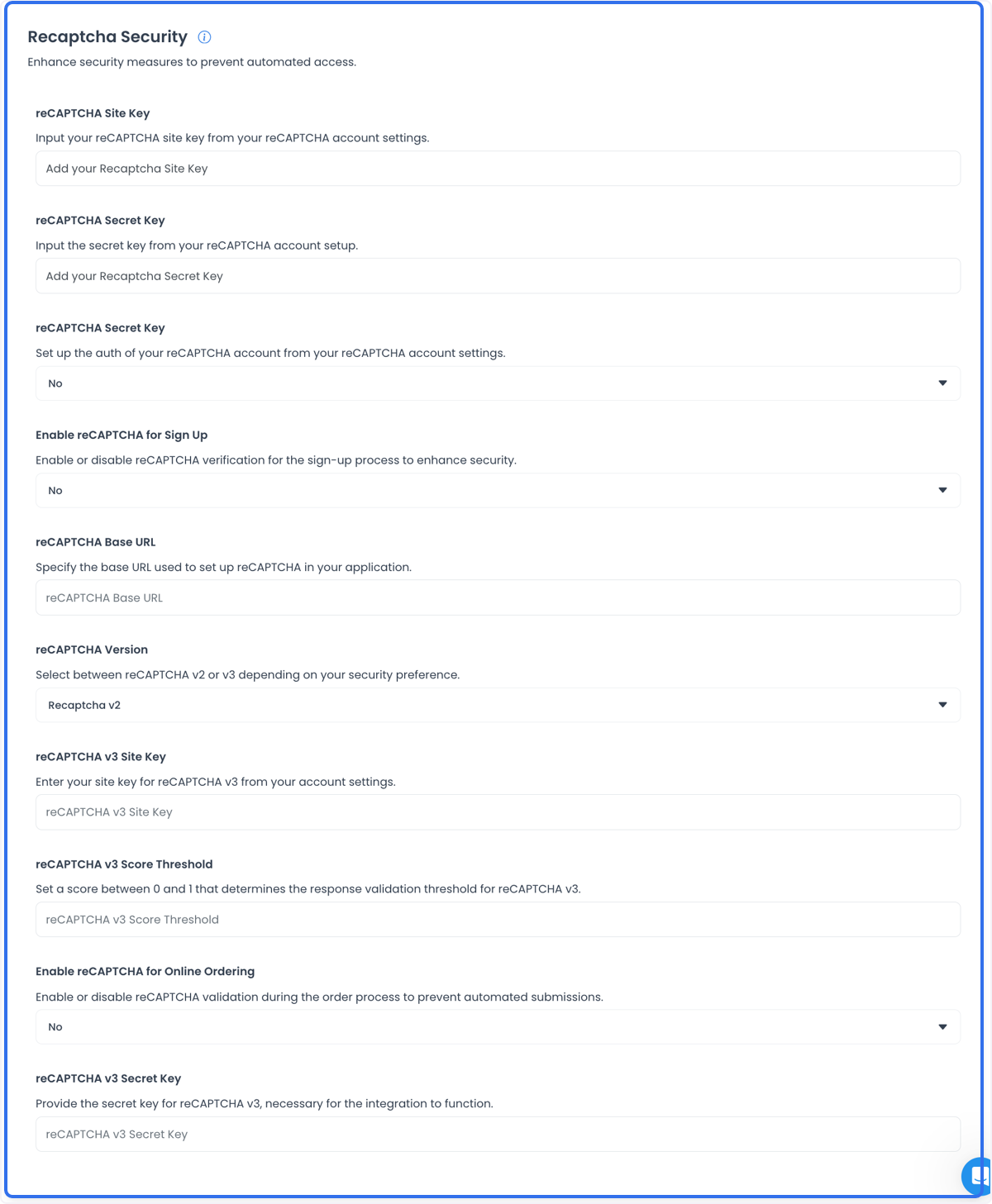
Login-attempt limits
Login-attempt limits is a current Security setting with controls for authentication limits by email, phone, and IP address, plus maximum-attempt and penalty-duration fields.
Use these only after the policy owner confirms the intended threshold and recovery behavior. Do not treat the example values in the screenshot as a recommendation or a current policy. A configured limit is separate from observing a real login attempt, a lockout, a timeout, a recovery path, or an account-access outcome.
One-time-code generation limits
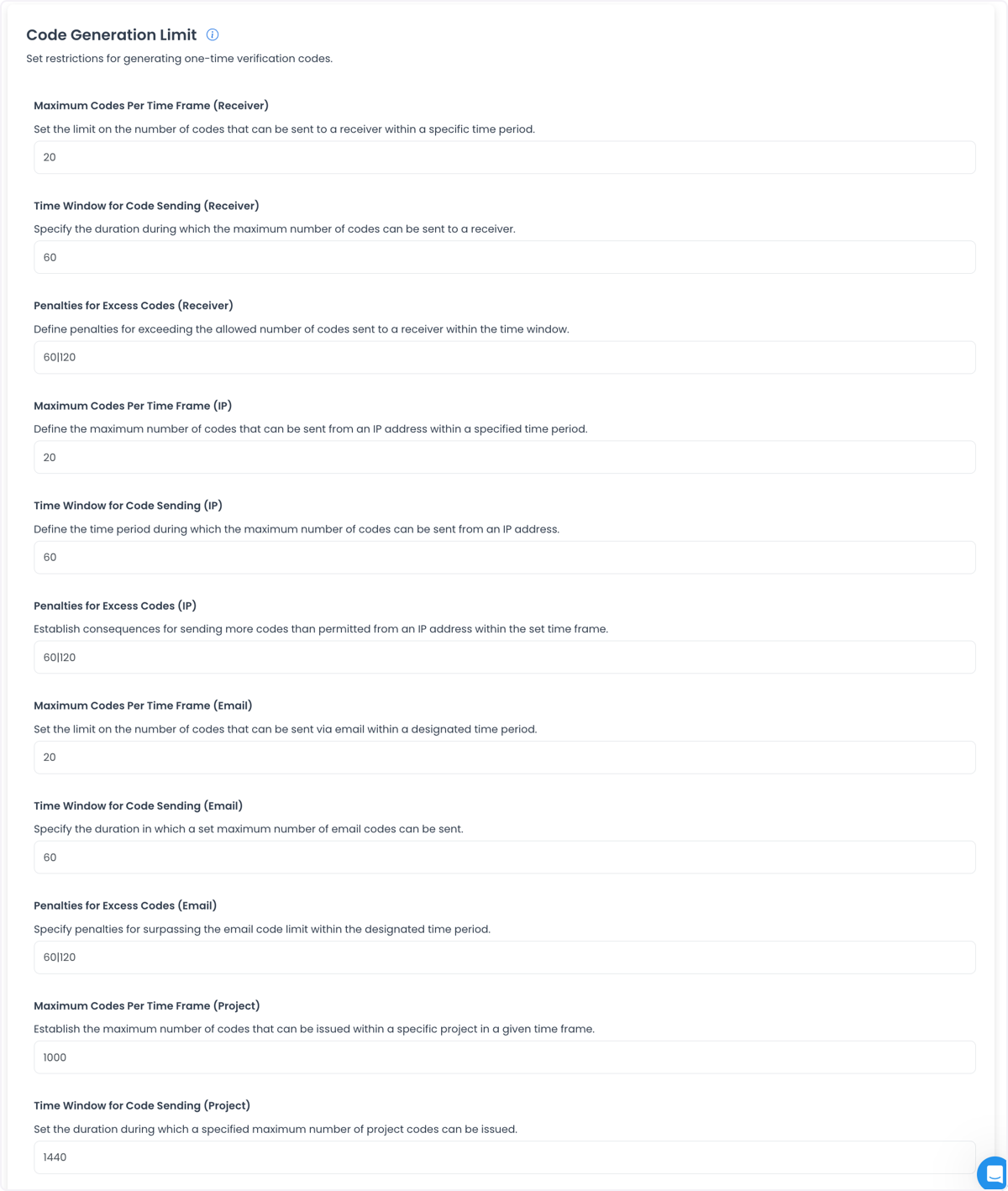
Code Generation Limit is a current Security setting with maximum-count, time-window, and penalty controls associated with receivers, IP addresses, email addresses, and a project.
This configuration can define a policy boundary for a code-generation workflow. It does not prove that a code was generated, delivered, accepted, rejected, or linked to a particular user session. Keep actual recipients, codes, IP addresses, and thresholds out of public documentation.
Password-reset limits
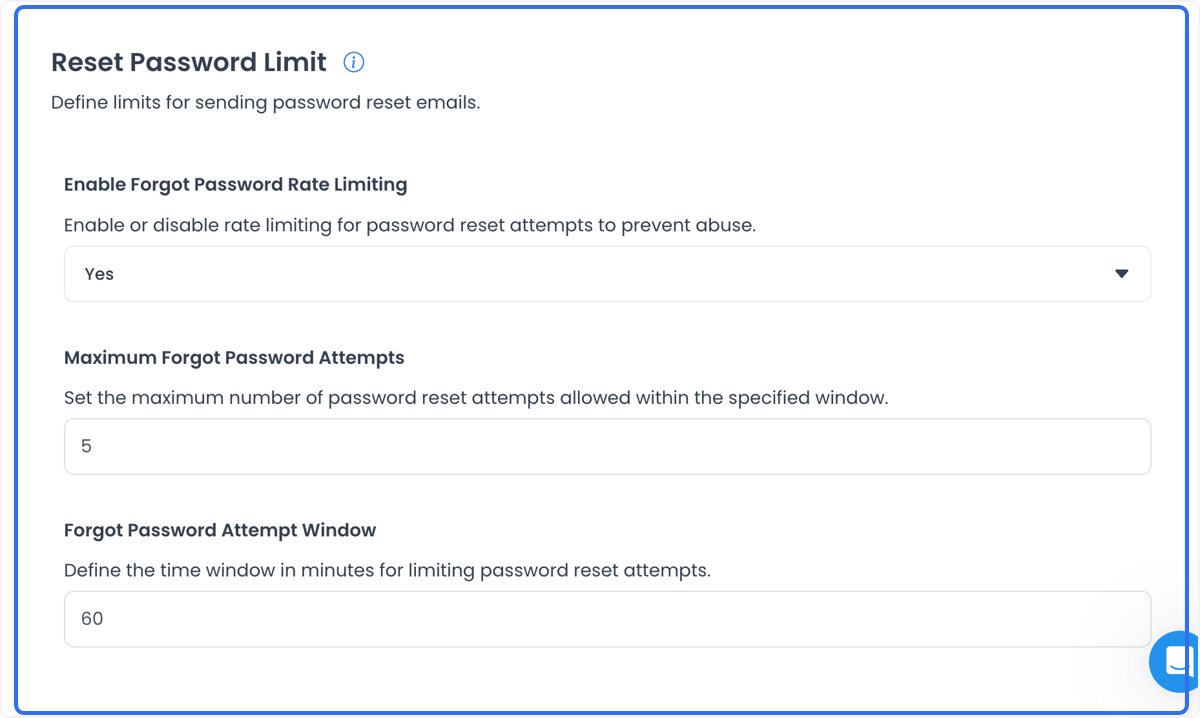
The historical Reset Password Limit fixture includes a rate-limiting control, a maximum-forgot-password-attempts field, and an attempt-window field. It is not a current policy catalog.
Changing these fields is a policy action. It is not proof that a reset request can be made, that a reset message was delivered, that a password was changed, or that an account can be recovered. Validate those user outcomes only through the approved isolated test procedure.
Authenticated reads and sequential writes
Selecting a returned Security category performs an authenticated read. For ordinary fields, the shared editor in the current Dashboard source stages changes until Save and writes configuration records sequentially; a later failure can leave an earlier change persisted. This describes a source contract, not a safe probe or proof that a security policy is deployed. Do not open, capture, copy, or modify security-policy values to validate it.
Validate security outcomes separately
When an authorized test is available, record each boundary separately:
- Configuration: The intended setting is present after saving.
- Account and session: The synthetic account’s sign-up, verification, sign-in, lockout, recovery, and session behavior matches the approved test.
- Provider behavior: A credentialed provider action is confirmed by the appropriate owner without exposing a credential or request payload.
- Order-flow behavior: A bot-protection setting is not treated as proof that an order attempt is allowed, blocked, paid, or completed.
- Security outcome: A UI response or value does not prove full enforcement, coverage across channels, or compliance.
If the current fields differ from the screenshots, do not infer missing policy values or replace them with examples. Resolve the intended change with the security owner.
For the product overview of bot protection, see Google reCAPTCHA on Ordering.co.
Related guides: Settings logs · Settings overview