Order management
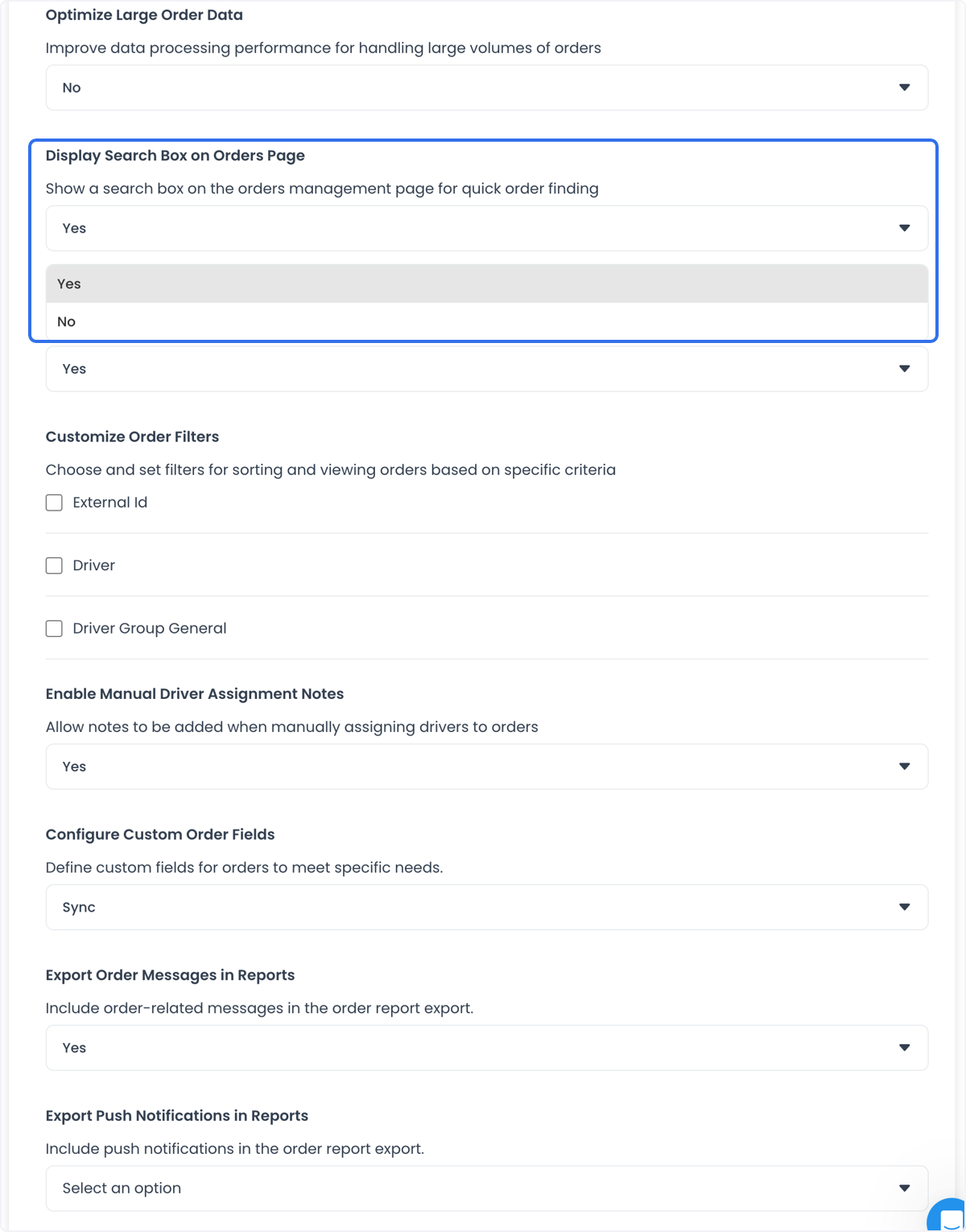
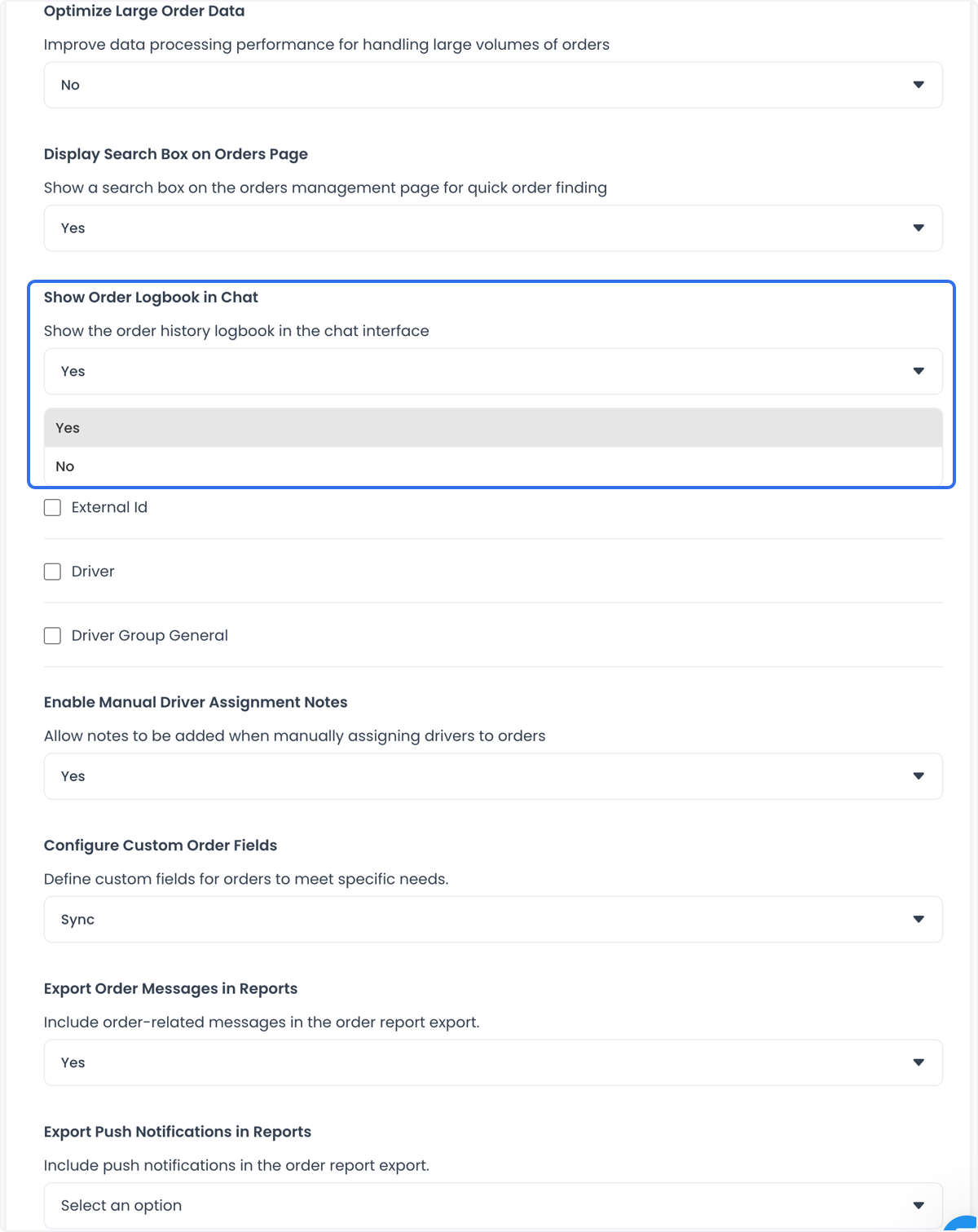
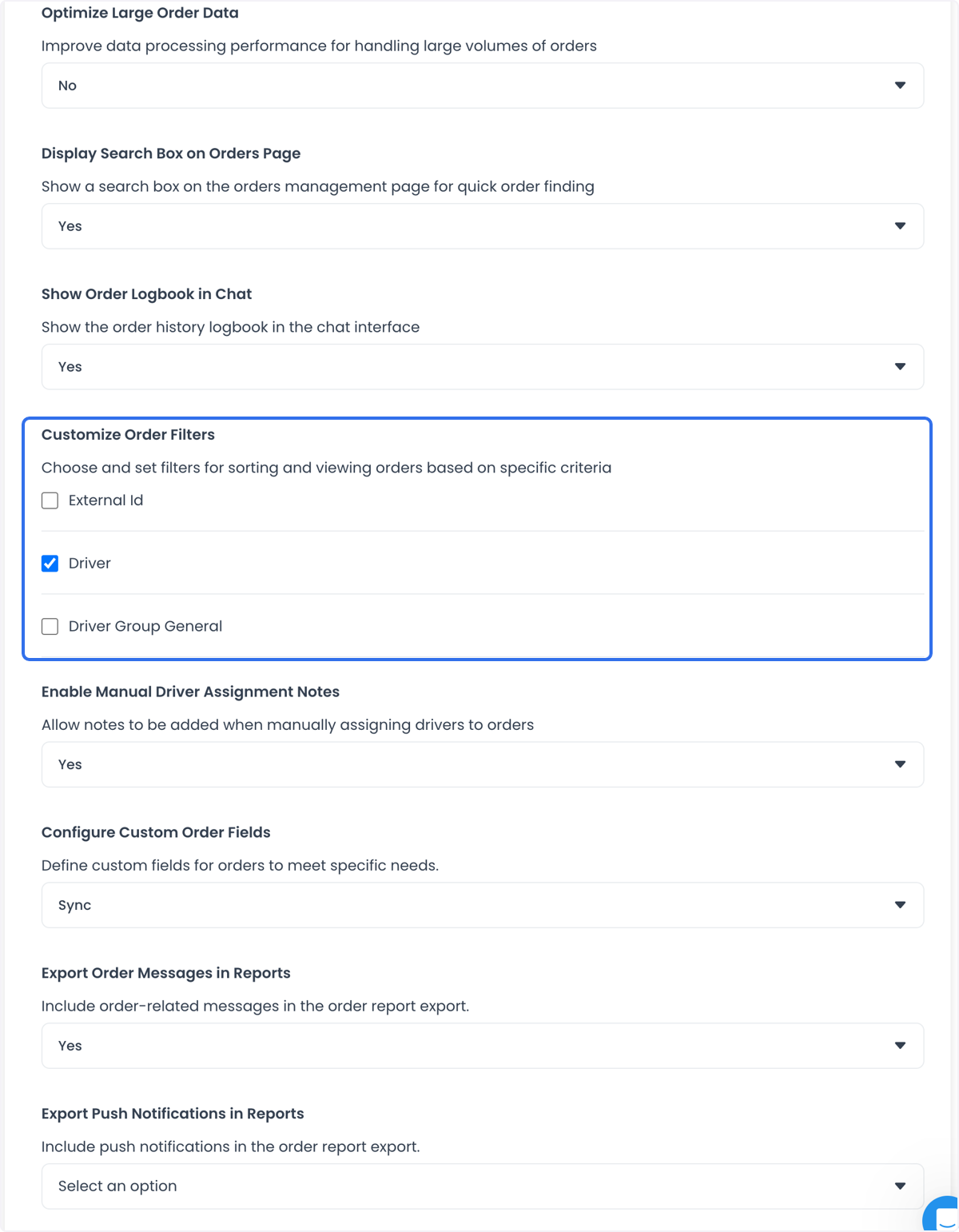
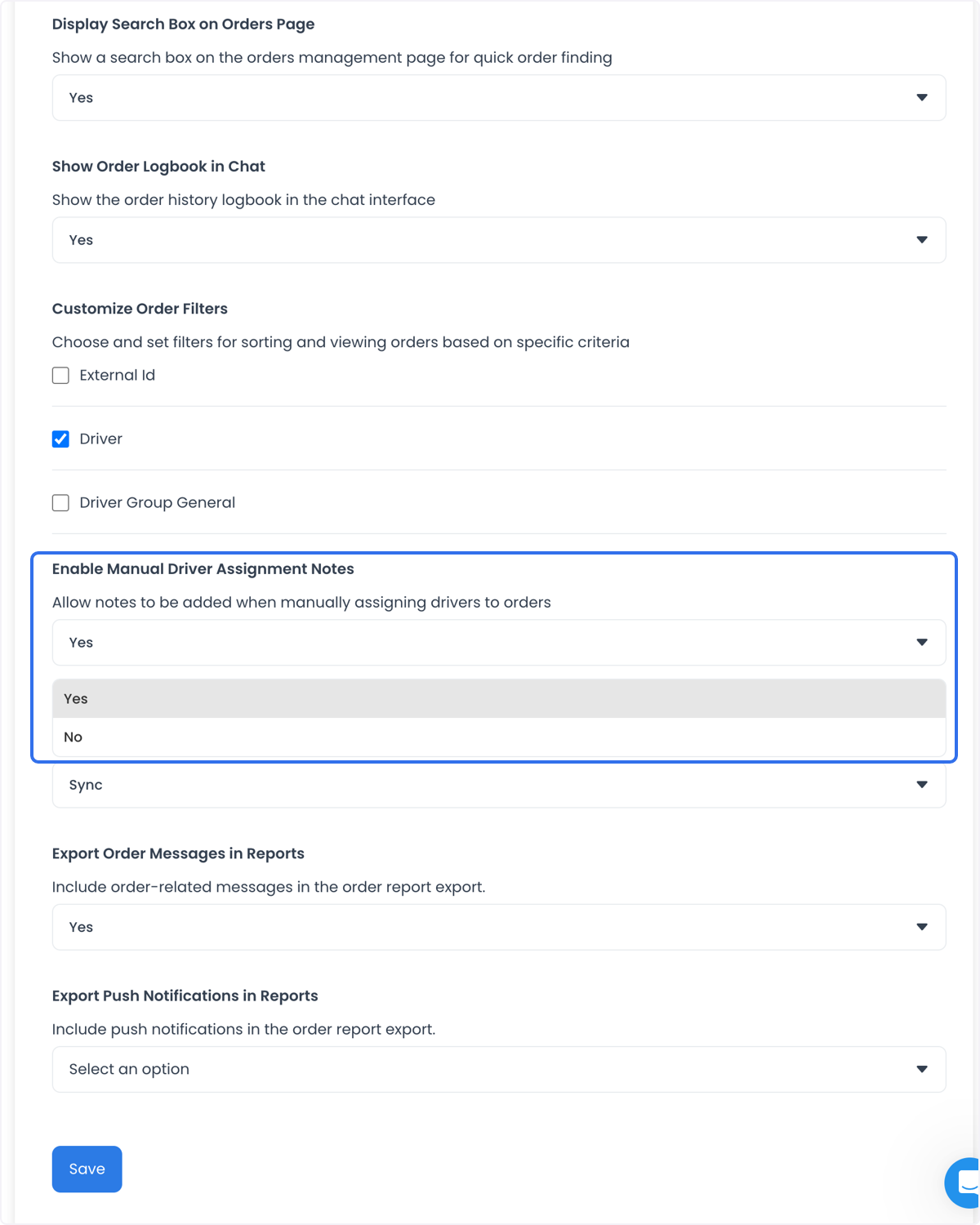
Use Order management to configure how operators organize and review order-related information in Dashboard. The screenshots in this guide are example settings of the controls and labels that were available; the fields, choices, and saved values in your project can differ.
Each screenshot opens at full size. They show example settings only. Do not copy order, customer, driver, message, or report data from another workspace into your own configuration.
Current catalog and example settings
The current configuration catalog associates ten Order management fields with list grouping, external IDs, large-order data, search, chat logbooks, filters, driver-assignment notes, custom order fields, and two report-message options. A catalog association does not prove that a project returns a field, renders a control, or has a saved value.
The screenshots and their visible choices are example settings. In particular, they do not establish a current order, report, chat, export, custom-field action, or synchronization result.
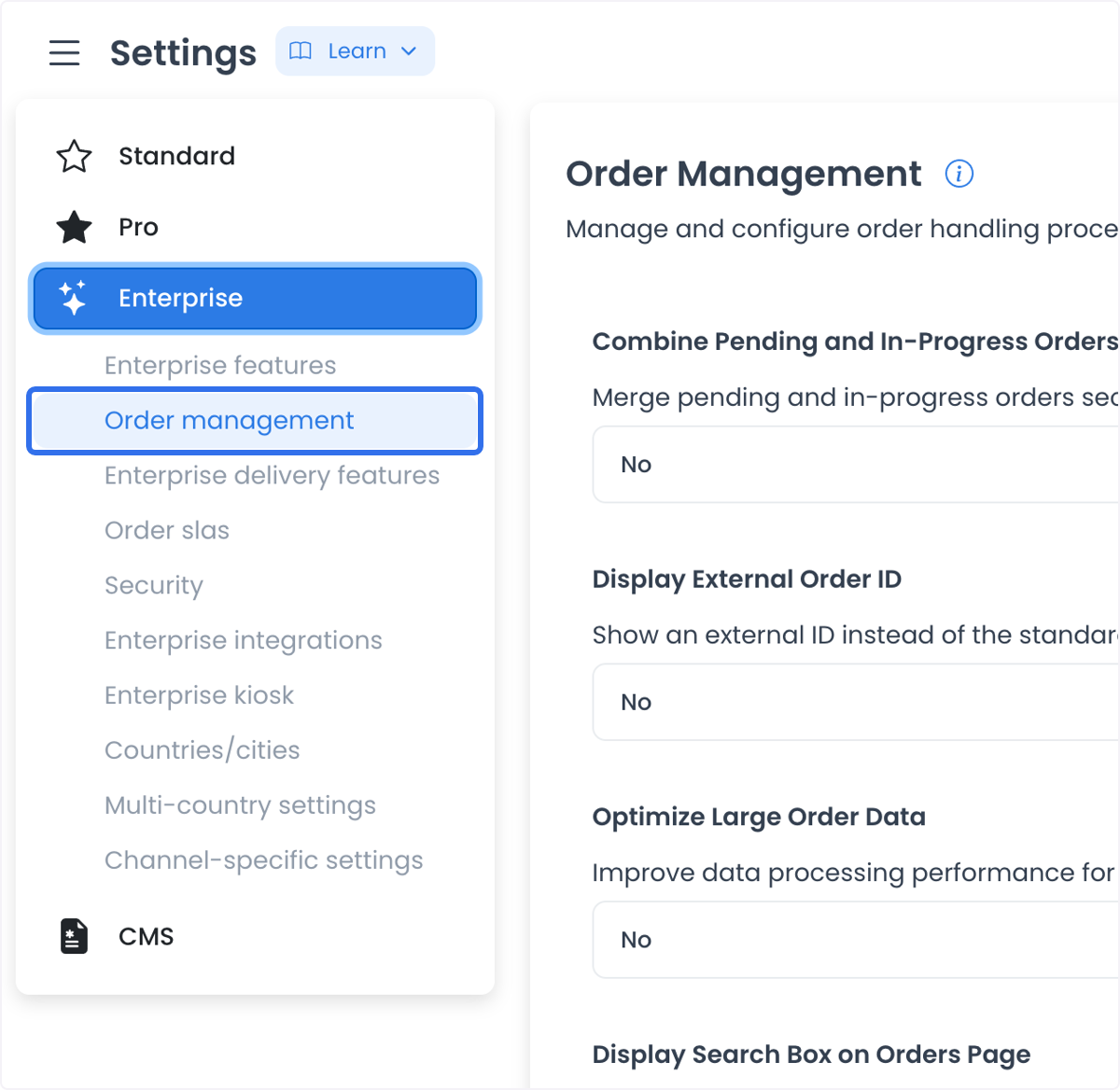
Selecting an option or saving this category records configuration. It does not by itself prove that an order list changed, an external ID is available, a search returns the intended orders, a message appears in a report, a push notification was sent, or a driver can use an assignment note.
Before you change a setting
- Use an account that your organization has authorized to manage Dashboard settings.
- Identify the workflow that the setting should support, such as operator triage, a connected order identifier, reporting, or driver coordination.
- Use masked or synthetic test data when validating a change. Do not use a live order, a customer conversation, or a driver assignment just to test a control.
- Review one setting at a time. The historical interface includes a Save action; a successful save response is separate from the downstream behavior that the setting is intended to support.
Configure order views
The current catalog associates the following controls with the operator view; their visible labels and choices in the screenshots are example settings:
| Setting | What the setting is intended to configure | Verify separately |
|---|---|---|
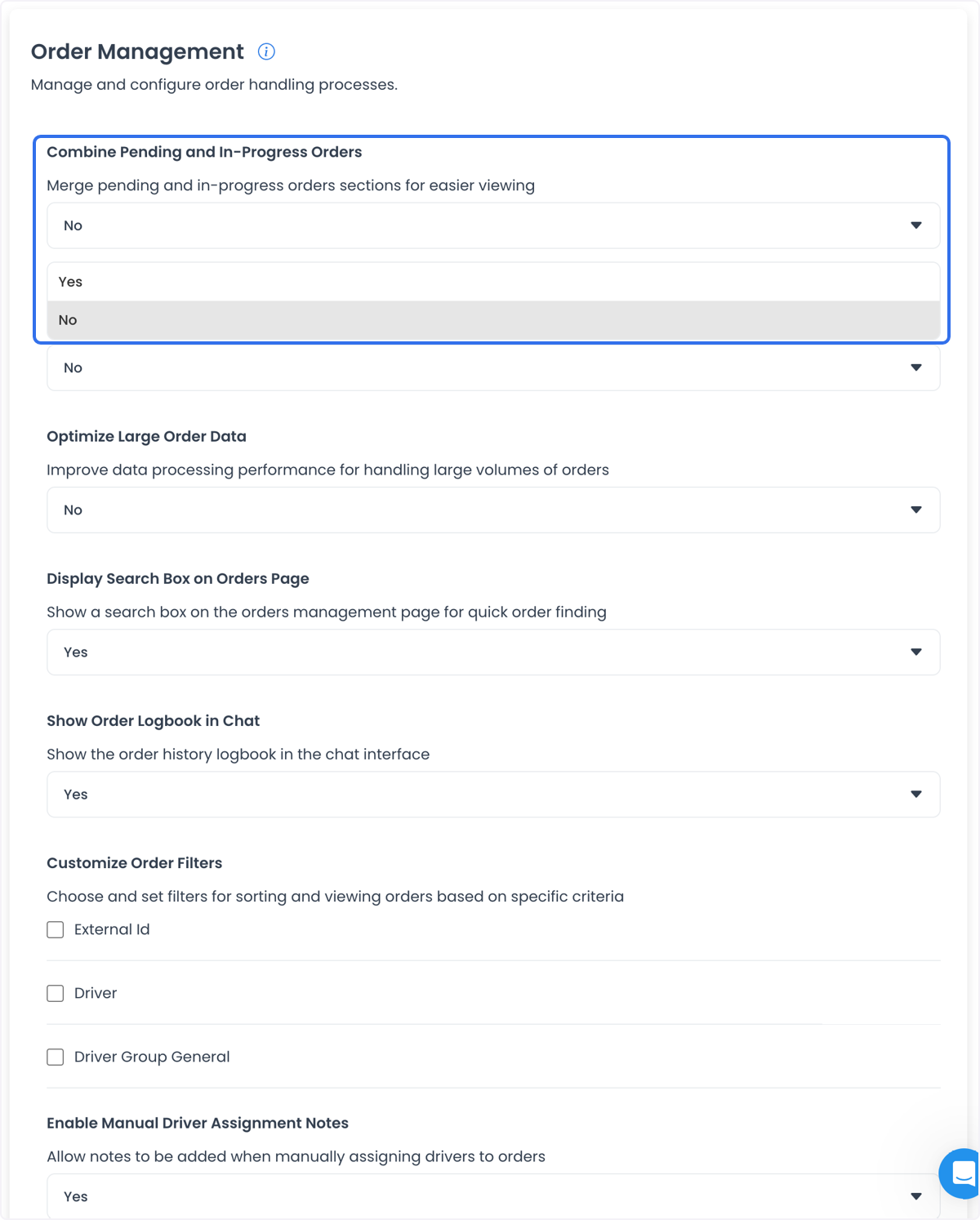
| Combine Pending and In-Progress Orders | Whether pending and in-progress orders appear together. | That the intended operator view changes without hiding work that still needs attention. |
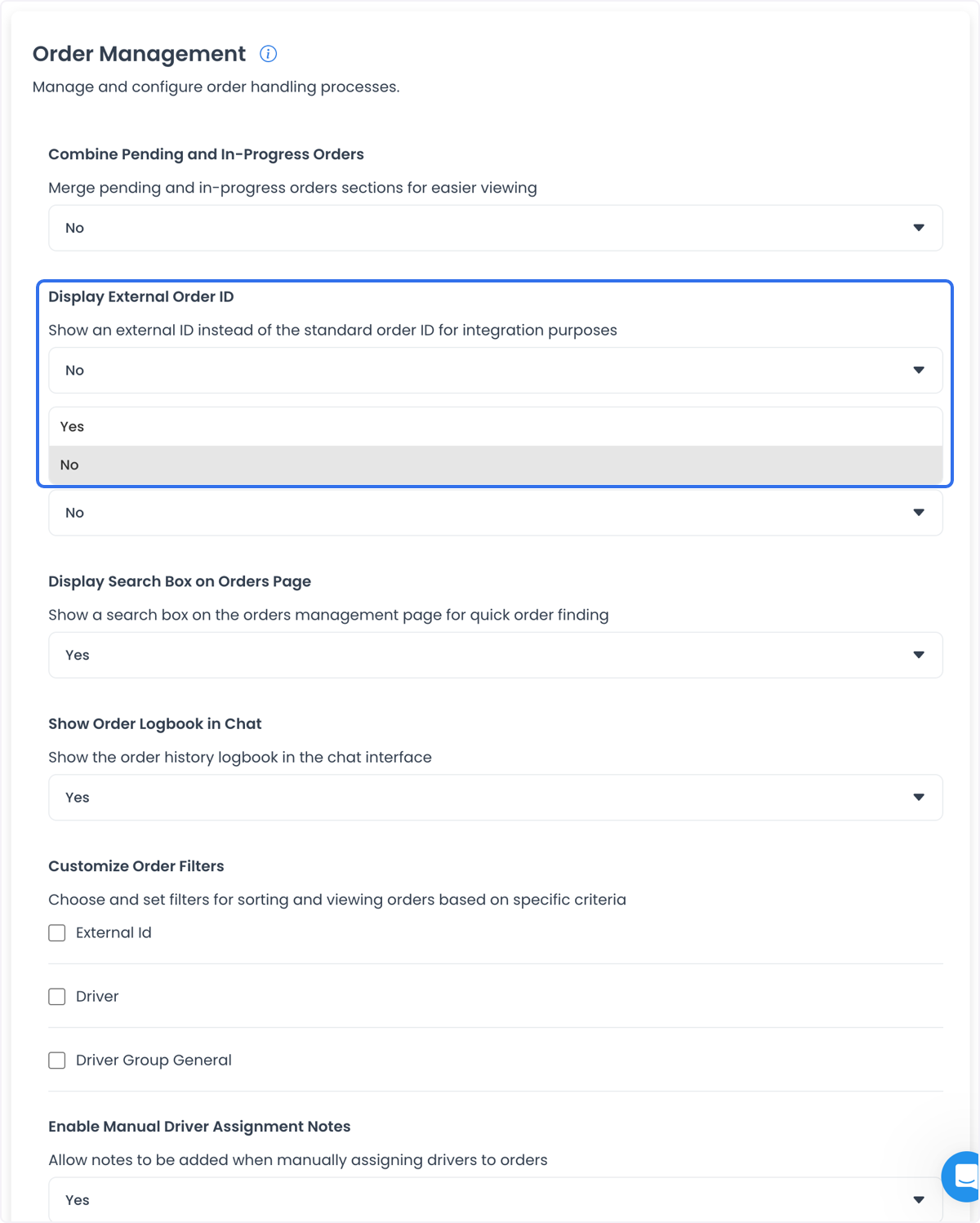
| Display External Order ID | Whether an external identifier is shown instead of the standard order ID. | That the correct identifier is present for the intended connected workflow. |
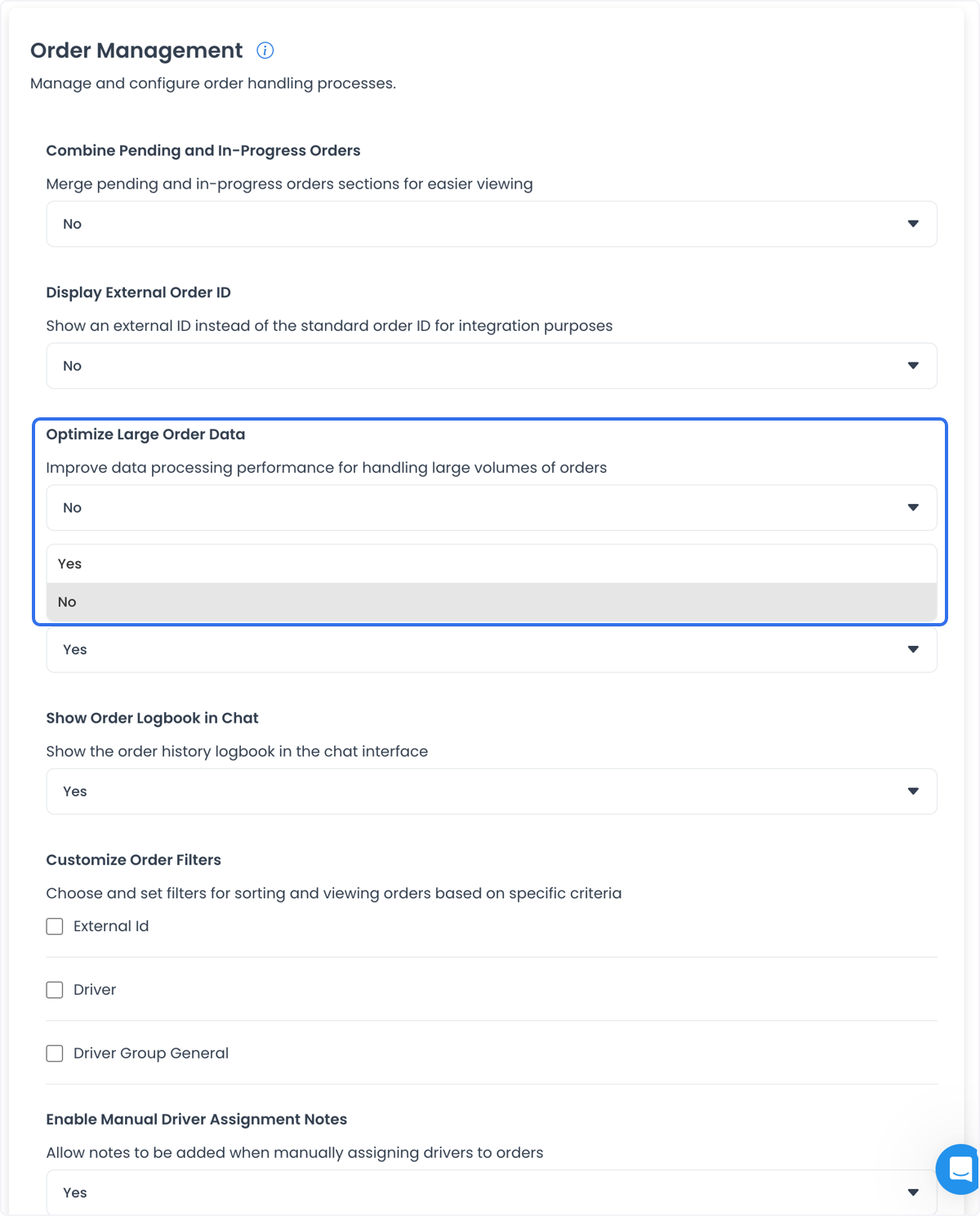
| Optimize Large Order Data | A setting intended for handling large volumes of order data. | That the relevant order workflow performs as expected for the intended volume. |
| Display Search Box on Orders Page | Whether the Orders page includes a search field. | That search uses the intended criteria and returns only authorized data. |
| Show Order Logbook in Chat | Whether order history is available in the chat interface. | That the right history is available to the right operator without exposing unnecessary customer or order information. |
To configure an available option, open Order management, select the intended value, then use Save if that action is present in your Dashboard.
Ordinary fields are staged until Save and configuration records are updated sequentially. If a later update fails, an earlier change may already be saved. Review each setting after saving before relying on the resulting order workflow.
Configure filters, notes, and custom fields
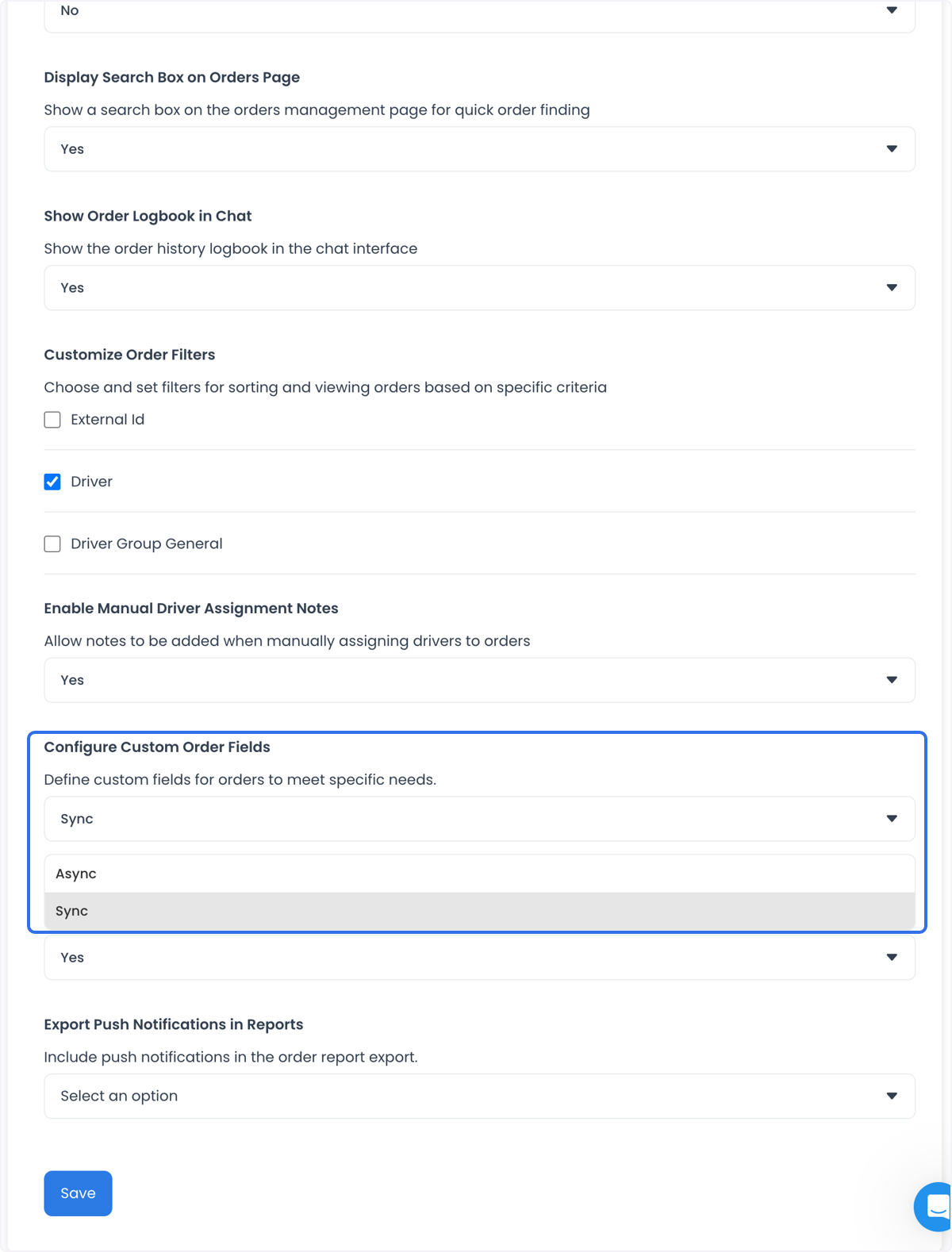
Use Customize Order Filters to choose the fields available for sorting and reviewing orders. The historical example shows External ID, Driver, and Driver Group General; treat that as an example, not as a fixed list of filters for every project.
Use Enable Manual Driver Assignment Notes when authorized operators need to record notes during manual driver assignment. A configured setting does not prove that a note is delivered, visible to a driver, retained in order history, or appropriate for a particular role.
The example settings also includes Configure Custom Order Fields with Sync and Async choices. The current Dashboard source filters the custom-order-fields configuration from its generic settings list, so the fixture does not establish a current control, action, endpoint, or successful synchronization. Do not use it to infer field creation, data transfer, or a change to an external system.
Configure report content
The category includes options to:
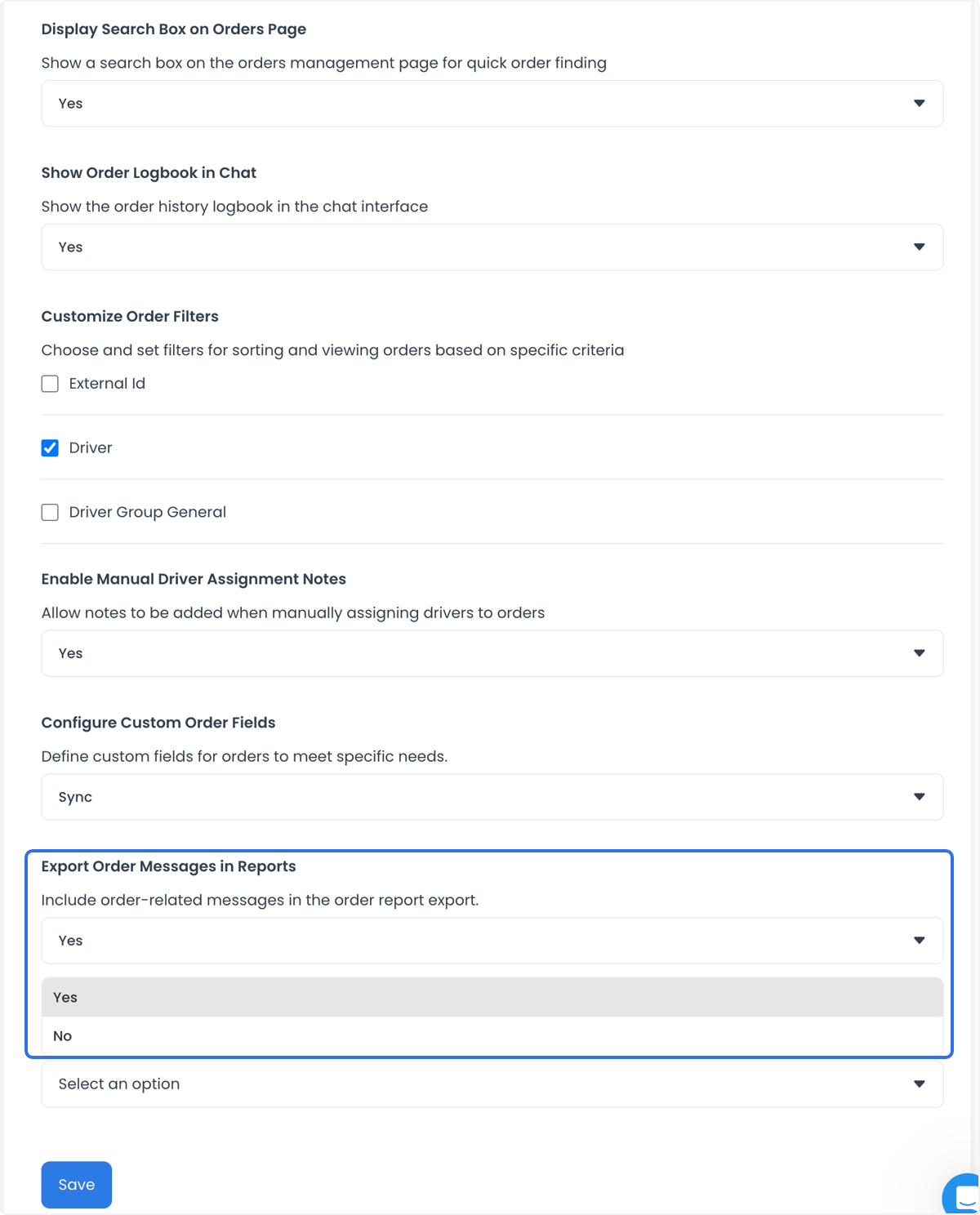
- Export Order Messages in Reports
- Export Push Notifications in Reports
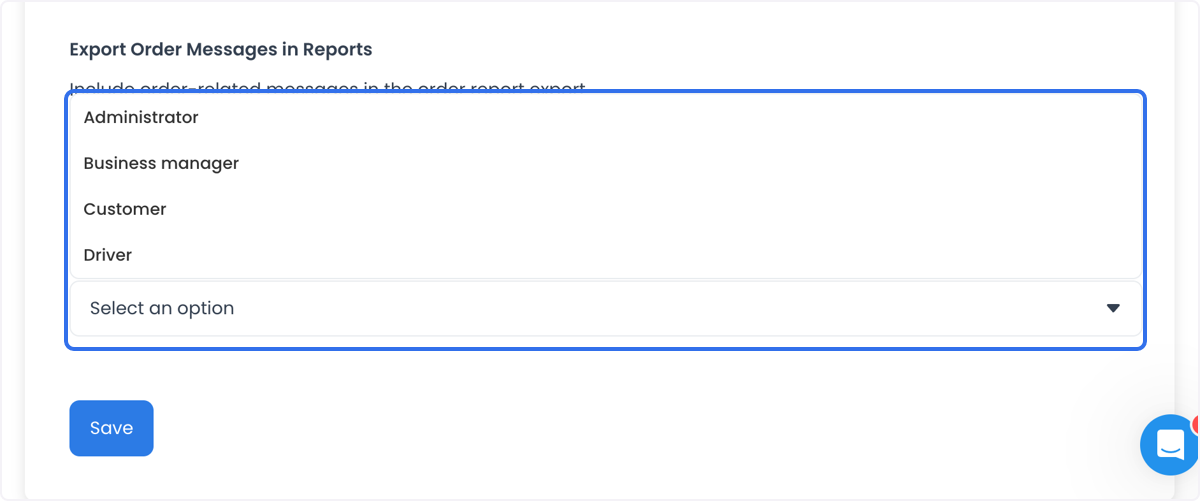
The historical screen shows message-report audience choices such as administrator, business manager, customer, and driver. Do not treat that capture as a current role catalog, an access decision, or evidence that a report contains messages or notifications.
When you change either option, verify each boundary independently in an approved test:
- The configuration displays the intended choice after saving.
- An authorized report includes only the intended data.
- The report destination, retention, and role access follow your organization’s data-handling rules.
- A notification-related setting is not treated as proof that any notification was created, delivered, or read.
Check the result safely
After a configuration change, first confirm the returned setting in Dashboard. Then test the affected workflow with an approved synthetic order and the minimum necessary roles. Keep these results separate:
- A saved setting does not prove an order state changed.
- An external-ID display setting does not prove an integration is connected or synchronized.
- A search, filter, chat-logbook, or note setting does not prove a user can access every order or conversation.
- A report-content setting does not prove an export completed, a recipient received it, or a notification was sent.
If a control is missing or differs from the screenshots, do not substitute another setting. Use the categories and fields returned for your project, then confirm the intended workflow with the responsible team.
Related guides: Settings categories · Orders overview