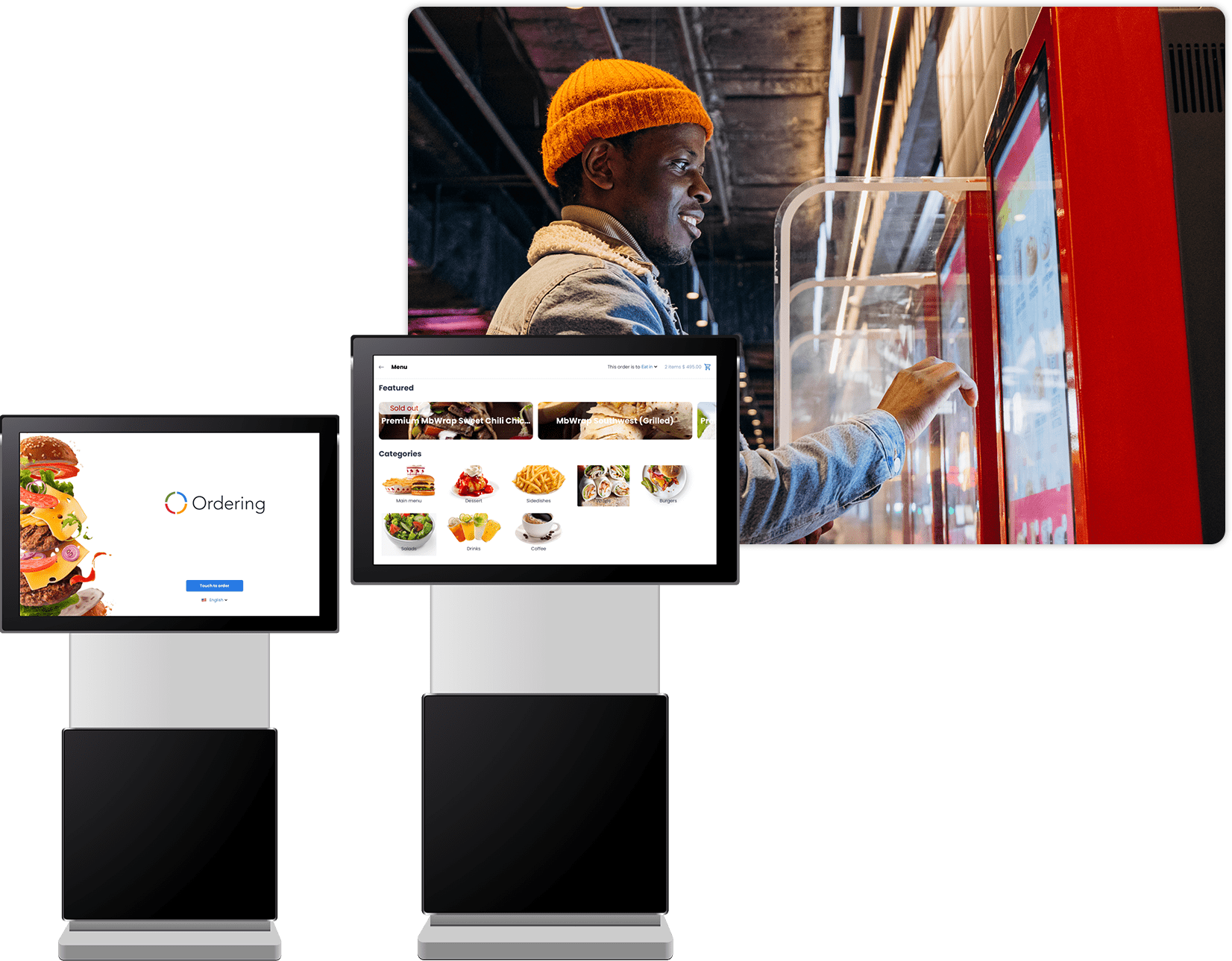
Use the Ordering Kiosk app
Back to Enterprise Kiosk settings
The Ordering Kiosk app supports an in-store self-service ordering flow. The screens, languages, order types, payment methods, products, fees, and availability depend on the project configuration.
What the kiosk can support
Depending on the project setup, the kiosk can support:
- A home screen aligned with the business visual identity.
- A contactless, self-service order flow for in-store customers.
- Customer-selected order types, categories, product options, and checkout details.
- Product suggestions before checkout.
- Clear order contents, applicable fees, totals, a customer name, and an order confirmation.
These outcomes depend on the enabled kiosk configuration and the operational workflow at the location. The app does not guarantee a particular wait time, sales result, or order-accuracy outcome.
Confirm requirements before launch
Do not assume that payment methods have no extra cost, that every payment gateway can be connected, or that a mobile-store listing establishes free availability. Confirm the current provider fees, account requirements, app-store availability, and project configuration before launch.
Kiosk order flow
1. Home screen
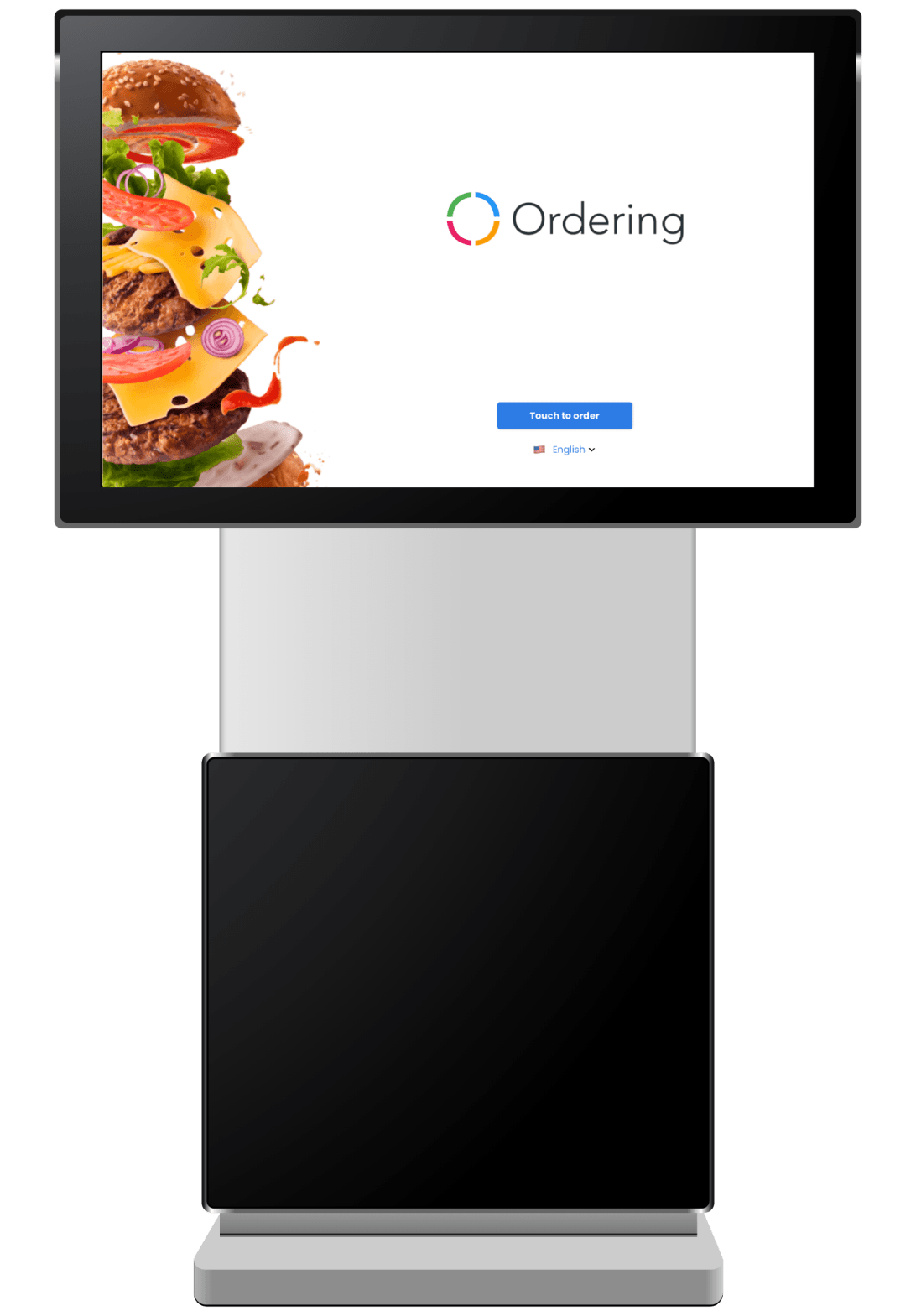
The home screen can display a business image and let the customer choose a language before beginning. To start an order, select Touch to order.
2. Order type
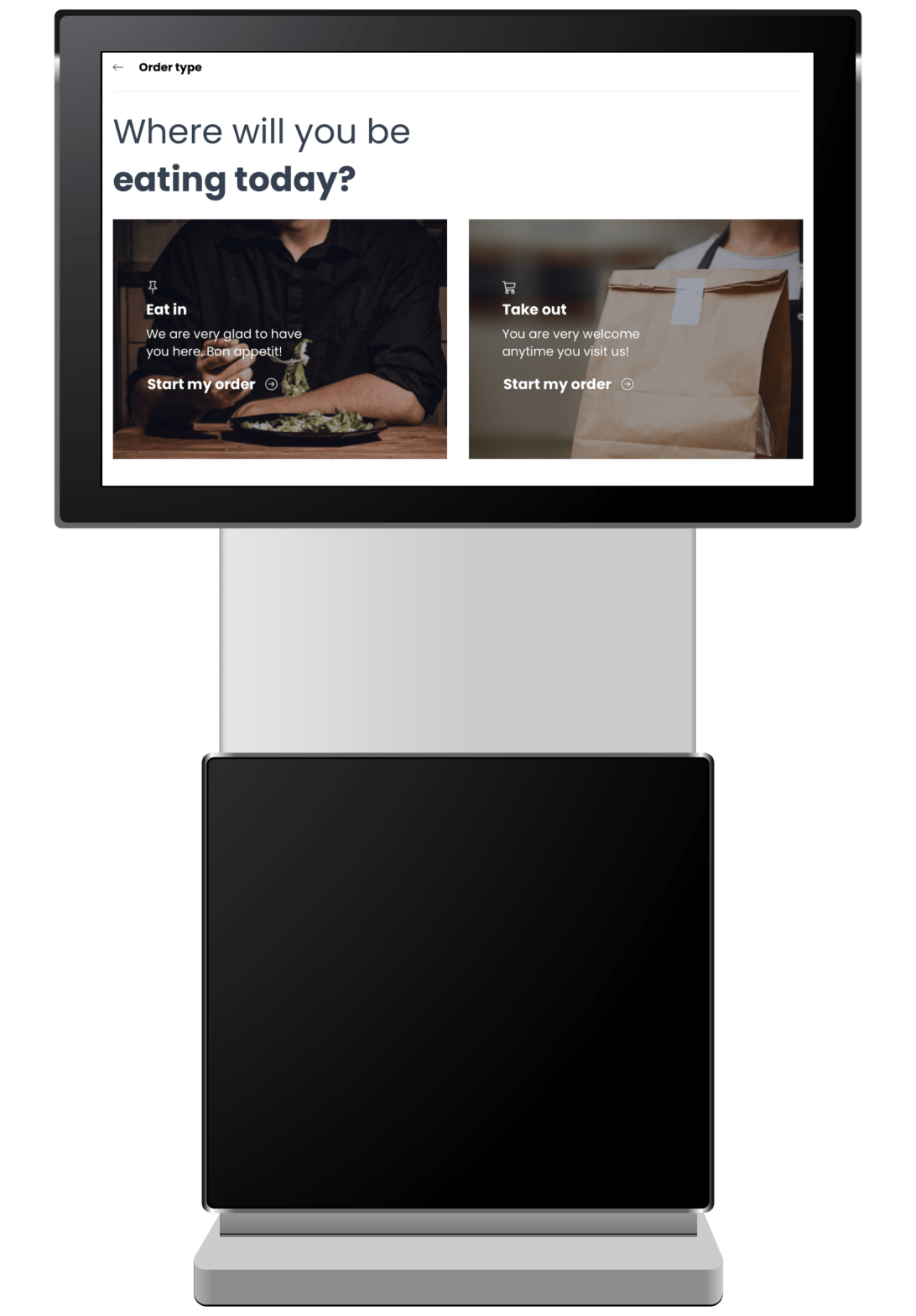
Choose the order type available at the location. The flow can support an in-store order that the customer picks up at the counter or eats at a table.
3. Menu
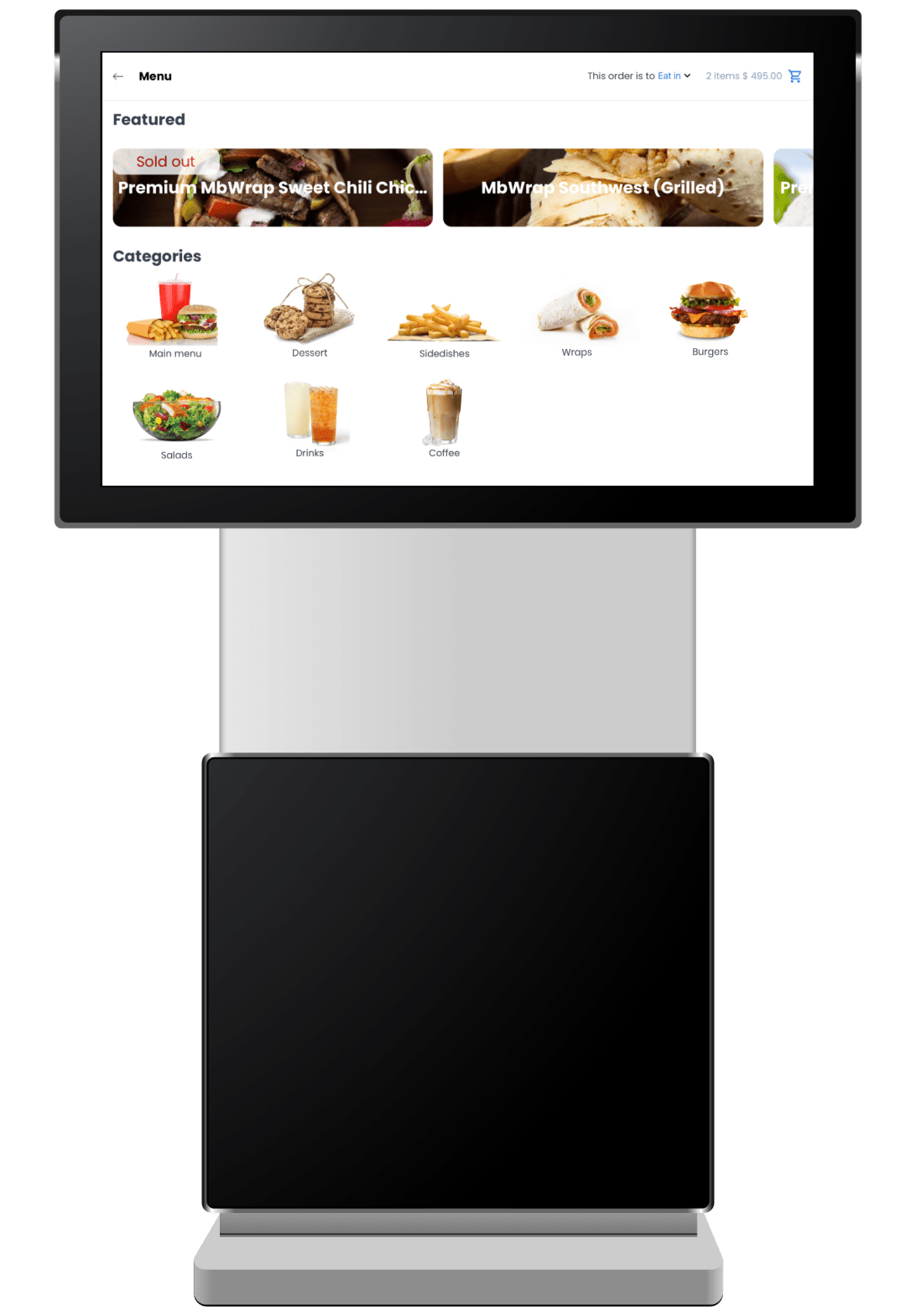
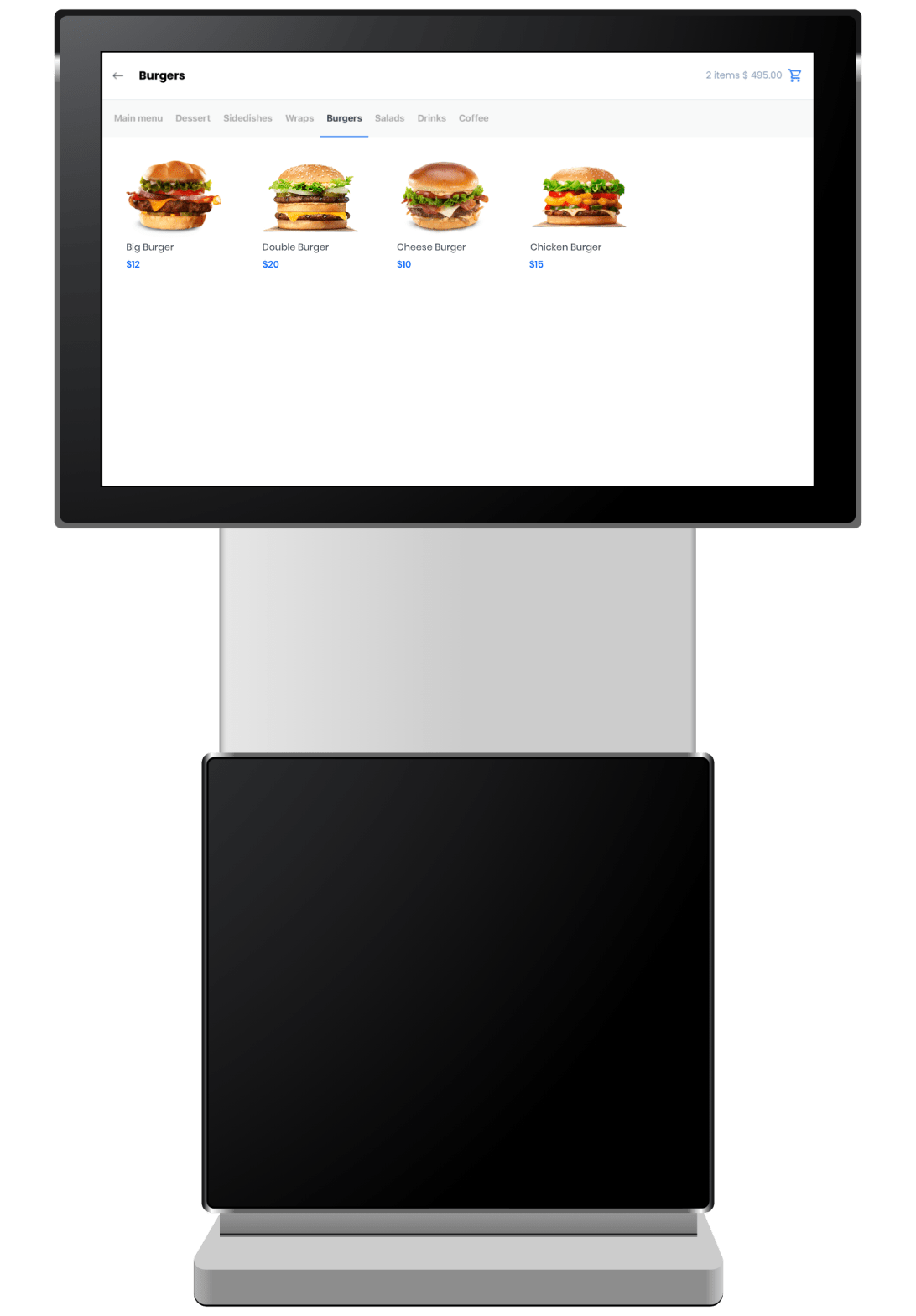
The menu shows the categories and products configured for the business. If the Dashboard configuration identifies featured products, the kiosk can show them directly.
4. Categories
Categories can use a title and image. Selecting one shows the products that belong to it.
5. Product details
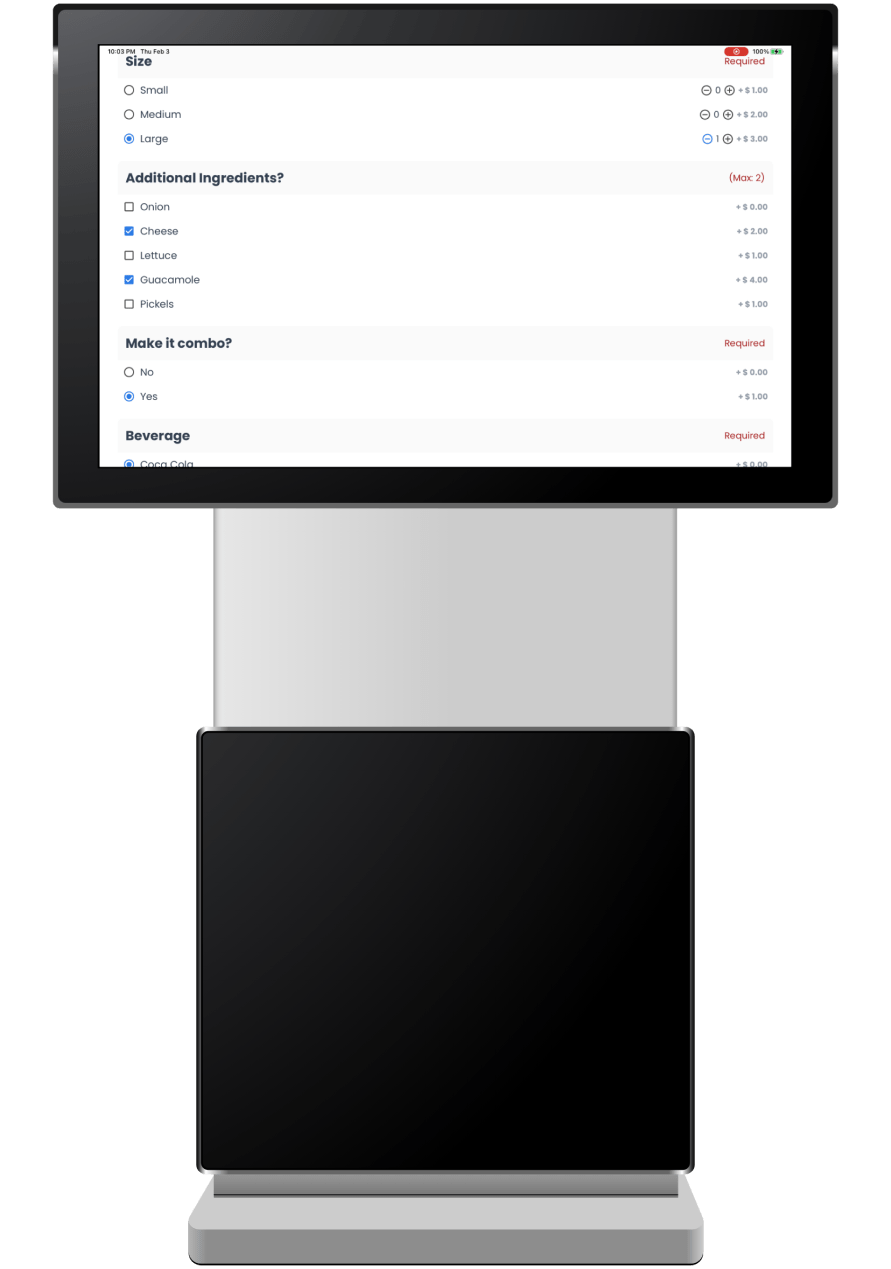
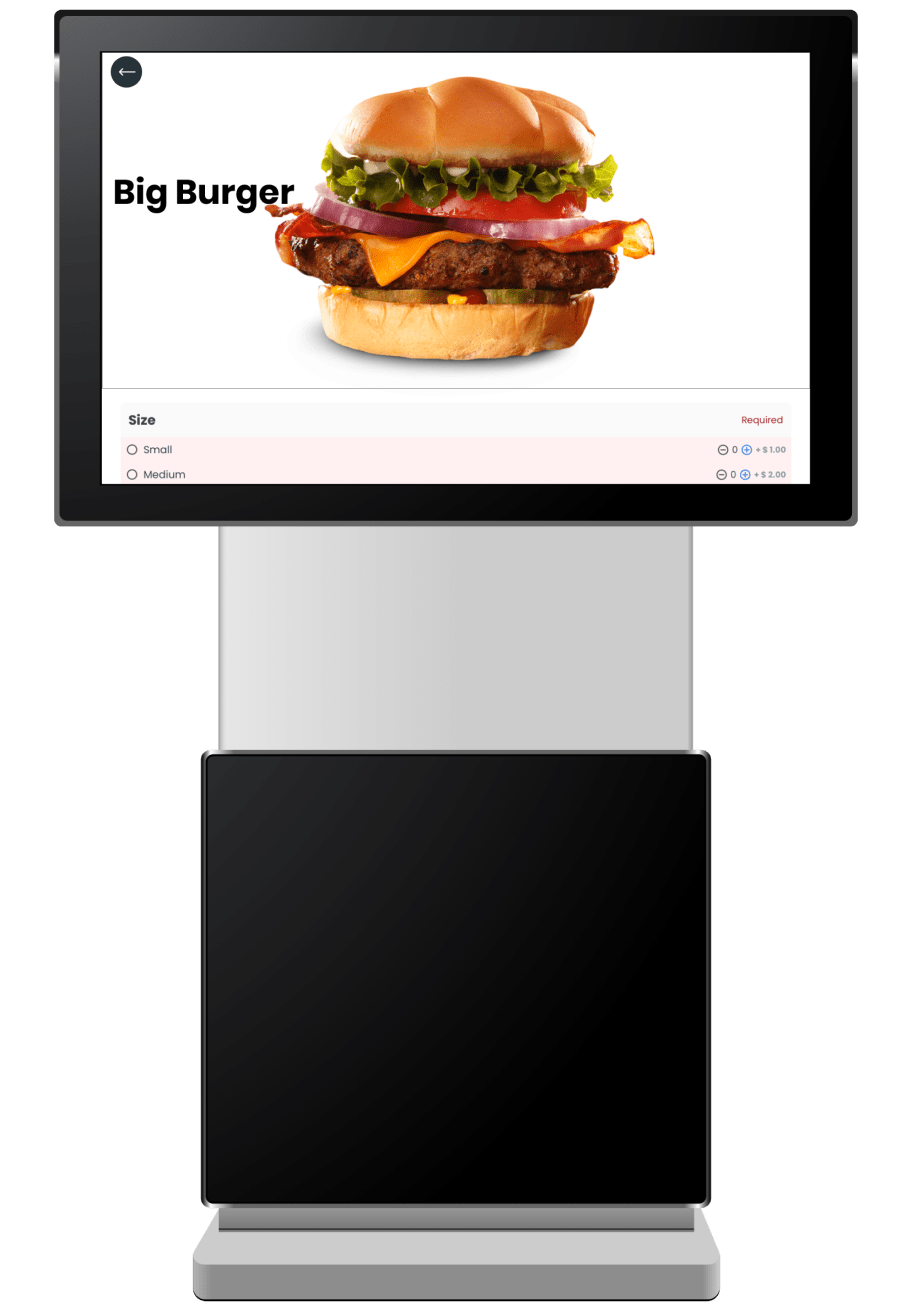
Customers can review product details before adding an item. A sold-out item can show an availability banner; if an item is disabled for the store, it does not appear. Products with configured options, such as size or toppings, open an additional selection screen. A product with only a name and price can be added directly to the cart.
6. Checkout and place order
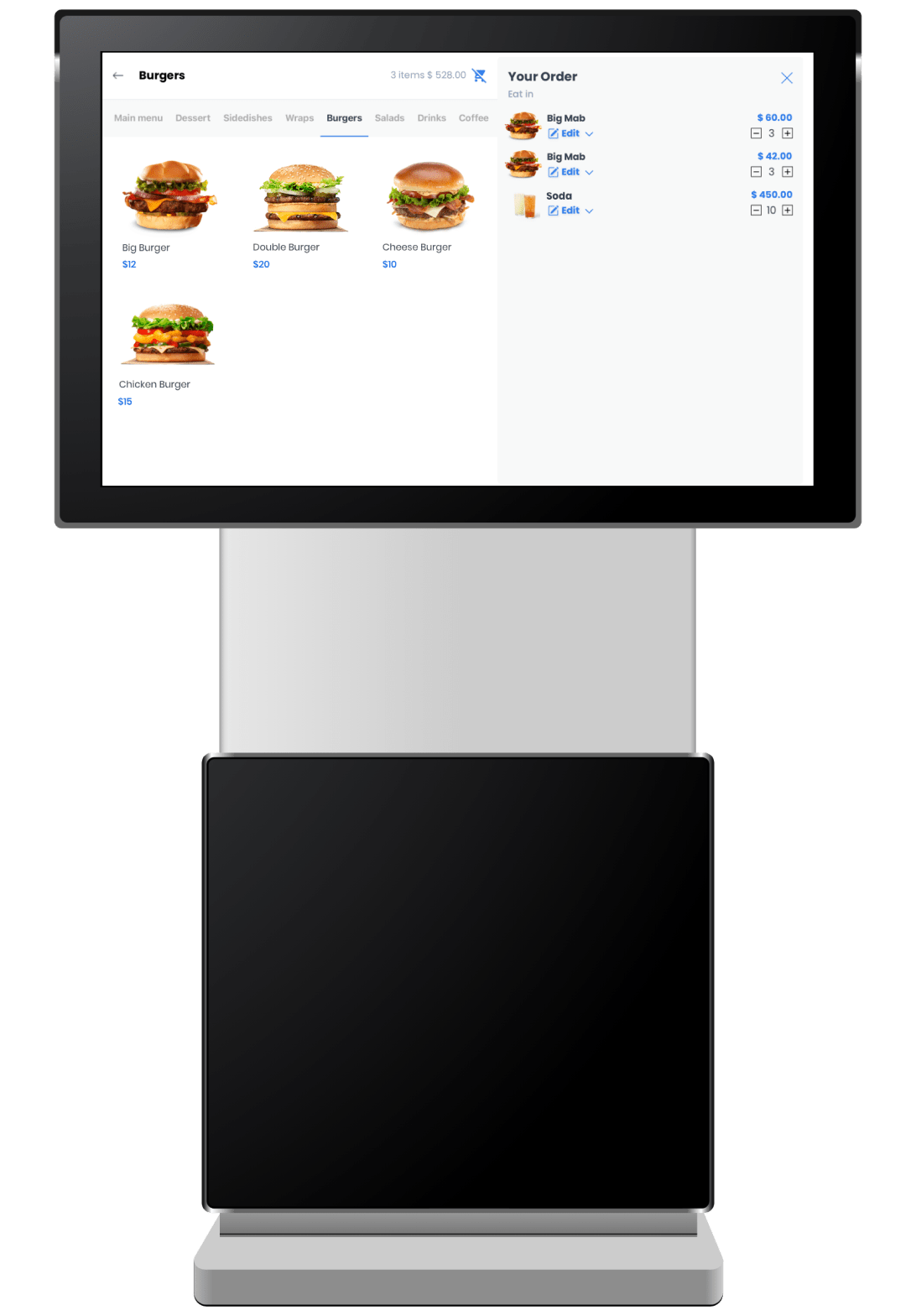
The cart shows the items added so far, their details, applicable fees, and the total. Customers can adjust the order before continuing.
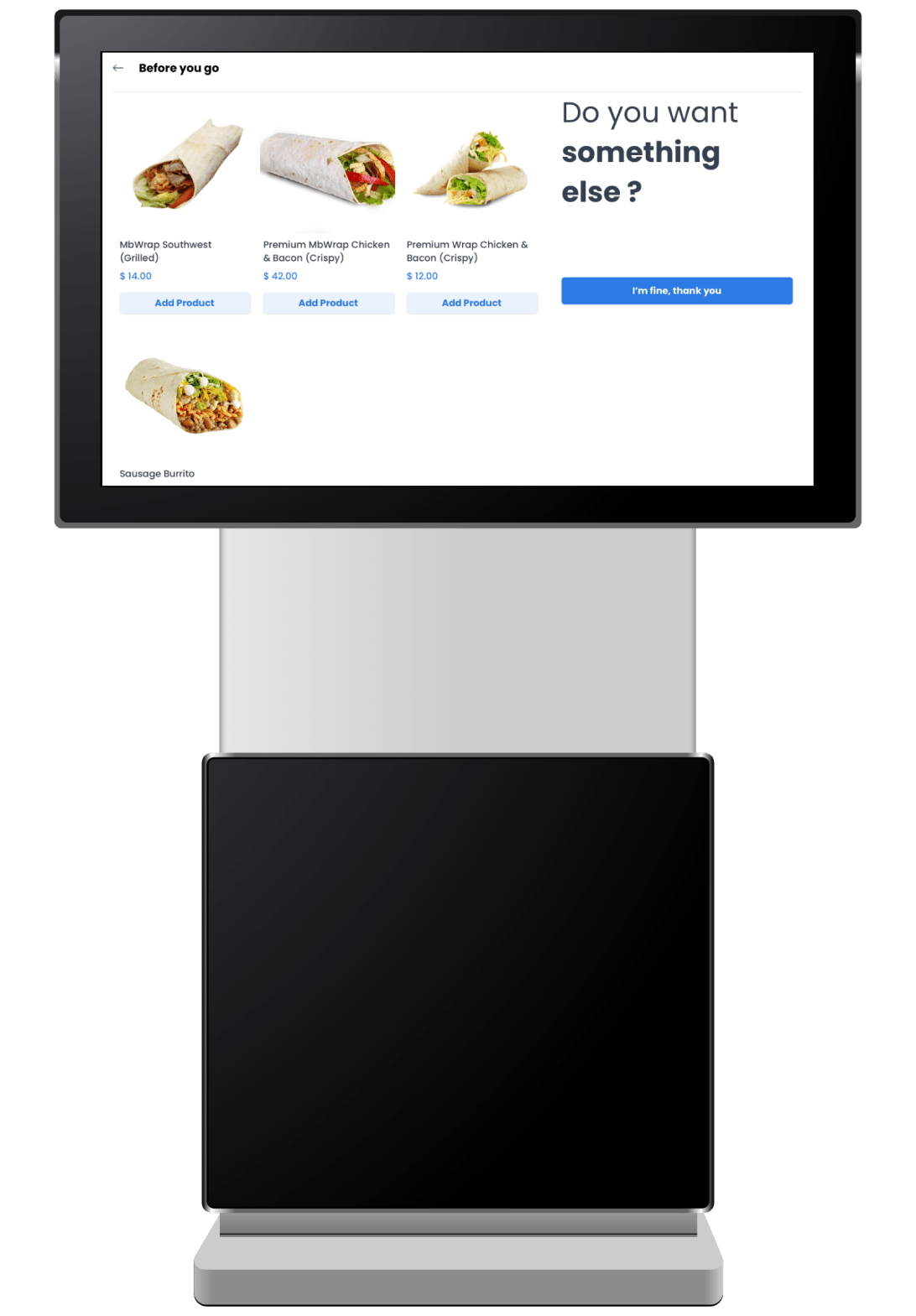
7. Product suggestions
When configured, the kiosk can suggest one or more products, such as beverages or desserts, before the customer completes the order.
8. Payment method
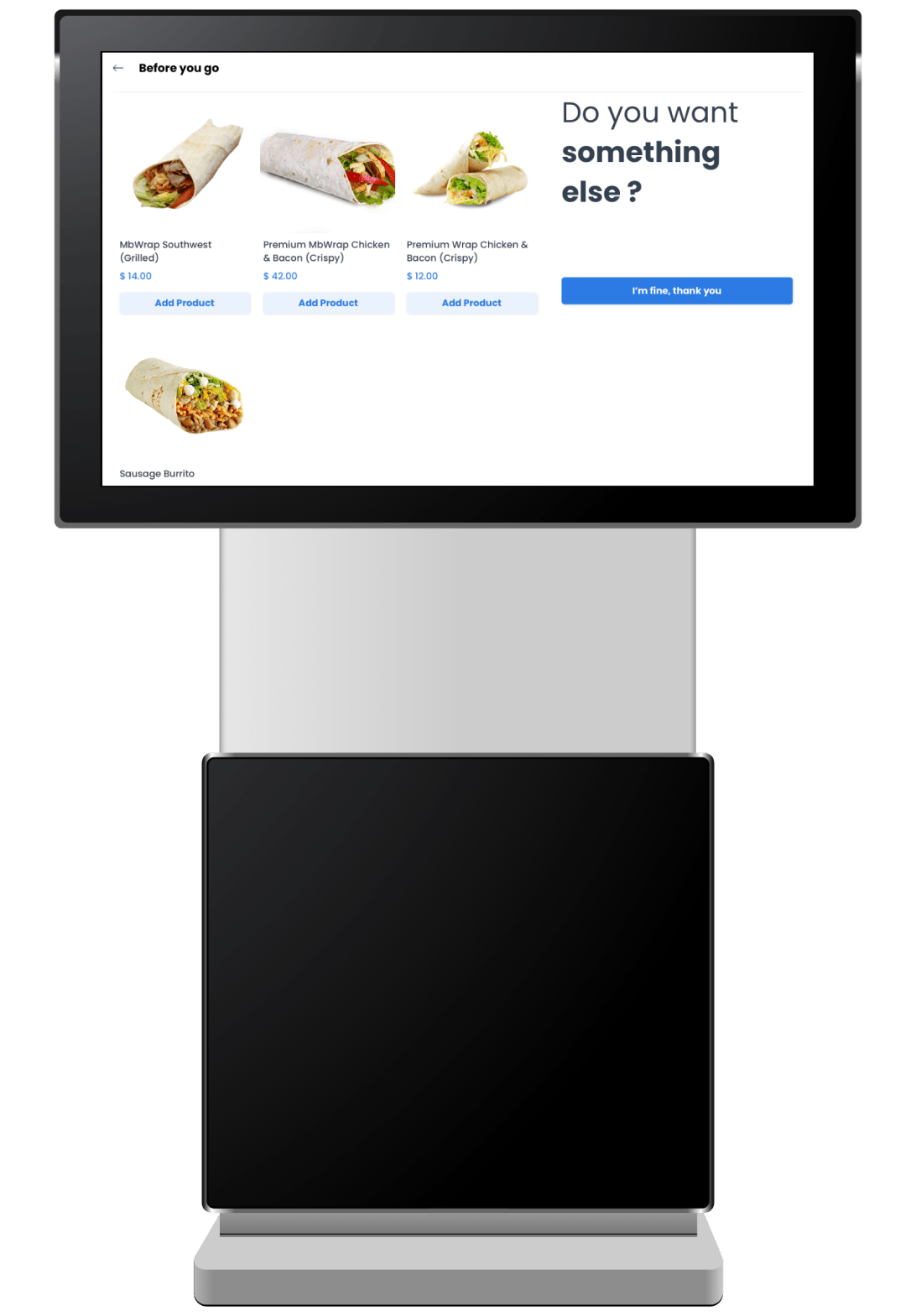
The payment options displayed at a kiosk depend on the project. The documented set includes cash, card on delivery, PayPal, Stripe, Stripe Direct, Stripe Connect, and Stripe Redirect. Confirm provider availability, fees, and account requirements before presenting a payment method to customers.
9. Customer name
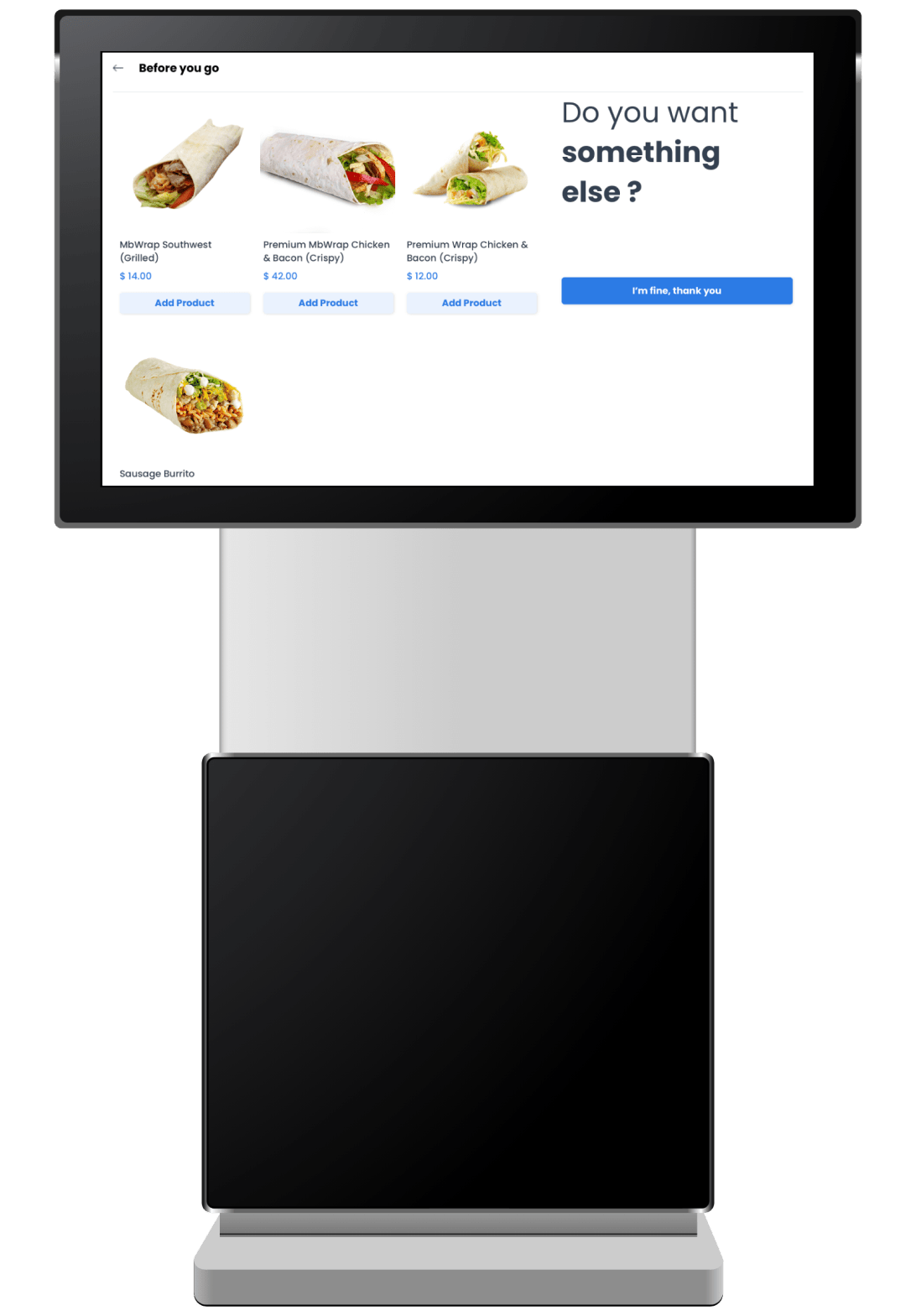
The kiosk can collect the name that the cashier should use for the order. Use the name only for the approved order-fulfillment workflow and handle it according to the business’s privacy practices.
10. Confirmation
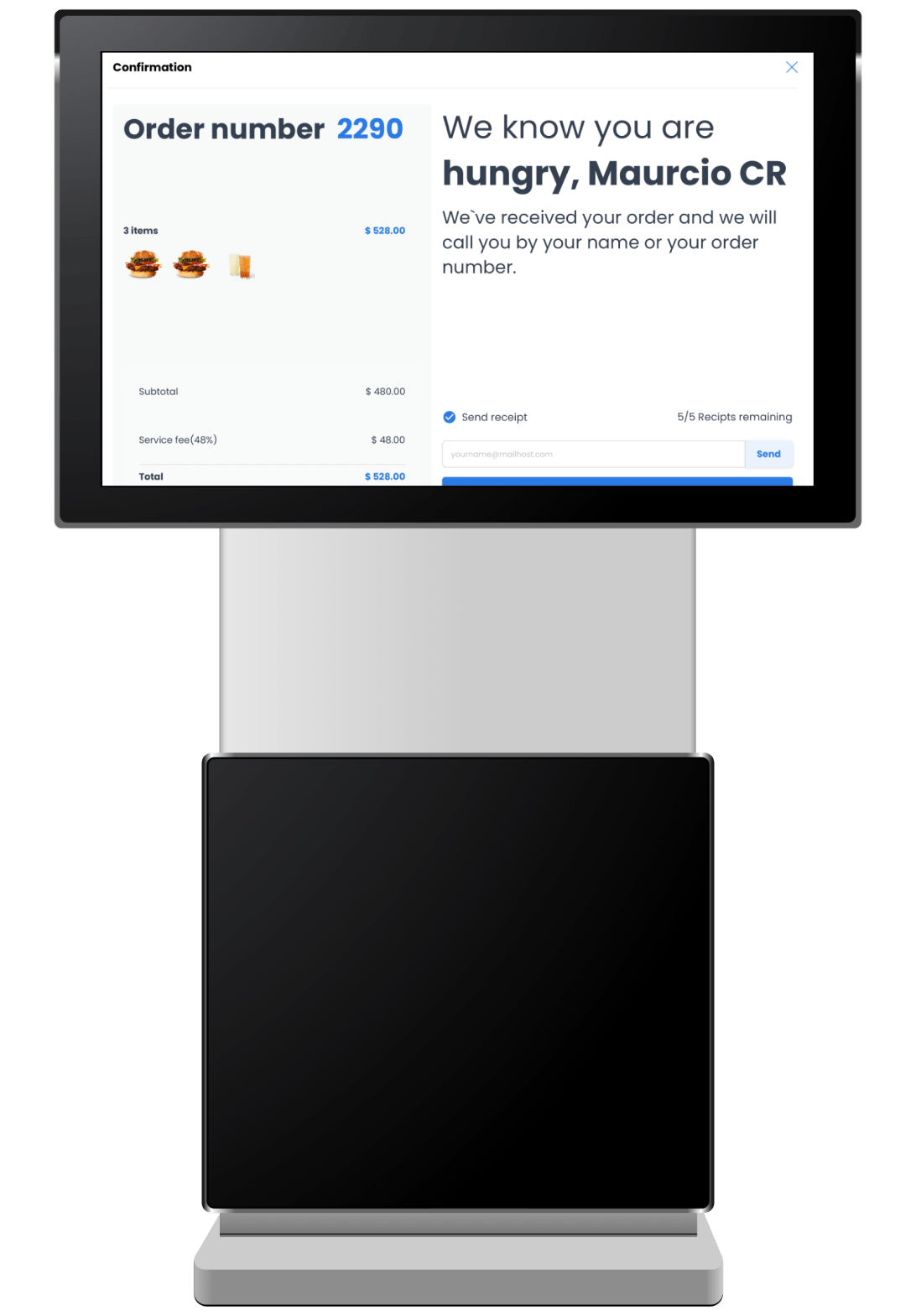
The confirmation shows the order number, the order received state, and a summary for review. When the email-receipt option is configured, the customer can enter an email address to receive the receipt.
Download the kiosk app
Use the official store listing for the device you are setting up. Download availability, device compatibility, project access, and kiosk configuration must be confirmed before use.