Delivery features
Use Delivery features to configure settings associated with order status, driver assignment, driver controls, offline work, and automatic assignment. The screenshots are example settings. The categories, fields, choices, and values shown in your Dashboard can differ from them.
Each screenshot opens at full size. They do not show a completed delivery, a customer notification, a valid location, a driver session, or an accepted assignment.
Current catalog and example settings
The current configuration catalog groups 40 delivery fields into five areas: 6 for order and status management, 7 for driver assignment and scheduling, 24 for driver permissions and controls, 1 for offline changes, and 2 for automatic-assignment penalties. This is a catalog association, not a record of the fields or values returned for your project.
The API contract provides generic configuration resources, but it does not by itself guarantee that a category, field, or value is rendered in Dashboard. The visible controls and choices in the screenshots below are example settings. Treat both sources separately from a completed delivery or other operational result.
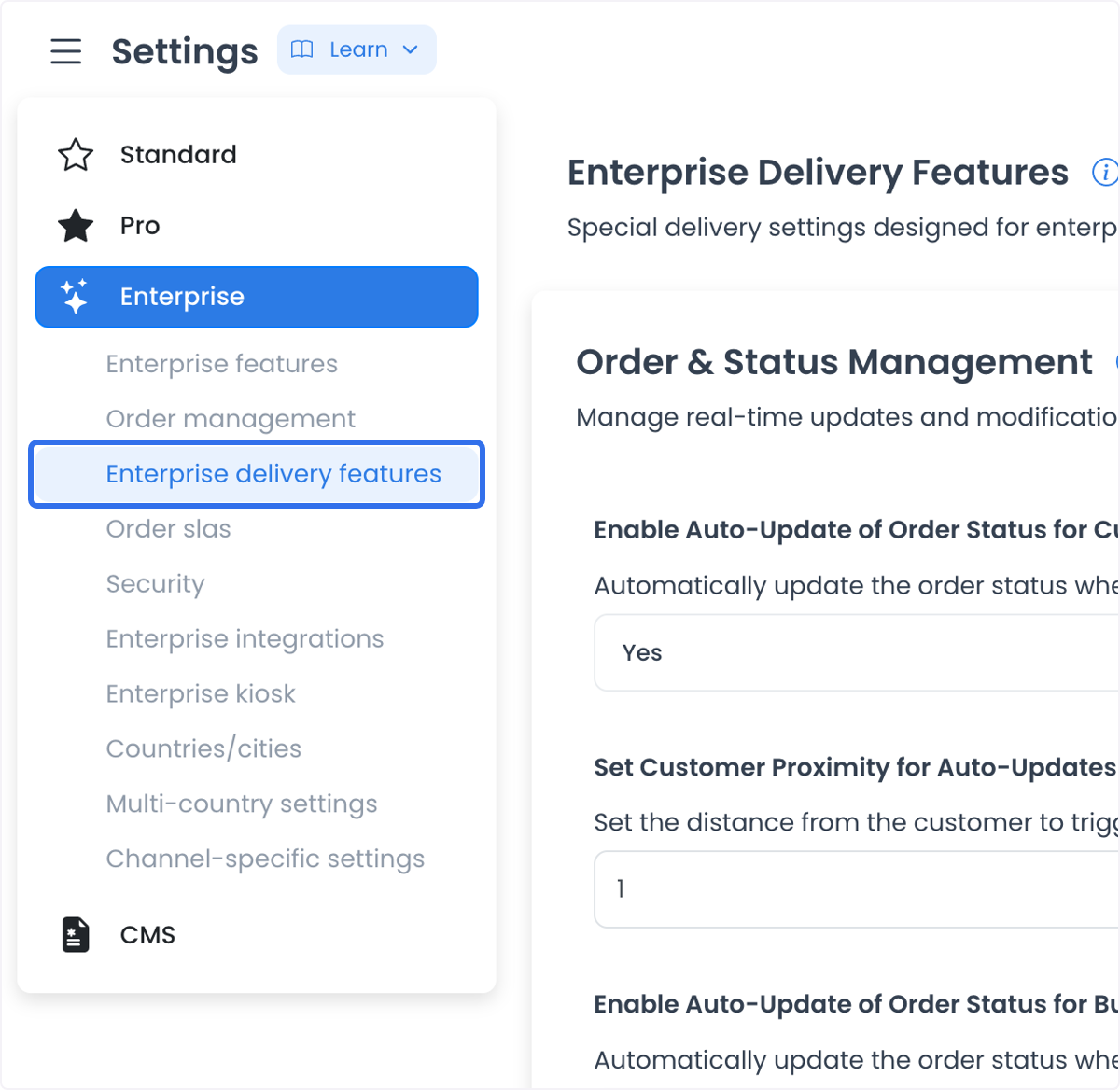
Saving a setting does not prove a driver received an assignment, a status changed, a location rule passed, a customer or business received an update, offline work synchronized, or a delivery was completed. Validate each result separately with an approved test.
Before you change a setting
- Use a role your organization has authorized to manage delivery settings.
- Decide which workflow the change is meant to support before changing a value: status updates, dispatch, schedules, driver controls, offline work, or automatic assignment.
- Use synthetic orders, drivers, schedules, and locations for validation. Do not use a live customer order to discover how a setting behaves.
- If the current category provides Save, confirm the saved configuration first. A saved response is not proof of any operational, account, order, or notification outcome.
Order and status management
Example controls
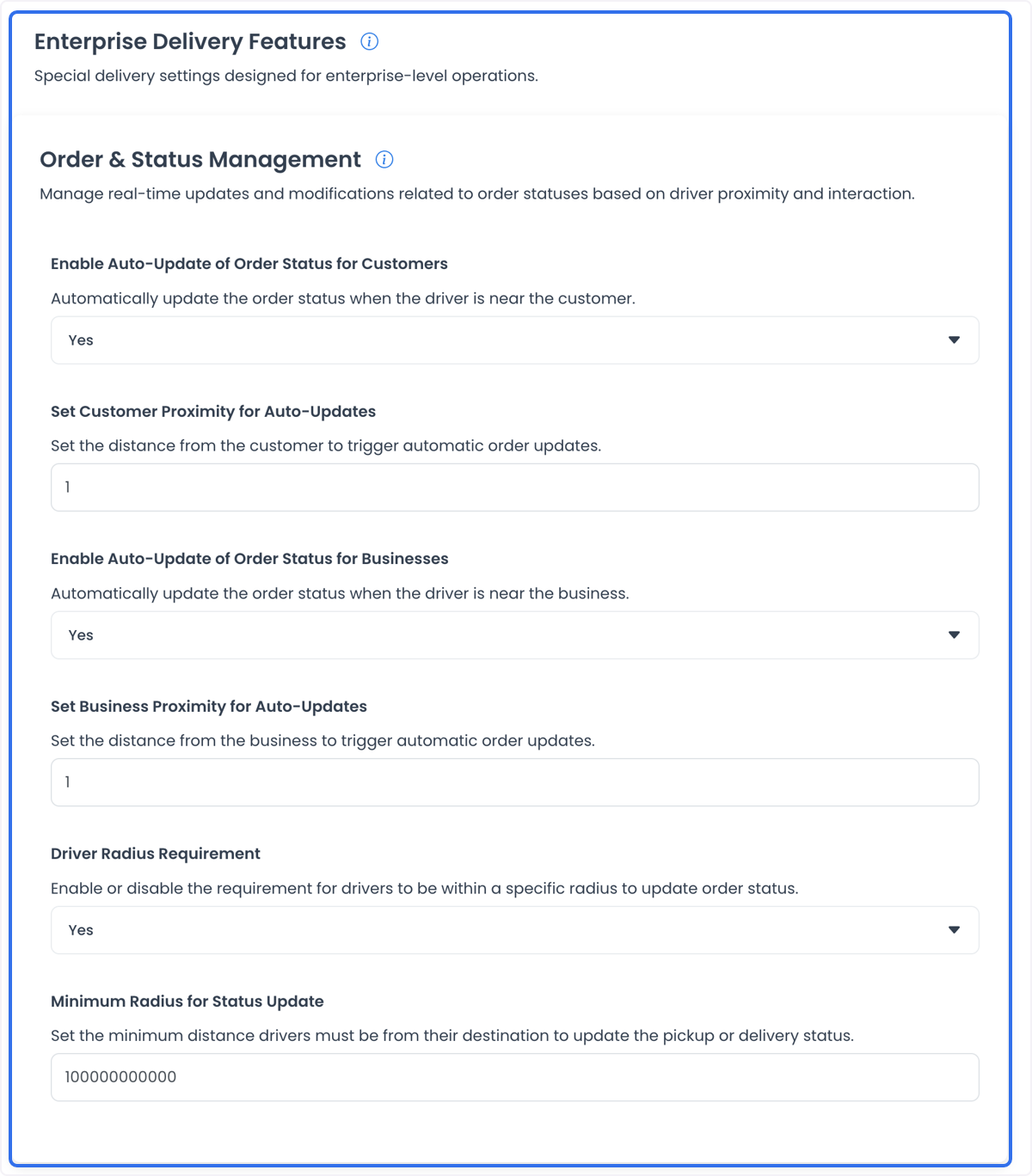
The historical category includes these controls:
| Setting | Intended configuration |
|---|---|
| Enable Auto-Update of Order Status for Customers | Whether the workflow should use driver proximity when considering customer-facing status updates. |
| Set Customer Proximity for Auto-Updates | The distance associated with customer-side proximity. |
| Enable Auto-Update of Order Status for Businesses | Whether the workflow should use driver proximity when considering business-side status updates. |
| Set Business Proximity for Auto-Updates | The distance associated with business-side proximity. |
| Driver Radius Requirement | Whether a driver-radius condition applies before status updates. |
| Minimum Radius for Status Update | A minimum-distance value associated with pickup or delivery status updates. |
The current catalog describes the three distance values in this group in meters. It also associates a status-validity period, measured in minutes, with status codes 3, 9, 11, and 26. Those codes are catalog identifiers, not user-facing labels or proof that a status is available, valid, or transitioned in your project.
The source describes scenarios in which proximity may support status updates for customers or businesses, and in which a driver may need to be within a defined radius. Treat those as workflows to validate, not as a guarantee that a status transition, location validation, or notification will occur.
Driver assignment and schedule
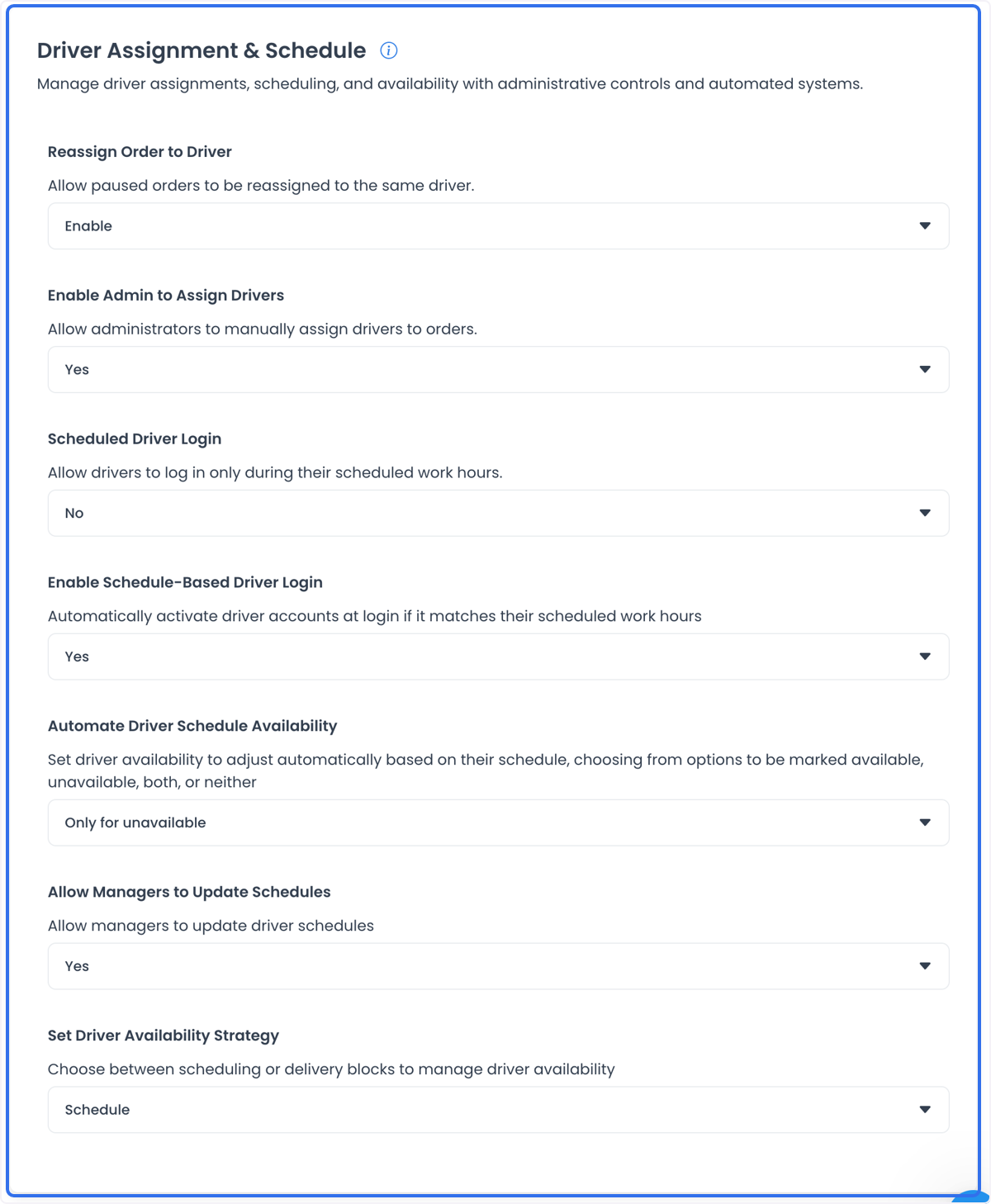
Use the available controls to define the intended assignment and availability workflow:
| Setting | Intended configuration |
|---|---|
| Reassign Order to Driver | Whether a paused order may be reassigned to the same driver. |
| Enable Admin to Assign Drivers | Whether authorized administrators may manually assign drivers. |
| Scheduled Driver Login | Whether driver login is associated with scheduled work hours. |
| Enable Schedule-Based Driver Login | Whether a schedule is considered when a driver logs in. |
| Automate Driver Schedule Availability | How availability is associated with a schedule. |
| Allow Managers to Update Schedules | Whether managers may update driver schedules. |
| Set Driver Availability Strategy | Whether availability is organized around schedules or delivery blocks. |
A configured assignment or schedule control does not establish that a particular driver can log in, is available, receives an order, accepts an order, or finishes a delivery.
Driver permissions and controls
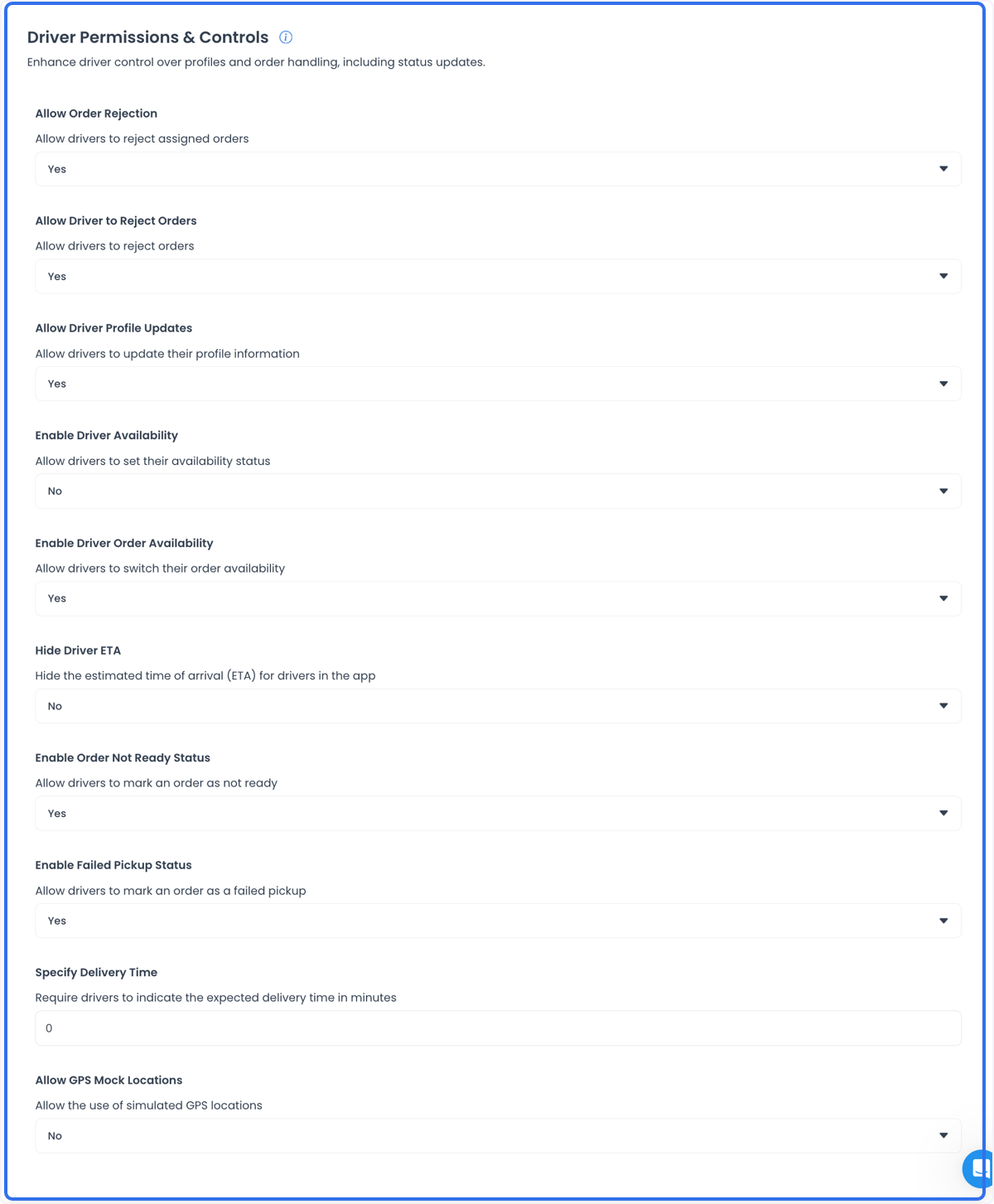
The historical screen includes the following choices:
| Setting | Intended configuration |
|---|---|
| Allow Order Rejection | Whether a driver may reject an assigned order. |
| Allow Driver Profile Updates | Whether a driver may update profile information. |
| Enable Driver Availability | Whether a driver may set an availability state. |
| Enable Driver Order Availability | Whether a driver may choose availability for receiving orders. |
| Hide Driver ETA | Whether the driver ETA is hidden in the applicable interface. |
| Enable Order Not Ready Status | Whether a driver may select a not-ready status. |
| Enable Failed Pickup Status | Whether a driver may select a failed-pickup status. |
| Specify Delivery Time | Whether a driver can provide an expected delivery-time value. |
| Allow GPS Mock Locations | Whether simulated locations are allowed for the intended controlled use. |
The historical Specify Delivery Time example uses minutes. It does not prove that this field is currently returned, that a driver can submit a value, or that any ETA is visible to another role.
These controls change what a configured workflow may allow. They do not prove a driver’s actual permission, a valid GPS reading, a status transition, a customer-visible ETA, or a completed pickup or delivery.
Offline changes and automatic-assignment penalties
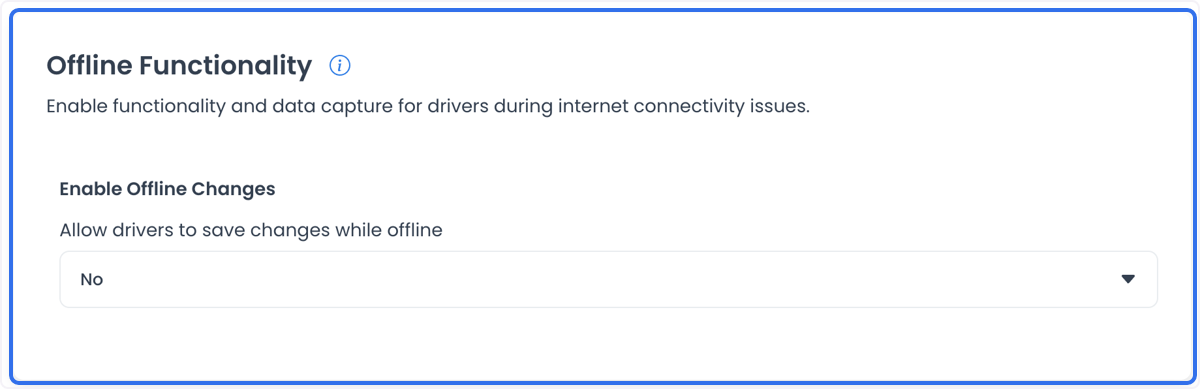
Enable Offline Changes is intended to support a workflow in which a driver can record changes during a connectivity interruption. The source describes later synchronization after connectivity returns. Saving this setting does not prove that a device queues changes, reconnects, synchronizes data, resolves a conflict, or preserves an order update.
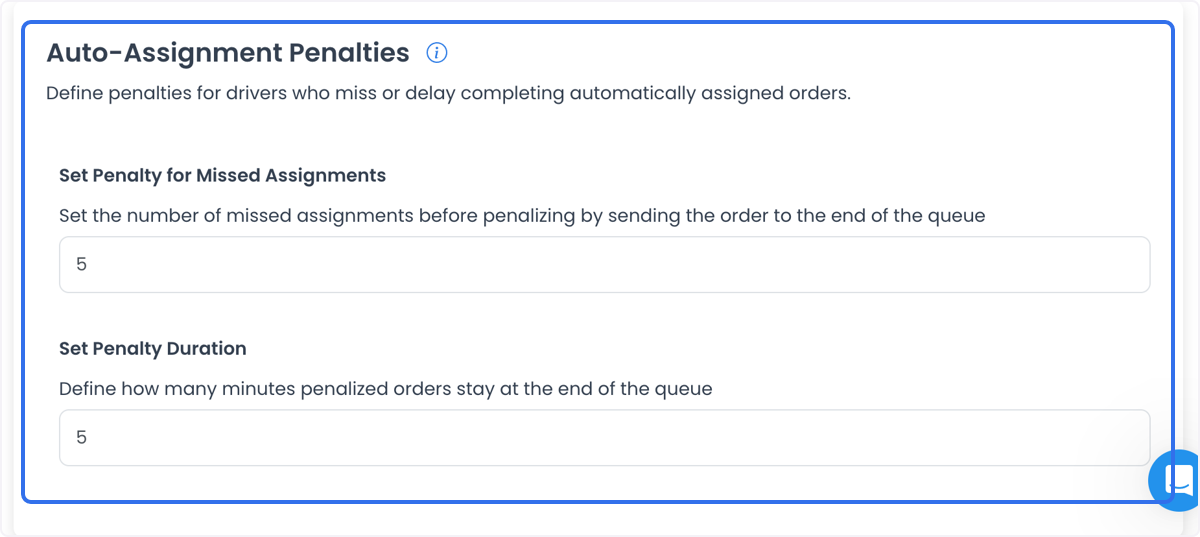
The historical Auto-Assignment Penalties section includes:
- Set Penalty for Missed Assignments, a count associated with missed assignments.
- Set Penalty Duration, a duration associated with the penalty.
The catalog expresses Set Penalty Duration in minutes. The historical queue example does not establish the count, duration, affected driver, or queue behavior for any project.
The source describes a penalty workflow in which a missed automatic assignment can move an order to the end of a queue. Confirm the actual queue behavior, affected driver, timing, assignment logic, and order outcome independently before relying on it in operations.
Save behavior and partial persistence
For ordinary fields in this category, the current Dashboard source stages edits until Save and then writes configuration records sequentially. If a later write fails, an earlier record can already be persisted; treat a multi-setting save as non-atomic until the returned values are checked individually. This source-defined behavior does not prove that the same sequence is deployed in your environment or that any delivery outcome occurred.
Validate one outcome at a time
After a configuration change, keep the following checks distinct:
- Configuration: Dashboard shows the intended saved value.
- Access: The appropriate authorized role can see and use the relevant control.
- Order and assignment: An eligible synthetic order follows the intended assignment and status workflow.
- Location and timing: Any radius, ETA, schedule, or availability behavior matches the approved test conditions.
- Customer and business effects: A configured status option is not treated as proof that a user saw an update or received a notification.
- Offline and penalty behavior: Queueing, synchronization, retries, conflicts, and assignment consequences are verified with isolated test evidence.
If a setting is missing or differs from the examples, do not substitute a different control. Use the returned options for your project and resolve the intended delivery workflow with the responsible team.
Related guides: Delivery overview · Manage delivery · Add-ons overview