Countries and cities
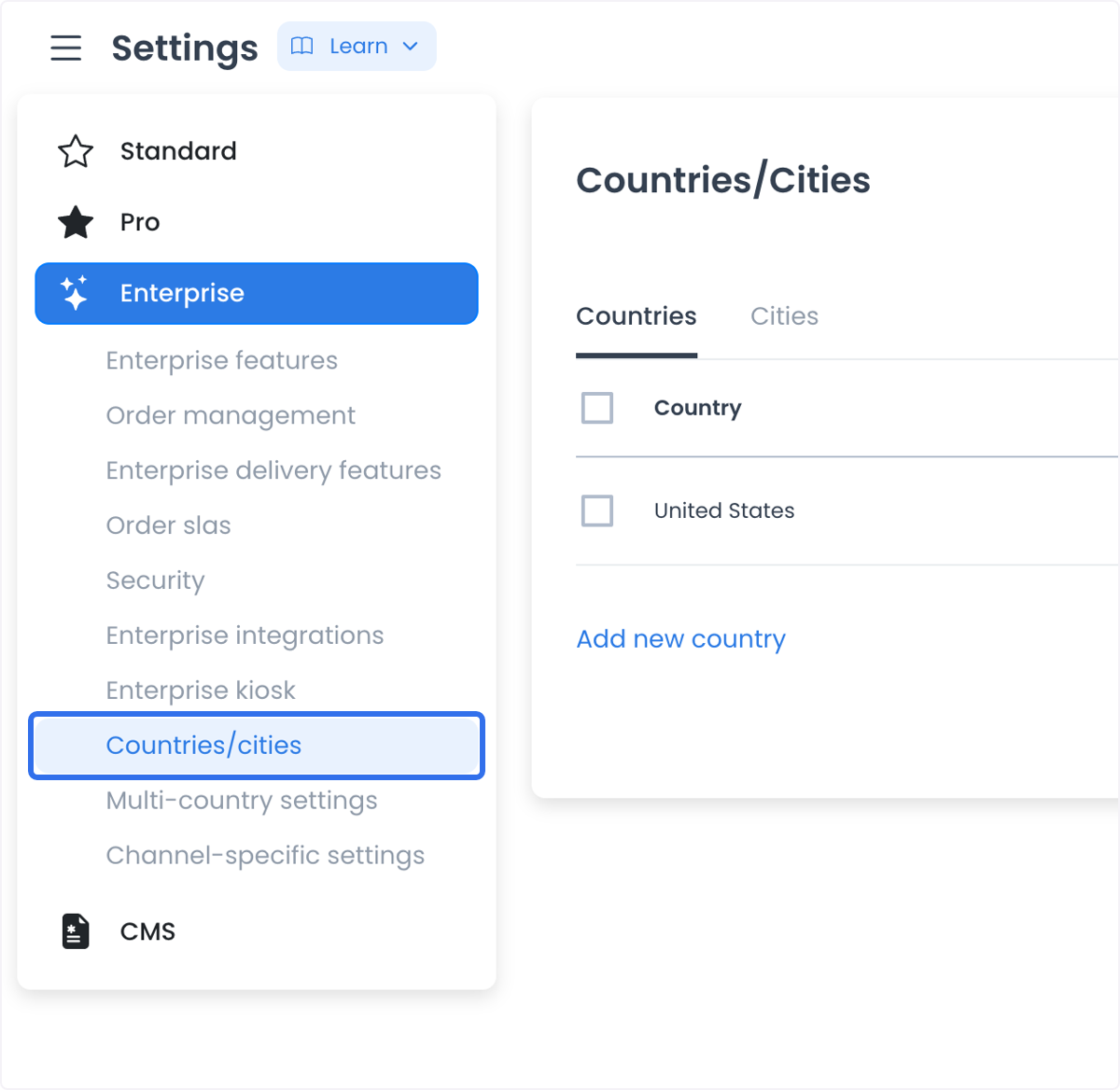
The Countries/Cities option uses /all-settings?category=places. The Settings route is limited to level-0 administrators, and this option is available when the selected project's Settings categories include places.
The page has Countries and Cities views, search, and a country-to-city hierarchy. Its controls can create, update, enable, or delete geographic records, so the page is an operational manager rather than a read-only settings list.
Country and city records can affect addresses, availability, delivery or service coverage, and related business configuration. Make changes only in an approved project and only when you are authorized to affect those areas.
Available fields and data behavior
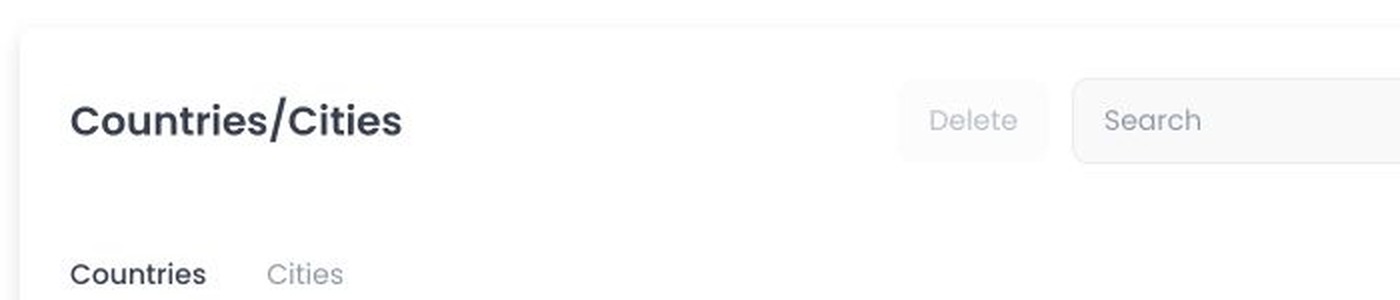
Country creation requires name. An optional code is limited to 1–255 characters, and enabled is Boolean. City creation requires name and an existing parent country_id; an administrator assignment is optional and enabled is Boolean. City mutation routes remain scoped to their parent country.
Opening the manager can load countries, city and metadata relationships, city-manager data, and dropdown data even before the Cities view is selected. Returned rows, available administrators, metadata, option lists, and enablement can vary by project.
Country and city changes can trigger related integrations. Multi-selection deletion runs one record at a time and stops when an error is encountered; it is not an atomic batch transaction, so earlier deletions can persist.
Use the manager safely
The screenshot is illustrative. Do not include real countries, cities, administrators, addresses, businesses, metadata, or open mutation controls in screenshots or shared material.
Available controls and outcomes can vary by project. Changing geographic records can affect downstream address and coverage behavior, so confirm the intended impact before saving.
The legacy /settings/places path refers to this same manager, not a second public page. Confirm access and available actions in an approved non-production project before changing records.
Manage countries and cities
The steps below describe the manager's normal usage flow. Available controls can vary by project.
Access the manager
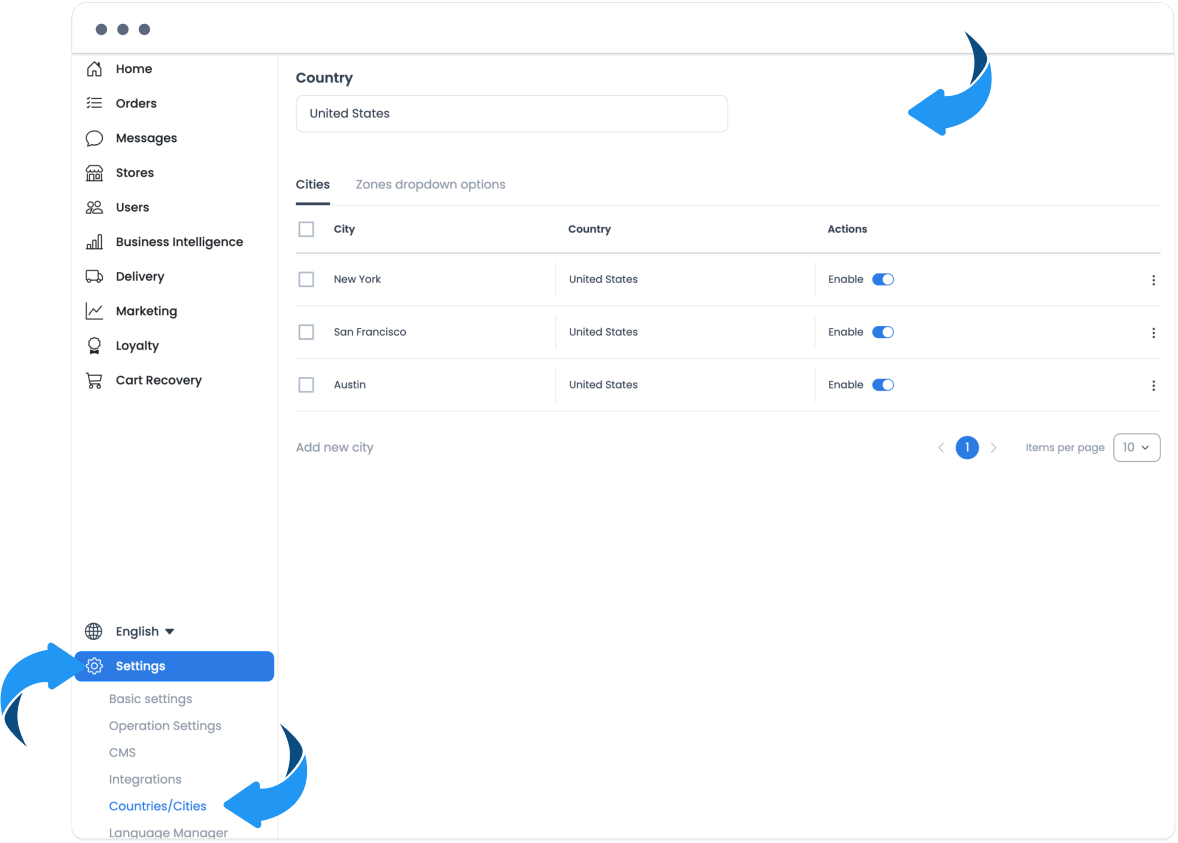
Open Settings, then select Countries/Cities.
Search for a country or city
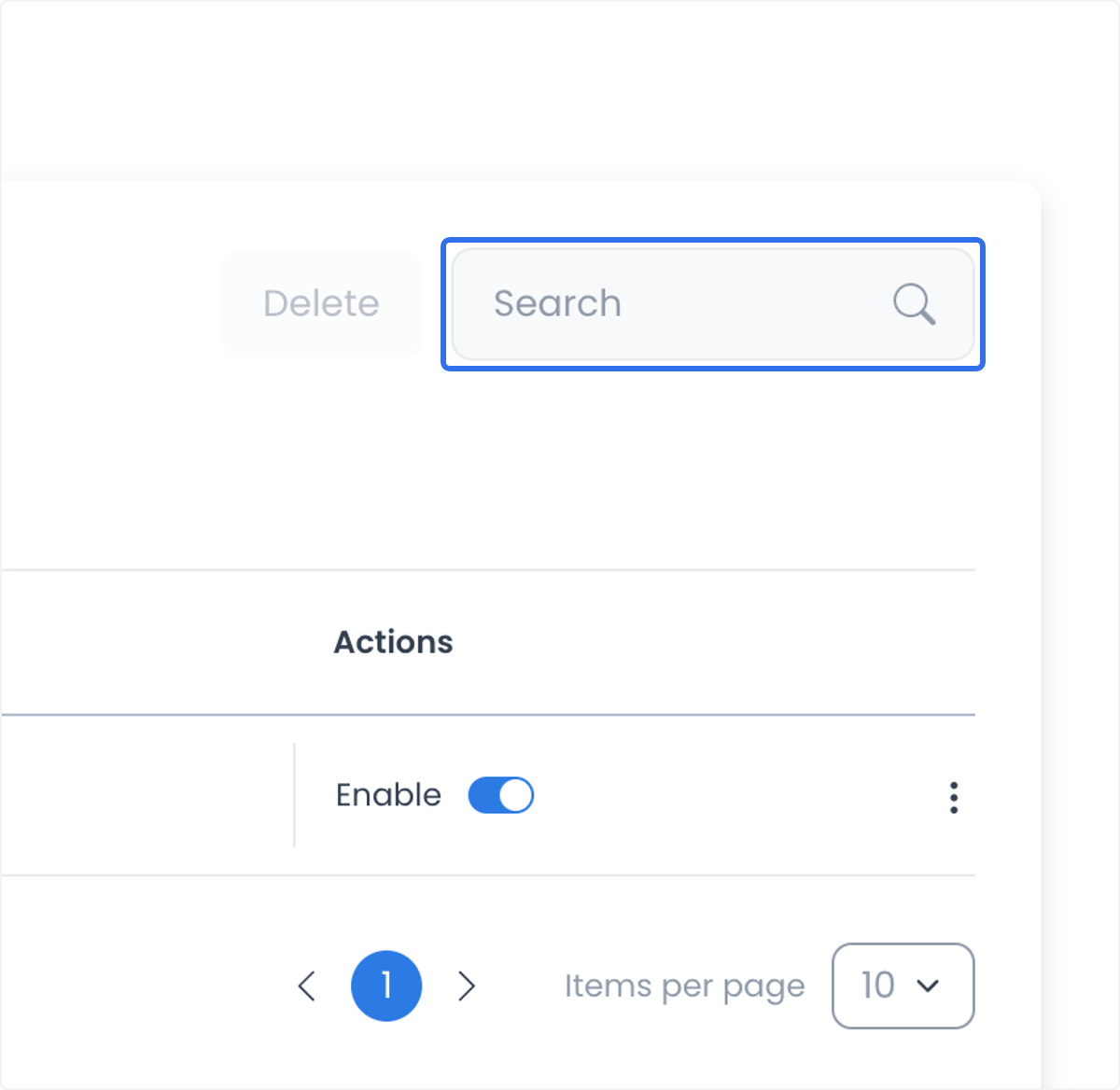
Use the Search bar at the top of the page to filter the list down to a specific country or city by name.
Add a country or city
- In the Countries or Cities view, click Add.
- Enter the location's name and any required details. For a country, an optional
codemay be available. - Click Save to confirm.
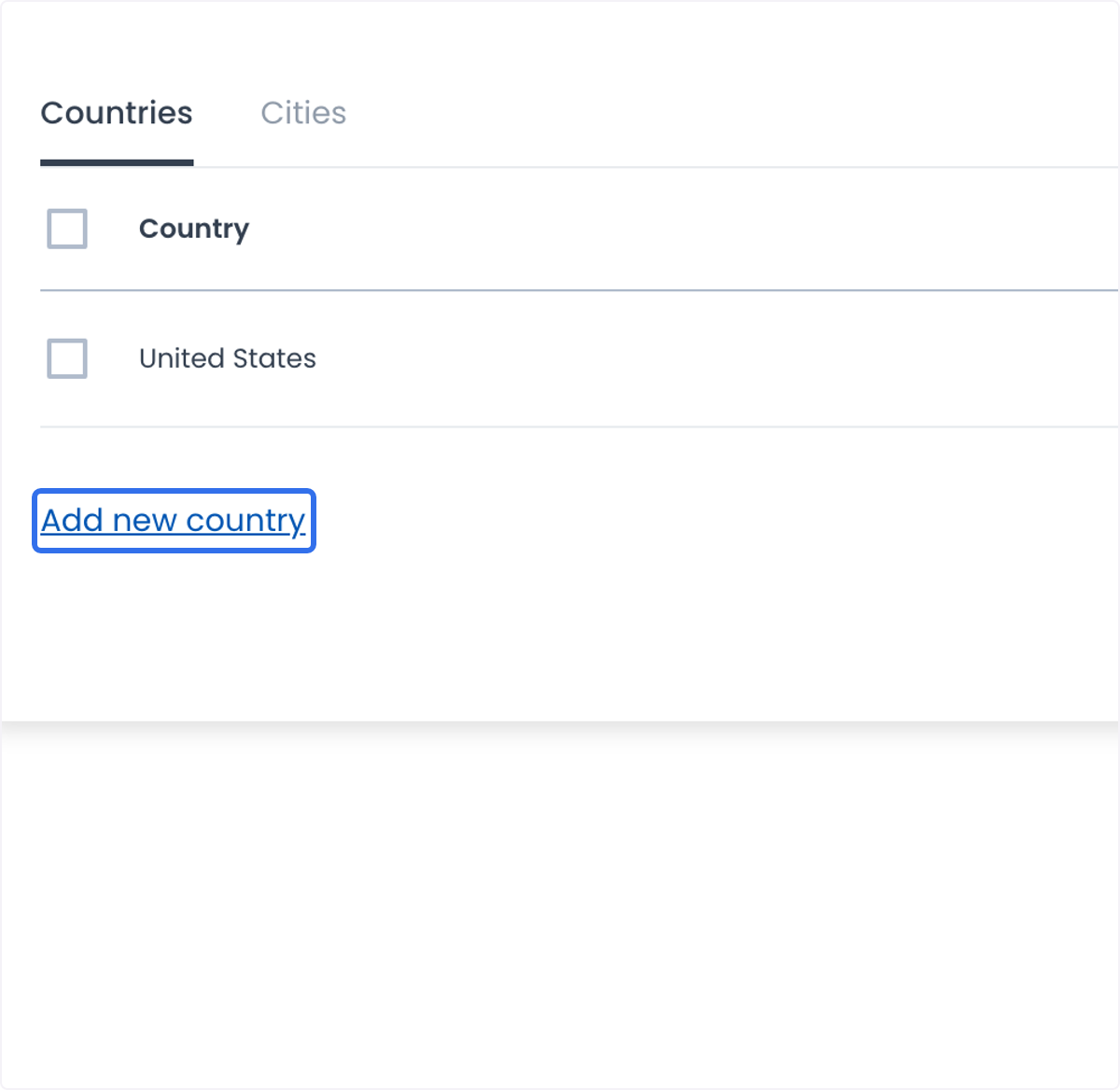
For a country specifically, the Countries view lets you add one just by entering its name in the field provided.
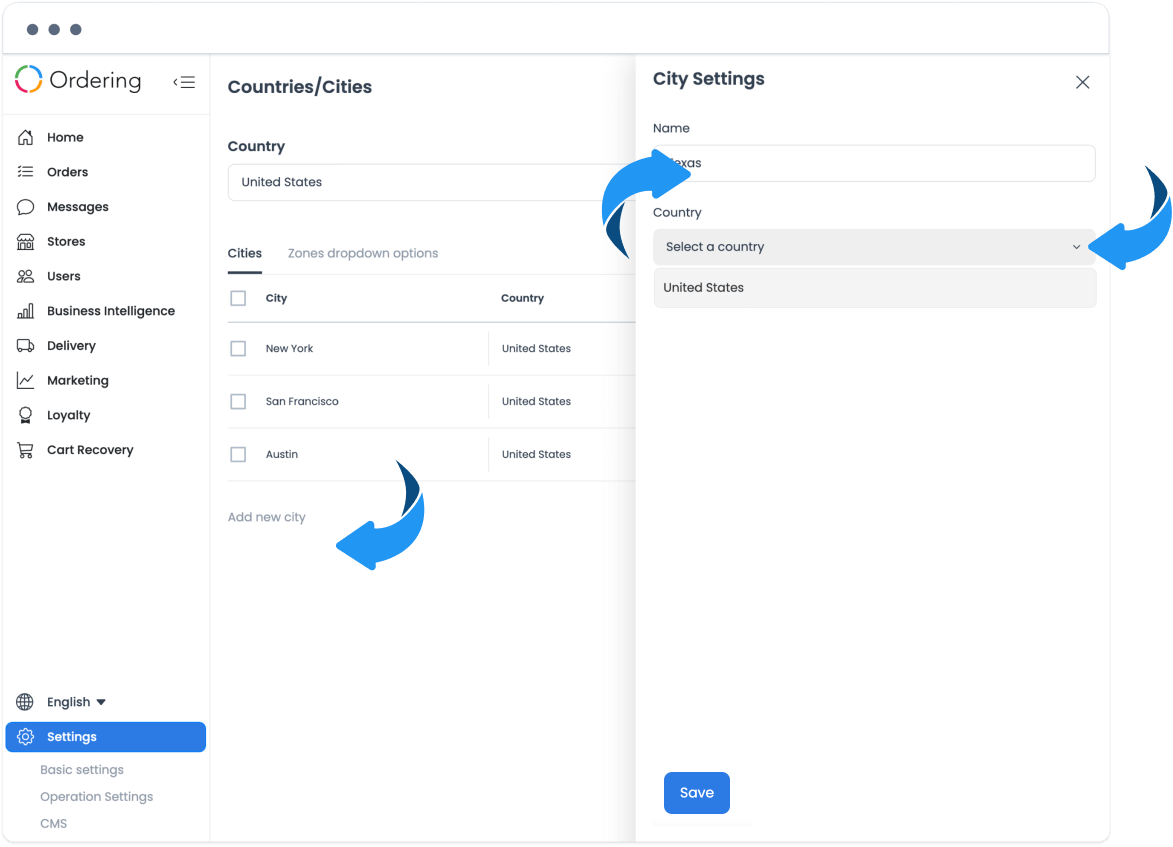
For a city, click Add city (also shown as Add new city). A panel opens where you enter the city's name and select its parent country from the dropdown, then save.
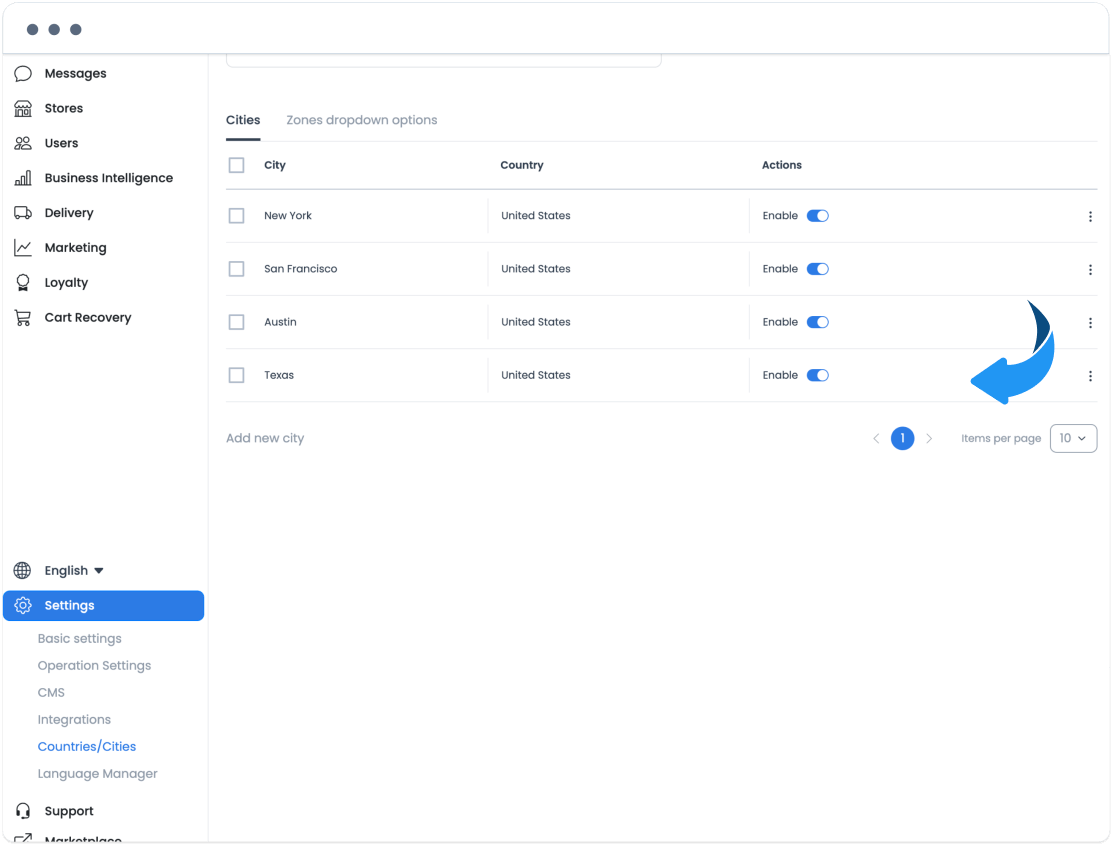
After saving, confirm that the city appears in the Cities list before relying on it in downstream configuration.
Enable or disable a location
- Find the country or city to modify in the list.
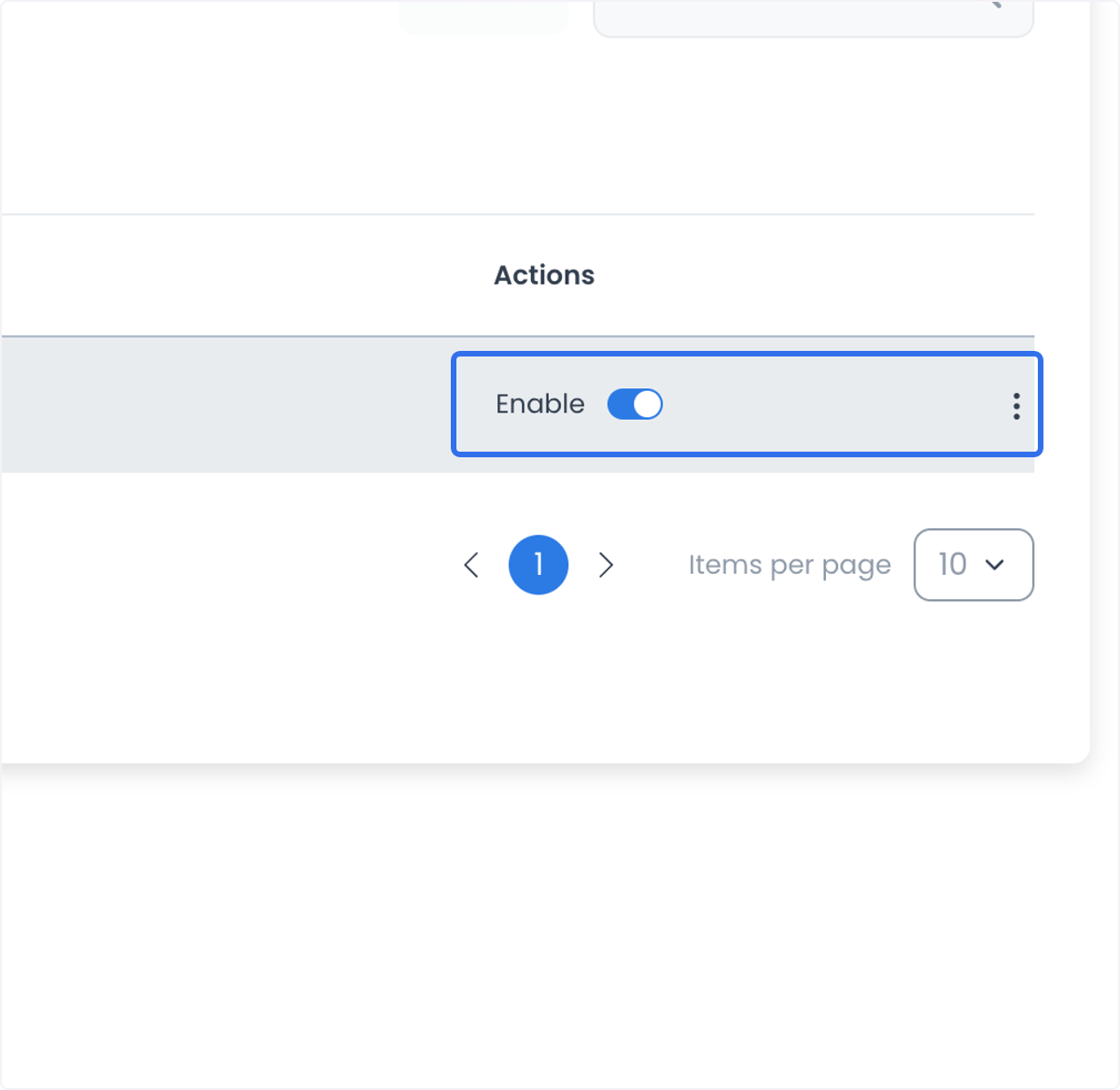
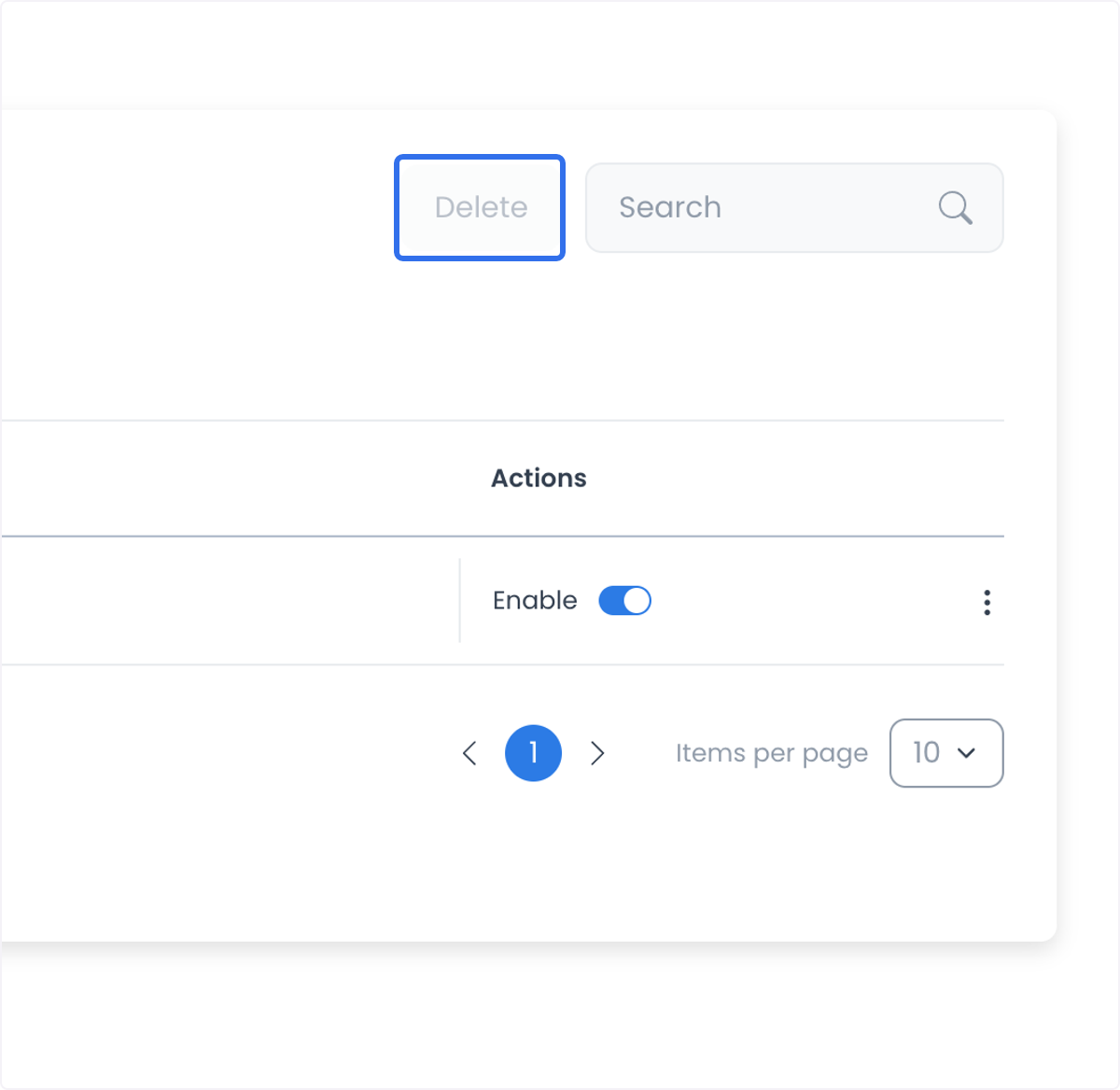
- Click the Enable switch in the Actions column to activate or deactivate it. A green switch indicates the location is active; a grey switch means it is disabled.
Delete a country or city
- Locate the country or city to remove.
- Click Delete next to its name.
- Confirm the action when prompted to remove it from the active list.
Why manage countries and cities
- Targeted service area — limit availability to the countries and cities that are actually relevant to the business.
- Efficient operations — keep delivery and logistics scoped to the locations that align with current operations.
- Flexible expansion — enable new countries or cities as the business grows, without reconfiguring the platform.
Related guides: Settings categories