Dashboard customization
Use Dashboard Customization to configure the Ordering.co Dashboard's presentation and the way its visual new-order alerts are shown. These settings can cover the Dashboard logo, sign-in background, favicon, title, primary button color, and support-widget visibility.
Dashboard Customization is available to Dashboard administrators. Its values are project-level configuration, so review the current settings before you make a change.
Open Dashboard Customization
- In the Dashboard sidebar, select Settings.
- Select Dashboard Customization.
- Review the current values before you change a setting.
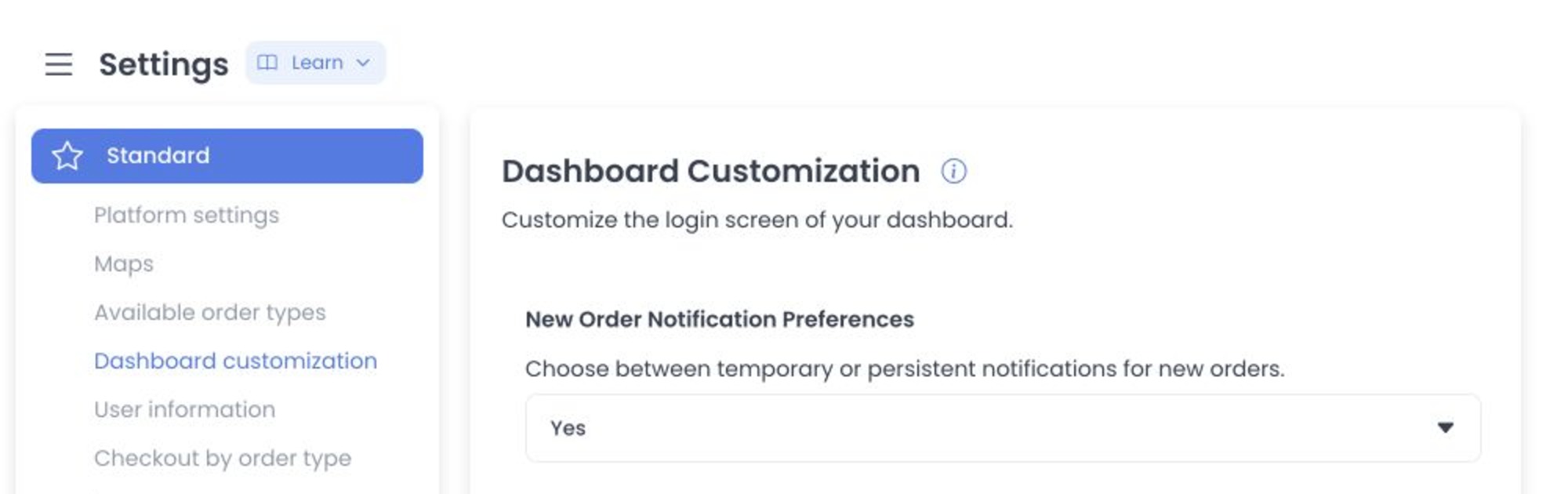
Set new-order alert display
Choose the visual alert behavior that Dashboard should use after a new order enters Dashboard:
| Setting | Documented Dashboard display behavior |
|---|---|
| No (Temporary) | The alert appears on screen for a few seconds and then disappears automatically. |
| Yes (Persistent) | The alert remains on screen until an administrator interacts with it or closes it. |
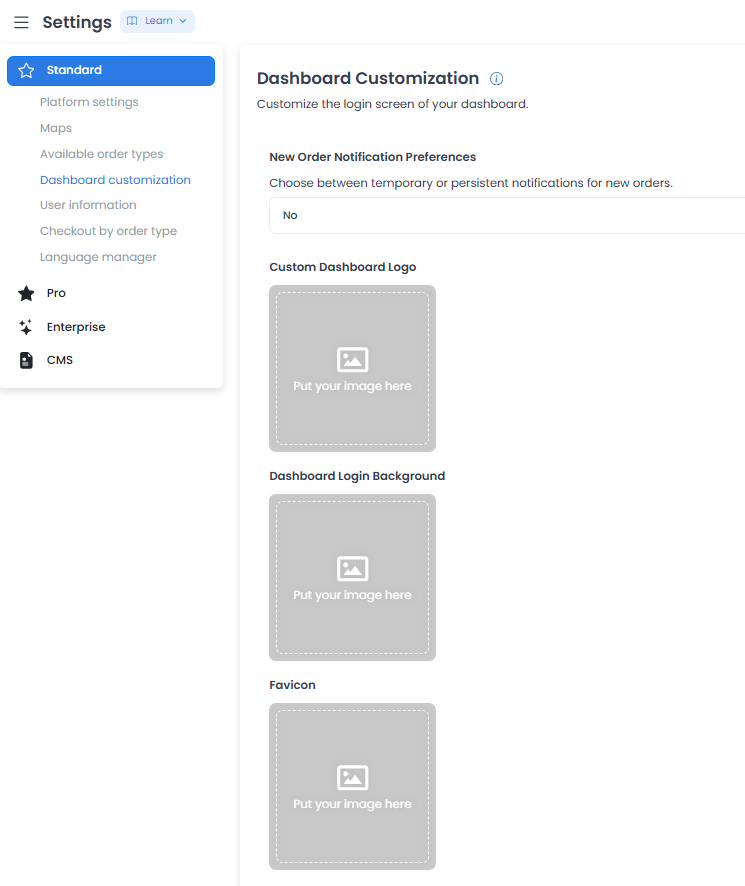
This choice configures Dashboard's visual alert presentation after a new order reaches Dashboard. Saving the choice does not by itself confirm order arrival, notification delivery or reading, customer display, checkout behavior, order submission, payment, or an external outcome.
Configure Dashboard assets
Use the asset controls to prepare the visual elements staff can encounter when they access Dashboard:
- Custom Dashboard Logo: provides the logo shown in the documented Dashboard sign-in experience.
- Dashboard Login Background: provides the background image for the Dashboard sign-in page. Use an image with enough contrast for sign-in fields.
- Favicon: provides the small browser-tab icon. Prepare a square asset; the documented example uses a 32 × 32 pixel
.pngor.icoimage.
The configuration image control advertises PNG, JPEG, and JPG input, rejects a non-image MIME type, and checks a 2 MB client-side limit before its crop flow. Check the accepted formats in the active control before you prepare an asset; those client checks do not by themselves confirm that an upload is saved or rendered.
Set the title and button color
- Title: enter the title intended for the browser tab and Dashboard interface.
- Buttons Colors: choose the primary color intended for Dashboard buttons.
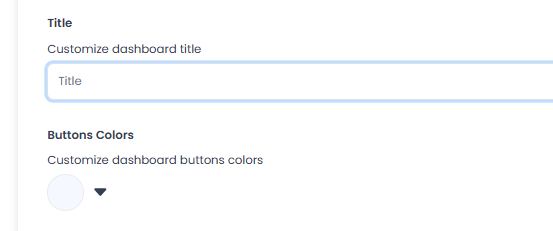
Use colors that keep button labels readable. Review the result in the Dashboard after saving rather than treating a saved value as proof that every screen or browser tab changed.
Choose support-widget visibility
Use Enable Support Widget for Admins to control whether the support widget is limited to super administrators:
- Yes: the documented behavior makes the widget visible only to super administrators, not store owners or users at other levels.
- No: the documented behavior makes the widget visible to all Dashboard users.
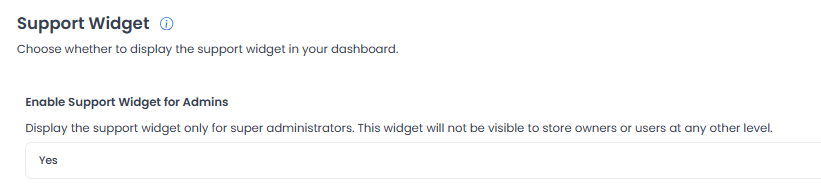
This setting changes widget visibility only. It does not establish that a support conversation, third-party service, notification, or response is available.
Save changes deliberately
Image and non-image controls do not share one all-or-nothing save action:
- Confirming an image crop invokes that image's save path immediately.
- Text, color, and select changes accumulate in the form until you select Save.
- Save sends changed configuration values one at a time rather than as an atomic batch.
Decide the sequence of changes, review the response for each change, and keep a recoverable copy of an approved asset before replacing it.
A configuration response does not by itself prove persistence, rollback behavior, propagation to another user, a sign-in-screen change, a browser-tab change, customer display, checkout behavior, order submission, payment, notification delivery, or an external-system result.
Related guides: Settings overview · Profile and account sessions