Manage CMS pages
Use the CMS to create and maintain static pages for your Ordering.co site. Typical uses include privacy notices, terms and conditions, campaign landing pages, FAQ content, support information, and links to external resources.
Static pages are content and search-sensitive. Confirm the page owner, copy, media, slug, and enabled state before you make a change.
Open the CMS
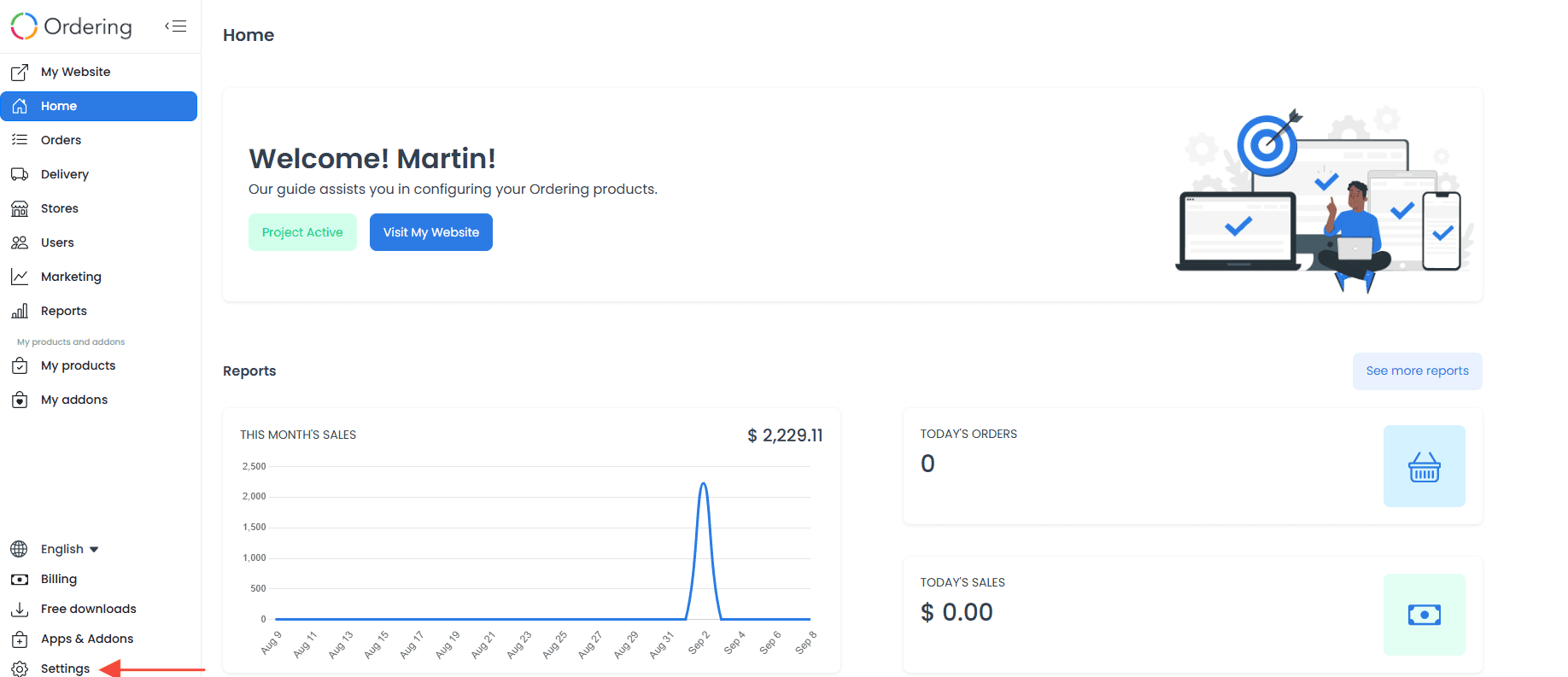
- In Dashboard, select Settings in the left navigation.
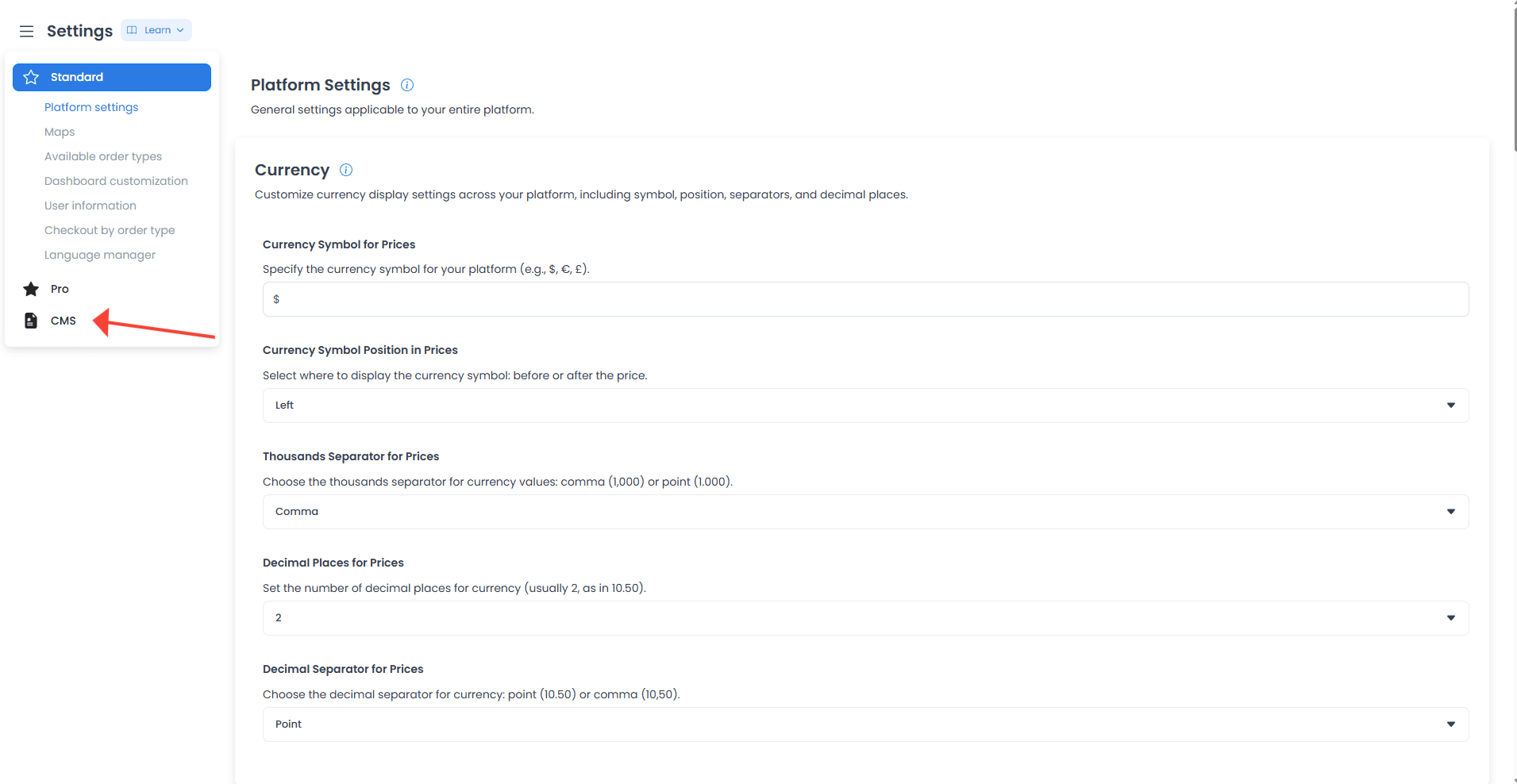
- Select CMS.
- Review the page list before opening a page or starting a new one.
Review the pages list
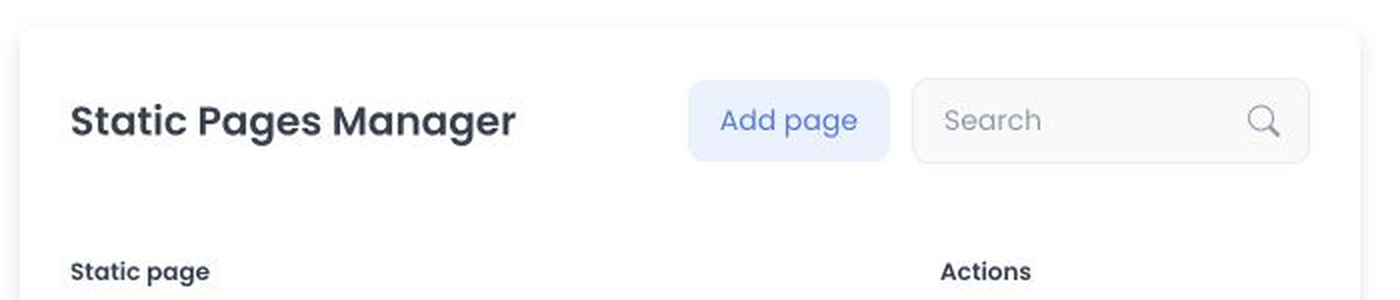
The CMS list can include a Static page name column, search and pagination controls, Add page or Add new static page, an Enable control for each page, and a row menu with Edit and Delete.
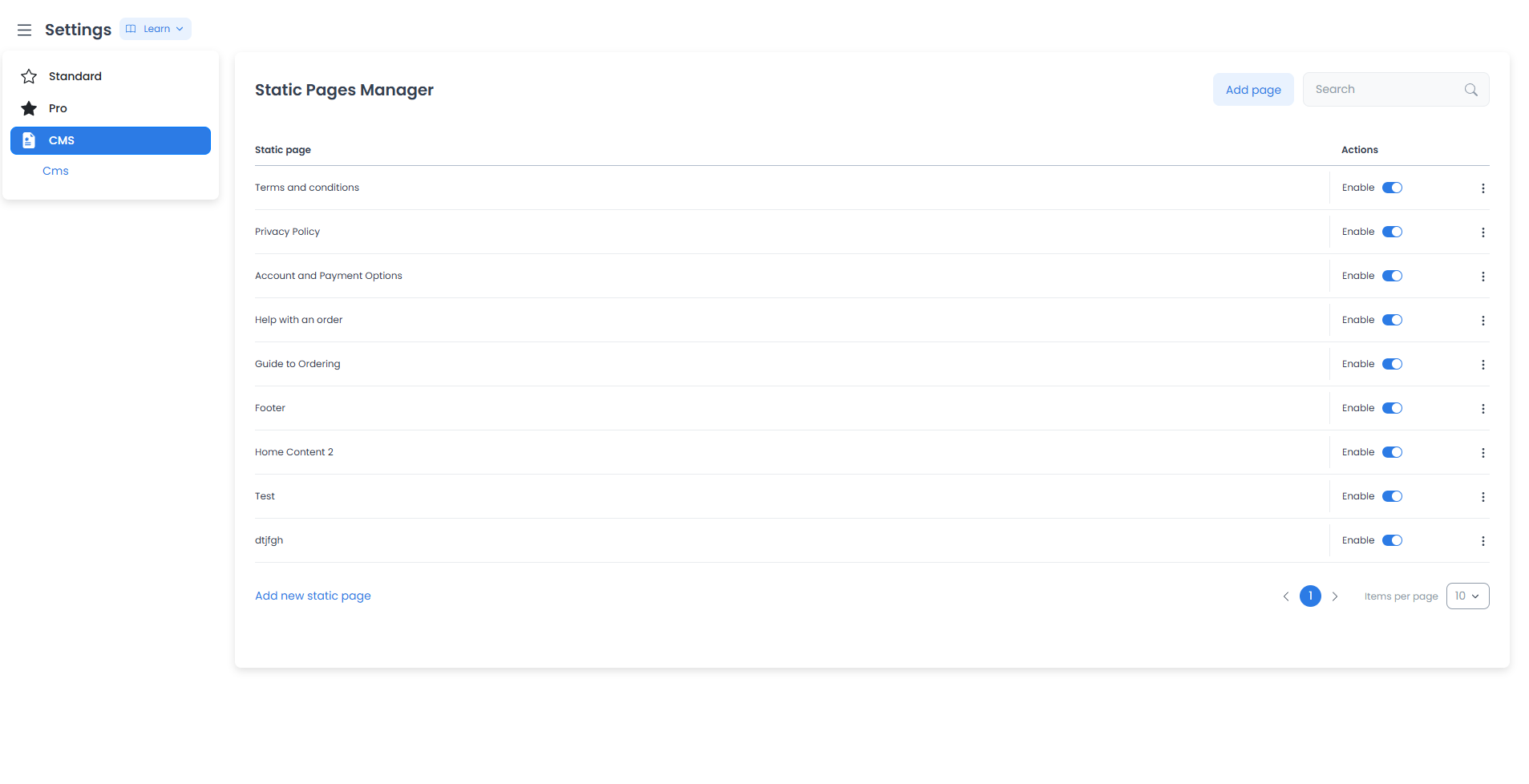
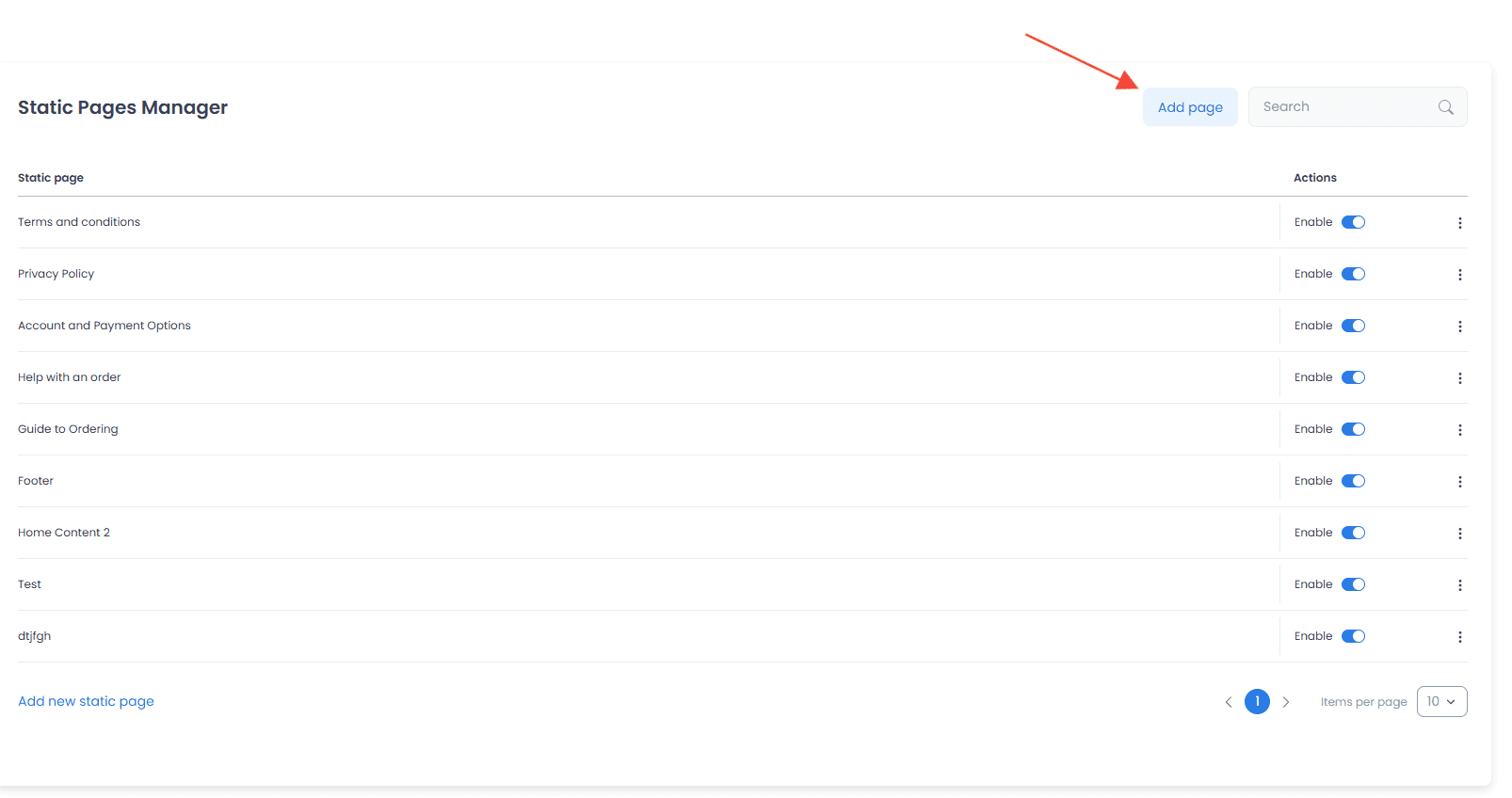
Use search to find an existing page before creating another page with a similar purpose. Select Add page or Add new static page to open a new-page form. Use the row menu when you need to edit or delete an existing page.
Changing a page's Enable switch sends that page's update immediately. Delete also sends a direct deletion action, and the documented interface does not show a confirmation or restore flow. Verify the exact page before using either control.
Create or edit a page
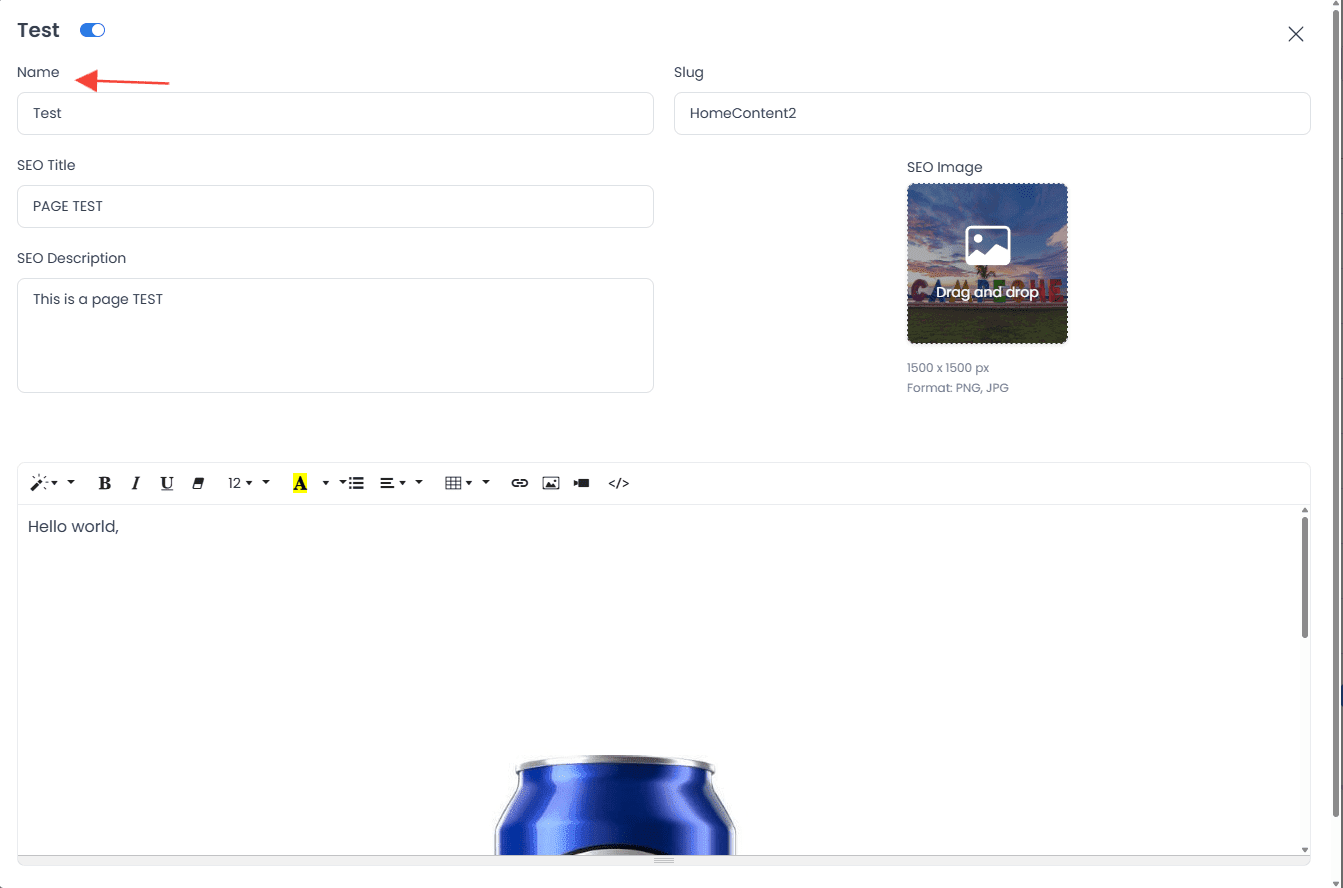
The form can include the following fields:
- Name, which identifies the page in Dashboard and is used as its title in the documented workflow.
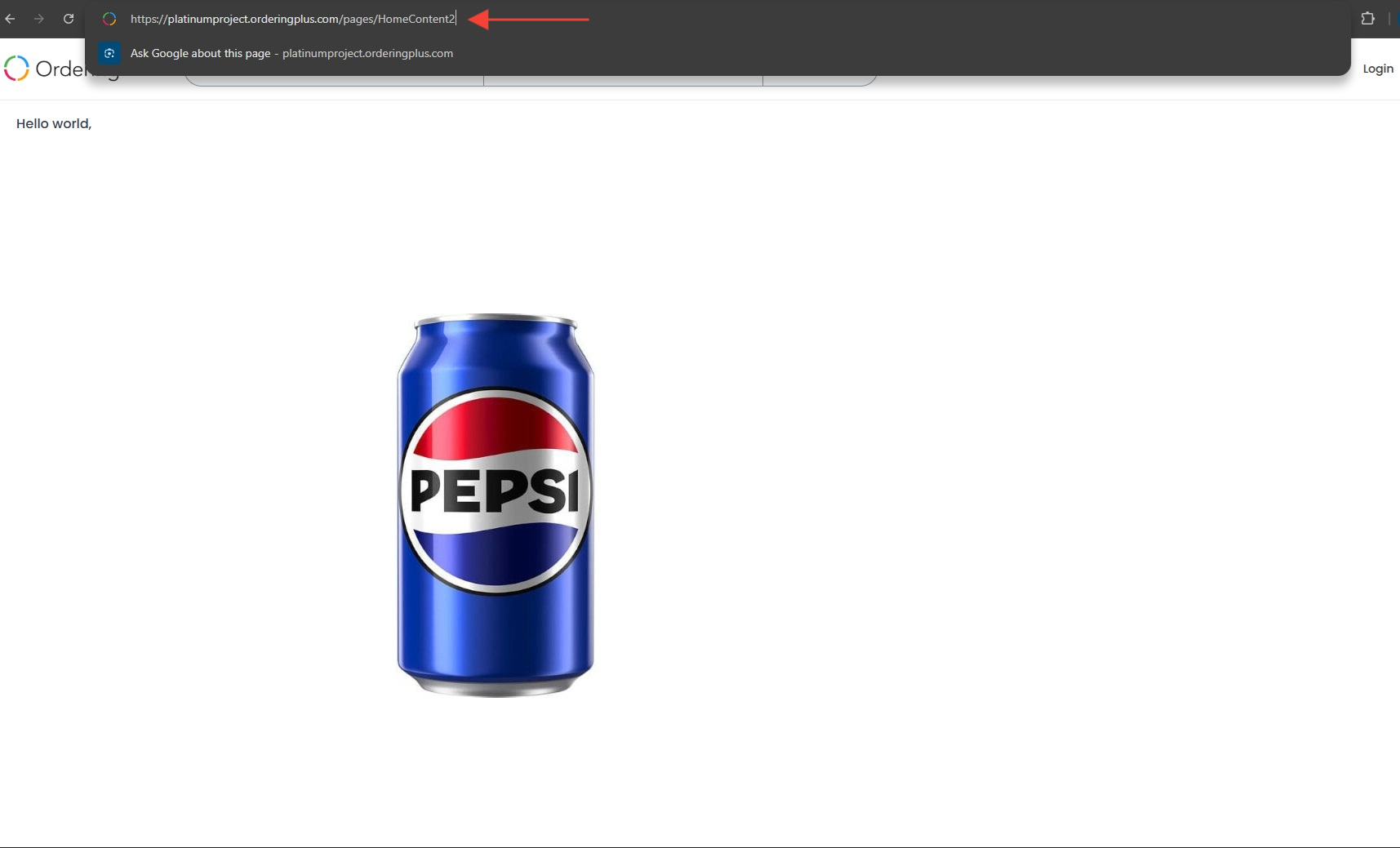
- Slug, which supplies the path portion used for the page. Use a stable, readable slug without spaces; spaces are removed from slug input in the documented workflow.
- SEO Title and SEO Description, when those fields are available.
- SEO Image on an existing page.
- A page-body editor.
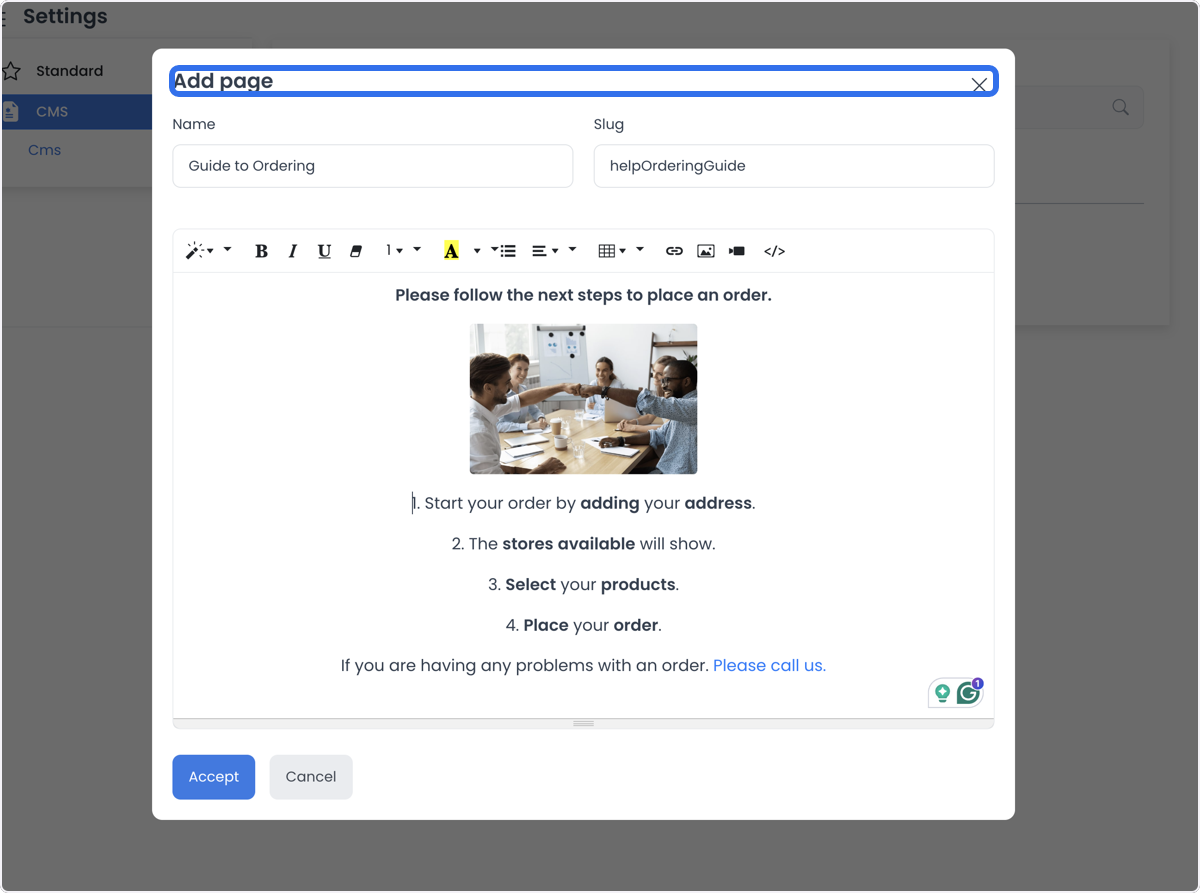
The documented validation rules require a nonempty name, slug, and body when creating a page. They allow page types 1, 2, or 3, limit an SEO title to 255 characters and an SEO description to 1,000 characters, and limit an SEO image to JPG or PNG, no larger than 1,024 KB, with width and height from 1,200 through 1,500 pixels. Prepare the content and image before opening a write form.
Write the page body
Use the WYSIWYG editor to add and format text, headings, lists, links, images, and video. It also provides table and code-view tools. If you use custom HTML, review it for the page's intended audience and obtain approval for any content or destination you add.
For long policy or support pages, use headings and lists so the content is easy to scan. Keep the page focused on one task or policy, and confirm that any legal text has been approved by the appropriate owner.
Save and enable a page
After reviewing the form, use Accept to submit it. For an existing page, Accept sends the page update. Cancel closes the current form without submitting that form.
The documented CMS workflow has no separately labeled Publish control. Enablement uses an update path, so first review the response shown in Dashboard, then follow your team's approved public-validation process.
A form response, an Accept action, or an enabled state does not by itself confirm a public URL, customer display, search indexing, checkout behavior, order submission, payment, notification delivery, or an external outcome.
Use cases for static pages
Use a CMS page when you need to organize one of these types of content:
- Privacy policy: explain how user data is collected, used, and protected.
- Terms and conditions: set out the rules and responsibilities for using your site.
- Campaign landing page: provide focused information for a promotion, sale, or product launch.
- FAQ or support page: answer recurring questions and direct users to support information.
- External-resource page: collect links to relevant blogs, industry news, or partner resources.
Before you make a change
- Review the page name, slug, body, SEO fields, media, and enabled state together.
- Treat editor media insertion and the separate file upload or delete controls as content changes.
- Do not assume that a successful configuration response creates a customer-visible result.
- Keep a recoverable copy of approved content before you edit or delete a page.
Related guides: Settings overview · Settings logs