Search and navigate the Dashboard
Select Search at the top of the sidebar. You can also press ⌘K on Mac or Ctrl+K on Windows or Linux.
Find a destination or record
- Type the name of a page or setting, a store name, an order number, or a user's name.
- Choose the result that matches what you want to open. Use ↑ or ↓ to move and Enter to select. Press Esc to close Search.
- If prompted to choose a store, select the store you want to work with. Use Back to return to your search.
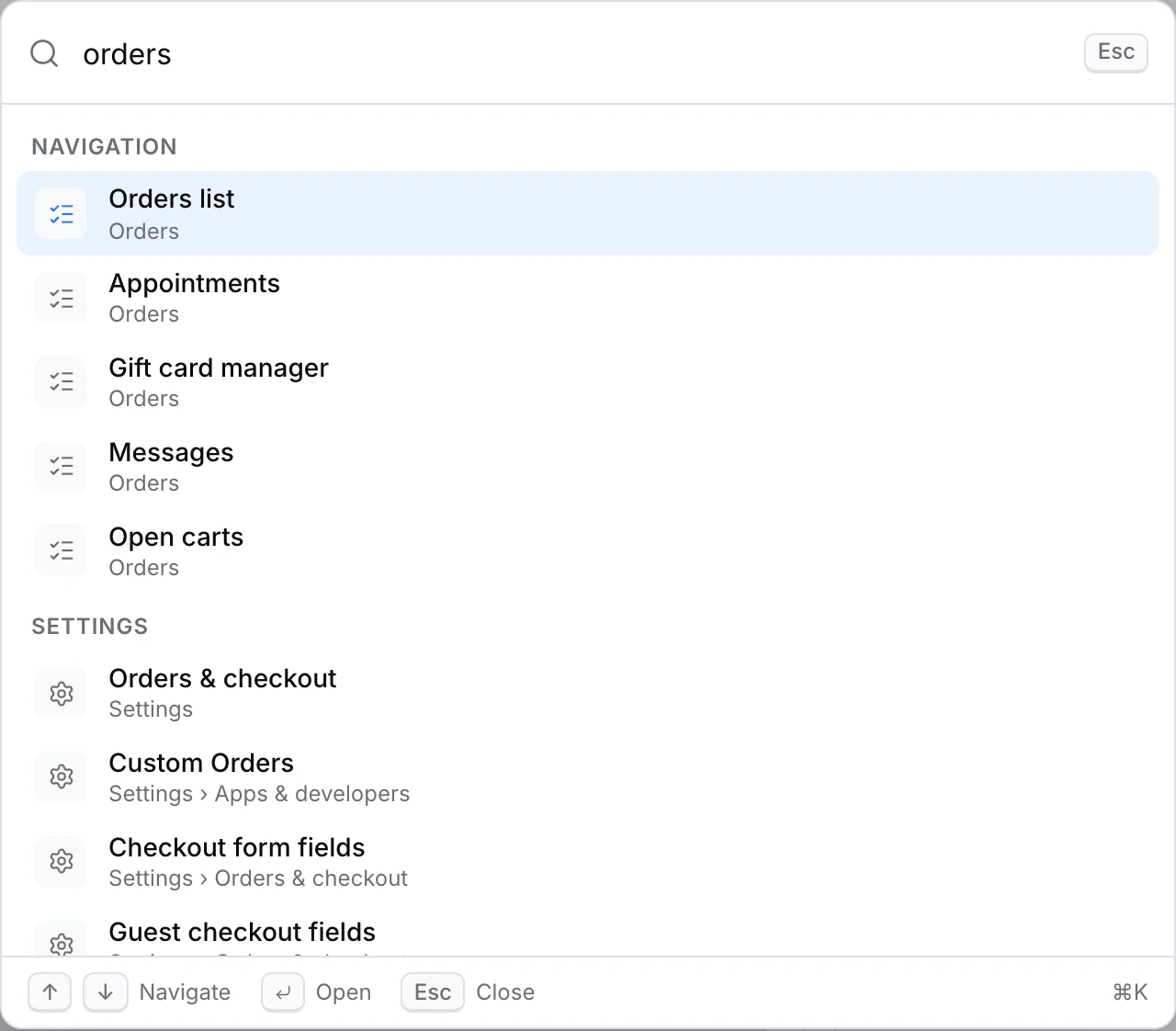
Depending on your account and project, Search can show these results:
| Result | Where it takes you |
|---|---|
| Navigation or Settings | A Dashboard page or setting you can access. |
| Open | A view, tab, panel, or form in the Dashboard. |
| Stores, Orders, or Users | A record you can open. Order and user search fields vary by project. Try the order number first. |
| Search in | The relevant Dashboard list with your search applied, where available. |
Open an action
Choose an action to open its form. For example, Create custom order can open the order form if you have access. Review the project, store, and details in the form before using its own save or submit control.
If you cannot find a result, try a shorter name or use Search in to check the list. If an entire area is missing, confirm your project and ask an administrator to check your permissions. Dashboard navigation map