Review school students and guardians
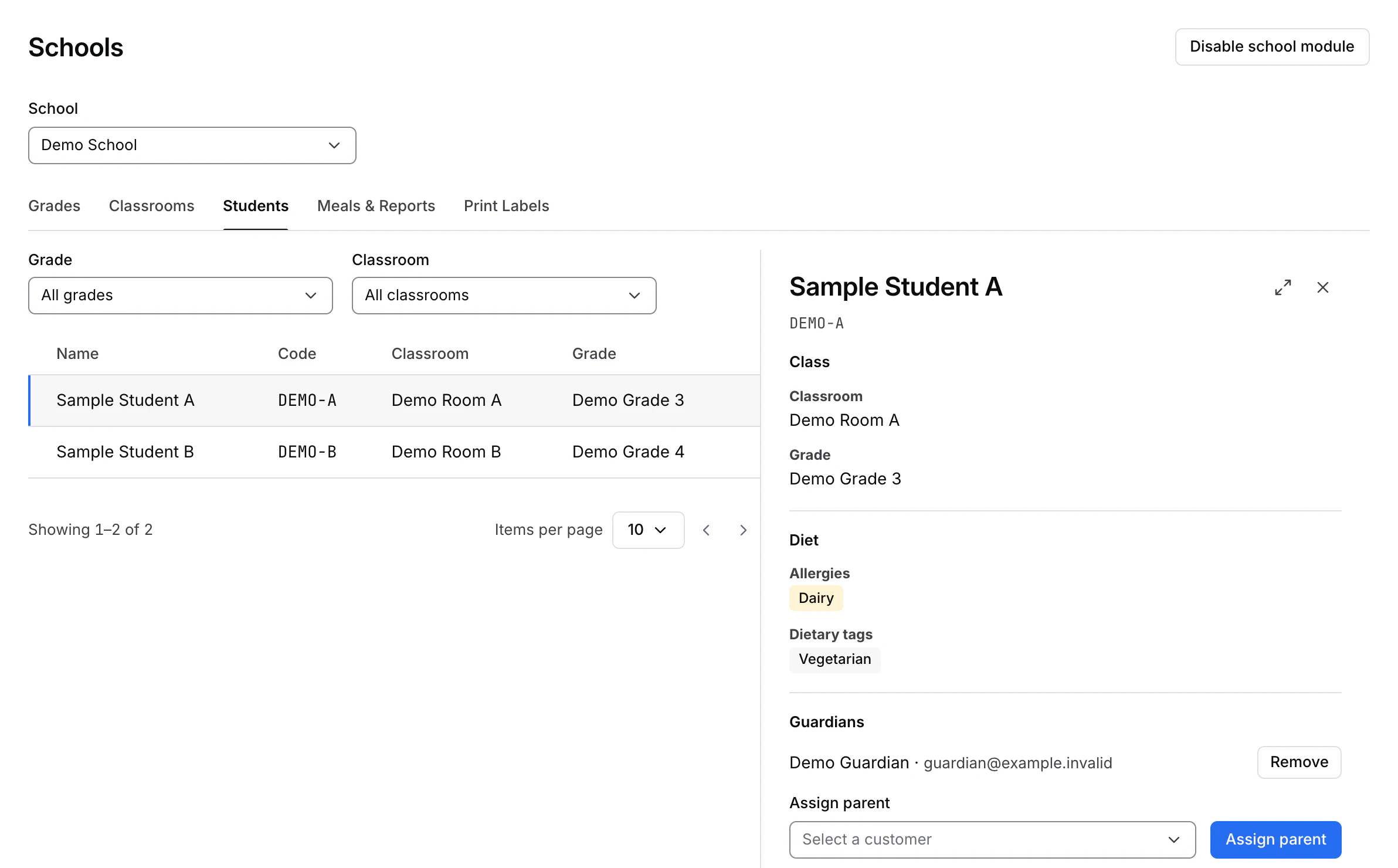
Open Schools, select the school, and choose Students. Filter by Grade or Classroom to narrow the directory. Select a student row or card to open their record.
Review a student record
The panel shows the student code, classroom, grade, dietary tags, allergies, and linked guardians when available. If the record fails to load, select Retry. On desktop, Open as page expands the panel. On a phone, use Back to return to the list.
Manage guardian links
- In Guardians, use Guardian to assign to find an existing customer account. Check the customer name and email before choosing the account.
- Select Assign parent and verify that the guardian appears in the student record. To unlink an existing guardian, use Remove beside that account and verify that the association disappears.
For adding a student through their guardian's account, go to Users → Customers, open the customer record, and use School students when available. The school directory is for reviewing student details and linking guardian accounts.
Use a synthetic student and guardian for screenshots or training. A school record may expose names, contact information, and dietary details.